
-
Log in to T-Pro with your author or manager credentials.
-
In the LIVE TASKS section locate the task you wish to change the priority on.
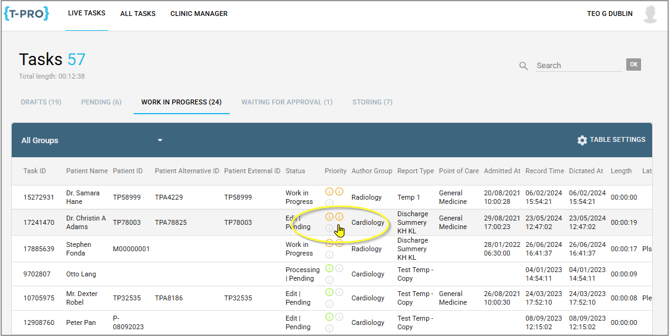
3. Move with the cursor over the Priority column.
=> Each task shows 3 icons in this section; normal priority is indicated in green.
4. Click on the appropriate icon to change the priority of this task.
First icon: Green - Normal
Second icon: Yellow - High
Third icon: Red - Urgent
E.g. to upgrade a normal priority (green) to high you click onto the second icon, to upgrade a task to urgent you click onto the third icon.
NOTE:
- The task entry moves up in the list (if changed to a higher priority); so you need to look at the top of the list for the particular task.
- As you as you make your selection it is saved automatically.
- This can be done for tasks in all status, e.g. pending tasks, drafts, WIP, etc.
If you have any more queries, please do not hesitate to contact our Helpdesk or support@tpro.io.
© 2020 - 2026