
Templates can be set up so that certain fields on a new task are populated automatically, using content from a previous completed task for the same patient.
This is called Copy-forward.
=> It reduces repeated typing and keeps documentation consistent across a patient's letters.
The Copy-Forward concept
For each field you enable this function, choose where a matching previous task can come from:
- Author - only a previous task by the same author, for the same patient, is used.
- Author group - only a previous task by an author in the same author group is used.
- Department - only a previous task from the same department is used.
When a new task is created, T-Pro looks for the most recent completed task for that patient that matches the chosen source.
‼️ If a match is found, the selected field is filled in completely with that task's value - it replaces the field rather than adding to it. If no match is found, the field is left empty.
=> copy-forward only looks at previous tasks that used the same template. It doesn't pull content from a different letter or document type.
Configuring the Copy-Forward Fields
- Go to the TEMPLATES section.
- Open the template you want to edit (or start with a new template).
- Click on the button COPY-FORWARD FIELDS
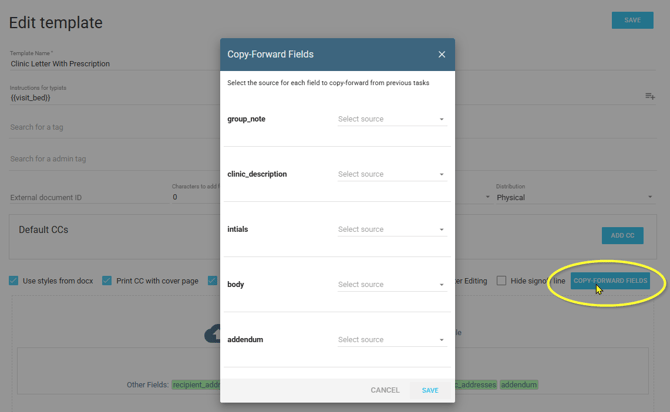
=> the Copy-Forward Fields box opens. This is a dynamic window displaying the fields which are already set up in your template.
Therefore, this window can look different for each template. E.g. when starting with a new template the window only shows body because this is the only default field in a new template.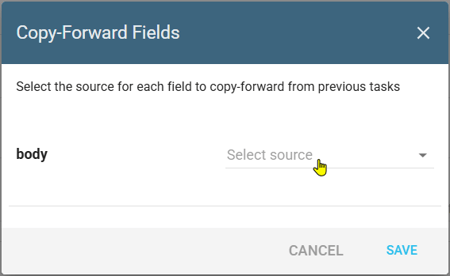
- To configure copy-forward for a field click on Select source.
It can either be Author, Author group, or Department.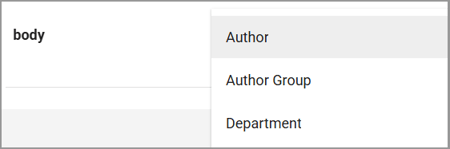
- SAVE the new settings and SAVE the template at the top of the page.
=> once saved, copy-forward applies to any new task created with this template, and to any existing task where this template is selected.
Fields that can't be copied
A few fields are never copied forward, even if selected: signature fields, sign-off fields, and CC/recipient addresses.
=> These always need to be completed manually on each task.
Updating a template later
If you update a template after copy-forward has been in use, existing fields keep working: T-Pro also checks up to two earlier versions of the template if no match is found on the current version. This means a task doesn't lose copy-forward just because the template was recently updated.
=> This fallback only helps for fields that already existed on an earlier version of the template.
Things to know
- Copy-forward relies on the task's Author, Author group, and Department being set as a source. If this information is missing, fields won't be prefilled.
- Changing the template on an existing task clears its transcription fields and reapplies copy-forward based on the new template's settings.
- A brand-new field has no previous value to copy until a task using the new template has been completed at least once.
If you have any more queries, please do not hesitate to contact our Helpdesk or support@tpro.io.
© 2026