
As a manager, you have access to delete an unwanted task. It should be noted that deleting a task does not remove the task completely from the system.
-
Log in to T-Pro with your manager credentials.
-
Go to ALL TASKS.
-
Search for the ID of the task with the Search field:

=> We advise to use the task ID as this is unique to each document and therefore, you can be sure you are deleting the correct task.
-
The relevant task will be displayed.
4. Move to the column Options to the right of the table and click on the three dots.
5. Select DELETE TASK from the drop down menu.

Remember that depending on the status of the selected task different menu options are available. DELETE TASK is always the last option in the menu.
-
Next, you will be prompted to give a reason for deletion.
6. Enter the reason and click on DELETE.
=> Deleted tasks can still be looked up.
Note that the status of a deleted task depends on its previous status and progress in the transcription route:
-
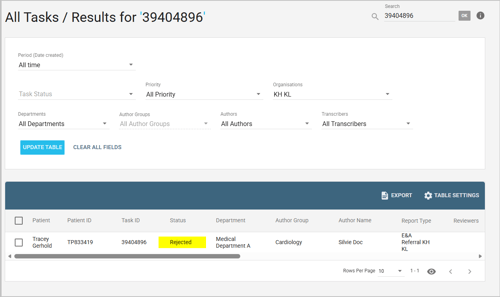
If a task has gone to a typing stage or further and is deleted, its status will be Rejected.
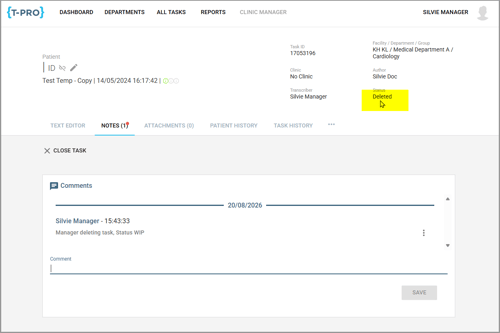
- If a task has the status Draft or Author work in progress and is deleted, it will receive the status Deleted.
Furthermore can Authors delete their own task when in Draft / Author work in progress status. These tasks are also marked Deleted.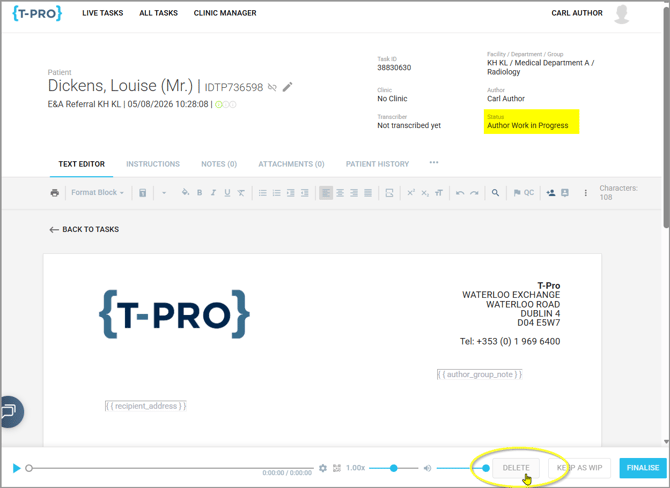
For further queries and questions, please do not hesitate to contact us on the Helpdesk or at support@tpro.io.
© 2020-2026