
You can now play back the original recording of a consultation directly from the Transcript tab in Scribe Web.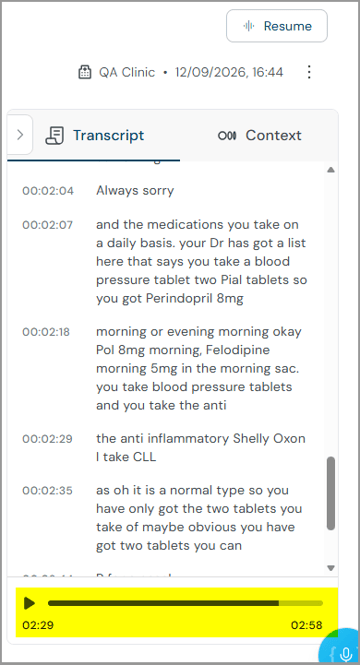
=> this lets you check the recording against the transcript to verify any ambiguities. It is also a good indicator that your microphone was well placed and working.
NOTE: This is an optional feature. If no audio player appears on the Transcript tab, your organisation has switched the feature off at facility level.
Contact your admin if you want the feature enabled.
What's new
- An audio player on the Transcript tab, with Play, Pause, and a progress bar to skip to any point in the recording.
- The full recording plays as one continuous track, including the consultation itself, plus any dictated content added to it.
- Available on Scribe Web first; support for mobile will follow.
- This first release covers basic playback. Further controls, such as playback speed, are planned for later releases.
Play back a recording
- Open a consultation.
- Move to the Transcript tab.
- Press the Play button at the bottom of the transcript.
=> playback starts from the beginning of the recording.
4. Use the progress bar to move to the part of the recording you want to hear.5. Press Pause at any point to stop playback.
Why it matters
A quick listen confirms the microphone picked up the consultation clearly. If it didn't, you can adjust the microphone's placement or report a fault straight away, before it affects other recordings.
For example, if you're trying out a new microphone, record your first consultation as usual, then open the Transcript tab and listen back. If both your voice and the patient's are clear, you know the setup works before your next clinic.
If you have any more queries, please do not hesitate to contact our Helpdesk or support@tpro.io.
© 2026