
The ALL TASKS section is available to all users.
1) Step by step
From here you will be able to search all tasks regardless of their status (Pending, Work in Progress, Storing, Completed, etc.).

Search field
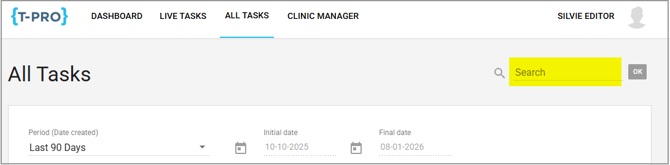
NOTE: This is the quickest and most reliable way to locate a document. The unique 7 digit code is generated by the system when the dictation is originally created and uploaded by the author.
You can also enter the patient name or ID into the search field; at least three characters are required.
Filter section
Using the filter section you can look up documents on which you may only have limited information. Filling in as much of this information as you have will lead to a more accurate search result.
Your options are:
-
Time Period (by default Last 90 days)
-
Task Status
-
Priority Level
-
Departments
-
Author Groups
-
Authors
-
Transcribers
For example you may know it is a document from May last year by author x with the status Completed.
1- Select Custom in the Period field to enable the calendar where you can set any time range in the past.
2 - Fill in all information you have and click on UPDATE TABLE.
=> During an active search the UPDATE TABLE button is greyed out.
=> Your search criteria will be kept, so you can go back at a later stage.
Search results
The task list shows by default the most recent entries which match your criteria on one page. This speeds up the search.
-
In the table header you can change the order of the entries, e.g. ascending or descending Task ID.
NOTE: If this sorting function does not work for you, the overall results of your search are too large and you might receive a tooltip to decrease the selected time period.
The entry you are looking for is not there? You can then view the total matches.
At the bottom of the search table you find an eye icon.
Click on it to see all matches.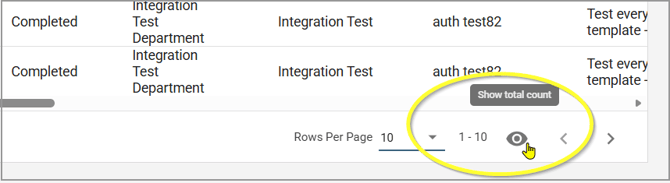
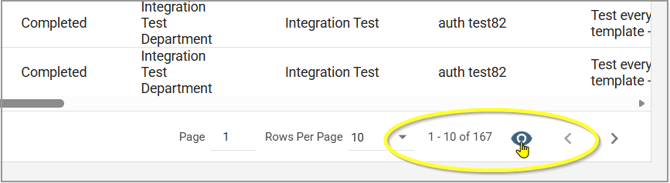
=> All pages are now available to look through.
Depending on your user role, a task will be displayed in View only mode.
Completed tasks only open in this mode.

NOTE: It is important to note the status of the letter as this will indicate at which stage of the process a letter is at and also who you may need to contact in order to gain access to that letter.
Explanation of letter status
Author | Progress - the dictation is being created by the author
New - the dictation is being uploaded
Pending - thee dictation is waiting to be typed
Work in Progress (WIP) - the letter is currently being typed
Review | Pending (or Review | Progress) - task is in Quality Assurance queue
Processing | Pending (or Processing | Progress) - the letter back with the hospital, in the pre-approval Processing queue
Waiting for Approval (or Waiting for second Approval) - the letter is awaiting author approval
Storing | Pending (or Storing | Progress) - the letter is in the Storing queue
Completed - the letter which has been finalised and is no longer considered Live.
2) Support video
Below we are offering you a short support video:
If you still cannot locate a letter despite trying all the above steps please contact our support team via the in-App chat on the bottom left hand corner of your screen:

You can also email us support@tpro.io.
© 2021-2026