
With a centrally managed Patient Consent, the same message is displayed to everyone in the facility.
This is an optional feature and needs to be enabled by administrators. This is done in V2 only.
The setting is applied to all Scribe platforms (web, iOS and Android).
What Centrally Managed Consent Does
How to configure it
What happens
Validation
Turning central consent management off
How this affects Scribe users
What Clinicians See in Scribe
Before You Begin
Platform Support
Frequently Asked Questions
Background
Previously, patient consent settings and message wording were managed individually by each clinician within their own Scribe application settings.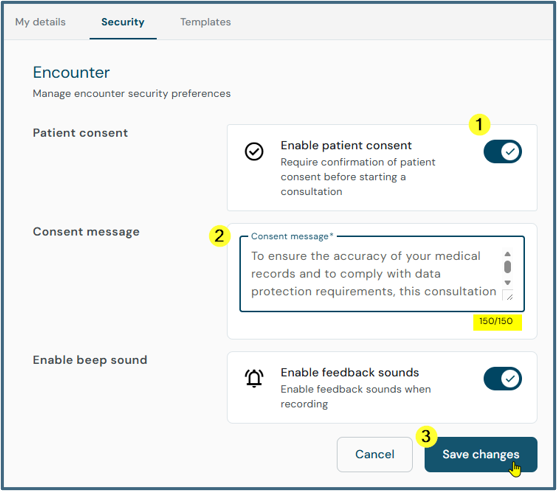
1 - users could enable this themselves
2 - users could enter their own message text
3 - and save the changes
=> As this could lead to inconsistencies across clinical teams, added overhead for individual onboarding, and created governance challenges for healthcare organisations that require strict, standardised consent language the centrally managed consent has been introduced.
What Centrally Managed Consent Does
When Centrally Managed Consent is enabled for an organisation, individual clinician consent settings are locked to the organisation-defined standard. The administrator sets one consent message and policy, and it applies across every clinician's Scribe app on Web, iOS and Android, giving the organisation full governance over consent and clinical compliance.
Key Benefits
- Standardisation and compliance: enforces organisation-approved, legally compliant consent wording across all consultations.
- Administrative efficiency: removes the need for individual clinicians to configure their own consent settings.
- Full multi-platform parity: gives a unified, consistent experience across Web, iOS and Android.
- Flexible administration: allows instant organisation-wide updates and a seamless rollback to user-managed consent if needed.
How to configure it
This setting can be configured in V2 only.
This is an admin setting (cannot be set by Master users)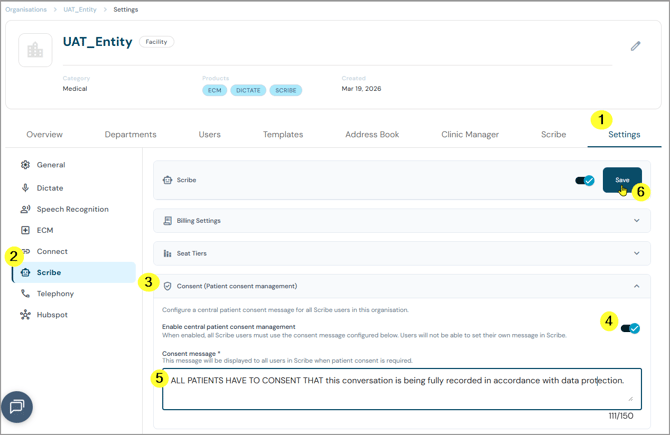
* note that this screen can change with further development
- Go to the organisation's Settings.
- Select Scribe on the product bar on the left.
- Open the Consent (Patient consent management) section.
- Use the toggle to enable the feature.
- Enter a patient consent message which is valid for the entire organisation.
- Save the changes.
What happens
Scribe clients on Web, iOS and Android retrieve this configuration whenever they load or refresh, receiving two values:
-
whether Centrally Managed Consent is active, and
-
the message text the administrator has configured.
This configuration determines what a clinician sees on both the Settings → Security section and the Before You Begin screen.
Validation
A consent message is required whenever central consent management is enabled. If the toggle is on and the Consent message field is left empty, saving is not possible - an inline validation message reads "Consent message is required."
Turning central consent management off
If Enable central patient consent management is turned off and settings are saved:
- The consent message field is disabled, and entering a message isn't required.
- Scribe returns to its existing, user-managed consent behaviour.
- The previously saved central consent message is no longer enforced.
How this affects Scribe users
Once central consent management is enabled and saved, the setting and message are passed to Scribe. Users can no longer configure their own consent message: the administrator-defined message is shown as read-only in their Settings, and used wherever patient consent is requested.
What Clinicians See in Scribe
When Centrally Managed Consent is enabled for the organisation, the consent toggle on a clinician's Settings → Security screen is locked in the on position, and the consent message box becomes read-only, showing the administrator-defined text. Save and edit controls are suppressed or greyed out, and a message tells the clinician to contact their administrator to manage encounter security preferences.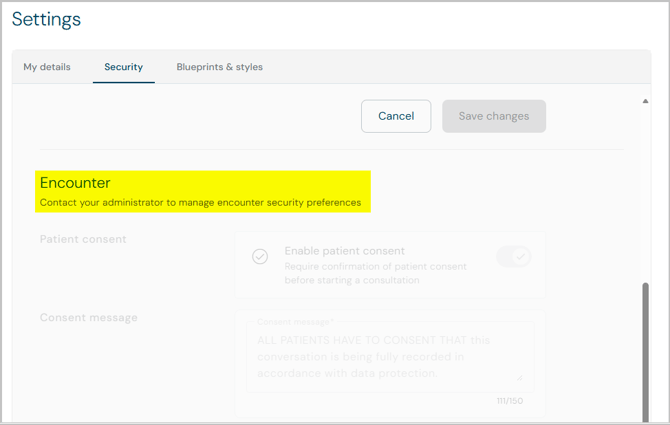
Before You Begin
When a clinician starts an encounter or recording in Scribe, the administrator-configured consent message appears next to the confirmation checkbox on the Before You Begin pre-consultation screen. The clinician must acknowledge the prompt before starting the recording, preserving the standard clinical workflow safety step.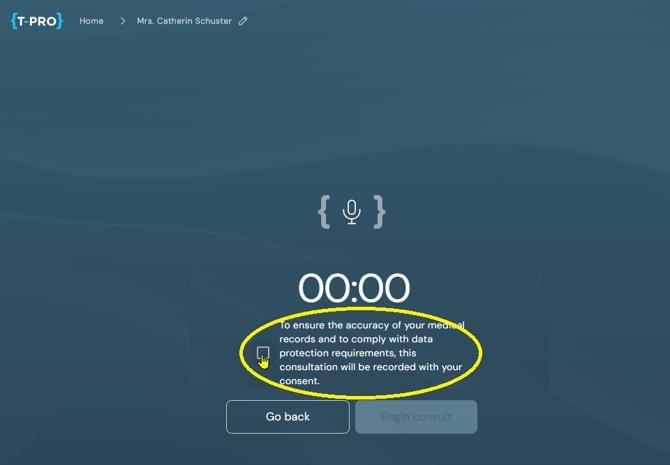
Platform Support
| Capability | Admin Portal (HoffV2) | Scribe Web | Scribe Mobile (iOS & Android) |
|---|---|---|---|
| Enable or disable Centrally Managed Consent | Yes | Enforced only | Enforced only |
| Edit the central consent message | Yes | Read-only | Read-only |
| Enforce locked settings in the UI | — | Yes | Yes |
| Display the message on Before You Begin | — | Yes | Yes |
| Automatic fallback when disabled | Yes | Yes | Yes |
Frequently Asked Questions
What happens if an organisation does not touch these settings? The organisation is unaffected. Centrally Managed Consent is disabled by default, so existing user-managed consent workflows continue as normal.
Can a clinician override the central consent message locally? No. While Centrally Managed Consent is active for the organisation, the message field and toggle are read-only on both Web and Mobile clients.
How quickly do an administrator's changes reflect in Scribe? Changes take effect the next time Scribe retrieves the organisation's configuration, for example when the app loads, when the clinician starts a new session, or when they log in.
Does disabling Centrally Managed Consent delete a clinician's prior personal message? No. Disabling the toggle returns the app to user-managed mode and restores the clinician's individual configuration.
© 2026