
Before you start
You need an author account or access to one as an administrator or facility manager. Speech recognition must be set up and enabled for the author. After logging in, follow the section for your account.
Log in to T-Pro with your author, administrator or manager credentials.
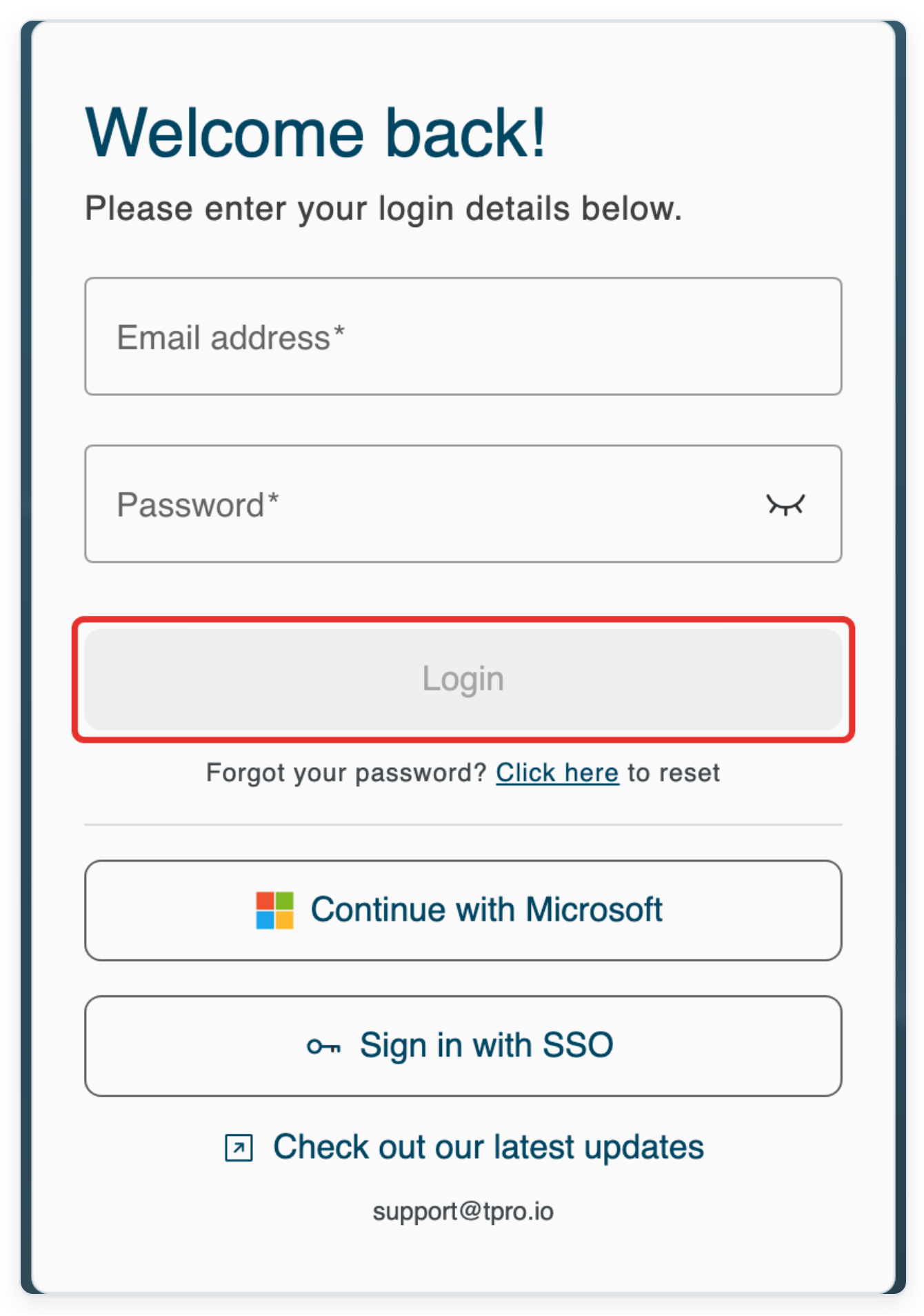
Enter your Email address and Password, then click Login.
As an author
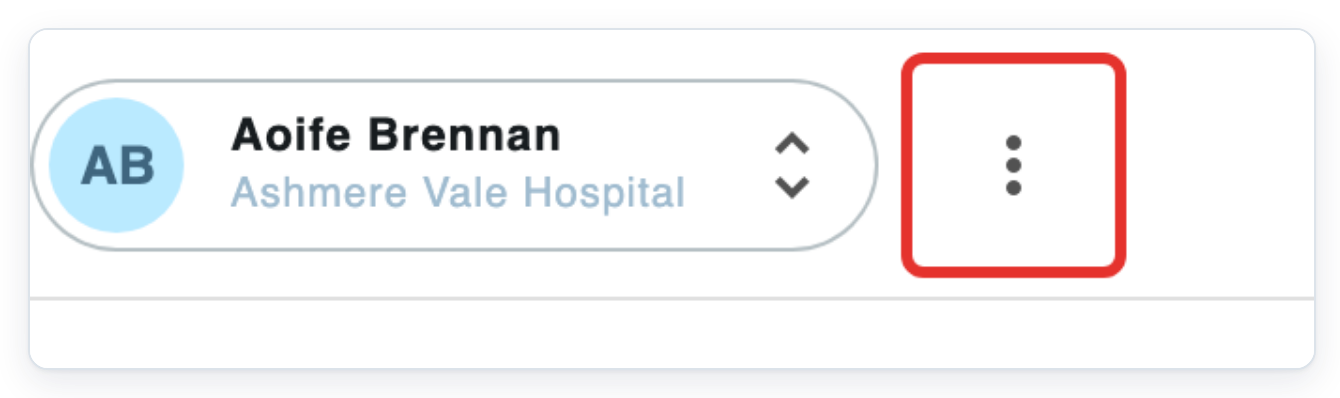
From your task list, click the three-dot account menu at the top right.
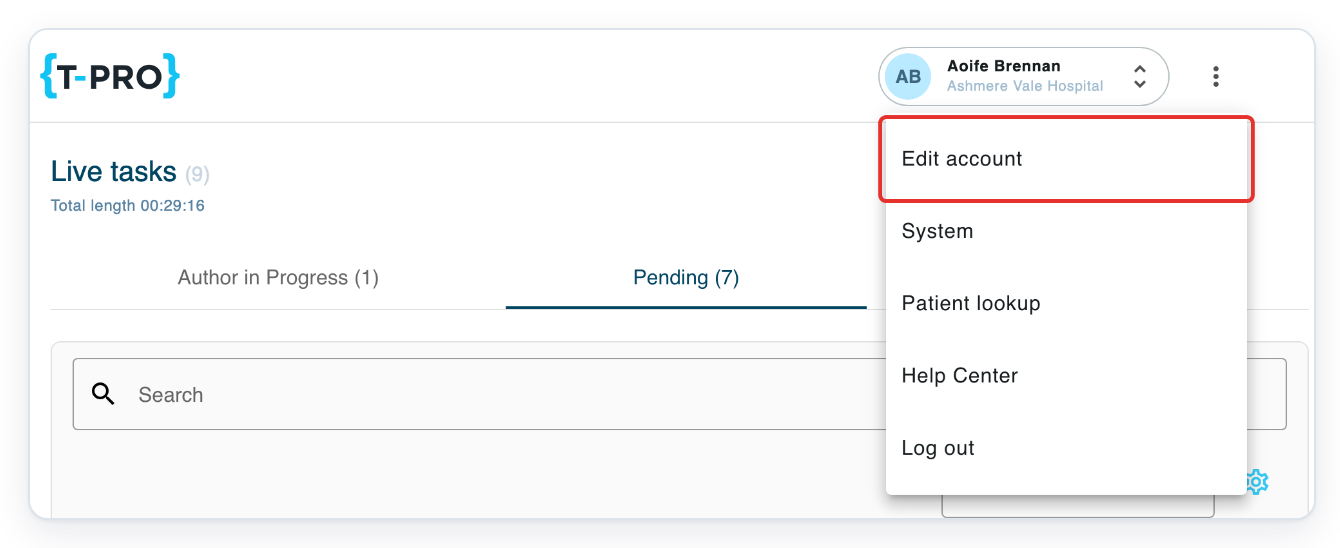
Click Edit account. Your account opens on My details.
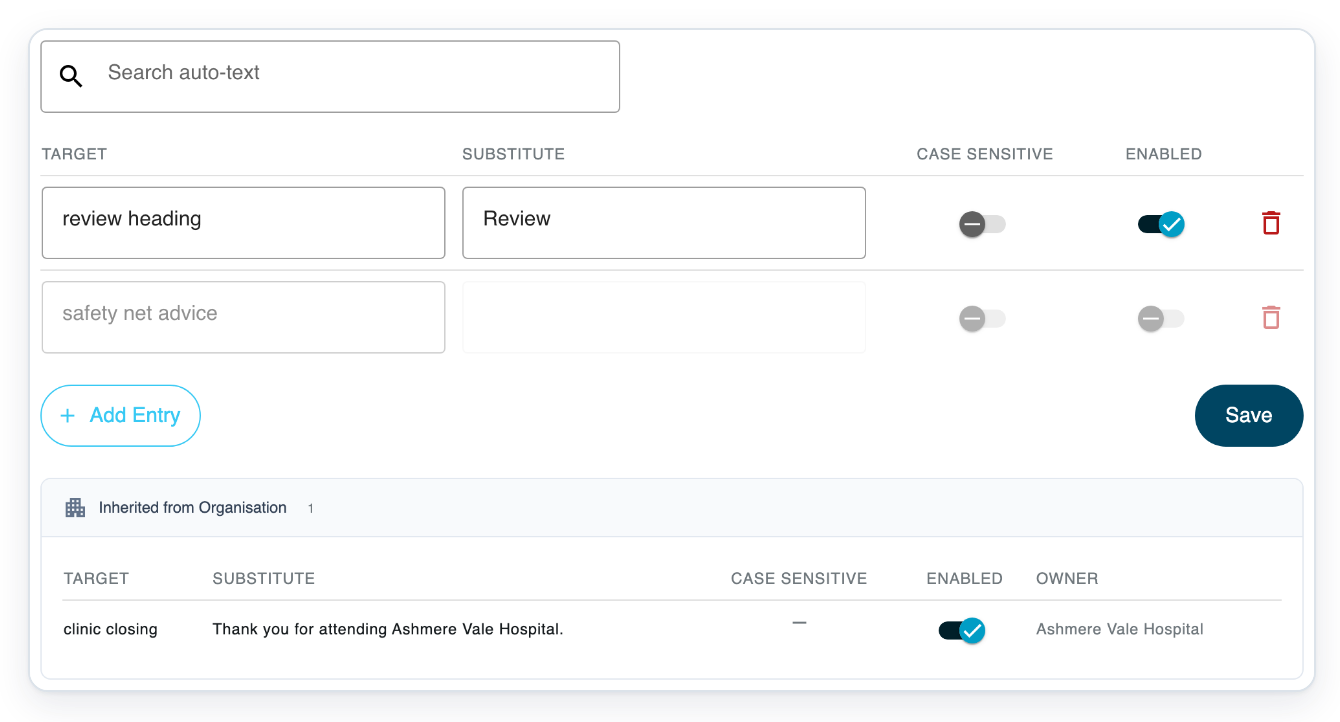
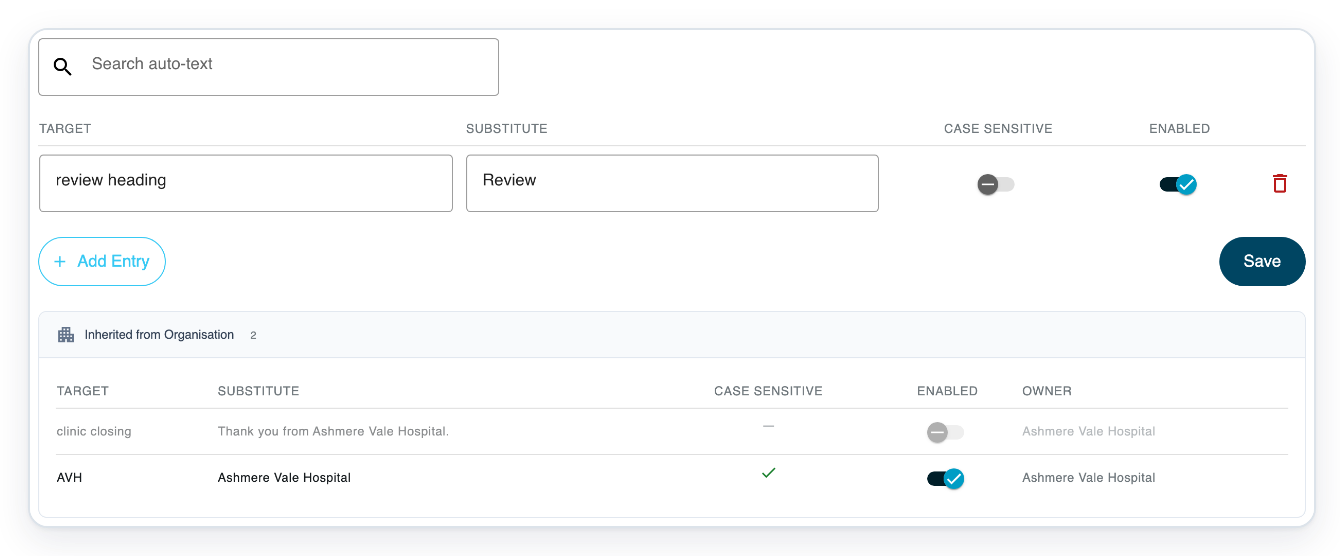
Click Speech Recognition. Auto-Text opens with your personal rules and any rules shared by your organisation.

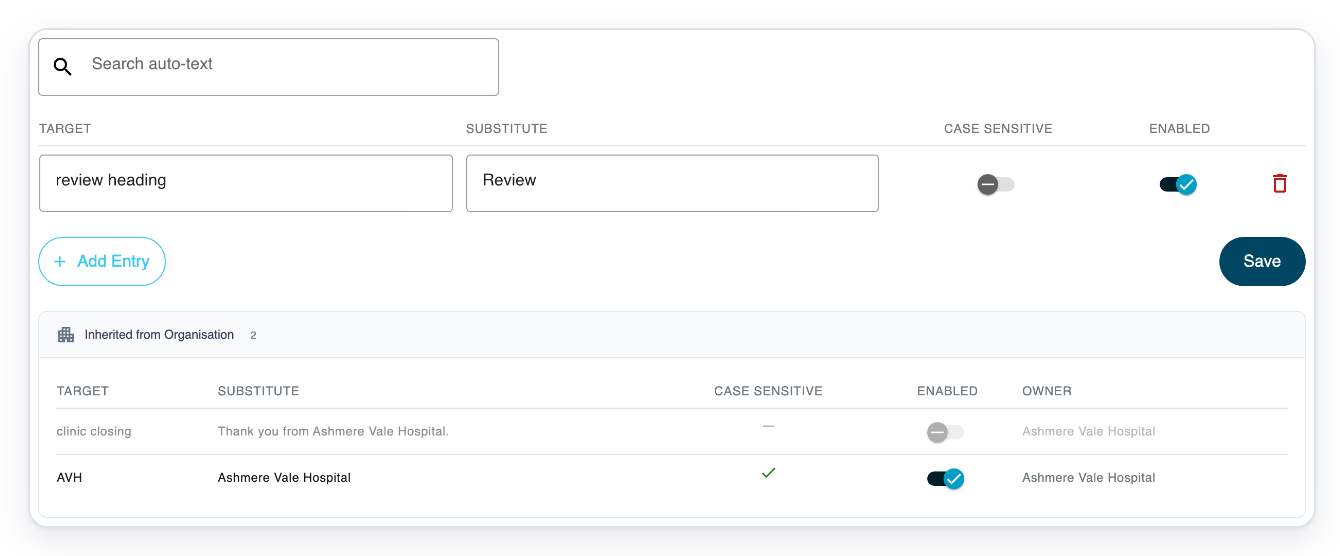
=> In this example, review heading becomes Review. The safety net advice rule is disabled. The shared clinic closing rule inserts Thank you for attending Ashmere Vale Hospital.
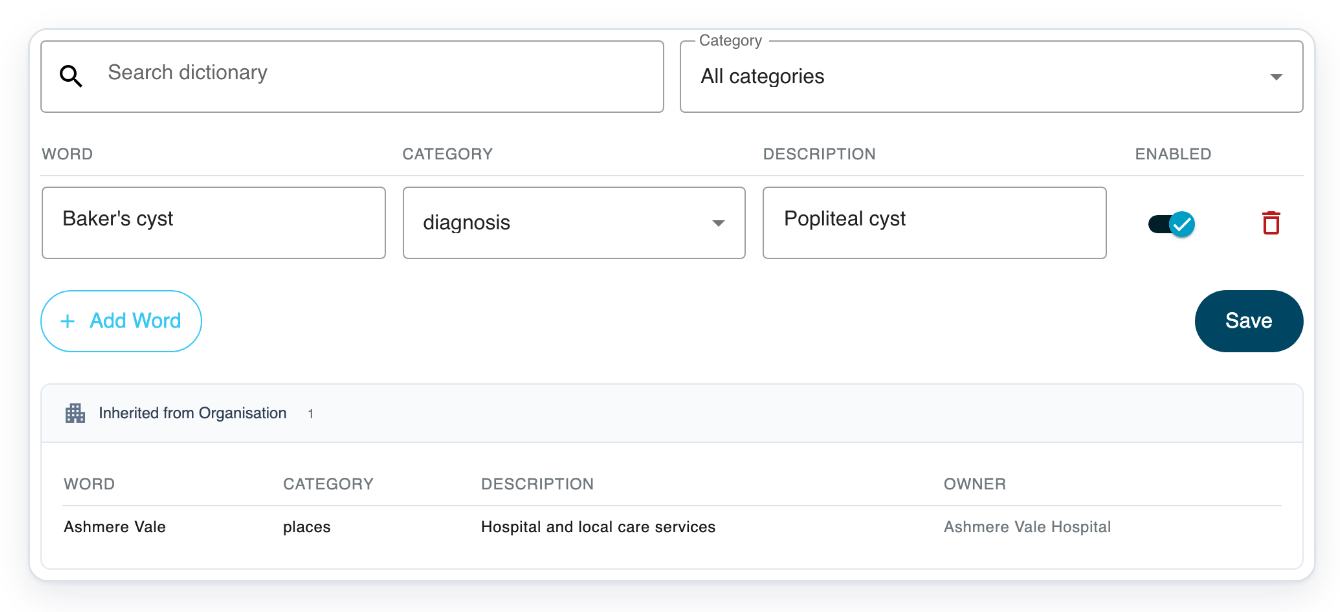
Click Dictionary to compare your words with your replacement rules.

=> Your dictionary includes Baker's cyst in the diagnosis category. The shared Ashmere Vale entry is in places. Its Owner is Ashmere Vale Hospital.
As an administrator
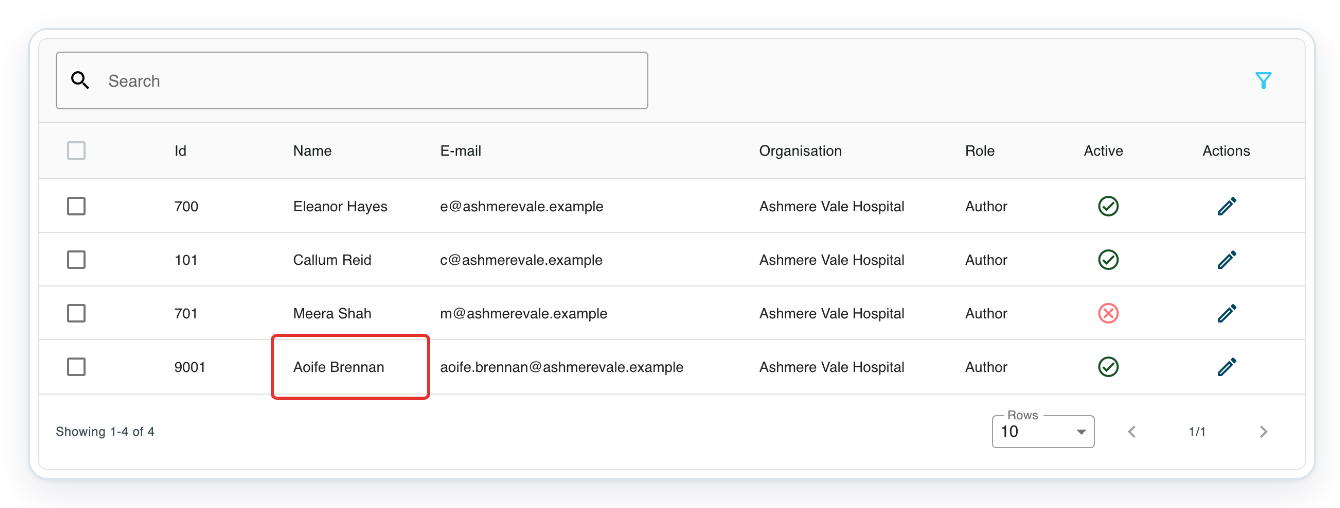
Open Users, then click the author you want to check, such as Aoife Brennan. Their account opens in a new browser tab.
In the author's account, click Speech Recognition. Settings opens.

Click Dictionary to see the author's personal words and any words shared by the organisation.

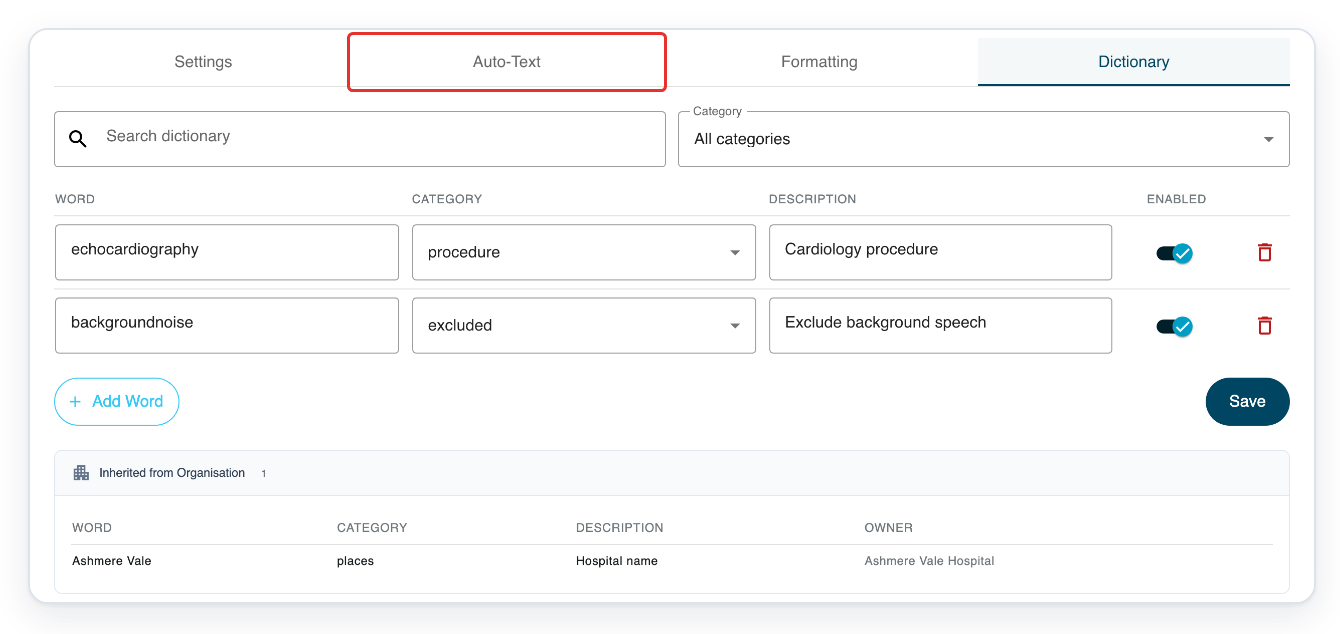
Click Auto-Text to compare the author's replacement rules with their dictionary words.
=> The author's rules show Target, Substitute, Case sensitive and Enabled, with Add Entry and Save below.
As a facility manager
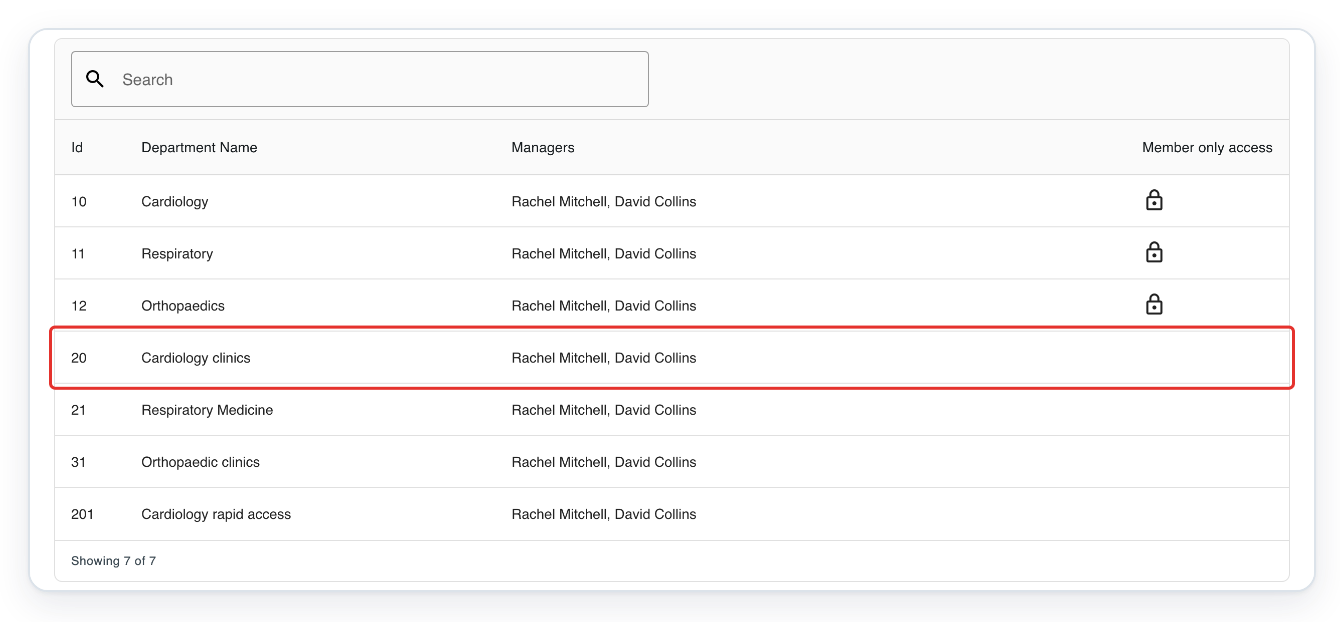
Click Departments at the top of the page. The departments you manage appear.

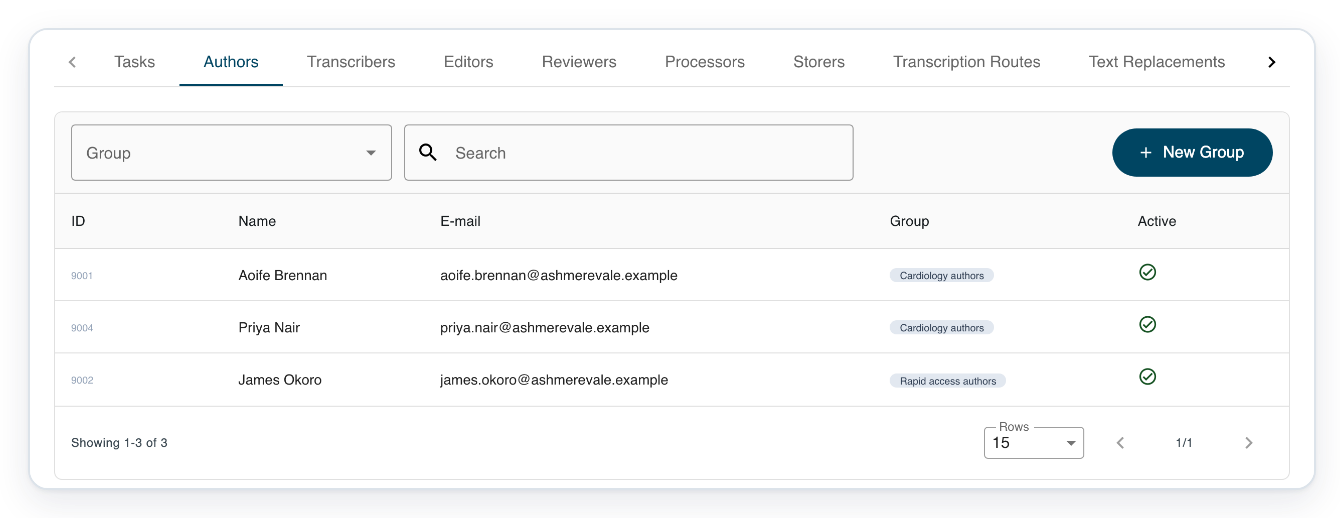
Click your department, such as Cardiology clinics. Its Authors list opens.
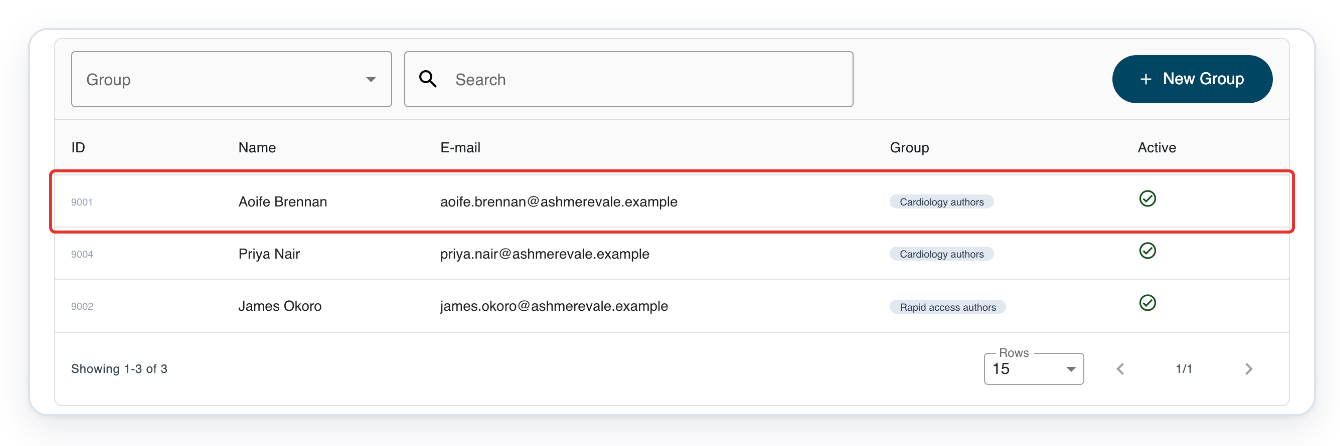
=> The Authors list includes Aoife Brennan. Find the author whose words and rules you want to compare.
Click the author's row, such as Aoife Brennan, to open their account.
In the author's account, click Speech Recognition. Settings opens.

Click Dictionary to see the author's personal words and any words shared by the organisation.

Click Auto-Text to compare the author's replacement rules with their dictionary words.
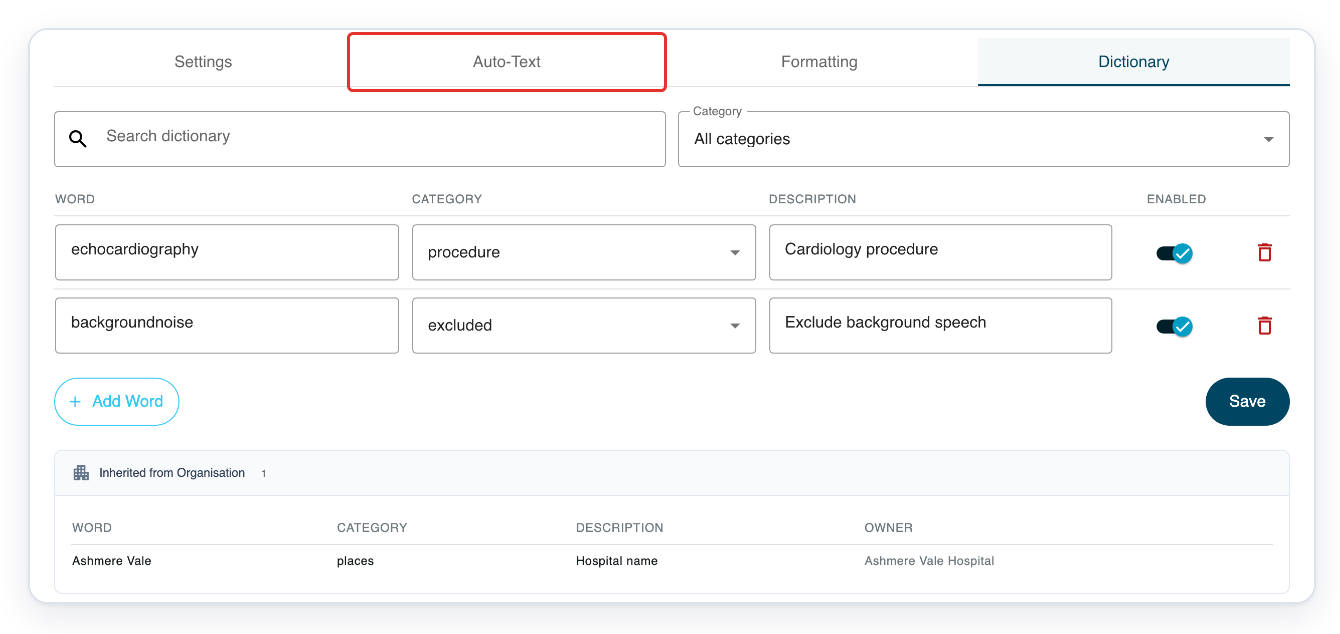
=> You can see personal and shared rules, with Target, Substitute, Case sensitive and Enabled. Shared rules appear under Inherited from Organisation.
NOTE:
- Your personal entries appear first. Shared entries appear below, under Inherited from Organisation. Owner shows which organisation shared each entry.
- To turn off a personal auto text rule, switch Enabled off, then click Save. To remove it, click its bin icon, then Save.
- To reuse a personal rule's text, copy its Substitute before you turn it off. Saving the disabled rule clears that text.
Which should you use?
| What to compare | Dictionary | Auto-Text |
|---|---|---|
| How it works | Guides speech recognition towards the word you enter. Choose excluded to discourage a word instead. | Replaces matching recognised wording with your chosen text. |
| What you enter | Enter the spelling you want under Word and choose a Category. Description is optional. | Enter the wording to replace under Target, and the wording you want under Substitute. Case sensitive controls whether capitals must match. |
| When to use it | For specialist terms, medication names, people's names or places that speech recognition sometimes gets wrong. | For repeated corrections or standard phrases you want to insert by dictating a short target phrase. |
| Examples | Baker's cyst under diagnosis, or Ashmere Vale under places. | review heading becomes Review. clinic closing becomes Thank you for attending Ashmere Vale Hospital. |
| Words you still need | Use a category such as places to favour a word without replacing another word. | An enabled rule can replace matching wording, even when you want to keep it. |
Tip: Choose a target phrase you would only dictate when you want to insert the replacement text.
Can't find or use your dictionary or auto text entries?
- If Speech Recognition, Dictionary or Auto-Text is missing, contact your administrator. Ask them to check speech recognition is set up and enabled for the author.
- For a missing dictionary entry, clear Search dictionary and select All categories. For a missing auto text rule, clear Search auto-text.
- If you cannot edit a shared dictionary word, check Owner under Inherited from Organisation. Ask your administrator to arrange the change.
- If auto text changes words you want to keep, find the matching personal or shared rule. Switch Enabled off, then click Save. For personal rules, copy Substitute before turning them off if you want to reuse the text.
Related articles
If you have any more queries, please do not hesitate to contact our Helpdesk or support@tpro.io.
© 2020 - 2026