
Before you start
You need a T-Pro account with access to All Tasks. You can search the tasks available to your account.
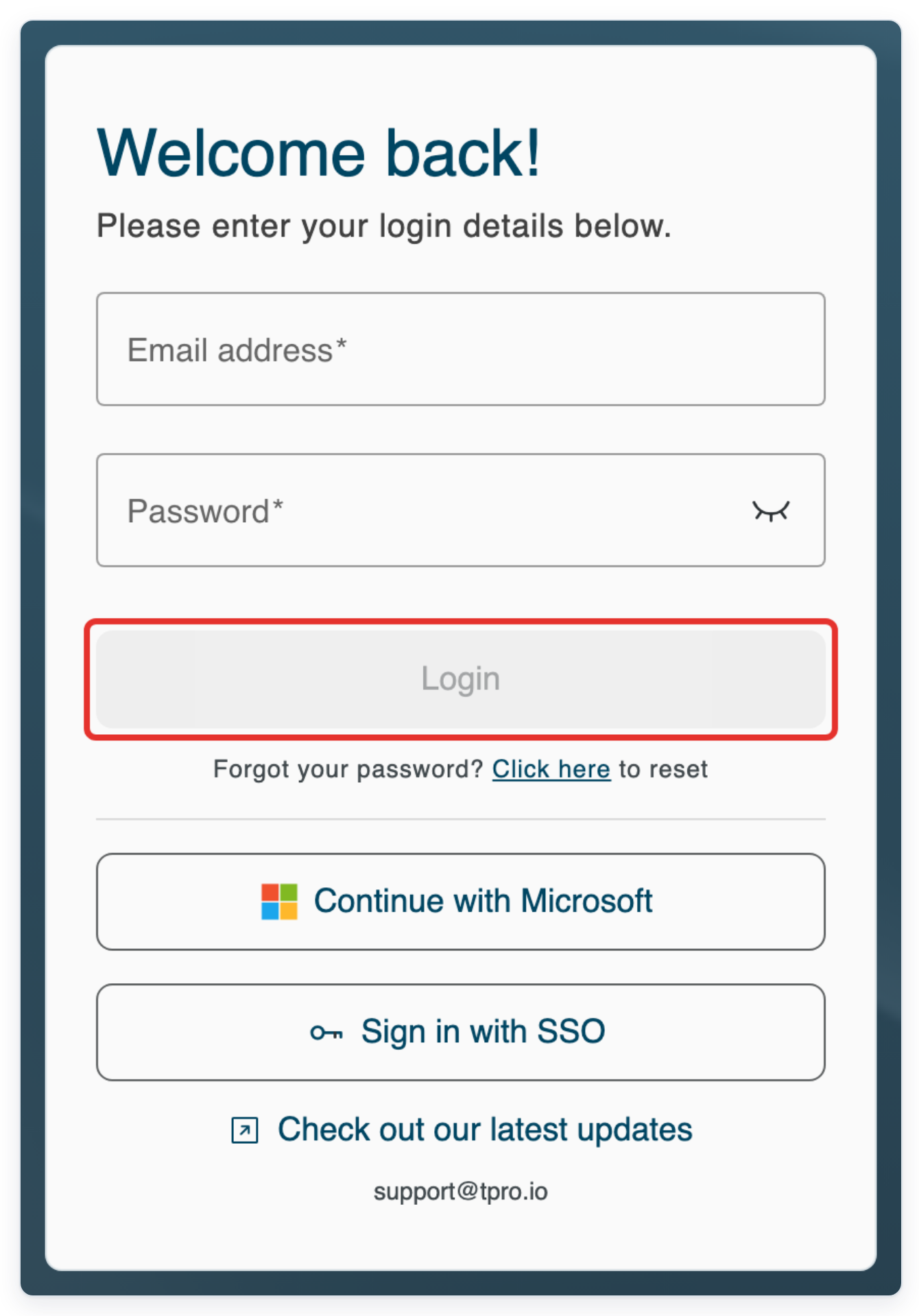
Log in to T-Pro with your usual account credentials.
Find a completed letter as an author
From the main menu, click All Tasks.

Click Filter, the funnel above the results. This opens the search filters.
Use Task Priority, Departments, Author Group, Author or Transcribers to narrow your search. Choose a department, then an author group, then an author.

Click Period to see the time periods, including All time and Custom.
The search starts with Last 90 Days. For specific dates, choose Custom and select a start and end date.

Choose Last month for this example.
This searches the previous calendar month. For your own search, choose a period that includes the task's creation date.

Click Task Status to choose which stages to include.
You can select more than one status.

Choose Completed to find a completed letter.

Press Escape to close the status choices and return to the filters.
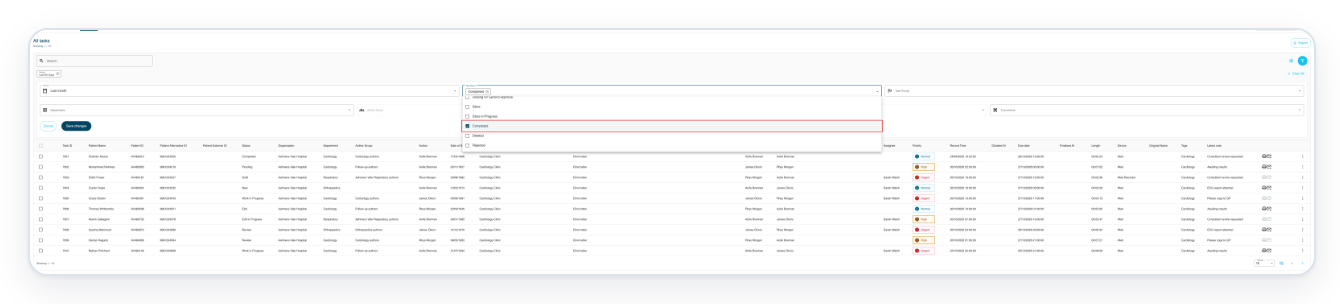
Click Save changes to search with Last month and Completed. Your chosen filters appear above the filter panel.

Fast mode shows the range of results on the current page. Use the arrows to browse results. Click the crossed-out eye below the results, labelled Show total count, to show the total. Once the total is shown, enter a number in Page and press Enter to jump to that page. Use Rows to choose how many results appear on each page. Click the eye icon, labelled Switch to fast mode, to hide the total.
Click Export to download the matching tasks as a CSV file. For large exports, Email Exportation lets you request a download link by email. If Email Exportation opens, check the email address and click Send.
T-Pro confirms that the email is on its way. Open the link in the email to download the CSV file.
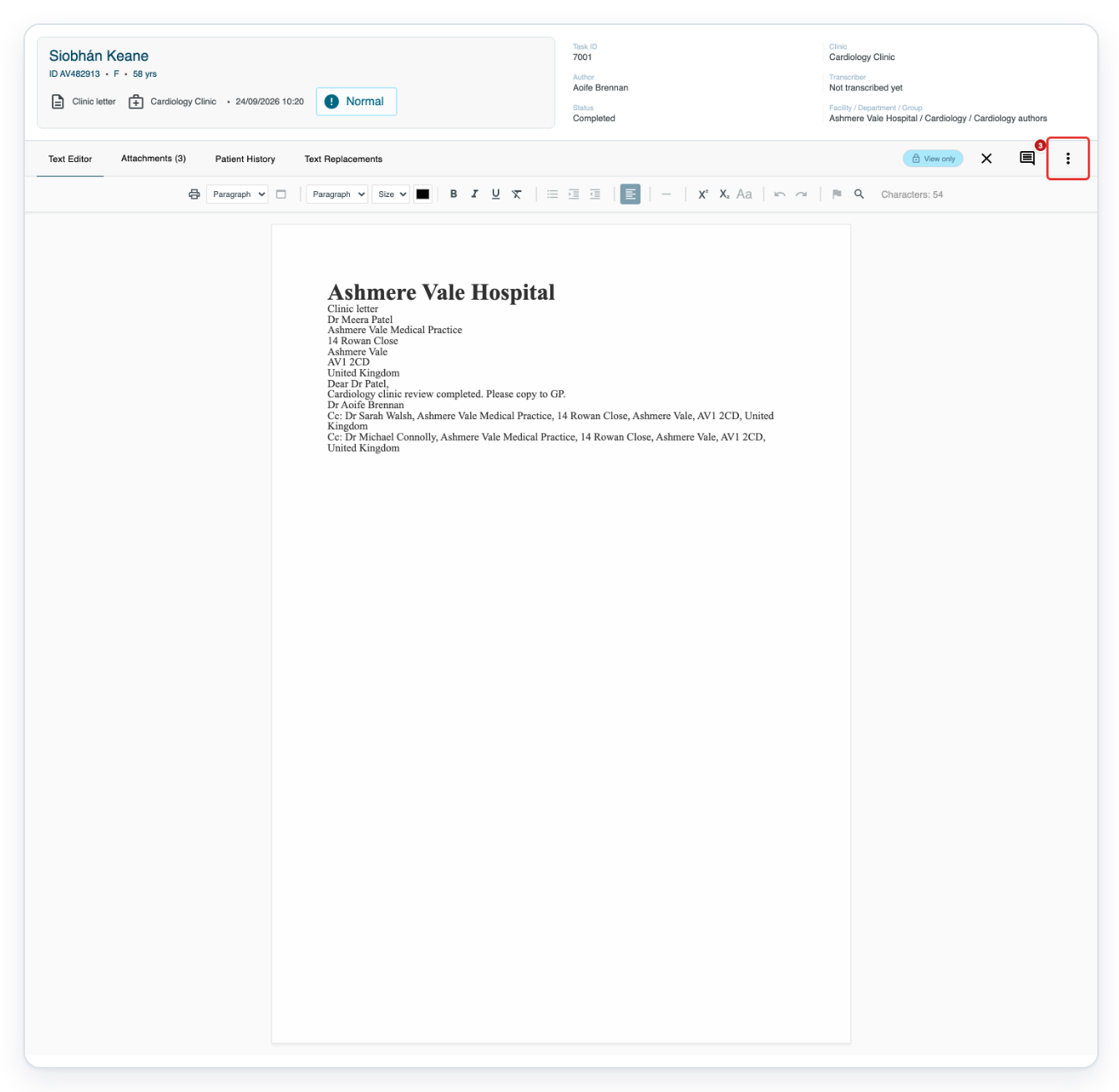
Click the task you want in the results, such as task 7001 shown here. The completed letter opens in a new browser tab labelled View only.
Your search results stay in the original tab. The completed letter is read-only.

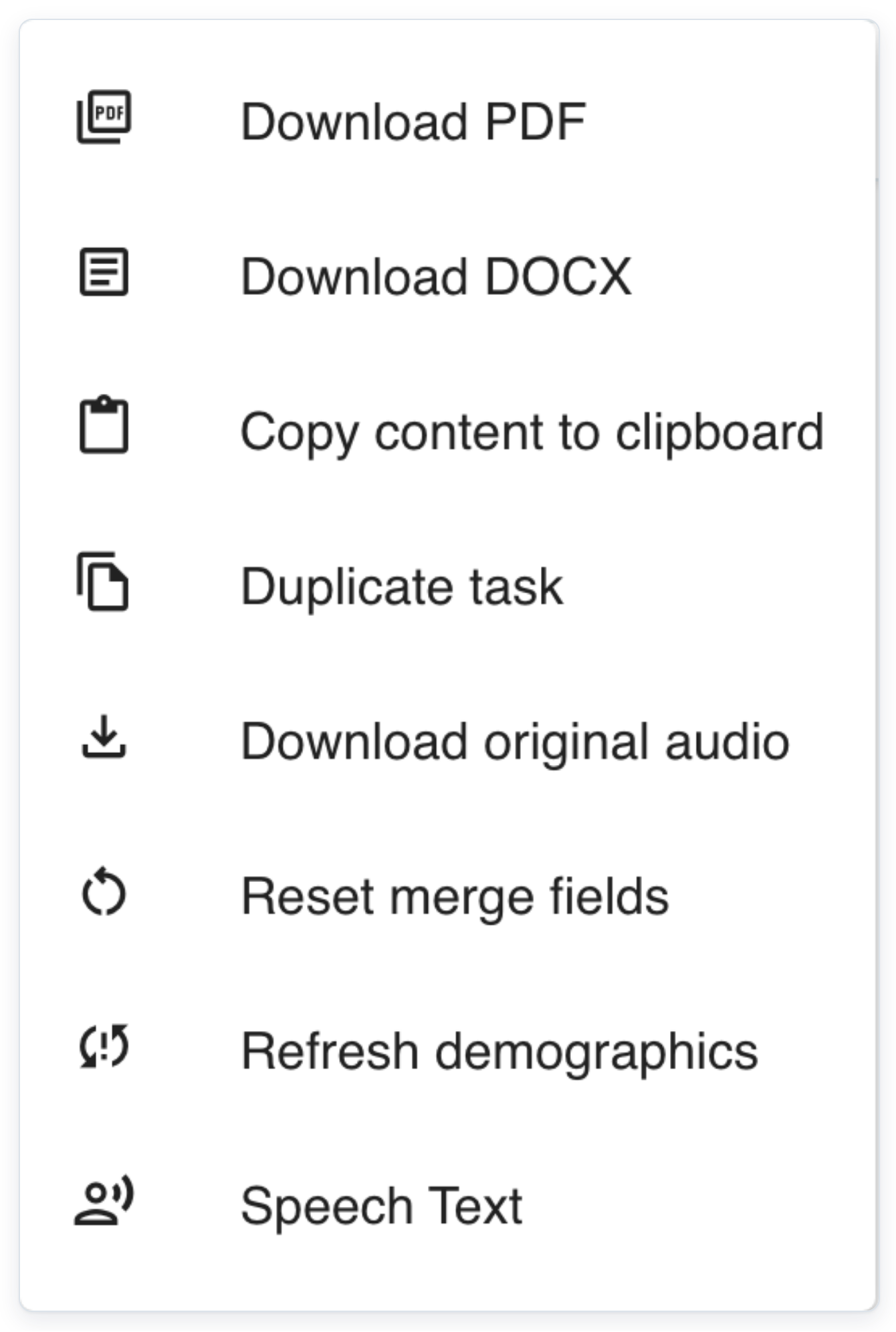
In the letter, click More, the three dots, to see the download and copy options.
You can download documents if your account has permission.
=> Choose Download PDF to save a copy of the letter. Use Copy content to clipboard to copy the text, then paste it into another application.
For this letter, Download DOCX is also available to download a Word copy.
Find an unfinished task as an author
Click All Tasks in the main menu.

Enter
TASK:7005in Search.Replace 7005 with the task ID you need. This searches across all dates, but other filters still apply.

Press Enter to find task 7005.

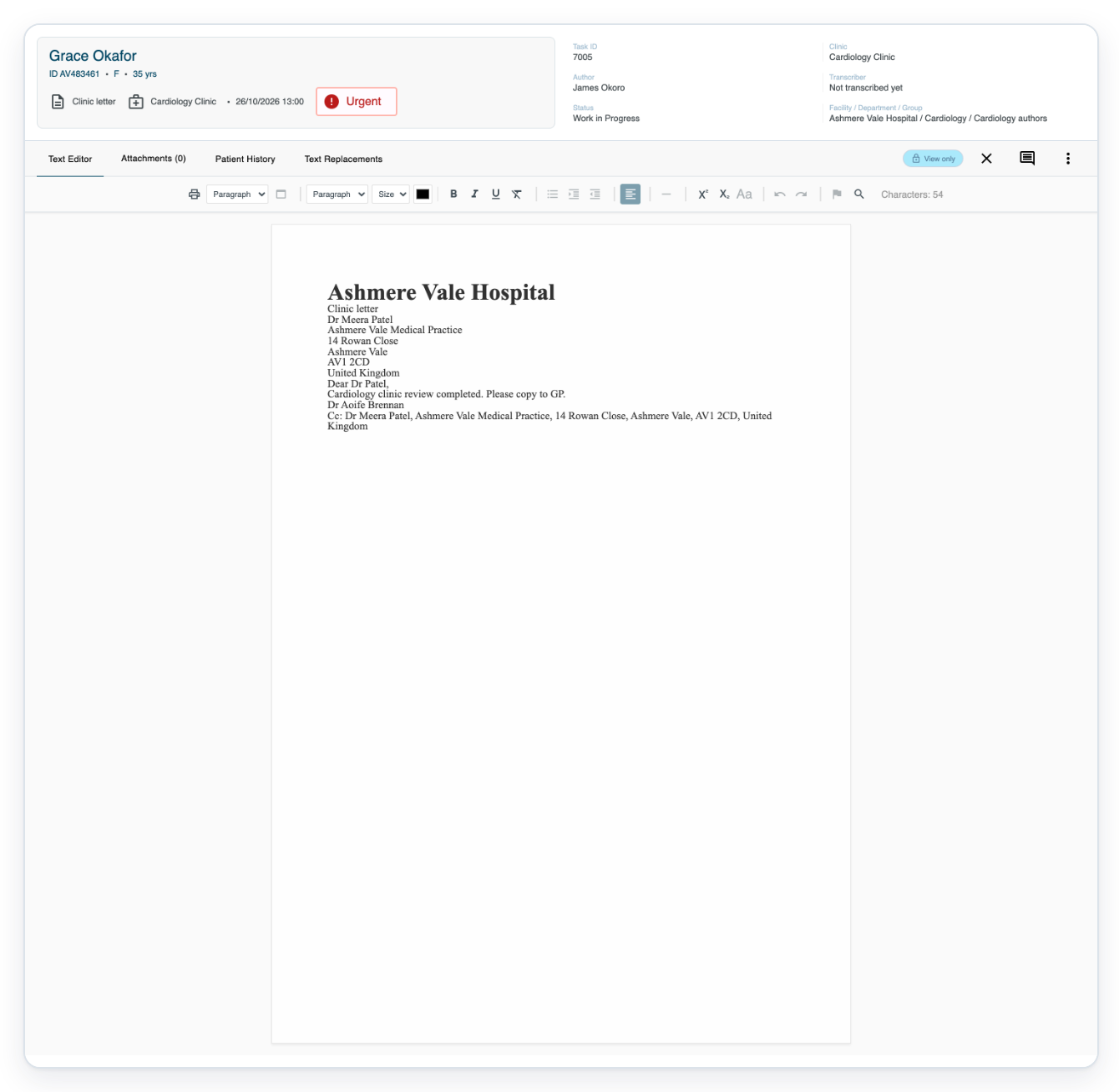
Click the matching unfinished task 7005. It opens in a new tab.

=> The letter opens in View only, with its patient information and Work in Progress status shown above it.
Open an unfinished task as a manager
With your manager account, click All Tasks in the main menu.

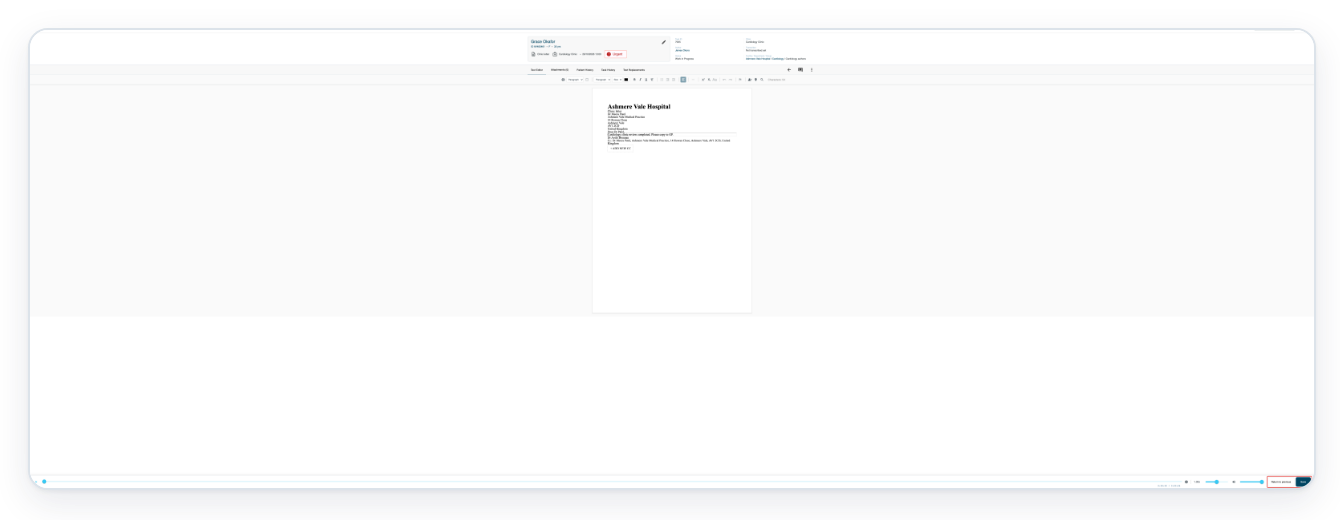
Click the unfinished task you want, such as task 7005 with Work in Progress shown here. It opens in a new tab.

=> The manager can edit this unfinished letter, with Return to previous and Save available.
NOTE:
- T-Pro remembers your column choices and most search settings for your account in this browser. Check the filters when you return: All time resets to Last 90 Days.
- To search by patient name or patient ID, enter at least two characters in Search, then press Enter.
- To choose your table columns, untick any selected rows and click the cog above the results. Tick or untick the columns, then click the cross to close the panel.
- CSV exports include all matching tasks across every page.
- Unfinished tasks can also open in View only, depending on your account.
- If your account lets you edit an unfinished task, save before leaving. Saving takes you back to All Tasks in the letter's tab.
- Authors and clerical users open results in View only. Managers, masters and administrators can open accessible unfinished tasks with editing controls. Completed tasks open in View only for everyone.
- Download DOCX appears in More when the letter's template has a Word file. Download PDF and Copy content to clipboard are also in this menu.
Choose a period
Period filters tasks by the date they were created.
| Period | Tasks created |
|---|---|
| Last 30 Days, Last 60 Days and Last 90 Days | From the start of the day 30, 60 or 90 days ago through today. |
| This month | From the start of this month through today. |
| Last month | During the previous calendar month. |
| This year | From the start of this year through today. |
| Last year | During the previous calendar year. |
| Custom | From the start date through the end date you select. |
| All time | Across all dates. |
Tip: If you know the task ID, enter
TASK:followed by the number in Search. Then press Enter. This searches across all dates. Other filters still apply.
Can't find or export a task?
- “No tasks found”: choose a longer Period and click Save changes. Or click the cross on the status filter to remove it. Clear All clears the search and filters and restores Last 90 Days.
- “Invalid search”: add the task number after
TASK:or#before pressing Enter. - A column won't sort: choose a period shorter than 90 days, then click Save changes. Click a sortable column heading again.
- The export address shows “(Not verified)”: click Go to Profile. Click the pencil beside Contact e-mail to update and verify your address. Then return to the task list and export again.
- The Word download is missing: the template needs a Word file. Use Download PDF or Copy content to clipboard instead.
Related articles
- Work from Live Tasks
- Task statuses in V2
- Download a letter as PDF or Word
- Update your profile details
If you have any more queries, please do not hesitate to contact our Helpdesk or support@tpro.io.
© 2020 - 2026