
Before you start
You need a master account linked to the organisation or a manager account with access to the department. Follow the steps for your account below.
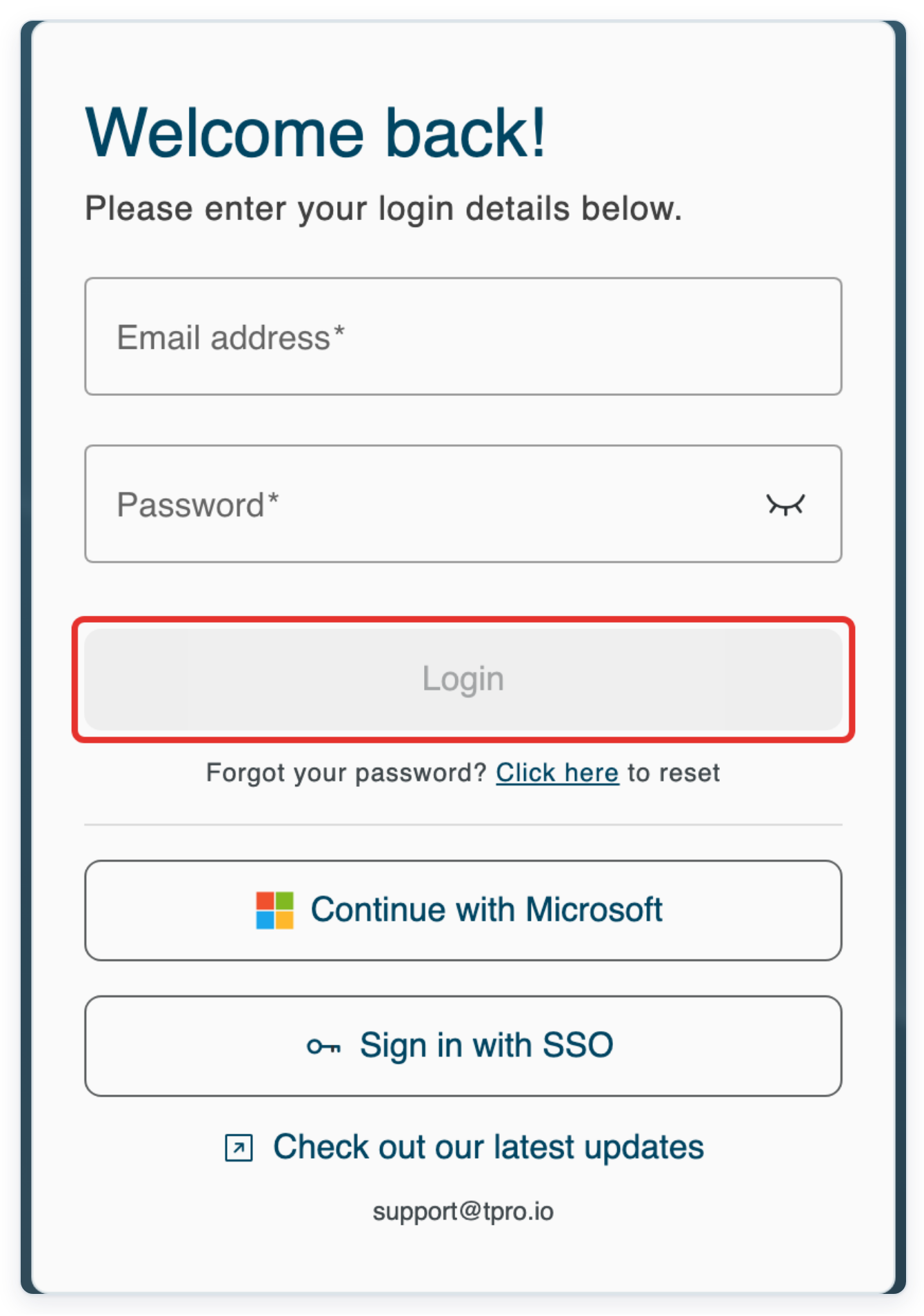
Log in to T-Pro with your master or manager credentials.
Enter your Email address and Password, then click Login.
As a master
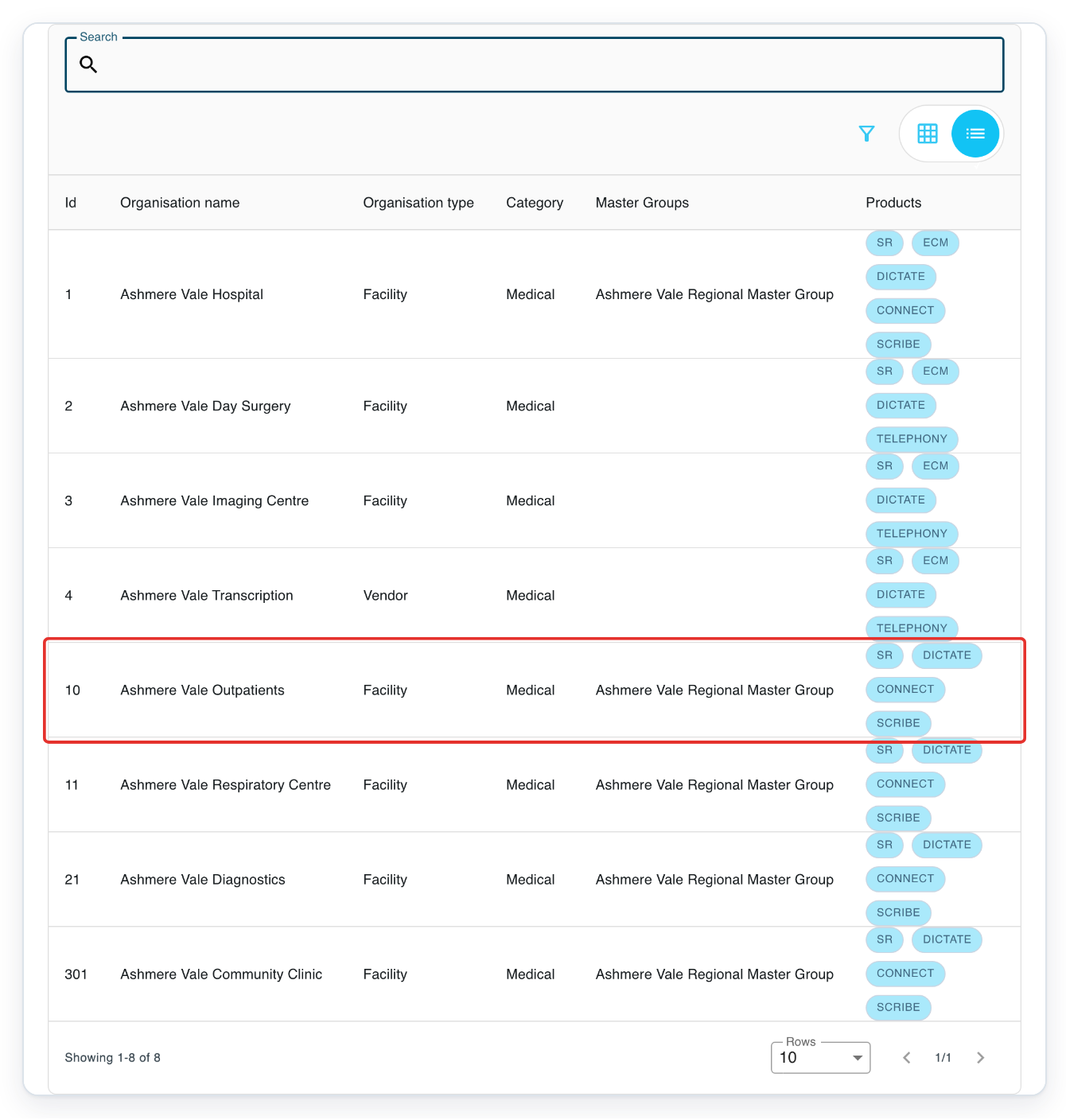
In Organisations, click your organisation, such as Ashmere Vale Outpatients. Its Departments list opens.
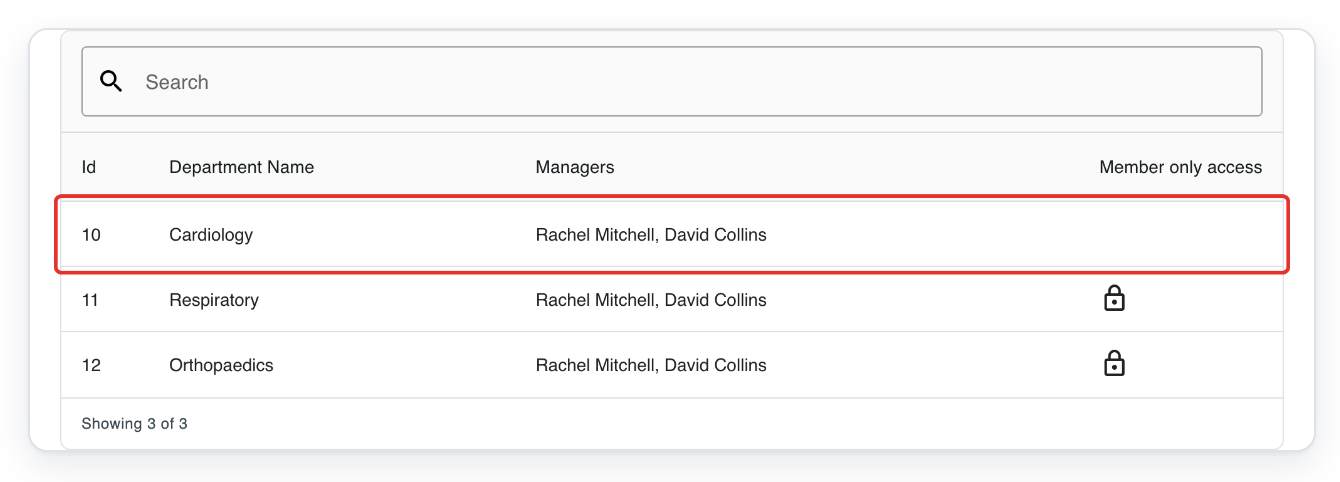
In the Departments list, click the department you want to restrict, such as Cardiology. The department opens.
To find the department, type its name in Search above the list. A padlock in the Member only access column means the restriction is already on.
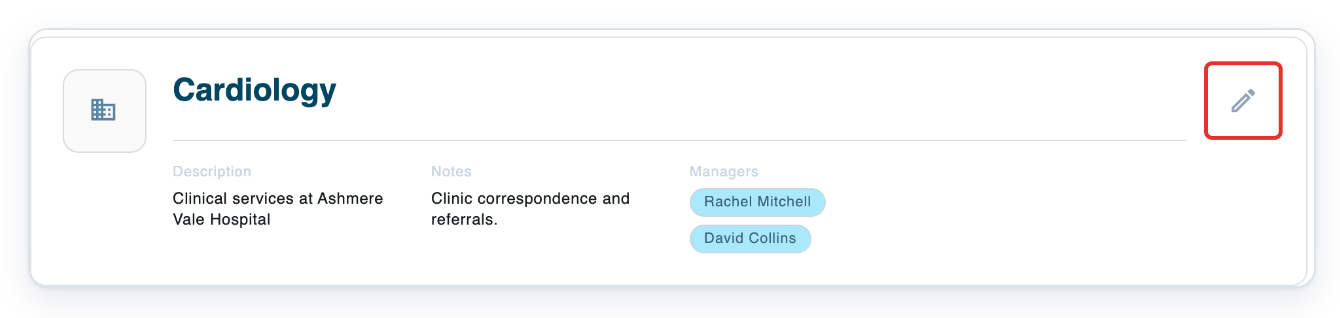
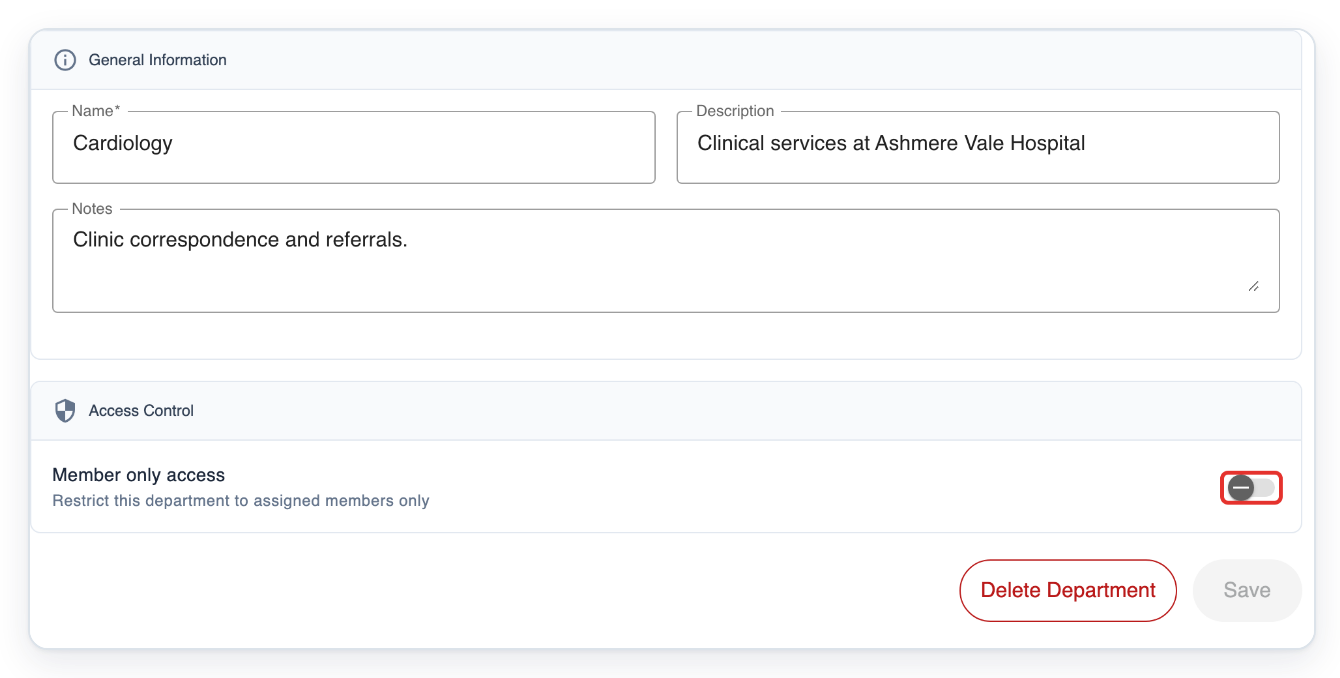
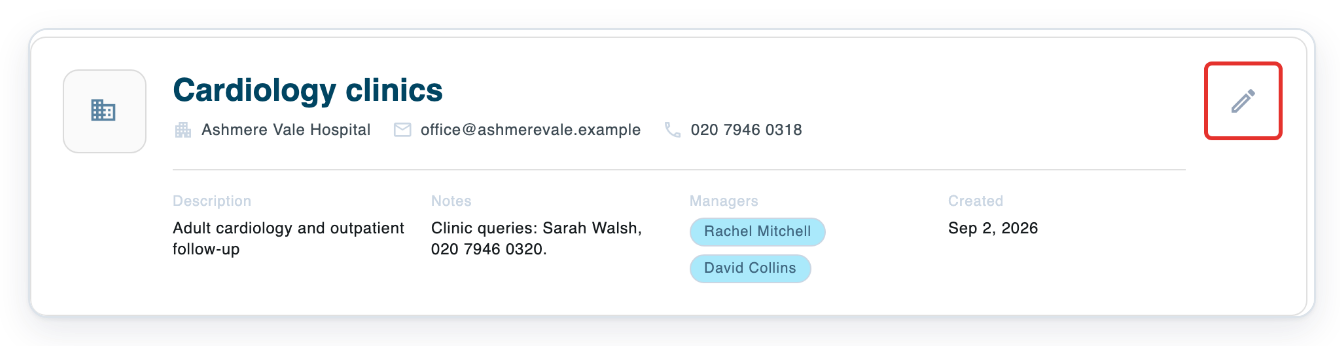
Click the pencil button on the department card. This opens Settings, with Access Control below General Information.
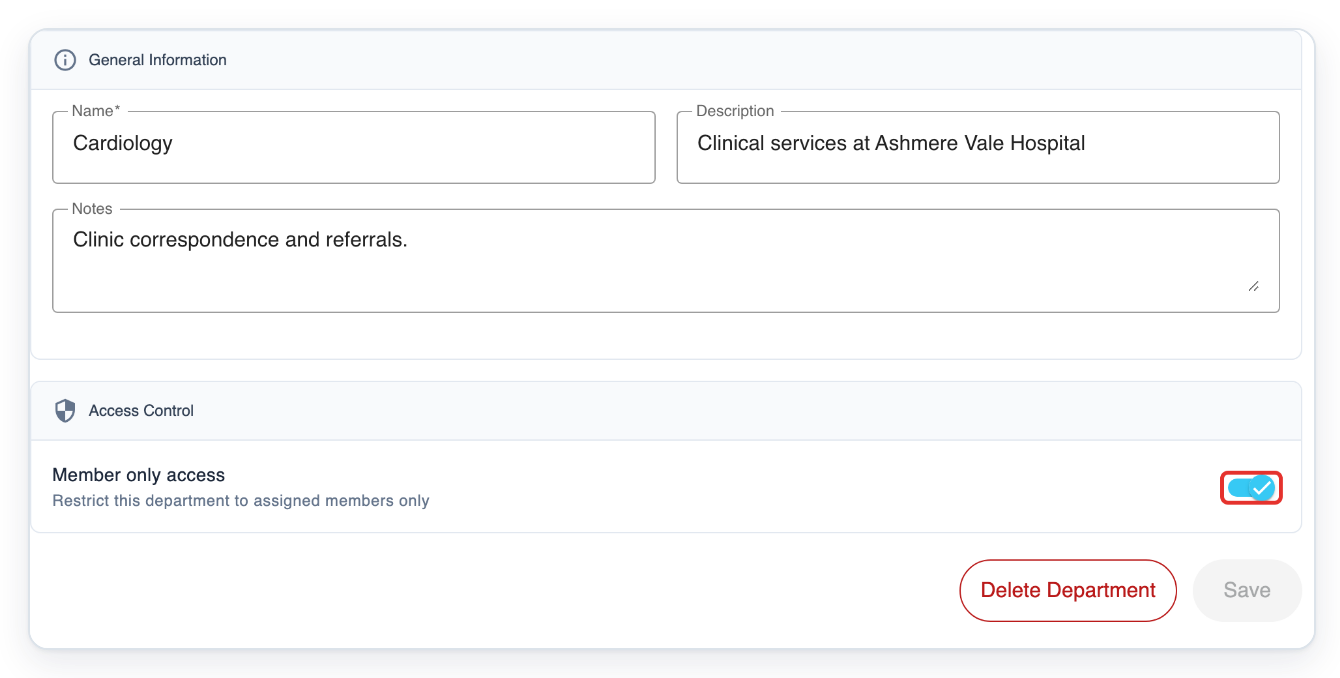
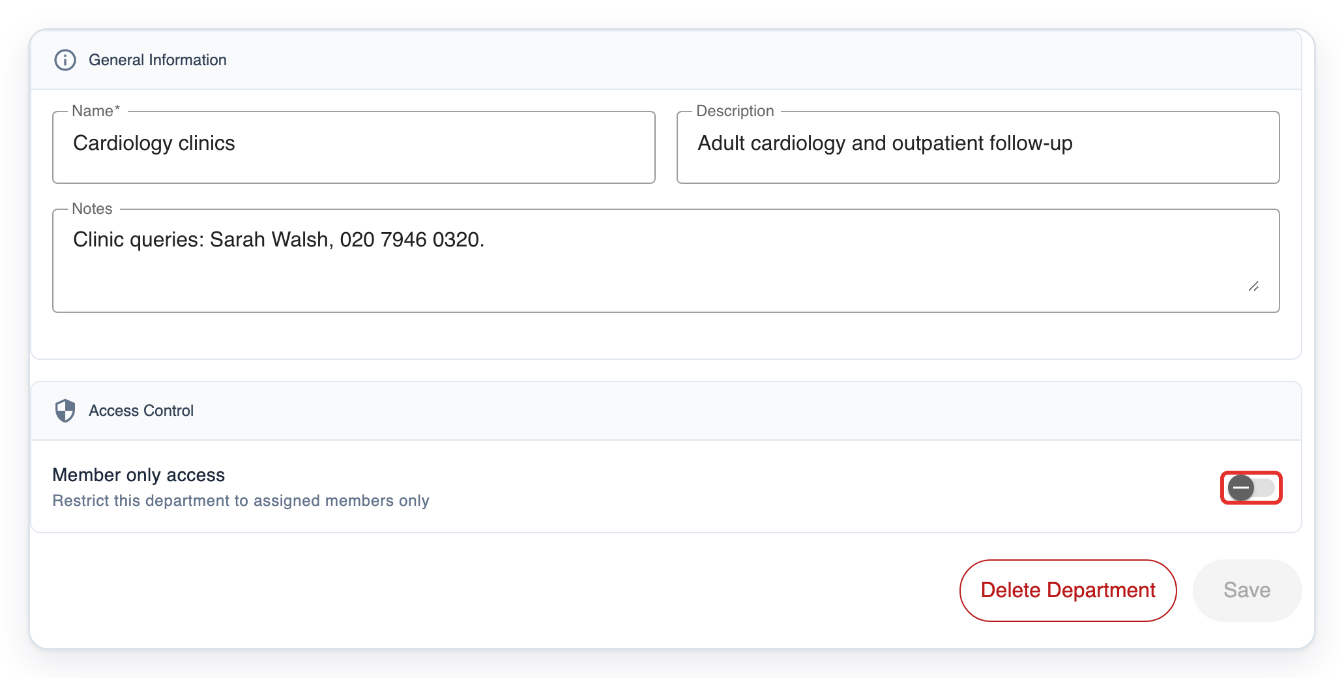
Under Access Control, turn on Member only access. Save becomes available.
Check the department's Name at the top of the form before saving.
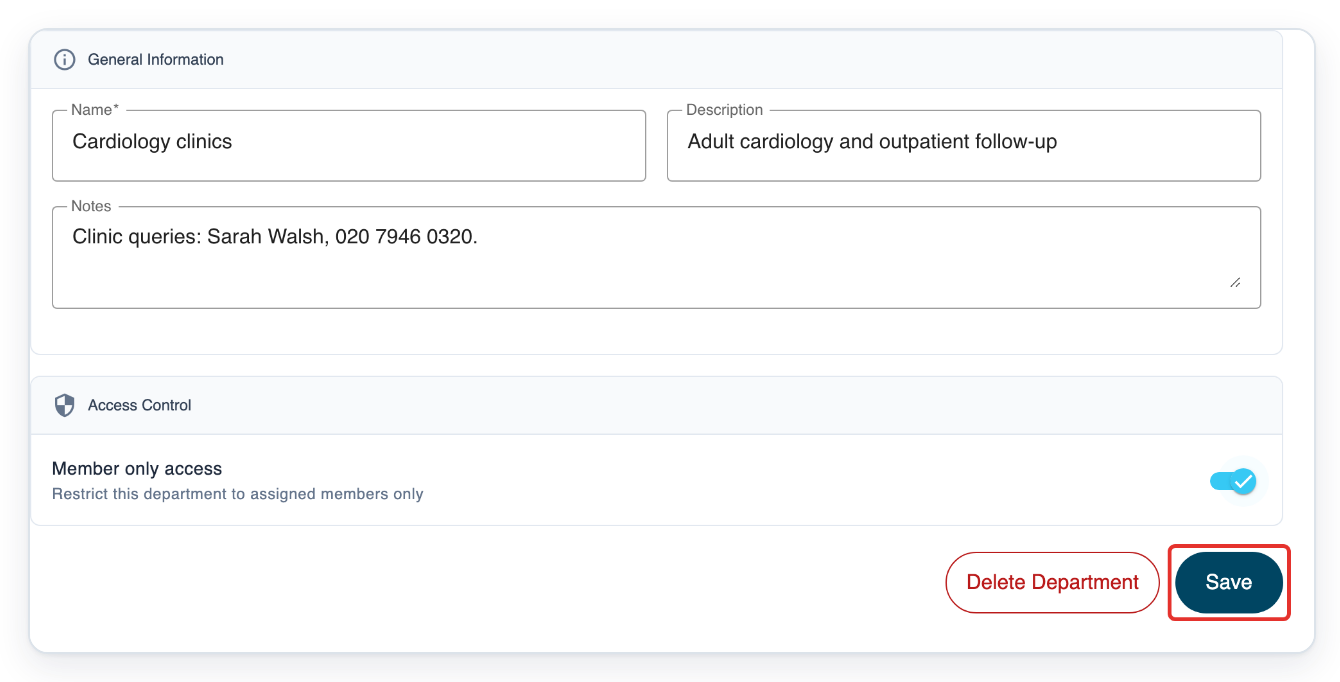
Click Save to apply the restriction. T-Pro shows Department updated to confirm the change.
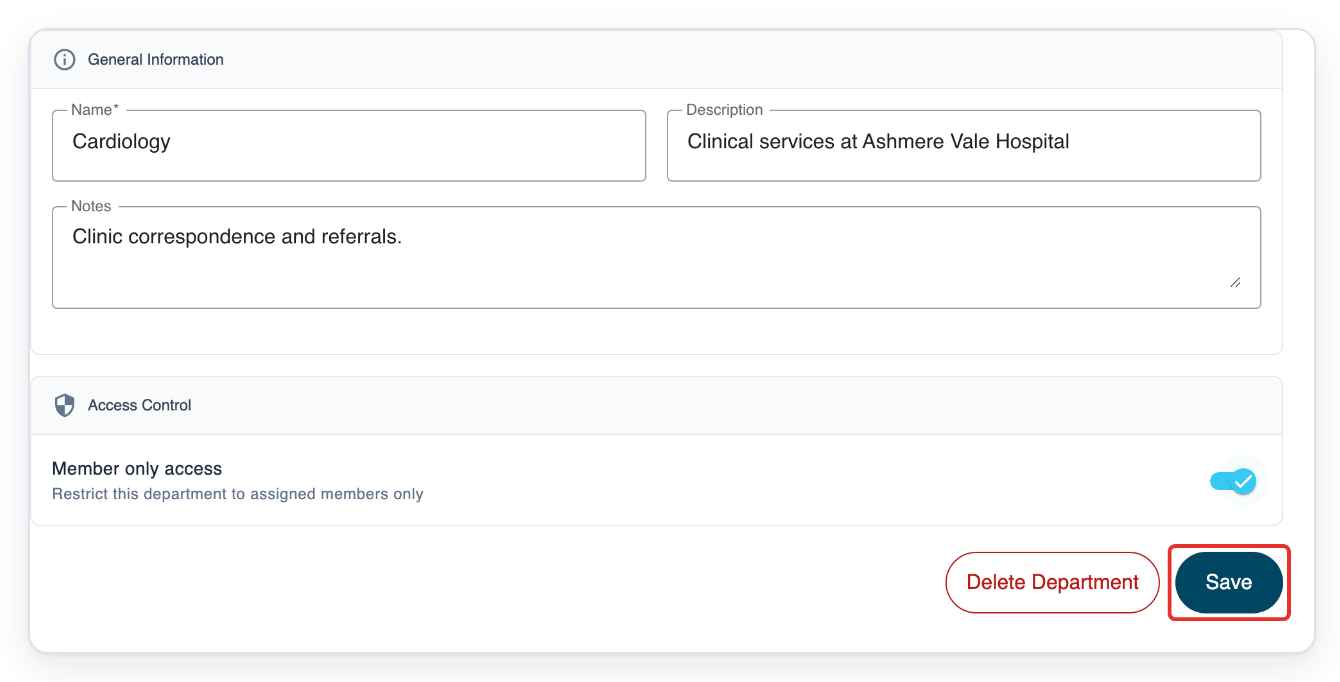
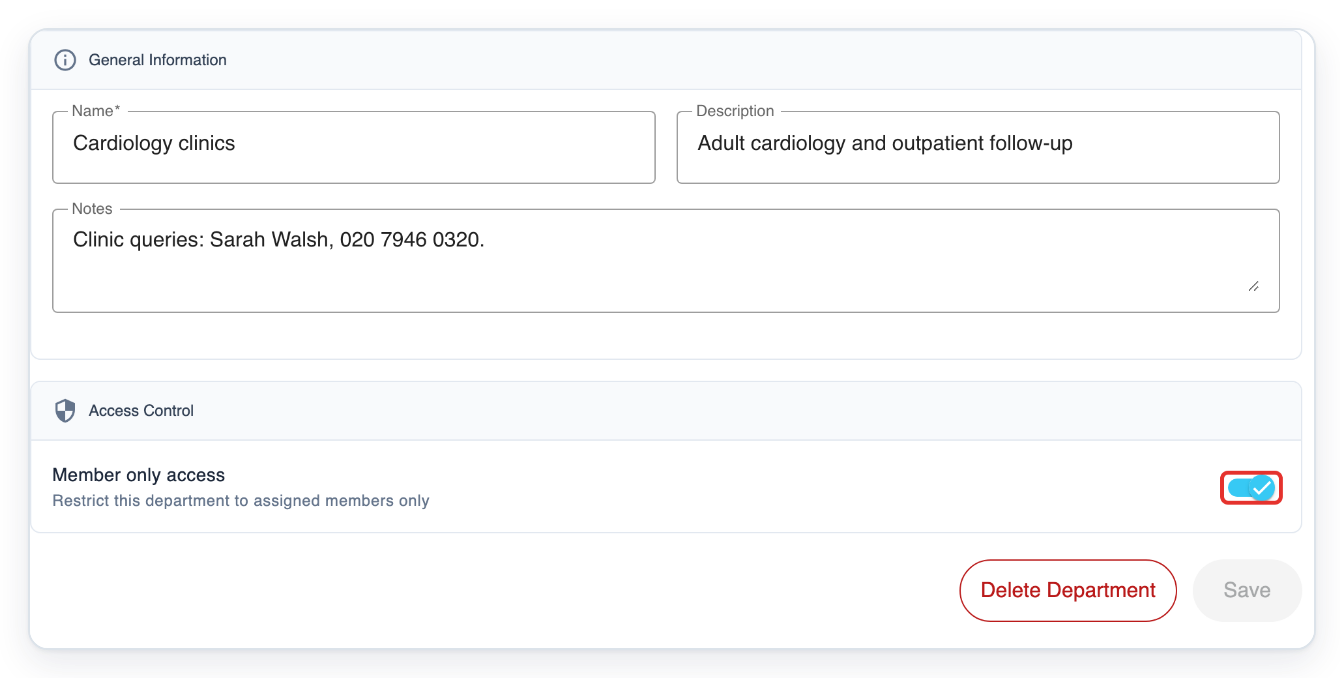
=> Member only access stays on. Your changes are saved, so Save is unavailable.
As a manager
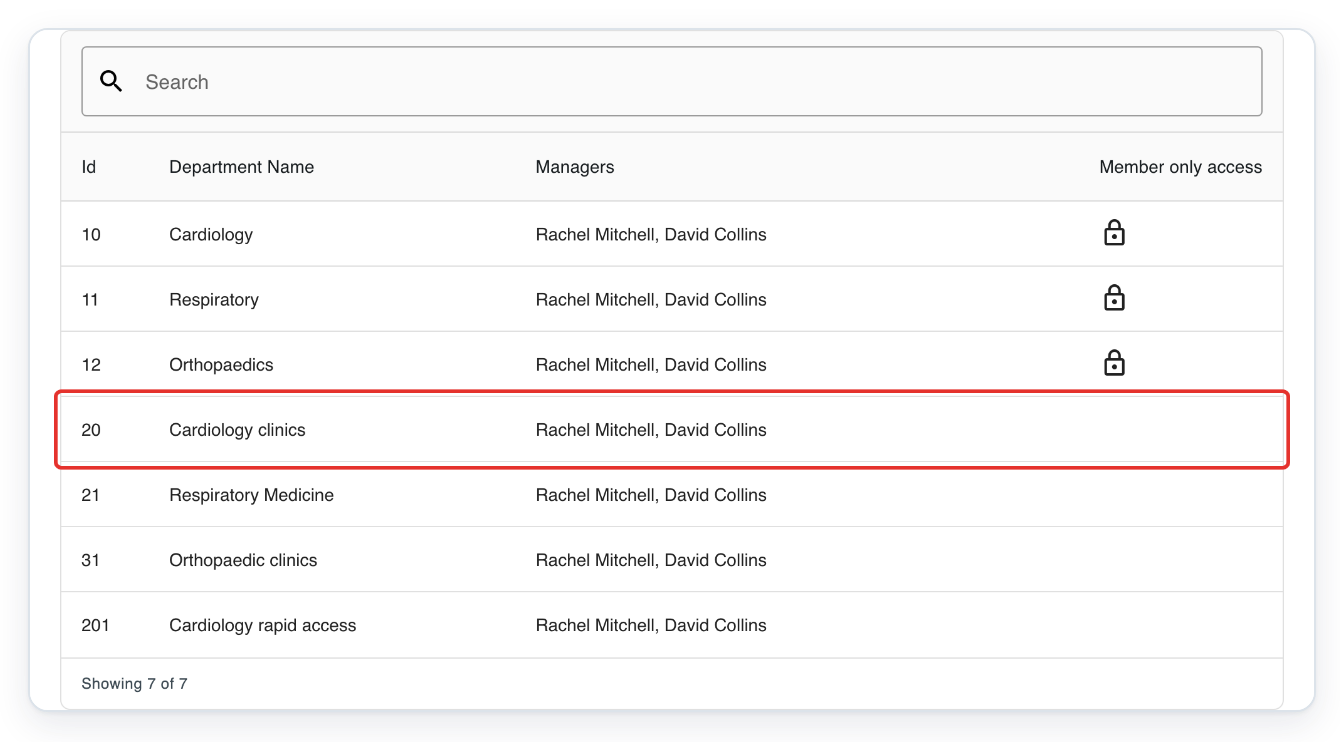
Go to Departments and click the department you want to restrict, such as Cardiology clinics. The department opens.
Use Search above the list to find the department by name.
Click the pencil button on the department card. Settings opens, including Access Control.
Under Access Control, turn on Member only access. Save becomes available.
Check Name to make sure you're changing the right department.
Click Save. T-Pro shows Department updated to confirm the change.
=> Member only access stays on. Your changes are saved, so Save is unavailable.
NOTE:
- The restriction applies to the whole department, including existing tasks and tasks created later.
- These rules also apply to people who join the department's groups later. Their group membership determines which restricted departments they can find tasks in.
Who can find tasks in a member-only department?
With Member only access on, your access depends on your group membership or department assignment.
| Who needs access | What they need |
|---|---|
| Authors | You must belong to an author group in the department, within your organisation. |
| Transcribers, editors, reviewers and storers | You must belong to a group on a current transcription route for the department, within your organisation. |
| Managers | You need a direct assignment to the department. Your manager account is enough, without an author or transcriber account. |
| Masters and administrators | Masters keep access through their linked organisations. Administrators keep access. |
Other places you can turn it on
- When creating a department as a master, turn on Member only access in New Department. Then click Save.
Tip: To remove the restriction, open the department's Settings, turn off Member only access, then click Save.
Can't turn on member only access?
- If you cannot open or change the department, ask an administrator to check your access. They should check your organisation link if you're a master, or your department assignment if you're a manager.
- If Save is unavailable, check whether Member only access is already on. If it is off, turn it on and check Name. The name must be 3 to 100 characters long.
- If a colleague cannot find tasks after you restrict access, check their group membership or department assignment. Use the table above to check what they need.
Related articles
- Department settings, processors and text replacements
- Add existing users to a group
- Create a transcription route
If you have any more queries, please do not hesitate to contact our Helpdesk or support@tpro.io.
© 2020 - 2026