
Before you start
Complete and upload all draft recordings in your current Recorder before you move to the Web Recorder.
Log in to T-Pro with your author credentials.
If you use T-Pro Recorder, also called the T-Pro Connect Desktop App, you may open the installed application from a desktop shortcut.

Your current Recorder looks like this:
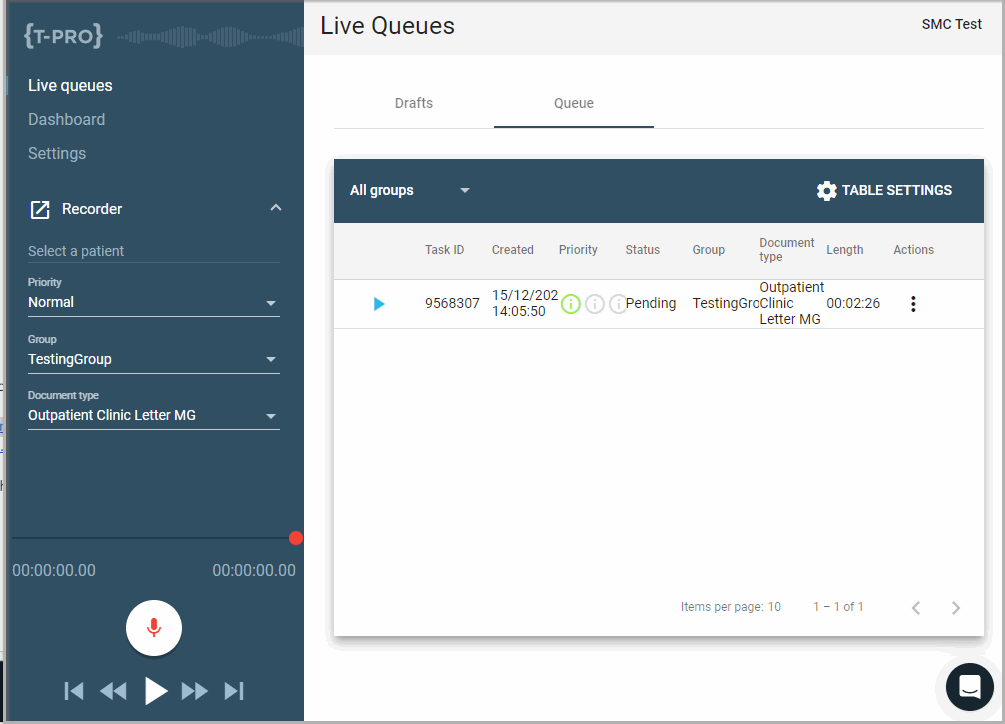
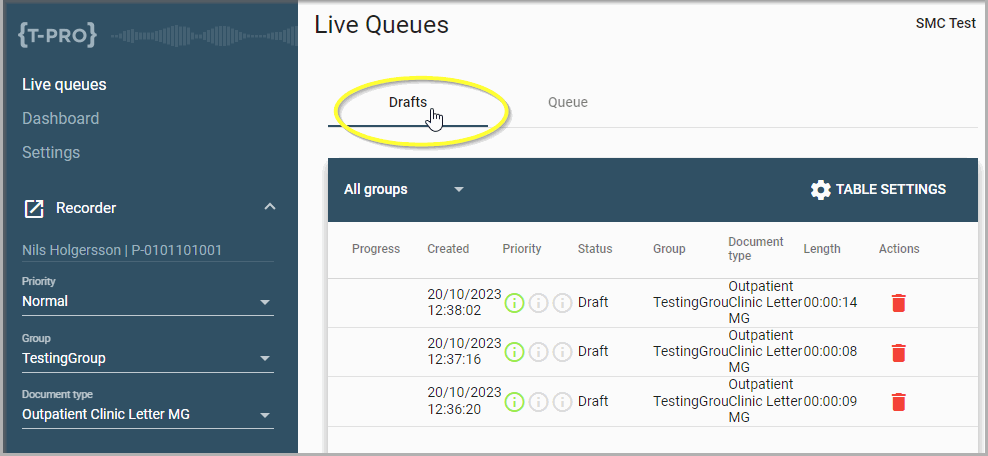
Open Drafts in your current Recorder to find recordings you have not yet uploaded to the server.
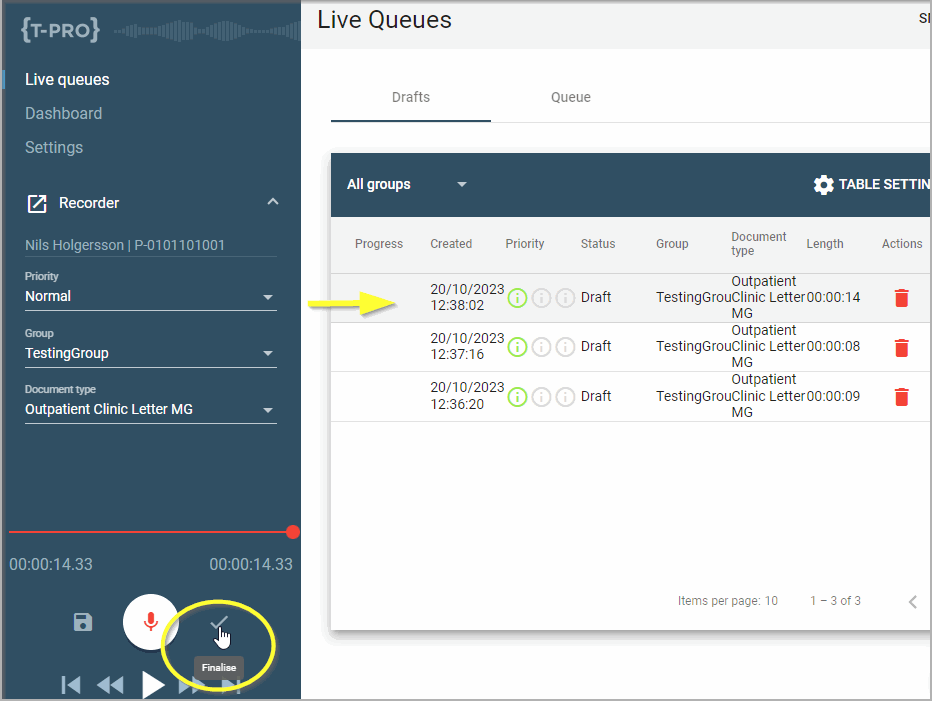
Select each draft recording, complete it, then click the Finalise icon to send it to the server.
Repeat this for every draft.
You can now remove the old Recorder shortcut from your desktop. Right-click the icon and select Delete.

Check that your internet connection meets the Web Recorder’s bandwidth requirement: 300 Kbps per user, or 3 Mbps for every 10 users.
If you use external devices, such as a microphone or foot pedal, install the T-Pro Device Controller.
The Device Controller connects these devices to the Web Recorder so they can work with it.
Download the Web Recorder desktop shortcut. The file,
TPro-WebRecorder.msi, includes the Device Controller.Check the firewall settings in Web Recorder technical prerequisites.
NOTE:
- All draft recordings must be completed and uploaded before you move to the Web Recorder.
- The Web Recorder periodically checks your internet connection. It will inform you if the connection cannot support dictation.
Can't install the Device Controller?
- If you cannot install the
.msifile, contact your system administrator.
User guide
For the complete Web Recorder user guide, open T-Pro Author Part III - Recorder V2-1.6Web.pdf.
If you have any more queries, please do not hesitate to contact our Helpdesk or support@tpro.io.
© 2020 - 2026