
Before you start
You need system administrator permissions if the user cannot allow network access or add firewall rules.
Check the remote desktop setup
For a remote desktop (RDP) connection, install Device Controller with the Virtual Channel options enabled. This is the main way to use Device Controller with a remote desktop.
If the Virtual Channel does not work, or the operating system does not support it, use Enable external connections (Contact your administrator) instead. This needs the additional configuration described below.
To allow an external connection as a fallback, select these installation options:
On the client:
- Enable external connections (Contact your administrator)
- Virtual Channel Plugin
On the server:
- Virtual channel server installation
=> If the Virtual Channel fails to connect, Device Controller can use an external connection through WebSocket.
Allow network access for external connections
After installing Device Controller with Enable external connections (Contact your administrator) selected, start the app.
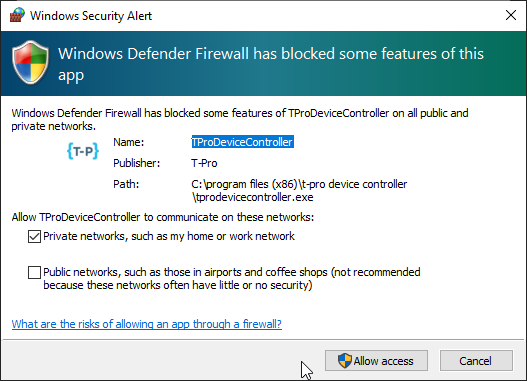
=> Windows displays a prompt asking you to allow network access.
Click Allow access. If the user does not have permission, a system administrator must allow access.
If you need to add the rules manually, add inbound firewall rules for the Device Controller app. These must allow it to accept connections on TCP and UDP ports.
The pictures show the rule's protocol, programme and network profile settings.
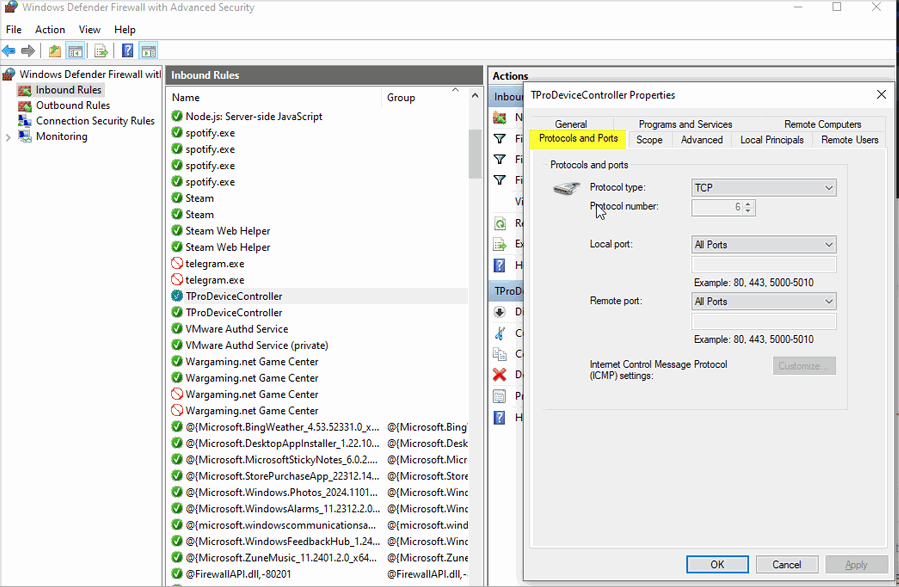
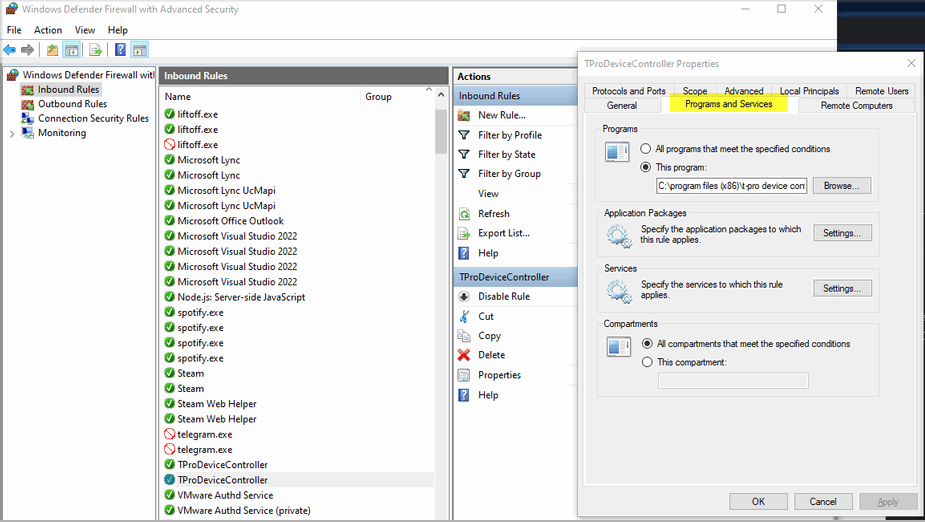
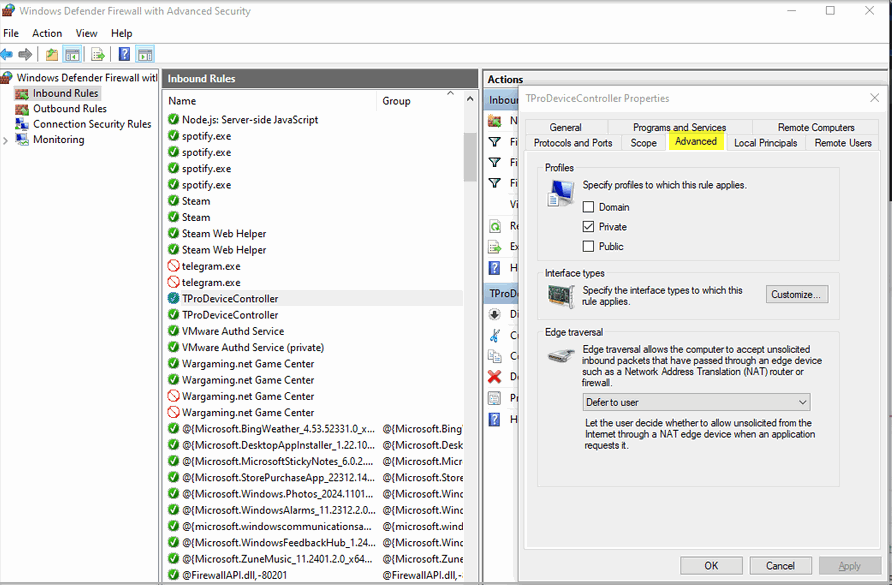
NOTE:
- Use Enable external connections (Contact your administrator) only on the client side of an RDP setup.
- This external connection setup works only for RDP connections within a local network. Allowing external connections through a WAN is not secure.
- From Device Controller v1.3.0, local Windows users no longer have write permissions for the application installation folder. Logs, temporary files and audio files are stored in
C:\Users\[userName]\T-Pro Device Controller.
Can't connect to Device Controller?
The device does not connect through RDP
Restart the RDP connection and unplug and reconnect the device before trying to connect again.
Check communication between the browser and Device Controller
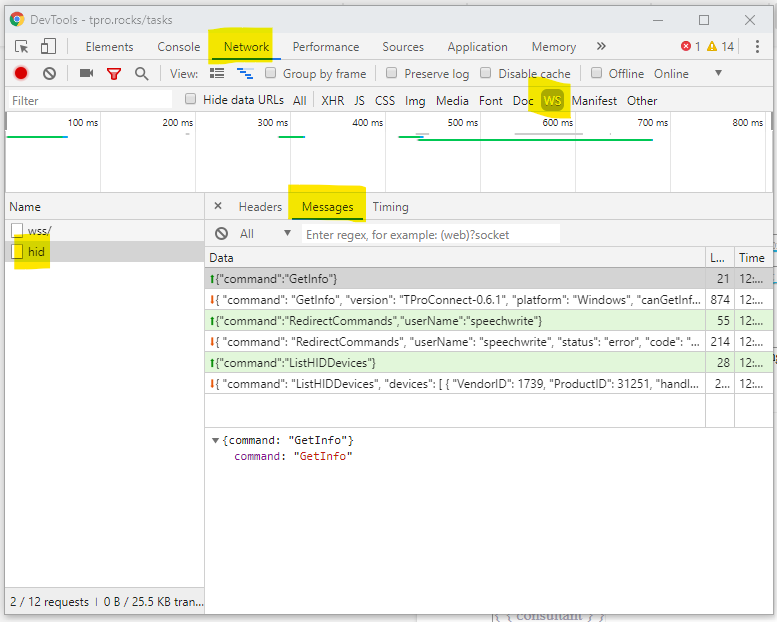
Open https://tpro.io in Google Chrome. Press F12 to open the developer console.
Click Network, then filter by WS. Select hid, then click Messages.
=> You can see incoming and outgoing messages between the browser and T-Pro Device Controller.
Retrieve the log files for support
The log files can help the support team investigate connection problems.
Open
C:\Users\[YourUsername]\T-Pro Device Controller\Debug.Copy the files from the
Debugfolder and send them to the support team.
If you have any more queries, please do not hesitate to contact our Helpdesk or support@tpro.io.
© 2020 - 2026