
Before you start
These steps are for transcribers using a foot pedal on a Microsoft Windows PC.
Log in to T-Pro with your transcriber credentials.
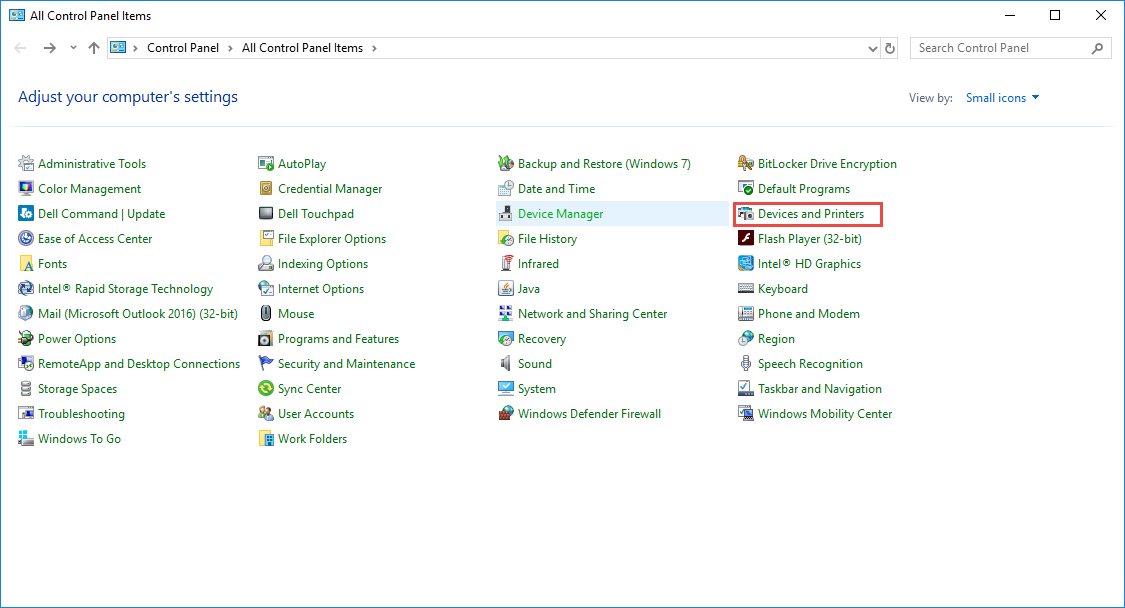
Open Control Panel, then select Devices and Printers.
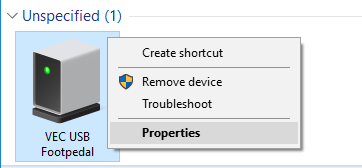
Find your foot pedal in the list. Right-click it, then select Properties.
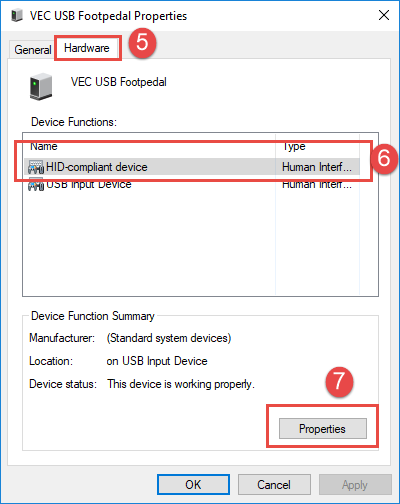
Select the Hardware tab. Under Device Functions, select HID-compliant device, then click Properties.
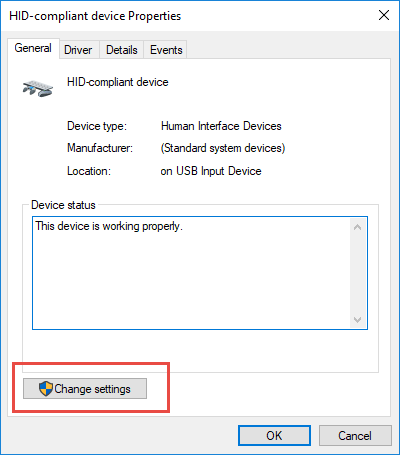
Click Change settings.
Select the Driver tab, then click Uninstall Device.
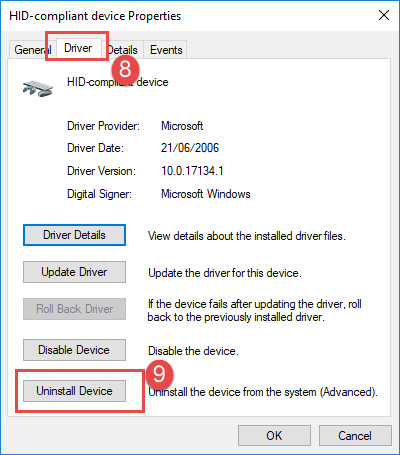
Repeat steps 4 to 6 for USB Input Device.
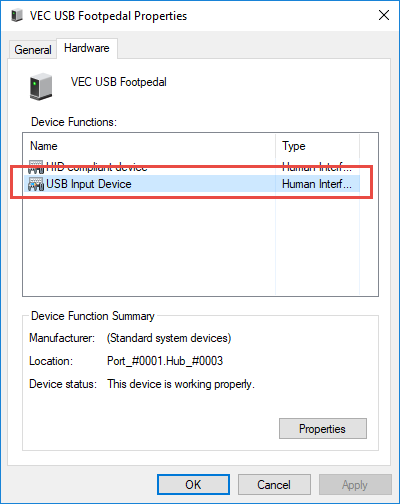
=> Once both devices are removed, the foot pedal no longer appears in Devices and Printers.
Disconnect the foot pedal from your PC.
Restart your PC.
Plug the foot pedal into a different USB port on your computer.
=> The foot pedal should now work.
Can't get your foot pedal working?
Restart T-Pro Connect
- Find T-Pro Connect in the system tray at the bottom right of your screen, beside the clock.
- Right-click it, then select Restart.
- Close T-Pro, log back in and test your foot pedal.
Can't see T-Pro Connect beside the clock?
Log out of T-Pro and close your browser.
Open My Computer.
Select *C:*, then open Program Data. This folder is hidden by default.
Open T-Pro -Connect.
Double-click T-ProConnect.exe.
=> T-Pro Connect should appear in the system tray beside the clock.
Log back in to T-Pro and test your foot pedal.
NOTE:
- To show ProgramData, open File Explorer and click the View tab. Clear the Hidden items checkbox. The folder should then be visible on the *C:* drive.
Clear your browser cache
- Press Ctrl+Shift+Delete.
- Select All Time as the time range.
- Click Clear All Data.
- Close T-Pro, then log back in.
Still not working?
Restart your computer if the steps above do not help. Then check that T-Pro Connect is running in the system tray beside the clock.
If you have any more queries, please do not hesitate to contact our Helpdesk or support@tpro.io.
© 2020 - 2026