
Resume a consultation
This can be done by going back to a previous encounter.
Go to the Encounters section and select the relevant entry.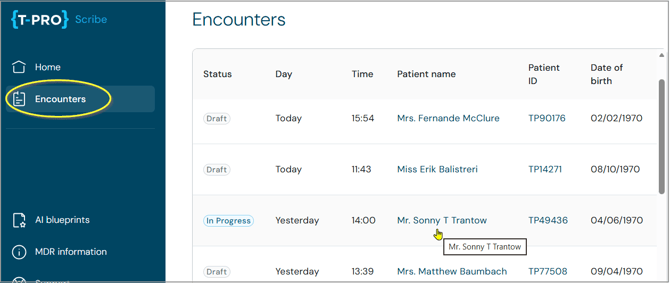
=> the generated documents associated with this encounter will open
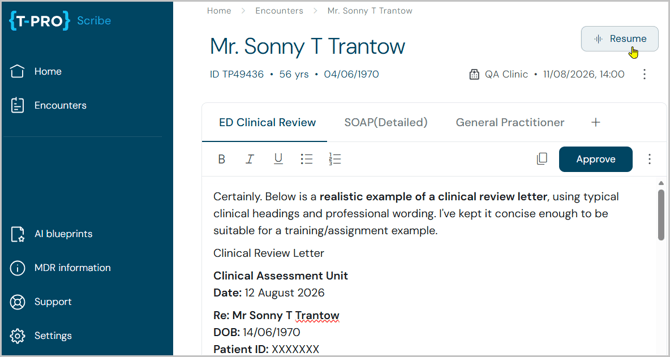
At the top to the right, click on the button to Resume this consultation.
=> the recording screen opens in recording state, so you can continue the consultation without any further action
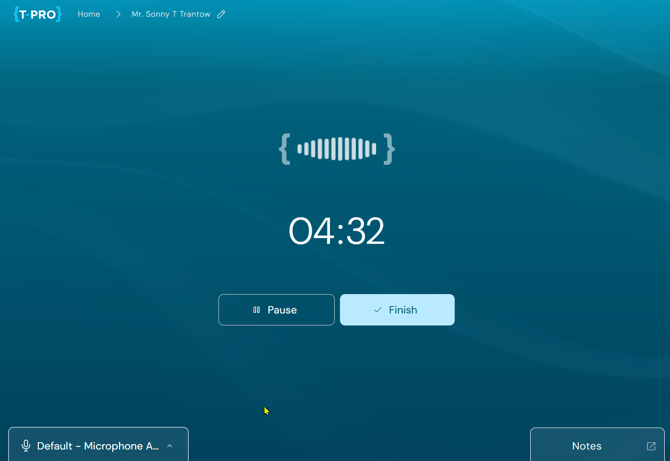
- The overall maximal length for consultations is 3.5 hours
Click on Finish when you're done.
Update your documents
In the next screen you have different options; they will be explained below.
- All previously selected templates (and AI blueprints if any) are displayed in this window and preselected for updates
- Approved documents are greyed out but listed for your reference; they will not be included in updates and remain unchanged (Approved = read-only status)
- ‼️Remember that all documents selected for updating will be regenerated including the previous and the new data but previous manual edits will be lost
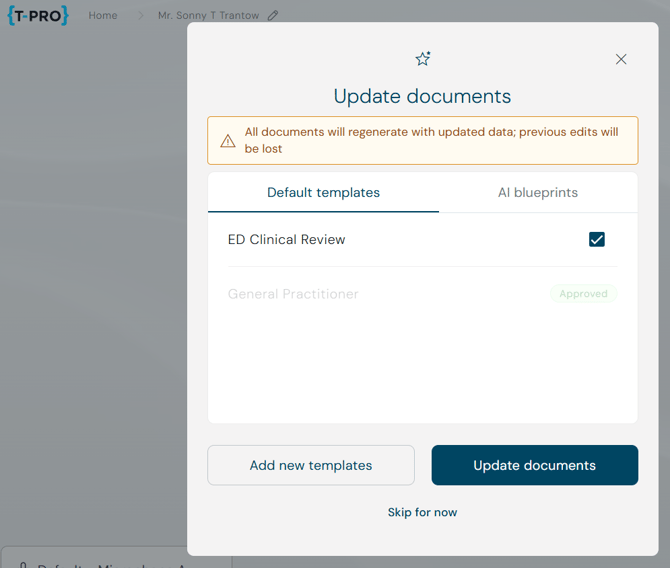
Update documents - use this button to update all your existing documents with the new part of your consultation
- Deselect a template if you do not want the latest updates to be included
Add new templates - this option opens the template selection screen where you can select additional templates to generate new documents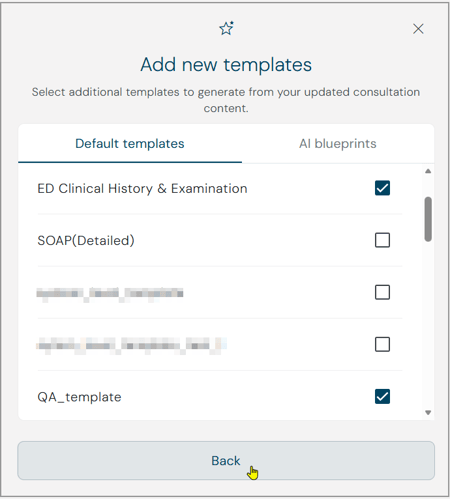
-
Those templates will be added to the list for document generation
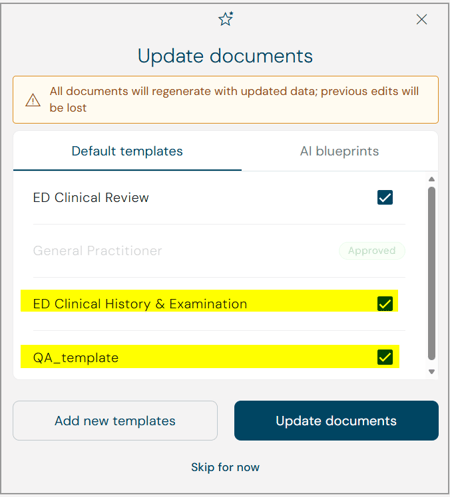
=> Newly selected templates will be generated including the previous part(s) of the consultation as well as with the latest part and all Notes (if any).
Skip for now - use this option if you want to wait with updating the documents for now
- The recording will not be lost and documents can get updated at a later stage
- You can resume the consultation again and skip document updating more than once
- You can also update your existing documents within the encounter
=> Updating your documents brings up the document screen.
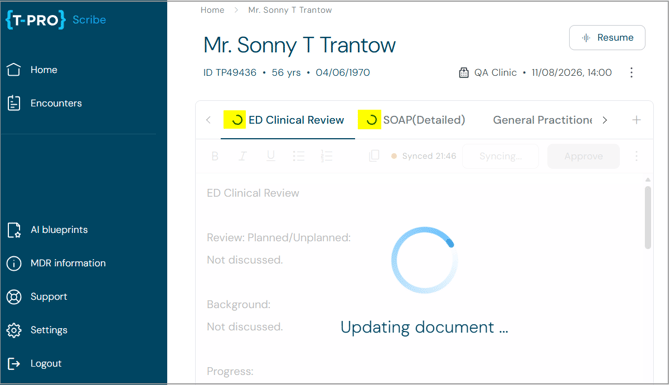
- A spinner is displayed in front of the document title when it has been selected for updating
- The General Practitioner document was already approved and therefore is not included in the updates (no spinner)
- You receive a confirmation message when all documents have been updated

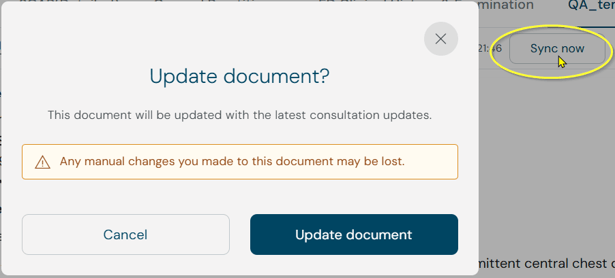
-
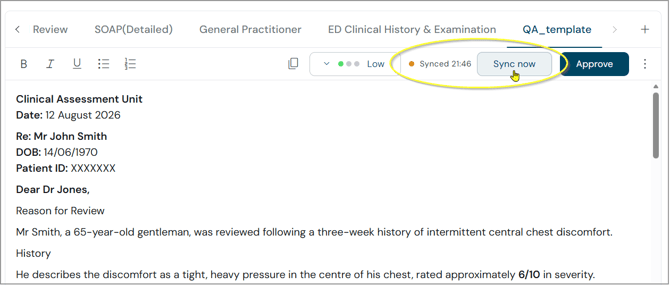
It shows the last time it was synced
- It indicates that this encounter has been resumed and that new content is available in form of continued recording or additional notes
- Click on Sync now to update the document
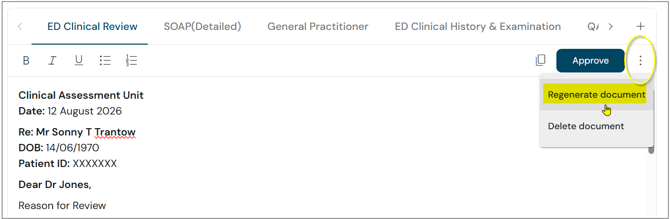
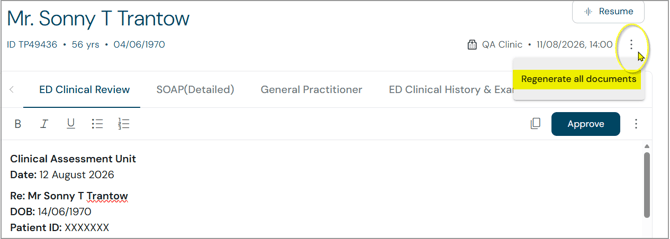
Remember, that at any stage you can Regenerate a single document or Regenerate all documents. This action will always update the entire content, including previous recordings and all resumed parts.
Dictations and uploaded external recordings
If you open an encounter which has been created as a dictation or as an external file upload you do not see a resume button.
You can just continue a dictation any time with the microphone button until it is approved.
If you have any more queries, please do not hesitate to contact our Helpdesk or
support@tpro.io.
© 2026