
A patient consent message in Scribe Web can be managed in two ways:
-
individually, by each user, or
-
centrally, by your organisation's administrator
The output is the same: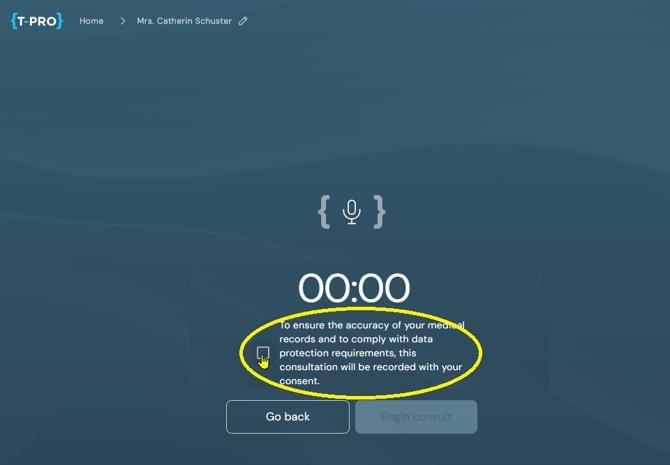
=> The message will be displayed before you begin a consultation.
When your organisation manages consent centrally, everyone uses the same approved message, and the option to set your own message is not available.
Centrally managed consent also extends to Scribe Mobile (iOS and Android).
If your organisation manages consent centrally
Under Settings → Security, the Encounter section shows the administrator-configured consent message instead of your own.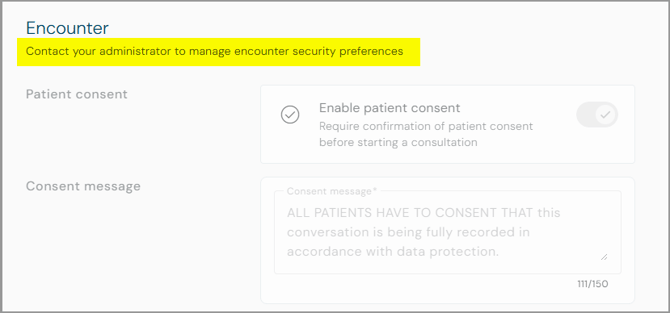
-
The entire section is greyed out.
- A message informs you to "Contact your administrator to manage encounter security preferences."
- As displayed above the administrator-configured message can be viewed on the Before you begin screen.
If your administrator updates the message
If your administrator changes the centrally managed consent message, the update appears automatically - in Settings → Security and on Before you begin - the next time Scribe retrieves your organisation's configuration. No action is needed on your part.
If central consent management is turned off
If your organisation turns off central consent management, control returns to you:
- The patient consent toggle and message field in Settings → Security become editable again.
- Scribe uses the consent message you had configured before central management was turned on.
If you have any more queries, please do not hesitate to contact our Helpdesk or support@tpro.io.
© 2026