
Scribe lets you personalise how your generated documents are written and presented, without changing their clinical content.
What style settings control
Style settings only affect how information that's already in your consultation - including your notes - is presented.
They control:
- how much detail is kept,
- whether your document reads as prose or as structured lists,
- how abbreviations and direct quotations are used,
- how you and the patient are referred to.
Style settings never add, strengthen, or infer clinical information beyond what's actually in the consultation.
Two ways to apply style settings
You can personalise style in two ways:
- Default style settings - persistent preferences that apply to every new document you generate. Available under Settings.
- Document-level style settings - override your defaults for one individual document only. Available under Encounters, from within the document.
A change on document-level never changes your saved defaults - see Changing settings for one document below for how this works.
Set your default style settings
To view or change your default style settings:
- Go to Settings.
- Select Blueprints & styles.
- Scroll down to Default style settings.
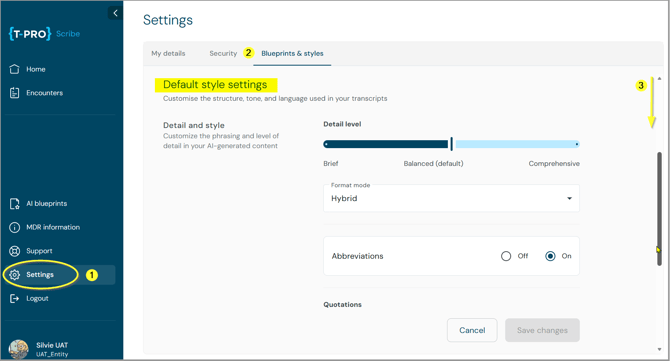
Screen 1
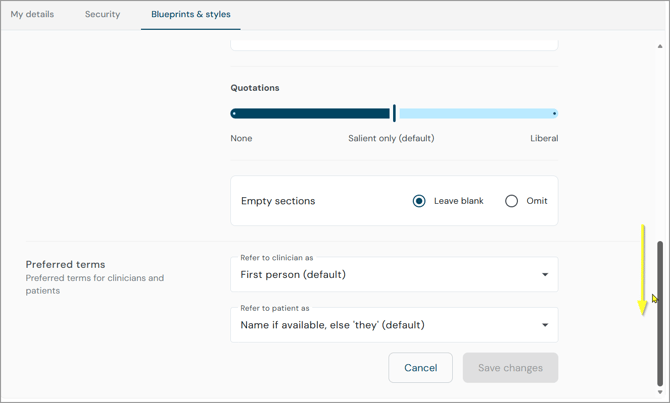
Screen 2
- These are persistent, user-level preferences.
- Select Save changes for your update to take effect - the button stays disabled until you make a change.
- Once saved, the new settings apply to every new document Scribe generates from that point on.
Blueprint instructions always come first
This screen also holds your Default blueprint types (previously Default document types). Some important information on the logic of blueprints and styles:
-
Blueprint instructions take precedence over style settings. If a blueprint asks for specific content or gives section-level instructions, Scribe follows the blueprint - not your style preference.
-
Style settings only personalise presentation within what the blueprint requires; they never add or remove content the blueprint asks for.
For more on this, and on Scribe's clinical safety rules, see How Blueprint Instructions and Clinical Safety Affect Your Style Settings.
Style settings explained
Seven default style settings are available to you.
Detail level
The primary style control. It governs how much the generated document compresses the information captured during the encounter - it never changes what a blueprint explicitly requires: if a blueprint placeholder asks for particular information, Scribe includes it regardless of the level you've selected.
Use the slider to change the detail level.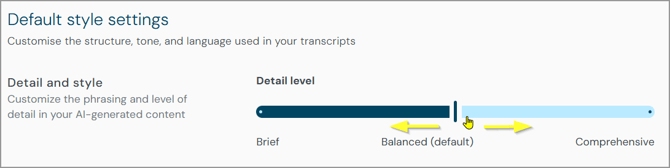
The options are:
- Brief - designed for higher-volume or lower-complexity encounters where a concise note is preferred. The output focuses on findings, decisions and plans; supporting context such as symptom duration, minor negative findings or examination technique may be omitted.
Anything the blueprint explicitly requires is still retained. - Balanced (default) - designed for routine clinical documentation. All clinically important information is retained - presenting complaint, relevant positive and negative findings, diagnoses and plans as stated, medications and doses, and safety-netting. Less important conversational content is compressed into concise clinical wording, without adding explanatory links or reasoning that wasn't actually stated.
- Comprehensive - designed for situations where preserving everything said matters, such as medico-legal, safeguarding, audit or teaching scenarios.
Full clinical context, supporting detail, conversational context and patient wording are retained, and content isn't intentionally compressed or summarised.
Format mode
Controls how information is presented within the document, within the structure your blueprint defines.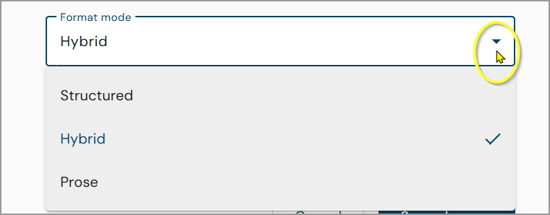
The options are:
- Structured - primarily lists, bullets and short structured entries, while still respecting the underlying blueprint structure.
- Hybrid (default) - Scribe chooses between prose and structured content depending on the section; for example, examination findings may be presented as concise structured information while history or discussion is written in prose.
- Prose - continuous narrative wording throughout the document, where the blueprint allows it.
Abbreviations
Controls whether standard, permitted clinical abbreviations are used.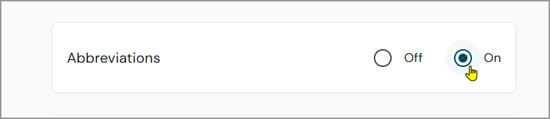
- Off - clinical terms are generally written in full; abbreviations are used rarely.
- On (default) - standard abbreviations are used for commonly abbreviated clinical terms. This still operates within Scribe's abbreviation safety rules, so turning Abbreviations on doesn't permit unsafe or prohibited abbreviations.
Quotations
Controls whether direct patient wording is retained as quotations.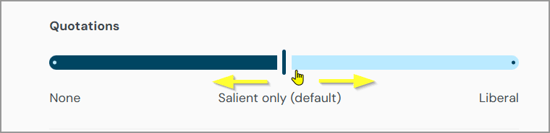
The options are:
- None - no direct patient quotations are used.
- Salient only (default) - a direct quote is used only when the patient's exact words carry clinical significance.
- Liberal - patient wording is quoted more freely, where it contributes useful clinical meaning.
Empty sections
Controls what happens when a blueprint section has no relevant content - but only where the blueprint itself doesn't already contain an explicit instruction about whether that section should be included or omitted; a blueprint-specific instruction always takes precedence.
- Leave blank - keeps the section heading but leaves the content empty.
- Omit (default) - removes the empty section and its heading from the generated document.
Refer to clinician
Controls the voice used when referring to you as the clinician.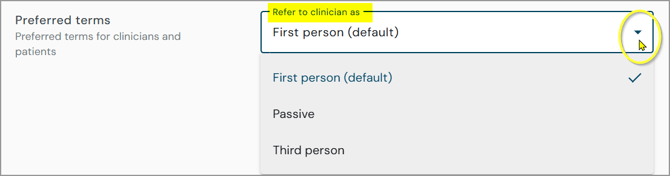
- First person - first-person phrasing throughout, e.g. "I examined the abdomen and discussed the findings with the patient."
- Passive - subject-less, action-focused language throughout, e.g. "The abdomen was examined."
- Third person - refers to the clinician by name, e.g. "Dr Smith examined the abdomen."
- Hybrid (default) - varies by content type: structured or list-based content uses concise passive or subject-less wording, e.g. "Chest clear. Abdomen soft, non-tender," while narrative content uses first-person prose, e.g. "I discussed the results with the patient and advised follow-up if symptoms persist." The same structured-versus-prose distinction used for Format mode determines which voice applies.
Refer to patient
Controls how the patient is referred to in your generated documents.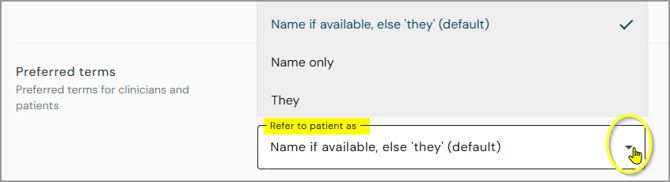
- Name if available, else 'they' (default) - uses the patient's name where available, and they/them where it isn't available or suitable in context.
- Name only - always refers to the patient by name; no pronouns are used.
- They - always uses they/them. Scribe doesn't infer gendered pronouns.
Changing settings for one document
You can also change selected style settings for a single, already-generated document, without affecting your saved defaults.
To do this:
- Go to Encounters.
Select the relevant entry. - Select the three-dot menu.
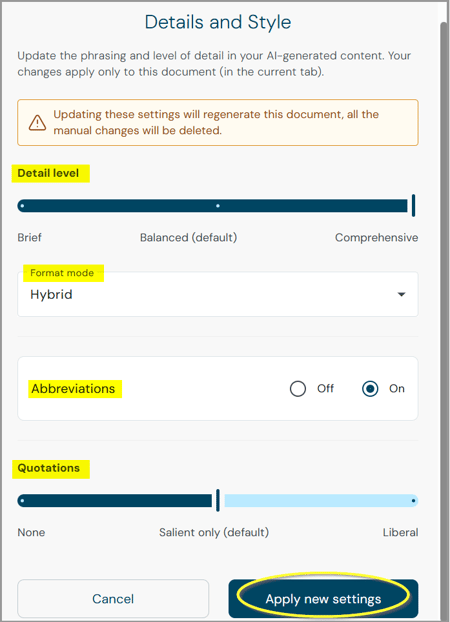
- Select Detail and style settings.

-
The screen shows the settings that were used when the document was generated - normally your saved defaults, or,
-
if you've applied document-level settings to it before, the settings most recently applied.
-
Only four of the seven settings can be changed at document level: Detail level, Format mode, Abbreviations, and Quotations.
-
The more advanced settings - Refer to clinician, Refer to patient, and Empty sections - can only be changed under your defaults.
Select Apply new settings to regenerate the document with the new values.
=> Only that document is regenerated - other documents in the same encounter, and your saved defaults, are unaffected. Document-level settings applied to one document are never carried over to a newly generated document.
Manual edits may be overwritten: regenerating a document will not take any manual edits you've already made to it into account. You'll be warned about this before the new settings are applied.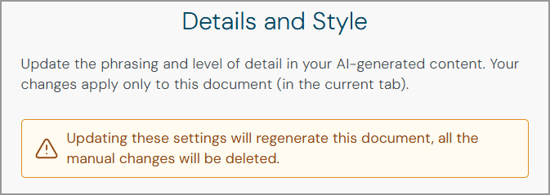
Related articles
If you have any more queries, please do not hesitate to contact our Helpdesk or
support@tpro.io.
© 2026