
If a patient is scheduled for different visits within your clinic, the relevant visit can be selected for the current consultation.
You'll be guided through two steps: Select Patient and Select Visit.
The schedule is displaying all visits (your appointments) of the day.
=> Selecting a scheduled patient starts the consultation directly; the visit is already associated.
If you need to find a different visit for a given patient, follow the steps below:
- Use the option Start a consultation.
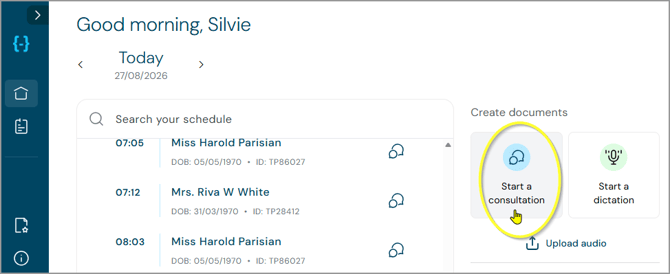
=> the patient selection screen opens - Move to the All patients tab.
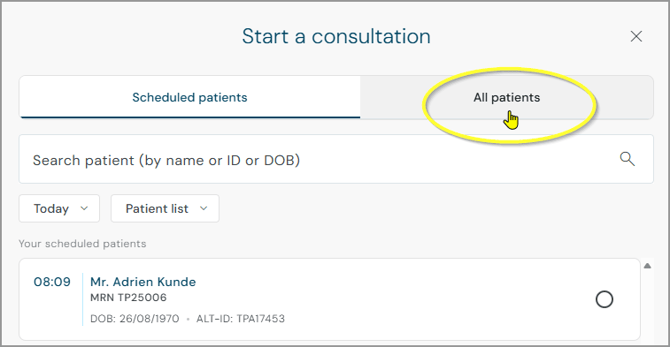
- Search for the patient.
- Select the relevant patient.
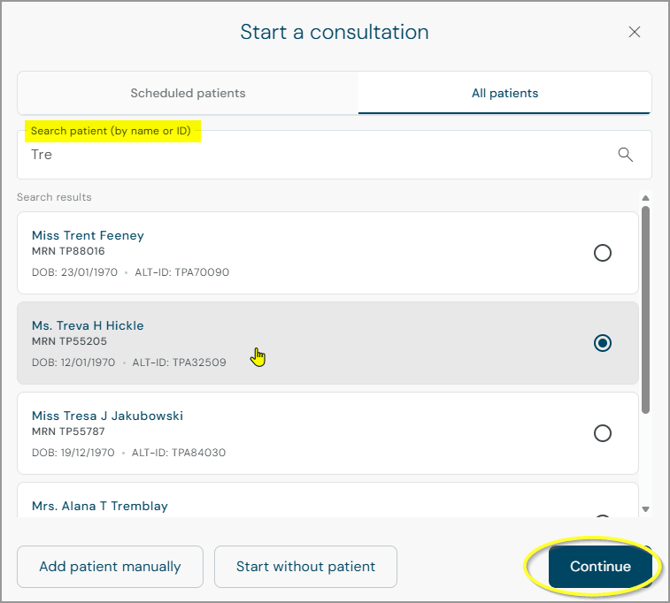
- Click on Continue.
=> the visit selection screen opens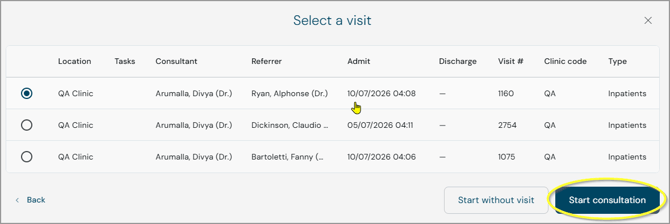
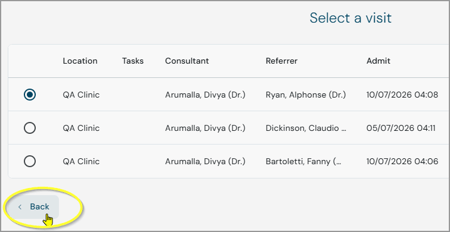
- Select the relevant visit.
• If one or more visits are available they provide the following information:
Location
Tasks
Consultant
Referrer
Admit
Discharge
Visit number
Clinic code
Type
• If none of the listed visits apply, click Start without visit instead to continue without linking one.
• If no visits are available for the patient, an empty state is shown instead of the list; click Start to continue without a visit. - Start the consultation.
=> the visit is linked to the consultation and you're taken to the Before you begin screen.
Additional notes:
- Click Back at any point on the visit selection screen to return to patient selection - your selected patient remains selected.
- Click the Close button X to cancel the entire flow.
You'll need to start the consultation again if you still want to begin one.
Visit location in document view
If a visit is linked to a consultation - either automatically for a scheduled patient, or manually via the steps above - its location is shown at the top of the generated document, next to the consultation date and time.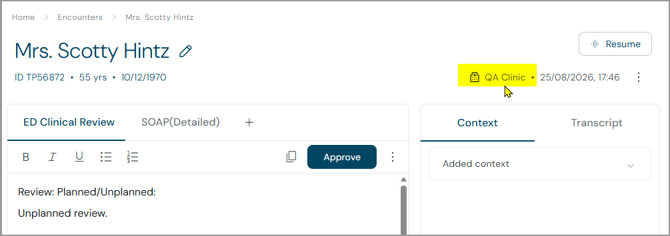
-
The location stays the same across all document tabs for that consultation and isn't repeated in the document text.
- If no location is available, nothing is shown but the date and time display as usual.
Updating the patient on an existing consultation
When you need to update the patient or visit information for an existing consultation, the same steps as described above apply.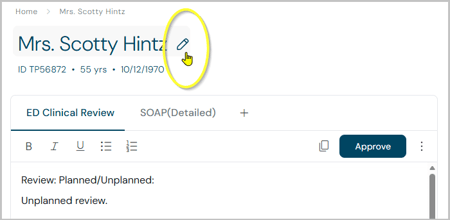
If you have any more queries, please do not hesitate to contact our Helpdesk or
support@tpro.io.
© 2026