
Encounters saved locally
The Encounters screen has a separate section for encounters that still have data stored only on the device. It appears above the clinician's normal list of encounters.
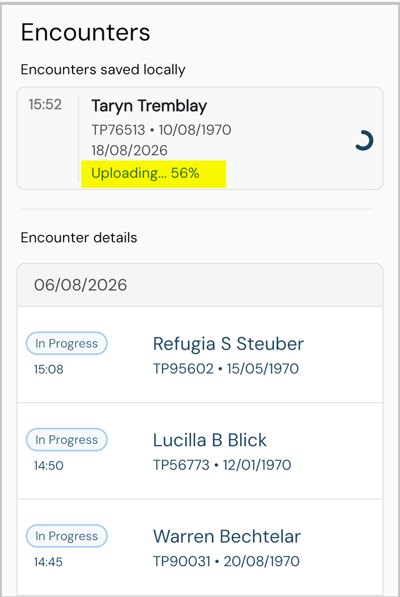
Each entry shows one of the following statuses.
- Waiting to upload: the encounter is complete and securely stored on the device, but the upload has not started yet.
- Uploading: once a connection is available, the upload is in progress and shown as a percentage, for example "Uploading… 65%".
- Processing: after the upload finishes, the encounter goes through normal server-side processing and document generation. Once this completes, the encounter moves into the clinician's standard encounter list and behaves like any other encounter from that point on.
Returning online
Coming back online does not automatically make locally stored encounters available everywhere straight away.
‼️The clinician needs to open the mobile app so it can reconnect and start handling the data saved locally.
=> This is a system limitation; iOS (and Android sometimes) won't let the app open and start the upload process by itself.
-
The Encounters screen shows this happening, as encounters are uploaded one at a time, moving through waiting to upload, uploading and processing.
-
Once an encounter has uploaded and finished processing, its requested documents are generated, it moves into the standard encounter list, its documents can be opened and reviewed, and it becomes available through the normal connected experience, including web where applicable.
-
There is no lasting label to show that the consultation was originally recorded offline; once processed, it is meant to look and behave exactly like a consultation recorded online.
Losing connection during an online consultation
Offline Mode also protects a consultation that starts while the device is connected.
-
If part of the recording has already uploaded when the connection drops, recording simply continues, and the part that could not be uploaded is retained locally.
-
The clinician does not need to restart the consultation.
-
Once the connection returns, the remaining data uploads, and the complete consultation is processed and its documents generated as normal. While this is happening, the locally retained part of the recording may appear briefly in the Encounters saved locally section, sometimes with partial upload progress shown.
Mobile versus web
Locally saved encounters exist only on the mobile device that recorded them until they upload.
-
Before upload, they are visible in the mobile app but do not appear on web or desktop as completed encounters, and their documents are not yet available.
-
Once the upload and processing have completed, the encounter enters the normal connected workflow and becomes accessible through the relevant connected products, including web.
Security while offline
Consultation data that needs to stay on the device is held in secure, encrypted local storage managed by the app itself. The clinician never needs to export an audio file, connect the phone to a computer, manually transfer a recording, or reconstruct a consultation by hand once the connection returns; the app handles all of this automatically.
When discussing this with customers, avoid implementation-level cryptographic detail and use the approved description:
"Consultation data is securely encrypted and stored locally on the mobile device until it can be uploaded."
- Offline Mode in Scribe Mobile: Overview
- Offline Mode in Scribe Mobile: Recording a Consultation
- Offline Mode in Scribe Mobile: Limitations and Customer Questions
© 2026