
The below steps describe the clinician's experience of recording a consultation in Scribe Mobile while offline, from the moment the device loses connection to the point where the finished encounter is saved locally.
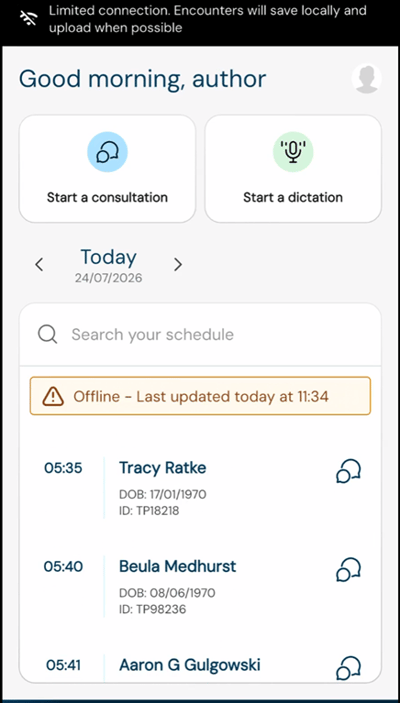
Knowing the device is offlineWhenever the app detects that it has no internet connection, it shows a persistent banner across the app, for example:

The banner stays visible for as long as the device is offline, so the clinician always knows the app is operating differently, without it blocking normal consultation activity.
Schedule availability offline
If the clinician has used the app online recently, the schedule may still be available locally. When this is the case, scheduled patients can be selected when starting a consultation, and the app shows when the schedule was last refreshed.
- The timestamp reflects the last successful schedule refresh (not the last time the clinician opened the app).
- The schedule normally receives updated information on a regular basis (approx. every 10 minutes) to keep your appointments up to date.
- If no usable schedule data remains on the device, the schedule is not shown at all.
‼️ It is worth stressing to customers that Offline Mode does not give live access to the server-side patient database or schedule, only to what was already downloaded before the device went offline.
What the clinician can still do
The core consultation workflow remains available offline. The clinician can start a consultation from a patient on the locally available schedule, enter patient details manually, or start without selecting a patient at all.
-
They can record, pause and resume the consultation, and finish it.
-
Select from the document templates that were downloaded to the device before it went offline.
-
Save the completed encounter locally.
-
They can also start another consultation immediately without waiting for the previous one to upload.
-
Check the status of locally saved encounters from the Encounters screen.
- Record a consultation with an overall maximal length of 3.5 hours
Before starting a consultation while offline, the clinician sees a confirmation explaining that they are currently offline, that the schedule may have changed since it was last refreshed, and that the encounter will be saved locally and uploaded once a connection returns. After this confirmation, the consultation starts as normal.
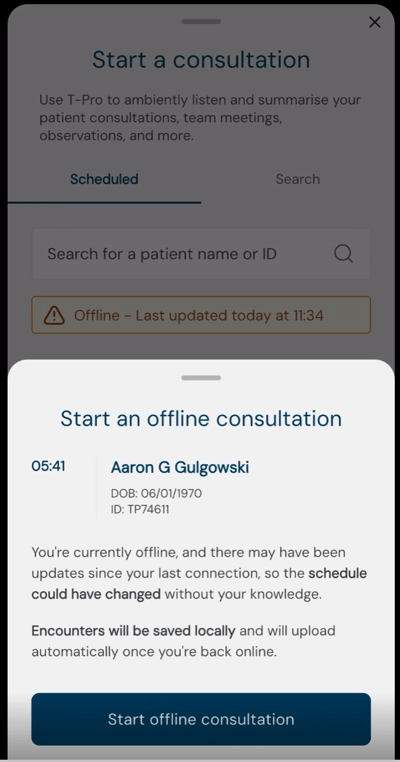
Once recording starts, the experience is intentionally very similar to recording online, and the clinician does not need to manage connectivity manually. Whether the device starts offline, loses its connection mid-recording, or moves between online and offline states, the app keeps hold of any consultation data that has not yet uploaded.
The offline banner stays visible for as long as there is no connection. The key point for customers is that a temporary loss of connectivity does not stop an active consultation or discard the part of the recording that has already been captured.
When the clinician selects Finish, they choose which document templates should be used, for example a SOAP note, a referral letter, or a specialty-specific template.
-
The documents themselves are not generated on the device while offline; only the selection is saved, so the requested documents can be generated once the encounter has uploaded.
-
After finishing, the clinician sees a confirmation that the encounter has been saved and can either return to the home screen to start the next consultation or open Encounters to see what is stored locally.
-
No connection is needed to start another consultation.
If a consultation is interrupted, for example because the app closes or the clinician leaves it unfinished on purpose, it is kept locally as a draft. The clinician can select Continue to return to it later, carry on recording, finish the consultation, choose document templates, and let it upload and process once the device is online. This protection applies in addition to Offline Mode itself, so a recording does not need to be formally finished straight away to stay available.
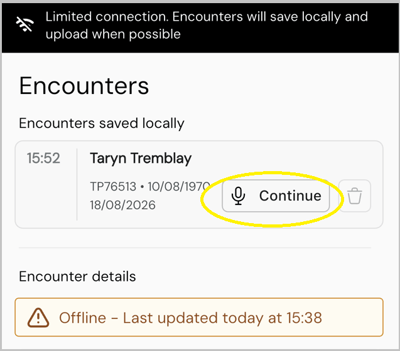
An unfinished consultation can only be deleted while the device is online; deletion is not available offline.
This is intentional: part of the consultation may already exist in the cloud while the rest is still stored only on the device, and an internet connection is needed to reconcile the two before anything is deleted. If a customer wants to delete an unfinished consultation while offline, Support should advise them to reconnect to the internet first and then delete it from the app.
Related articles- Offline Mode in Scribe Mobile: Overview
- Offline Mode in Scribe Mobile: Uploading and Returning Online
- Offline Mode in Scribe Mobile: Limitations and Customer Questions
© 2026