
Before you start
You need an unfinished letter assigned to you. Your workflow group must give you permission to edit it.
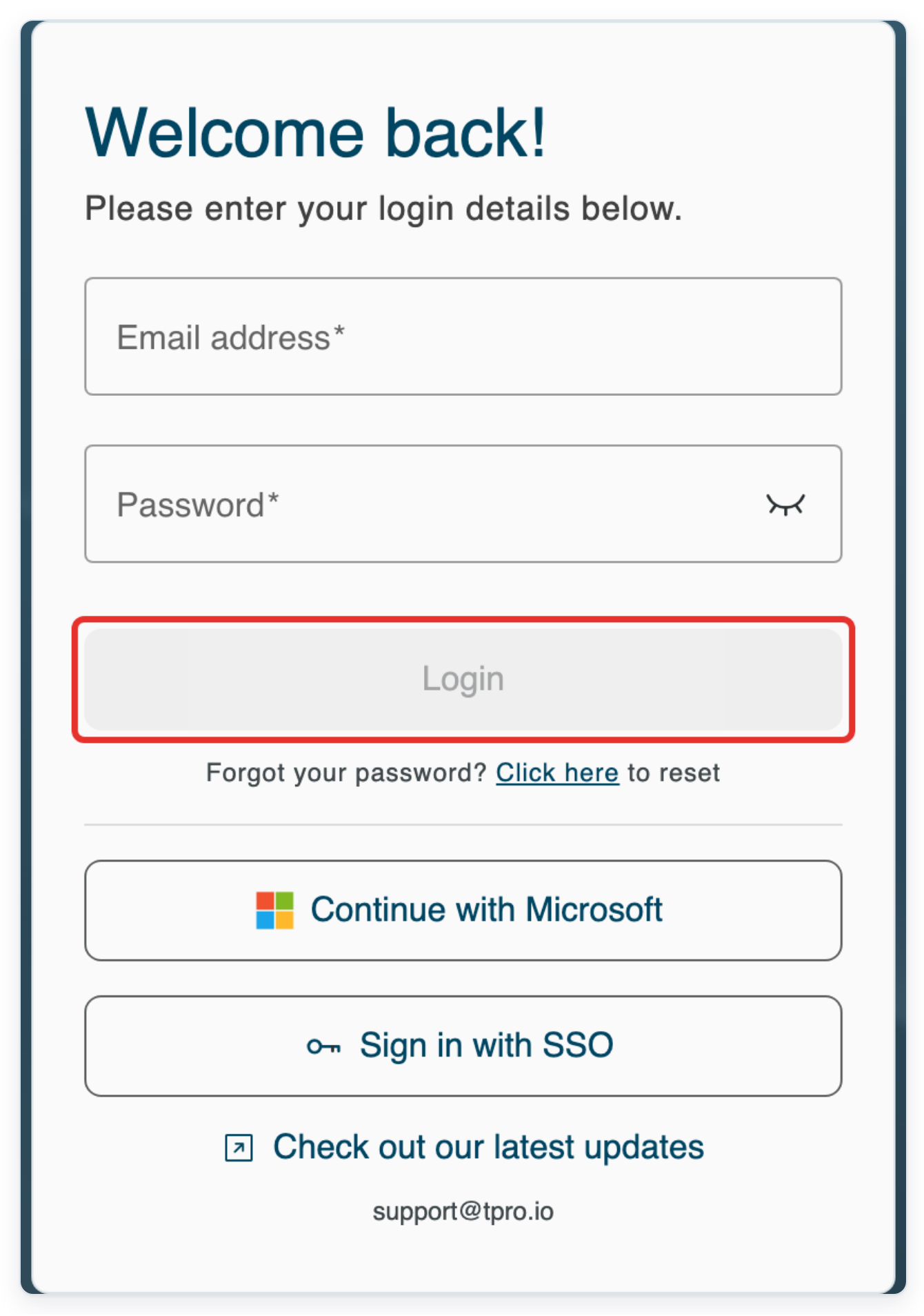
Log in to T-Pro with your transcriber credentials.
Enter your email address and password, then click Login.
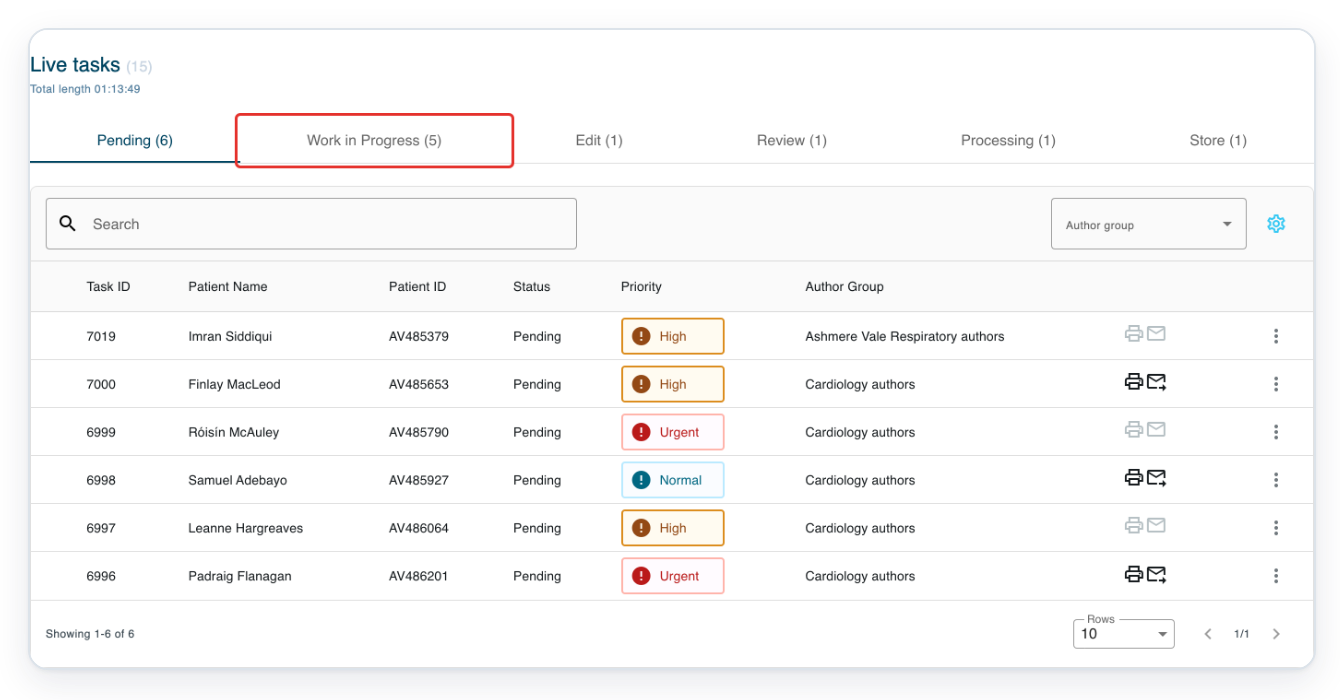
Click Live Tasks in the top navigation to open the task list.

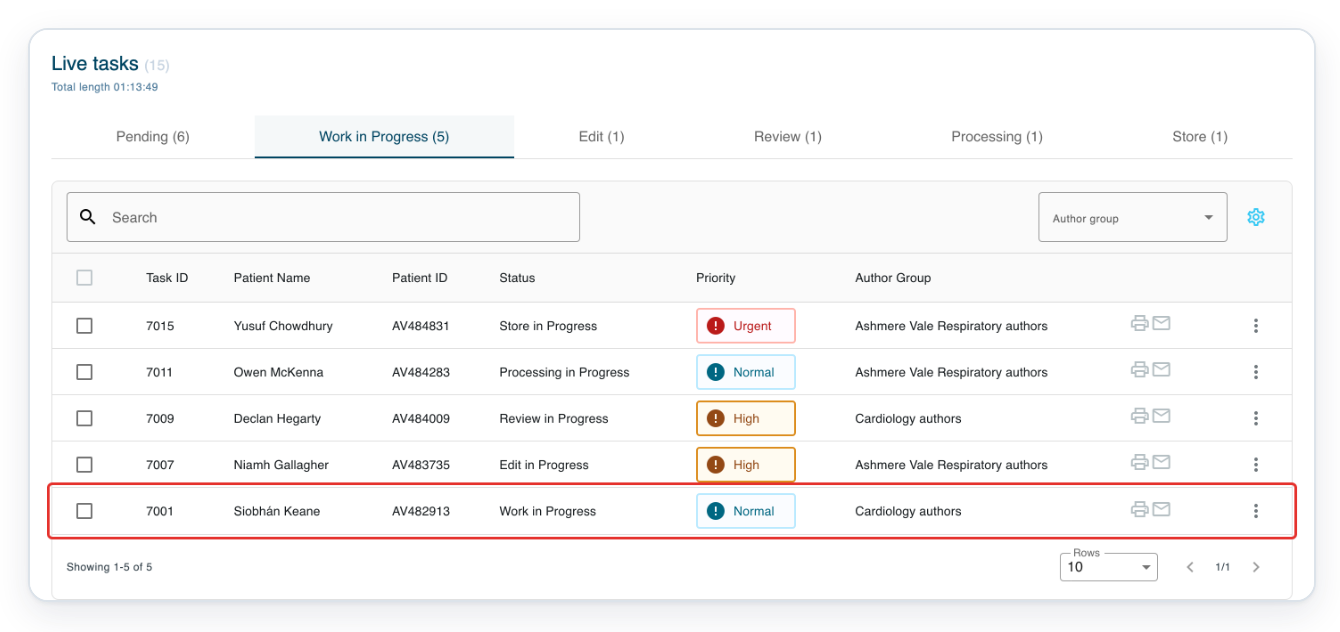
Select Work in Progress to find the letter assigned to you.
This tab includes your assigned work being transcribed, edited, reviewed, processed or stored.
=> The list includes task 7001, the letter assigned to you for Siobhán Keane.
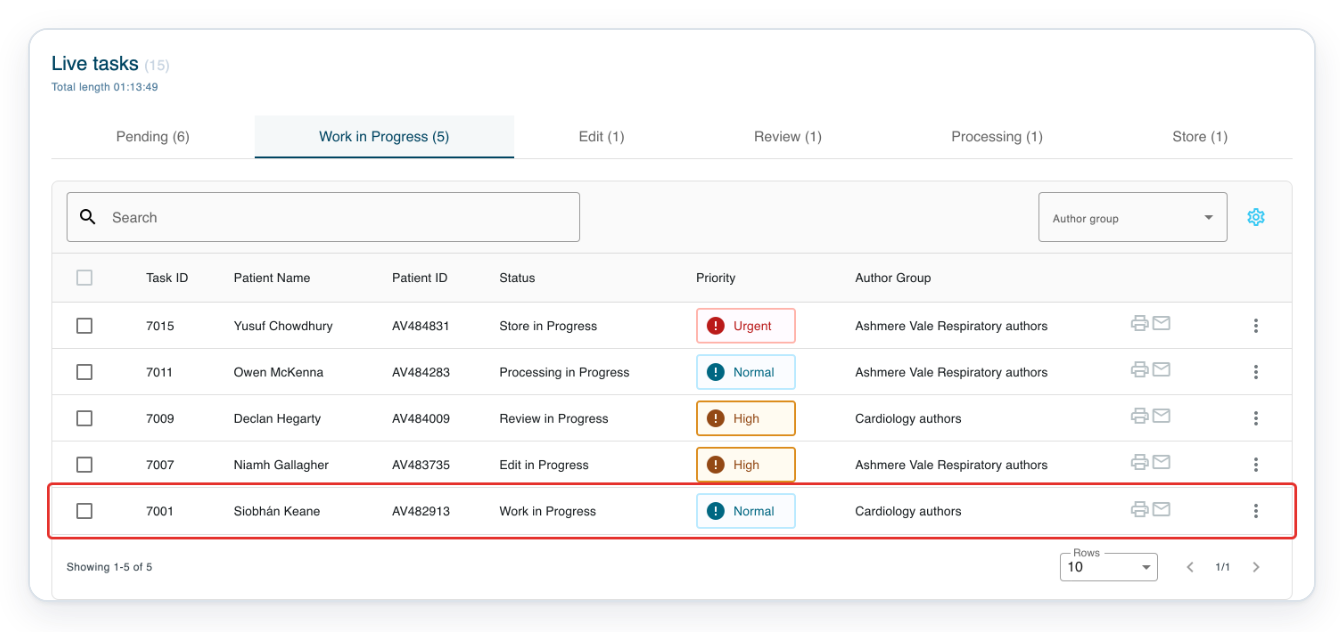
Click the letter's row to open it.
Before opening the letter, check Patient Name and Patient ID to confirm it is the right one.
Click the pencil beside the patient details, labelled Edit task information. The Update task dialog opens.

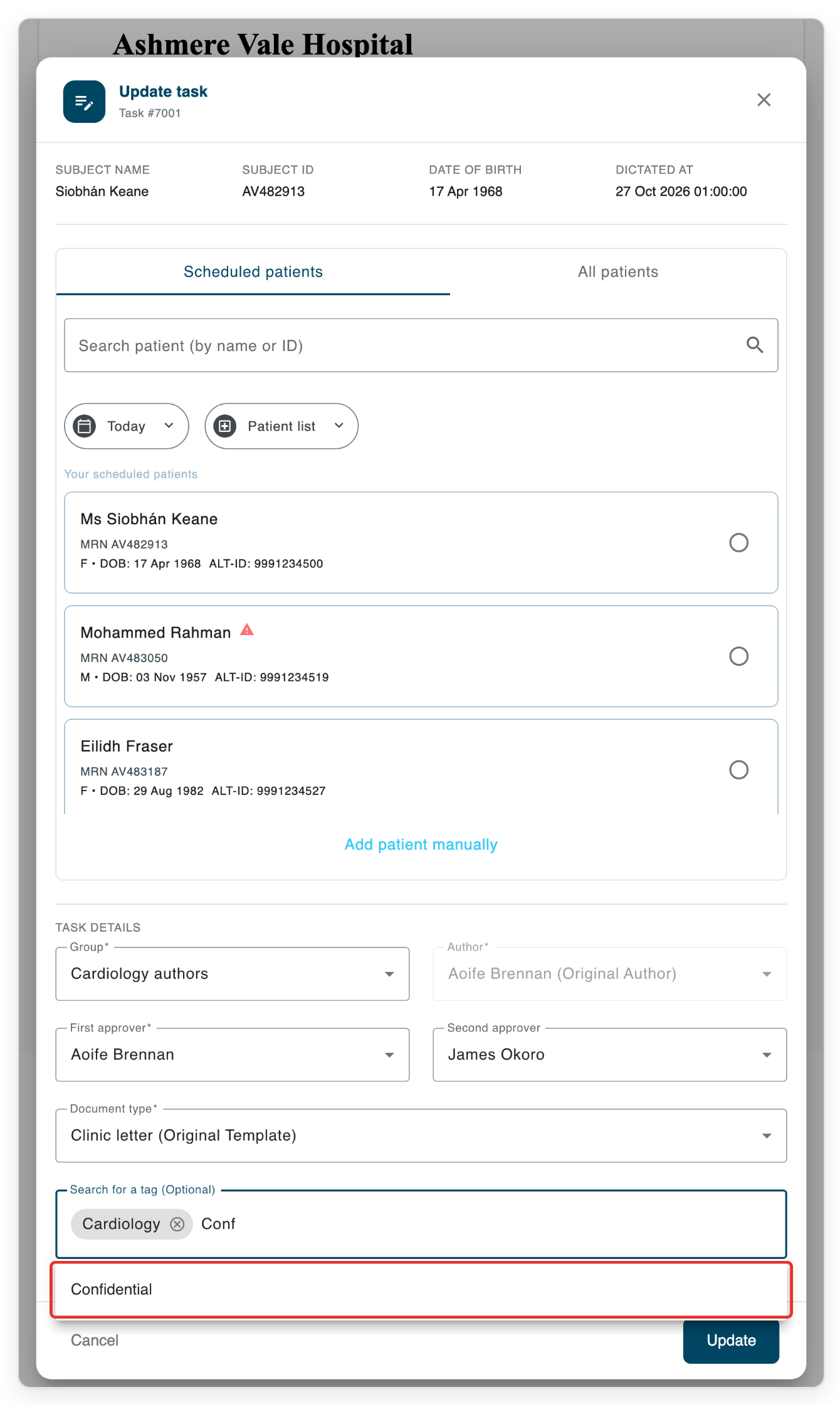
Under Search for a tag (Optional), click Add tag and type Conf.
The tag field is near the bottom of the dialog, beneath Document type. Confidential appears in the suggestions.
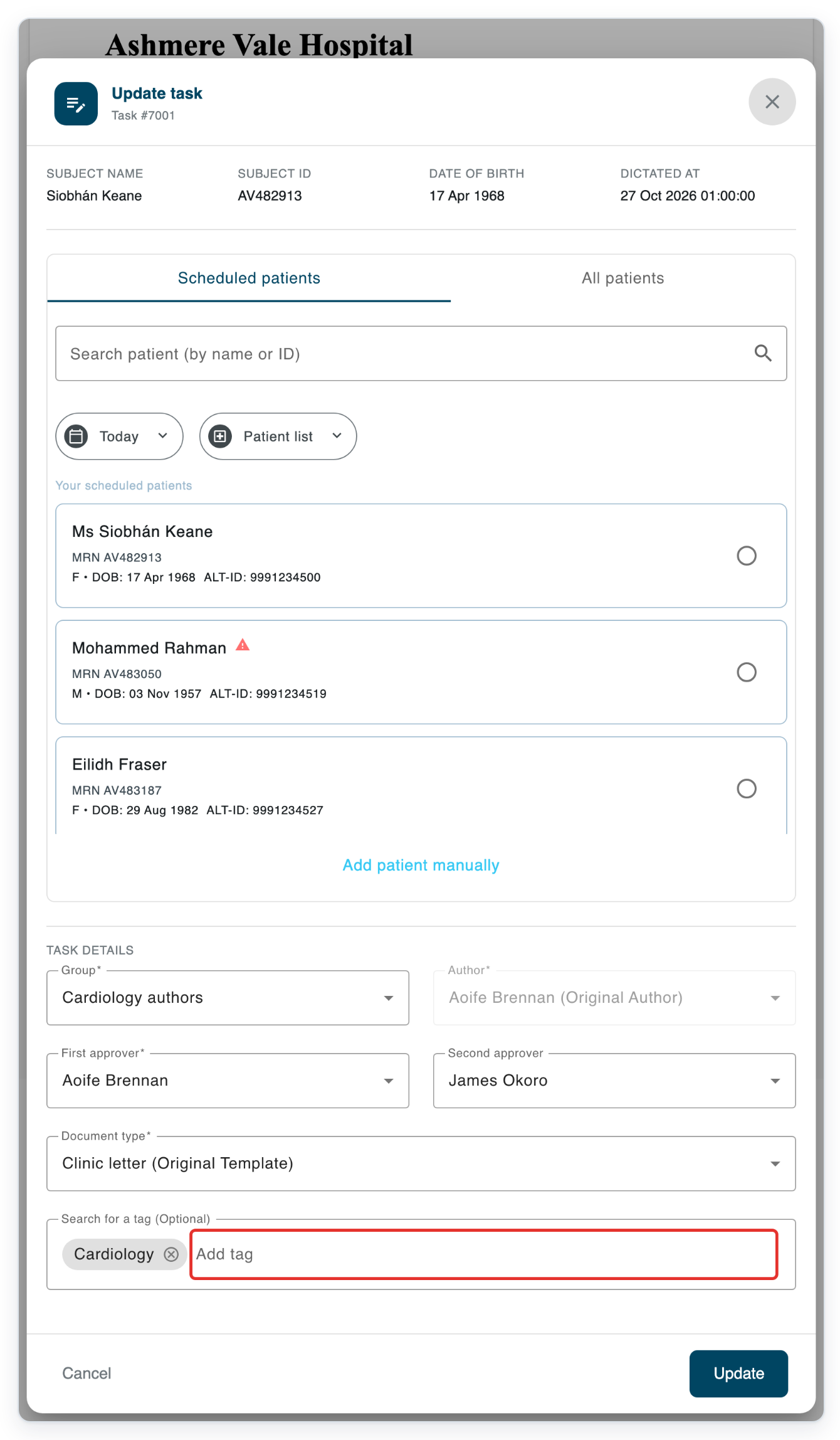
Select Confidential from the suggestions to add it to the task.
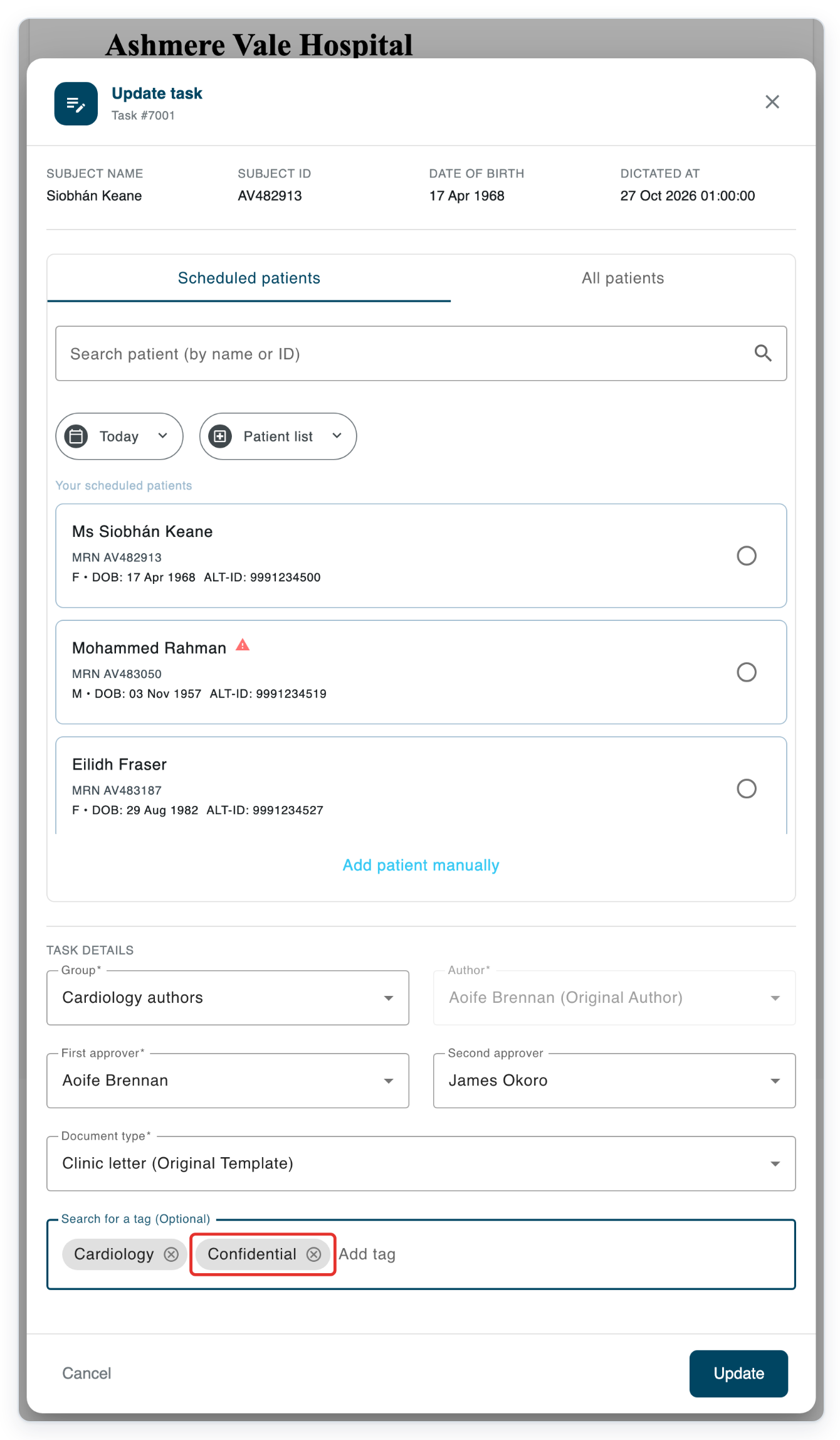
=> Confidential now appears beside the existing tags. Check it is there before saving.
Click Update to save the tags and close the Update task dialog.
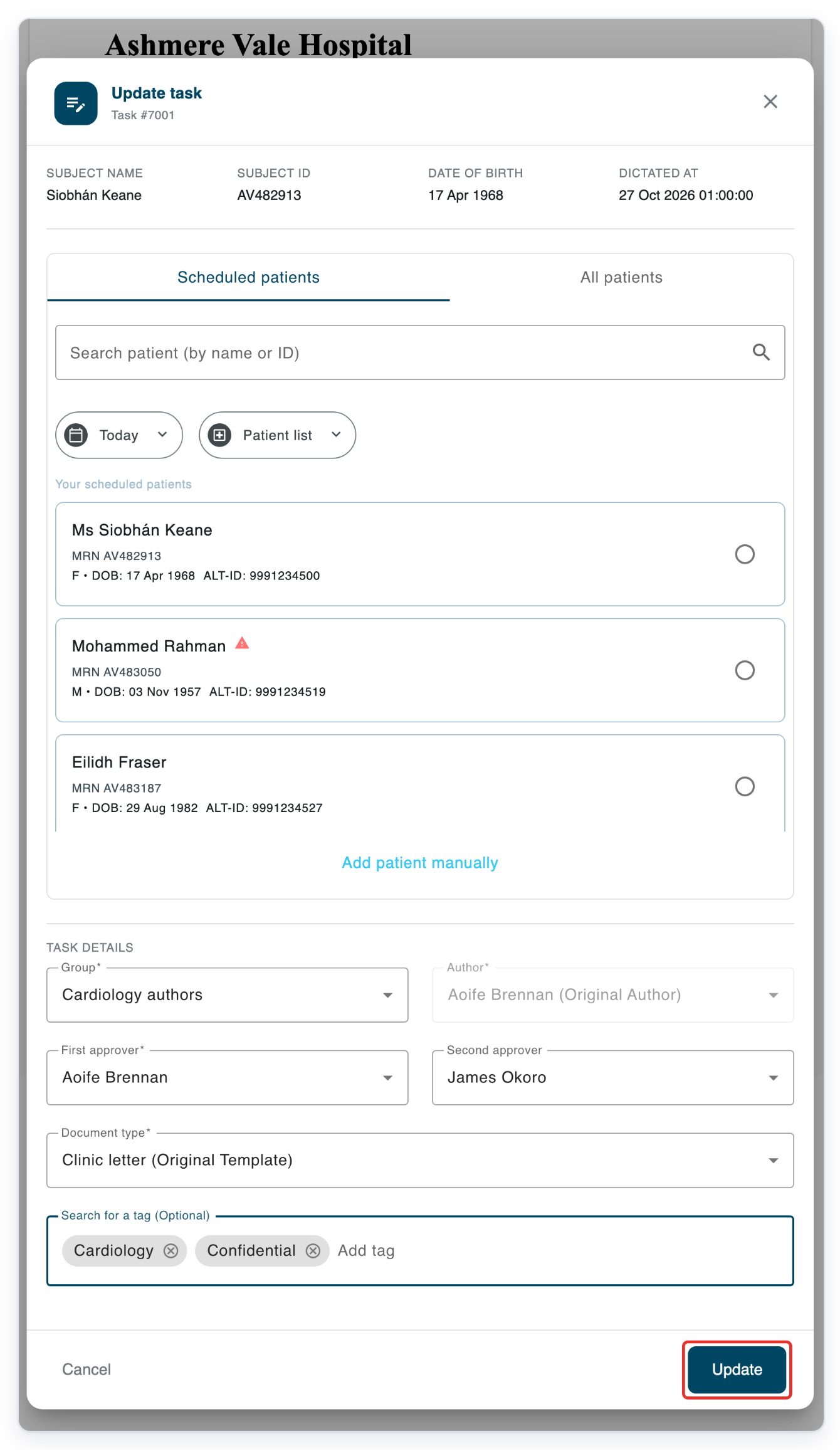
=> The letter stays open for you as the assigned transcriber.

NOTE:
- Select Confidential from the suggestions before clicking Update. Typing the name alone won't add the tag.
Who can access a confidential task?
Access depends on your role, the task's stage and its workflow group.
| Who | When and where they can access it |
|---|---|
| Assigned staff | Open Work in Progress in Live Tasks to find tasks assigned to you individually. This includes work being transcribed, edited, reviewed, processed or stored. |
| Workflow group members | In Live Tasks, use Pending for the task's typing group or Edit for its editing group. Use Review for its review group or Processing for its processing group. You can access the task through group membership, without it being assigned to you individually. |
| Storer group members | In Live Tasks, open Store for your storer group's tasks, whether assigned to you individually or not. |
| The task's author | Your own confidential tasks at any stage, including through All Tasks. |
| Assigned approvers | In Live Tasks, use Waiting for Approval if you are the assigned first approver. Use Waiting for Second Approval if you are the assigned second approver. |
| Managers | Confidential tasks in departments you manage, including through All Tasks. |
| Administrators | You can access tasks marked as confidential. |
| Masters | Confidential tasks in organisations you have permission to access, including through All Tasks. |
Can't add a confidentiality tag?
- If Confidential is missing from the suggestions, check whether it is already selected in the tag field. Selected tags don't appear in the suggestions. If it isn't selected, ask your organisation's administrator to check the available tags.
- If Edit task information is missing, open your assigned, unfinished letter from Live Tasks. The pencil appears when the letter is open for editing. It won't appear on completed letters or letters opened just for viewing.
- If a confidential task is missing from All Tasks, check the relevant queue in Live Tasks. For Work in Progress, check that the task is assigned to you individually. For the other queues, check that you belong to the task's workflow group. Ask your manager to check your access if needed.
Related articles
If you have any more queries, please do not hesitate to contact our Helpdesk or support@tpro.io.
© 2020 - 2026