
Before you start
You need an unfinished task with a document you have permission to edit. Have the correct patient name and ID ready.
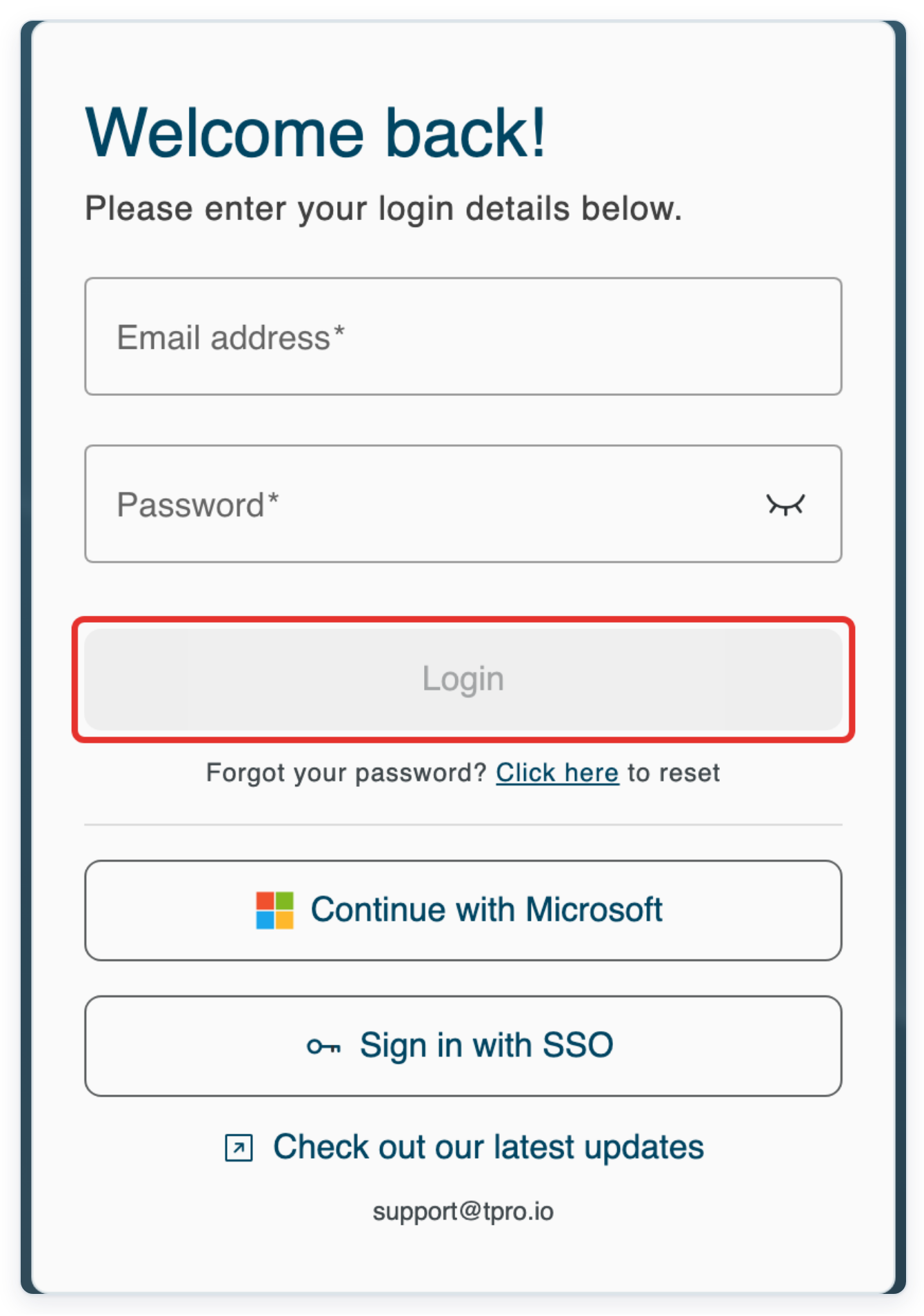
Log in to T-Pro with your transcriber, editor or reviewer credentials.
Choose a patient from a hospital feed
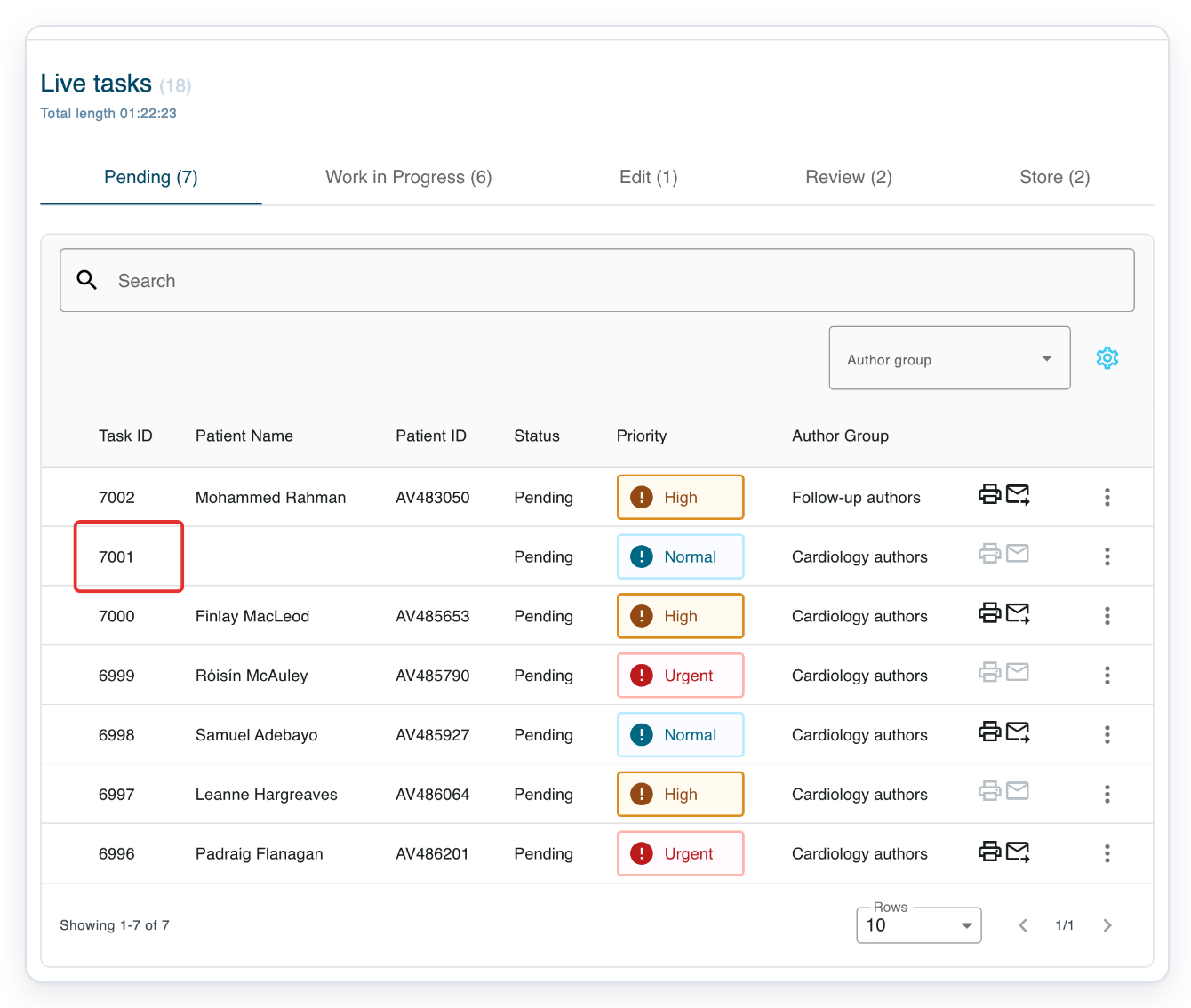
Go to Live tasks, open Pending, then click the task you want to update.
Check the Patient Name and Patient ID columns for missing details. We'll use task 7001 in this example.
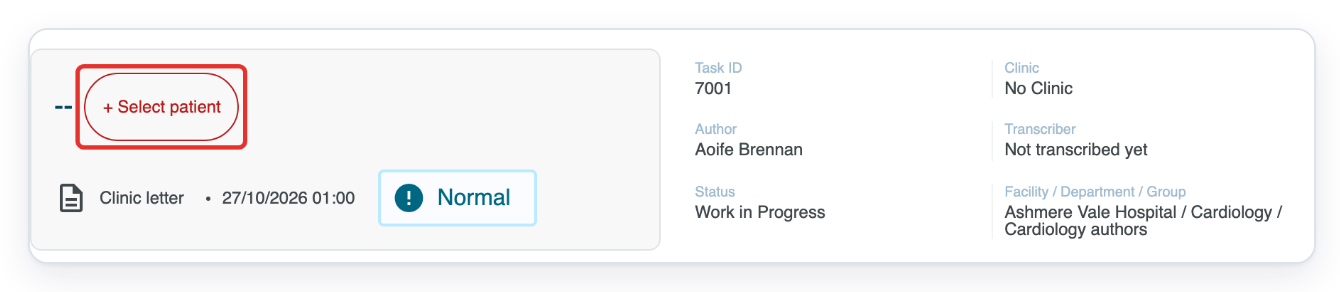
Click + Select patient at the top of the task. Update task opens.
This button appears when the task has no patient name or ID.
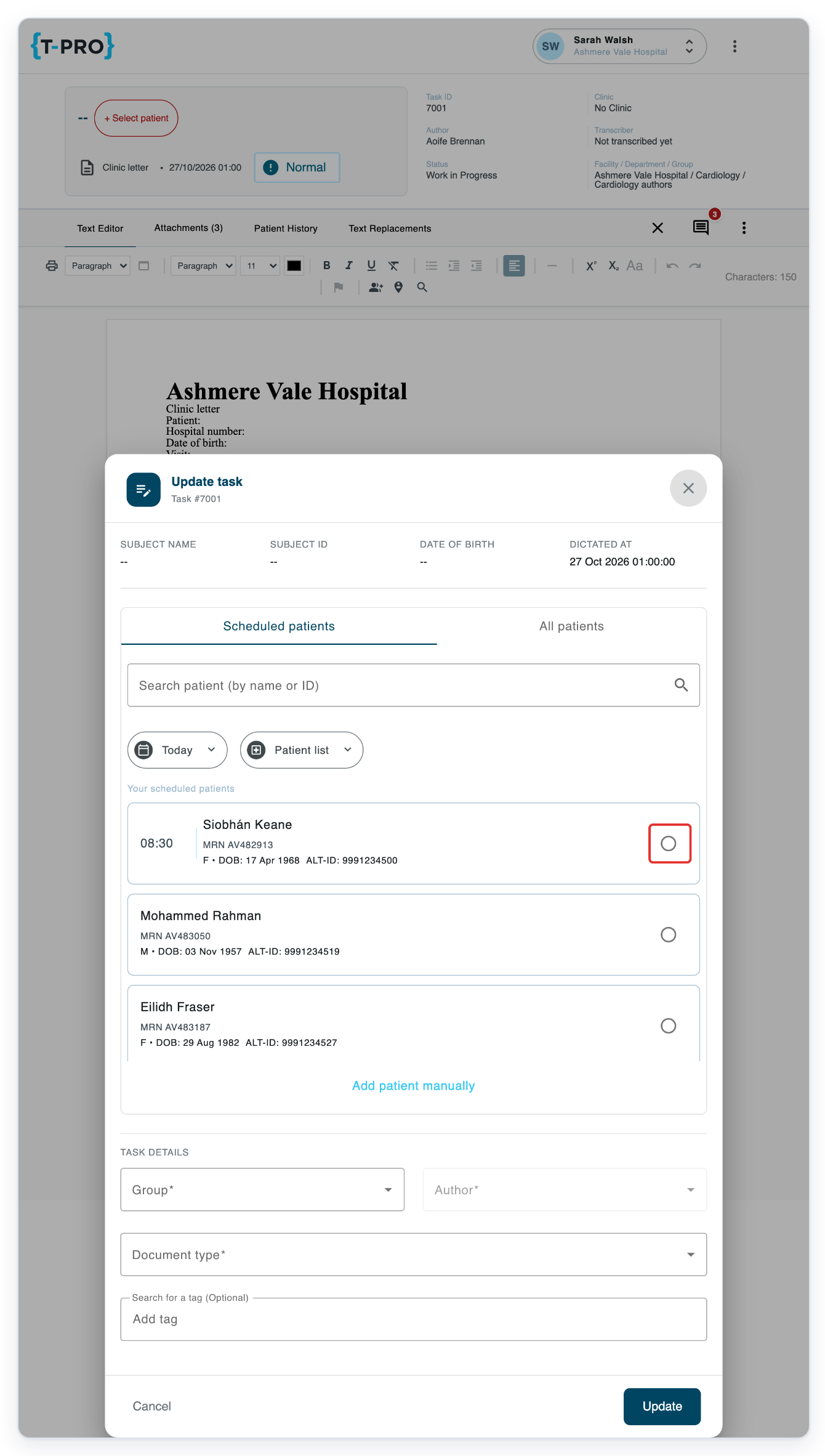
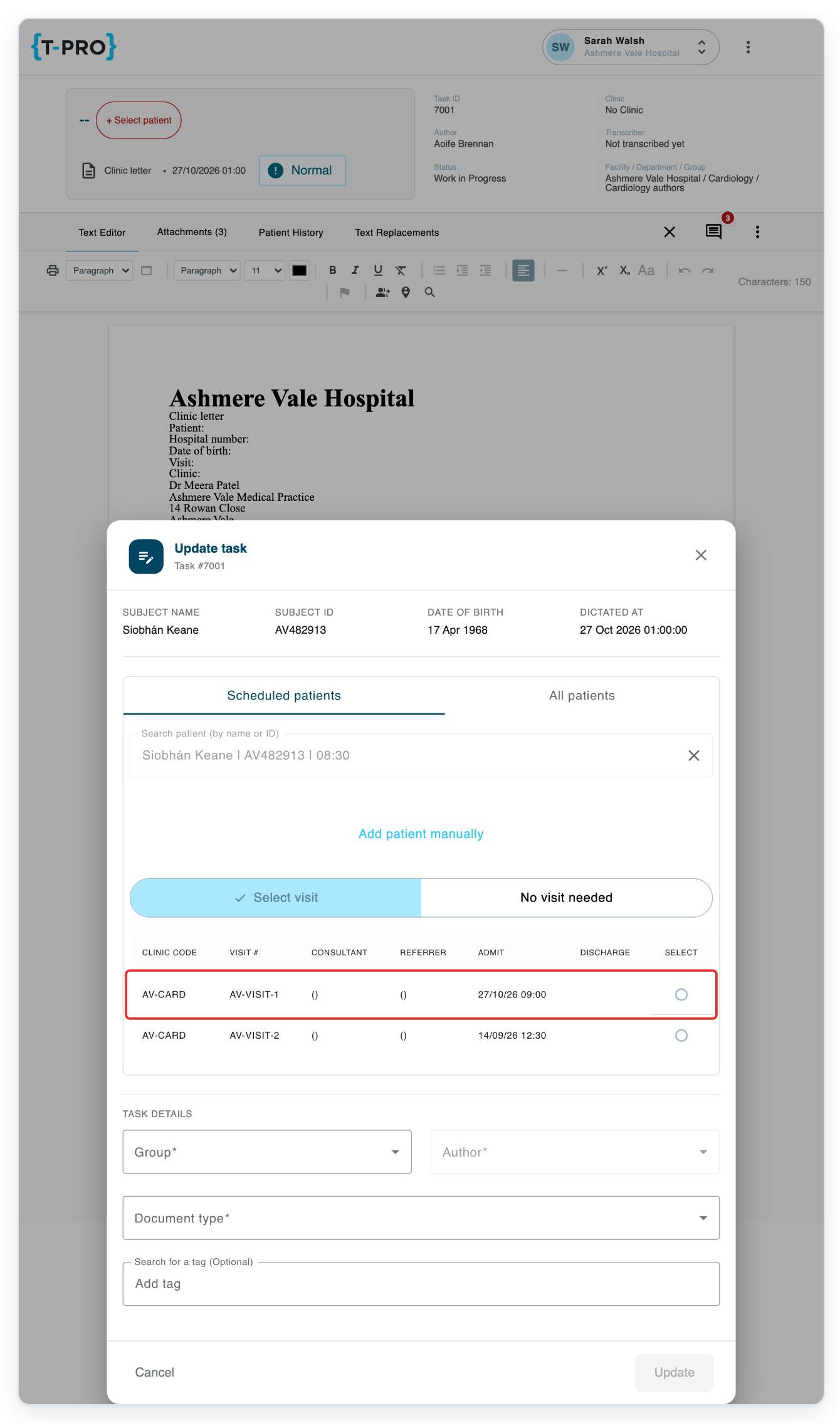
In Scheduled patients, click the circle beside the correct patient. Here, we choose Siobhán Keane, whose medical record number (MRN) is AV482913.
Use Search patient (by name or ID) to filter the list. Check the name, MRN and date of birth before you choose a patient.
If the patient is not in the scheduled list, open All patients and search by name or ID.
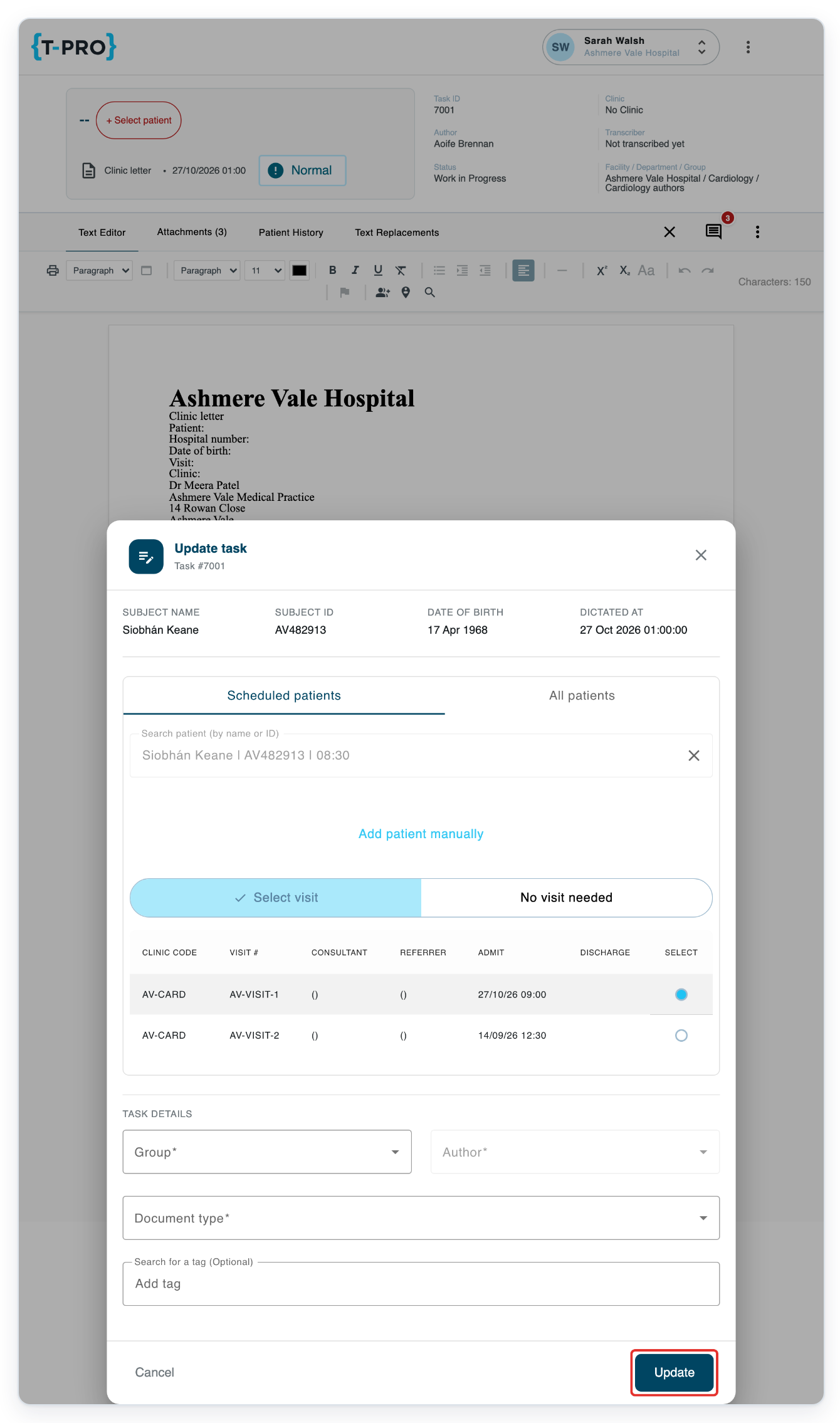
Under Select visit, click the correct visit row. Here, choose AV-VISIT-1, with clinic code AV-CARD and admission date 27 October 2026.
Check the clinic code, visit number and admission date to find the right visit.
Click No visit needed if the task does not relate to a visit.
Click Update to save the chosen patient.
Check the patient and visit details in the document before you continue working. In this example, these are Siobhán Keane, ID AV482913, visit AV-VISIT-1 and Cardiology Clinic.
As an editor
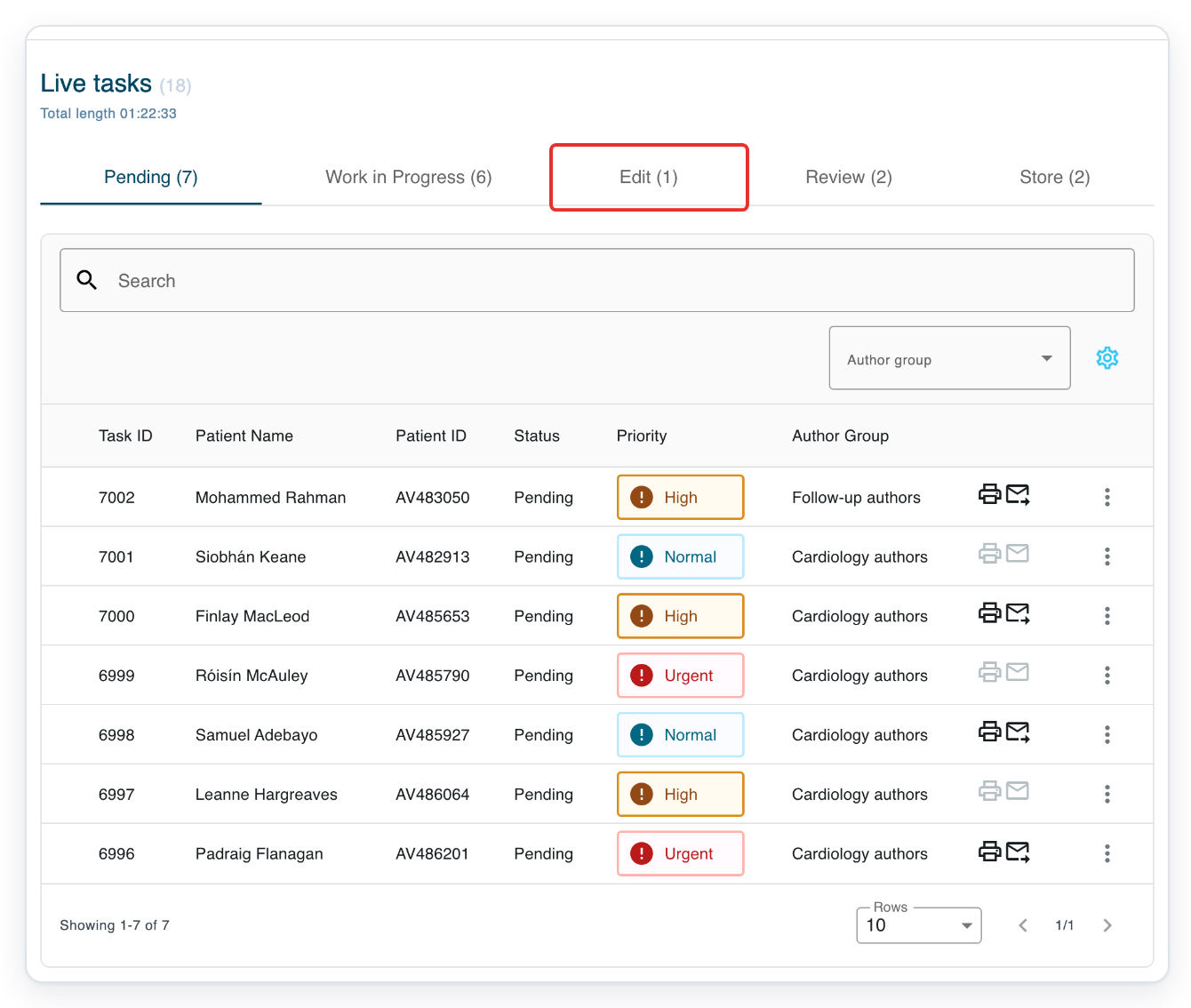
In Live tasks, click Edit to find tasks waiting to be edited.
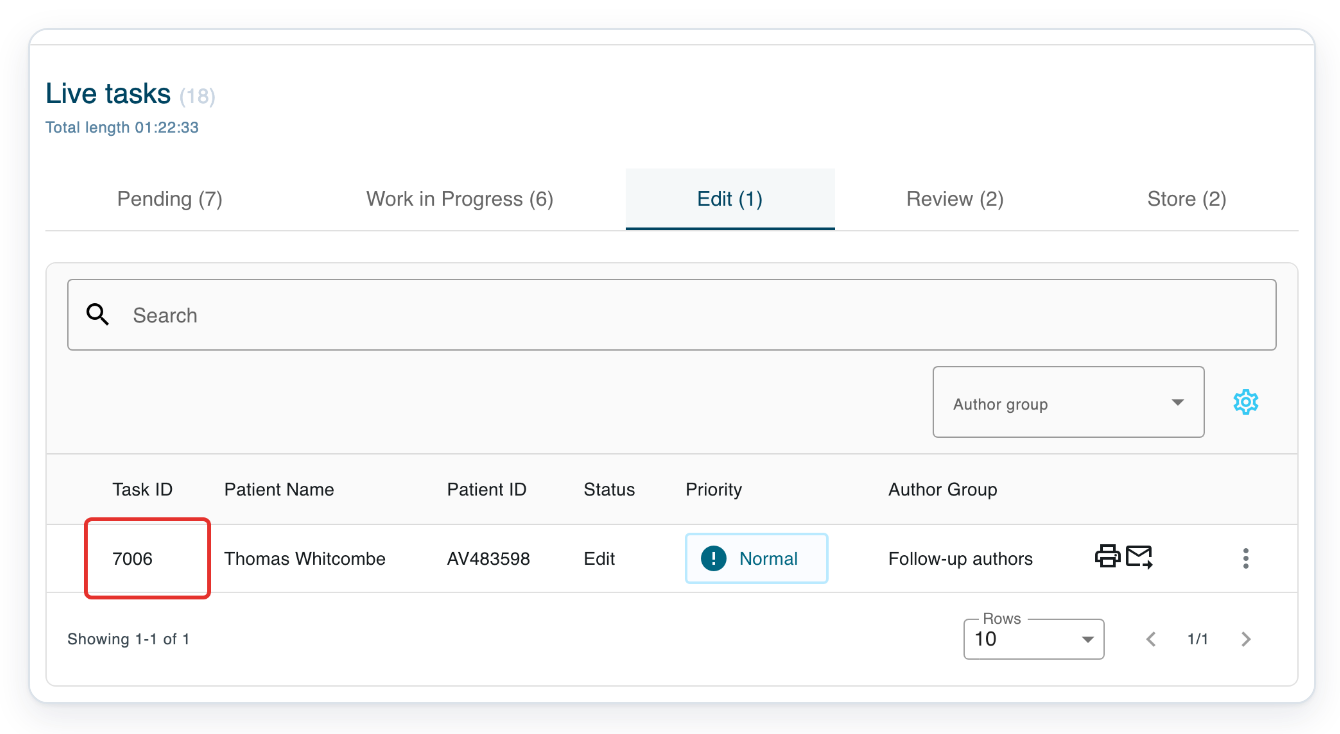
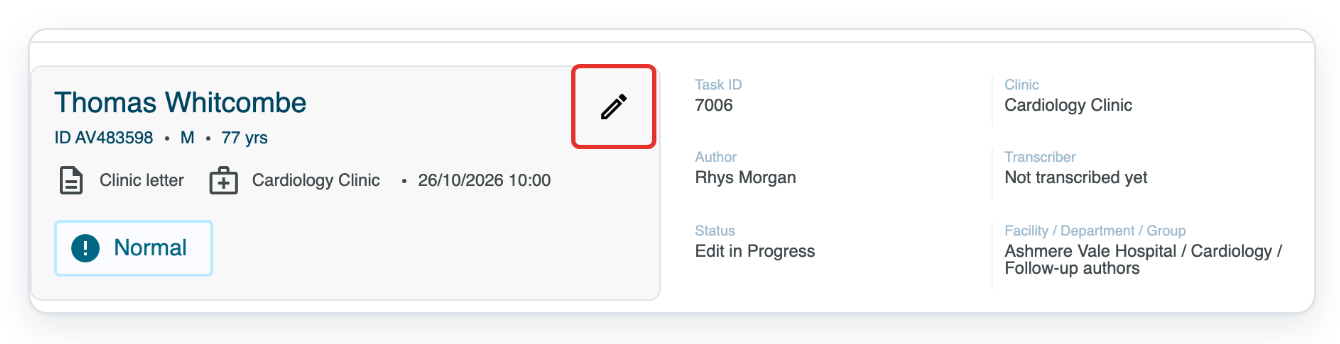
Click the task you want to update. Here, we open task 7006 for Thomas Whitcombe.
Click the pencil at the top of the patient card, marked Edit task information. Update task opens.
Choose the patient and visit, then save as shown in steps 4 to 6.
As a reviewer
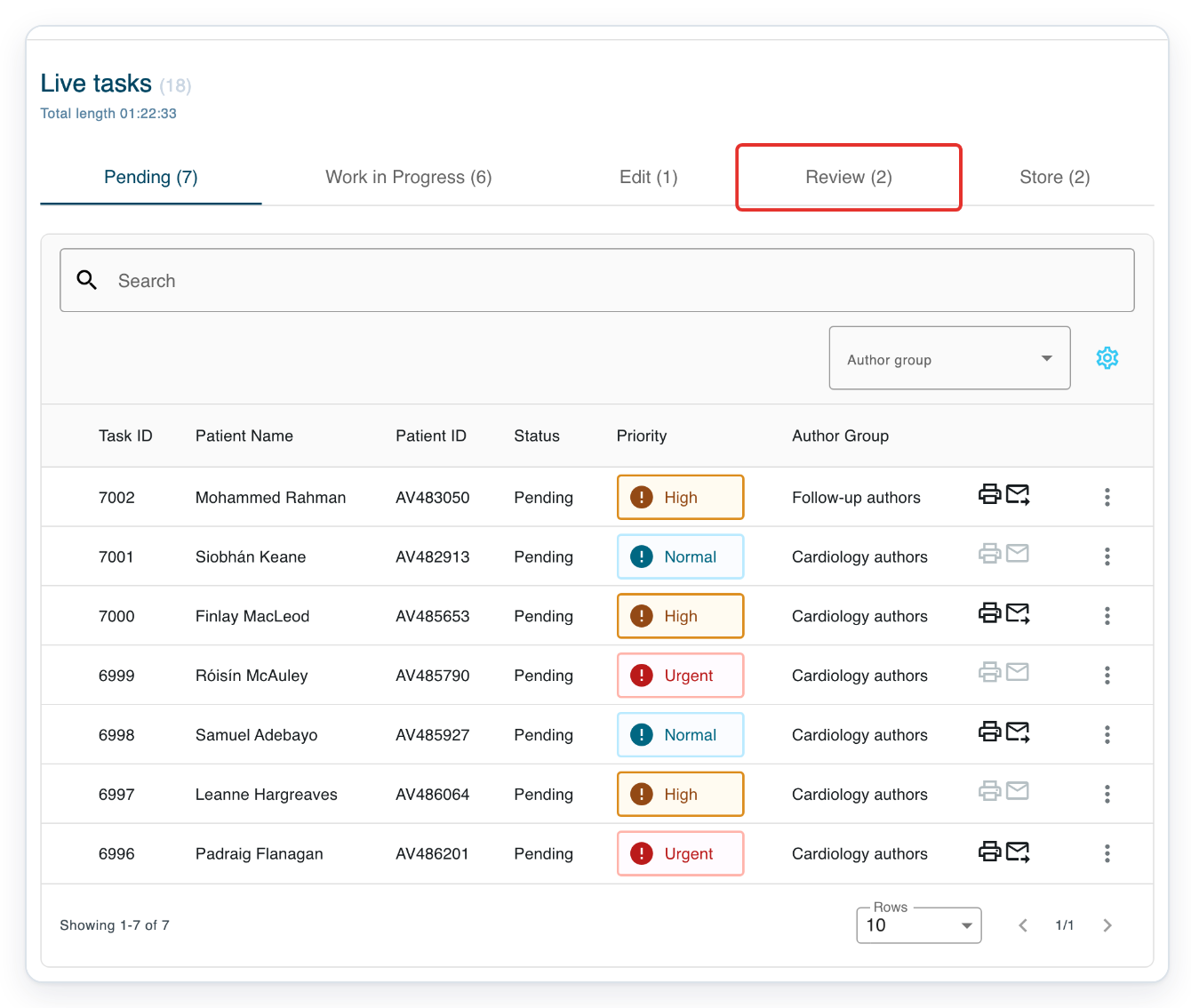
In Live tasks, click Review to find tasks waiting for review.
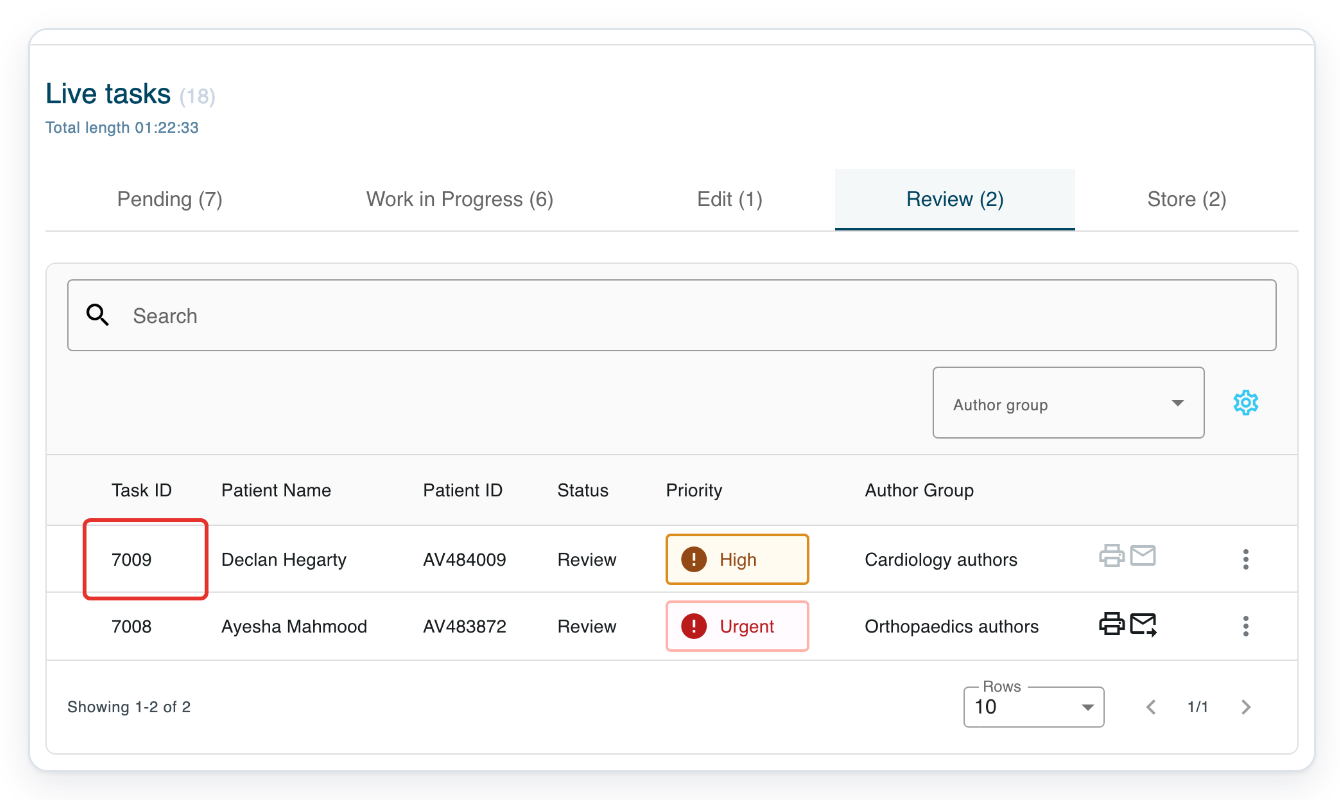
Click the task you want to update. Here, we open task 7009 for Declan Hegarty.
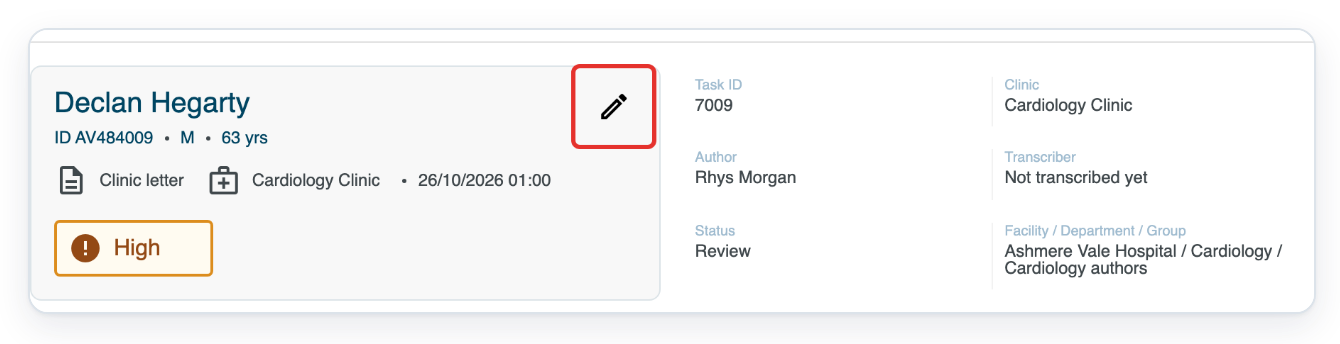
Click the pencil at the top of the patient card, marked Edit task information. Update task opens.
Choose the patient and visit, then save as shown in steps 4 to 6.
Enter patient details manually
For work already started, open Work in Progress in Live tasks.
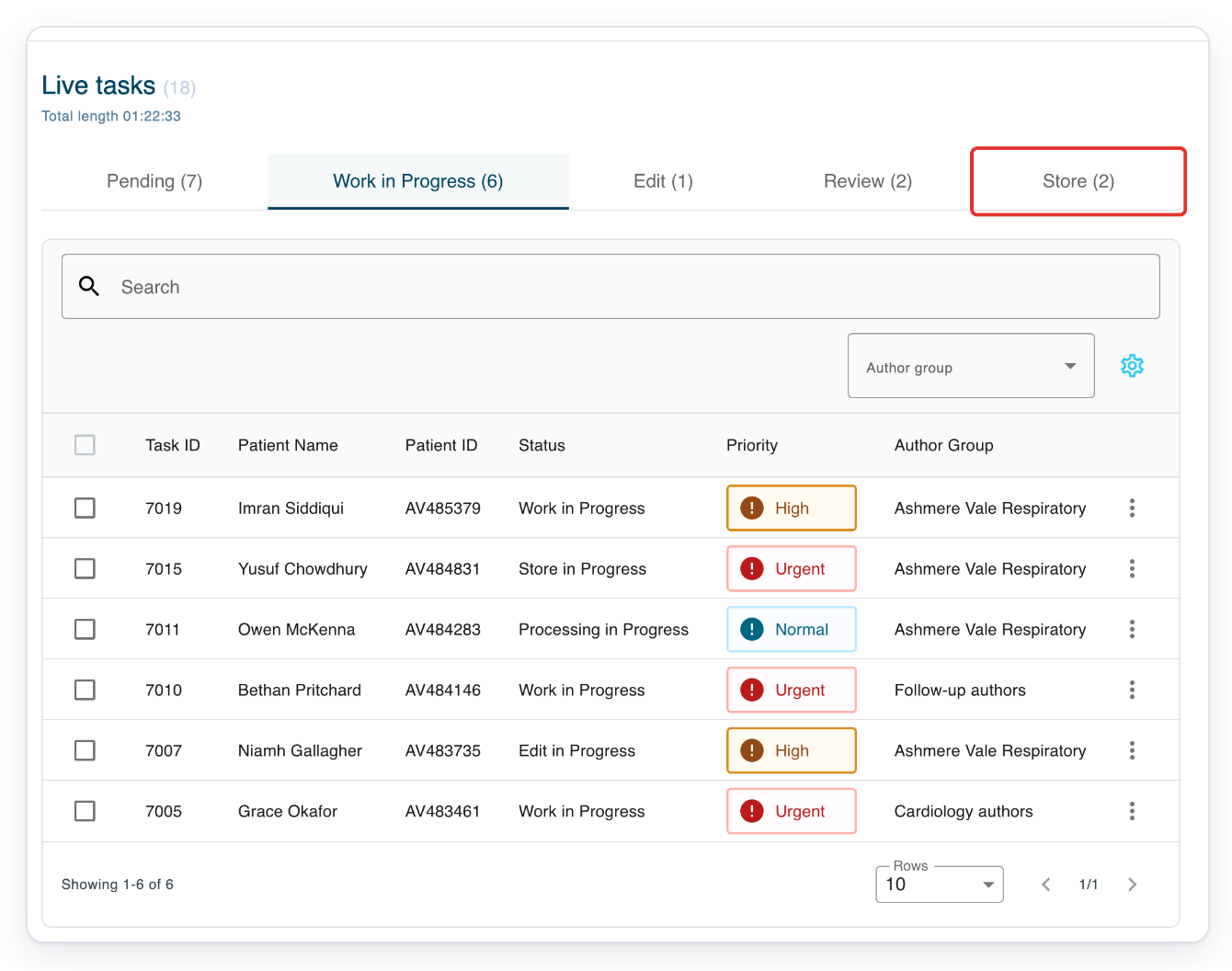
Storers can also change patient details on tasks they have permission to edit. For this example, log in with your storer credentials. An assigned task already being stored, such as task 7015, appears in Work in Progress.
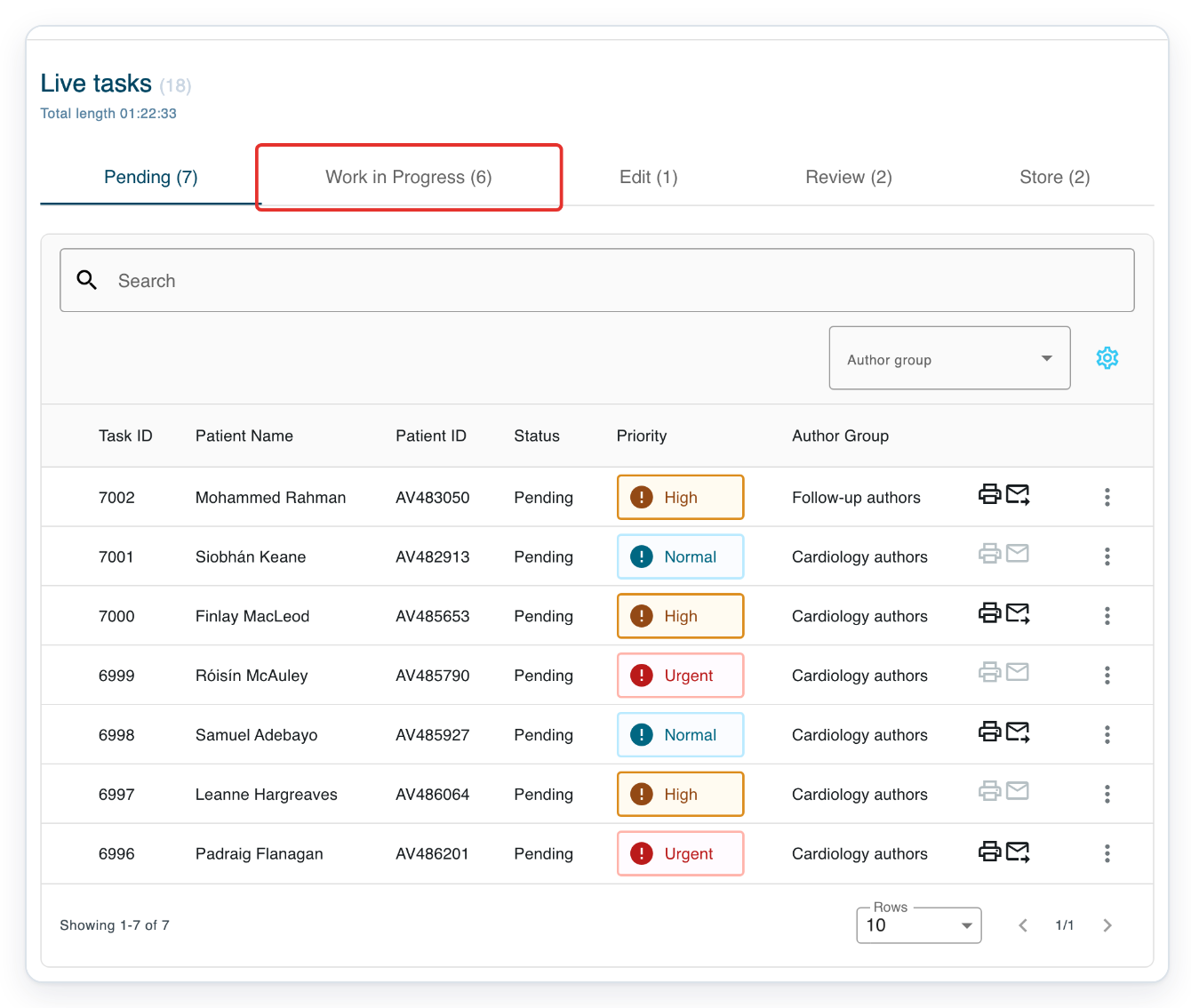
For a task waiting to be stored, click Store.
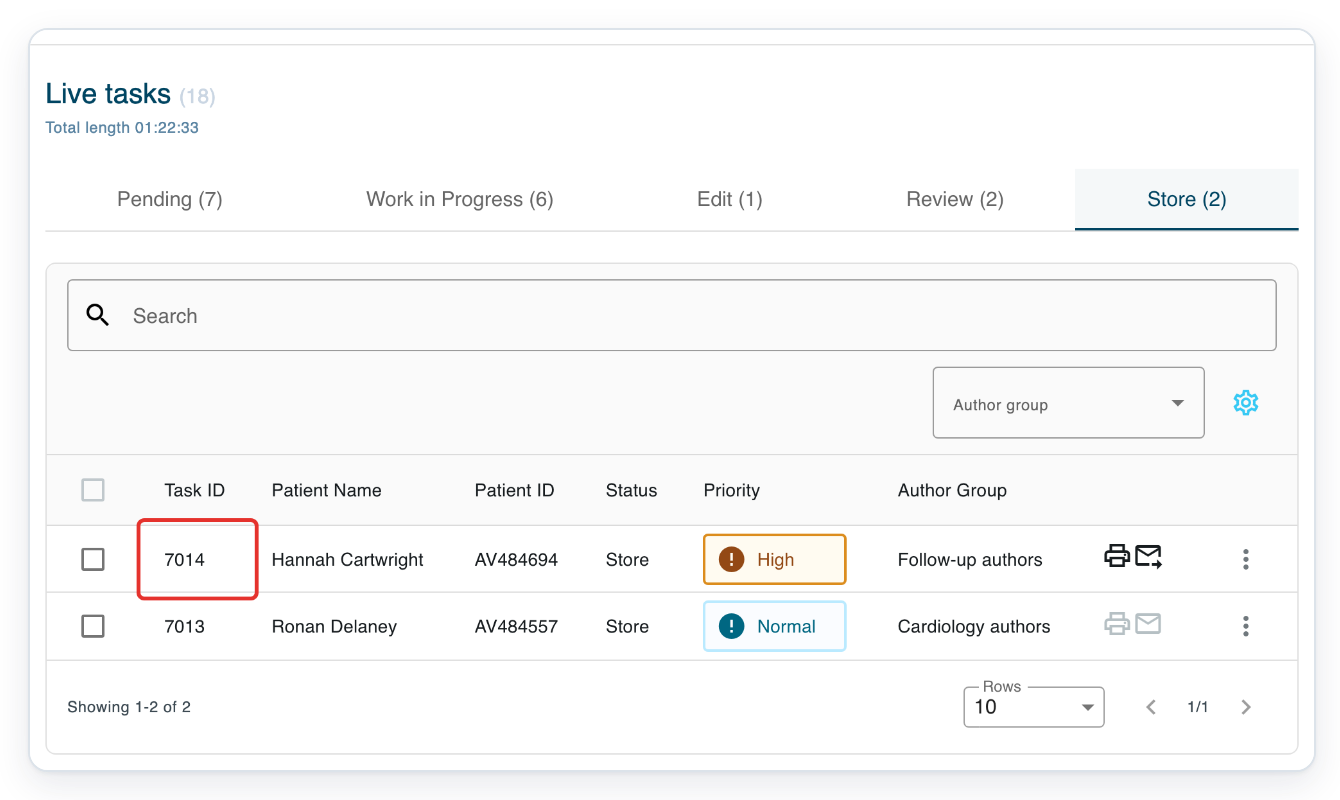
Click the task you want to change. Here, we open task 7014 for Hannah Cartwright.
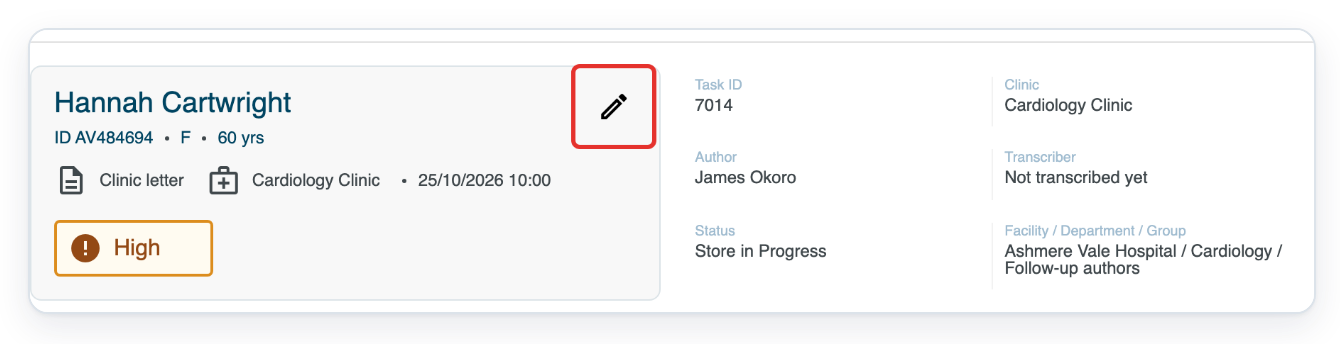
Click the pencil at the top of the patient card, marked Edit task information. Update task opens.
If your organisation has no hospital feed, go straight to Subject Name and Subject ID.
If you see patient tabs instead, click Add patient manually to enter the details yourself.
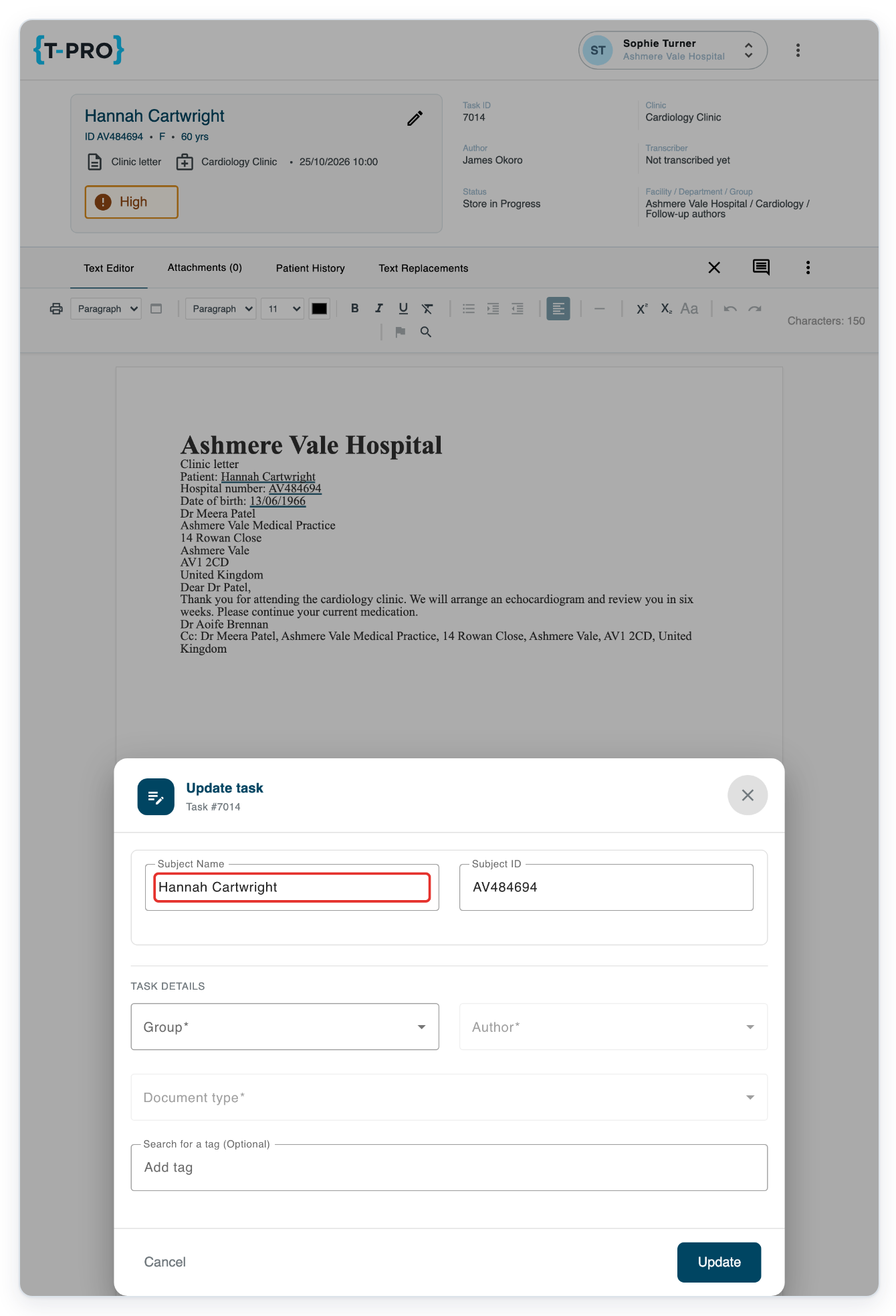
Enter or replace the patient's name in Subject Name. For this example, use Niamh Gallagher.
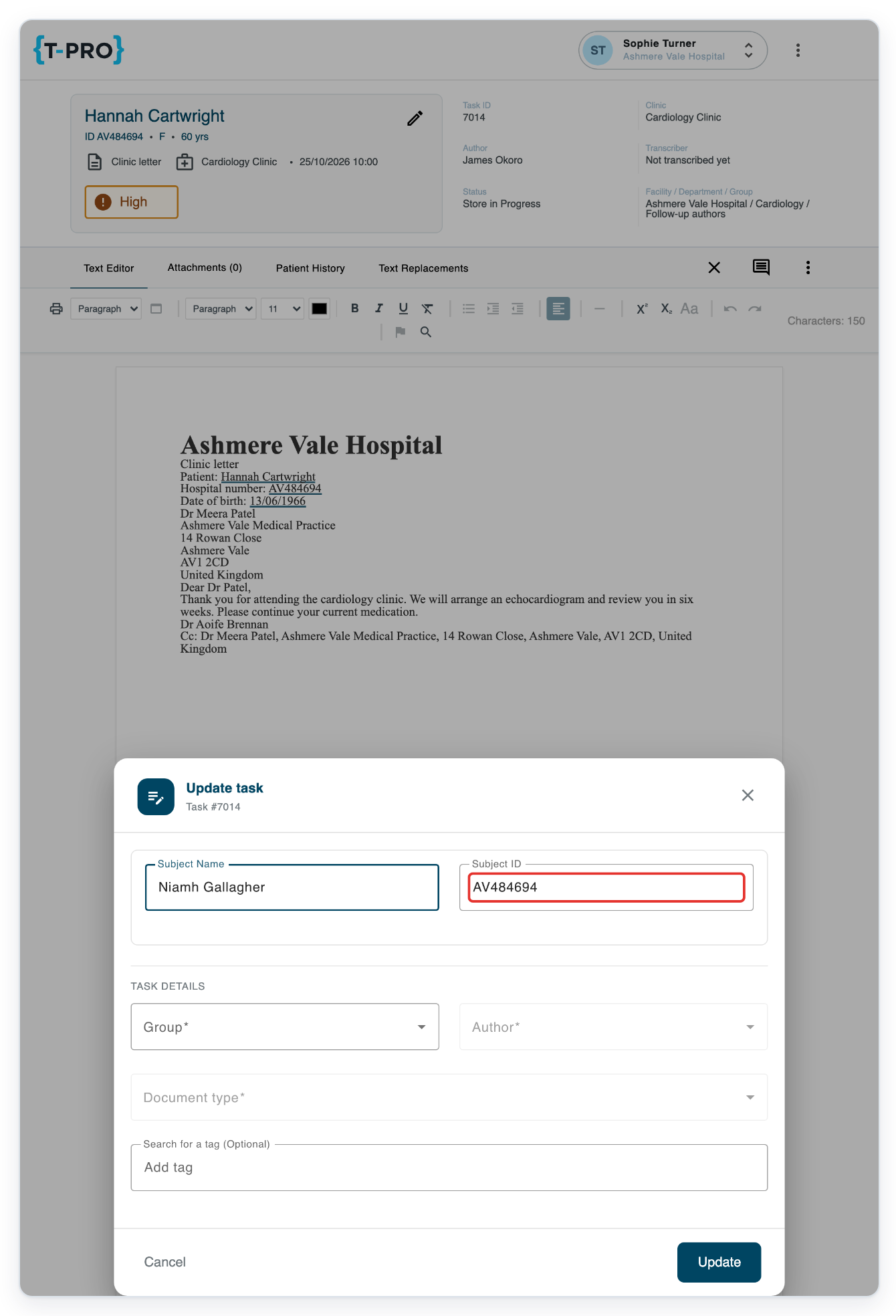
Enter the patient's ID in Subject ID. For Niamh Gallagher, use AV483735.
Check that the ID belongs to the patient you just named.
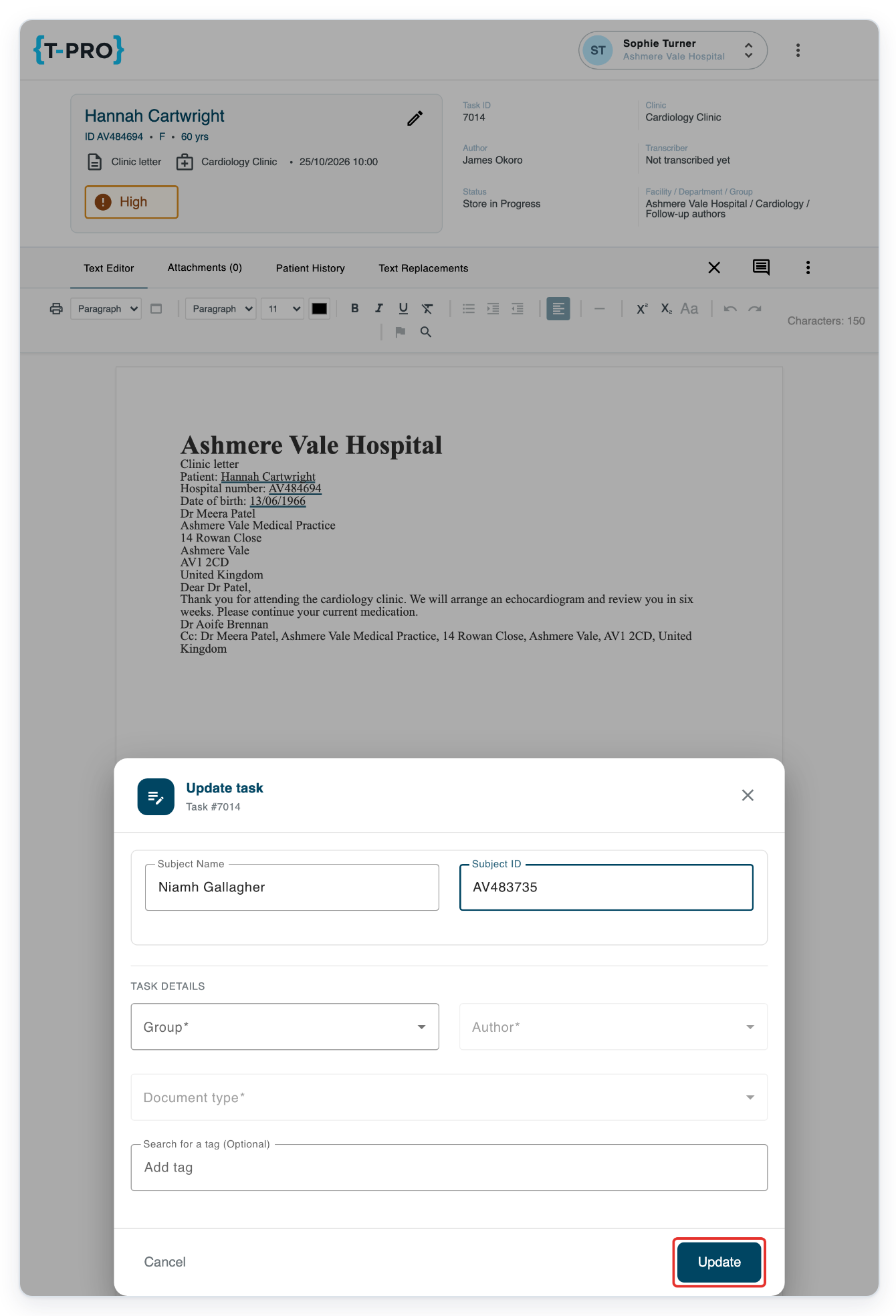
Click Update to save the patient name and ID.
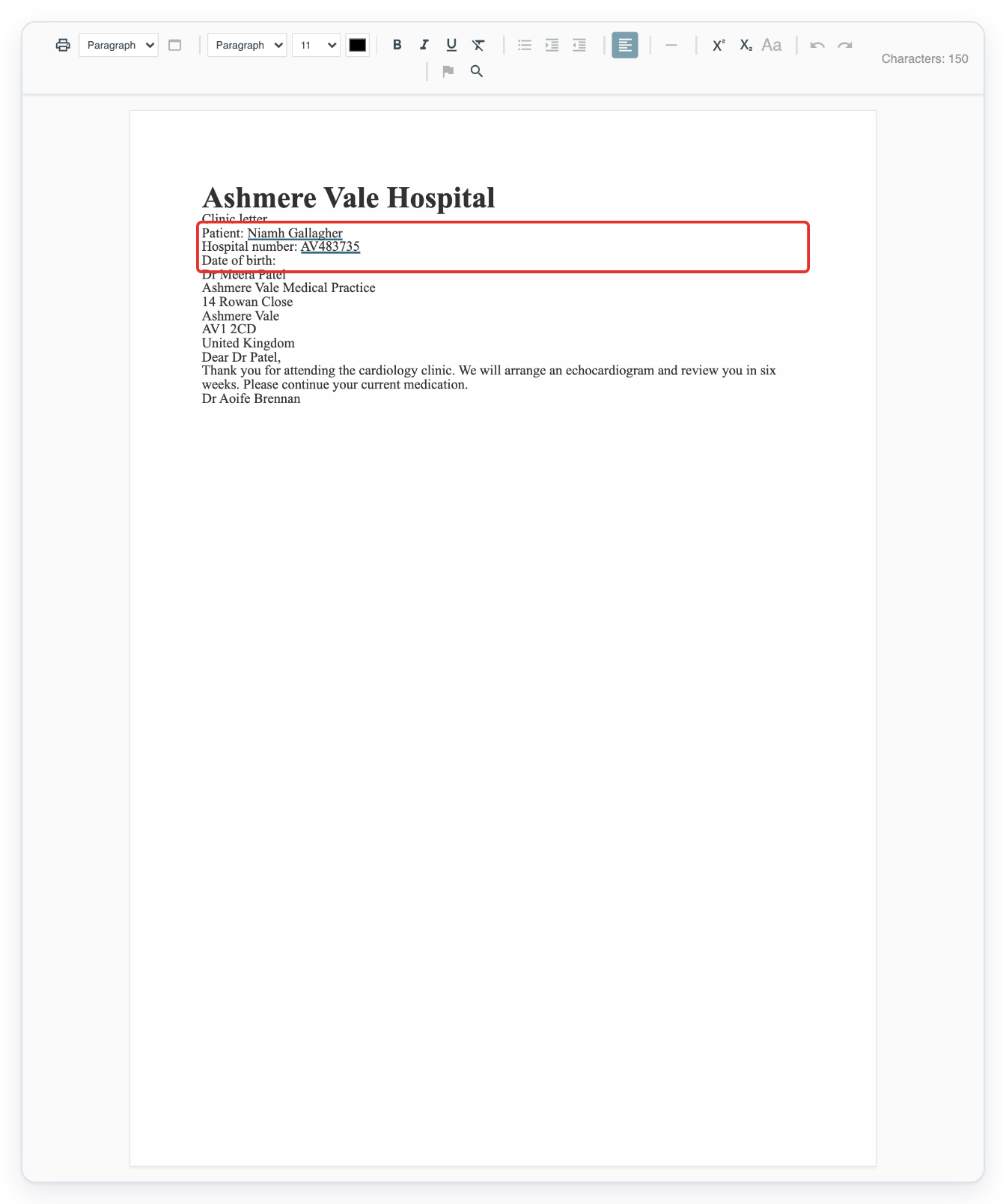
=> The letter now shows Niamh Gallagher and hospital number AV483735. Check these details before continuing work.
NOTE:
- After changing the patient, check the document's recipient and CC addresses. You may need to add the CC addresses again.
- Changing the author can return the task to Pending.
Tip: If the letter already includes the patient's name and ID, use these to complete the task's missing details.
Can't change the patient details?
- Scheduled patients is empty. Clear the search and check the date and Patient list. Try All patients. If you still can't find any patients, ask your administrator to check your assigned patient lists.
- You can't use the All patients search field. Switch to Scheduled patients, then back to All patients and search again.
- T-Pro shows “No patients found for your search.” Check the spelling or search by patient ID. If you have the correct details, use Add patient manually.
- Update is unavailable. Wait for visits to load. Select the relevant visit, or choose No visit needed if the task isn't linked to a visit. Check that you've filled in the required task fields.
- The name hasn't changed after you saved a correction using the same patient ID. Contact our Helpdesk for help.
- The pencil or + Select patient is missing. Completed tasks and tasks opened for viewing cannot be edited here. Ask your manager or our Helpdesk for help.
Related articles
If you have any more queries, please do not hesitate to contact our Helpdesk or support@tpro.io.
© 2020 - 2026