
Before you start
You need a transcriber account with access to the task's queue. The task must be in Pending.
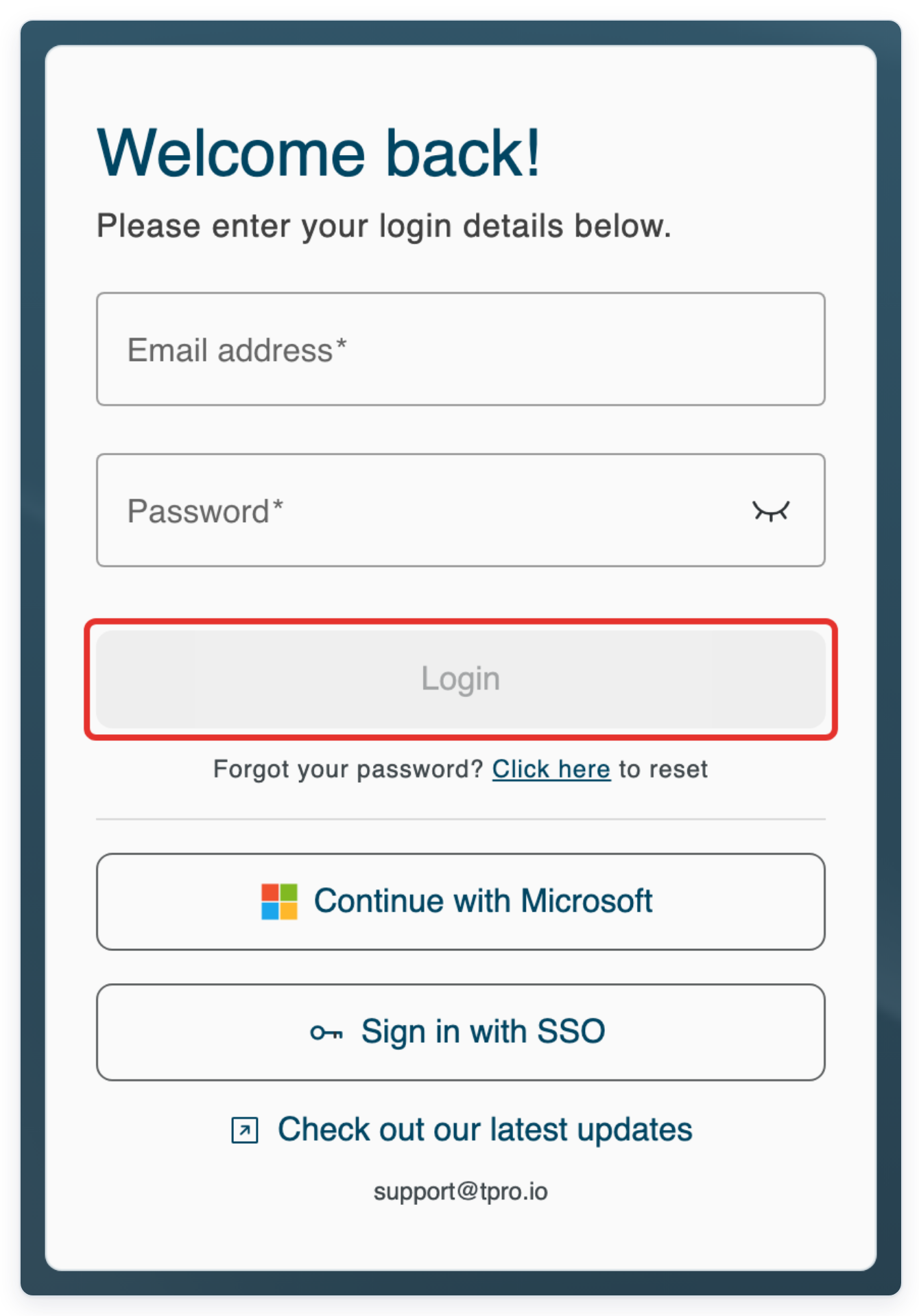
Log in to T-Pro with your transcriber credentials.
From All Tasks, click Live Tasks in the top menu to open your queues.

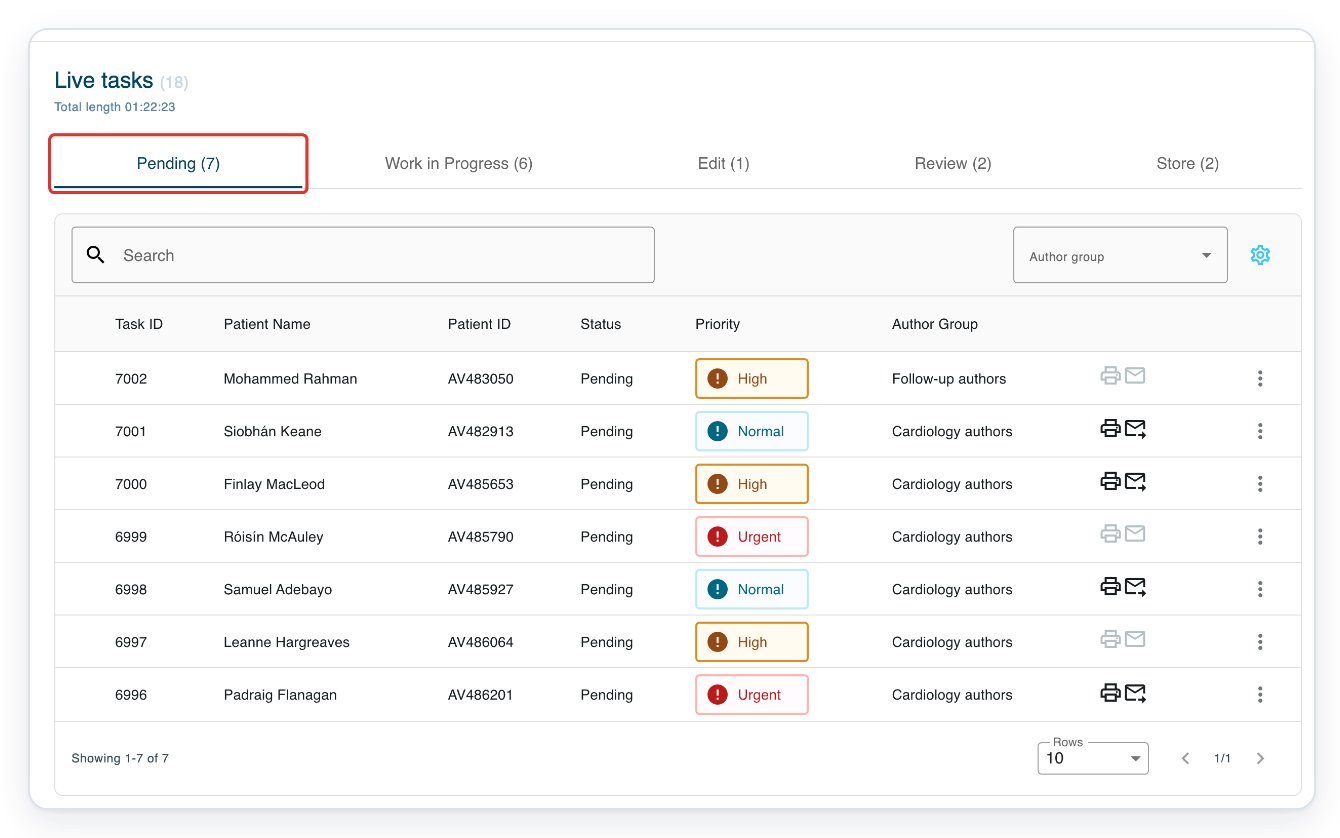
Click Pending to see the dictations waiting for transcription.
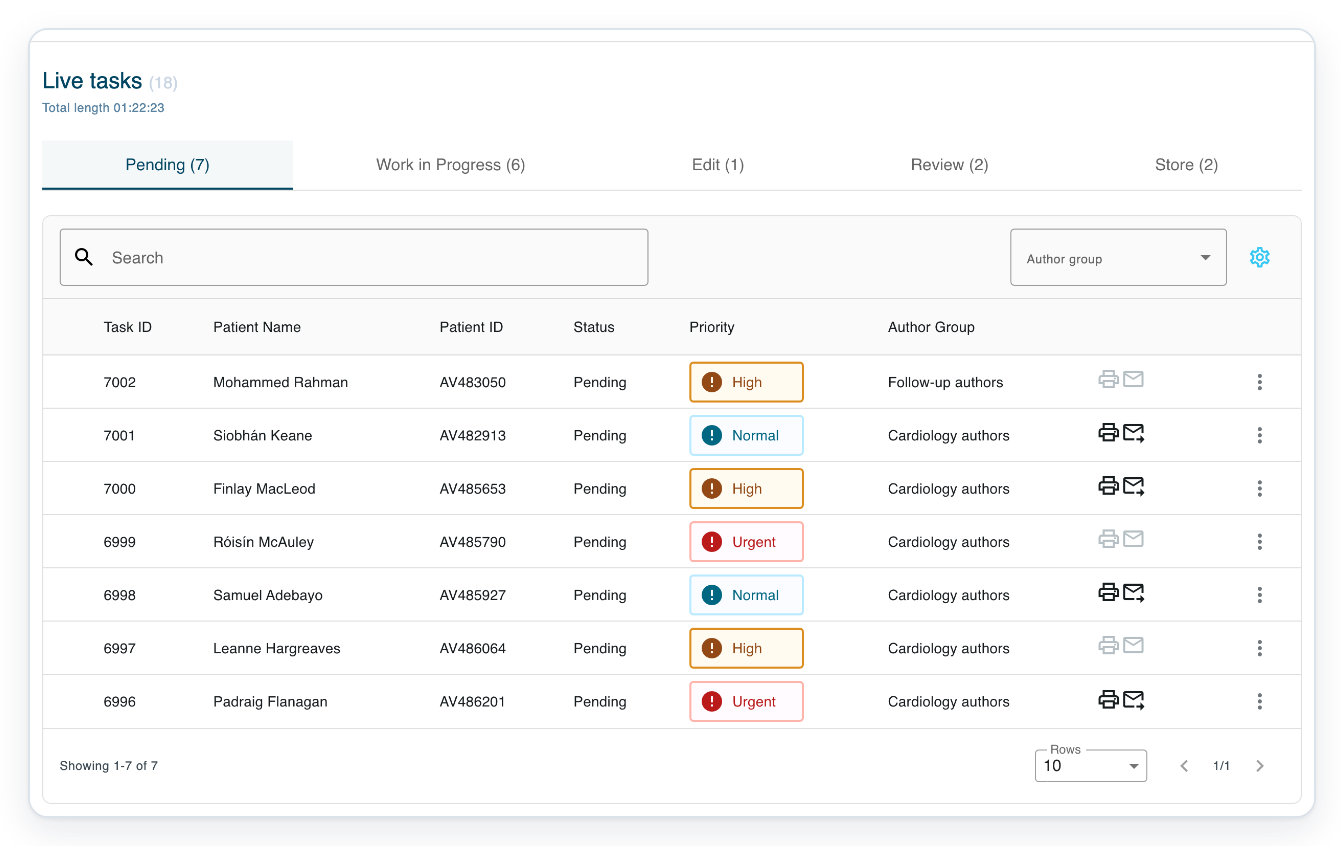
Each row shows one task. Check Patient Name and Patient ID to see who the dictation is for.
If Search is available, enter a patient name and press Enter to search the selected queue.
=> This example uses task 7001 for Siobhán Keane, patient ID AV482913. Before choosing a task, check Priority and the due date, if shown.
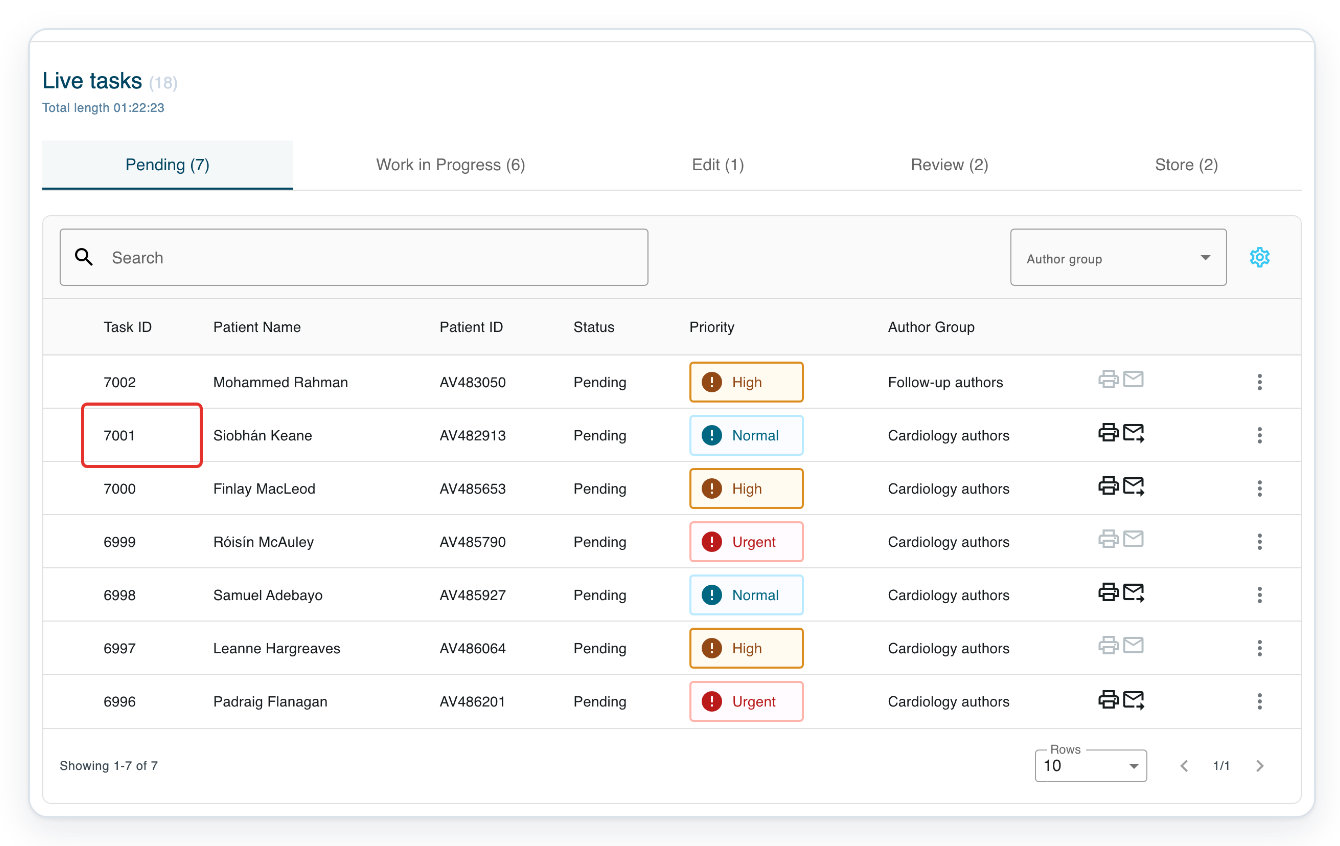
Click task 7001 in Siobhán Keane's row to open the letter in Text Editor.
Wait for the letter and dictation audio to load. Opening the task assigns it to you and changes its status to Work in Progress.
Click the pencil at the top right of the patient card to open Update task.

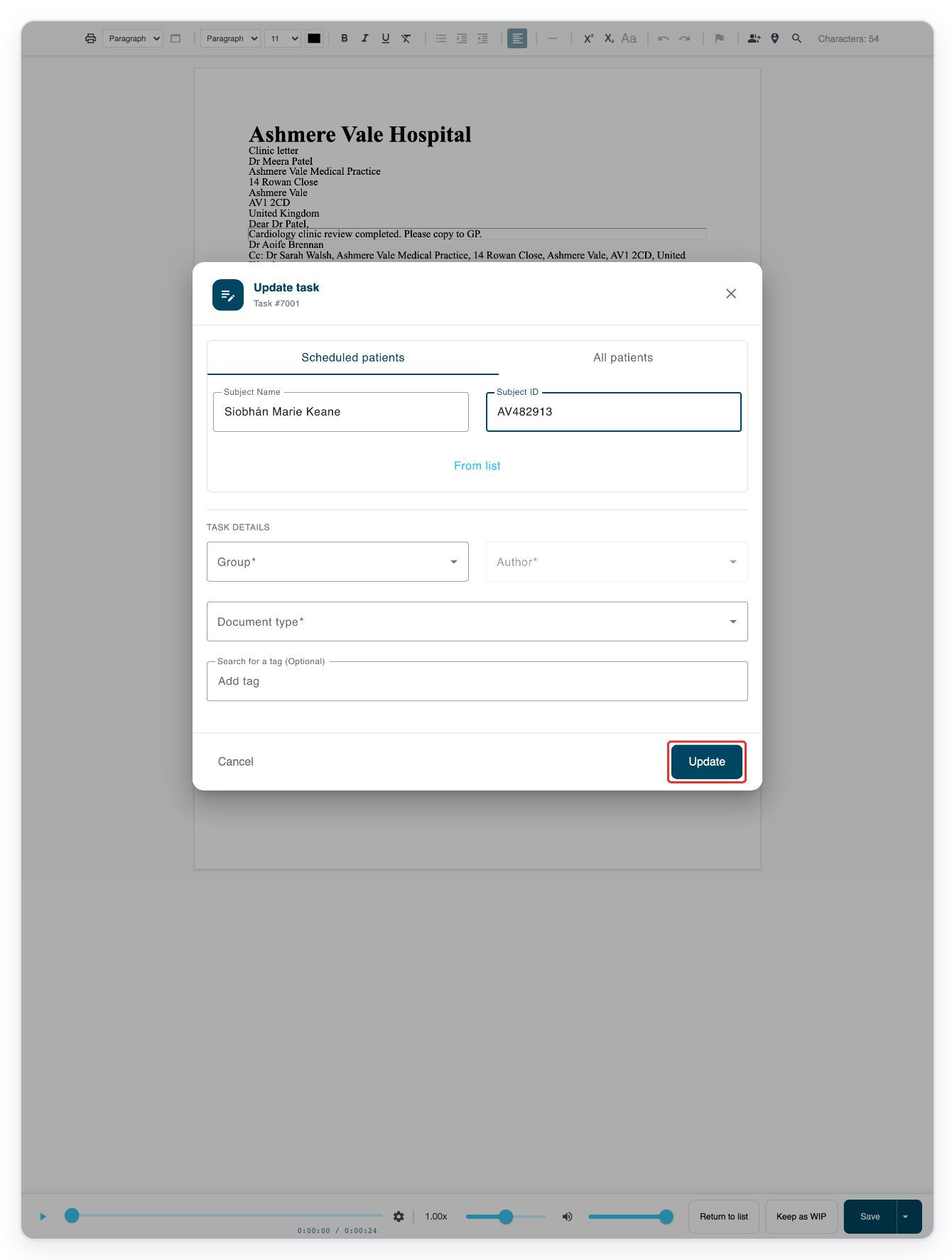
=> In Update task, check the patient's name, ID and date of birth. If the details are correct, click Cancel and start transcribing. Follow steps 6 to 9 only if the name or ID needs correcting.
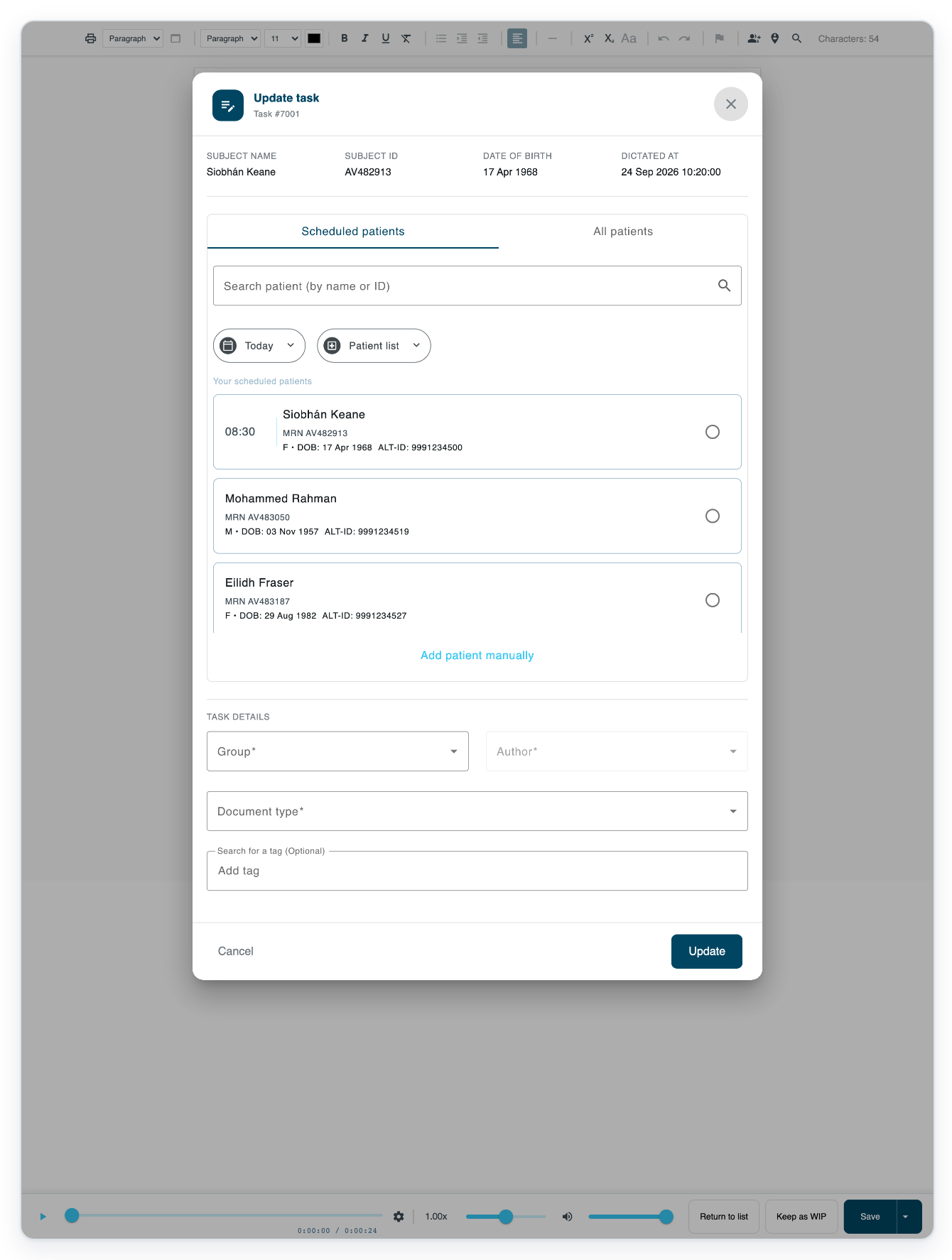
To correct the patient's name or ID, click Add patient manually.
If you can already see Subject Name and Subject ID, enter the details there.
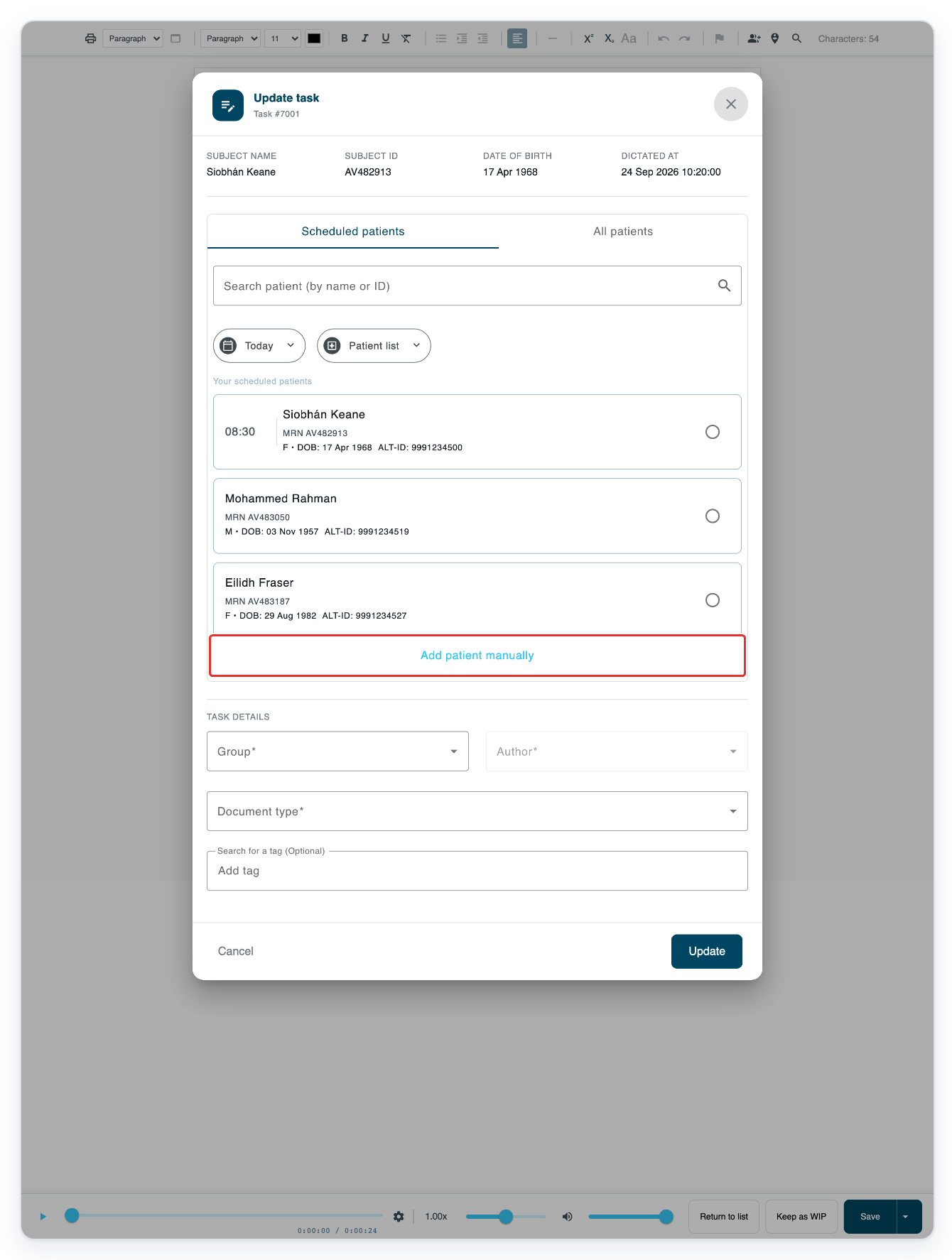
Enter the corrected full name in Subject Name. In this example, enter Siobhán Marie Keane.
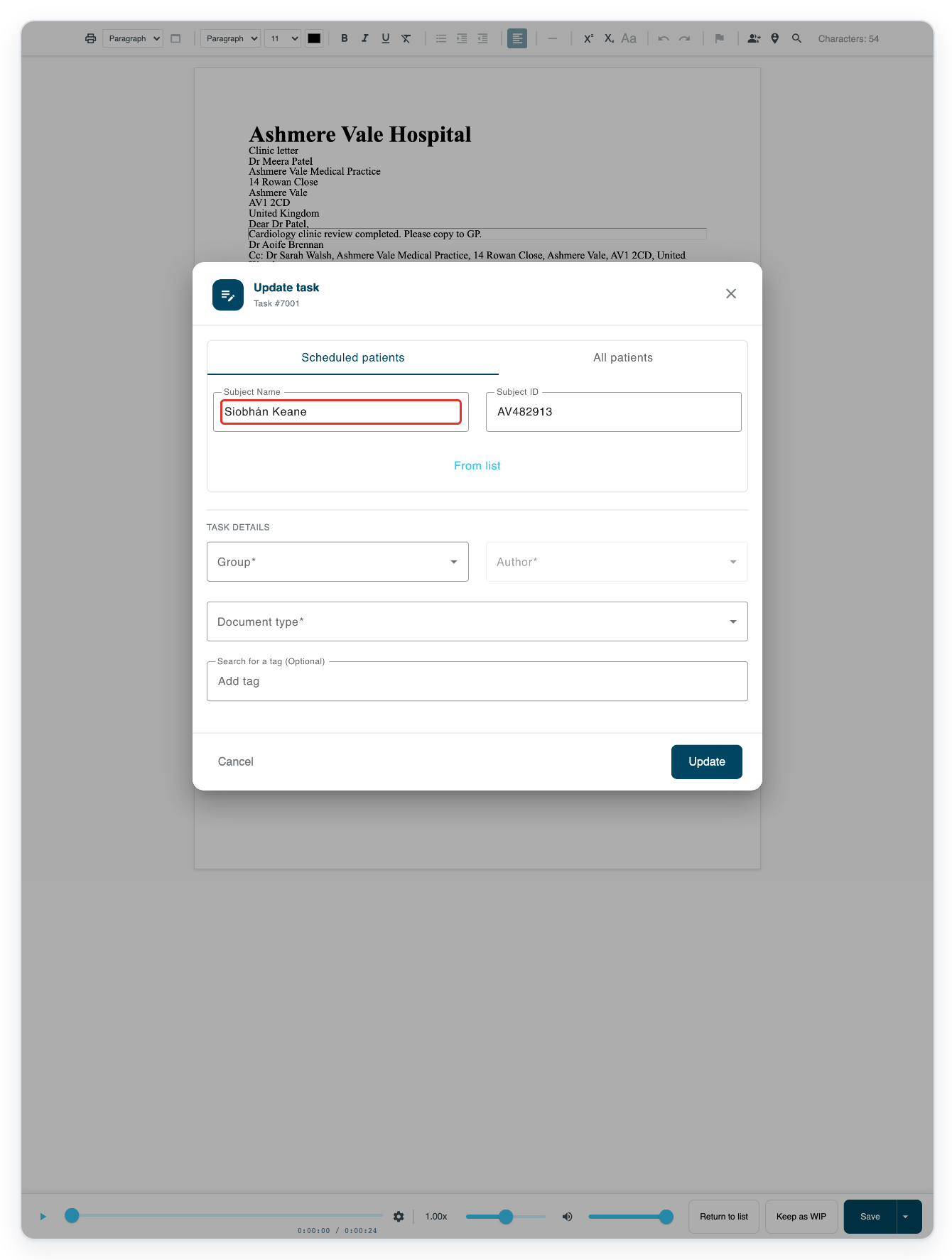
Enter AV482913 in Subject ID to keep this patient's existing ID.
For your own task, keep the existing ID unless it needs correcting.
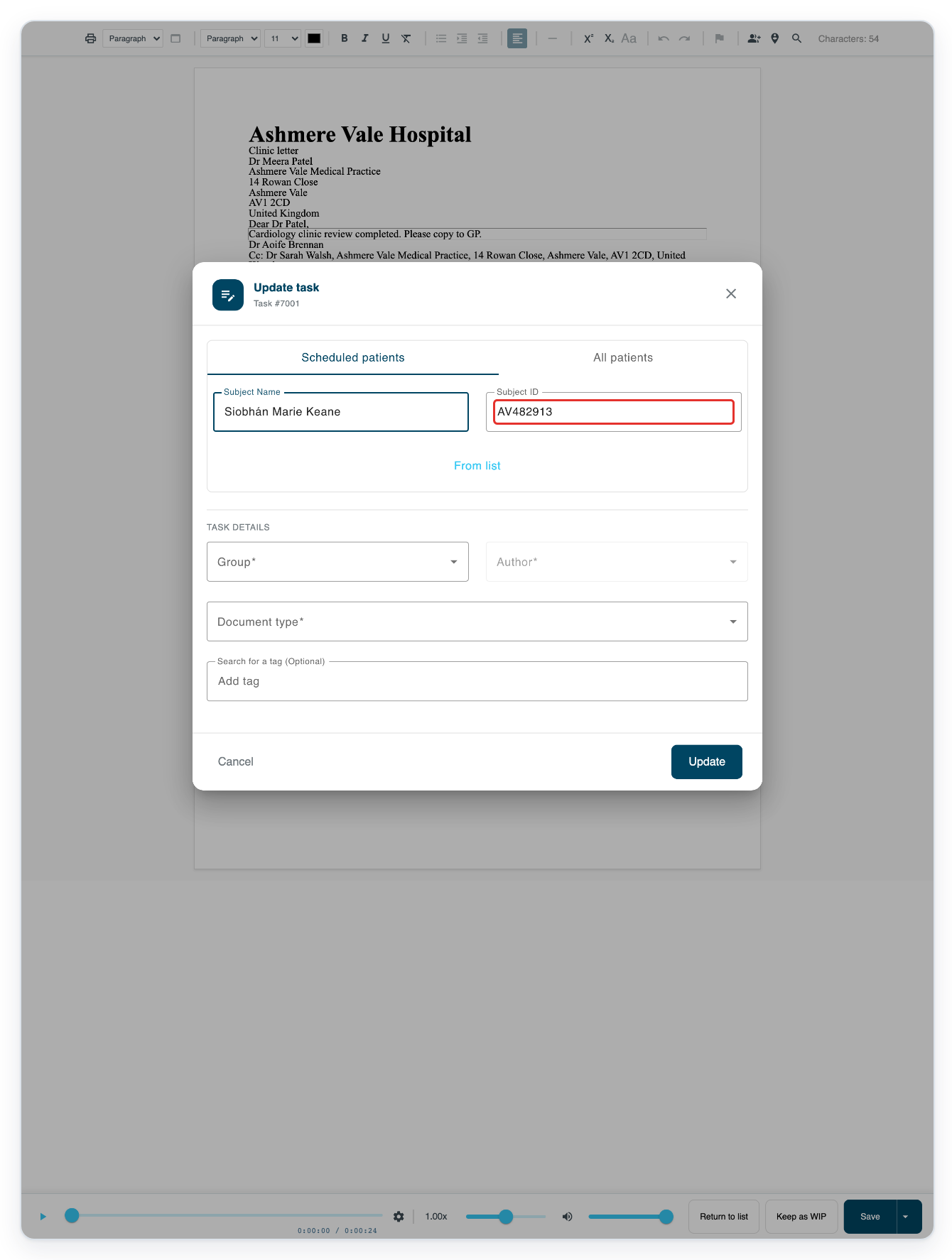
Click Update to save the patient details and return to the letter.
Check the patient card after the window closes. If your correction has not appeared, contact our Helpdesk before continuing.
=> The patient card now shows Siobhán Marie Keane and patient ID AV482913.

=> The letter is open with formatting tools above it and the audio player below. You'll find Return to list, Keep as WIP and Save beside the player.
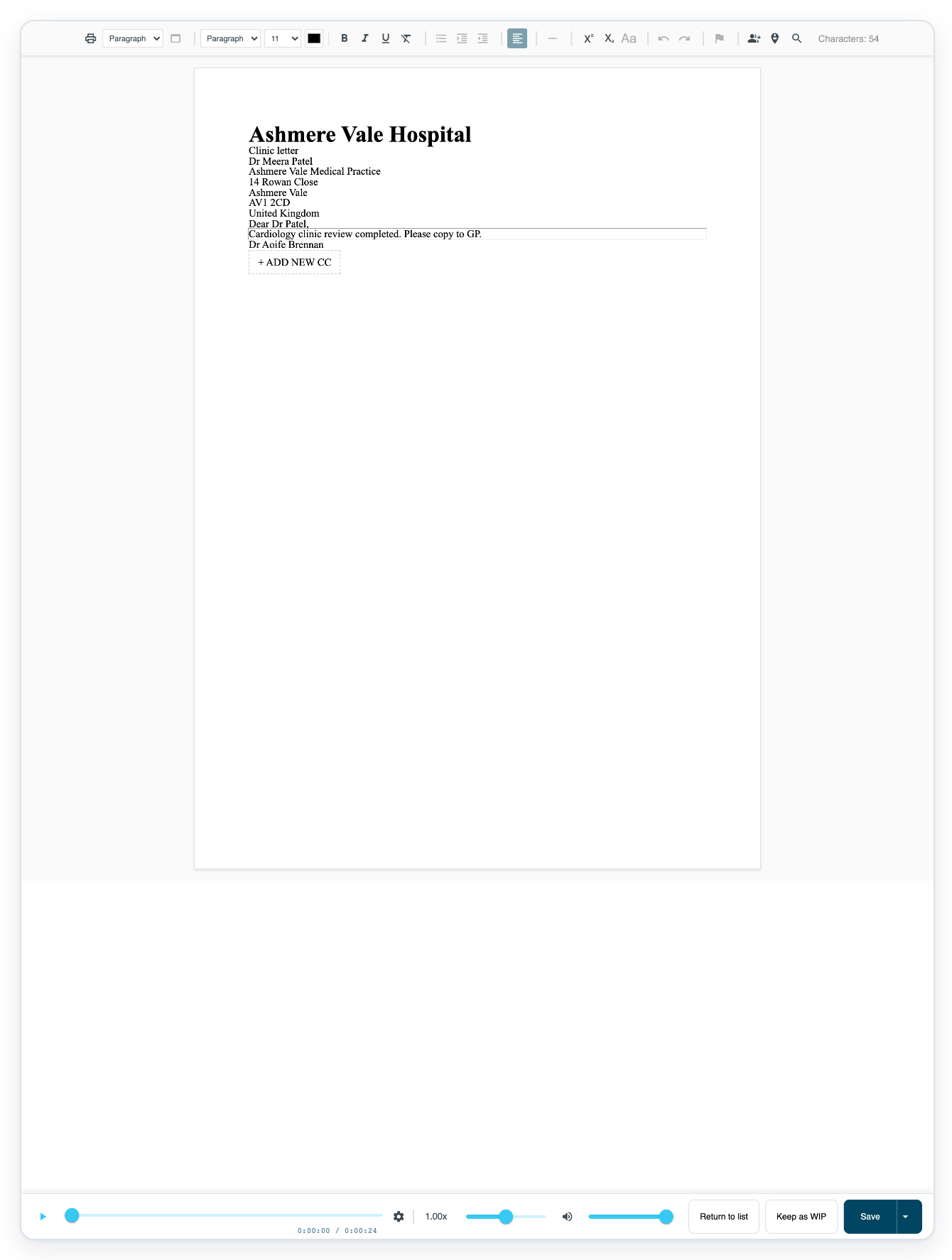
Use your foot pedal or the player's play button to listen. Type the dictation into the letter.
NOTE:
- Return to list saves your changes and returns the task to Pending, so another typist can pick it up.
- Keep as WIP saves your changes and keeps the task assigned to you. Reopen it from Work in Progress. To pass unfinished work to another typist, use Return to list.
- Save saves your completed transcription and moves the task to the next stage.
Can't pick up a task?
- Someone else is working on the task. Choose another task from Pending.
- You've reached your limit for tasks in progress. Open a task from Work in Progress. Finish it and click Save, or click Return to list to let another typist take over. Then try again.
- The task opens read-only from All Tasks. Go to Live Tasks, select Pending and open it there.
- An audio window opens instead of the letter. The task's template uses the floating player. Follow the related article on typing outside T-Pro.
- Your foot pedal does not respond. Use the audio player's play button to continue. Contact our Helpdesk for help with the pedal.
Related articles
- Work from Live Tasks
- The letter editor in V2
- Play the audio and use function keys
- Type outside T-Pro with the floating player
- Change the patient on a task
If you have any more queries, please do not hesitate to contact our Helpdesk or support@tpro.io.
© 2020 - 2026