
Before you start
You need a transcriber account and access to a task in Pending. Its template must have the editor switched off.
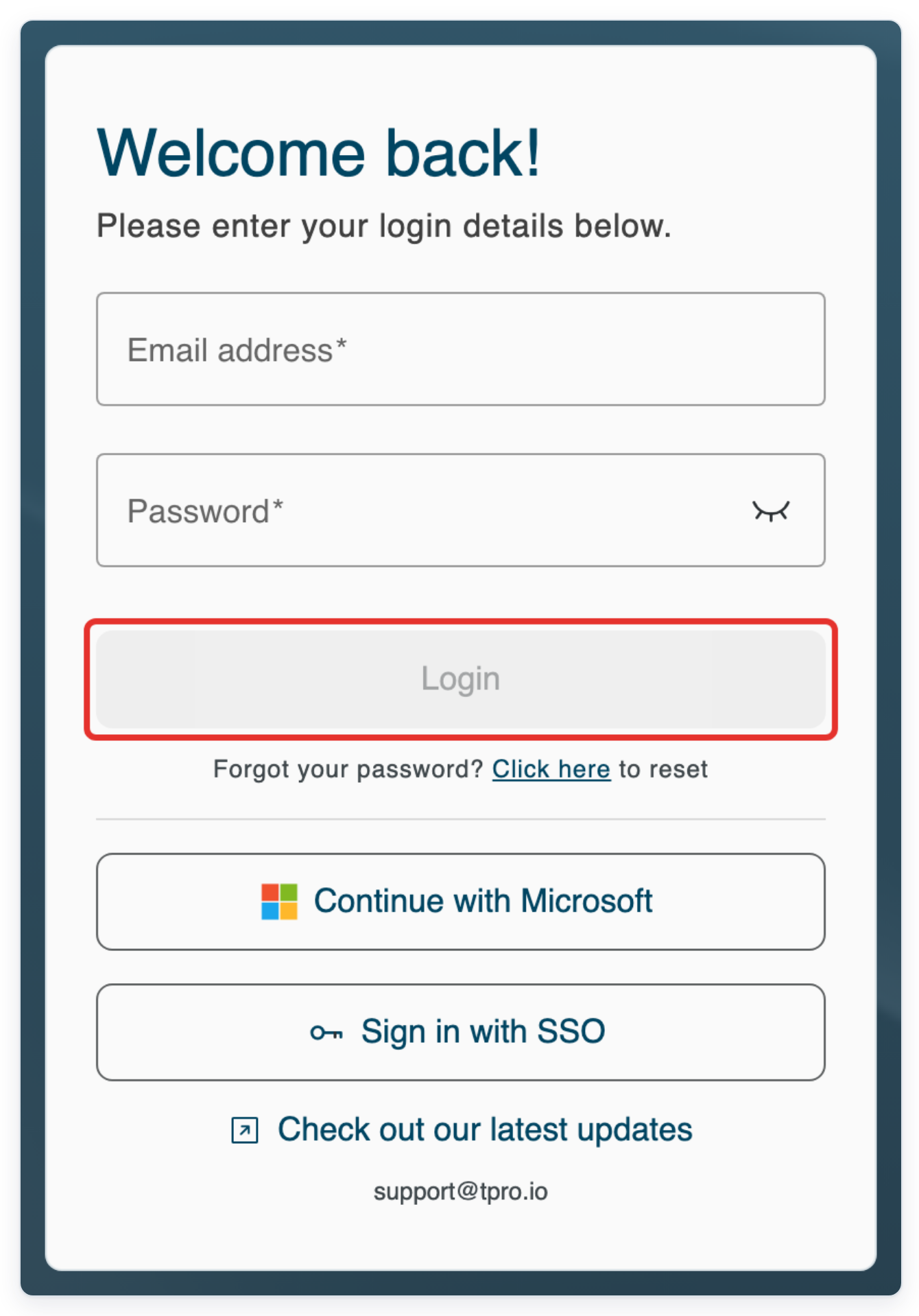
Log in to T-Pro with your transcriber credentials.
Transcribe in another program
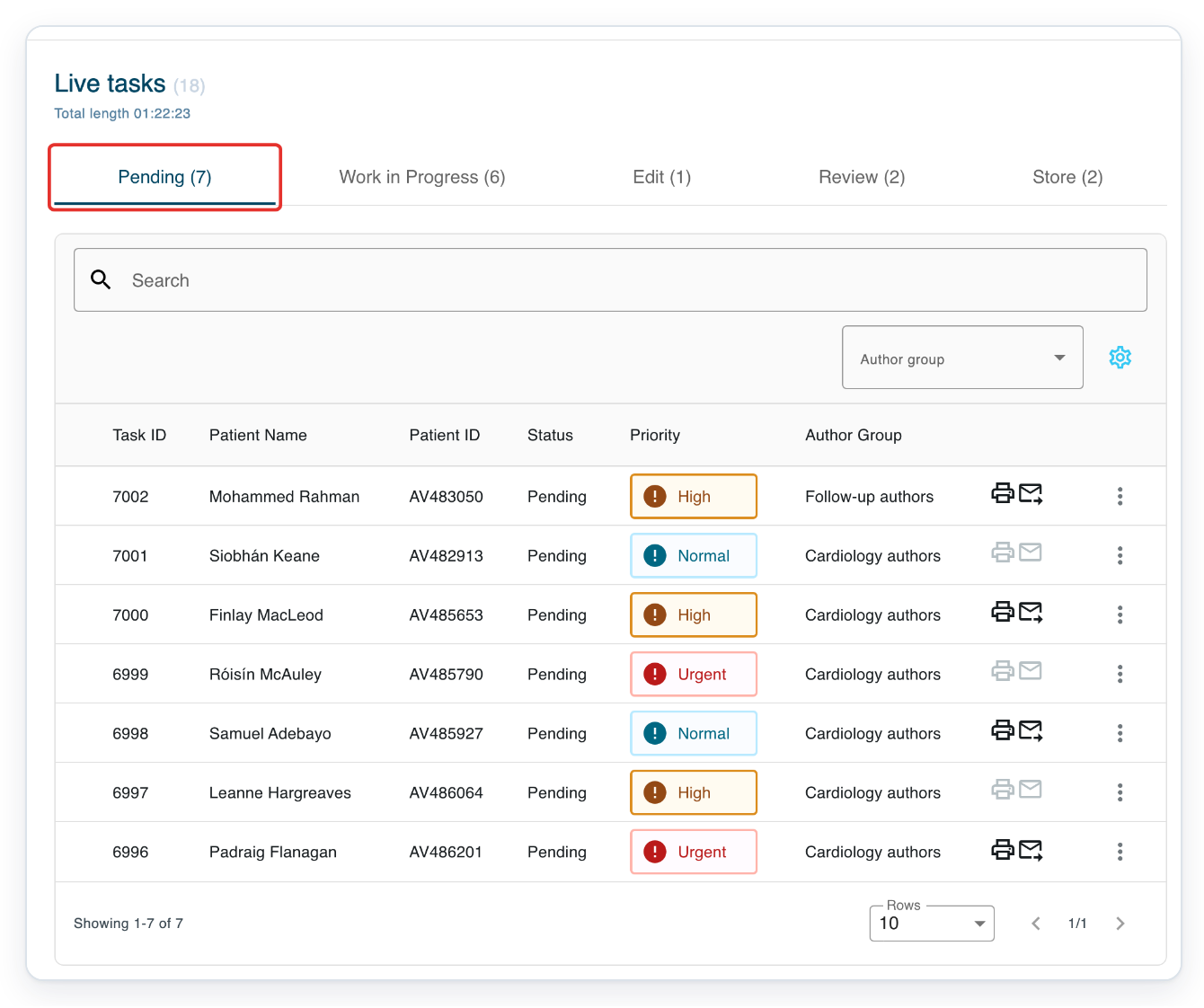
In Live tasks, click Pending to find the dictation you want to transcribe.
Check the Patient Name and Patient ID columns to find the right task. Pending lists tasks waiting to be transcribed.
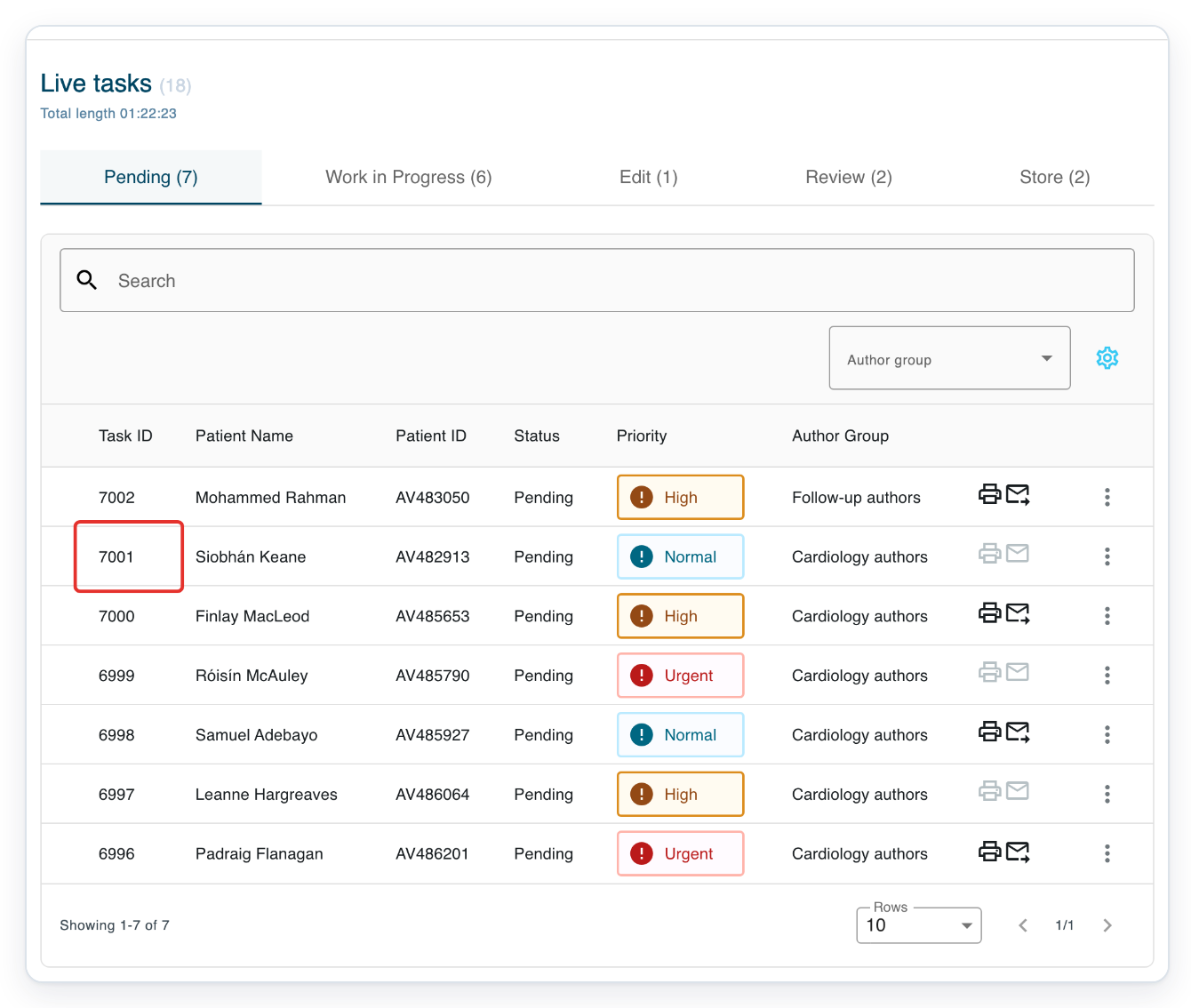
Click the task's Task ID to open it in the floating player.
The player opens in a separate window.
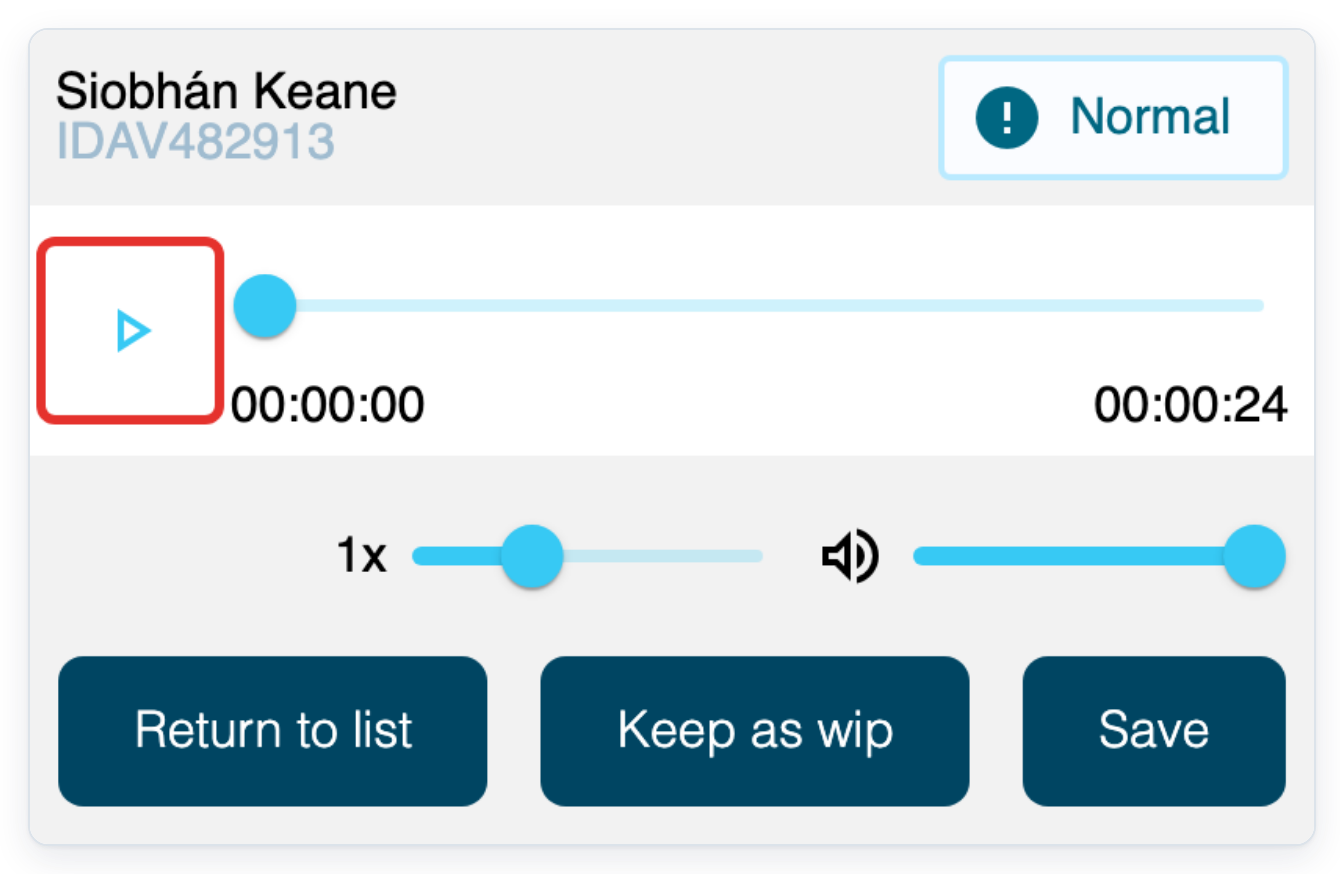
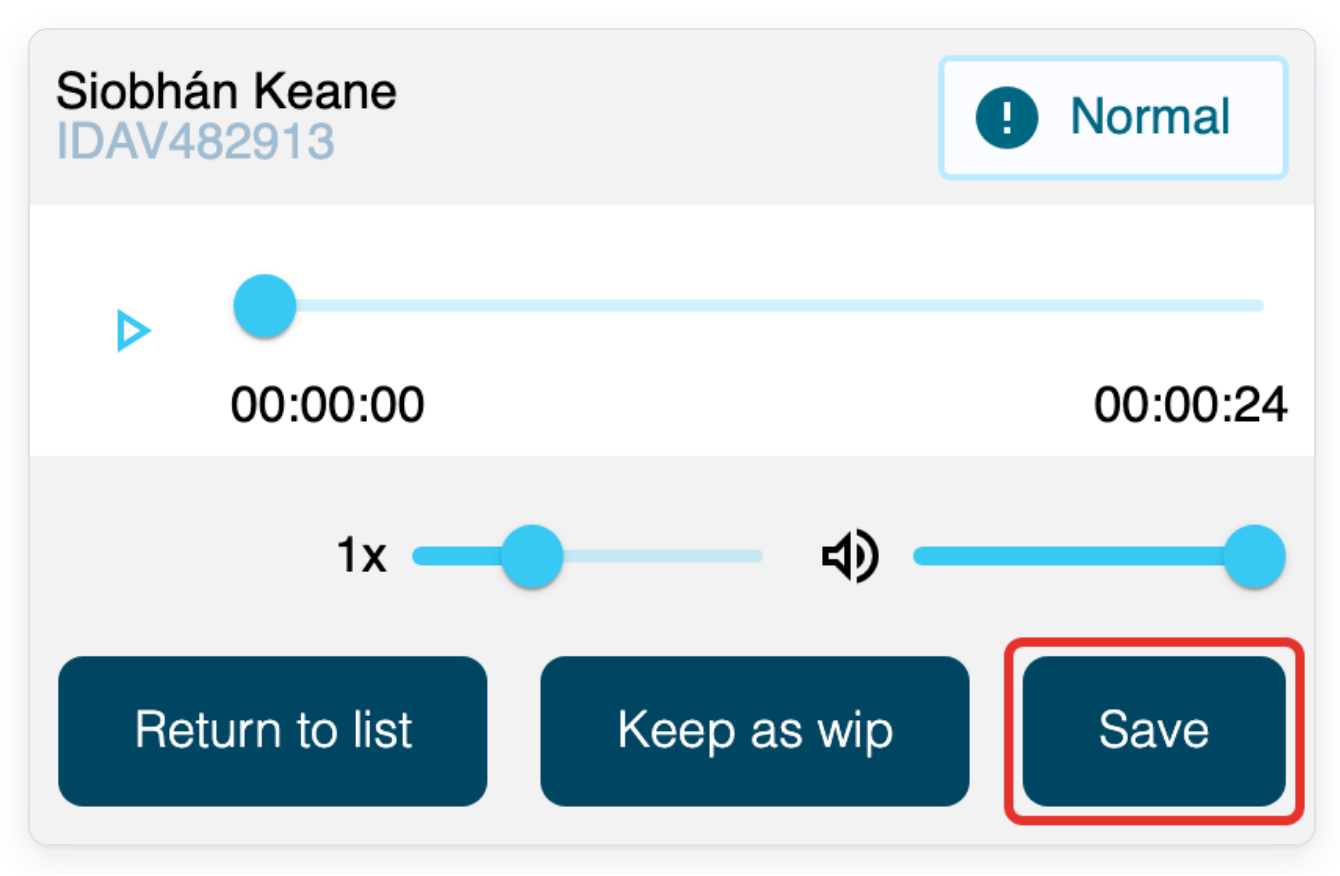
=> The player shows the patient name and ID, with playback controls. It also has Return to list, Keep as wip and Save.
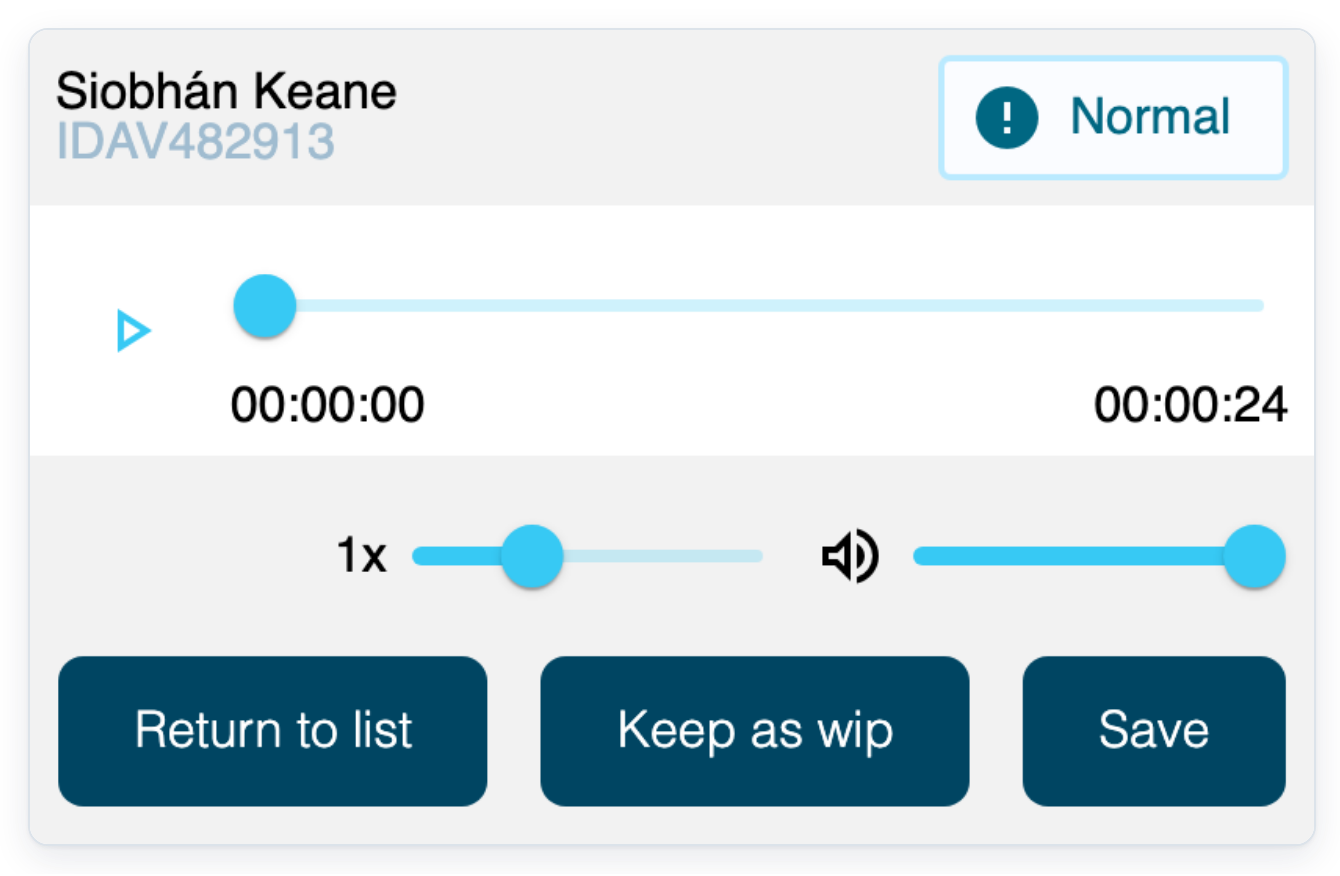
Click Play to listen to the dictation.
Open the program you want to type in, such as Word. Type as you listen, keeping the floating player open.
=> The button changes to a pause symbol as the dictation plays.
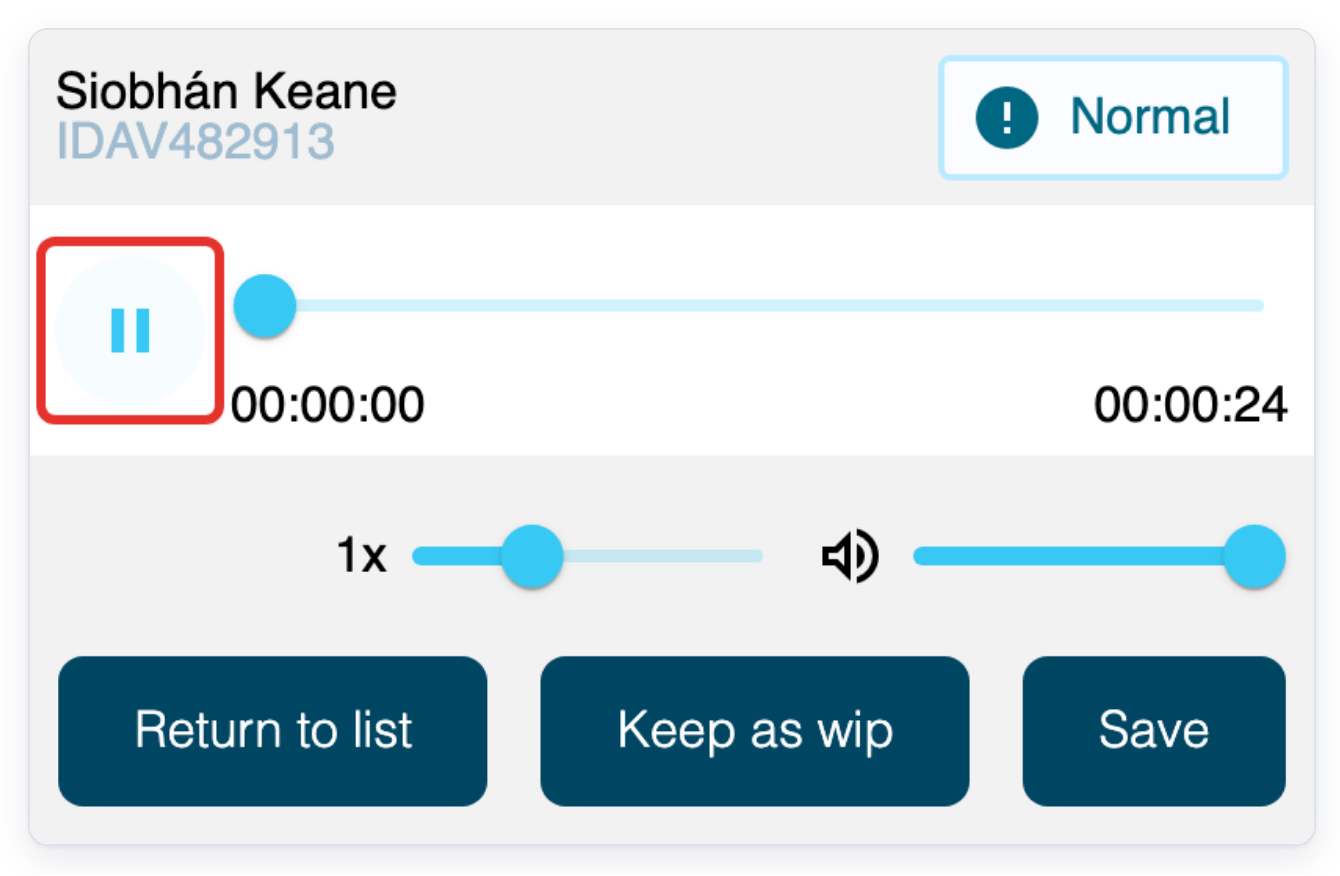
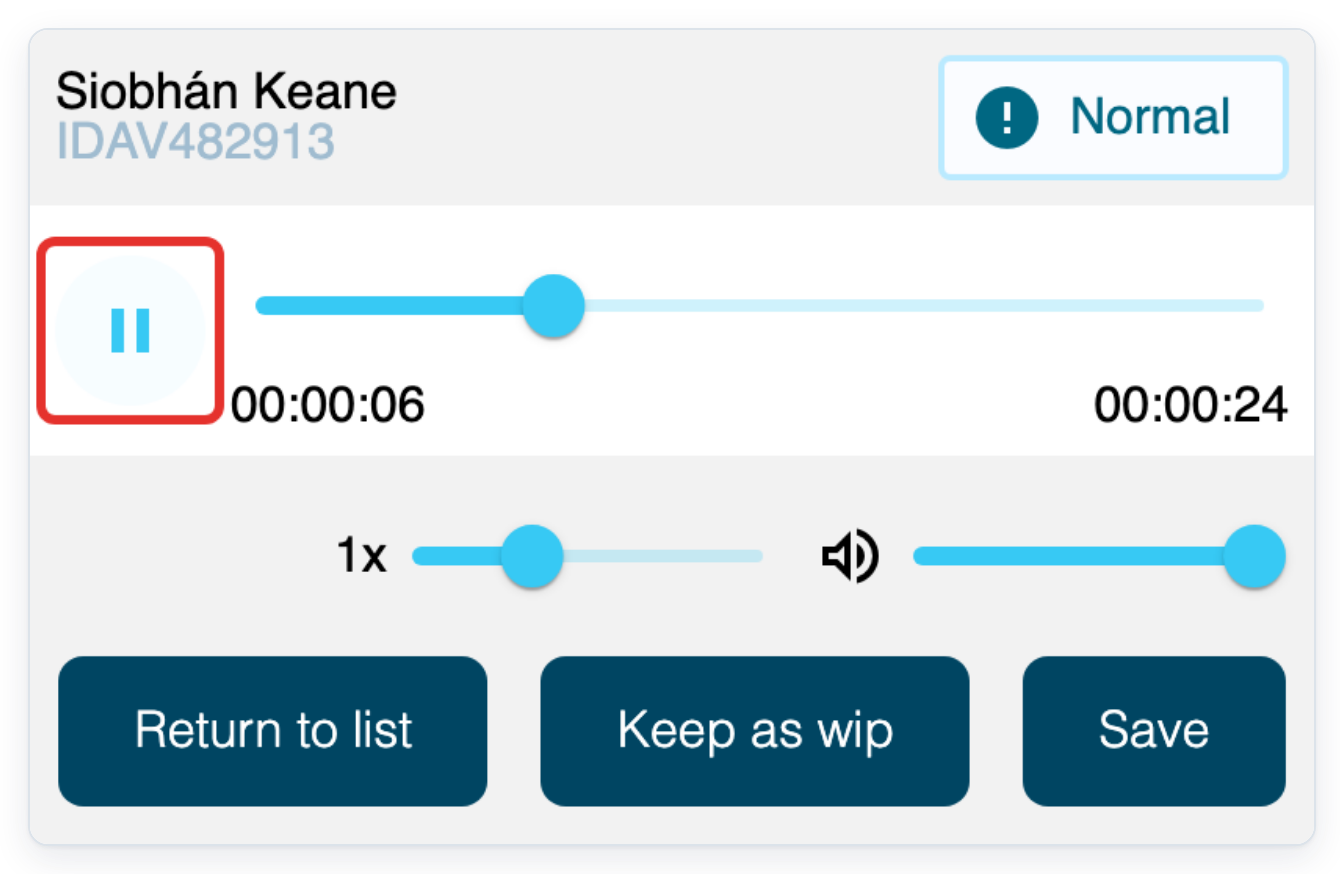
Click the pause symbol to pause the dictation.
Use the timeline slider above the time display to move backwards or forwards through the recording.
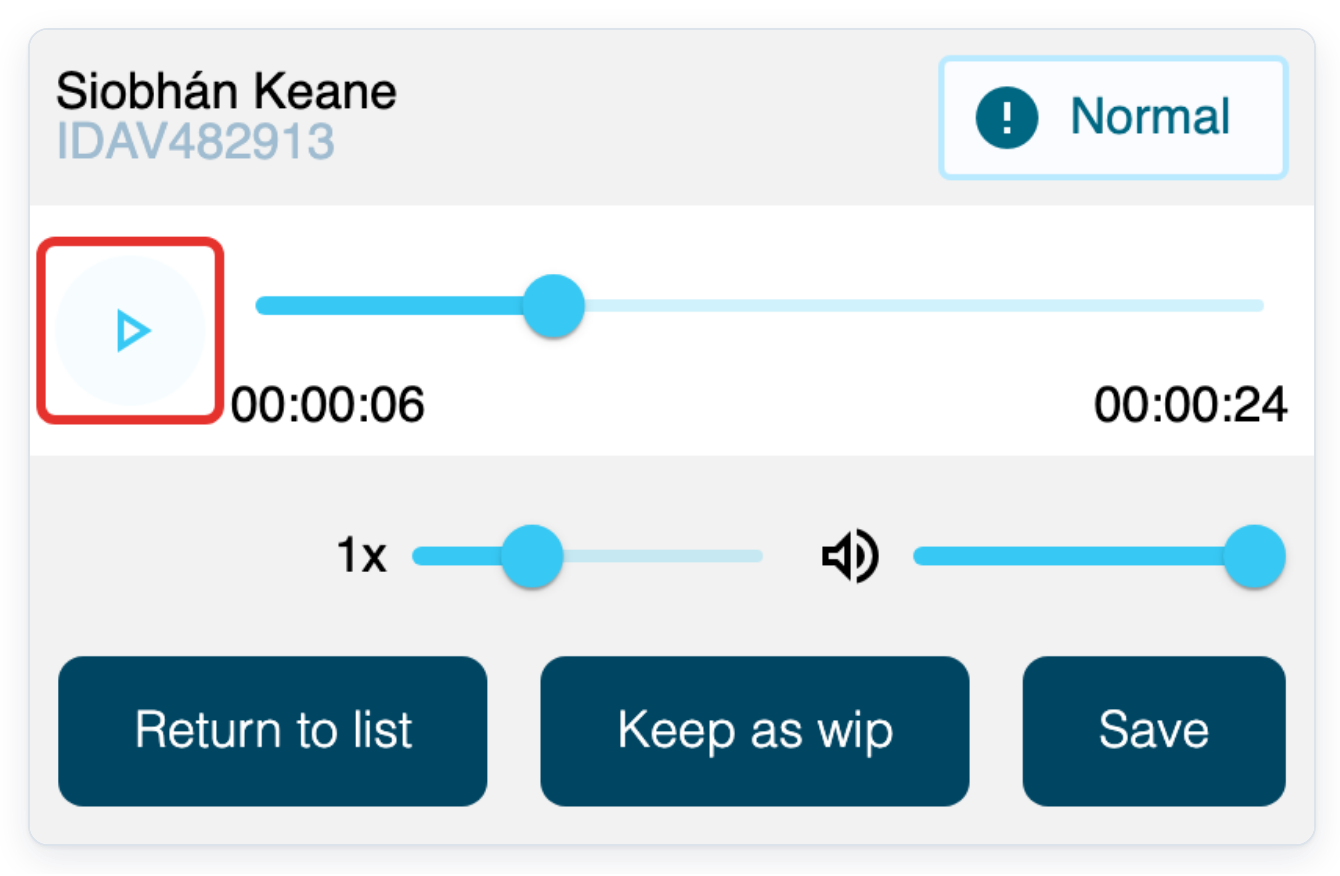
=> Playback pauses and the play symbol returns. The task buttons stay below the controls.
Resume and finish your work
To resume unfinished work, go to Live tasks and click Work in Progress.
Before leaving a task, save your document in the other program and close the player window. Opening a Pending task assigns it to you and moves it to Work in Progress.
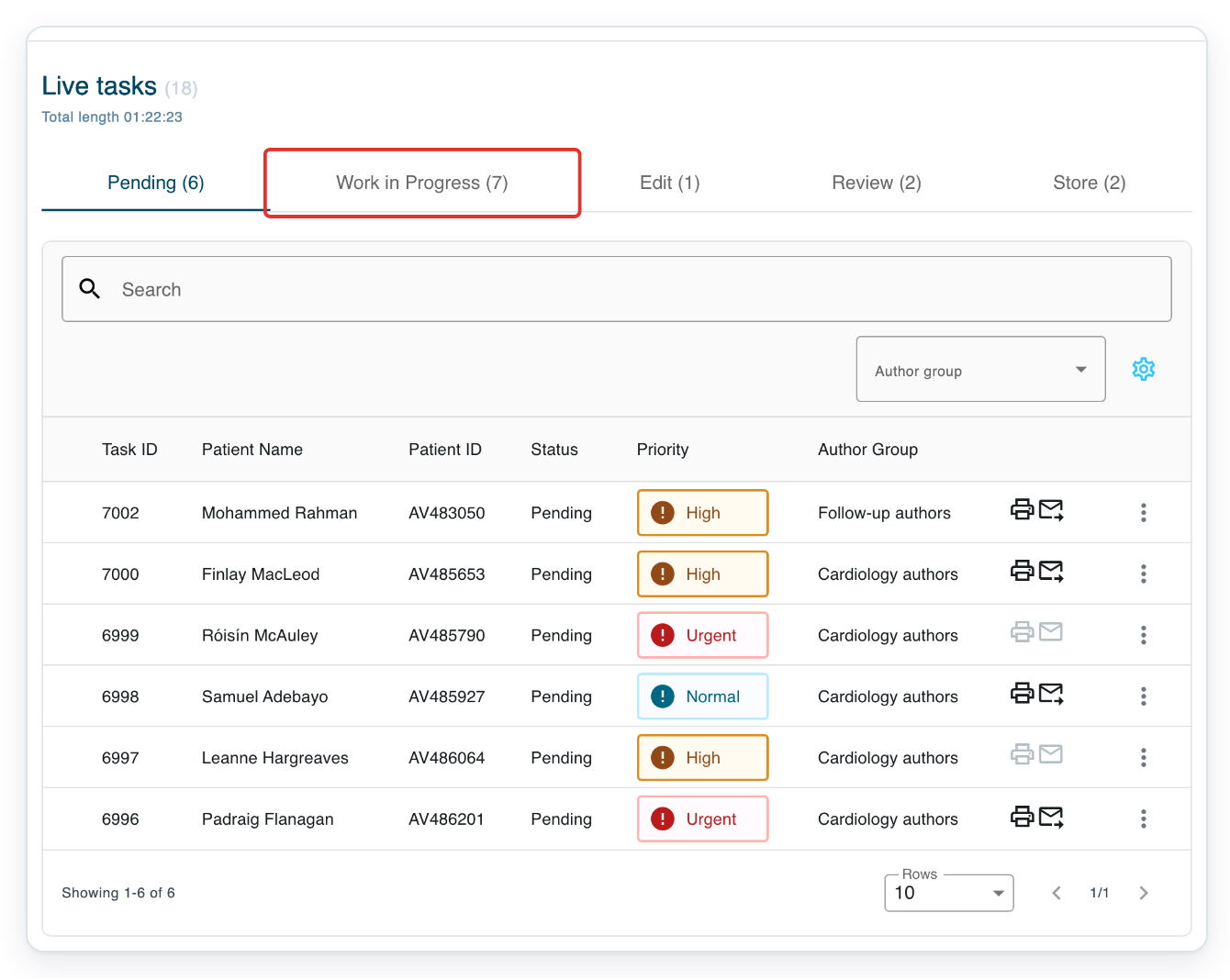
=> Your unfinished task appears in Work in Progress. Find its Task ID and check the patient details.
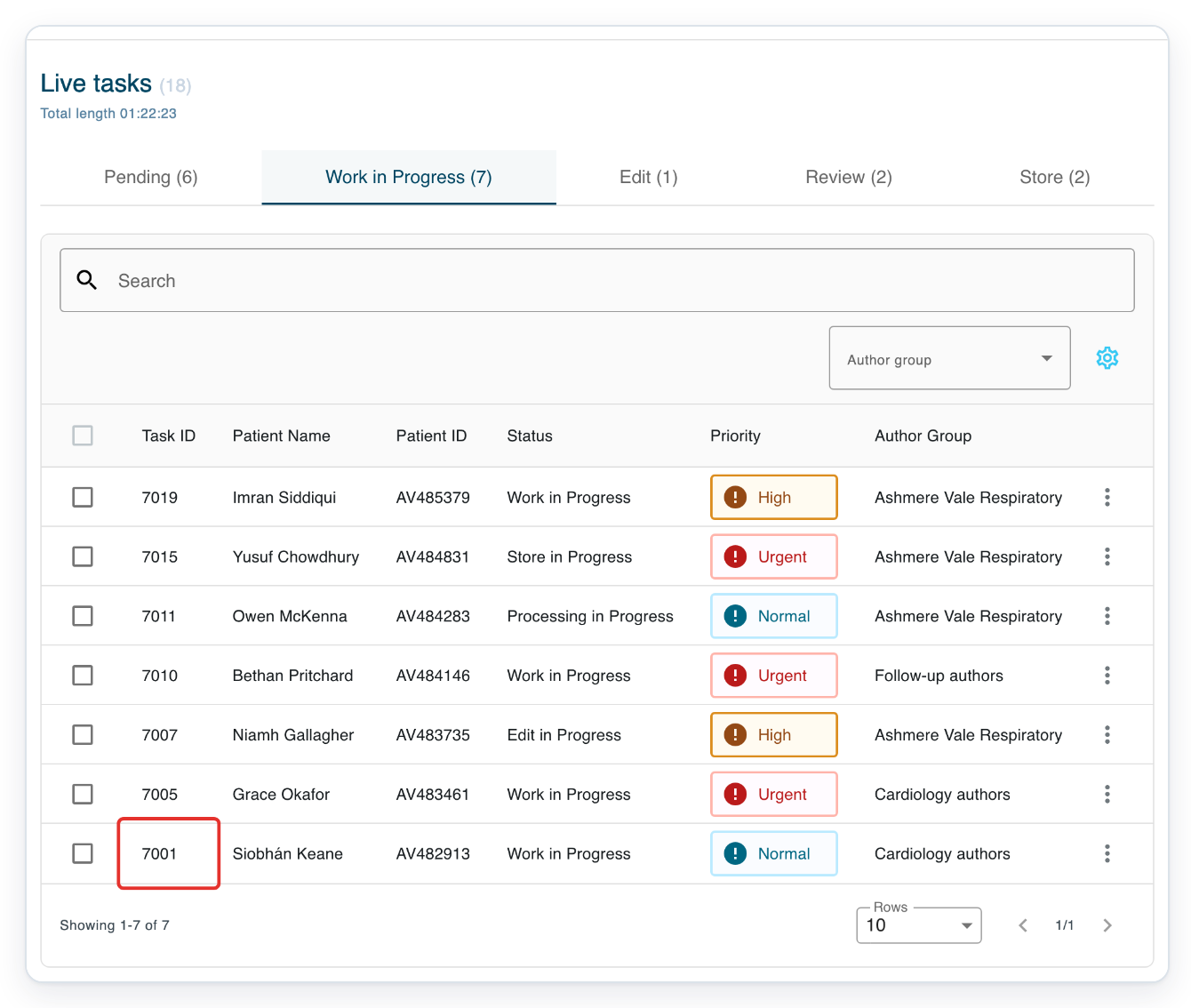
Click the unfinished task's Task ID to reopen the floating player.
=> The player reopens with the same playback controls and task buttons.
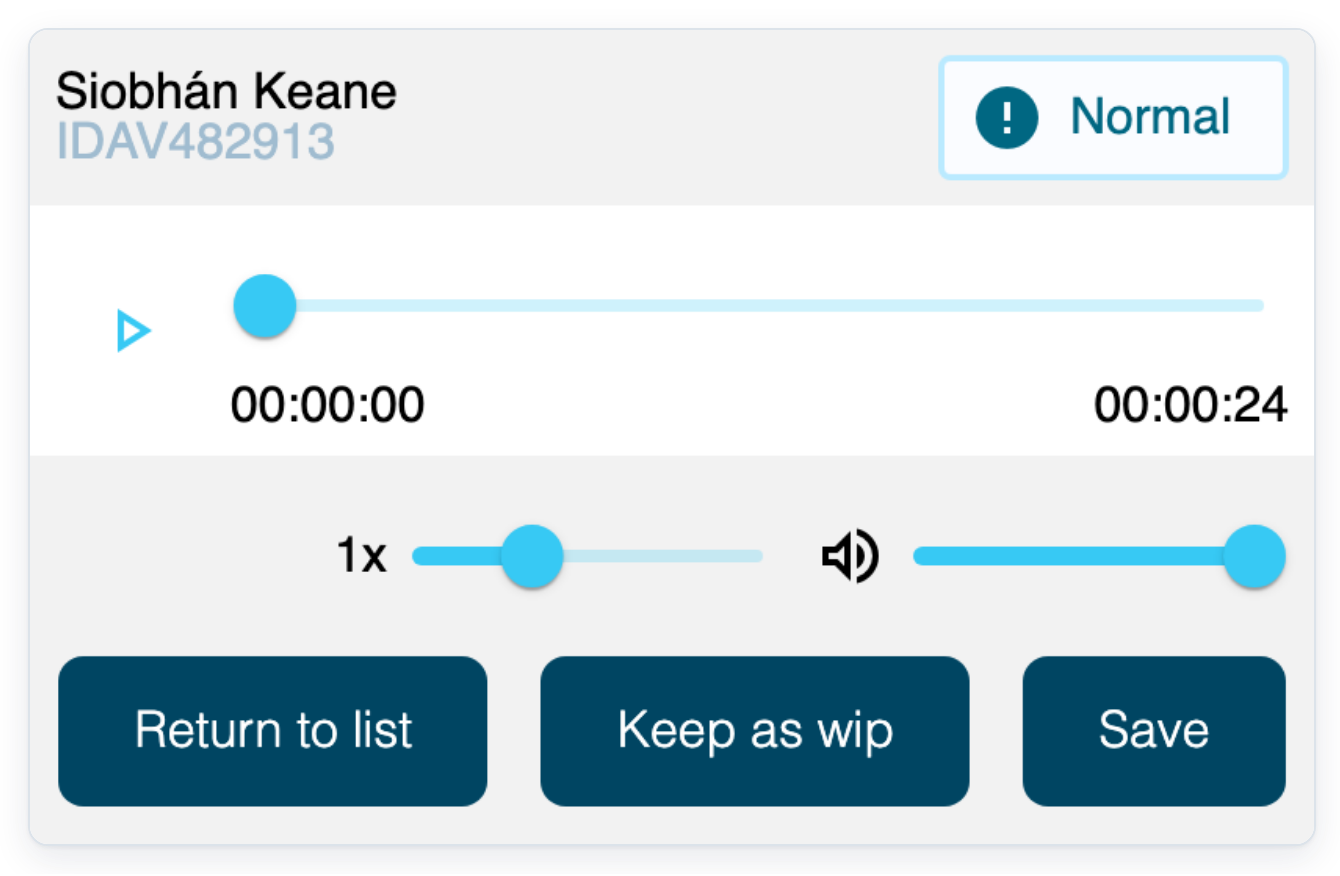
When you finish typing, save your document in the other program, then click Save in the player. The player closes.
Your written work stays in the other program as you move the task on in T-Pro.
NOTE:
- Your typed text stays in the other program. Save and keep your document there for future reference. The floating player's Save button moves the task to its next stage and closes the player.
- Click Return to list to put unfinished work back in Pending and close the player.
Tip: Use the two lower sliders to adjust playback speed and volume. The slider beside 1x changes speed. The slider beside the speaker symbol changes volume.
Can't transcribe outside of T-Pro?
- The full editor opens: ask your manager to check the task's template. Disable Editor must be switched on. Then reopen the task from Live tasks.
- The floating player won't open: allow pop-ups for T-Pro in your browser, then click the task again.
- Keep as wip leaves the player open: save your document in the other program. Then close the player window. Your task stays in Work in Progress for you to return to later.
- Your foot pedal doesn't control playback: use the player's play and pause button and timeline slider.
- Patient details need correcting: ask your manager to update them before you continue. Give them the Task ID so they can find the task.
Related articles
- Work from Live tasks
- Pick up a task from the pending queue
- Change the patient on a task
- Templates that turn off the editor
If you have any more queries, please do not hesitate to contact our Helpdesk or support@tpro.io.
© 2020 - 2026