
Before you start
Use an administrator account to set up the template. To transcribe, you need access to a task that uses it.
Log in to T-Pro with your administrator or transcriber credentials.
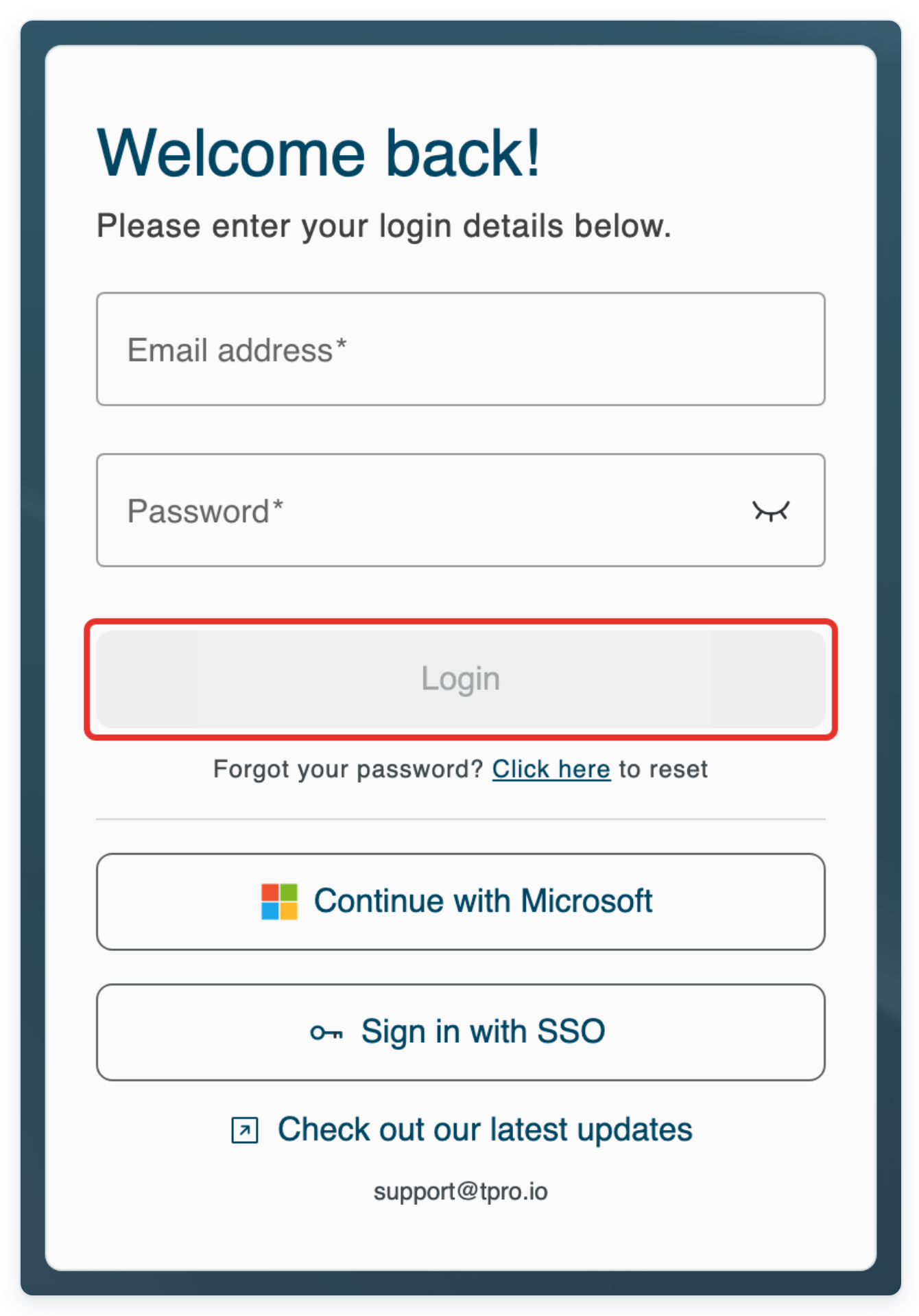
Enter your Email address and Password, then click Login. Use your administrator account to set up the template. Use your transcriber account for the transcription steps.
As an administrator
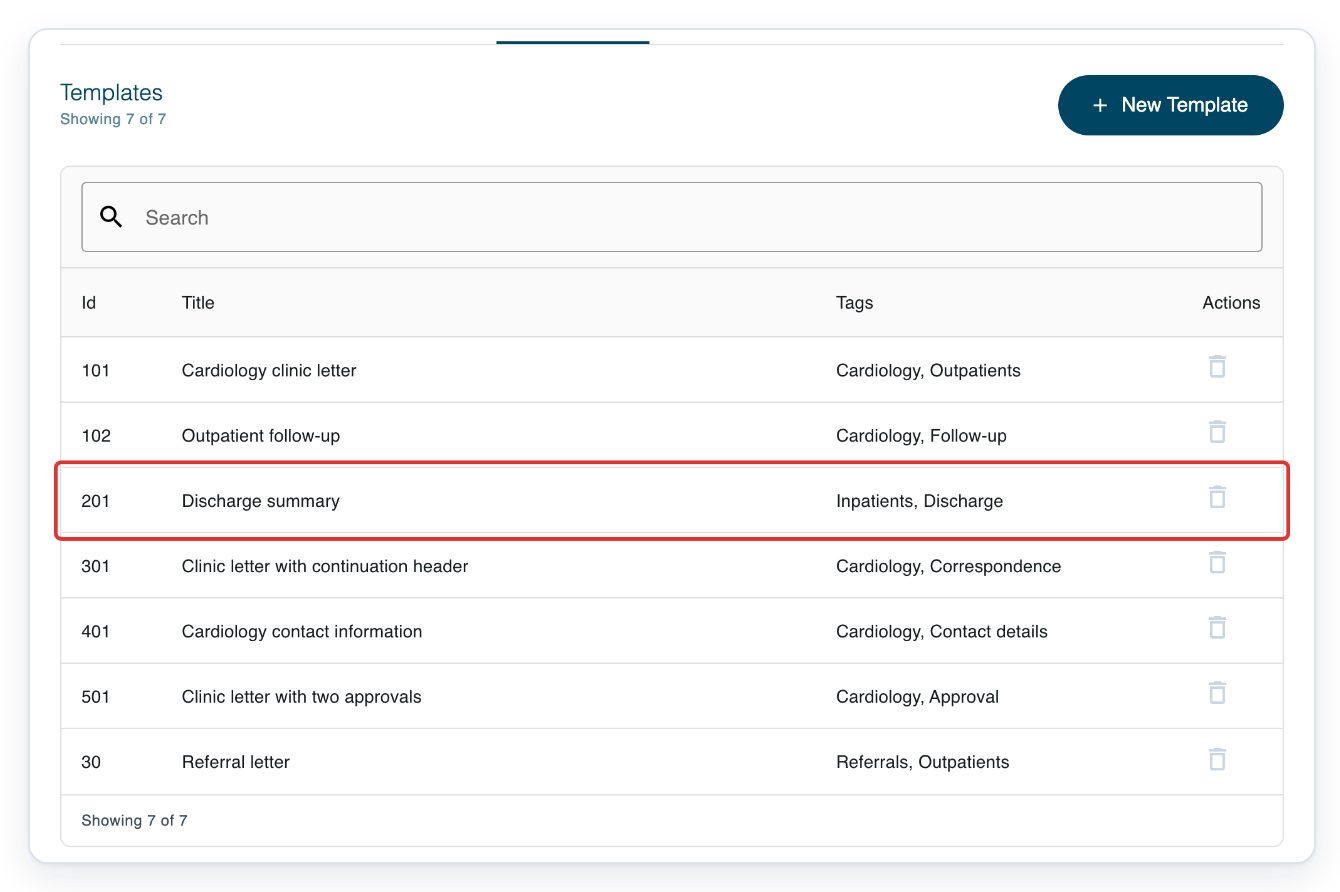
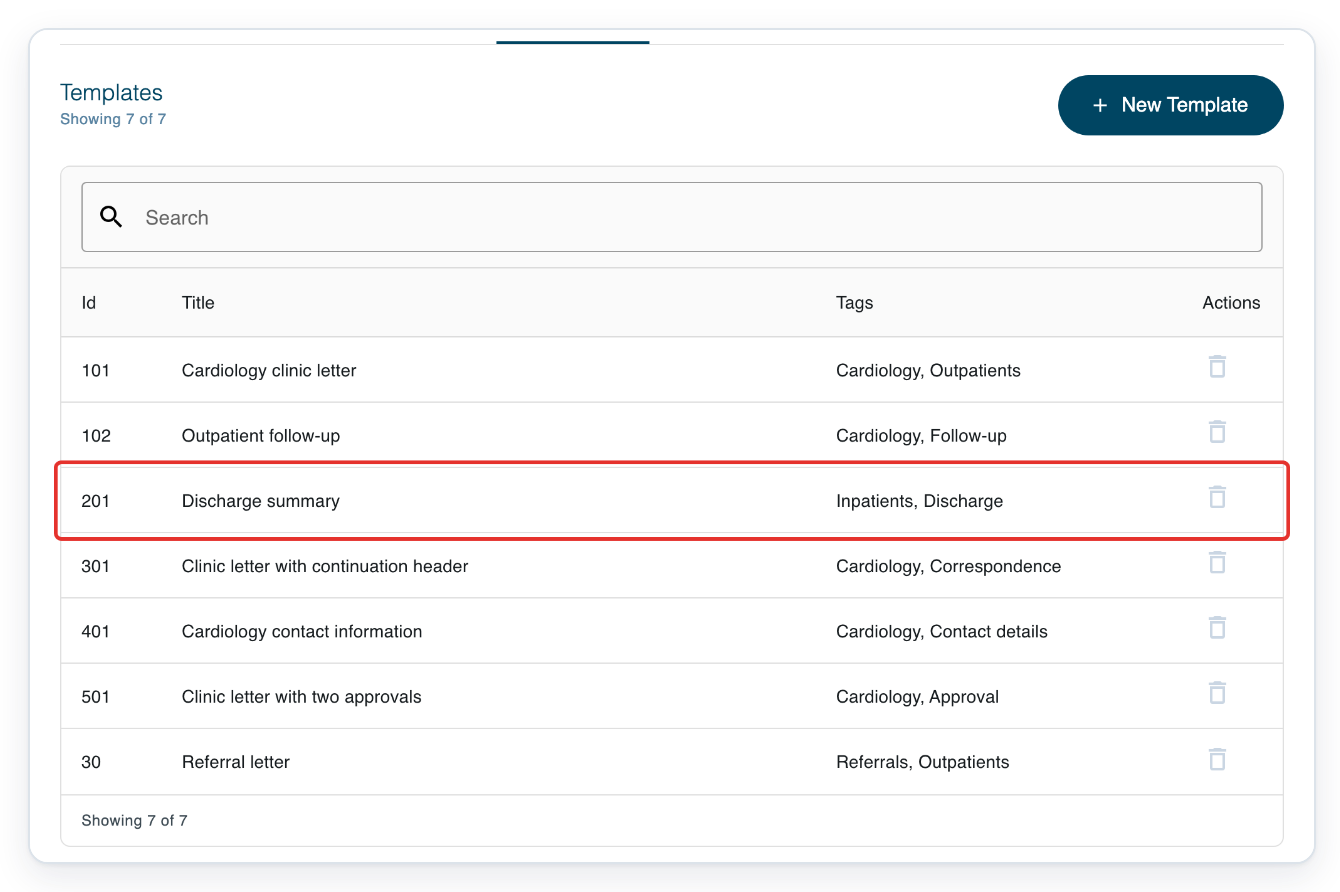
In your organisation's Templates list, click the template you want to change, such as Discharge summary.
Open your organisation, then select Templates. Use Search above the list to find the template by title. Check its Id, Title and Tags to make sure you have the right template.
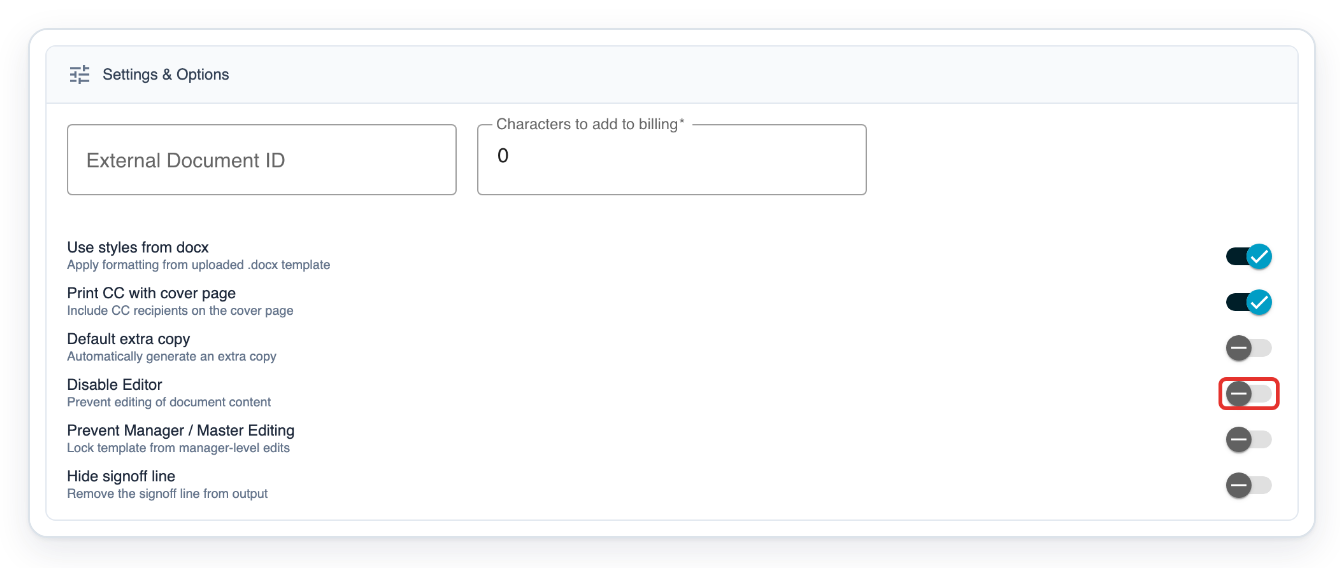
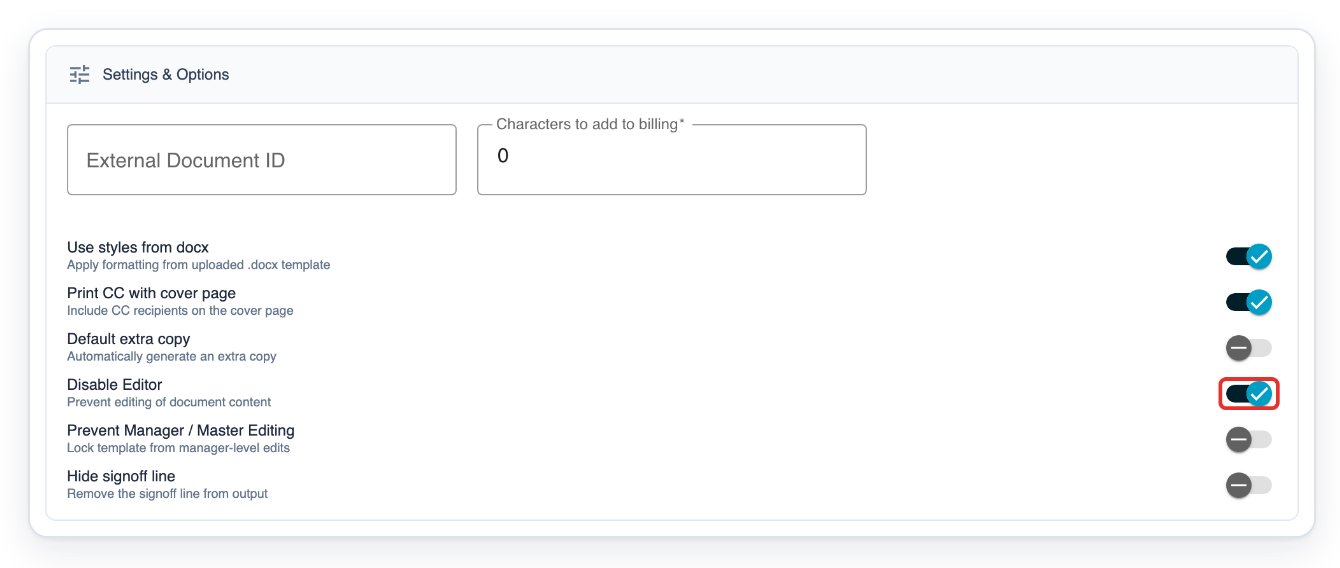
In Settings & Options, turn on Disable Editor.
Scroll down through the template settings to find the switch. With this setting on, transcribers can listen in the floating player while typing in their own system.
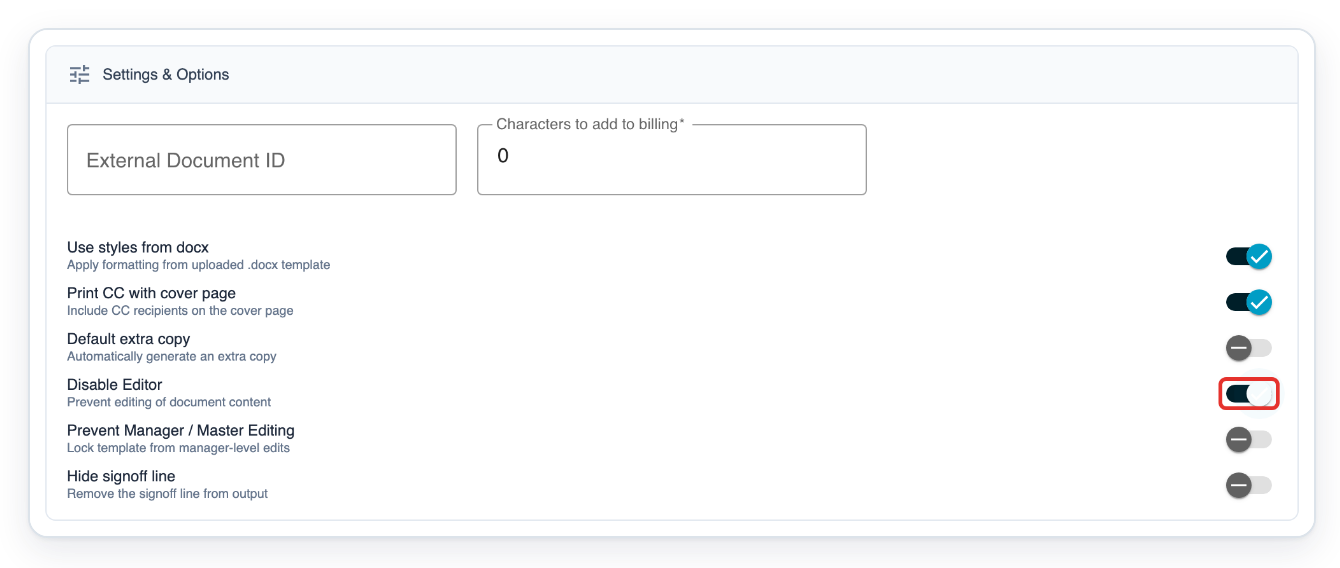
=> Disable Editor is now on. Save the template to apply the change.
Click Save to save your changes and return to your organisation's Templates list.
This saves the switch along with the template's other settings.

Open Discharge summary again to check the saved setting.
If you changed a different template, open that one instead. Find Disable Editor under Settings & Options.
=> Disable Editor is still on in the saved template.
As a transcriber
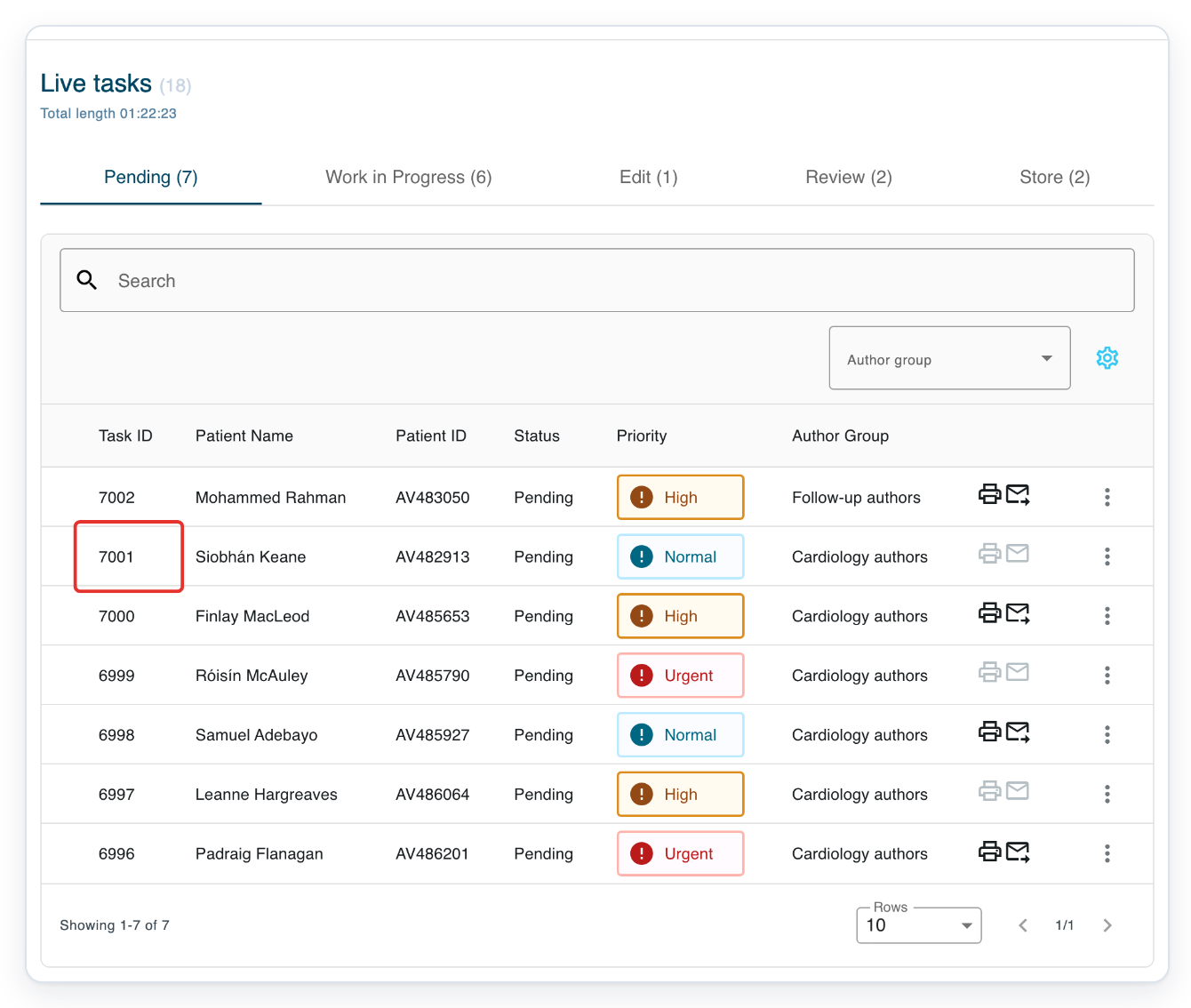
In Live tasks, select Pending and click the task you want to transcribe.
This example uses task 7001. Choose a task with Disable Editor switched on in its template. To continue a task you've already started, open it from Work in Progress.
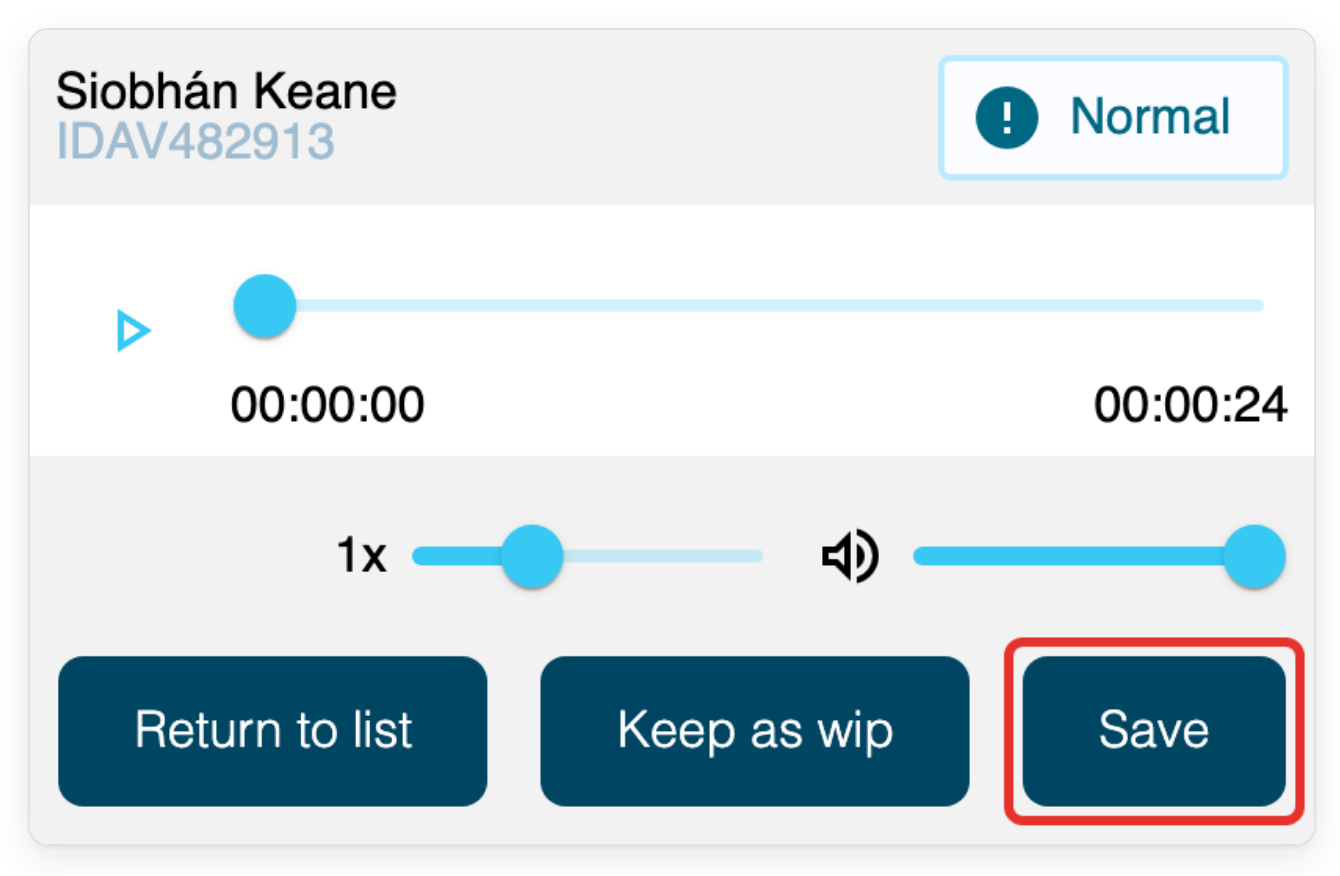
=> The floating player opens with patient details and playback controls. It also has Return to list, Keep as wip and Save.
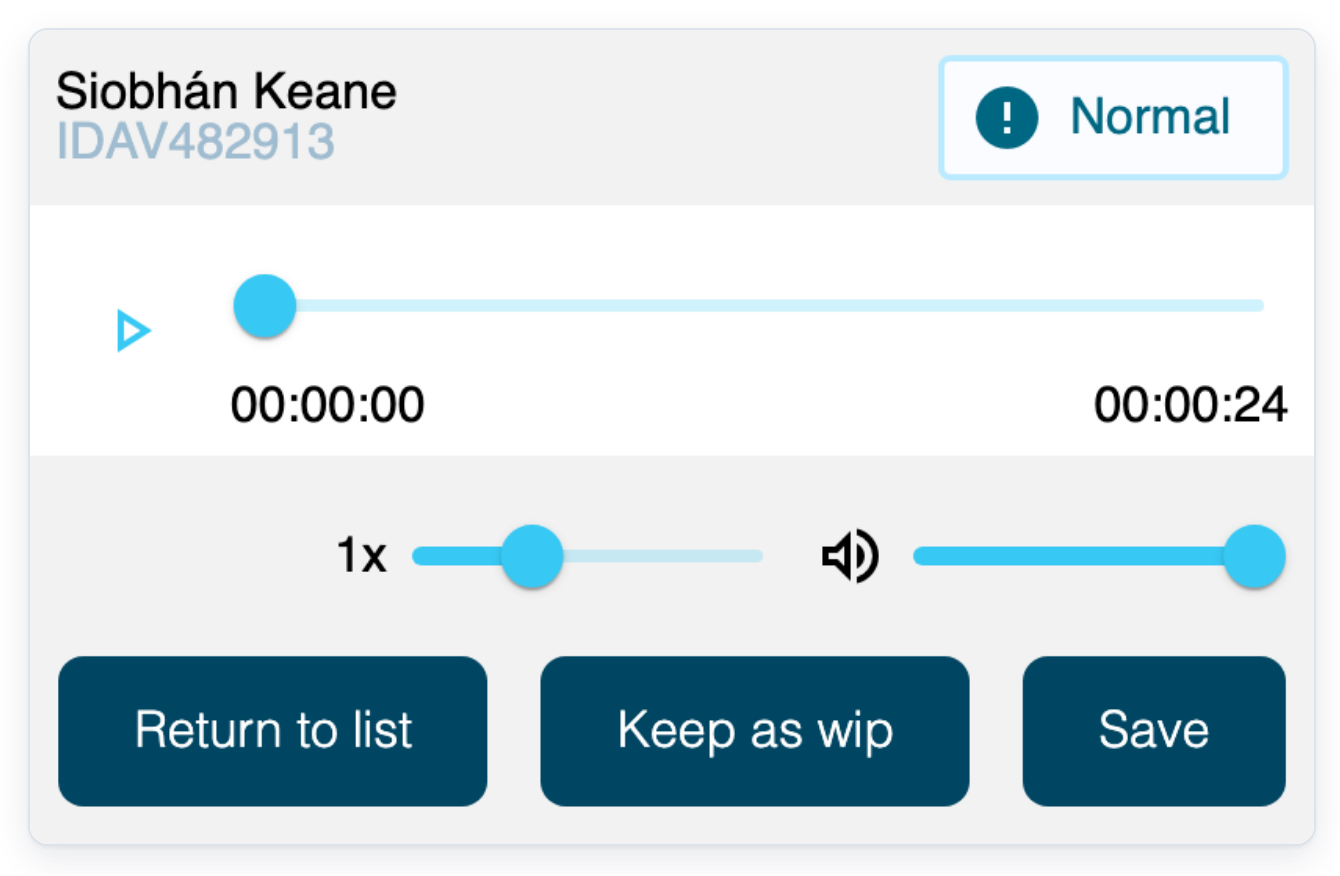
Check the patient name and ID at the top of the player before you start typing. Open the system where you will type the document. Click the play button in the floating player to listen. Click it again to pause. Move the timeline slider to listen from another point in the recording. Use the lower sliders to adjust playback speed and volume.
When you've finished typing, save the document in your own system. Then click Save in the floating player.
The player closes and the T-Pro task moves to its next stage, depending on your organisation's workflow.
NOTE:
- Disable Editor applies to the selected template. Switch it on separately for other templates that need it.
- Save your document in your own system first. Then use the player's Save button to move the T-Pro task to its next stage.
- Opening a Pending task in the floating player moves it to Work in Progress.
Tip: If you need to stop before finishing, click Return to list in the floating player. This returns the task to Pending.
Can't turn off the editor?
- Template settings are hidden. Click the arrow beside Save to show them, then find Settings & Options.
- The document editor opens instead. Check that Disable Editor is switched on and saved in the task's template. Open the task from Pending or Work in Progress in Live tasks.
- The floating player doesn't open. Allow pop-ups for T-Pro in your browser, then click the task again.
Related articles
- Template settings
- Type outside T-Pro with the floating player
- Pick up a task from the pending queue
- Play the audio and use function keys
If you have any more queries, please do not hesitate to contact our Helpdesk or support@tpro.io.
© 2020 - 2026