
Before you start
You need an administrator account and an existing facility template.
Log in to T-Pro with your administrator credentials.
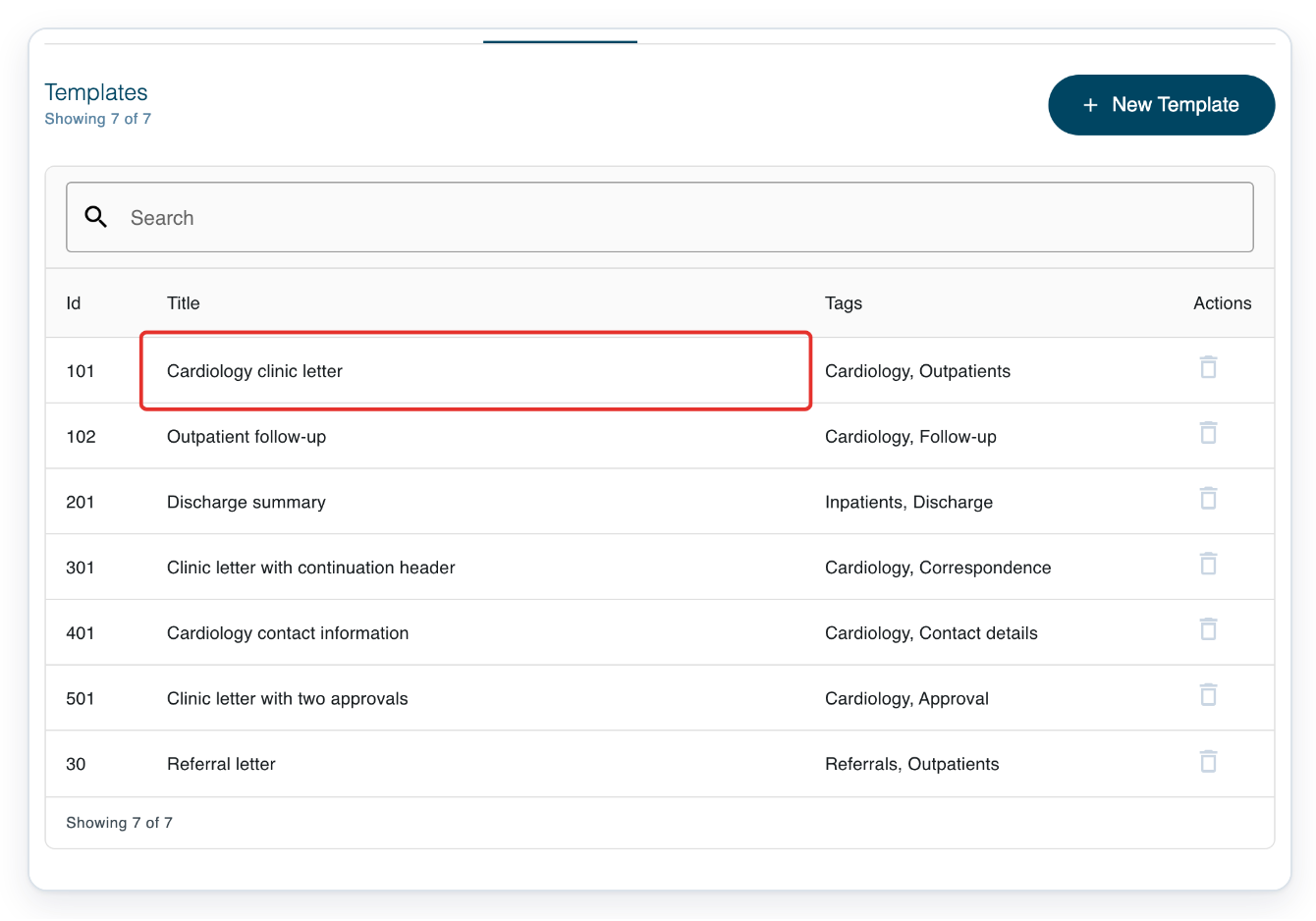
In your facility's Templates list, click the template you want to change. This example uses Cardiology clinic letter.
Use Search to find the template by title. The template opens with Template Details above the editing tabs.
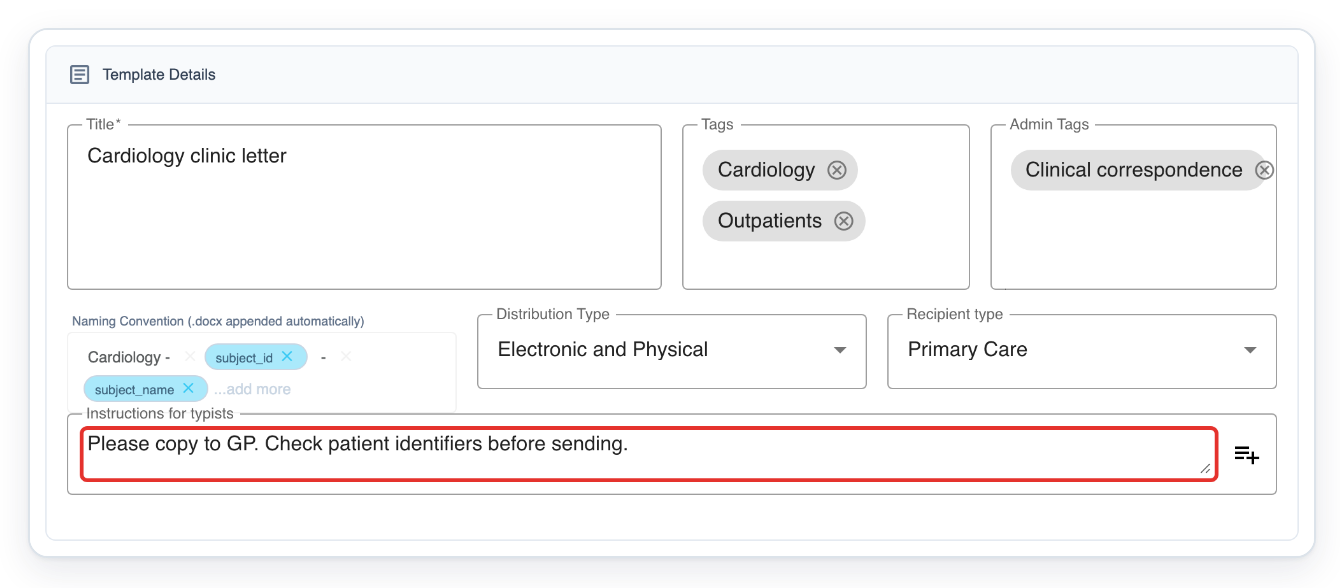
In Template Details, enter your instructions in Instructions for typists.
For example, enter “Please copy to GP. Confirm follow-up arrangements before sending.” The person working on the task can see these instructions.
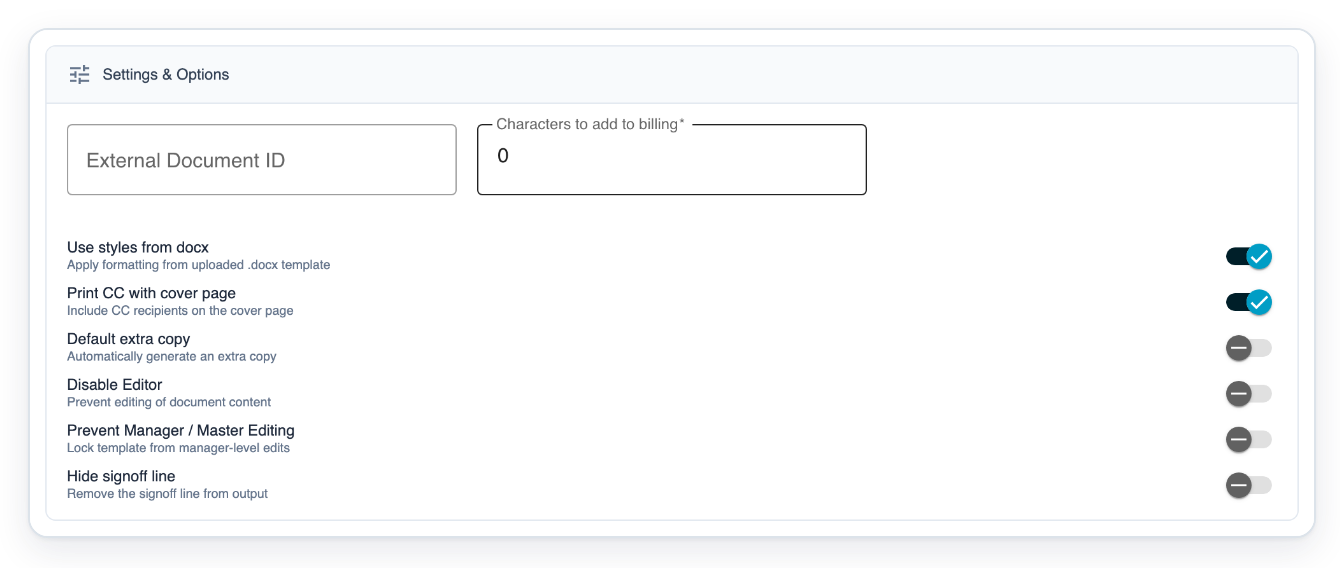
=> Settings & Options shows the document style, CC printing, extra copy, editing and sign-off controls.
Click the up arrow beside Save to hide the template settings and see Builder.
Hiding the settings gives you more room to work on the letter layout.

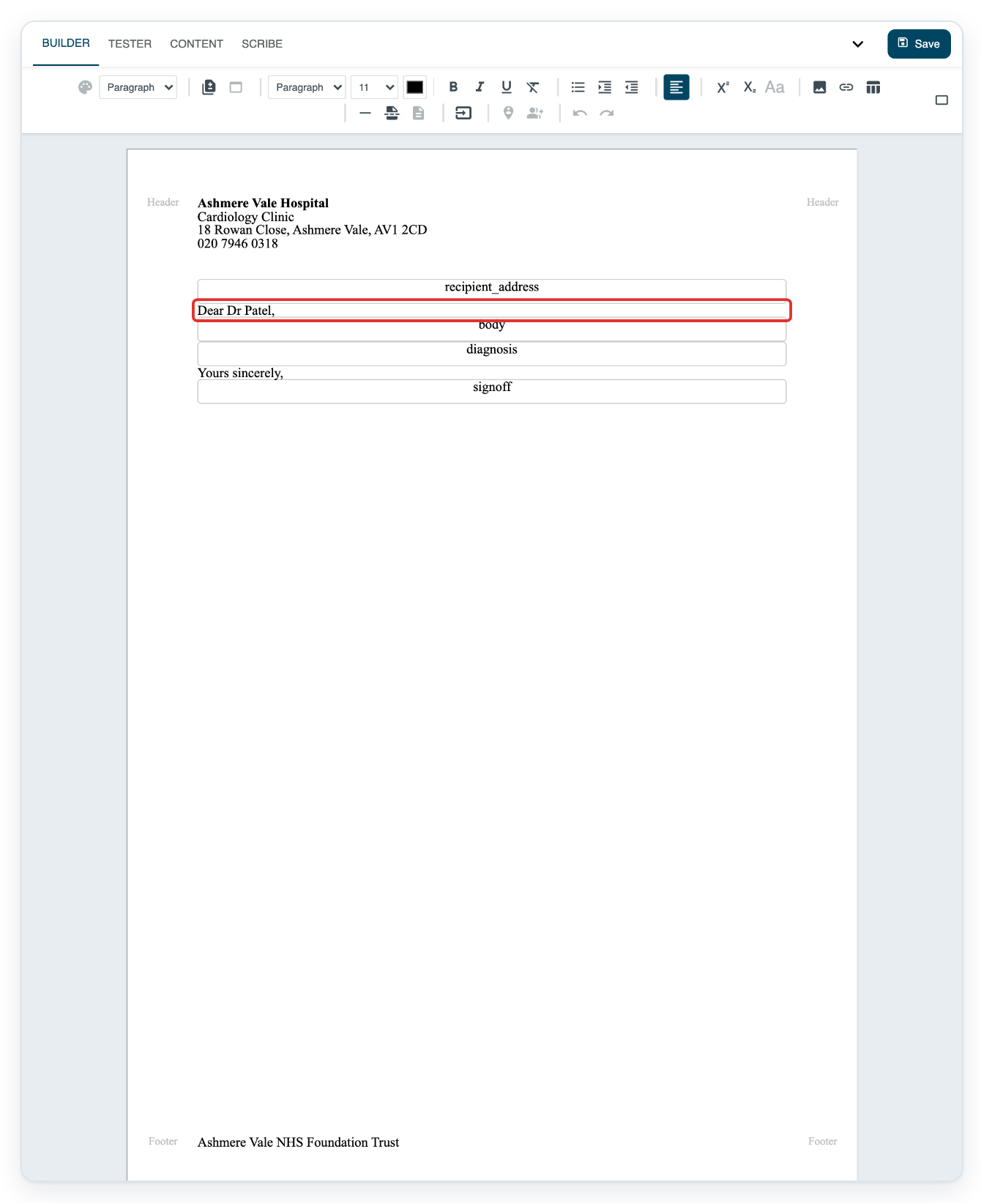
Click inside the letter to use the Builder formatting and template tools.
Place your cursor where you want to make a change. You can format text, add images, links and tables, or insert page numbers.
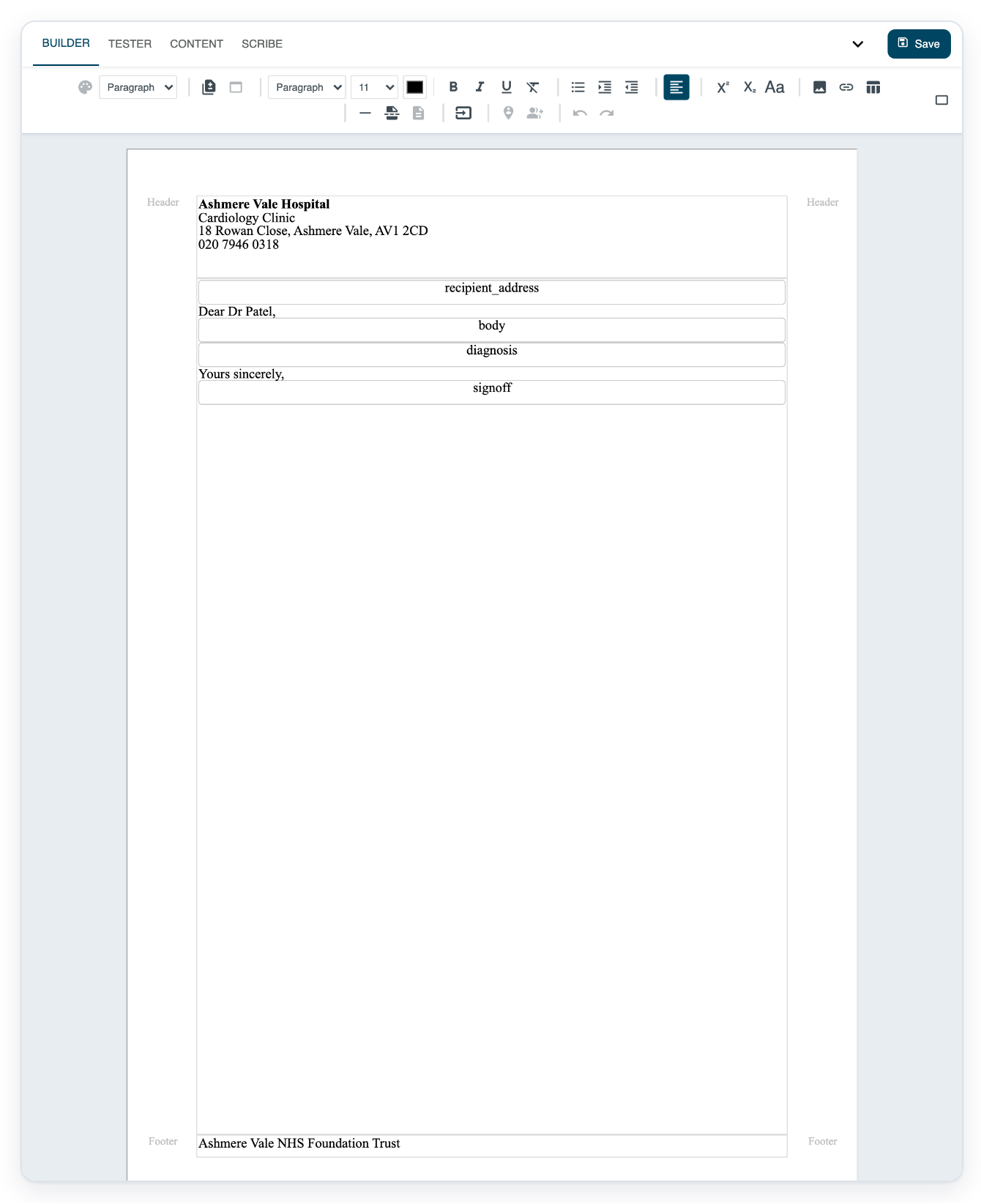
=> Builder shows the letter layout, with formatting, merge-field, recipient and CC tools above it.
Click Tester to preview the template with content from its fields.
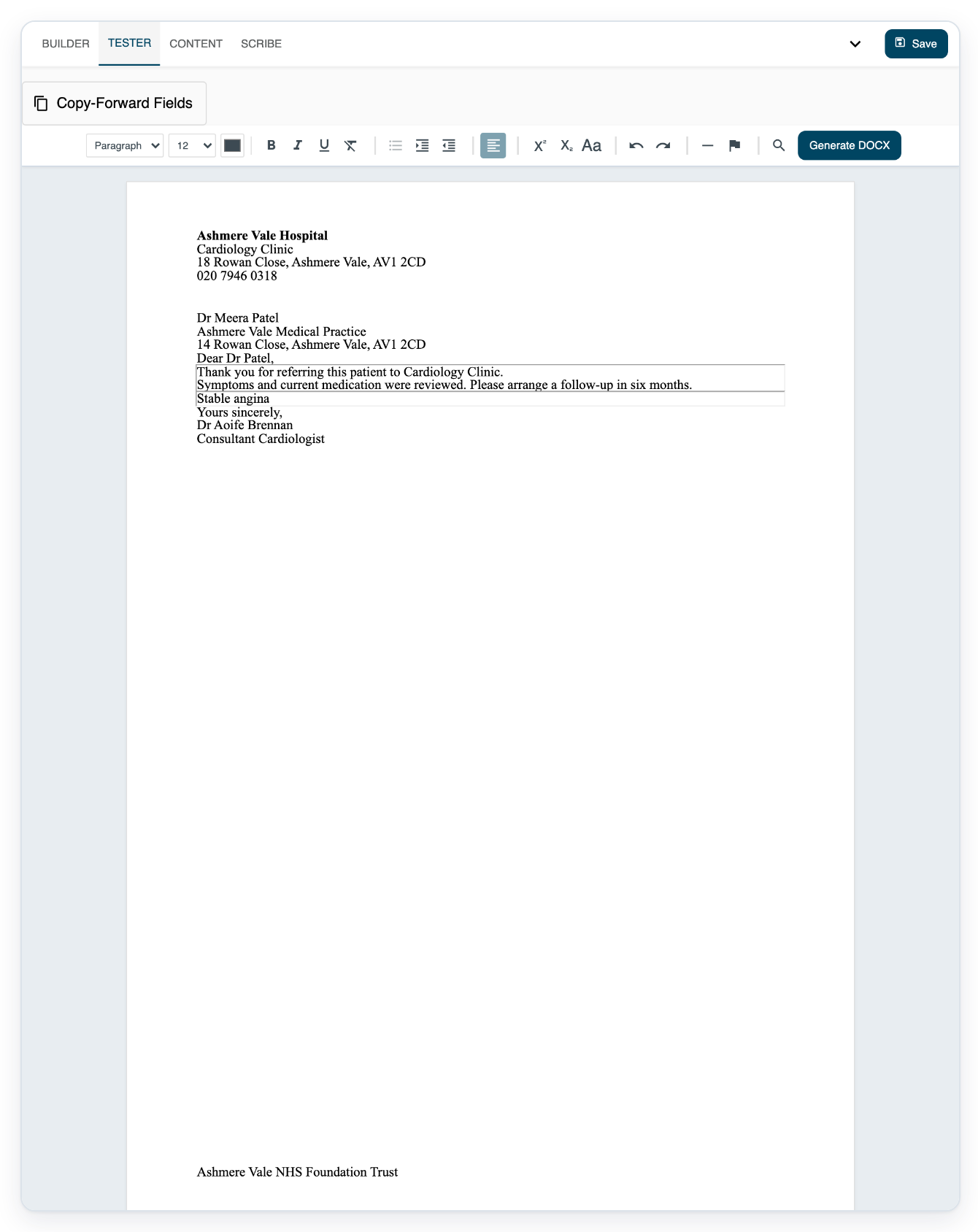
Check how the content fits in the letter, including the header and footer.

=> The preview shows the field content in the letter. Generate DOCX is available when a Word template is attached.
Click Content to view Generic Conventions and Field Conventions.
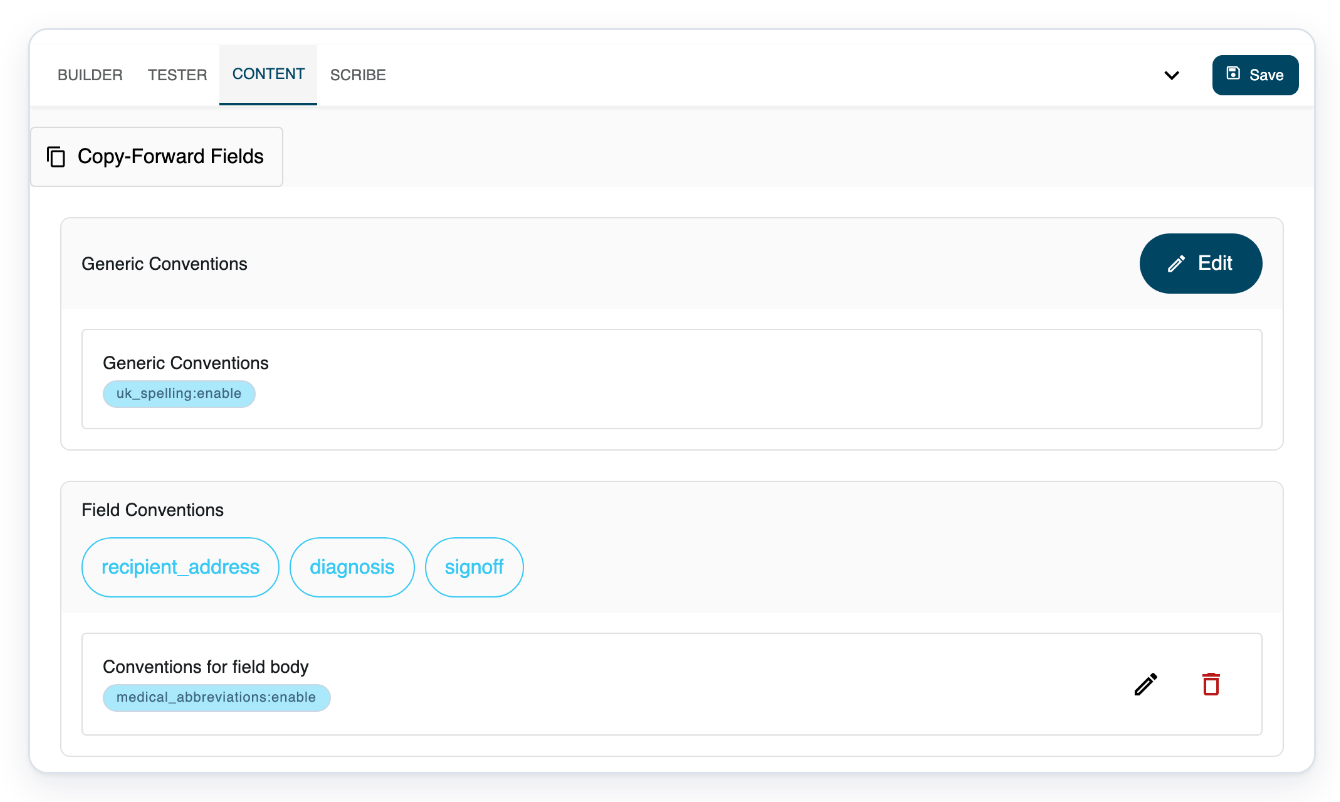
You can edit generic conventions separately from each field's conventions. Click Edit for generic conventions, or the pen beside a field's conventions.

=> Content lists both types of conventions, with controls to edit them.
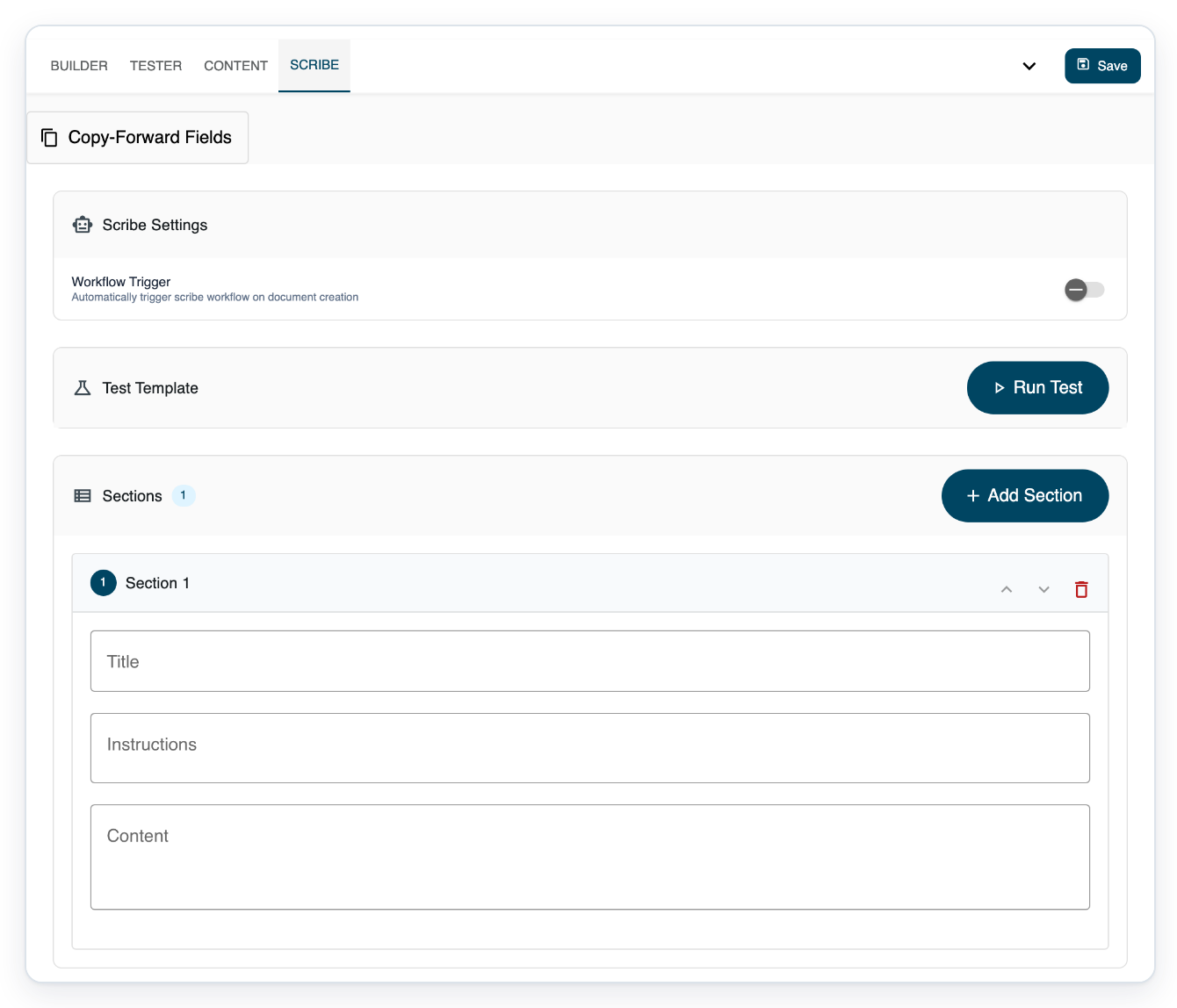
Click Scribe to view Scribe Settings and Test Template.
Below, you'll find the title, instructions and content for each Scribe section.

=> The Workflow Trigger switch appears under Scribe Settings, with Run Test under Test Template.
Click Save to save your changes and return to the facility Templates list.

NOTE:
- Save your changes before leaving the template.
- Your changes apply to the shared template used by its linked author groups.
- Tester uses sample merge-field values to preview the template.
What the main template options mean
| Option | What it controls |
|---|---|
| Use styles from docx | Uses the uploaded Word template's formatting to create a Word document. |
| Print CC with cover page | Prints CC copies with a cover page. |
| Default extra copy | Selects an extra copy by default when preparing distribution. |
| Disable Editor | Opens the audio player when clerical users open tasks from their live task list. Applies to pending tasks and work in progress. |
| Prevent Manager / Master Editing | An editing restriction that only administrators can set. If managers can still edit, see troubleshooting below. |
| External Document ID | Sets the ID that matches a telephone dictation's document type to this template. |
| Characters to add to billing | Stores a whole-number character adjustment for billing. |
| Hide signoff line | Hides the line above the sign-off while keeping the sign-off text. |
Can't change template settings?
- Template settings are hidden. Click the down arrow beside Save to show them again.
- Builder formatting controls aren't active. Click inside the letter first.
- Content is missing. Sign in with your administrator account to see this tab.
- Scribe is missing. Check that you're signed in as an administrator. Facilities with Scribe enabled show AI Blueprint controls instead.
- Generate DOCX is disabled. Show the template settings and attach a Word file under DOCX Template.
- You can't save because fields don't match. Check that field names and types match in Builder and the Word template. If there's a recipient address field, choose its Recipient type.
- Managers can still edit after you select Prevent Manager / Master Editing. Contact T-Pro support about restricting access.
Related articles
- Create or duplicate a template
- Headers and page breaks in templates
- How merge fields fill in patient details
- Set up electronic sign-off with merge fields
- Templates that turn off the editor
If you have any more queries, please do not hesitate to contact our Helpdesk or support@tpro.io.
© 2020 - 2026