
Before you start
You need an admin account to set organisation wording. As an author, you can edit your sign-off, extra content and approval wording.
Log in to T-Pro with your admin or author credentials.
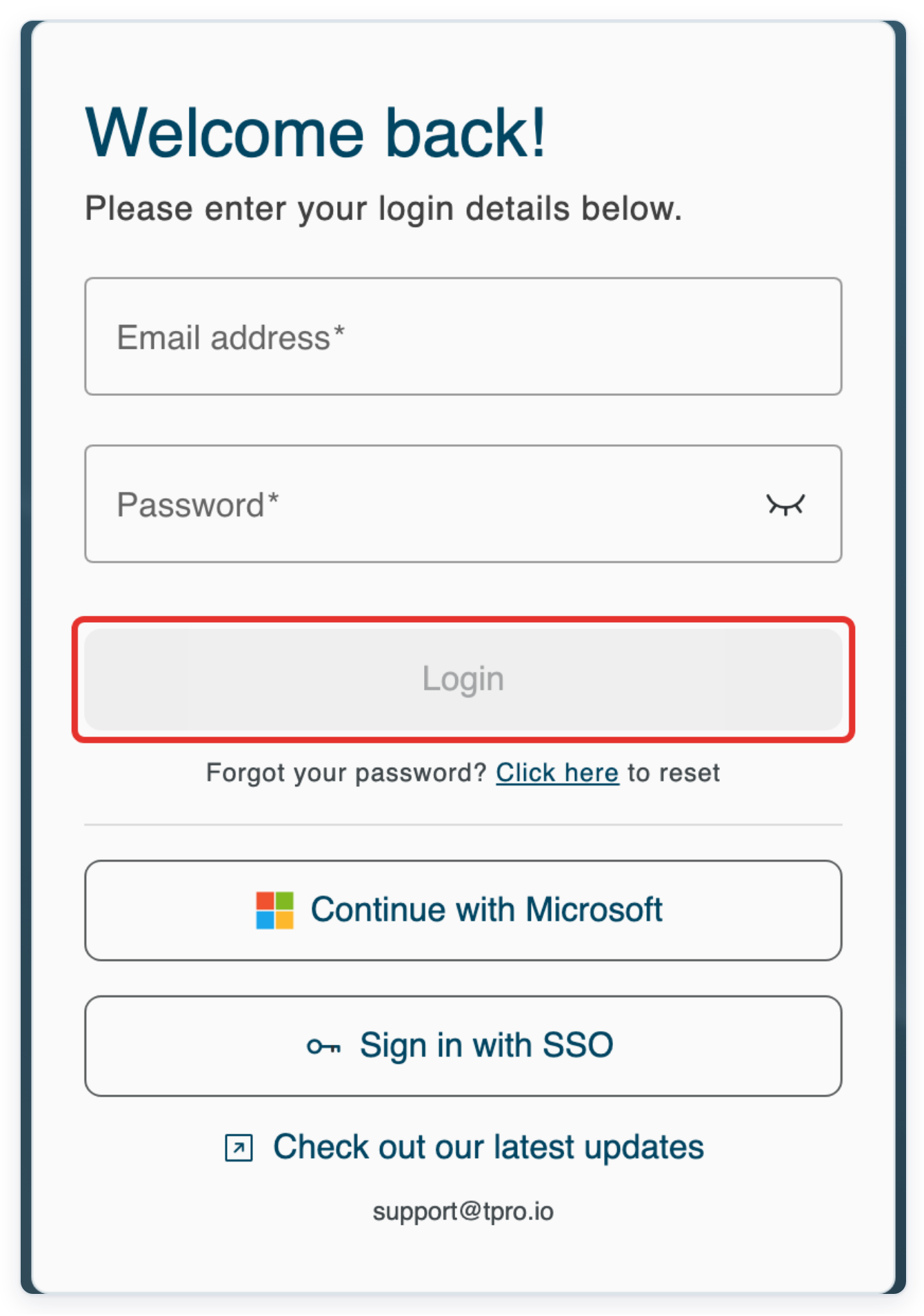
As an admin
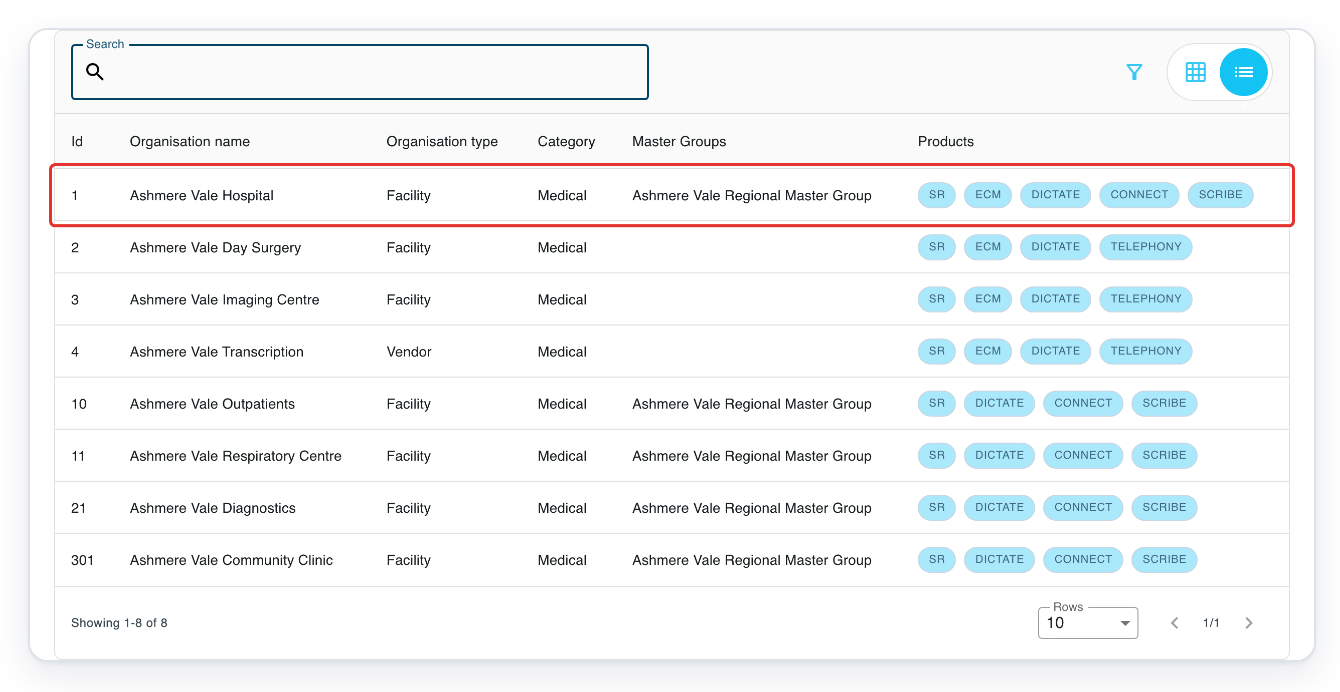
In Organisations, click your organisation.
The example uses Ashmere Vale Hospital.
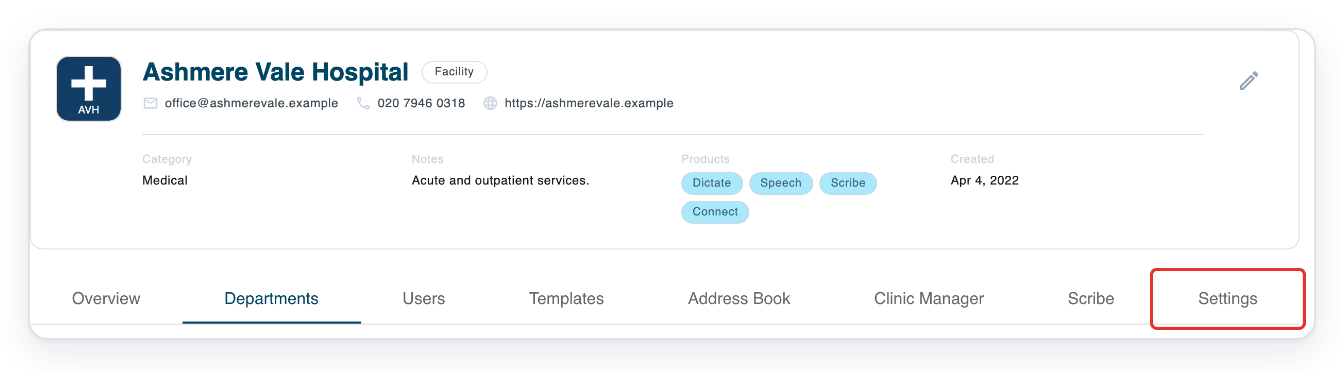
Click Settings in the organisation tabs. General opens with Organisation Details and Advanced Settings.
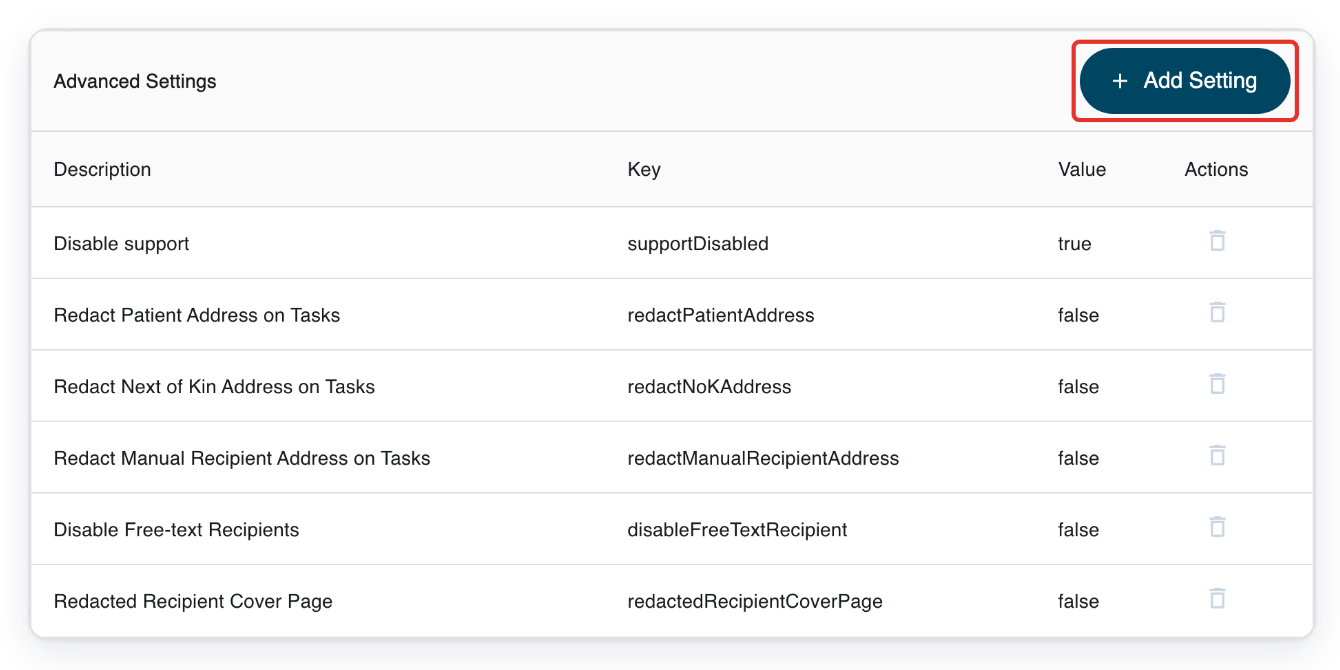
In General settings, click Add Setting under Advanced Settings.
First, open the organisation. Select Settings, then General.
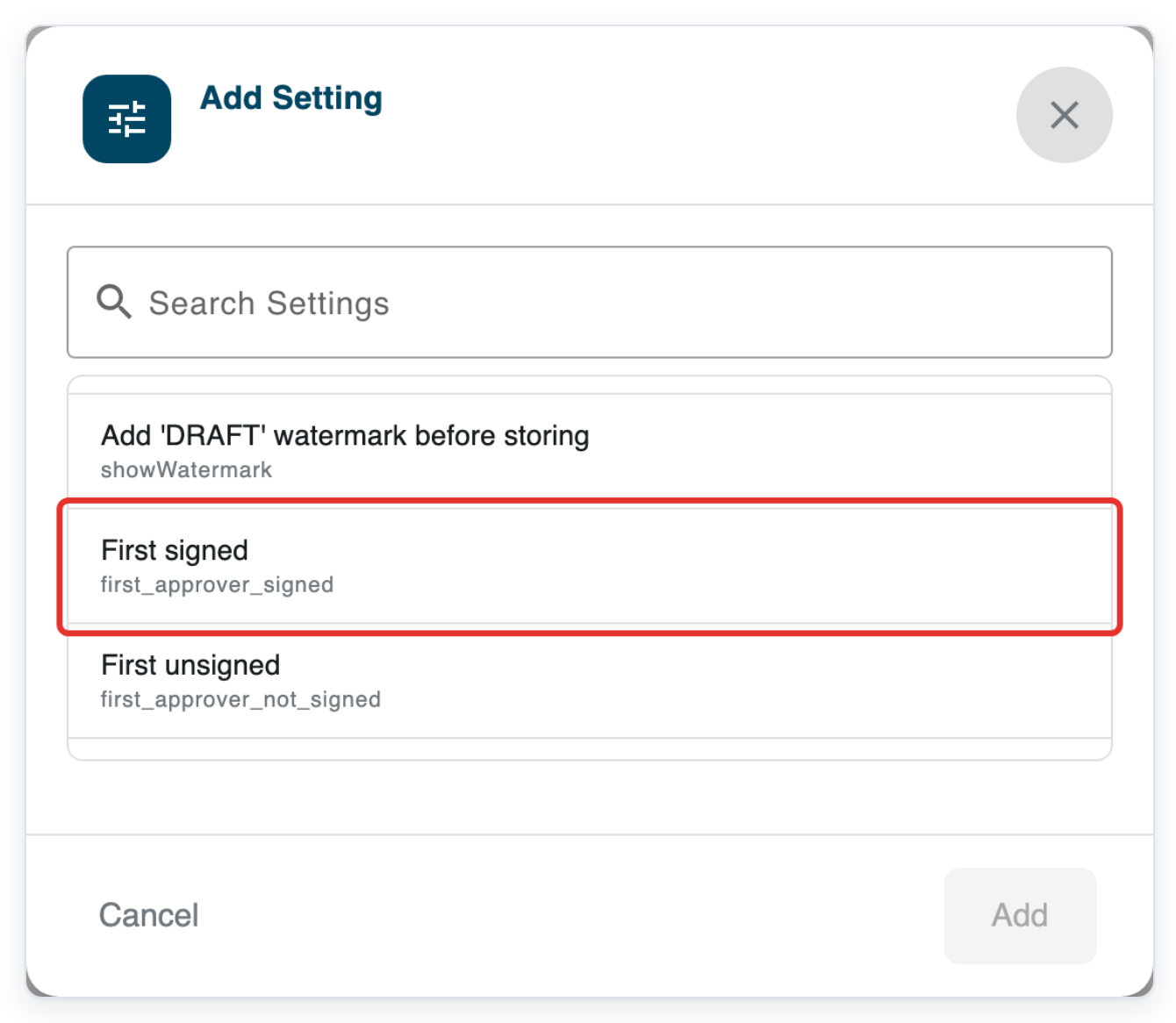
Choose First signed.
Use Search Settings to find this setting by its description.
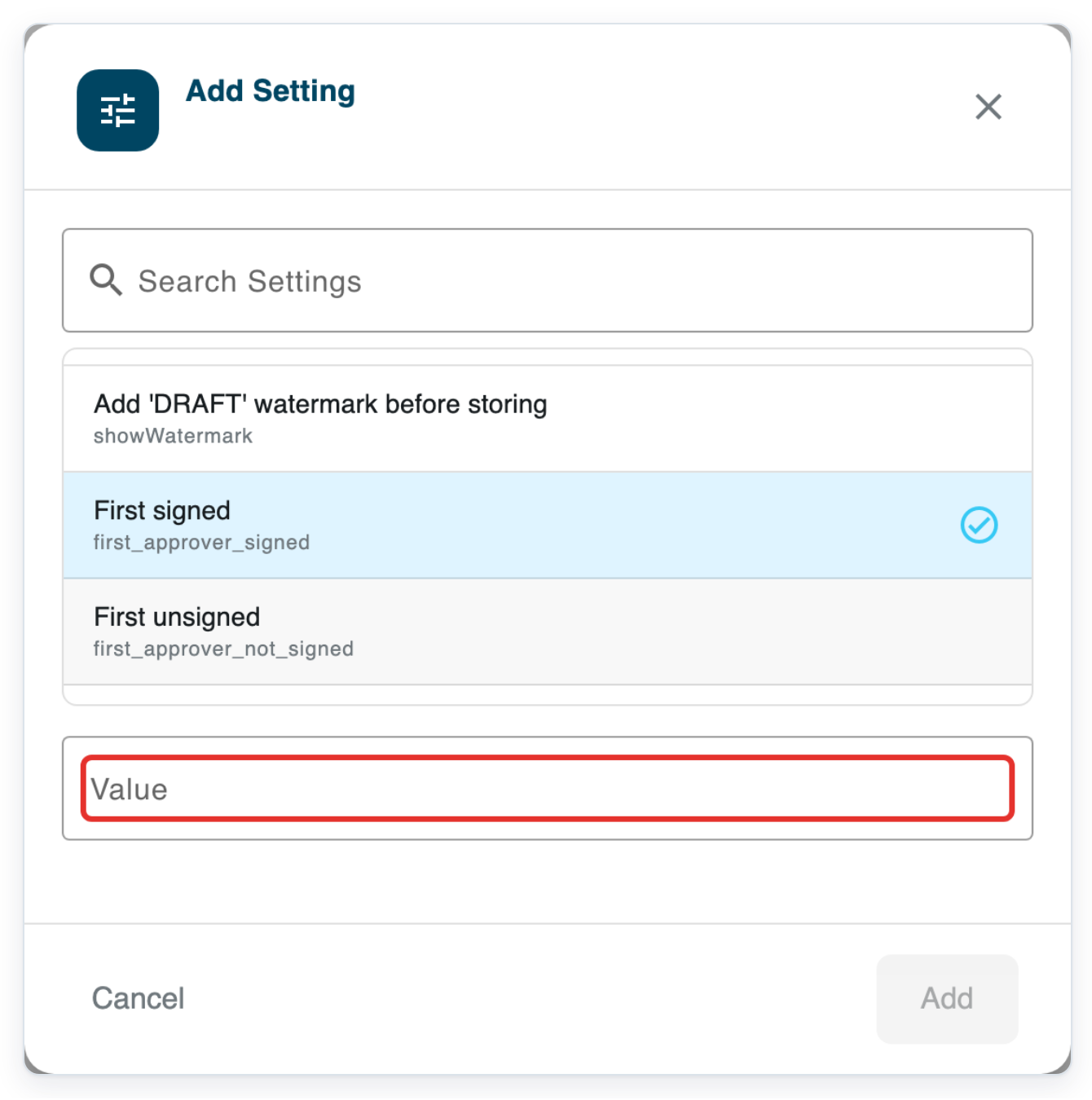
In Value, enter Electronically approved by.
This is example wording. Use the text you want to appear with the first approver's sign-off.
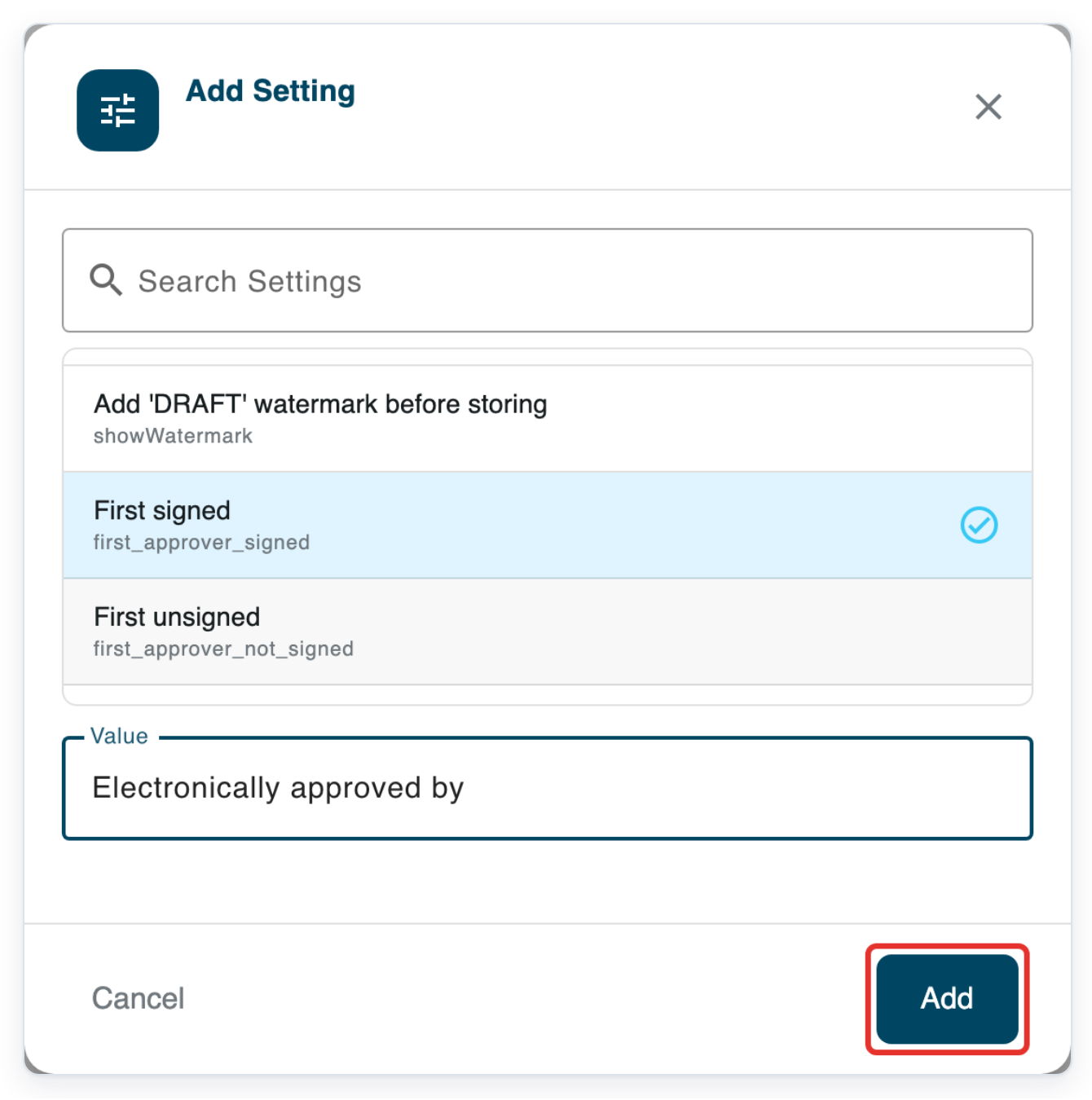
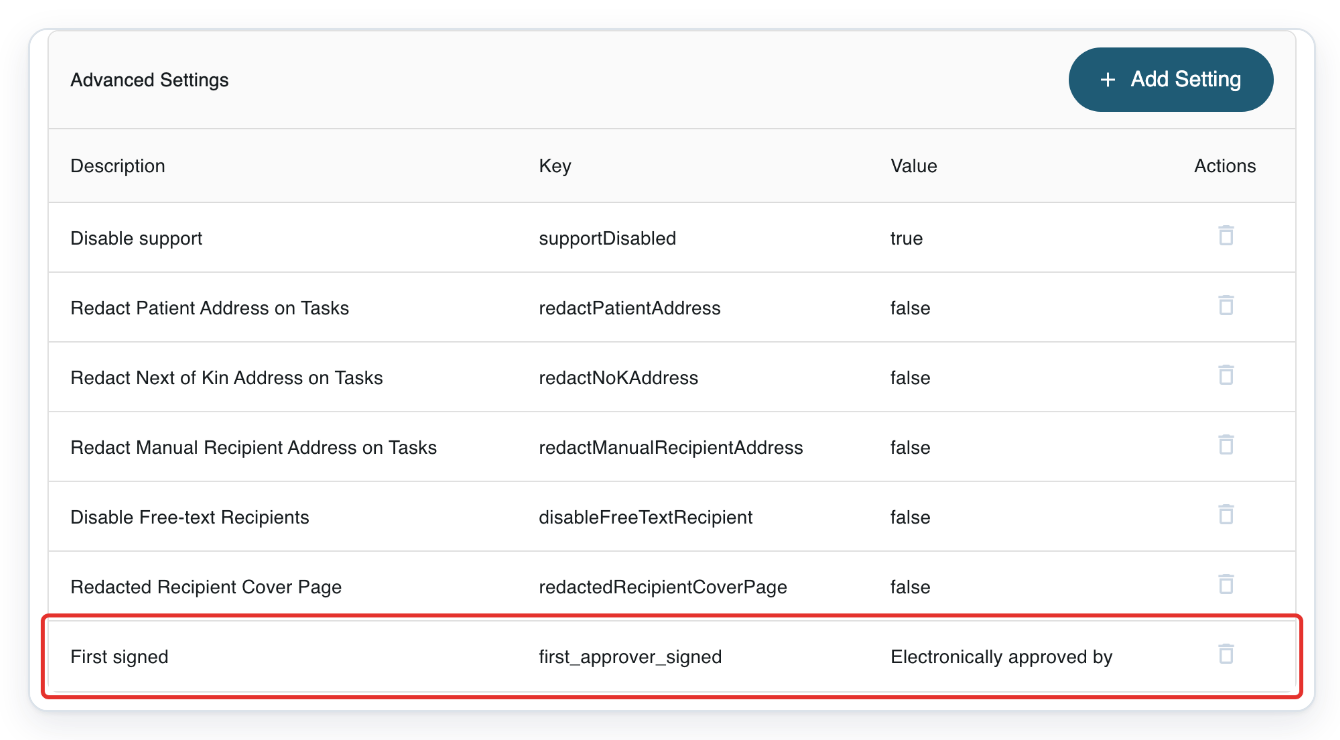
Click Add. The wording appears in the Advanced Settings table.
For the other labels, repeat Add Setting, choose the setting, enter Value and click Add. Choose First unsigned (
first_approver_not_signed), Second signed (second_approver_signed) or Second unsigned (second_approver_not_signed).Add the labels you need before saving in Organisation Details at step 11.
To change existing wording, click its row in Advanced Settings.
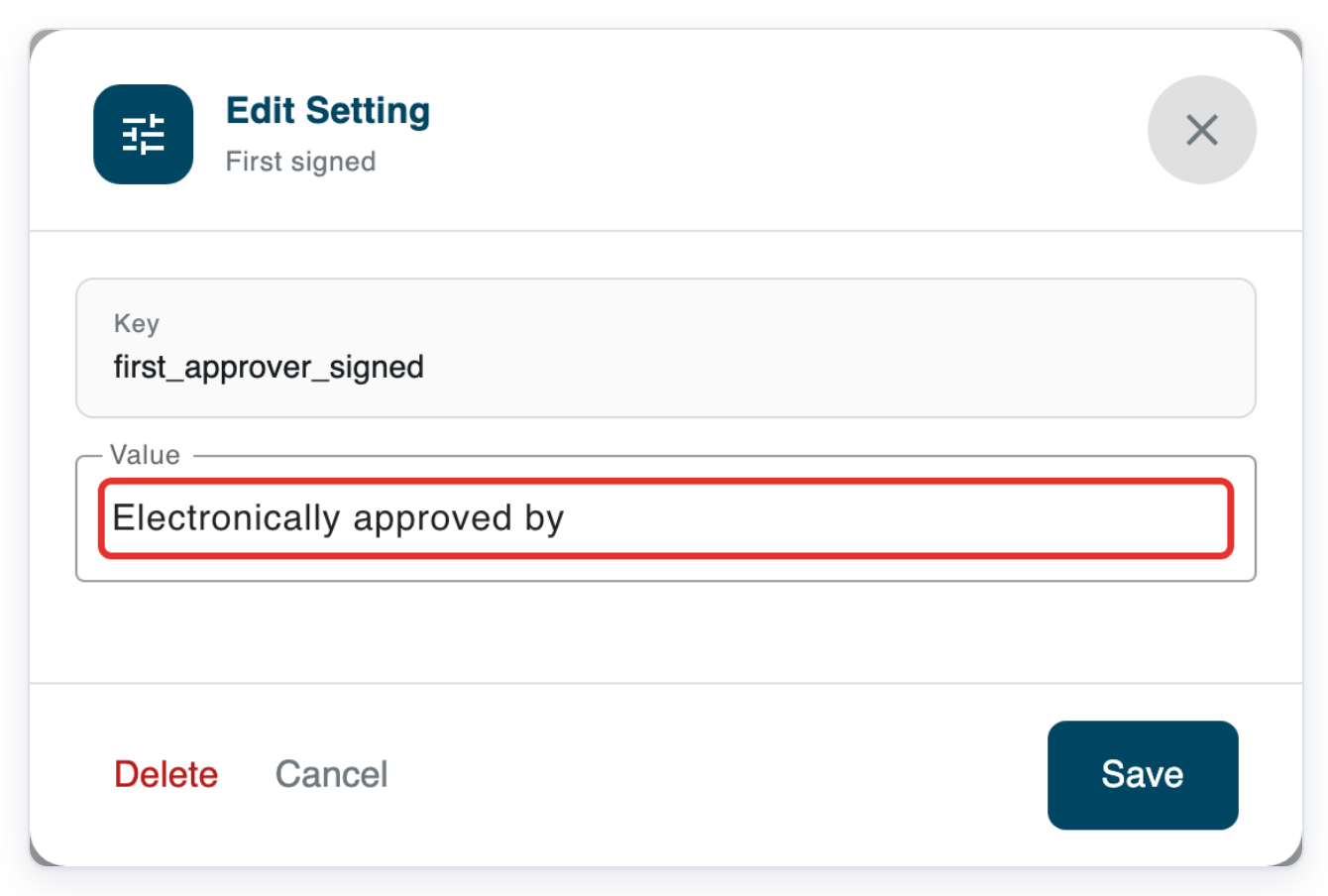
For this example, click First signed. Edit Setting opens with its Key and Value.
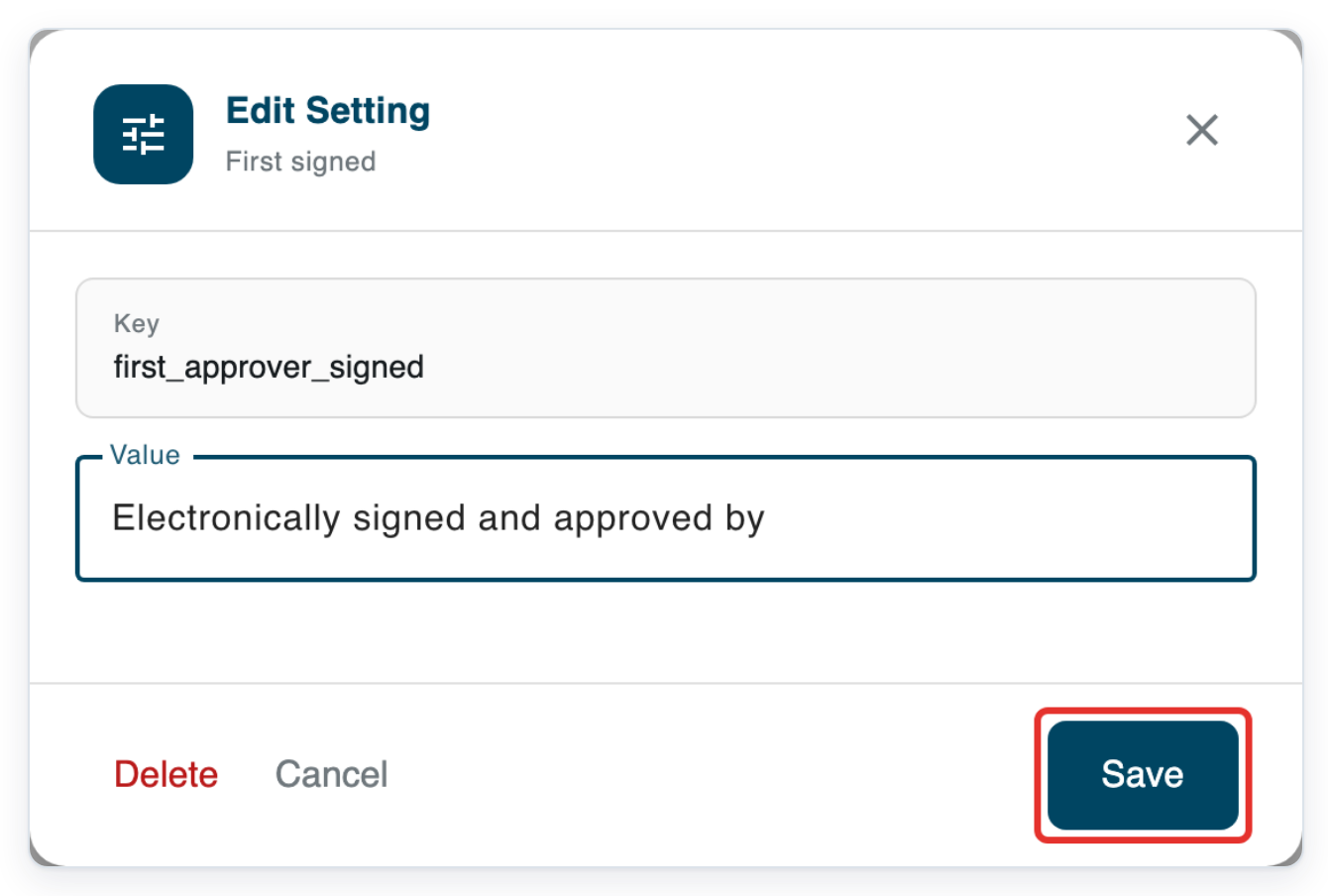
In Edit Setting, replace Value with Electronically signed and approved by.
Click Save in Edit Setting. The changed wording appears in the table.
Save the organisation next to keep the change.
Click Save in Organisation Details. T-Pro shows Entity updated.

As an author
Open your profile and click Sign Off.

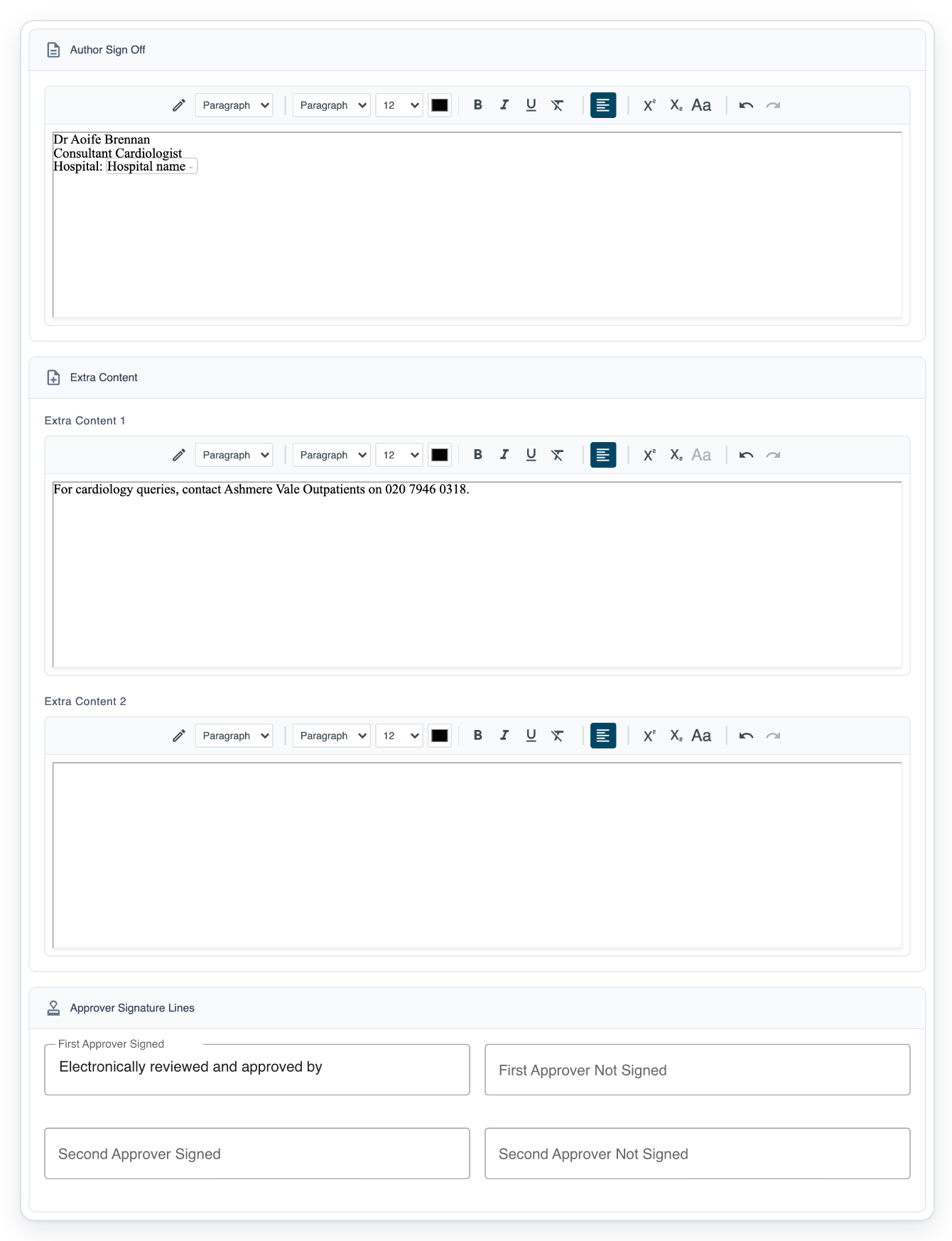
In Author Sign Off, enter your name, job title and “Hospital:” on three separate lines.
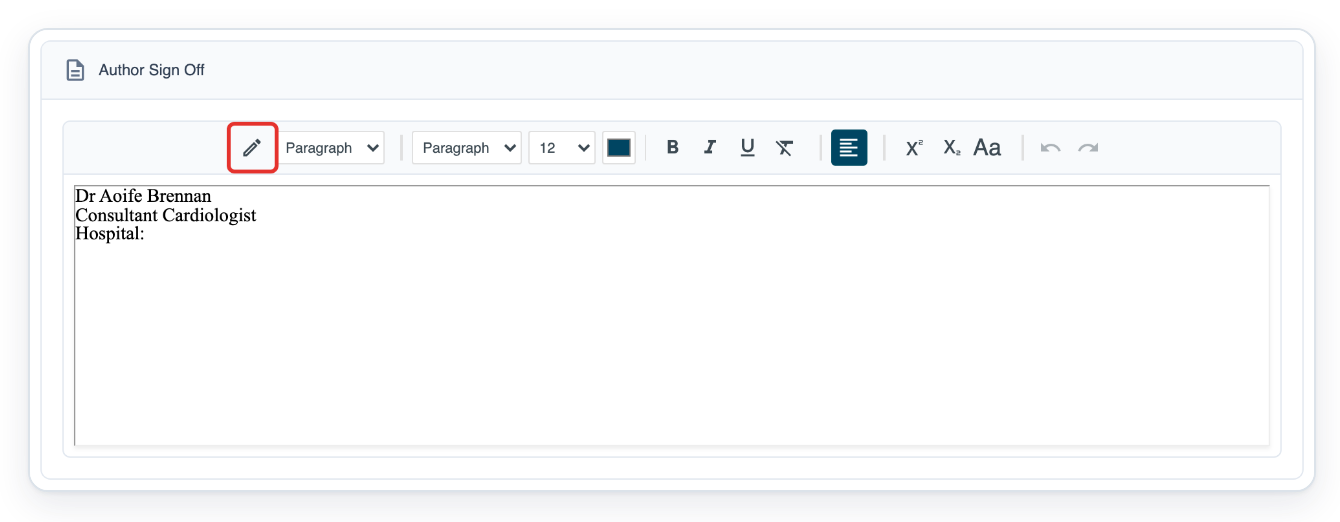
First, open your profile and select Sign Off. The example shows Dr Aoife Brennan, Consultant Cardiologist and “Hospital:” on separate lines. Use your own name and job title.
The template fields
signoffandsignoff2use the first and second approvers' saved sign-off text respectively.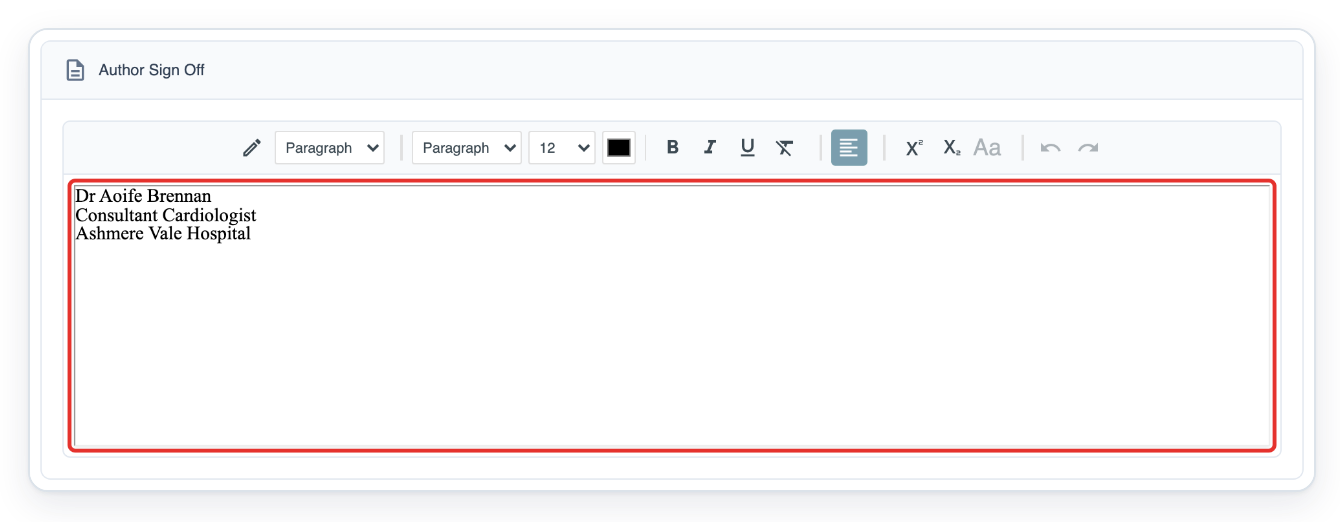
Press End in Author Sign Off to place your cursor after “Hospital:”.
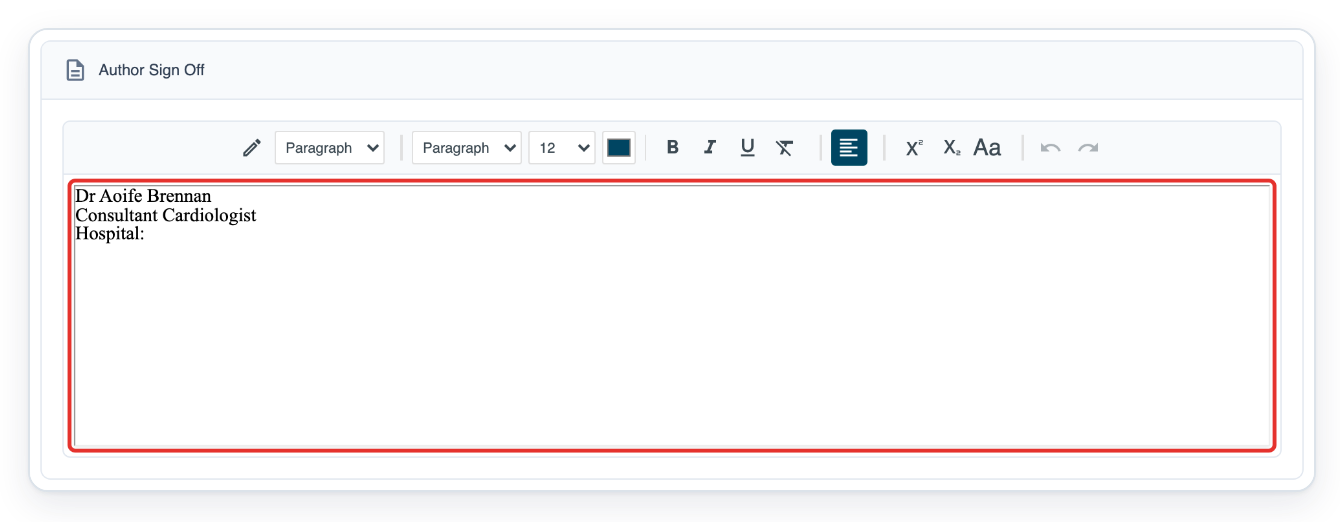
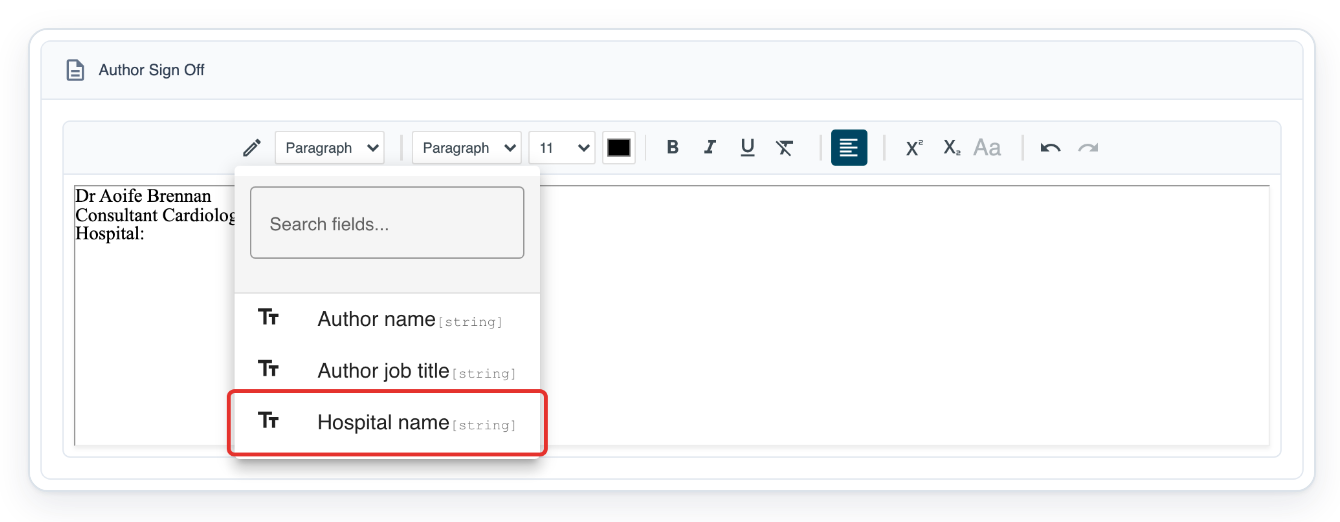
Place your cursor after “Hospital:”. Click Insert Merge Field, the pen icon in the Author Sign Off toolbar. The field list opens.
Choose Hospital name from the merge-field list.
The list also offers Author name and Author job title for those parts of your sign-off.
Enter your contact details in Extra Content 1. The Extra Content 2 text box is below it.
For example: “For cardiology queries, contact Ashmere Vale Outpatients on 020 7946 0318.”
The template fields
extra_content_1andextra_content_2use the task author's saved extra content.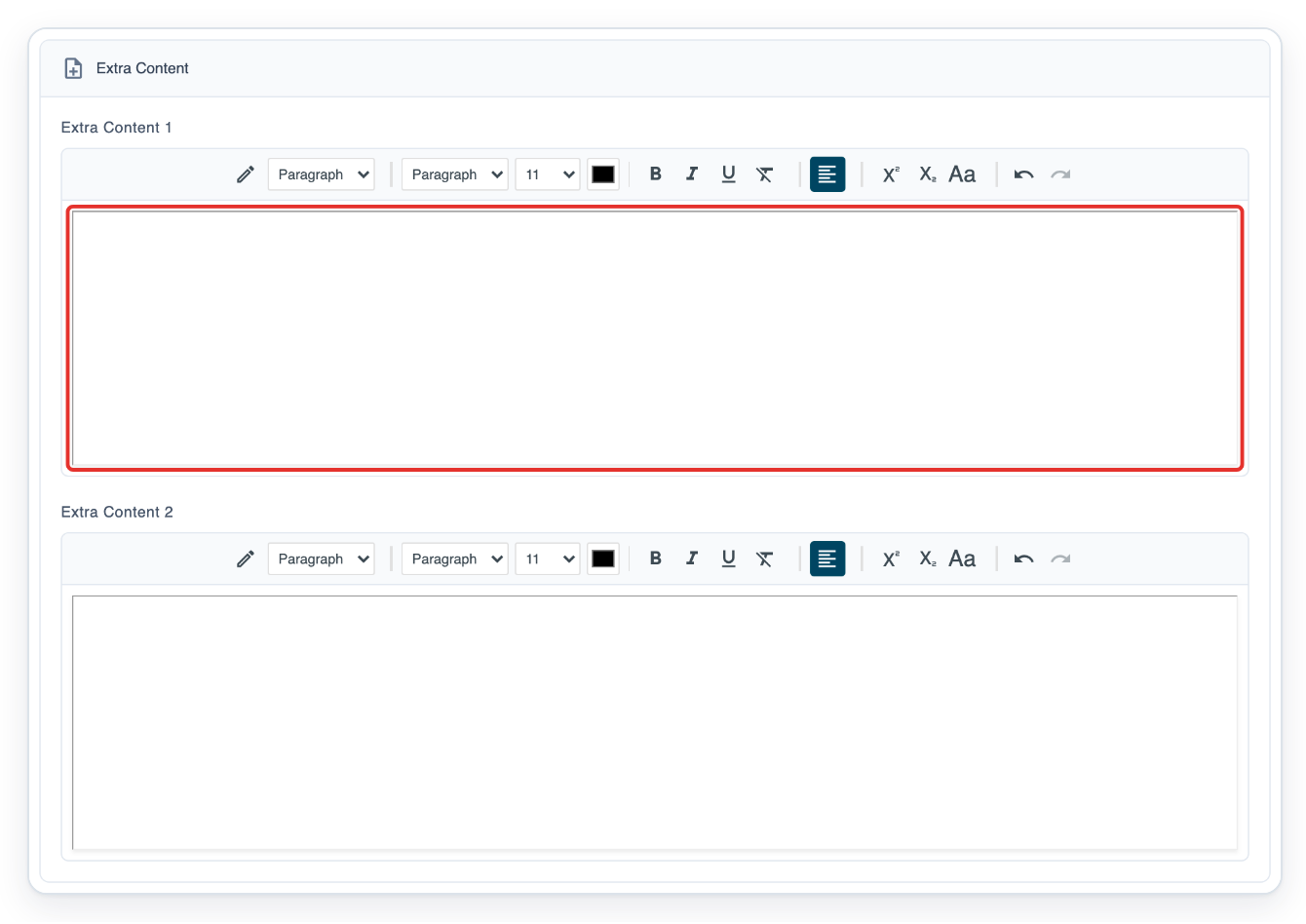
Under Approver Signature Lines, enter Electronically reviewed and approved by in First Approver Signed.
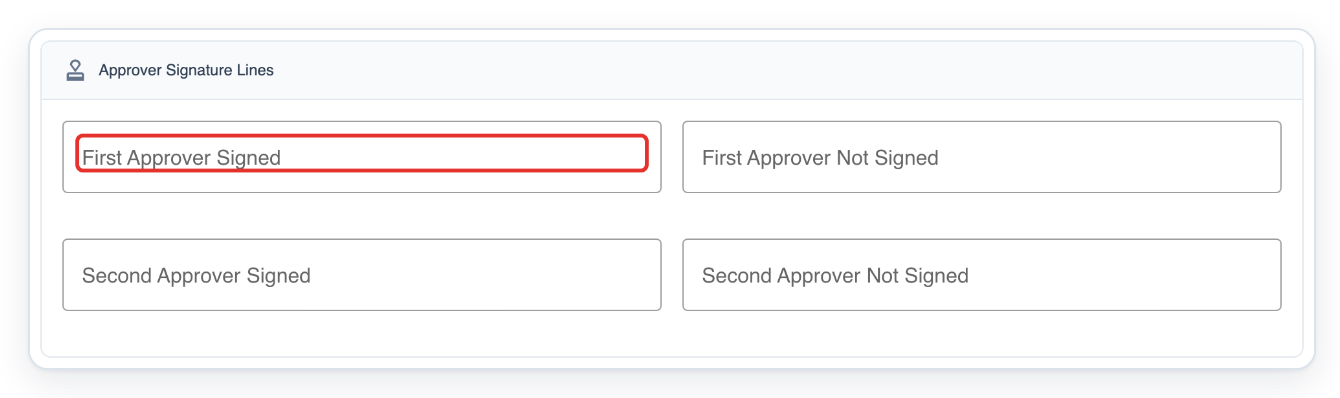
Click Save. T-Pro shows Sign off updated.

=> Your Author Sign Off, Extra Content and Approver Signature Lines are saved.
NOTE:
- T-Pro checks the approver's personal wording first, then the task's author group wording, then organisation wording. It uses the first wording it finds, or the built-in wording if all three are blank.
- The letter template needs matching merge fields to show approval wording, sign-off text and extra content.
- Sign-off text and the author's signature image are saved separately.
- To set the other organisation labels, repeat Add Setting, select
first_approver_not_signed,second_approver_signedorsecond_approver_not_signed, enter the wording in Value and click Add for each label. Then click Save in Organisation Details. - To change existing organisation wording, click its row in Advanced Settings, change Value in Edit Setting and click Save. Then click Save in Organisation Details. Existing settings are excluded from Add Setting.
- In the template,
signoffandsignoff2supply the first and second approvers' sign-off text. The fieldsextra_content_1andextra_content_2supply the task author's extra content. The fieldelectronic_signoffsupplies only the first approval label;electronic_second_signoffsupplies the second approval label.
What each approver signature line means
Choose the line for the approval stage. Use the “Not Signed” line when approval is completed on someone's behalf.
| Signature line | When it is used | Built-in wording |
|---|---|---|
| First Approver Signed | For a signed first approval. | Electronically Approved By |
| First Approver Not Signed | When the first approval is completed on the first approver's behalf. | Dictated but not signed by |
| Second Approver Signed | For a signed second approval. | Letter reviewed by |
| Second Approver Not Signed | When the second approval is completed on the second approver's behalf. | On behalf of |
Other places you can update an author's sign-off
If you can open another author's profile in Users, select Sign Off. You can edit their sign-off text, extra content and approver signature lines.
You need an admin, master or manager account with access to that author.
Can't set up electronic sign-off?
- Advanced Settings is missing. Ask an admin to set the organisation wording.
- A setting is missing from Add Setting. Check the Advanced Settings table and click the setting's row to edit it. Click Save in Organisation Details afterwards.
- Add is unavailable. Select a setting and enter its wording in Value.
- The letter uses unexpected approval wording. Check the approver's personal wording first, then the task's author group wording. Do this before changing the organisation default.
- Sign-off text, approval wording or extra content is missing from the letter. Ask the person responsible for templates to check the matching merge fields.
- T-Pro shows “Failed to update sign off”. Try saving again. Contact our Helpdesk if you still see the message.
Related articles
- Upload or update your signature
- Template settings in V2
- Approve a letter
- Organisation settings in V2
If you have any more queries, please do not hesitate to contact our Helpdesk or support@tpro.io.
© 2020 - 2026