
Before you start
You need an author account. To upload your handwritten signature, have an image of it ready on your computer.
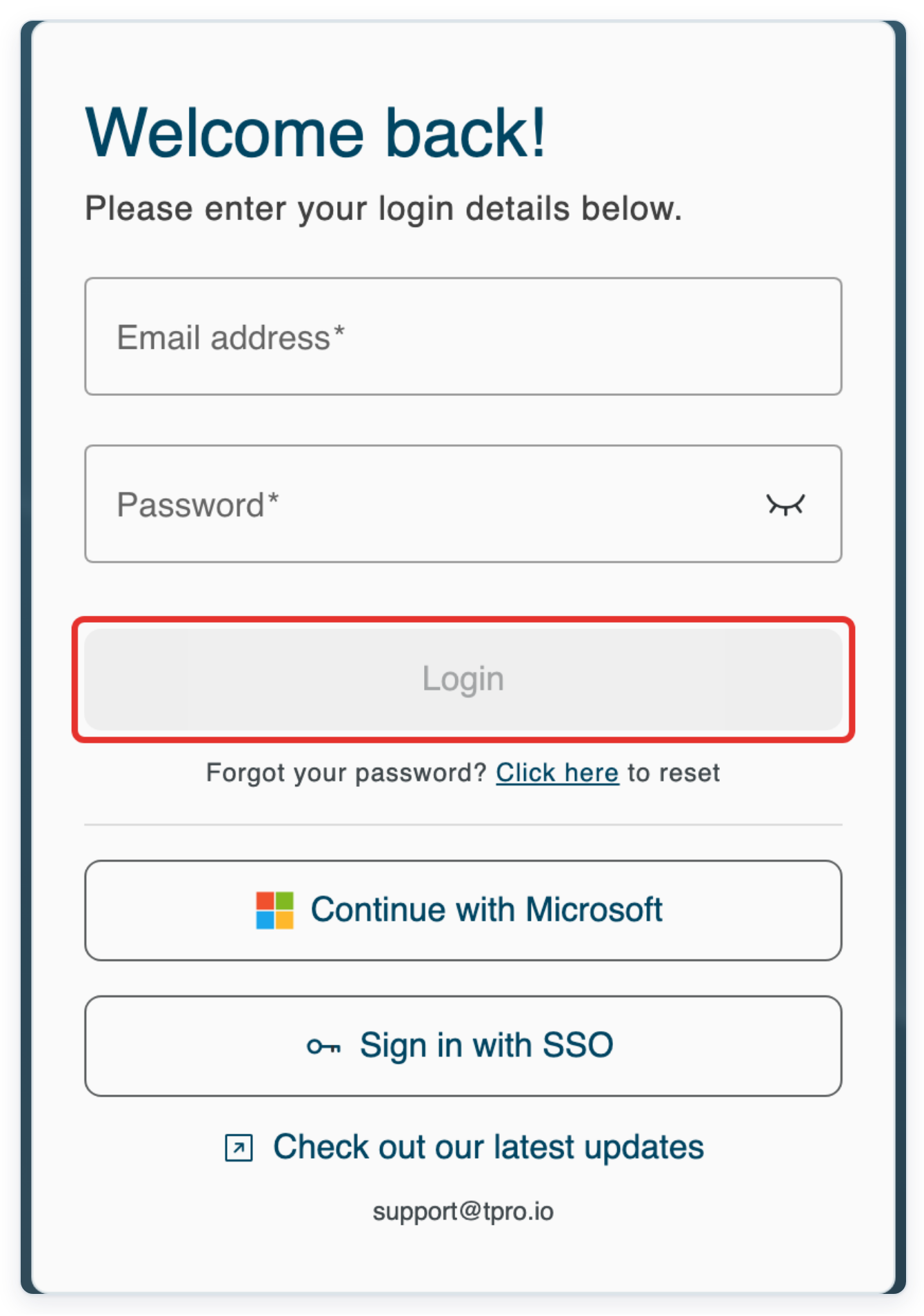
Log in to T-Pro with your author credentials.
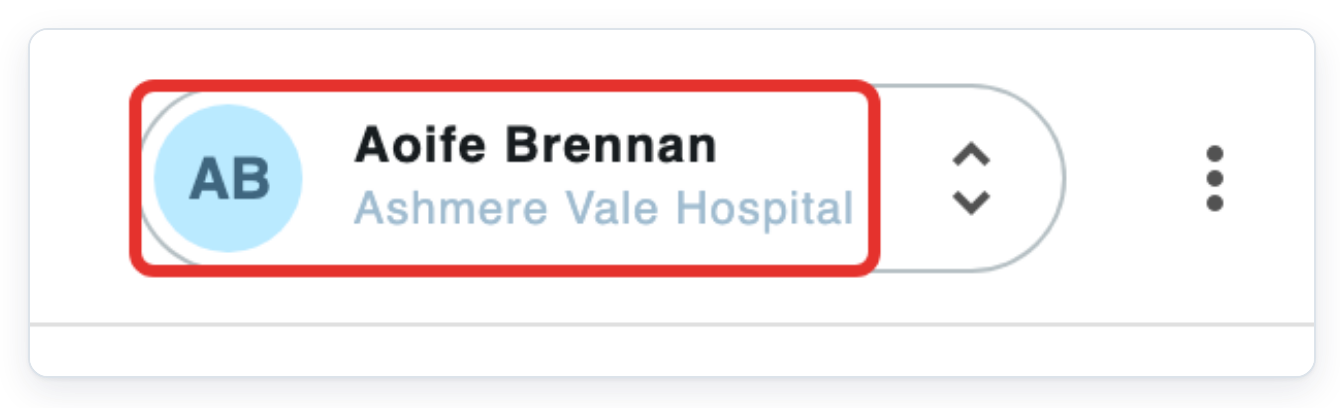
Click your name in the top bar to open My details.
Your name appears beside your organisation's name. The screenshots show Aoife Brennan at Ashmere Vale Hospital.
Click Sign Off to open your sign-off and signature settings.
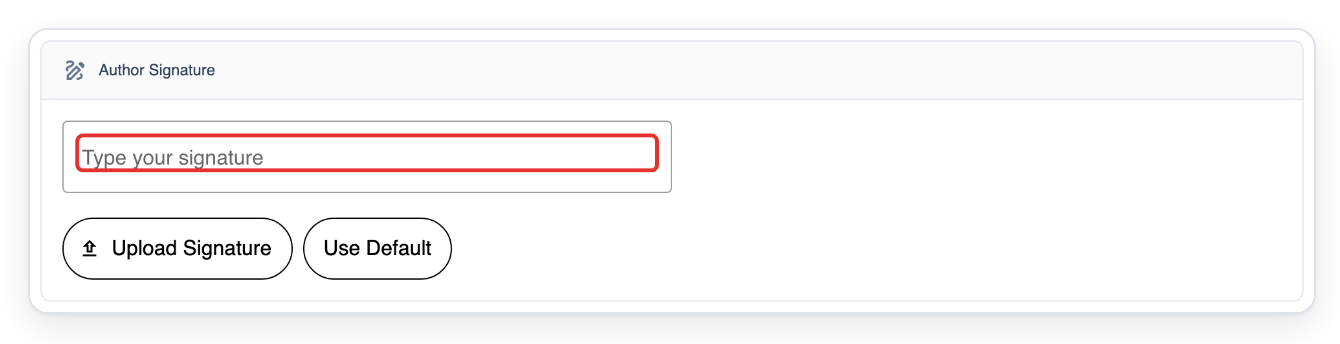
Scroll down to Author Signature. Use Author Sign Off for the text that accompanies your signature.

For a typed signature, enter your name in Type your signature as you want it to appear. Apply appears below the preview.
To use your handwritten signature, go to step 7. The typed example uses Aoife Brennan.
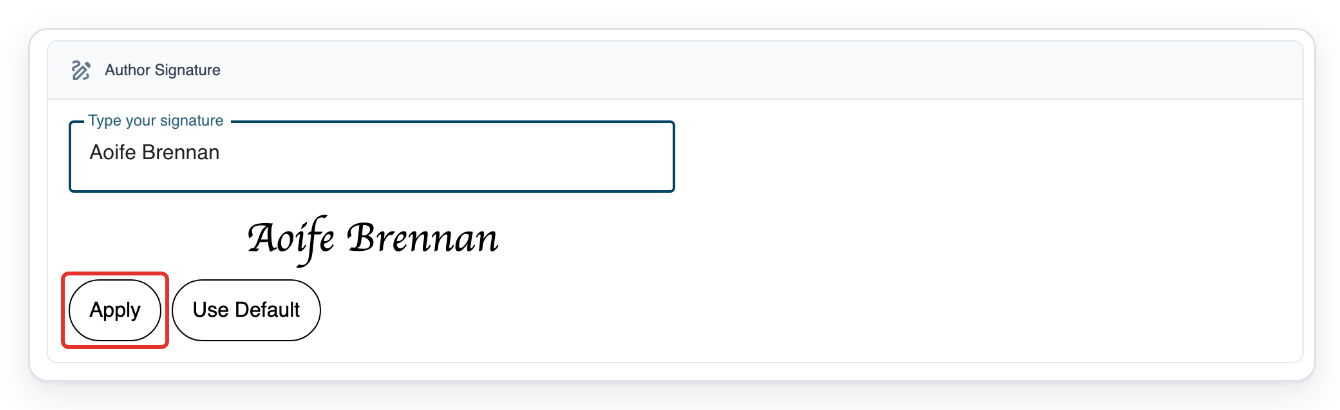
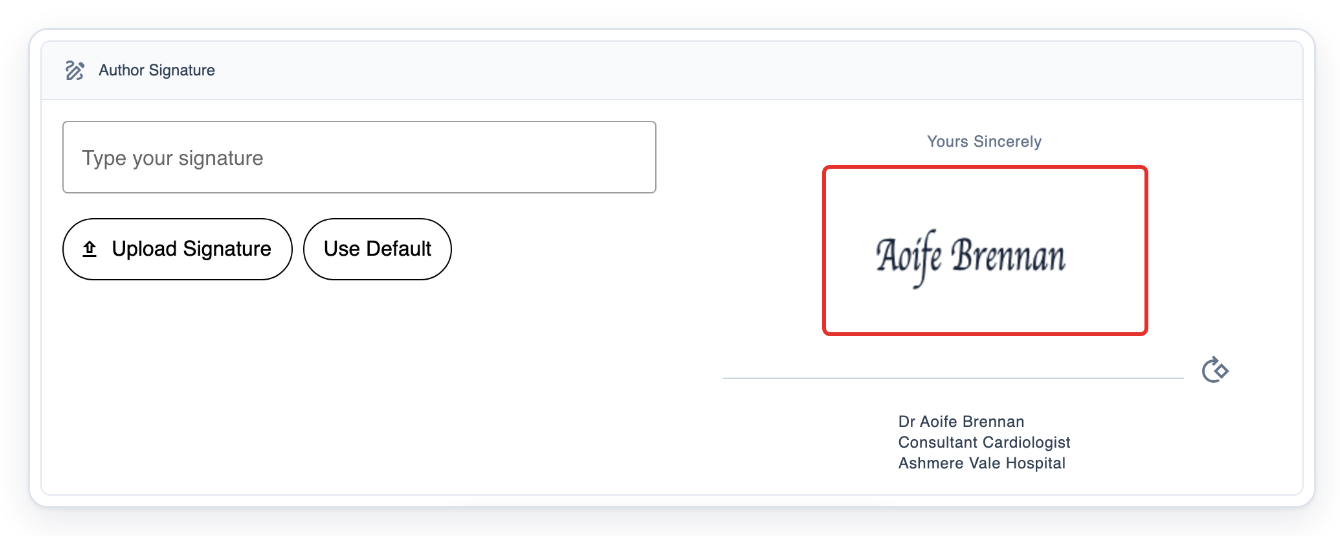
Click Apply to show your typed signature in the preview under Yours Sincerely.
The field clears, and your name appears as a signature image on the right.
Click Save. T-Pro shows “Sign off updated”.
Your typed signature is now saved. To replace it with an image, continue to step 7.
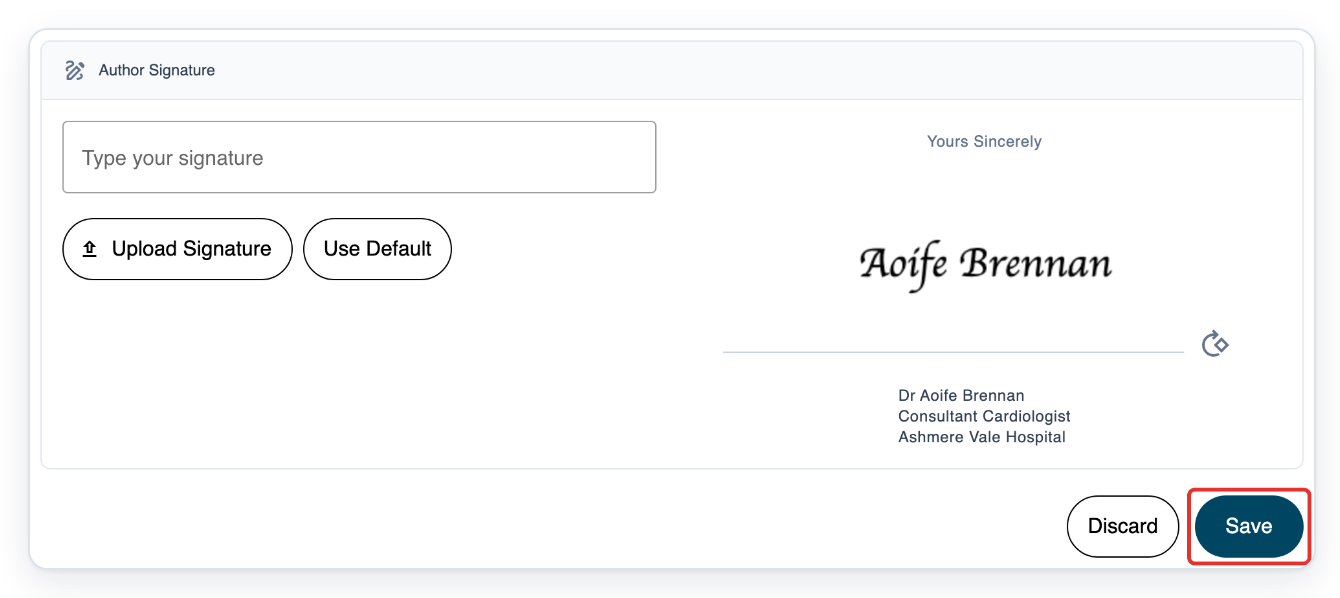
=> Your saved signature appears under Yours Sincerely, above your sign-off text.
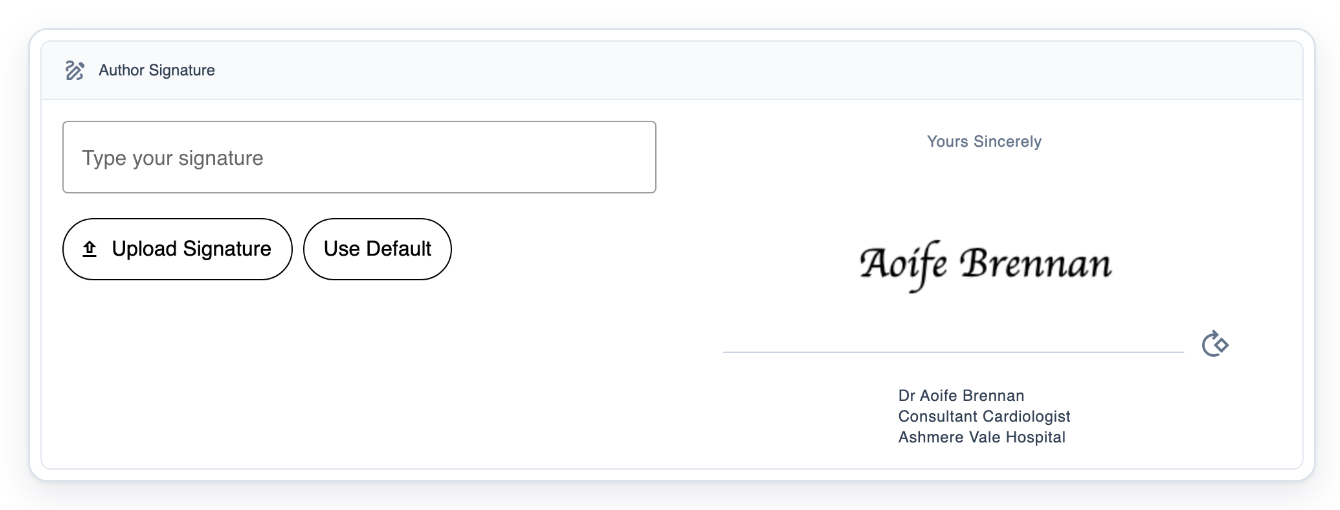
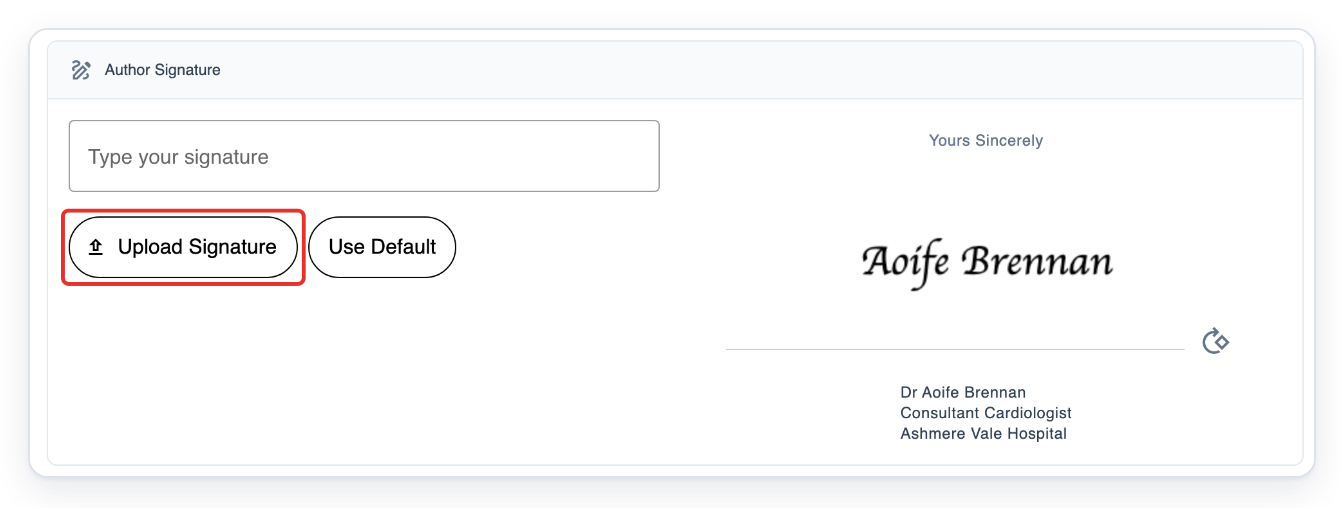
Click Upload Signature and choose an image of your signature from your computer.
The example shows an image of Aoife Brennan's signature.
=> The image editor opens in Author Signature, with crop handles and a Transparency slider.
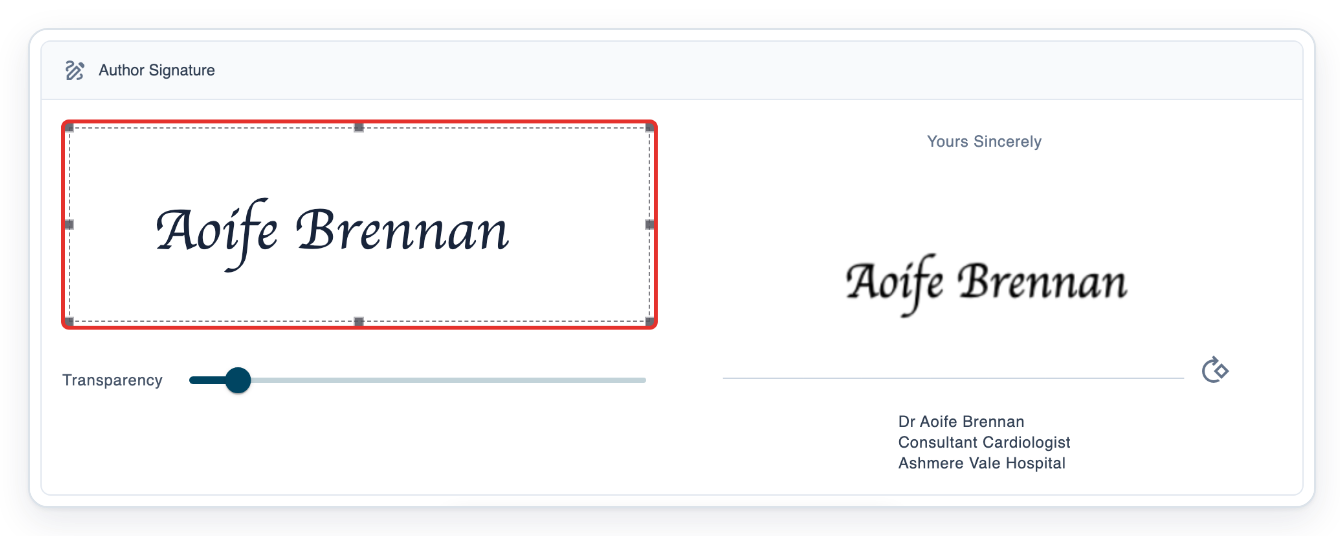
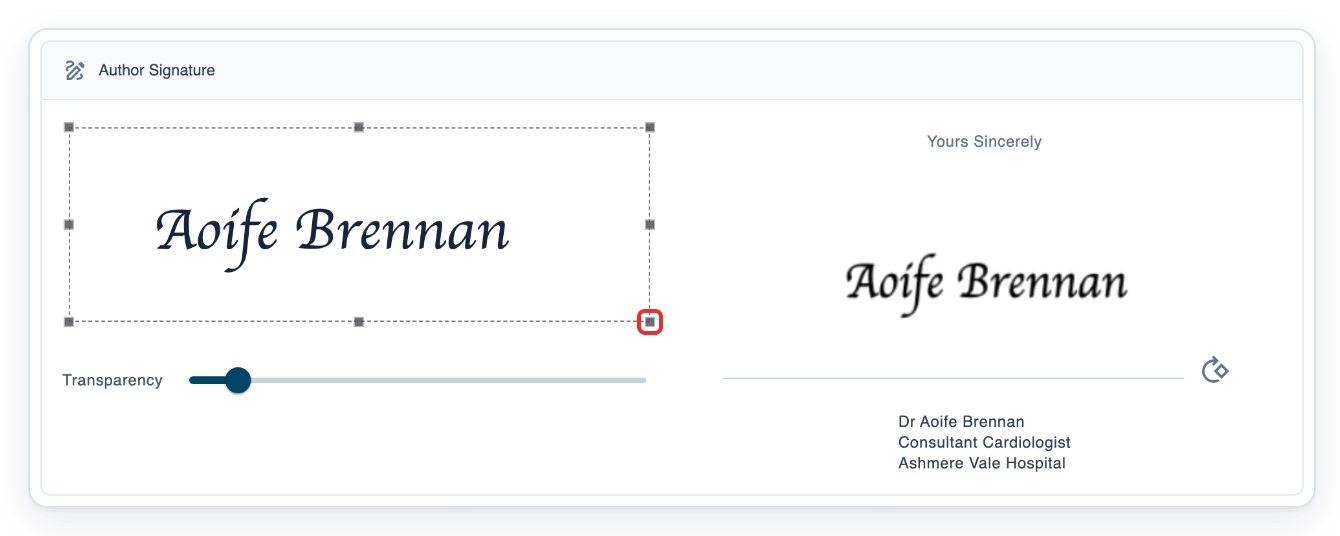
Drag the bottom-right crop handle inwards to trim the space around your signature.
Keep the whole signature inside the crop area. The preview on the right shows the cropped image.
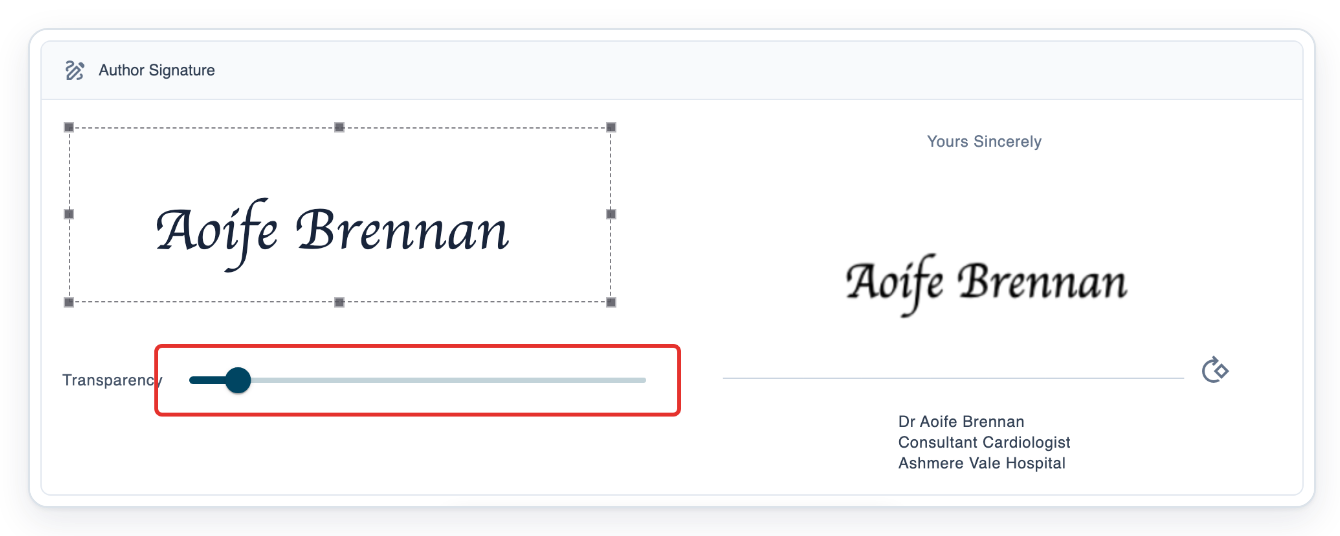
Select the Transparency slider and press the right arrow key once to increase the setting.
This removes more of the light background. Check that the writing is still clear in the preview.
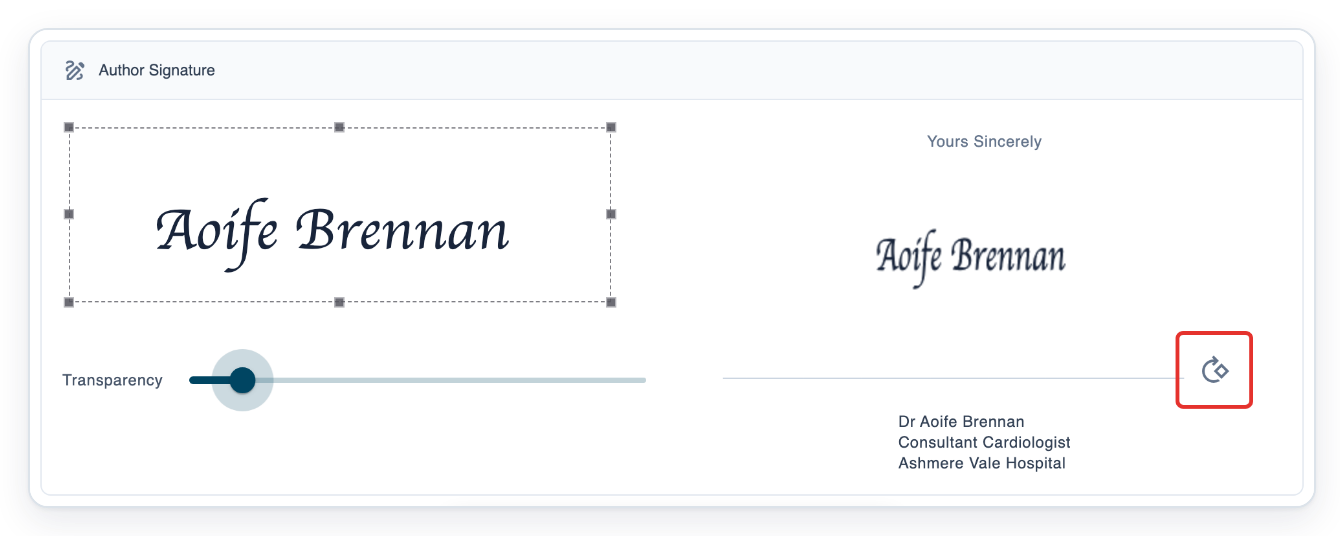
=> Check your signature under Yours Sincerely. You'll find the rotation button beside the line below the preview. The signature in this example is already upright.
Click Save. T-Pro shows “Sign off updated”.
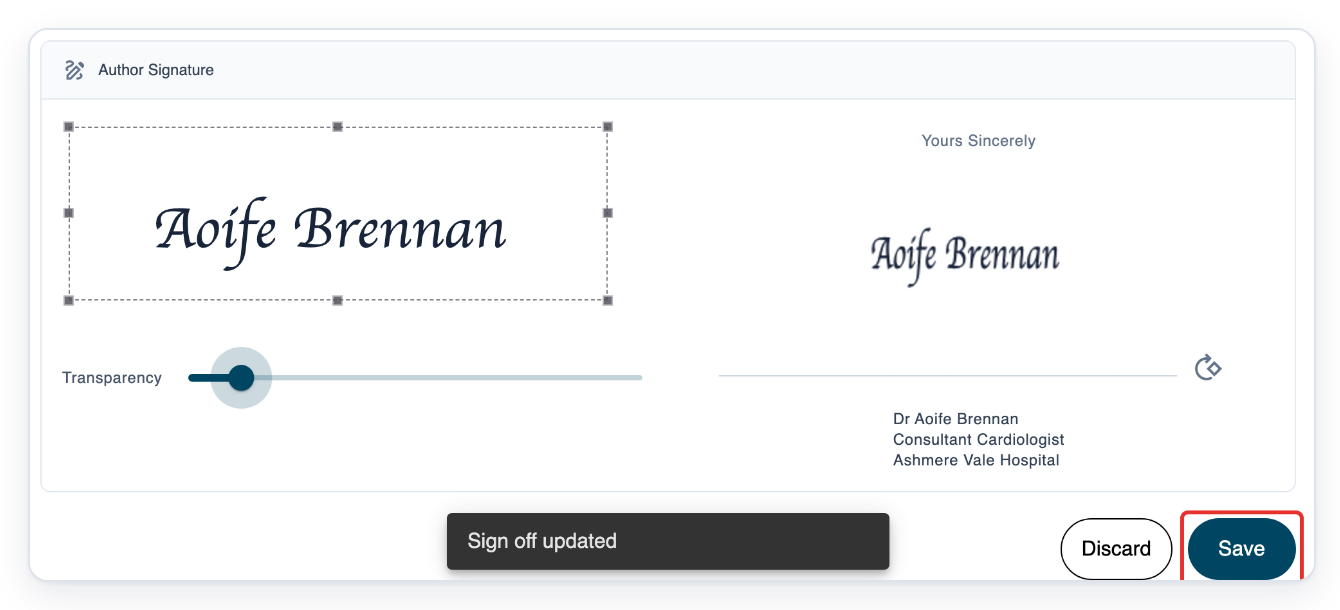
=> The image editor closes. Your saved signature appears under Yours Sincerely. You can use Upload Signature to replace it.
NOTE:
- You can type your signature or upload an image. Saving a new signature replaces the previous one.
- Apply updates the preview of your typed signature. Click Save to keep your changes.
- Edit and format your sign-off text separately in Author Sign Off, then click Save.
Sign-off and signature
Your sign-off text appears beneath the signature in the preview. You can update the text or signature separately.
| Setting | What it contains |
|---|---|
| Author Sign Off | Formatted text, such as your name, clinic and job title. |
| Author Signature | Your typed or uploaded signature image. |
Tip: Click Use Default to fill Type your signature with your profile name. Click Apply, then Save to use it.
Can't upload or update your signature?
- If Upload Signature disappears while you type, clear Type your signature to show the upload button again.
- If you can't click Save after typing, click Apply first. Then click Save.
- If your signature is sideways, use the rotation button beside the preview until it is upright. Then click Save.
- If T-Pro shows “Failed to load image”, click Discard to clear unsaved changes. Use Upload Signature to choose another image.
- If T-Pro shows “Failed to update sign off”, click Save again. Contact our Helpdesk if the problem continues.
Related articles
If you have any more queries, please do not hesitate to contact our Helpdesk or support@tpro.io.
© 2020 - 2026