
Before you start
You need permission to edit the task. The task must already have a document.
Log in to T-Pro with your author or manager credentials.
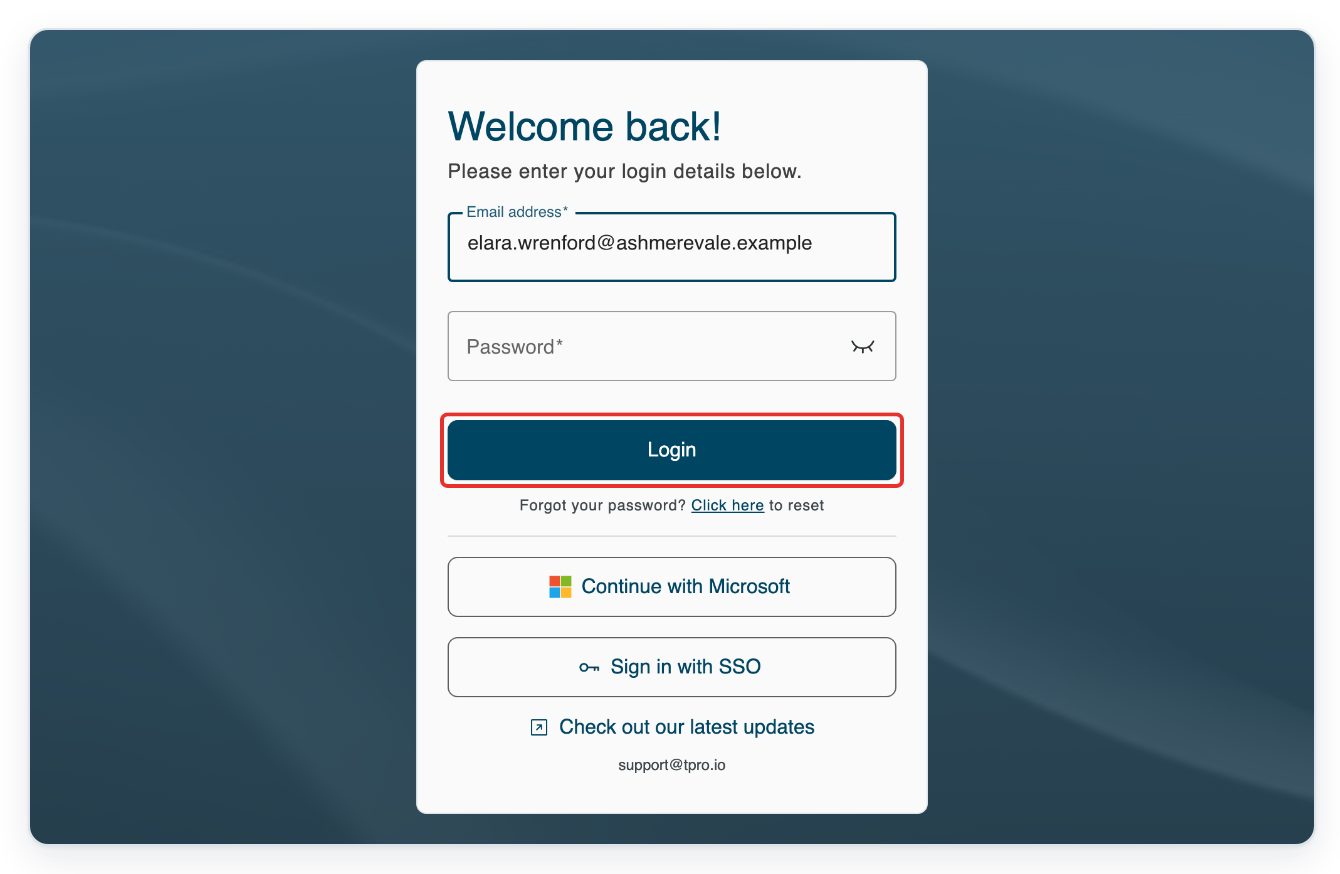
If you are an author, go to Live Tasks. If you are a manager, go to Departments, select your department, then click Tasks.
Open the tab for the task's stage. Choose Pending for tasks waiting to be transcribed. Check Work in Progress for tasks being transcribed or awaiting editing, review or processing. Authors can find drafts in Author in Progress.
If you are an author, enter a patient name in Search above the list. To search by task ID, type # before the number, for example #123. Press Enter to search the selected tab.
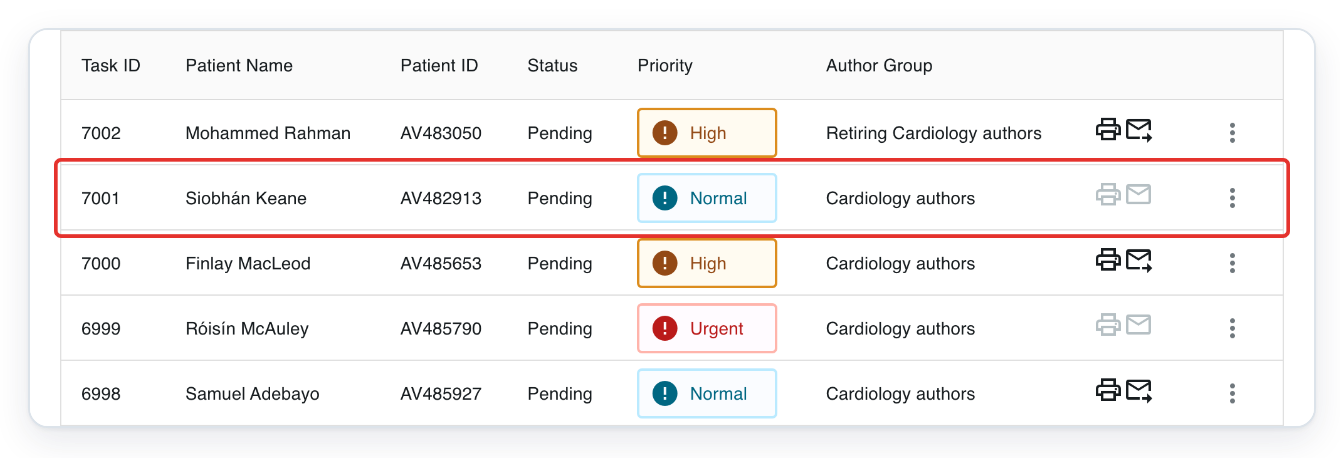
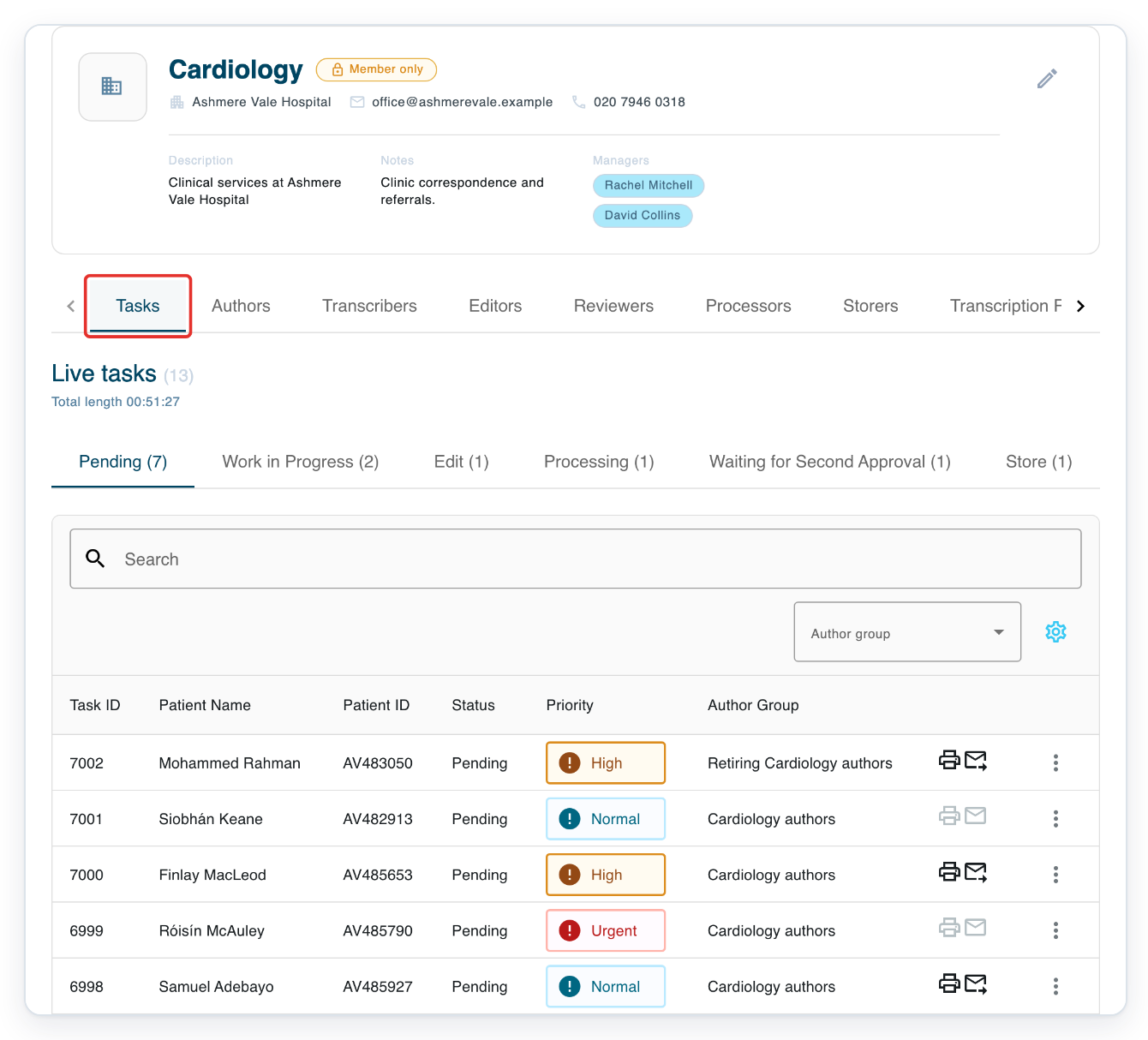
Click the task's current priority in the Priority column.
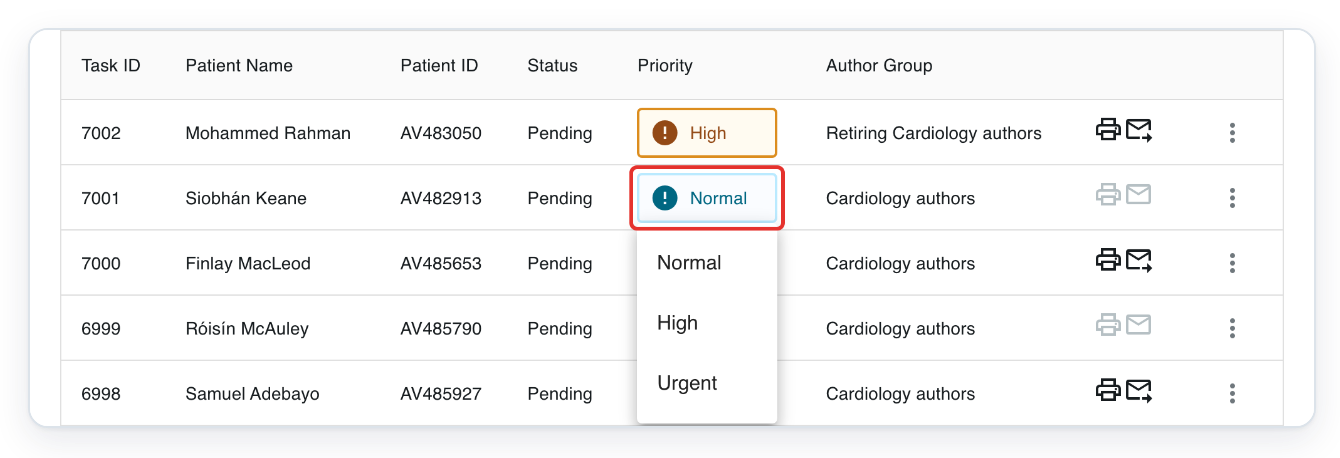
=> A menu opens with three priorities: Normal, High and Urgent.
Click the priority you want.
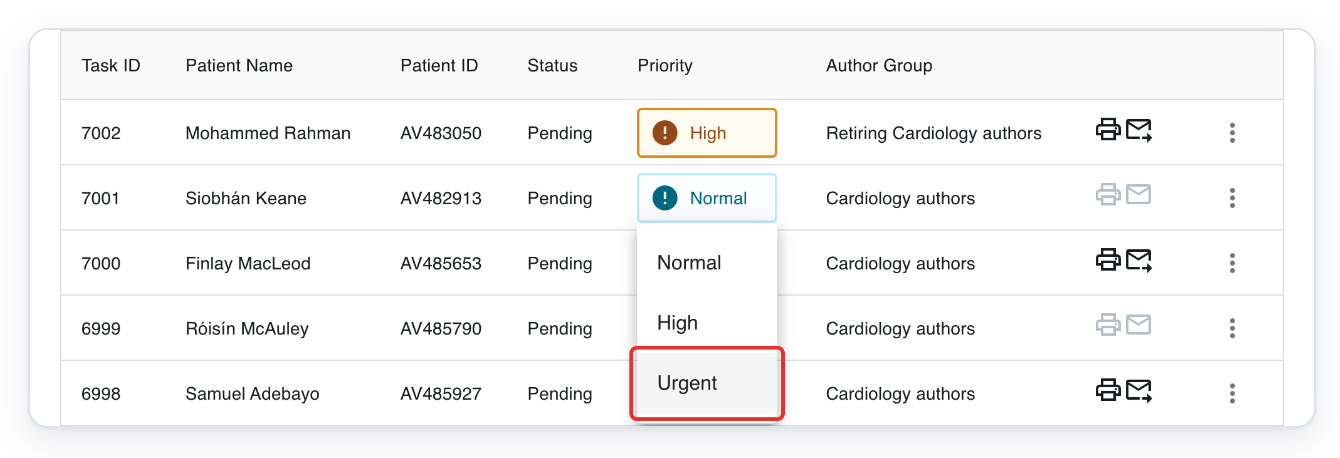
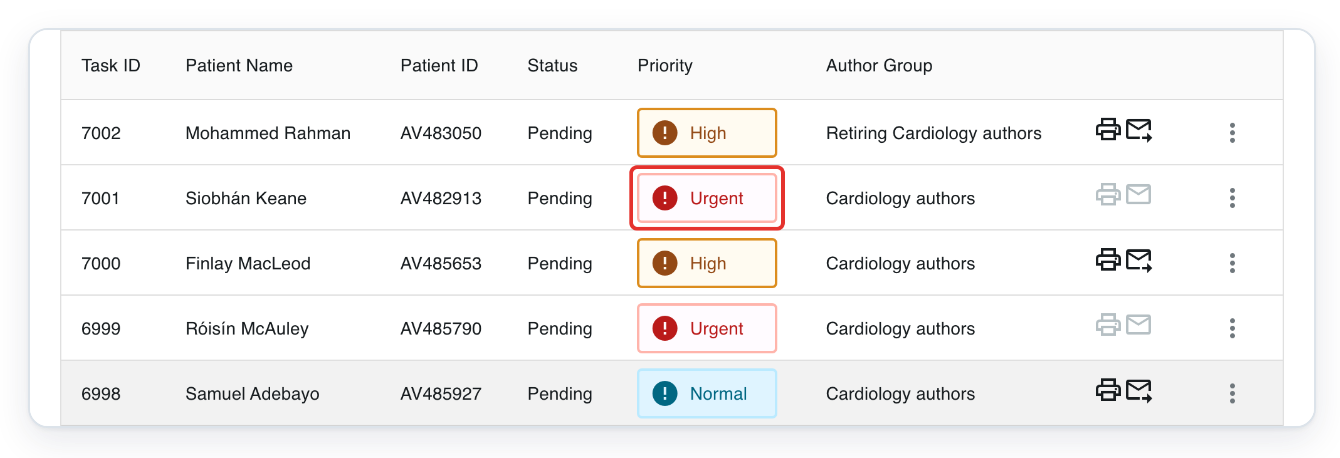
For example, to change a task from Normal to High, click High. To make it urgent, click Urgent.
=> The task now shows its new priority.
NOTE:
- As soon as you make your selection, it is saved automatically.
- You can change priority in the task list at any stage.
What each priority means
If your organisation has turnaround targets, the task's due date uses the target for its priority. The target is counted from when the task was created.
| Priority | What to use it for | Order when sorted highest first in All Tasks |
|---|---|---|
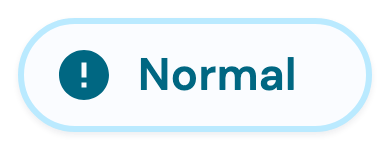 |
Routine work. | Third |
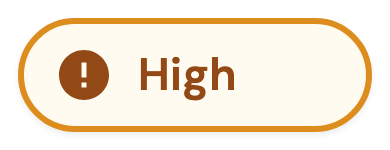 |
Work that needs attention before routine work. | Second |
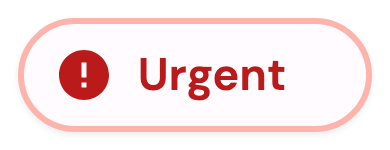 |
Work that needs the earliest attention. | First |
Other places you can change it
Open task: For an unfinished task, click the priority beside the date at the top, then choose a priority.
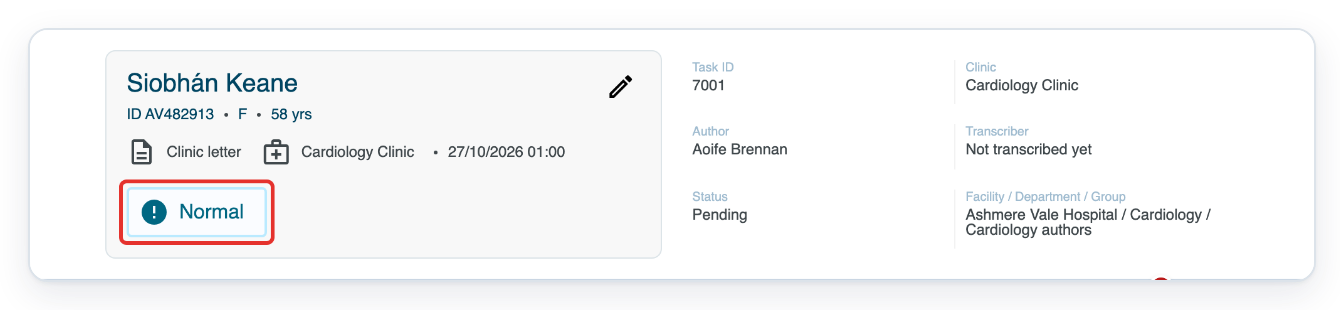
All Tasks: Click the task's priority in the Priority column.
Recorder: If you are an author, click the task's priority in the Priority column beside the recording controls.
After uploading audio: If you are an author, click the priority on a task card in Tasks Created Successfully.
Dashboard: If you are a manager, click the task's priority in the dashboard's task notification table.
In All Tasks, click the Priority column heading to sort by priority. For highest priority first, click the heading until its arrow points down.
Tip: To find tasks with one priority, open Filter in All Tasks. Choose a priority under Task Priority, then click Save changes.
Can't see the priority menu?
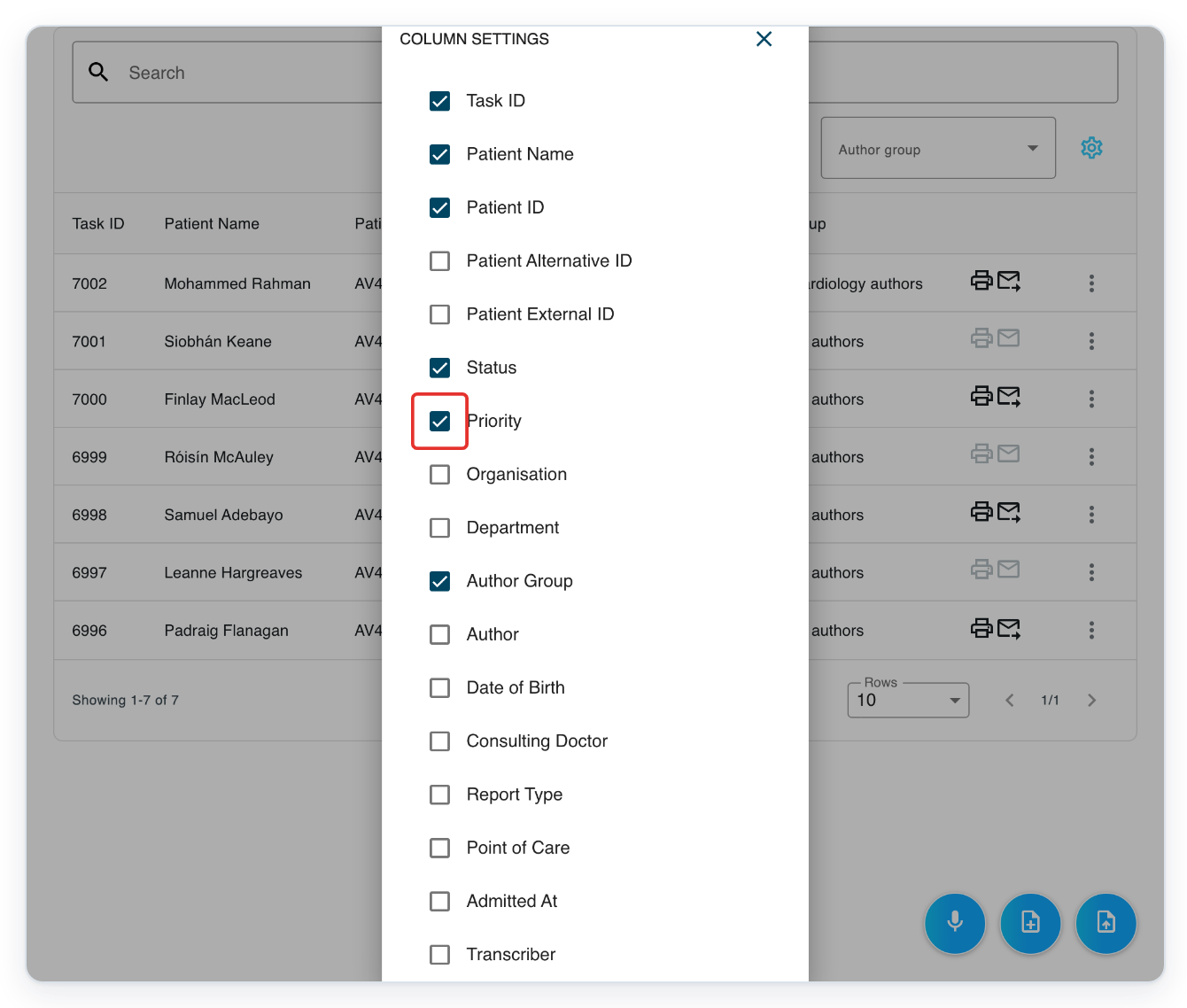
Show the Priority column. Clear any selected tasks. Click the cog on the right above the task list to open COLUMN SETTINGS. Tick Priority, then click the cross to close the panel.
Check your access. If you are an author, check that you authored the task or are assigned to approve it. If you are a manager, check that you authored the task or it belongs to a department you manage. Otherwise, ask the task's author or manager to change its priority.
For a completed task: Change its priority in All Tasks using the Priority column.
T-Pro shows “Task does not have a transcription”. Try again once the task has a document. Contact our Helpdesk if the message continues.
T-Pro shows “Resource is busy”. Wait a moment, then try again.
Use a shorter date range to sort by priority. If your date range spans 90 days or more, open Filter. Choose a shorter Period, such as Last 30 Days, then click Save changes. Click the Priority column heading again.
Related articles
If you have any more queries, please do not hesitate to contact our Helpdesk or support@tpro.io.
© 2020 - 2026