
Before you start
You need a master or manager account with access to the user's organisation. Follow the section for your account below.
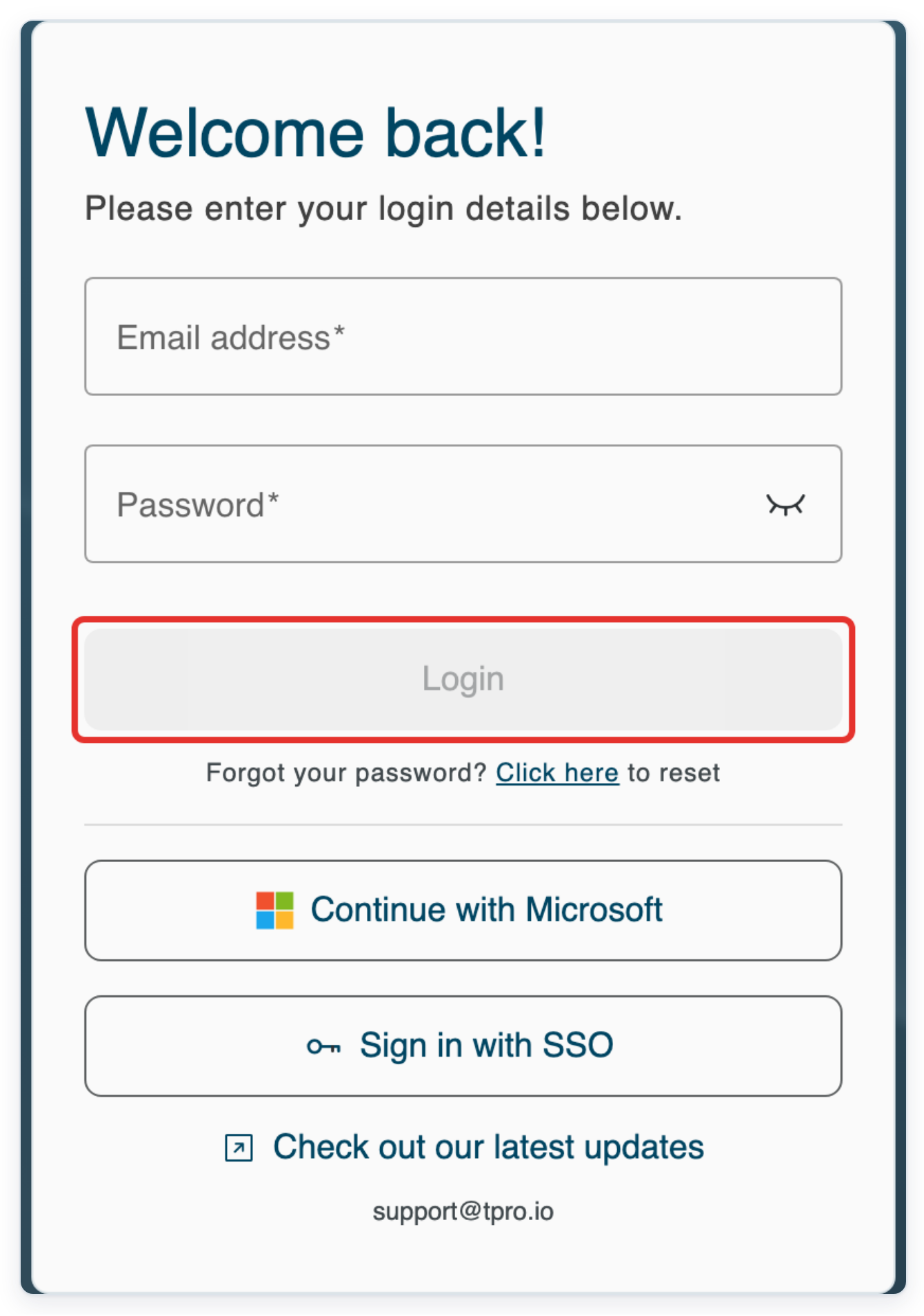
Log in to T-Pro with your master or manager credentials.
Enter your Email address and Password, then click Login.
As a master
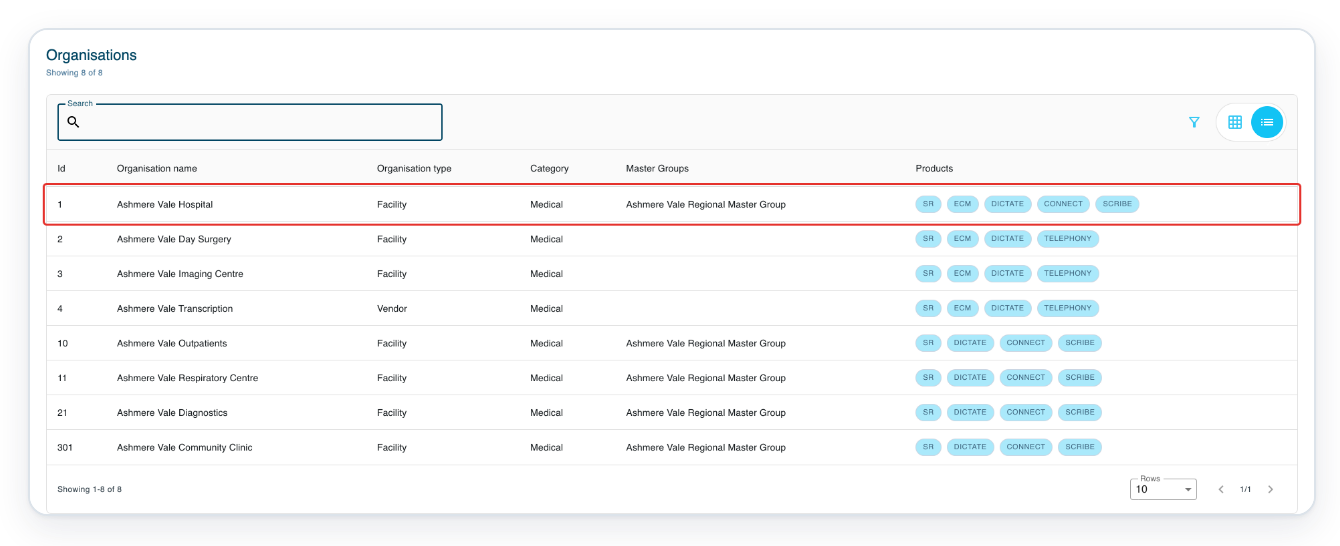
In Organisations, click Ashmere Vale Hospital to open the organisation.
Choose the user's organisation. This example uses Ashmere Vale Hospital.
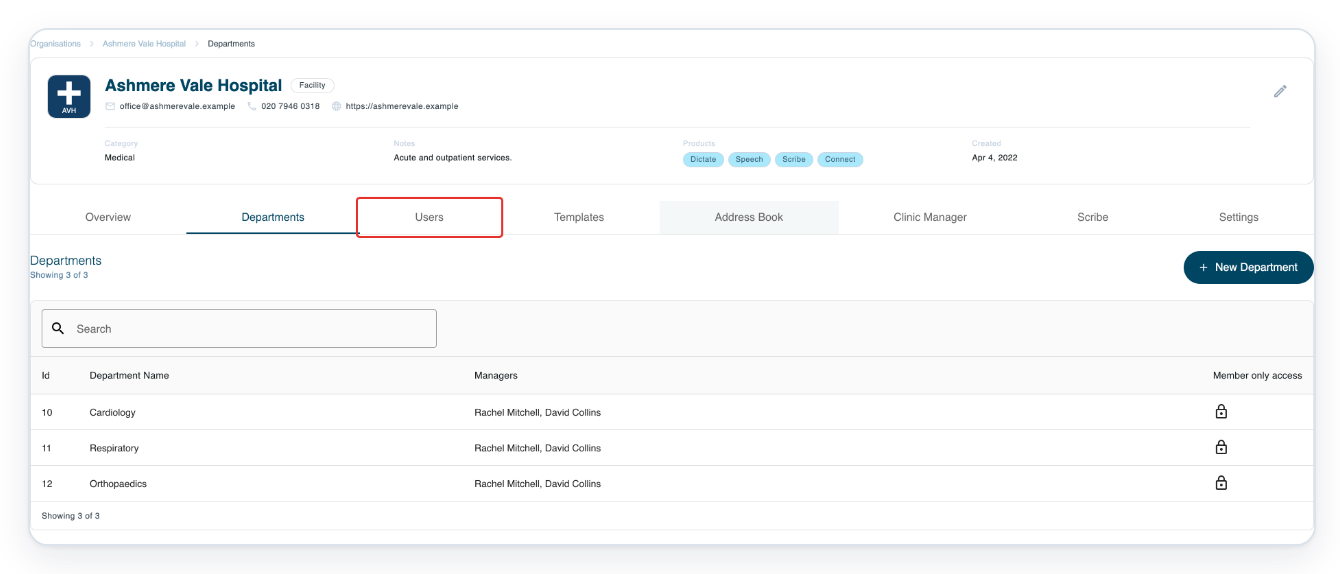
Click Users to see the organisation's users.
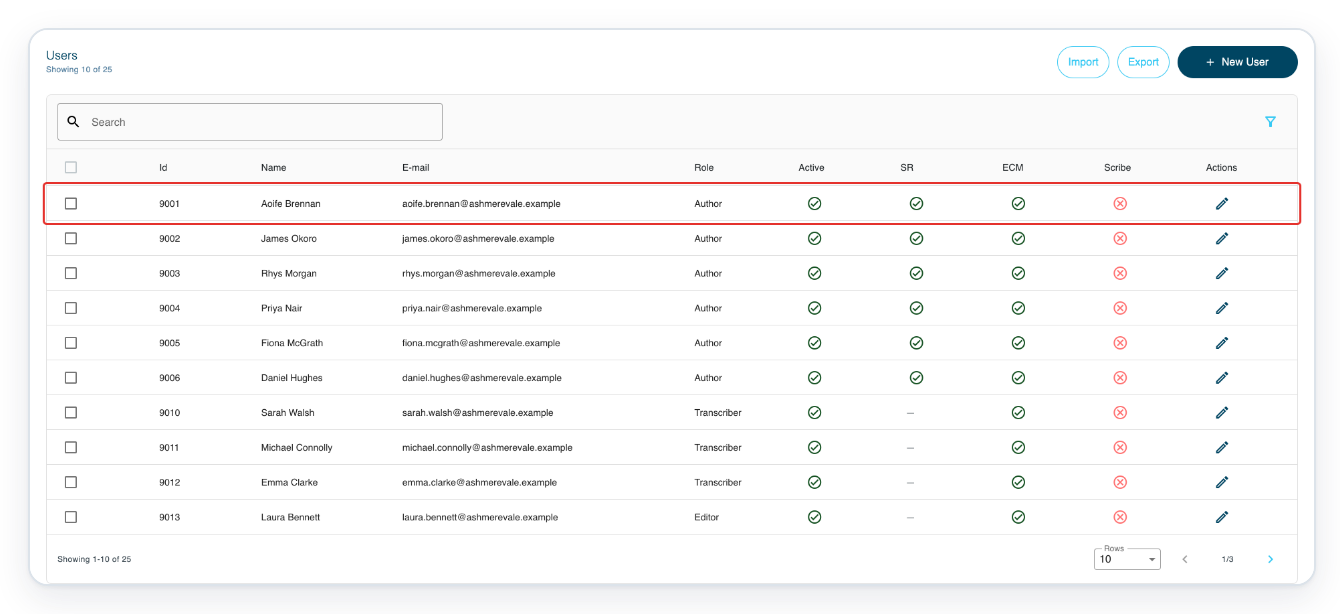
Click Aoife Brennan's row to open her profile.
Use Search above the list to find another user. Press Enter, then check their Name and E-mail before clicking their row.
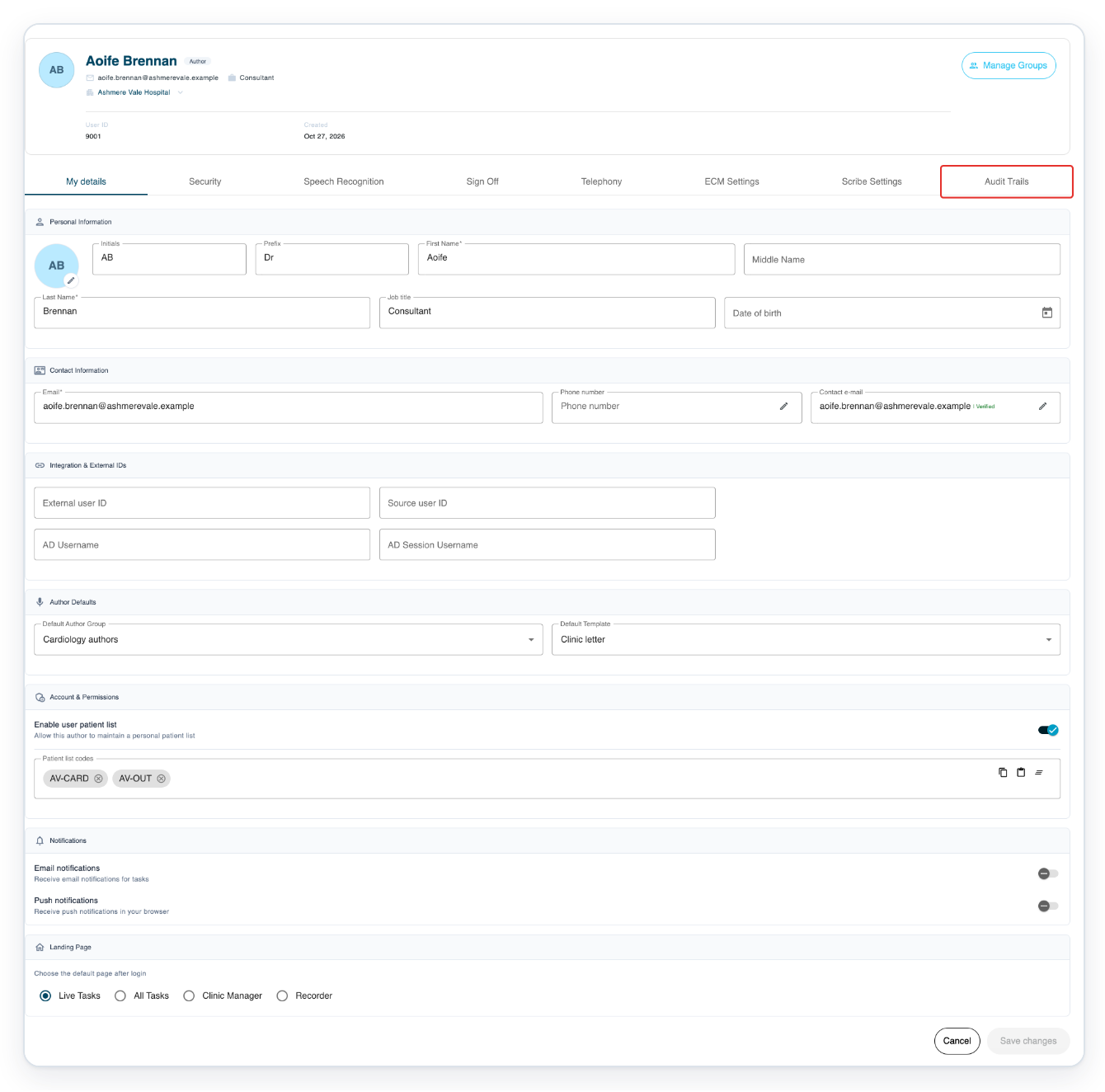
Click Audit Trails on Aoife Brennan's profile.
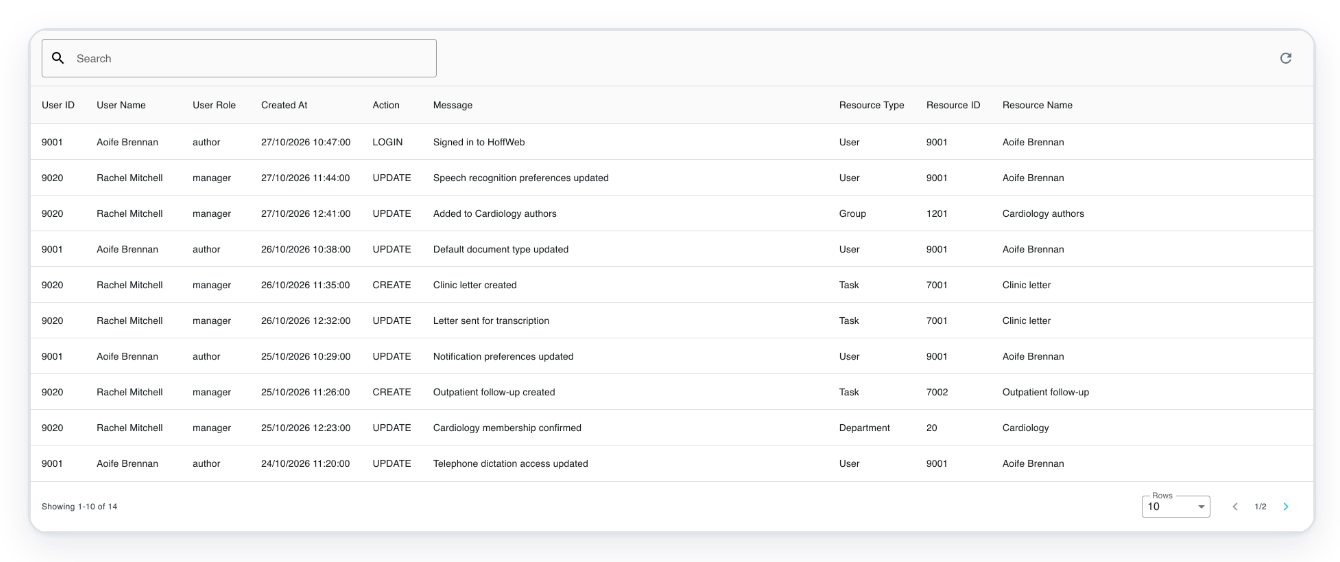
=> The account's audit entries show who acted, the date, action, message and affected item.
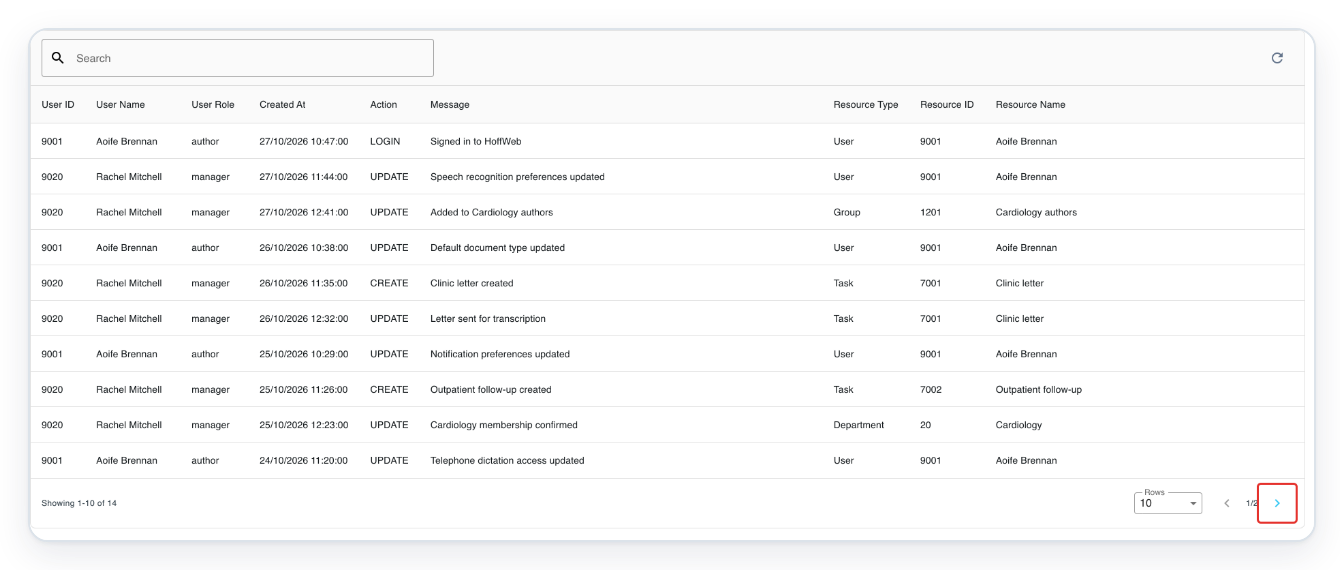
Click the right arrow to load the next page of audit entries.
The page number appears between the arrows. Use the left arrow to return to the previous page.
In Search, enter Personal details to find matching entries on the current page.
Wait a moment for the list to filter.
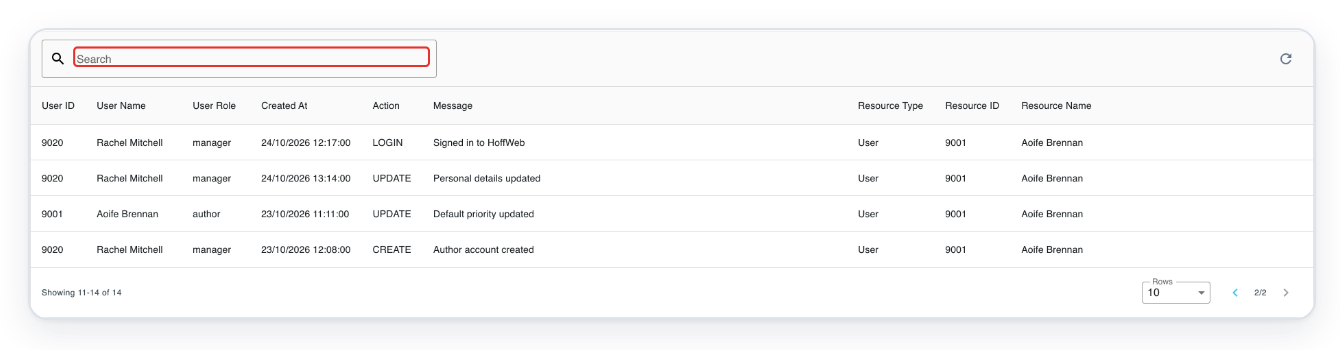
=> The matching Personal details updated entry appears.

Click the refresh icon, Refresh audit data, to reload the trail from page one and clear Search.
Refresh to see newly recorded entries.

Click Rows to change how many audit entries appear on a page.
Choose 5, 10 or 30 entries per page.
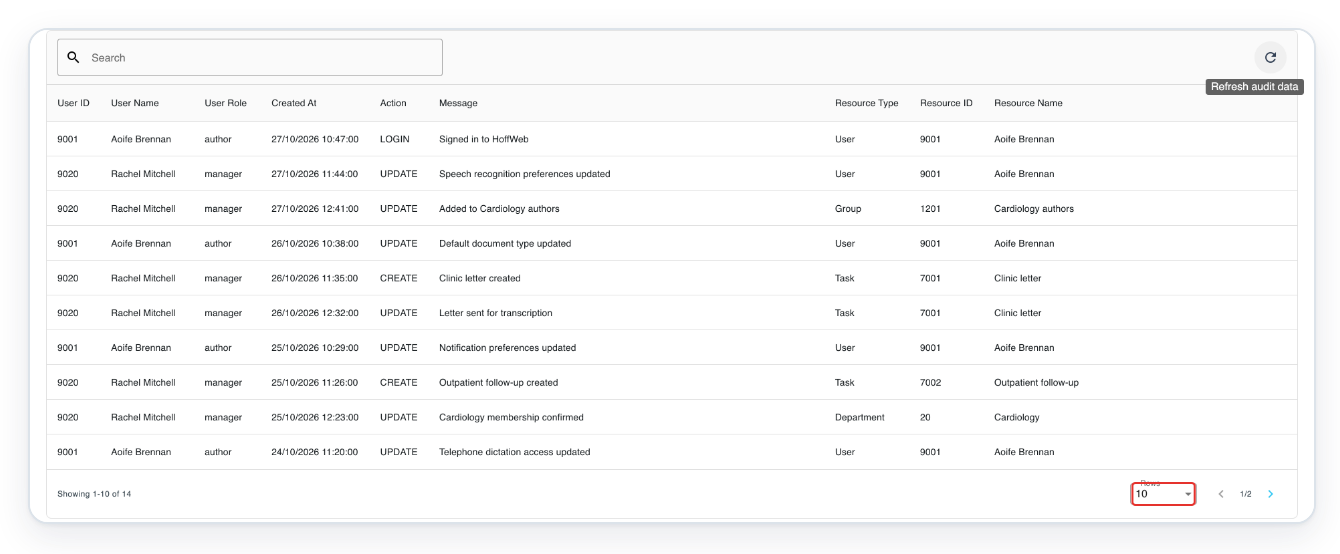
Choose 5 to show five entries per page.
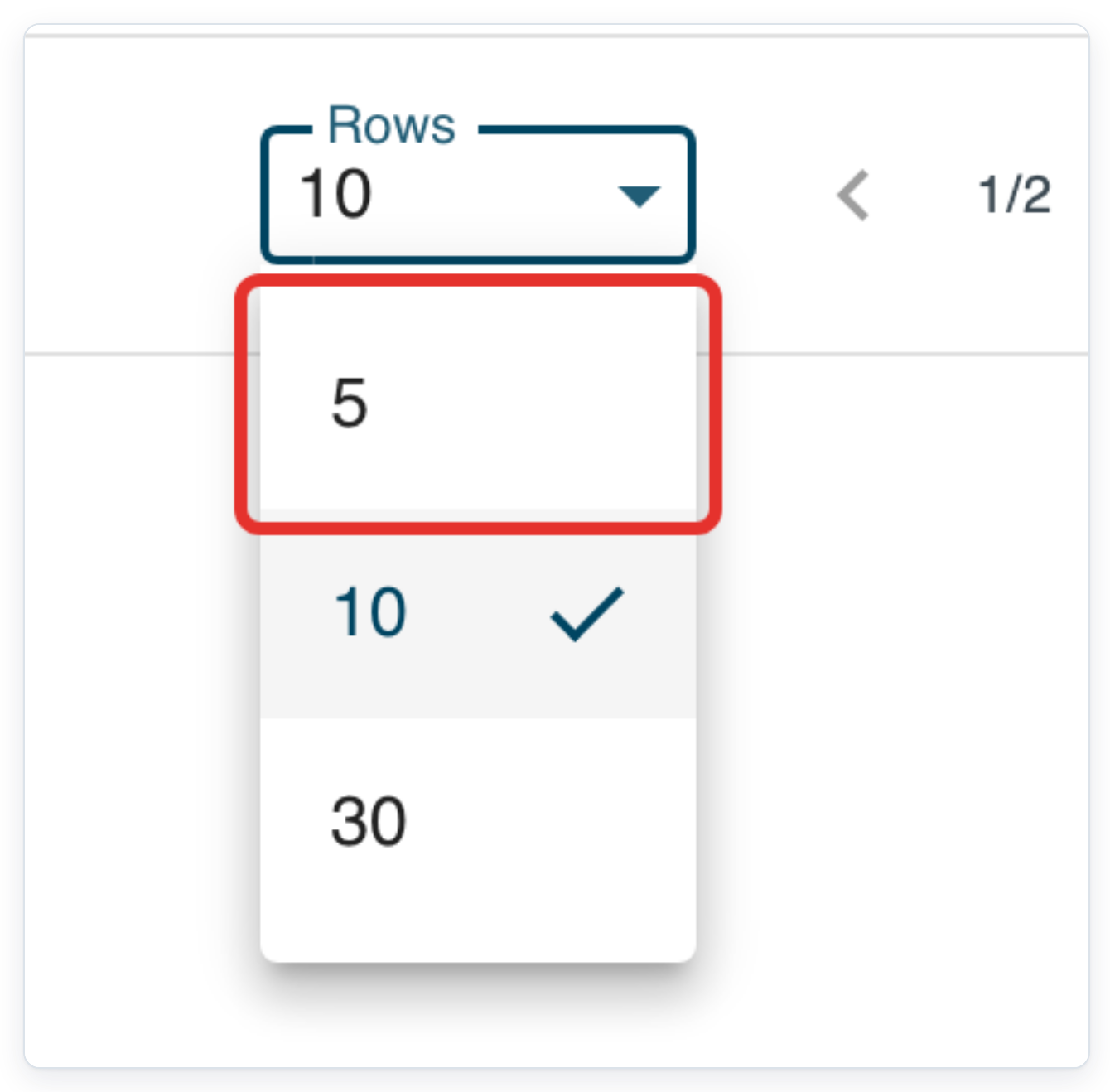
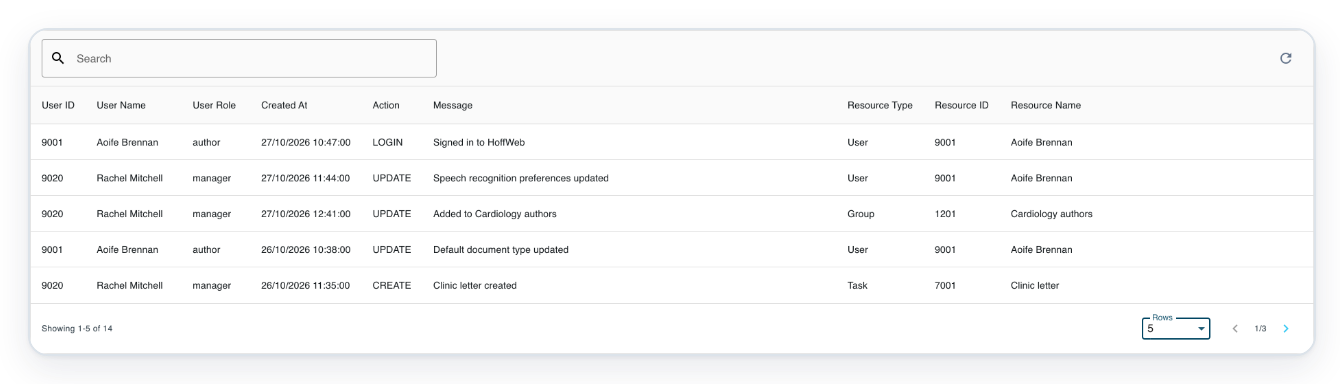
=> The first page now shows five entries, with Search empty. In this example, there are three pages.
As a manager
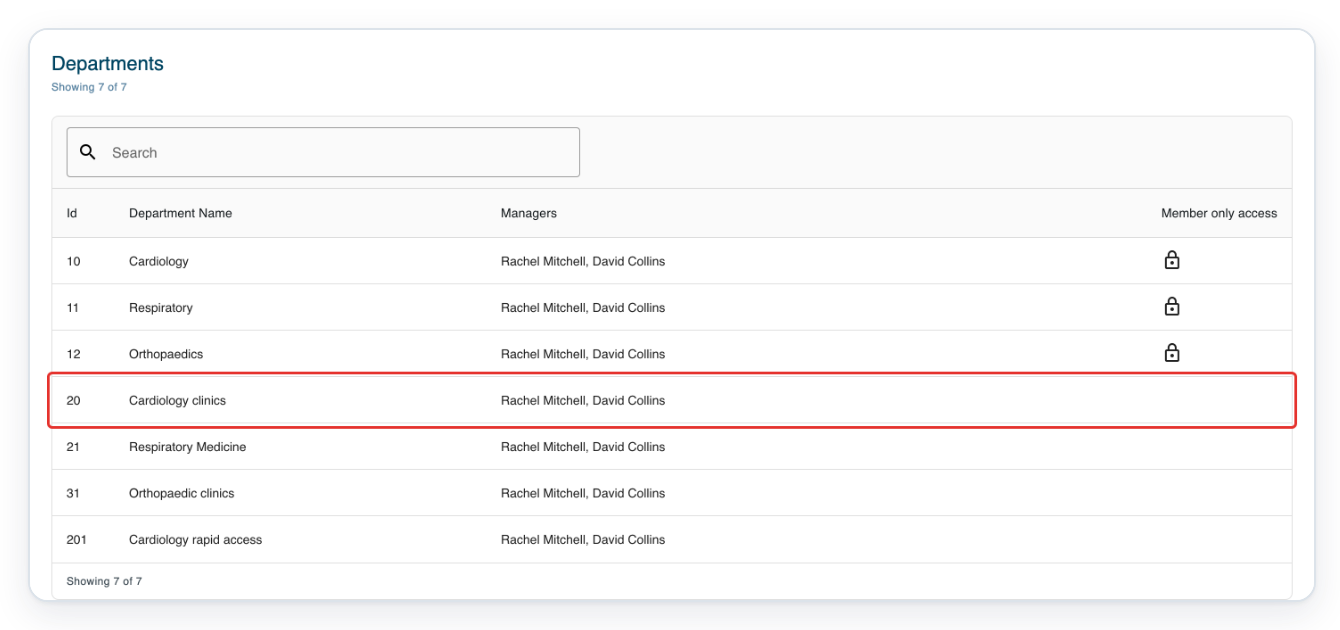
Sign in with your manager account, then click Departments to see the departments you manage.
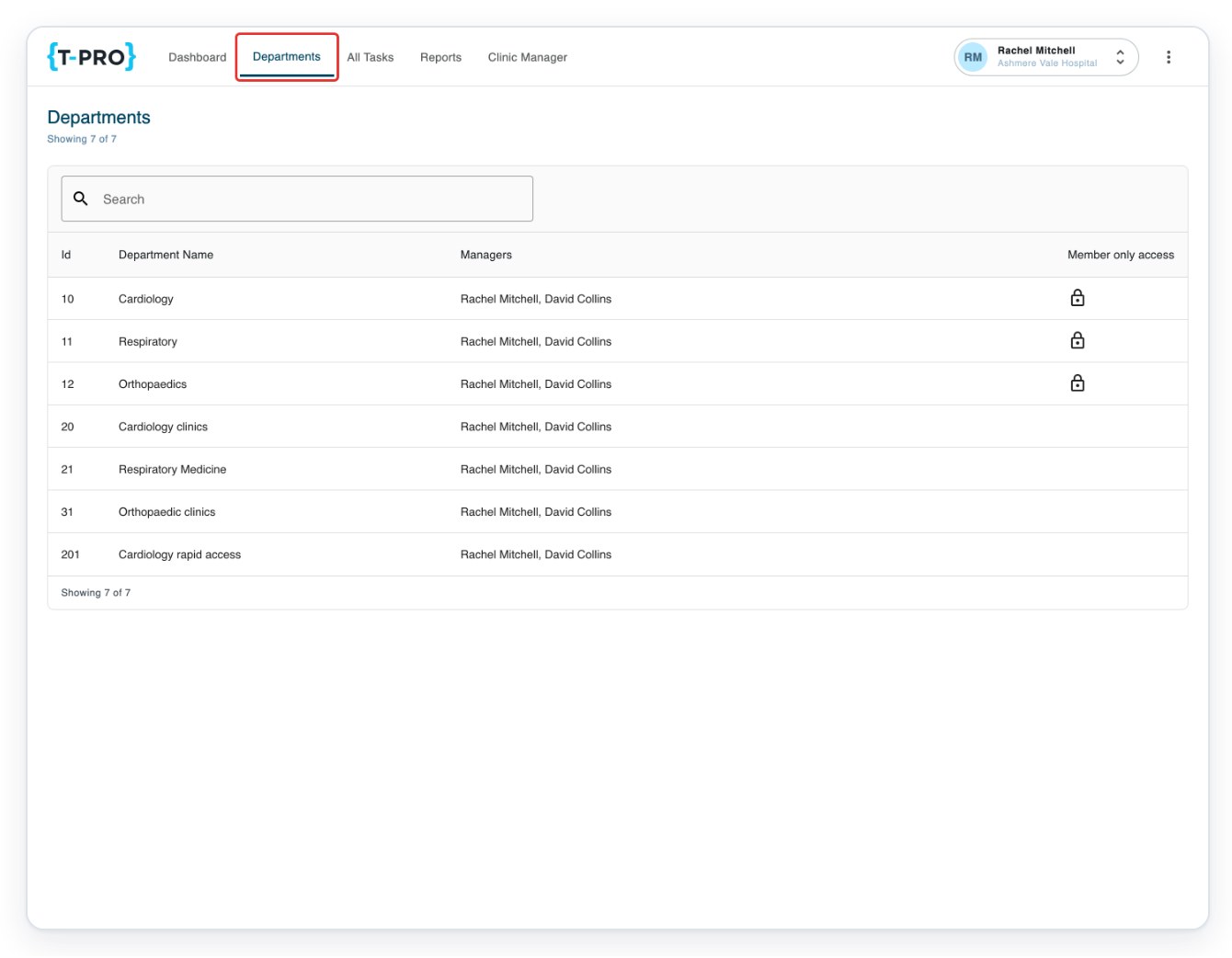
Click Cardiology clinics to open the user's department.
Choose the user's department. This example uses Cardiology clinics.
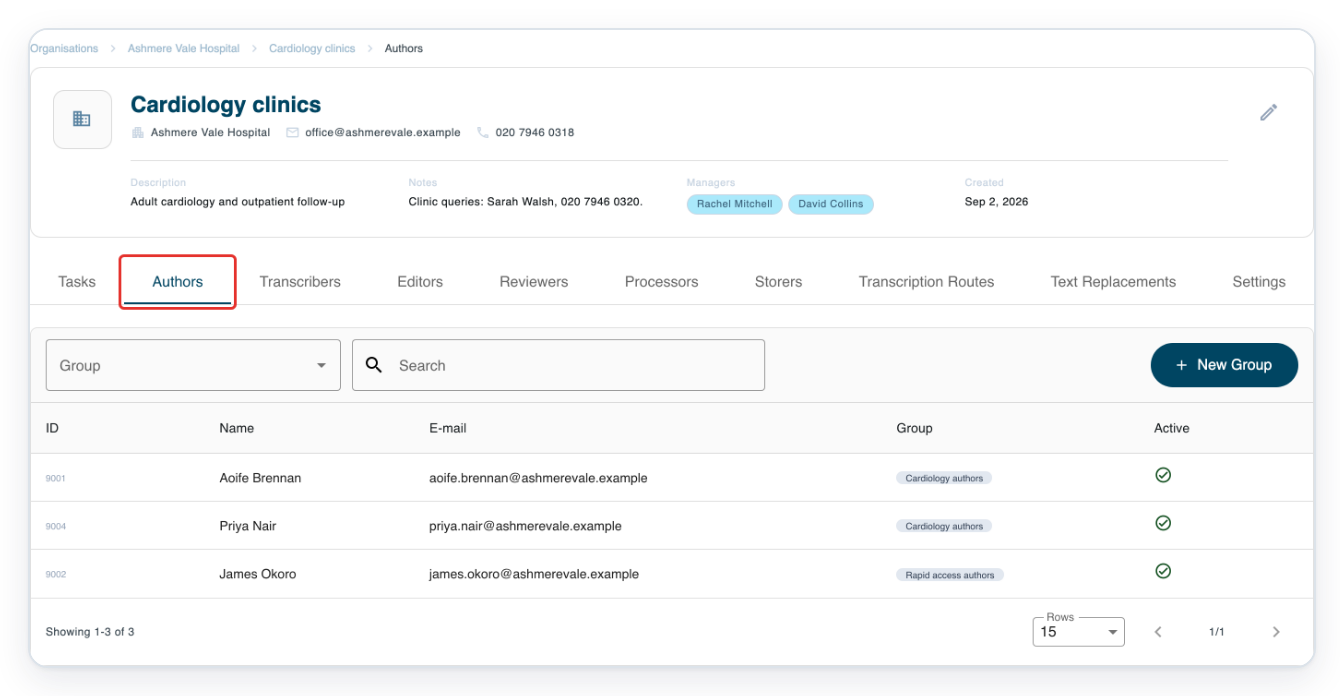
Click Authors to find an author's account. This tab is selected when you open the department.
For another account, choose the tab that matches the user's role.
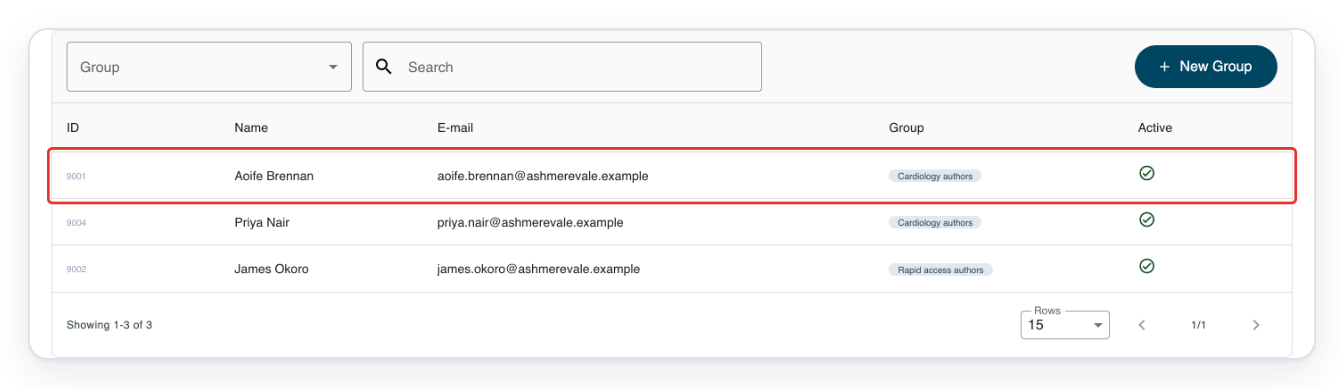
Click Aoife Brennan's row to open her profile.
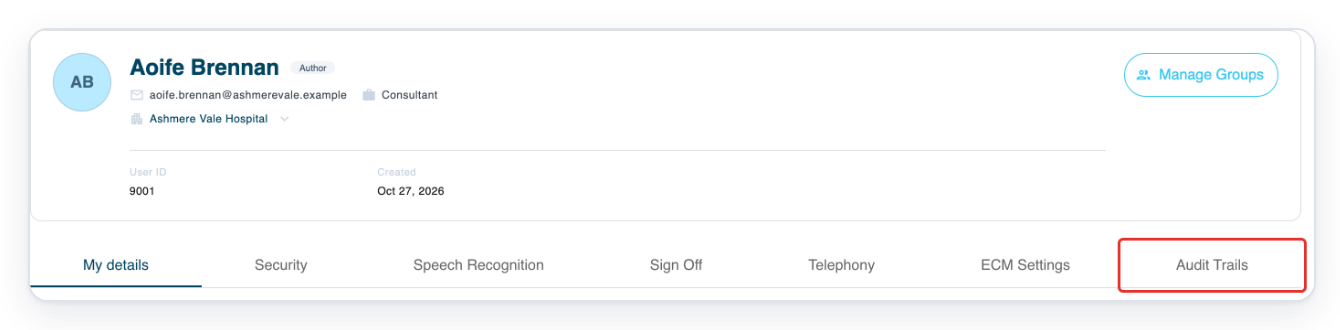
Click Audit Trails on Aoife Brennan's profile to see her audit entries.
Use the page arrows, Search, refresh icon and Rows as described in steps 6 to 10.
NOTE:
- Entries appear newest first.
- You can review a user's account if you have access to their organisation, whatever their role.
- Search filters only the current page. The entry range and total refer to the trail before filtering.
What the audit entries show
| Columns | What they tell you |
|---|---|
| User ID, User Name and User Role | Who carried out the action. This may be someone other than the account holder. |
| Created At | The date and time recorded for the action. |
| Action and Message | The action and a description of what happened. |
| Resource Type, Resource ID and Resource Name | The affected item's type, ID and name. |
Can't check a user's audit trail?
- Can't find the user's profile as a manager? Check that you opened the right department. Choose the tab for the user's role, then click their row.
- Can't find an entry with Search? Click the cross in Search to clear it. Try another page or choose a higher number in Rows, then search again. You can search names, roles, actions, messages, item details and IDs. For dates, check Created At.
- Can't open Audit Trails? Check that you're signed in with your master or manager account. You need access to the user's organisation. If needed, ask the organisation's manager or master to check the trail.
Related articles
If you have any more queries, please do not hesitate to contact our Helpdesk or support@tpro.io.
© 2020 - 2026