
Before you start
You need permission to edit the task. The task must have recognised text and a recording to check it against.
Log in to T-Pro with your author, transcriber or editor credentials.
Enter your Email address and Password, then click Login.
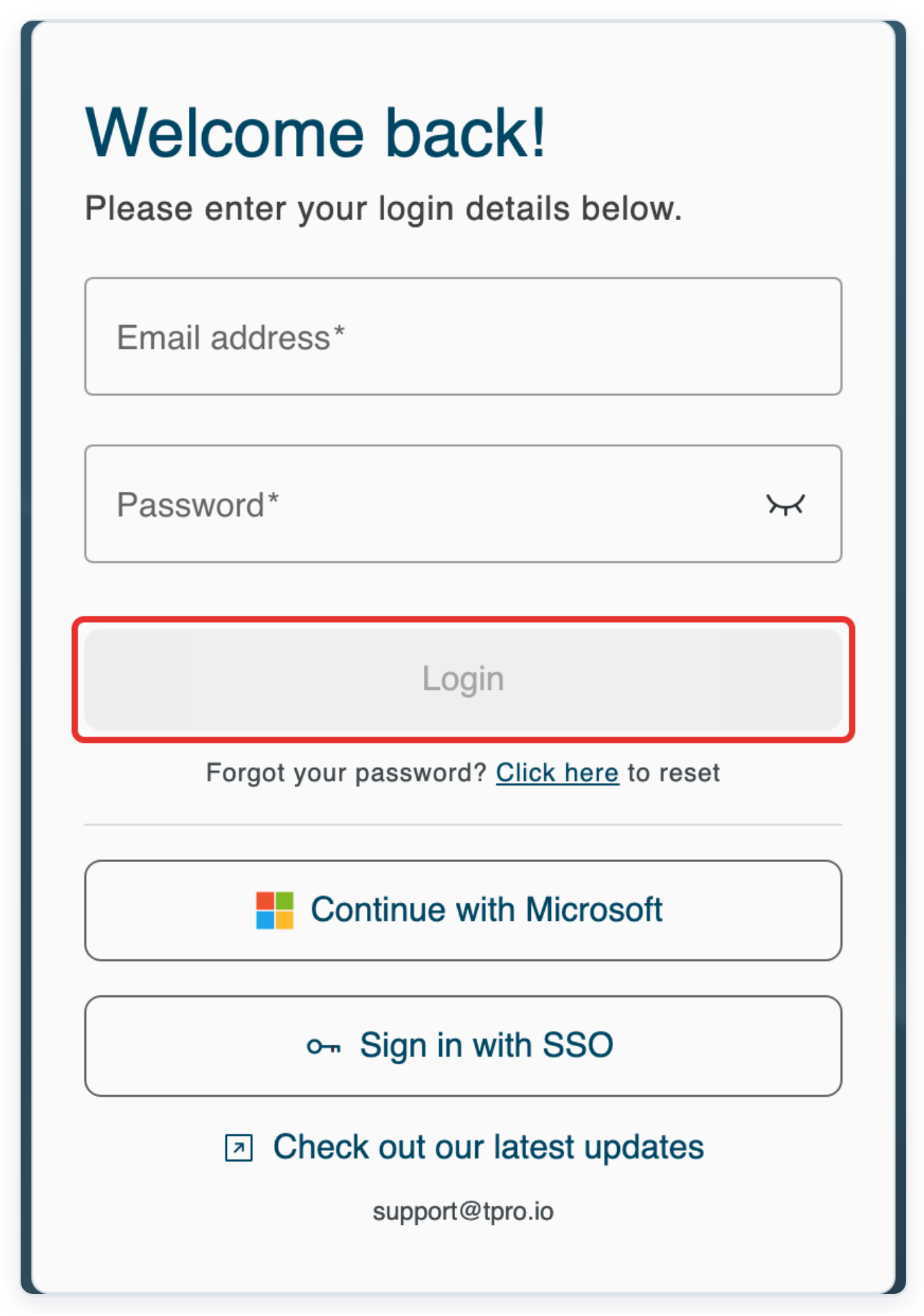
As an author at first approval
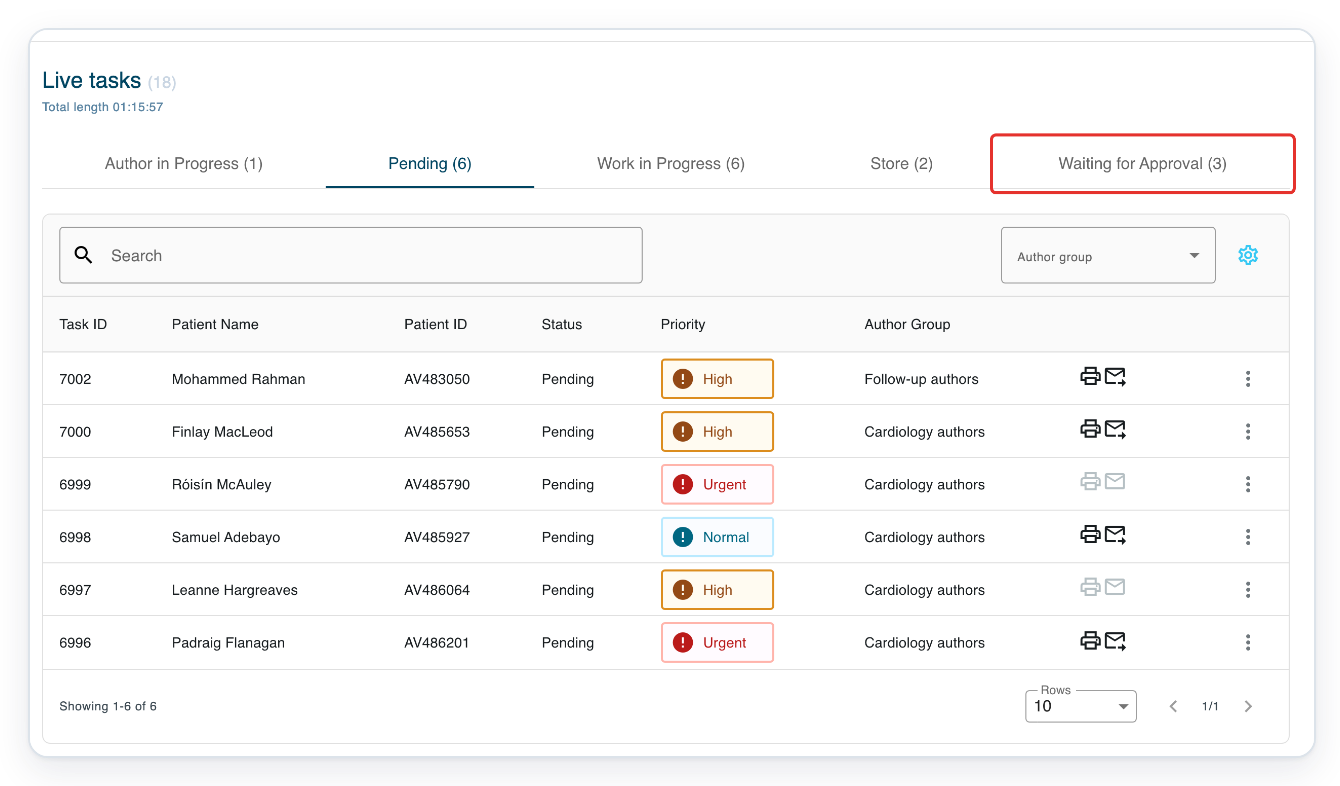
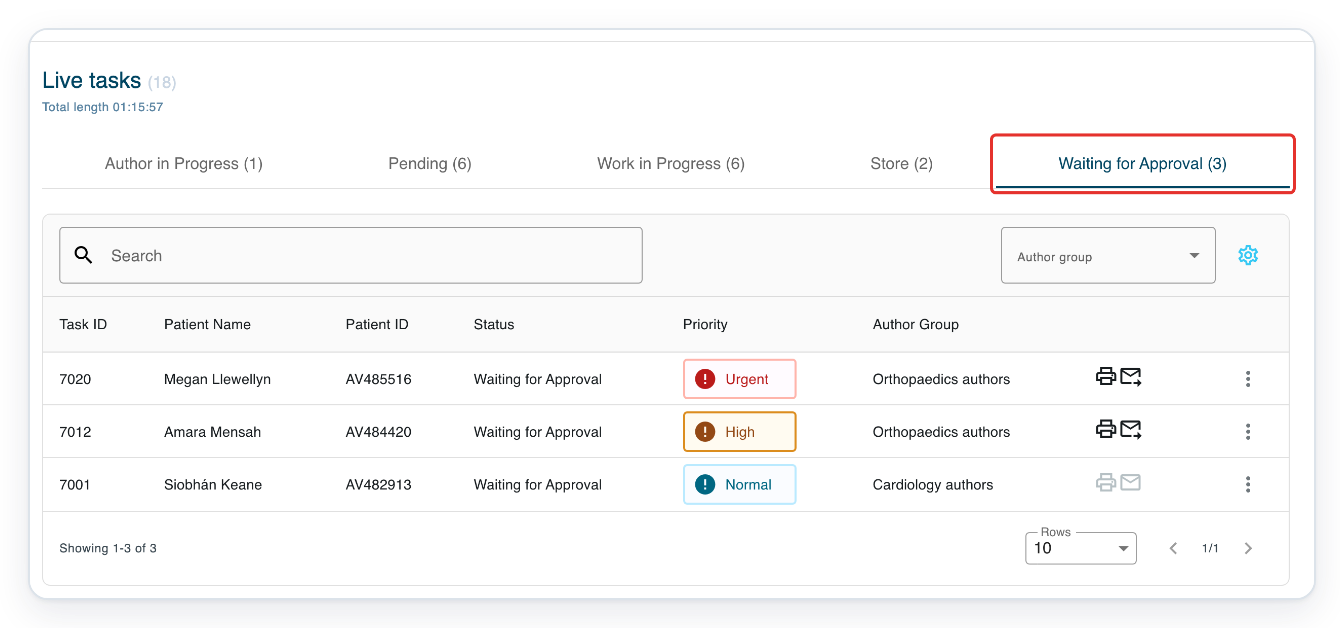
In Live tasks, click Waiting for Approval to find the letter you want to correct.
Use the Task ID and Patient Name columns to identify the letter before opening it.
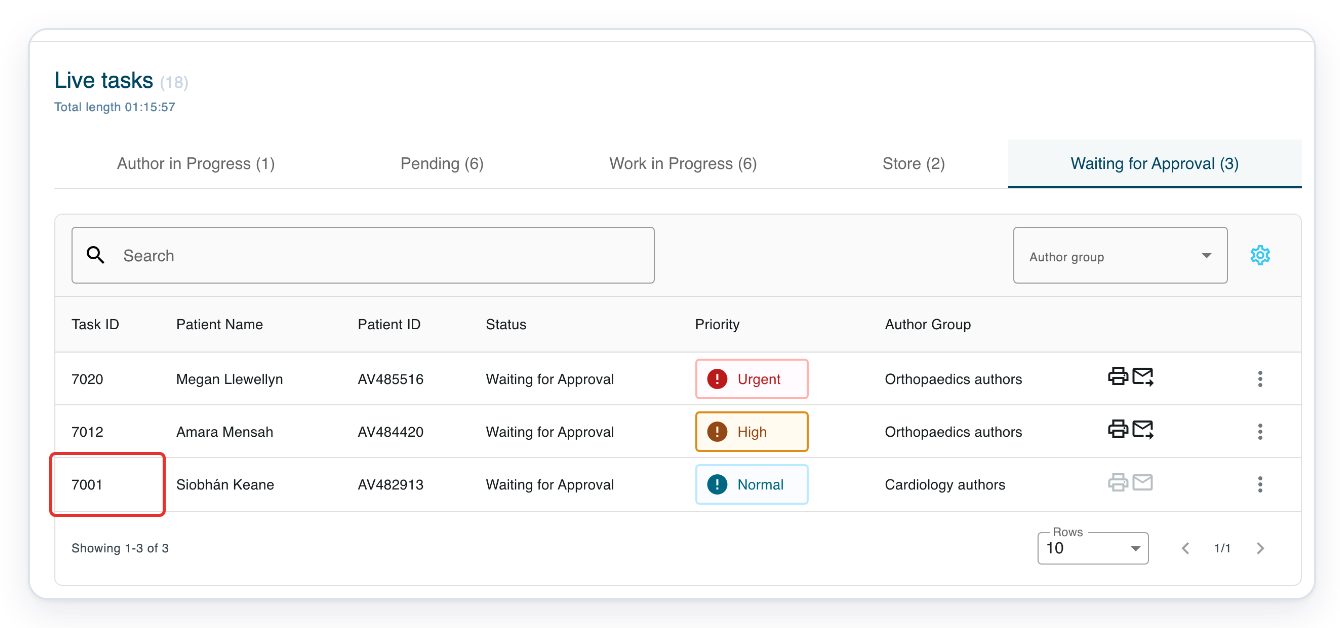
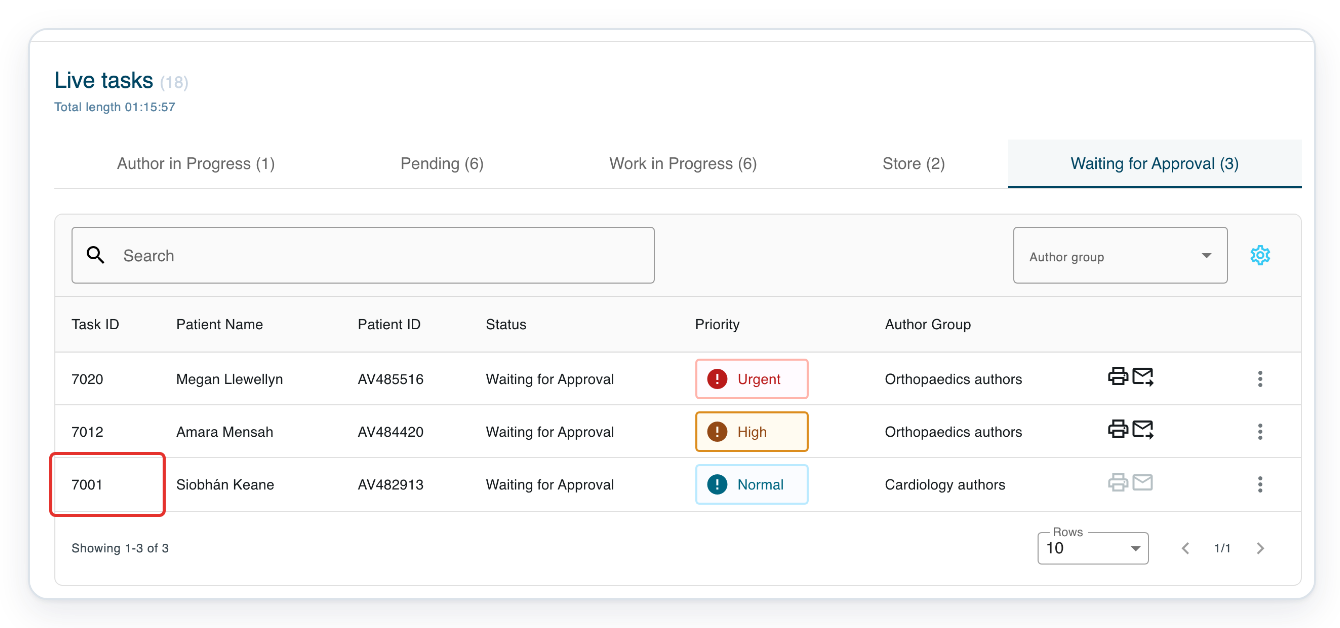
Click the task's number in the Task ID column. The letter opens in Text Editor.
The example shows task 7001 for Siobhán Keane. Choose the task for your patient.
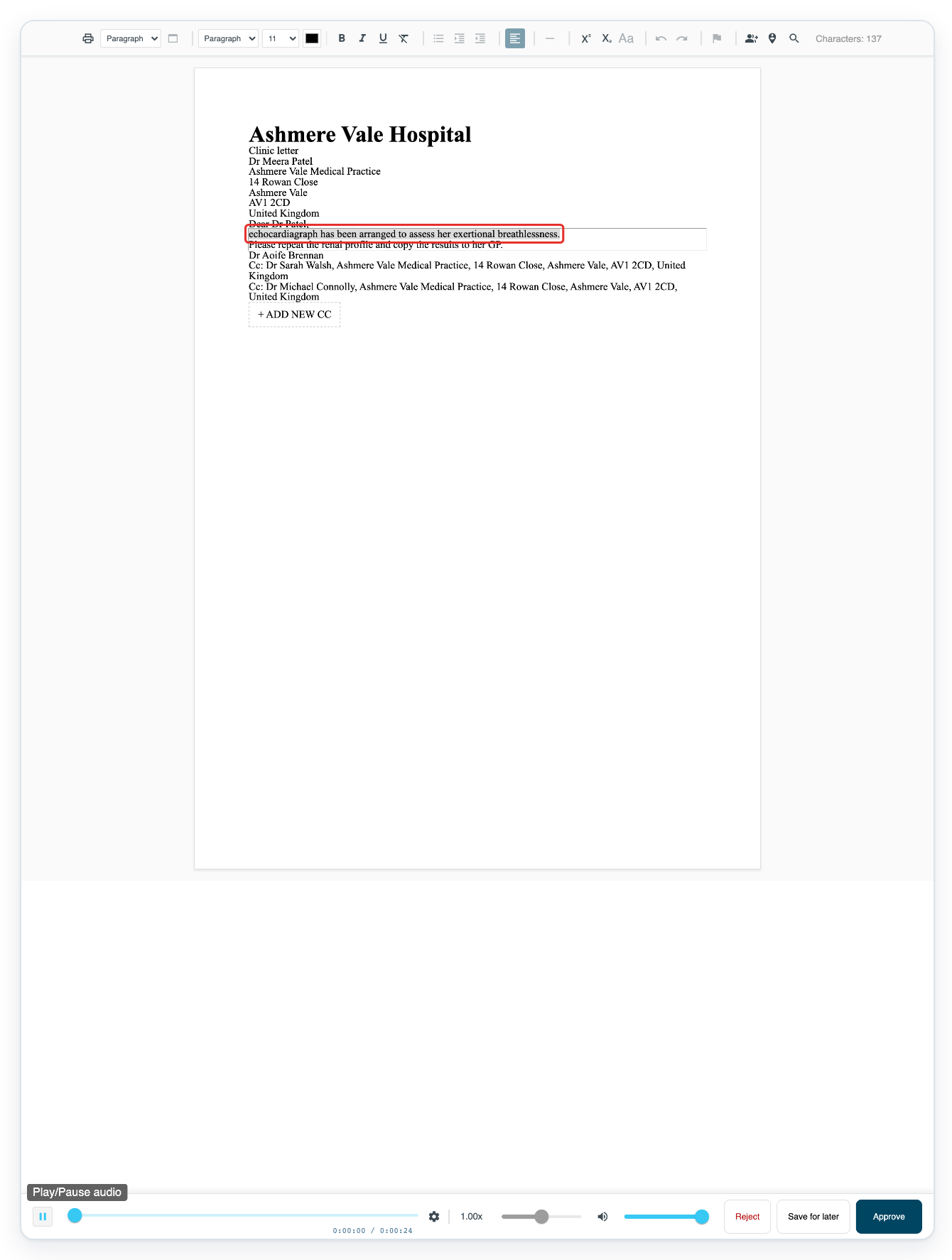
Wait for the audio to load, then click the triangular play button below the letter.
The button's tooltip is Play/Pause audio. Listen to the recording as you read the recognised text.
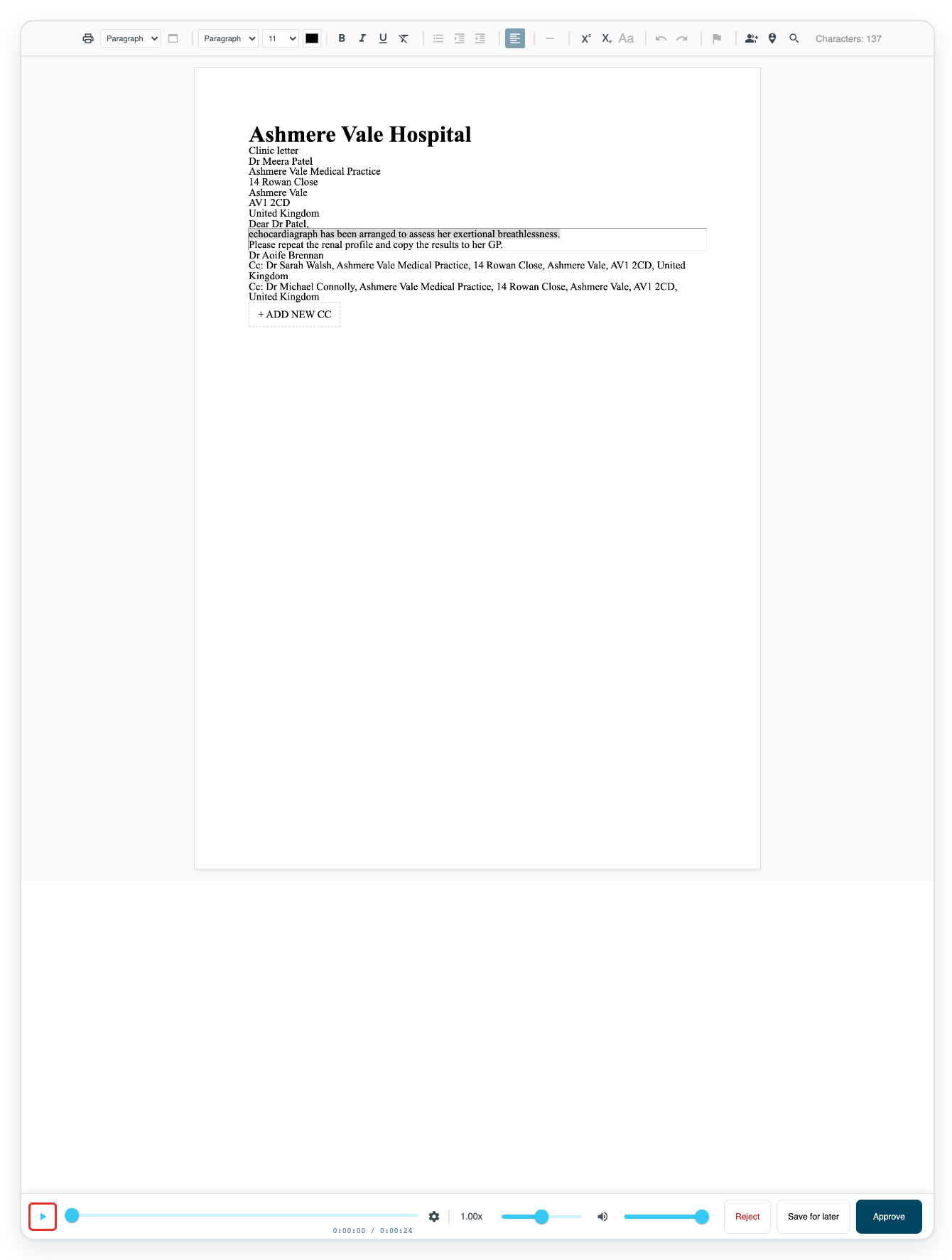
Select the incorrect word or sentence in the letter and type the correct text over it while listening.
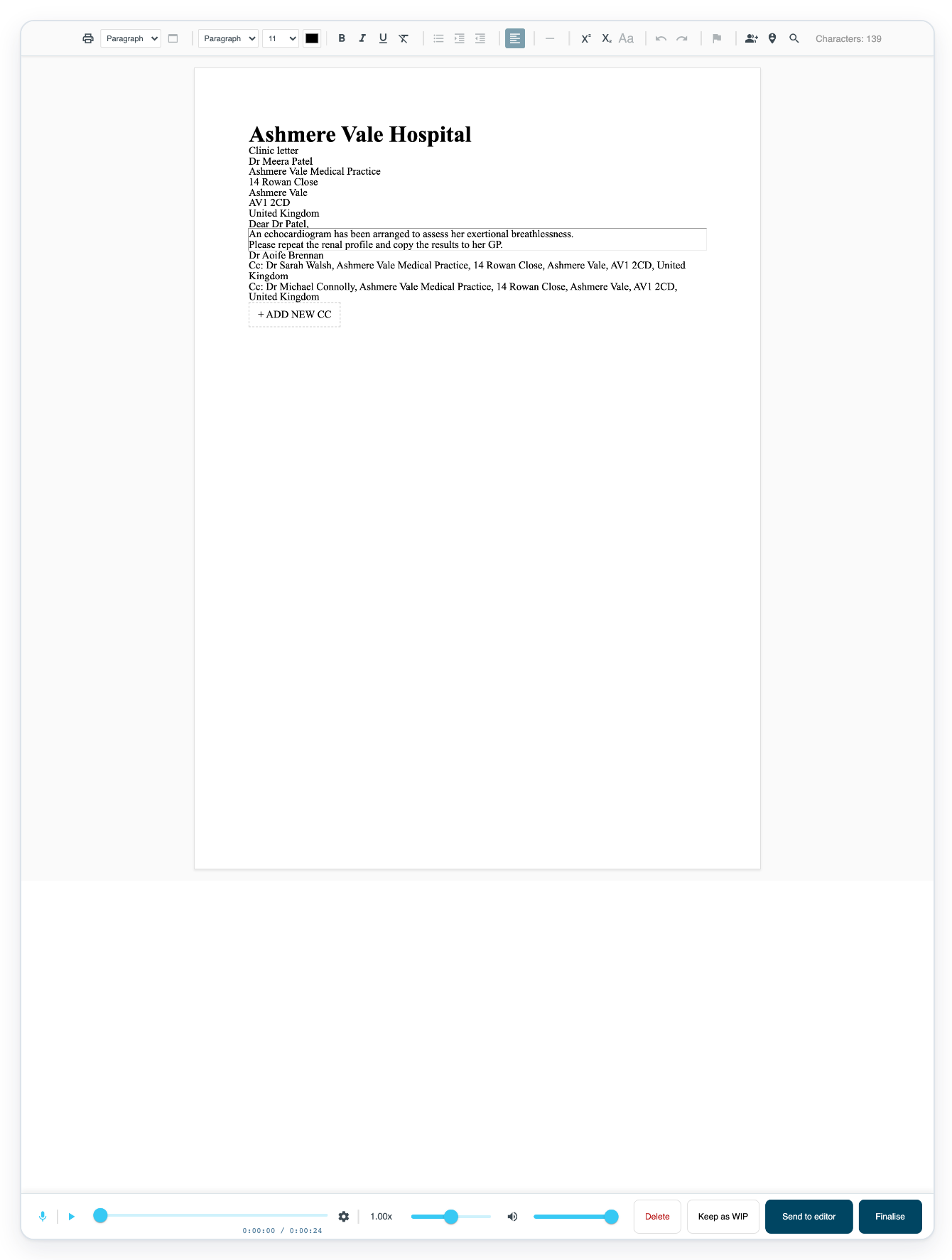
In this example, the text reads “echocardiagraph has been arranged to assess her exertional breathlessness.” Replace it with “An echocardiogram has been arranged to assess her exertional breathlessness.”
Select just the word if that's all you need to change. You can also use Backspace to delete incorrect text, then type the correction. Read the sentence again to check your change makes sense.
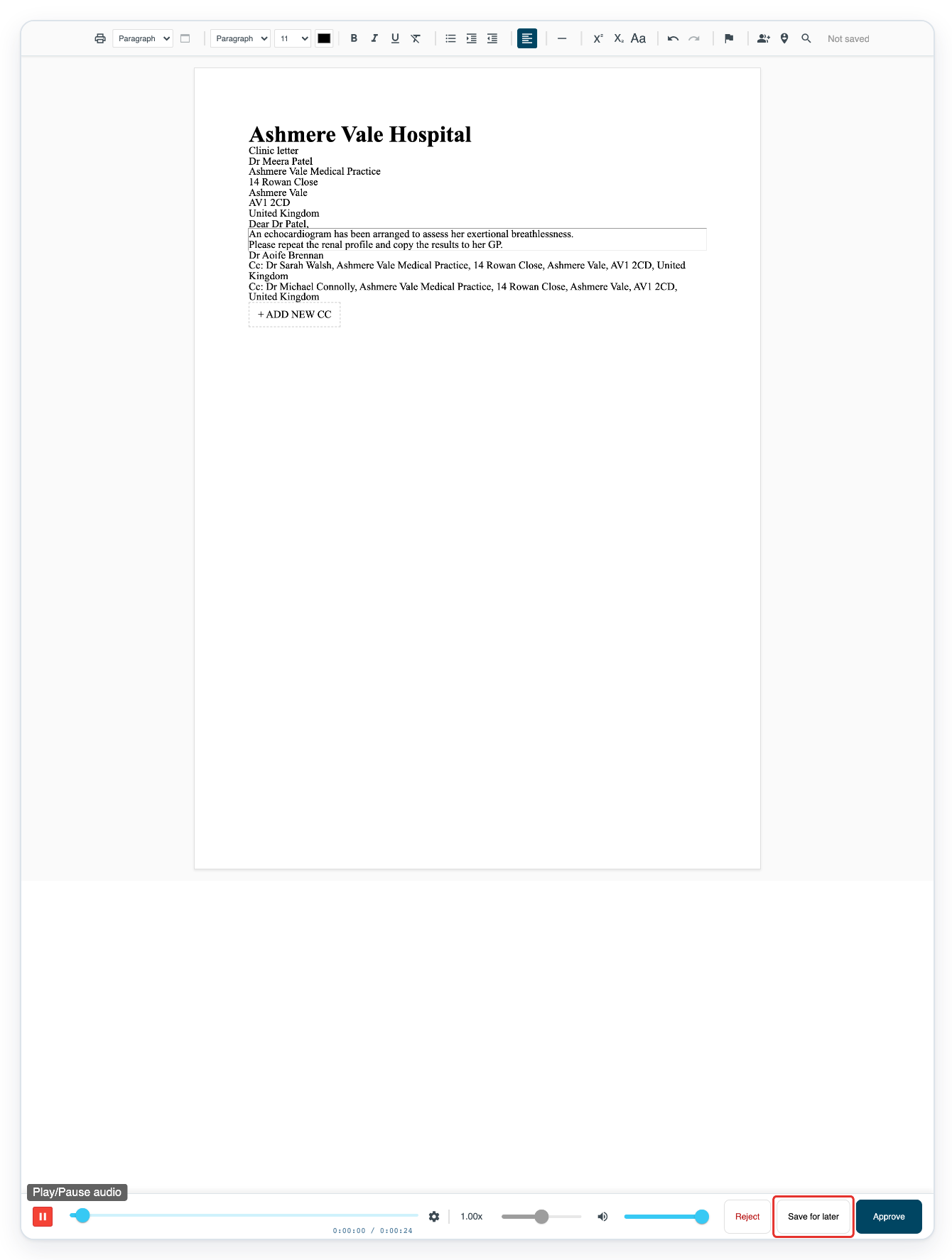
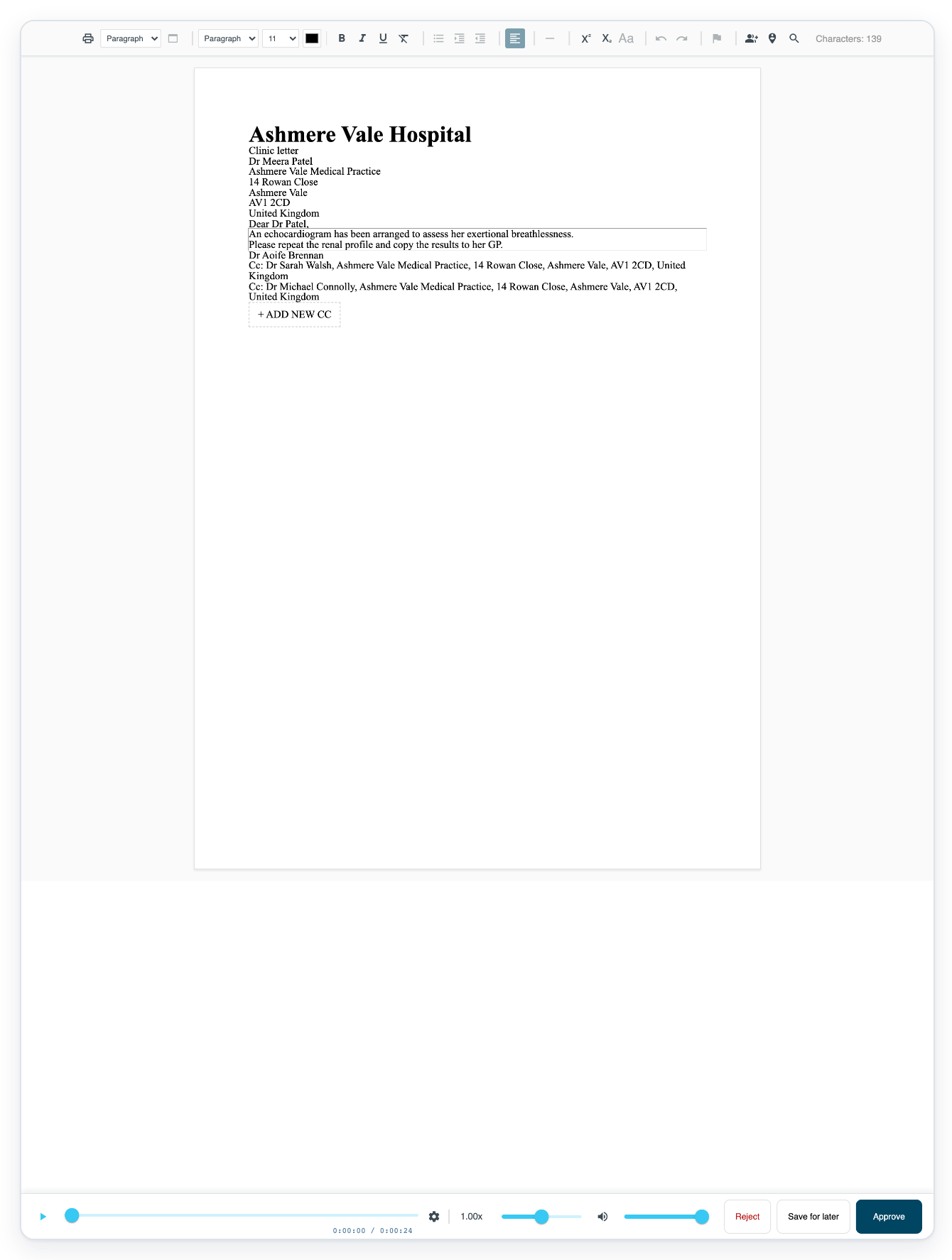
After checking your correction against the recording, click Save for later at the bottom right.
This saves the corrected letter and returns you to All tasks.
Click Live Tasks to return to the task queues after saving.

Click Waiting for Approval to find the saved letter again.
Saving your corrections leaves the letter in this queue, ready for you to continue checking it.
Click the task's number in the Task ID column again to reopen the saved letter.
=> The reopened letter shows the saved correction, beginning “An echocardiogram”. Save for later is still available.
As an author correcting an unfinished draft
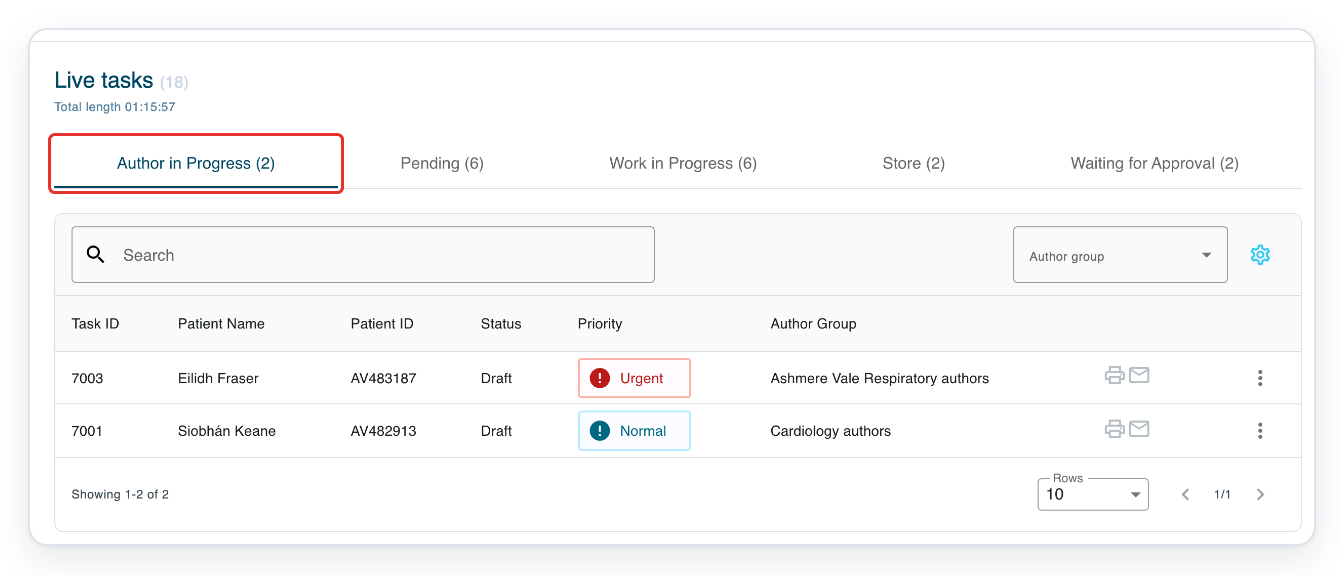
With the floating recorder closed, click Author in Progress in Live tasks to find your unfinished draft.
This route is for a draft you are still working on, before it reaches approval.
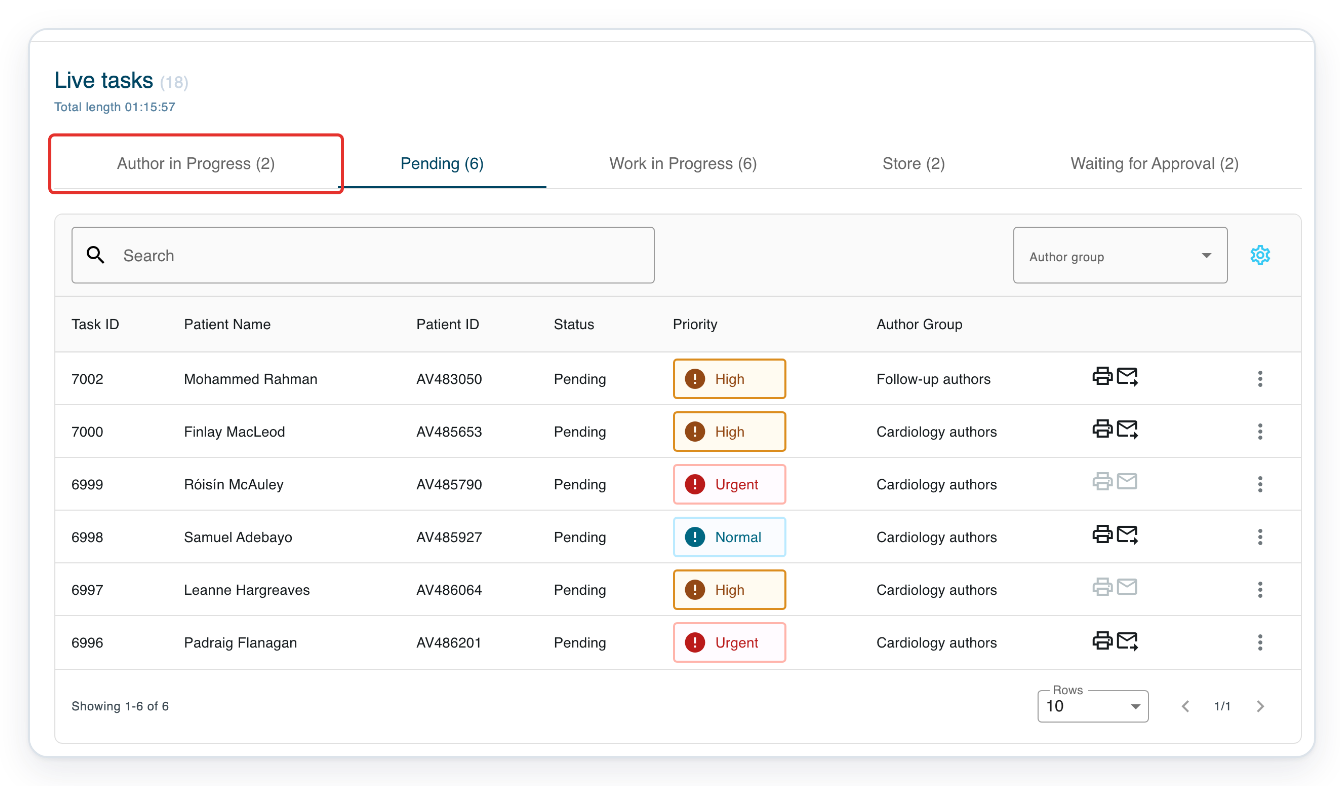
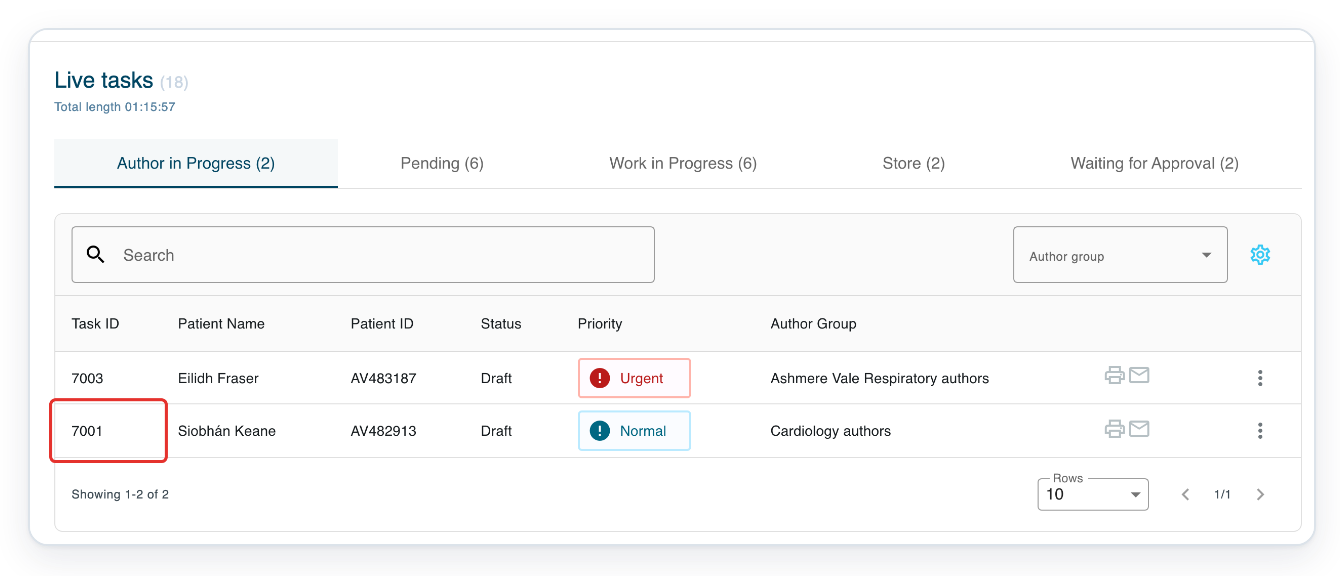
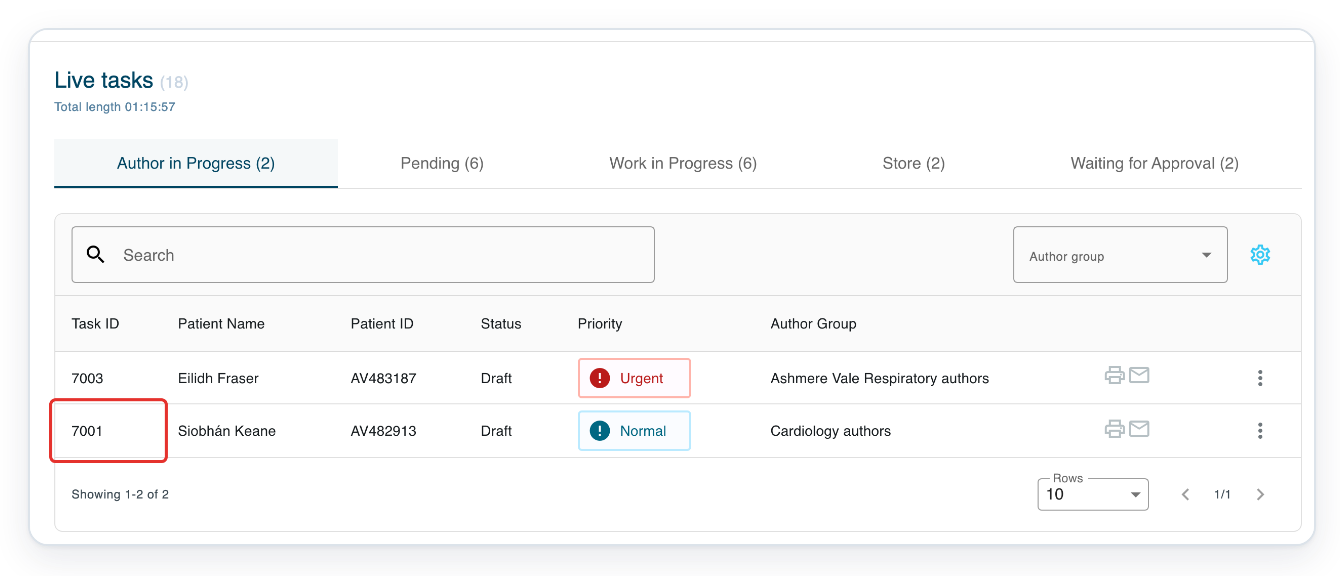
Click the task's number in the Task ID column. The letter opens in Text Editor.
Check the patient name before opening it. This example again uses task 7001 for Siobhán Keane.
Wait for the audio to load, then click the triangular play button below the letter.
The button's tooltip is Play/Pause audio. Listen to the recording as you read the recognised text.
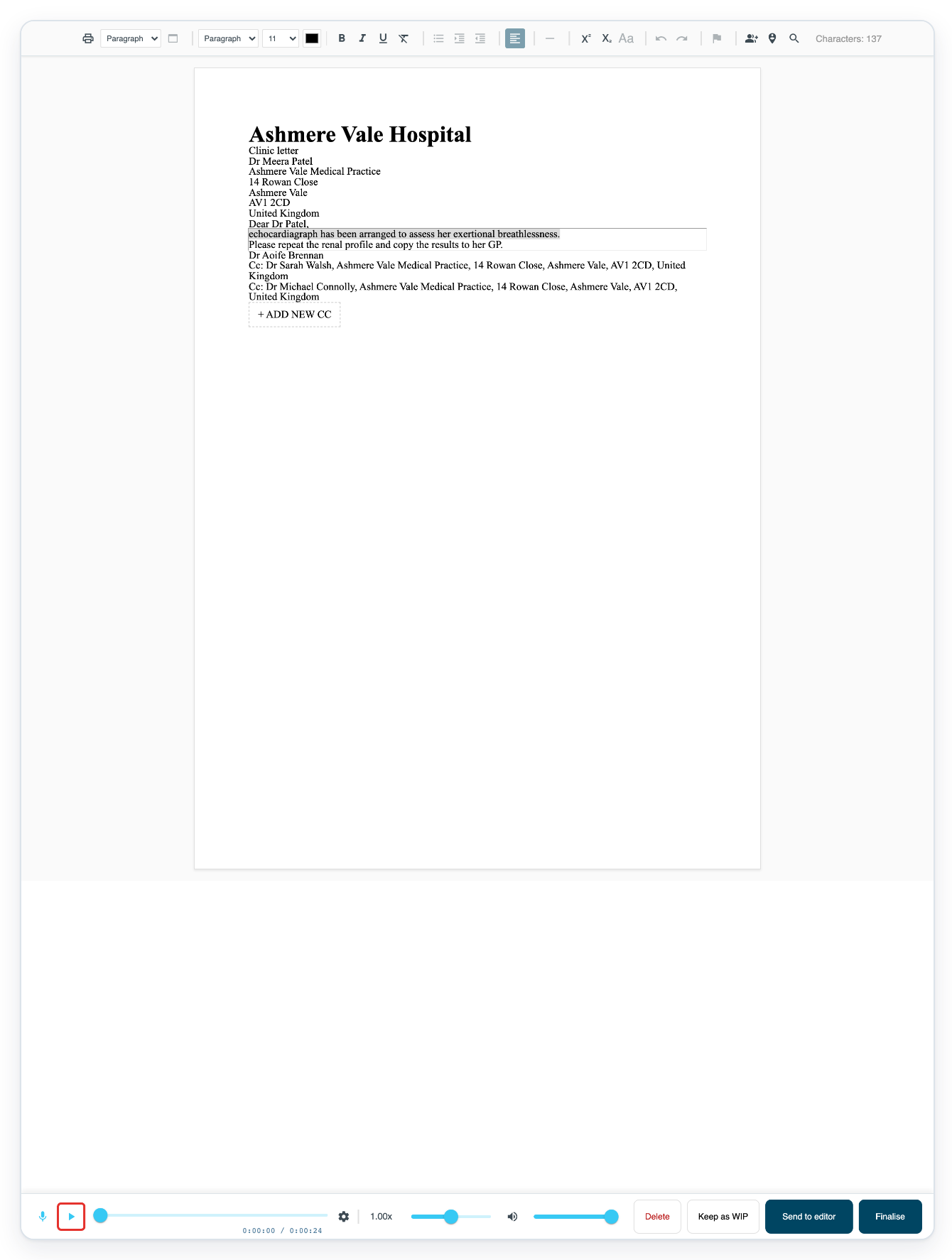
Select the incorrect word or sentence in the letter and type the correct text over it while listening.
Replace “echocardiagraph has been arranged to assess her exertional breathlessness.” with “An echocardiogram has been arranged to assess her exertional breathlessness.”
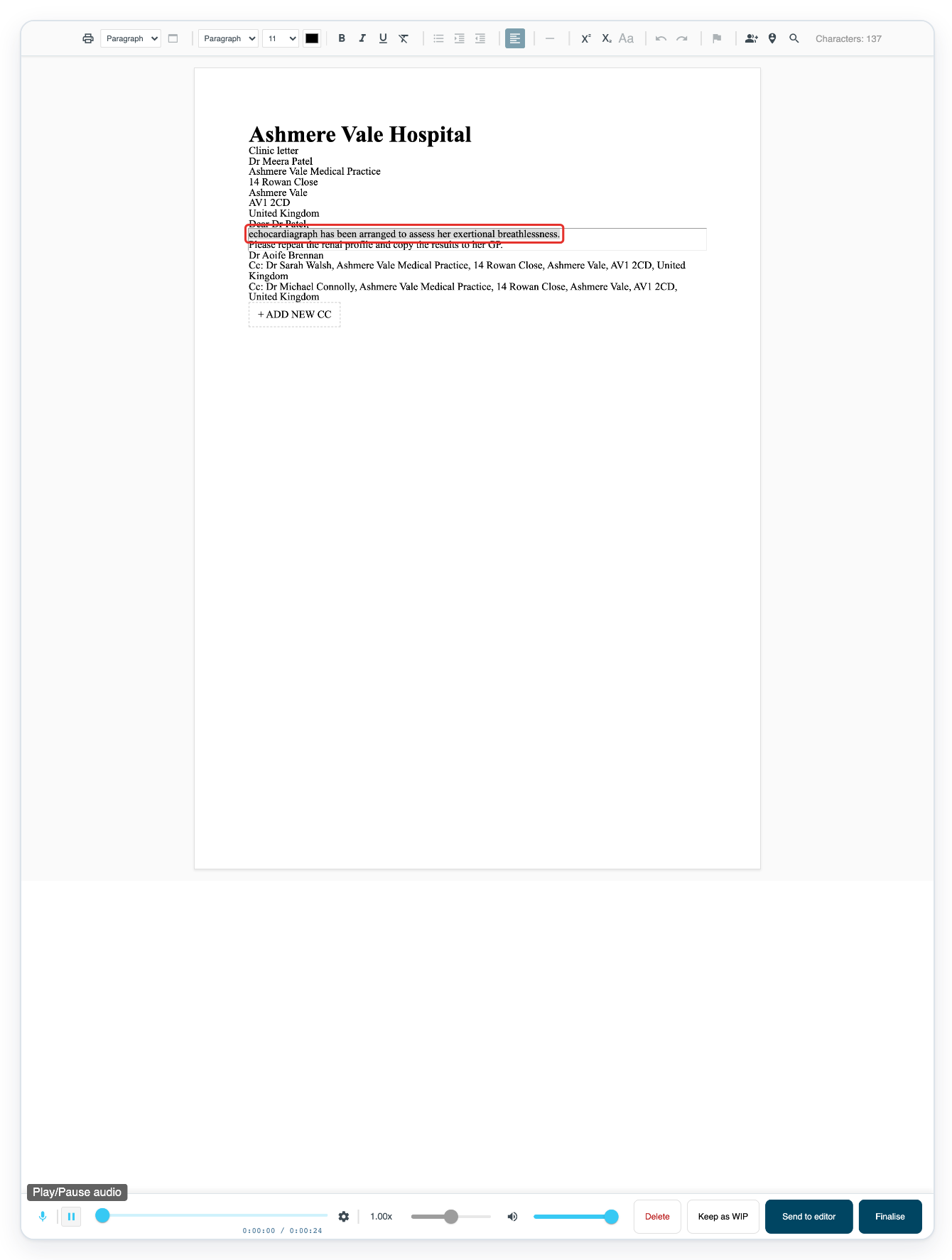
Click Keep as WIP to save the corrected draft and return to All tasks.
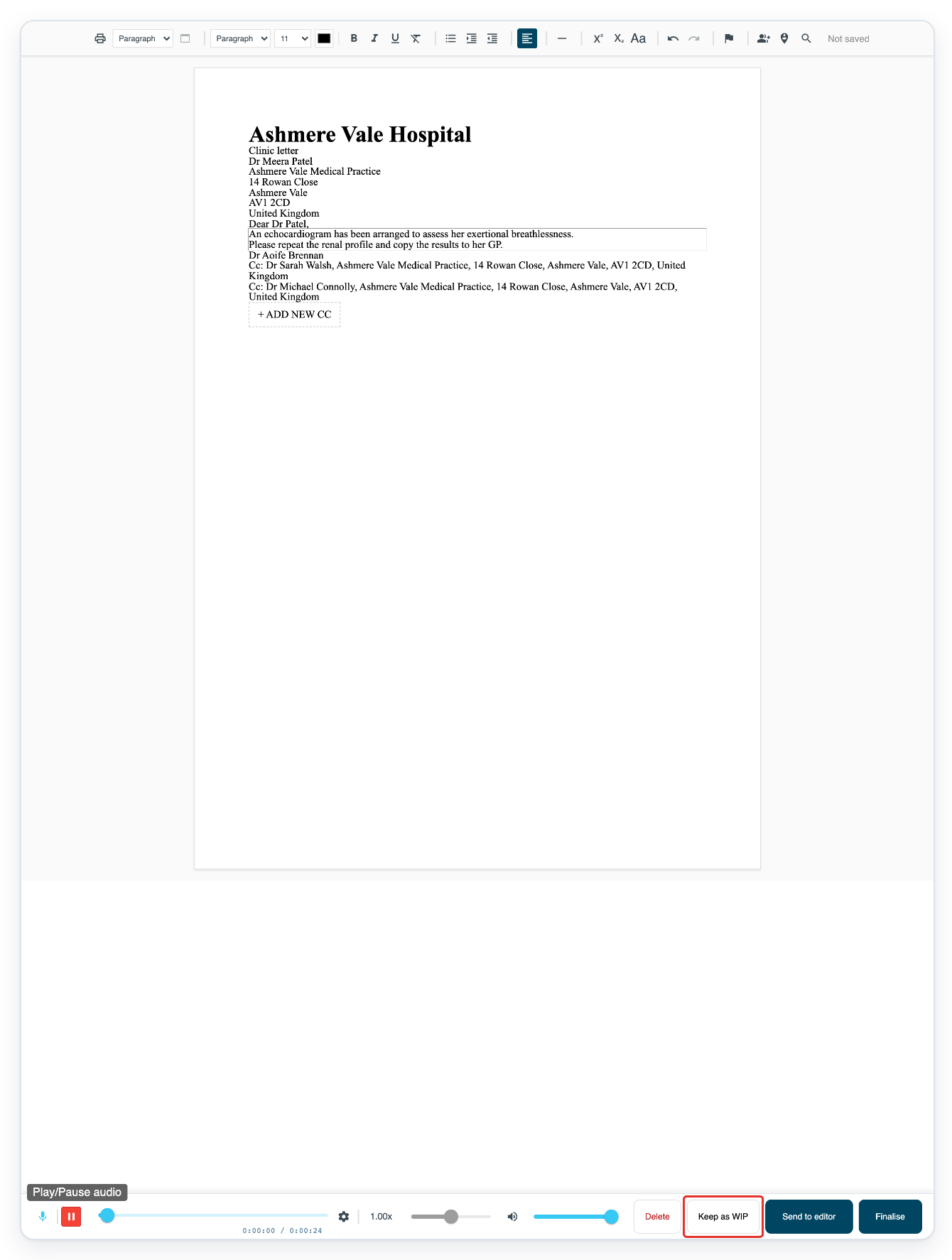
Click Live Tasks to return to the task queues after saving.

Click Author in Progress to find the saved draft again.
Click the task's number in the Task ID column again to reopen the saved draft.
=> The reopened draft shows the saved correction, beginning “An echocardiogram”. Keep as WIP is still available.
NOTE:
- Recognised text is highlighted during playback if it is linked to the recording.
- Save for later saves your corrections without approving the letter. It stays in Waiting for Approval.
- Keep as WIP saves your corrected draft without moving it out of Author in Progress.
Tip: To finish your corrections later, click Keep as WIP when it is available. This saves your changes and returns you to the task list. The task stays at its current stage.
Can't correct the text?
- You cannot type in the letter: ask your manager to check your editing access. They should also check the task's stage and who it is assigned to. You can only view completed tasks.
- An audio window opens instead of the letter: the document type is set to use the audio player. Ask your manager to check the document type before you continue.
Related articles
If you have any more queries, please do not hesitate to contact our Helpdesk or support@tpro.io.
© 2020 - 2026