
Before you start
You need a manager or master account with access to the department. To create an author group, your organisation needs a document template. Follow the section for your account.
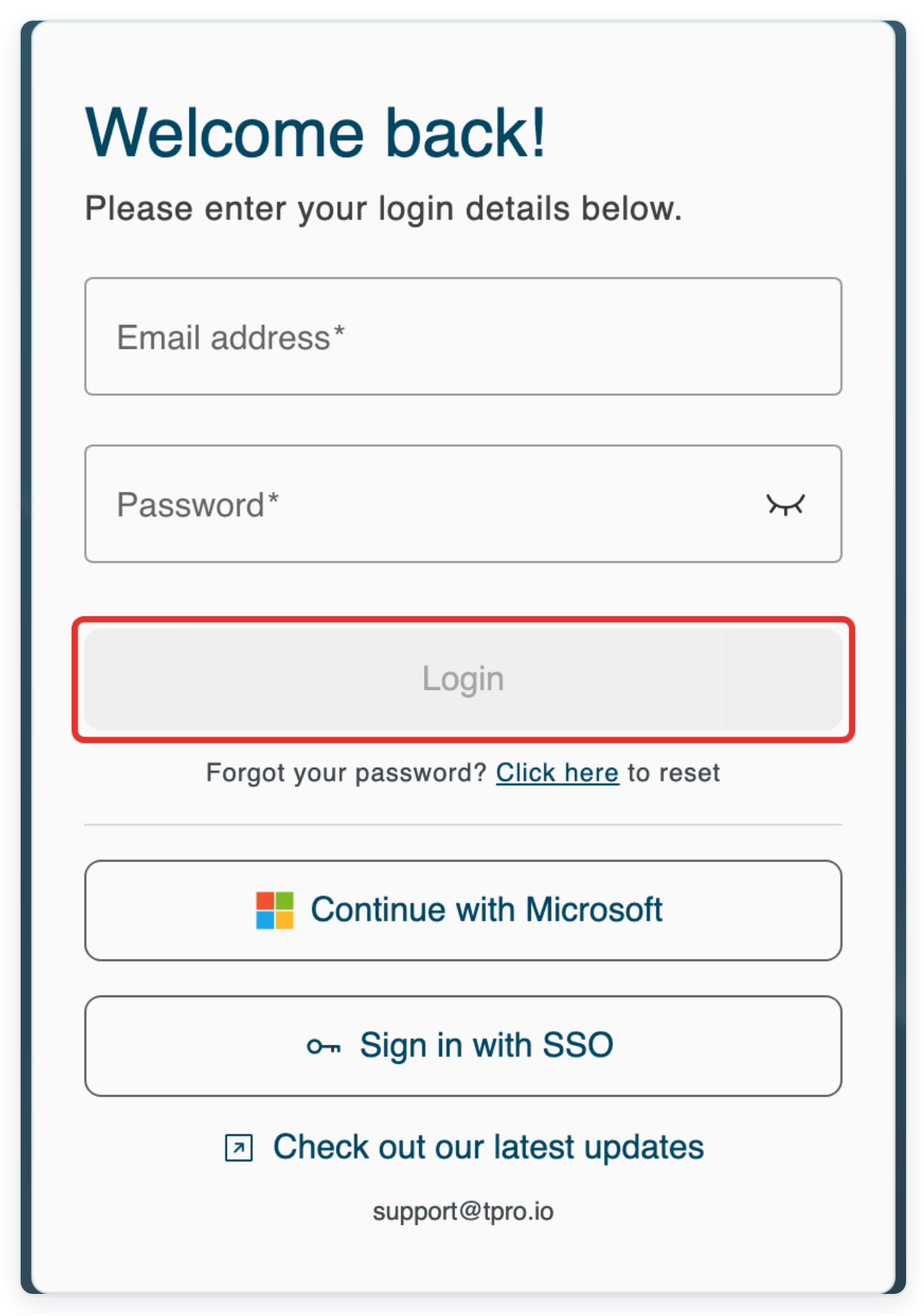
Log in to T-Pro with your manager or master credentials.
As a manager
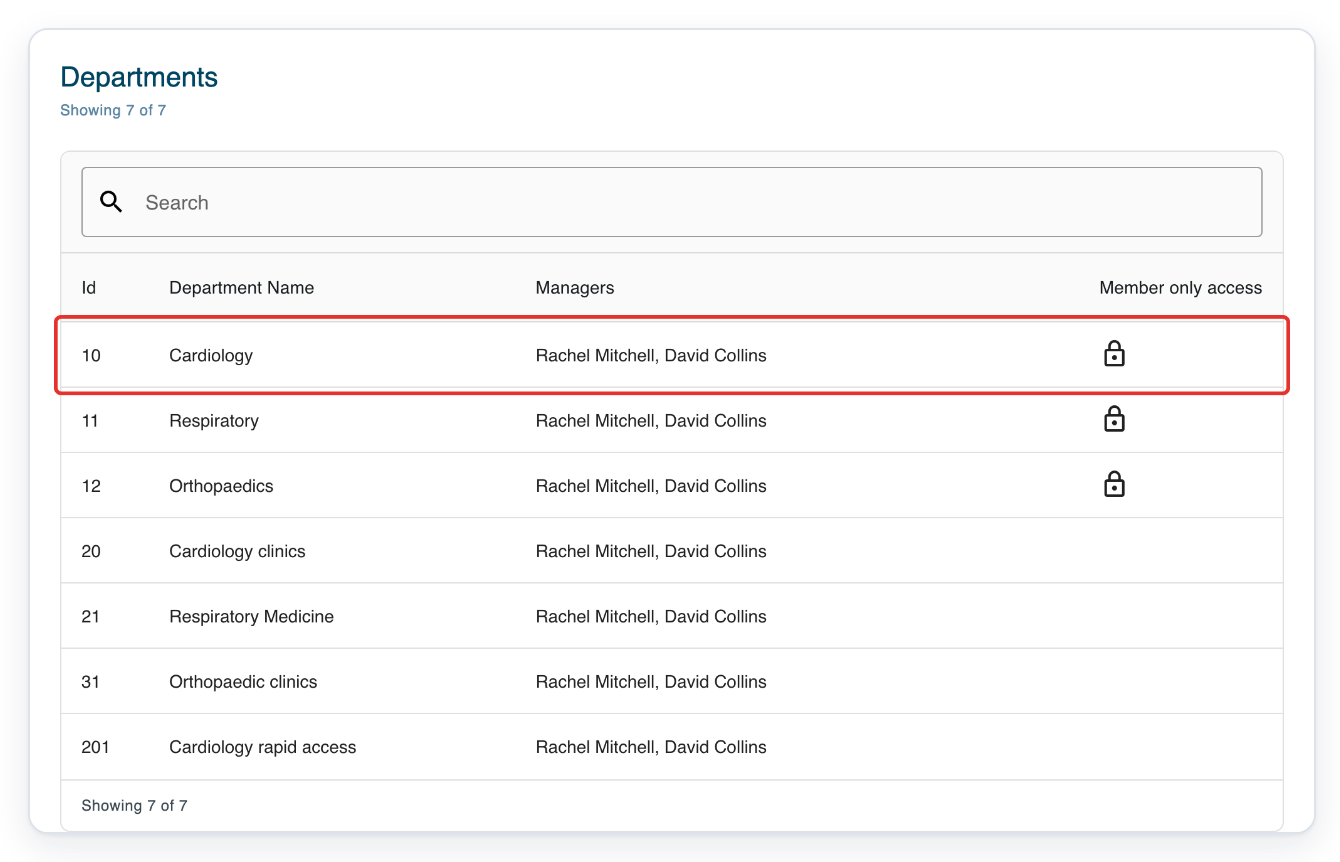
Go to Departments and click your department, such as Cardiology. Its Authors tab opens.
Use Search above the department list to find your department by name. This example creates an author group.
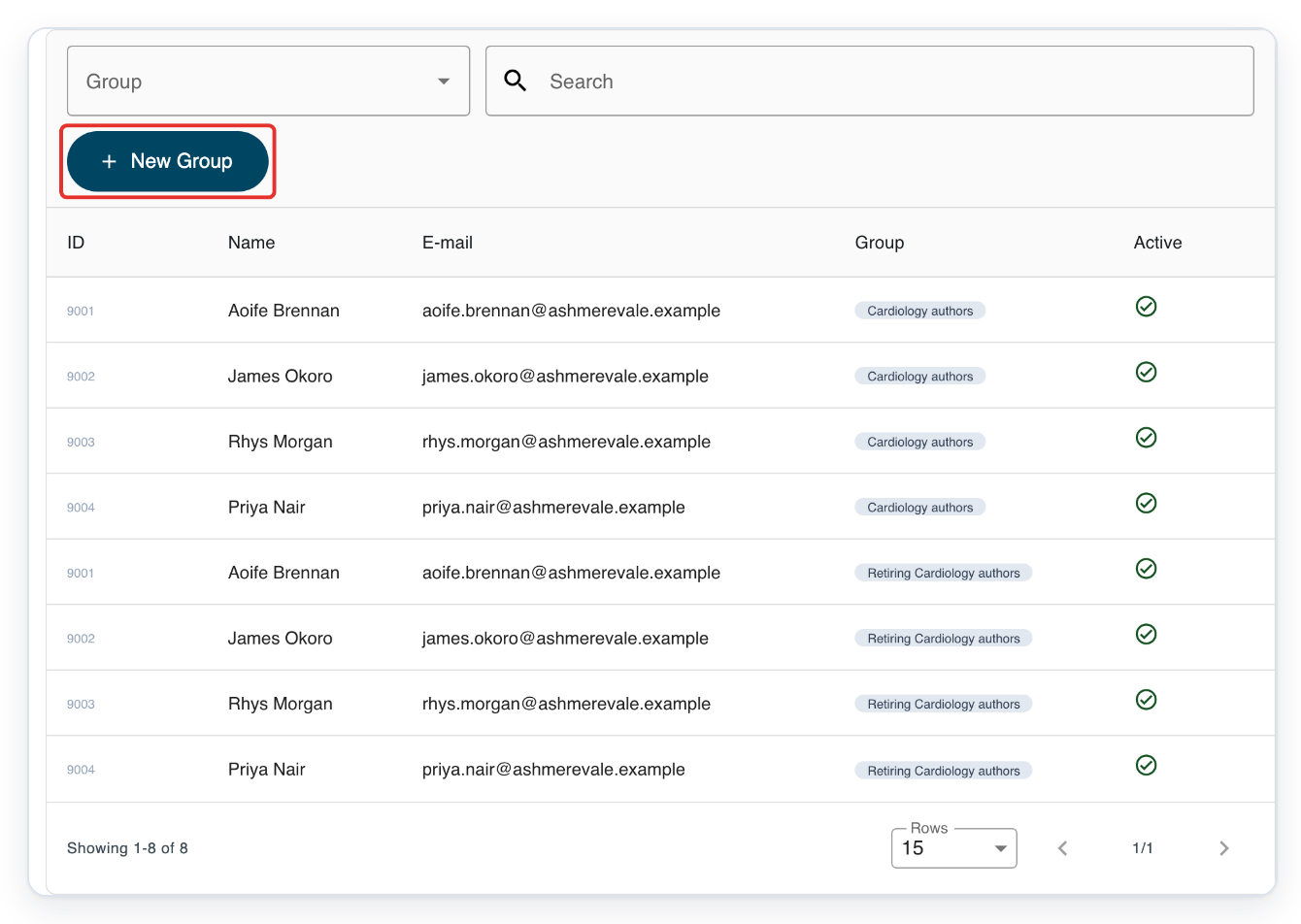
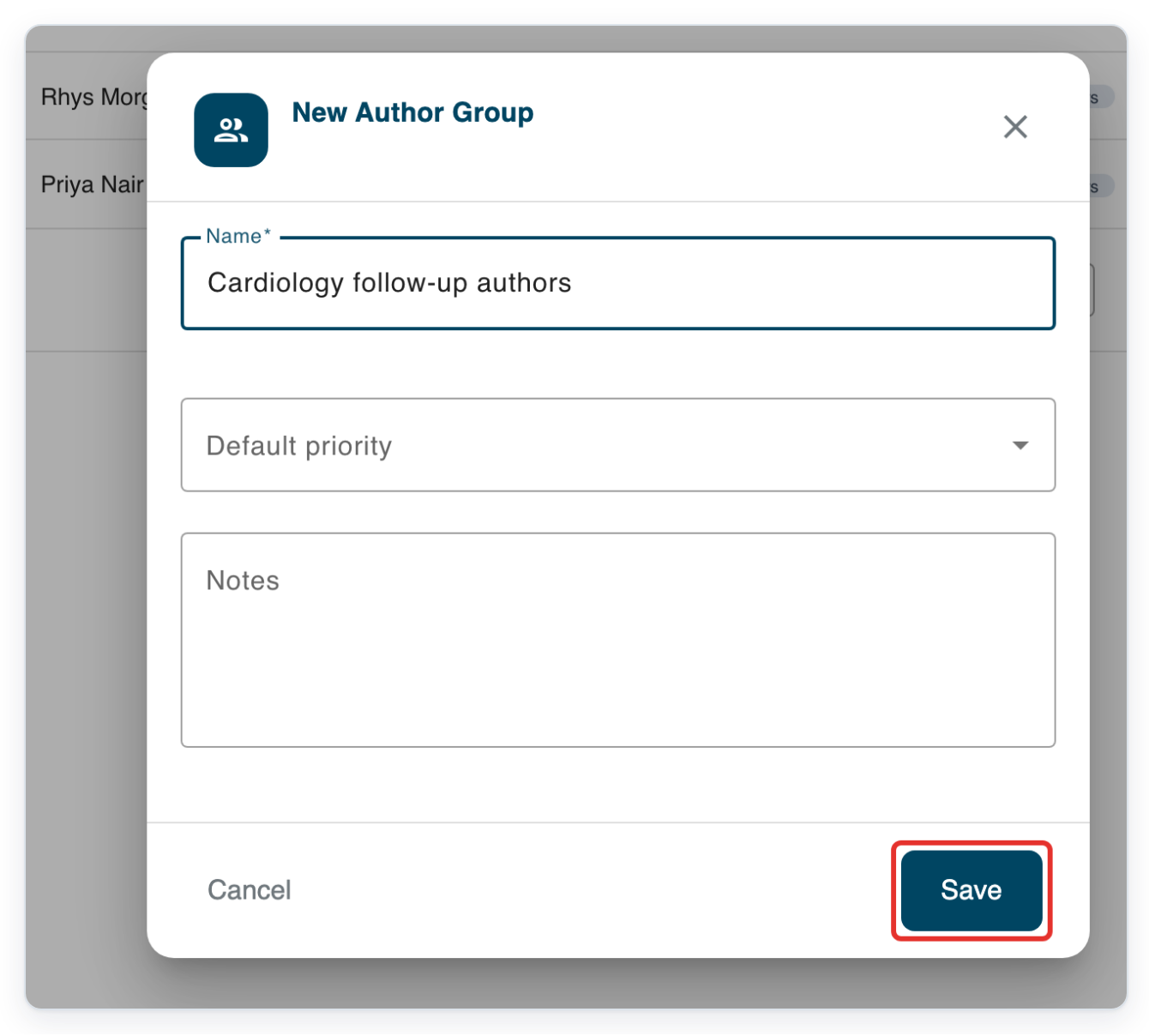
Click New Group. The New Author Group dialog opens.
For an author group, start from Authors. To group other staff, start from their tab before clicking New Group.
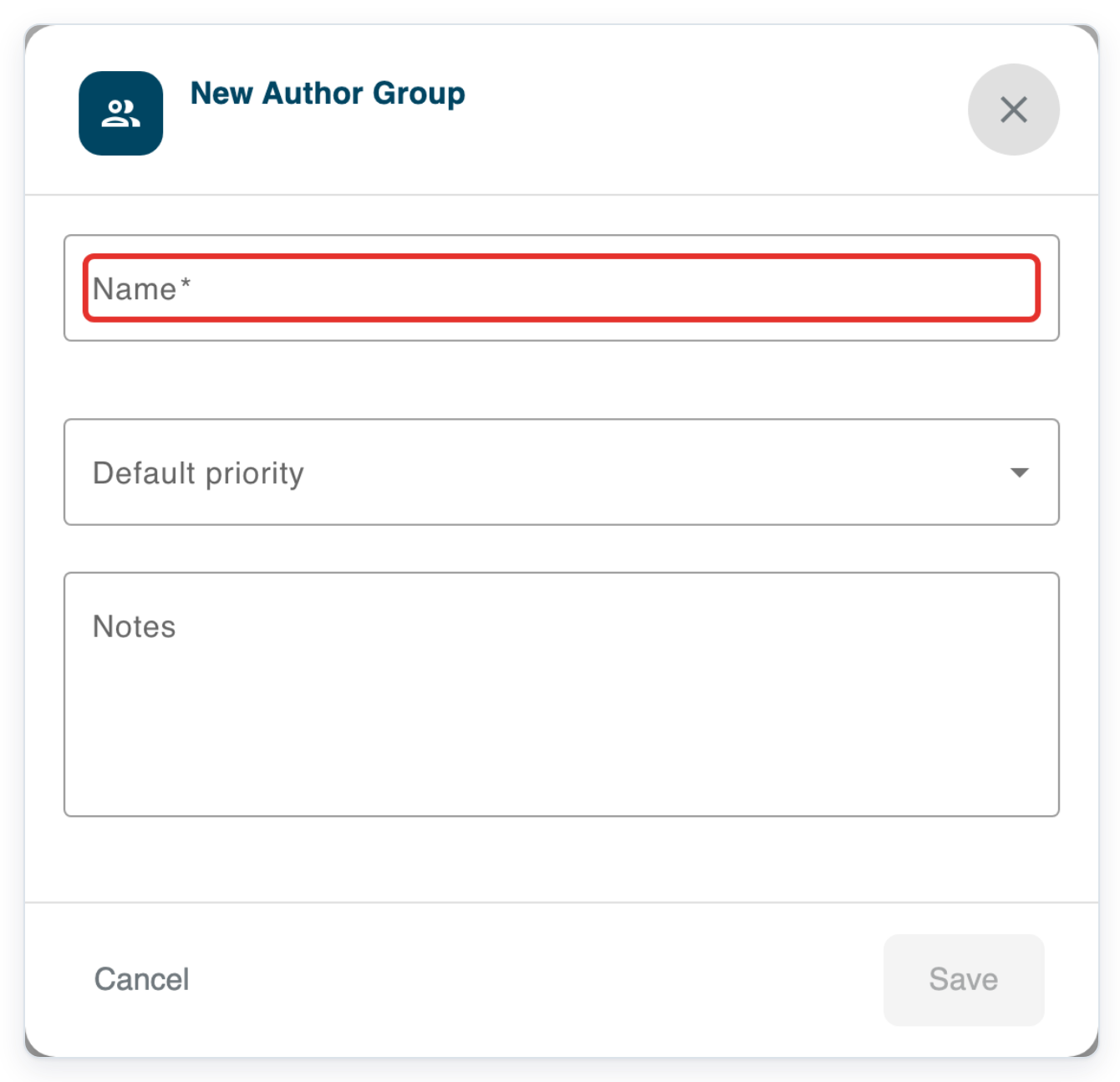
Enter a group name in Name, for example Cardiology follow-up authors.
Name the group after the team or service so you can find it later. Add any extra details in Notes, or leave it blank.
Click Save to create the group and close the dialog.
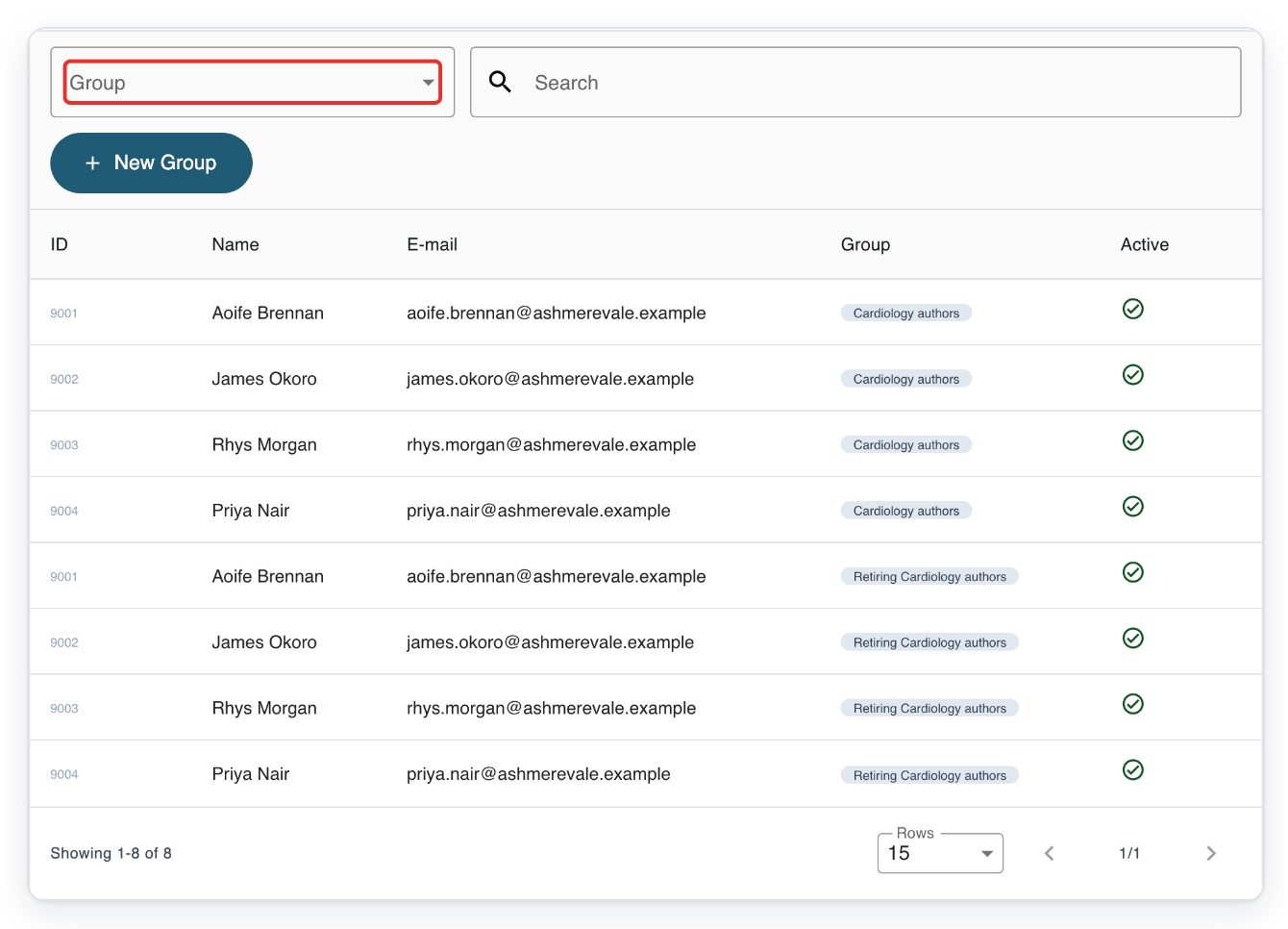
You return to the department’s author list. You can now find your group and add people to it.
Open Group above the author list to find your new group.
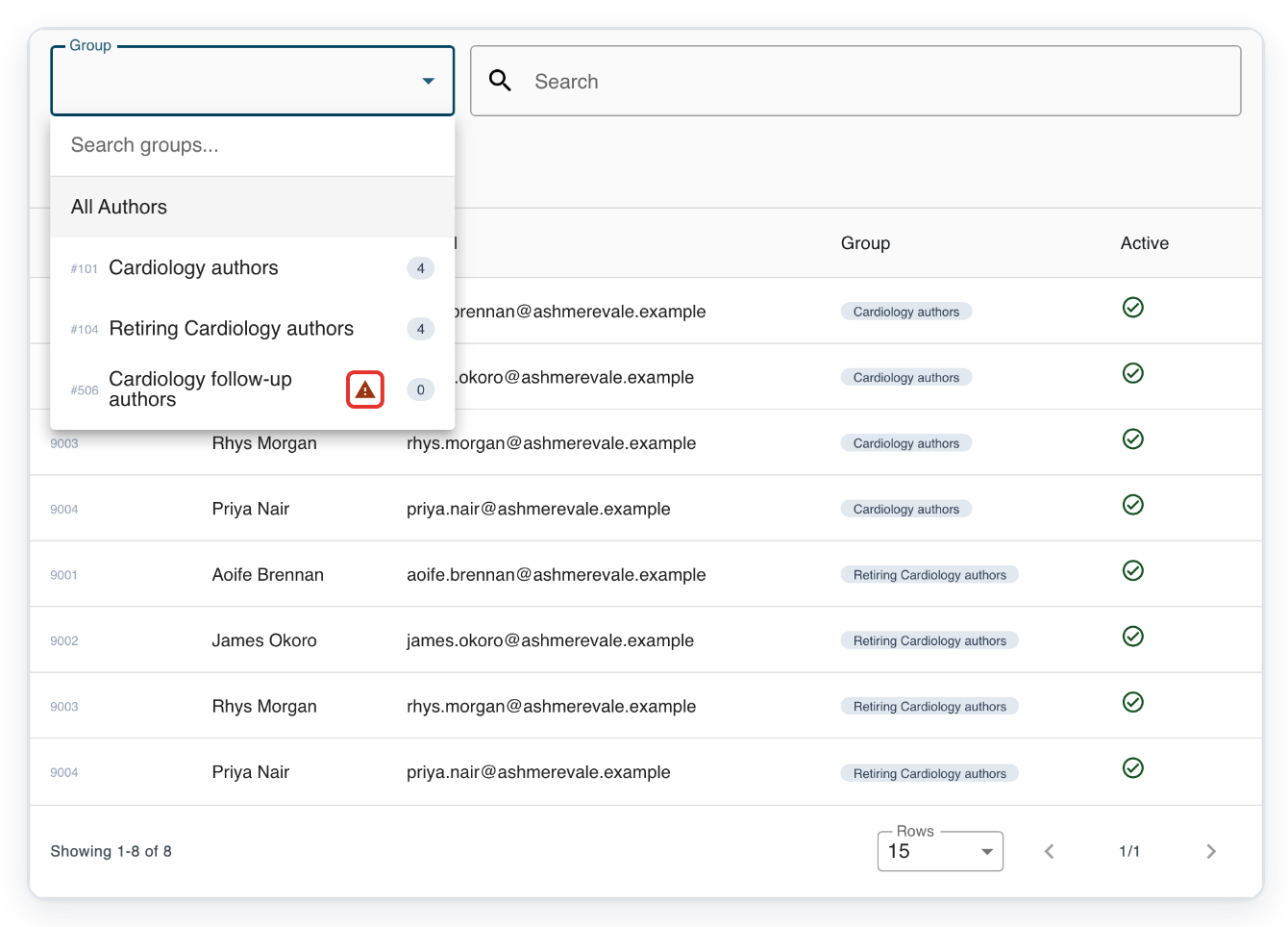
If the list is long, type part of the group’s name in Search groups....
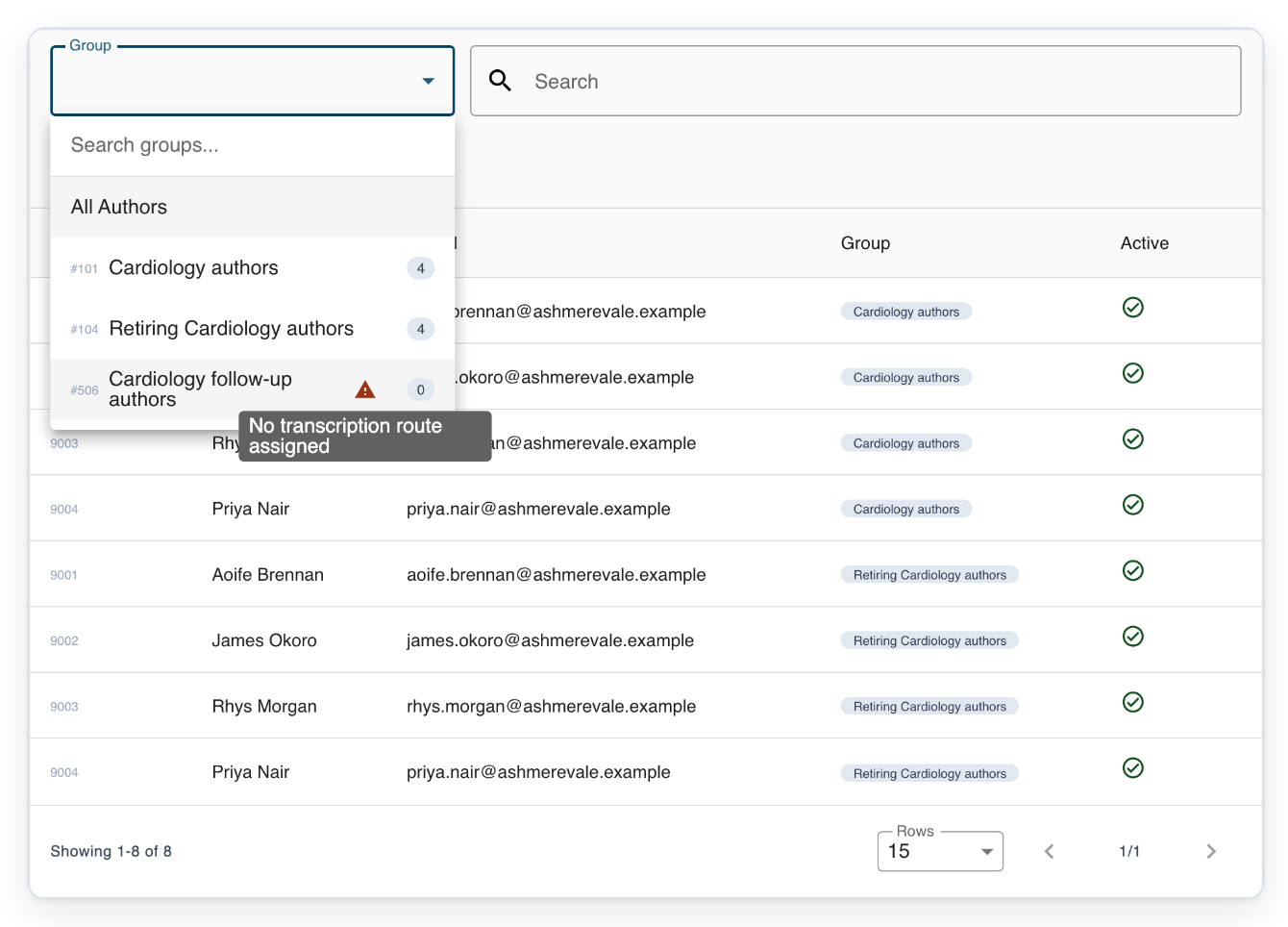
Hover over the warning beside Cardiology follow-up authors.
=> No transcription route assigned means the author group has no transcription route. Ask a master or administrator to create one. Managers cannot see the New Route button.
As a master
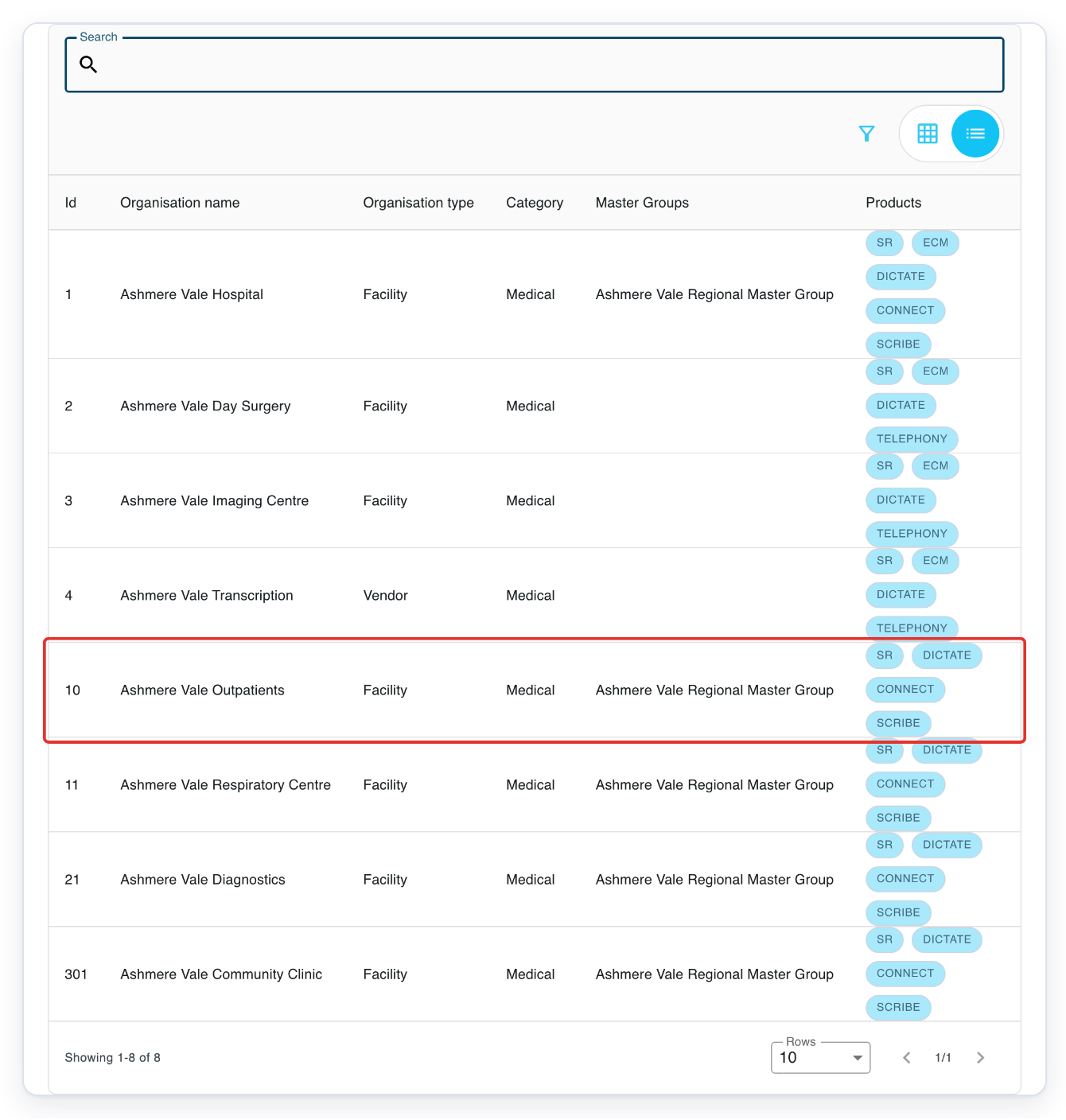
In Organisations, click your organisation, such as Ashmere Vale Outpatients. Its Departments tab opens.
Check the organisation’s name before choosing a department, especially if you manage more than one organisation.
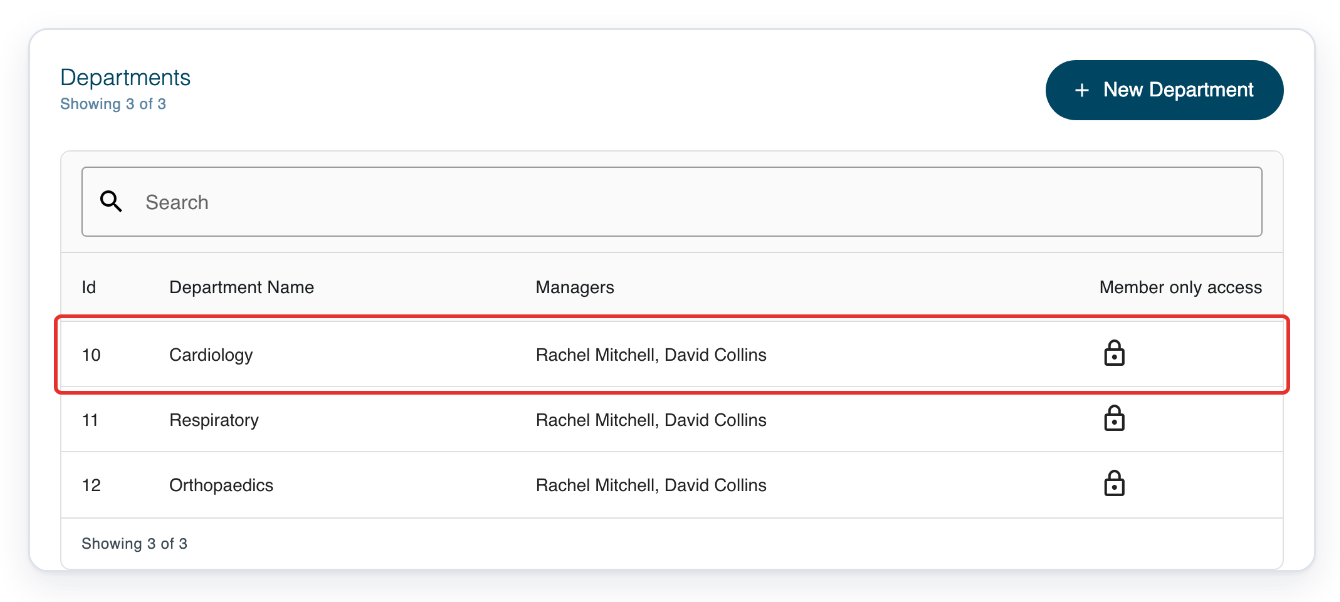
Click your department, such as Cardiology. Its Authors tab opens.
Use Search above the list to find a department in this organisation.
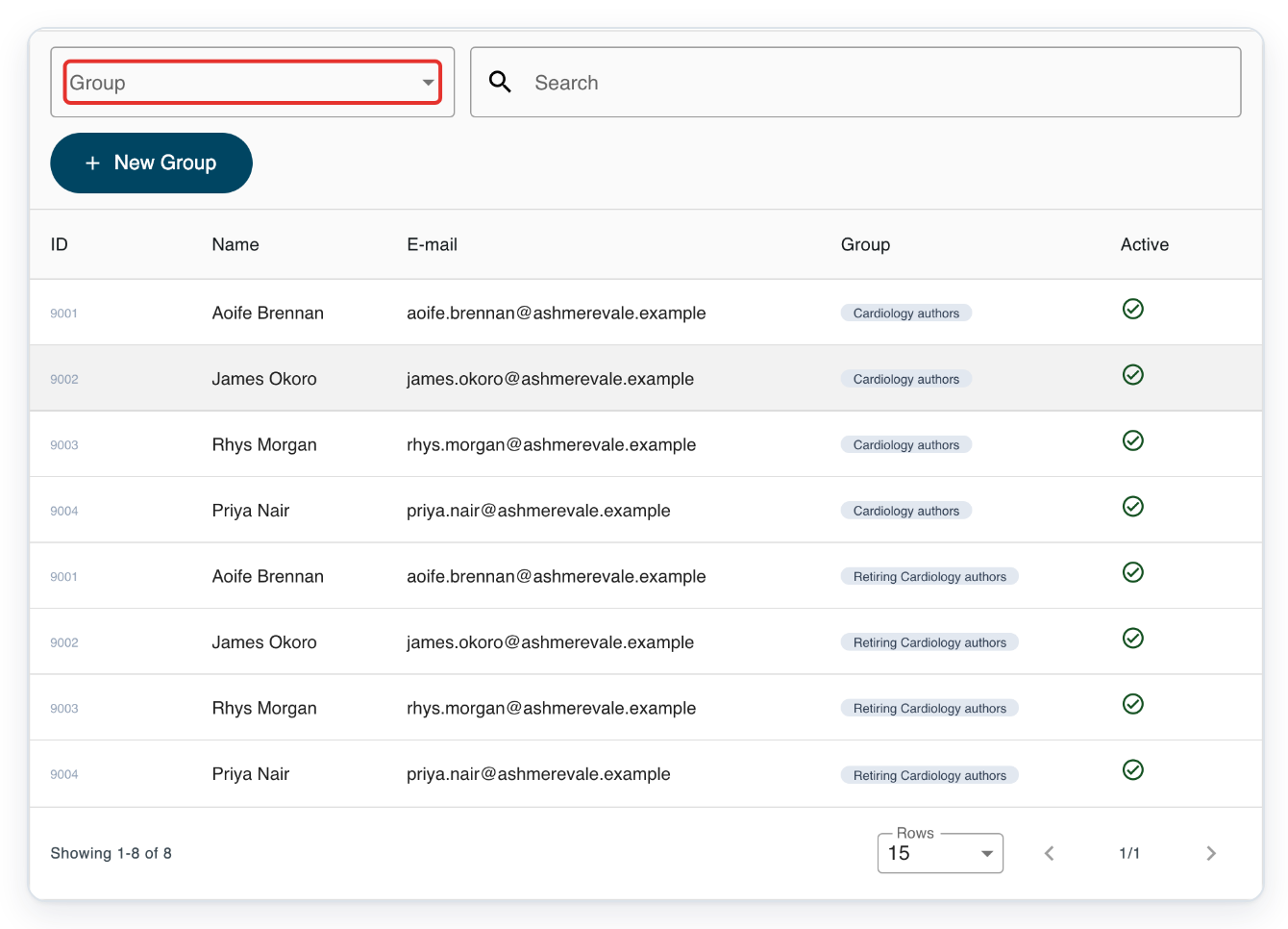
On Authors, open Group to choose a saved author group.
To create a group, follow steps 3 to 5 above. To set its speech-recognition topic afterwards, select the saved group.
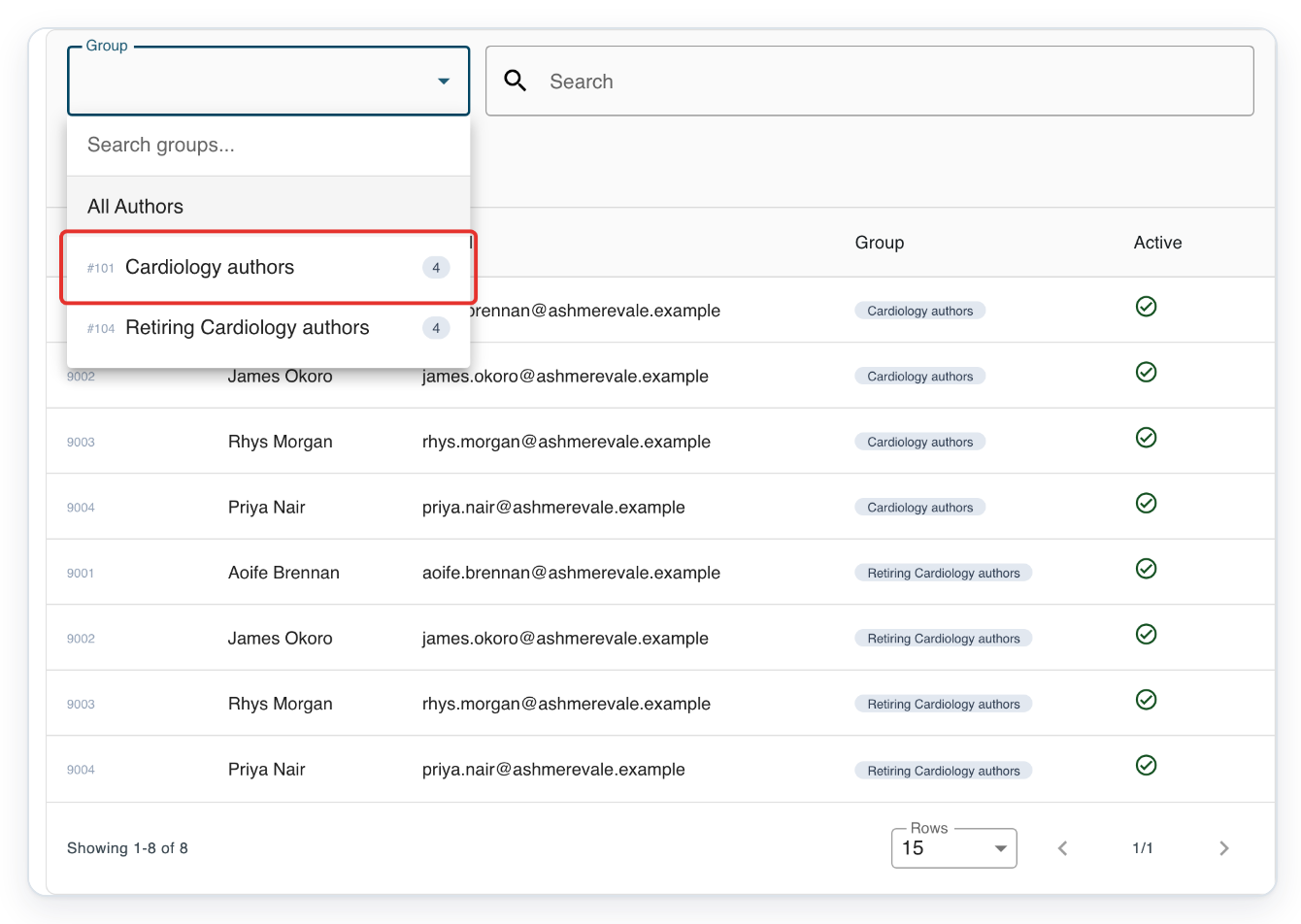
Select the author group, such as Cardiology authors.
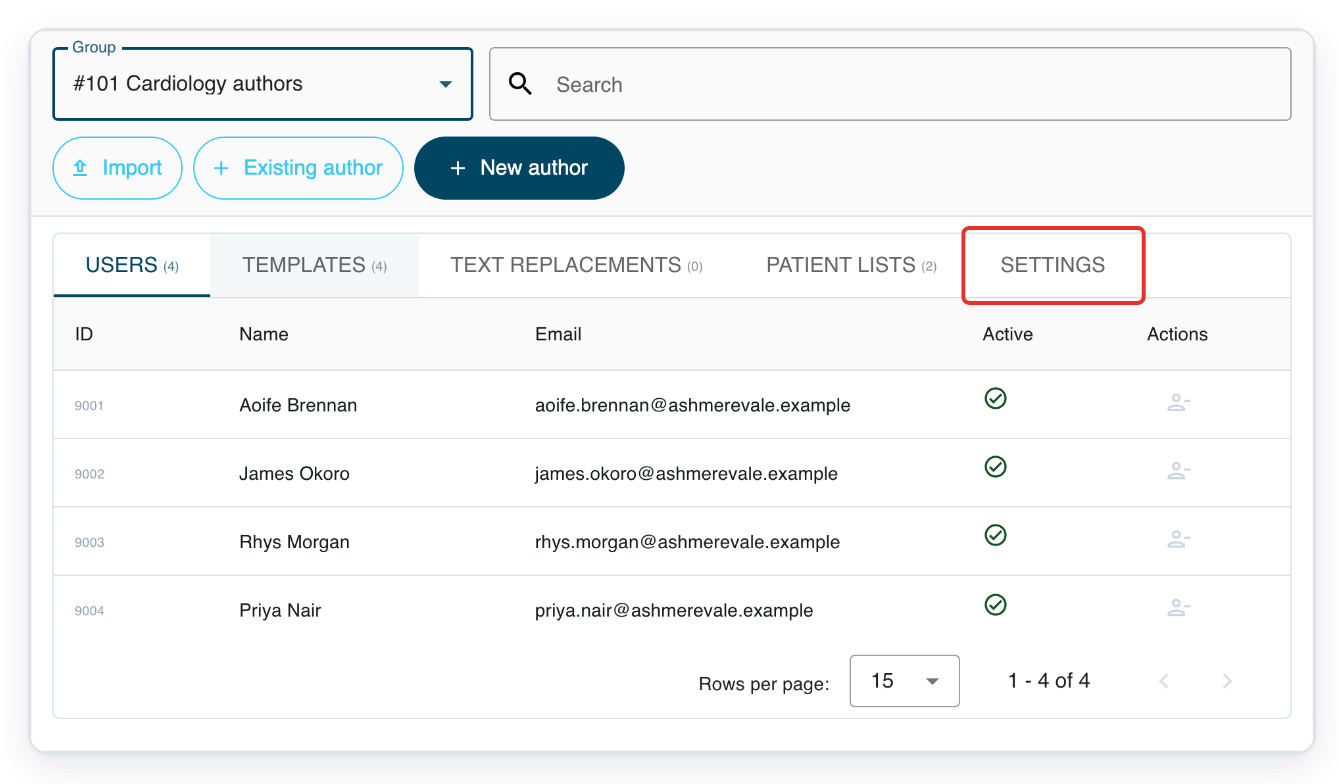
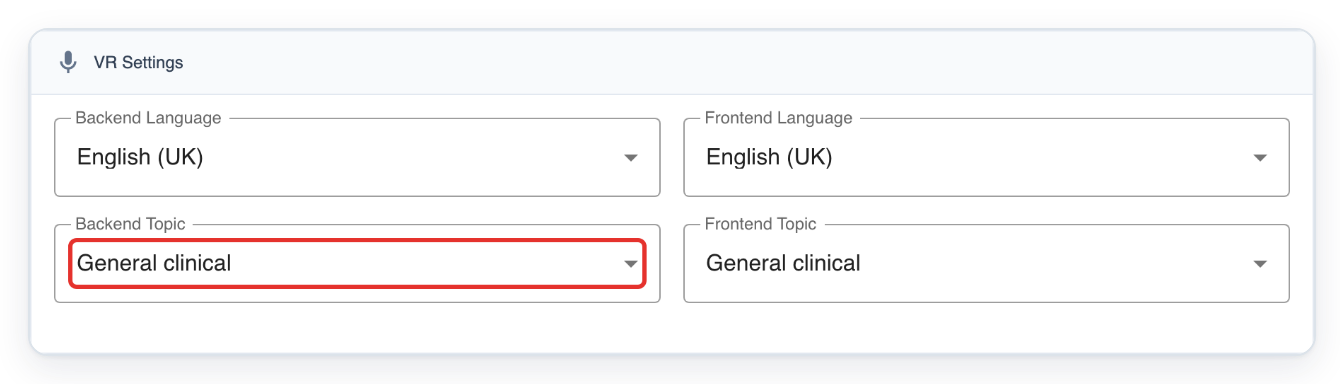
Open Settings. Under VR Settings, you can set Backend Topic and Frontend Topic for speech recognition.
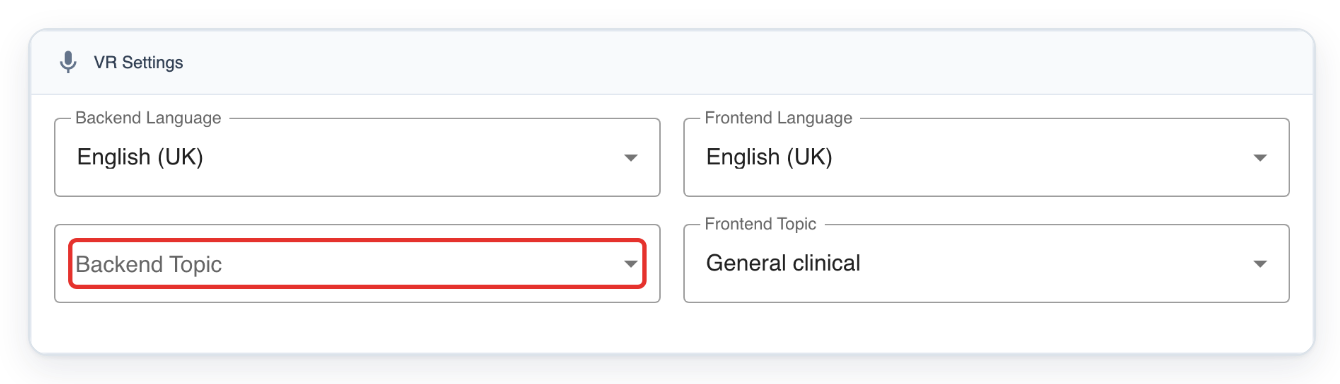
Under VR Settings, open Backend Topic to see the available topics.
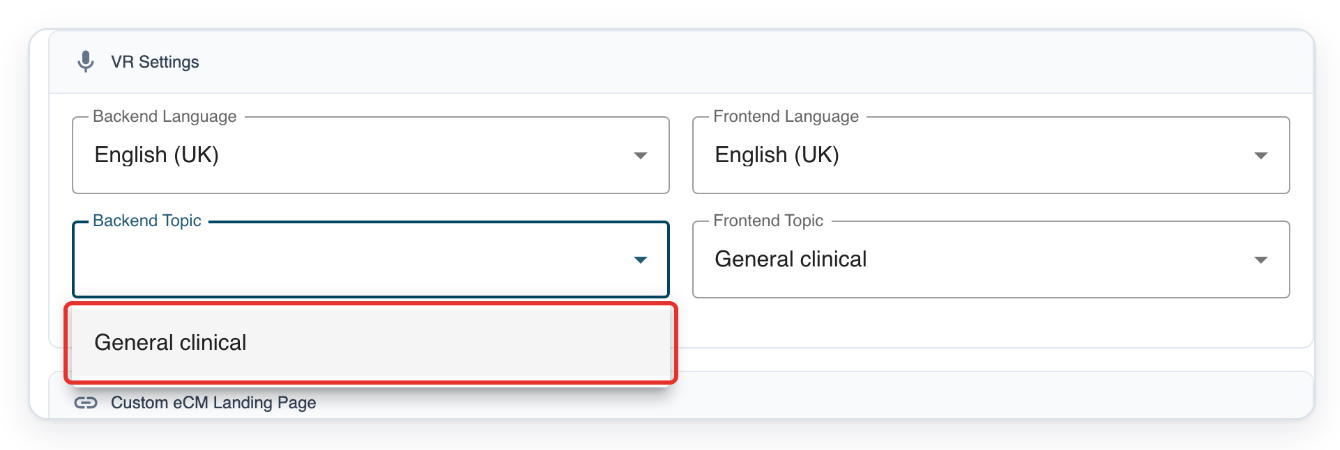
Select the topic you need, such as General clinical.
The available topics depend on your organisation’s speech settings.
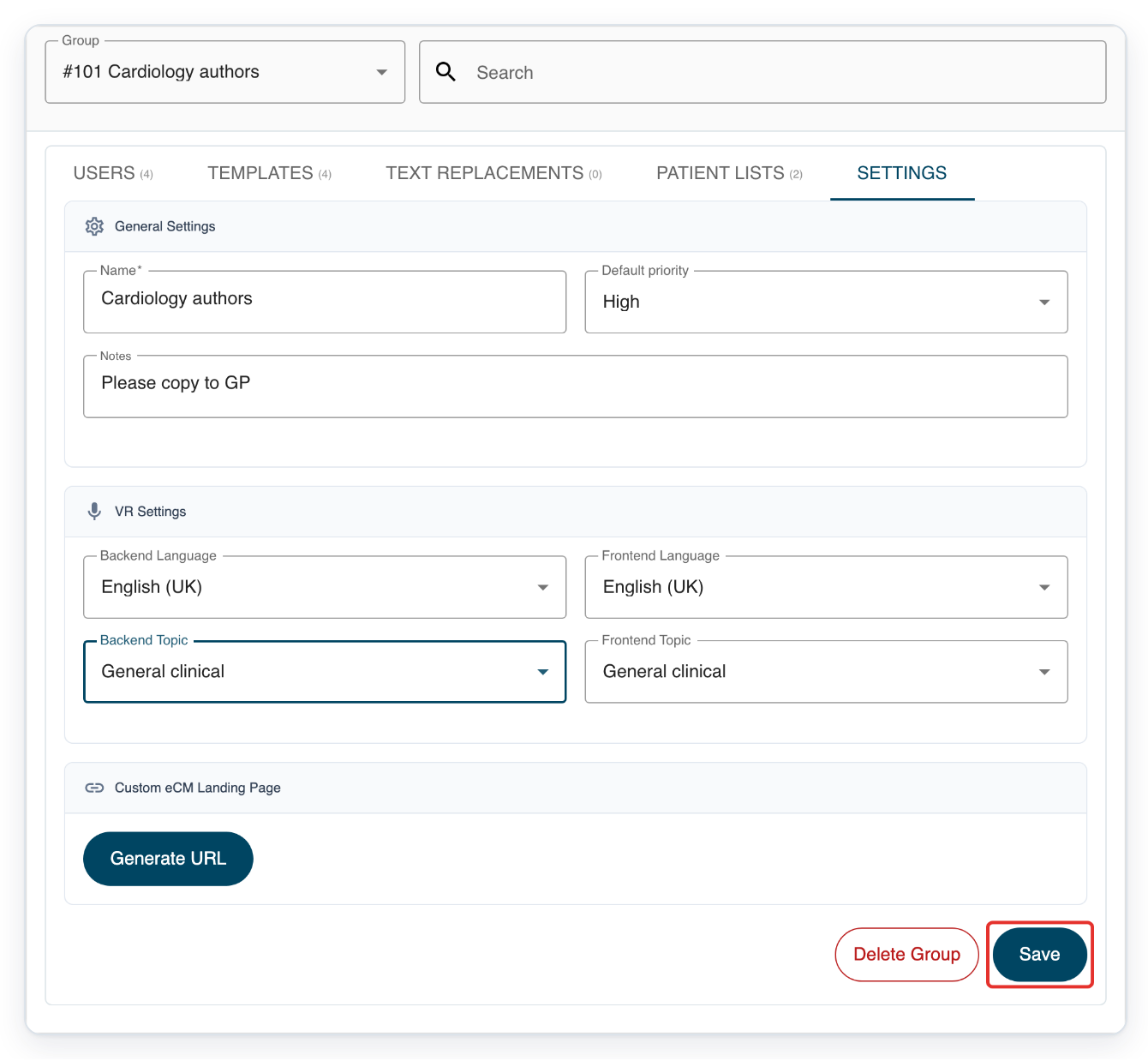
Click Save to save the author group’s speech-recognition topic.
Open Users before checking the saved settings again.
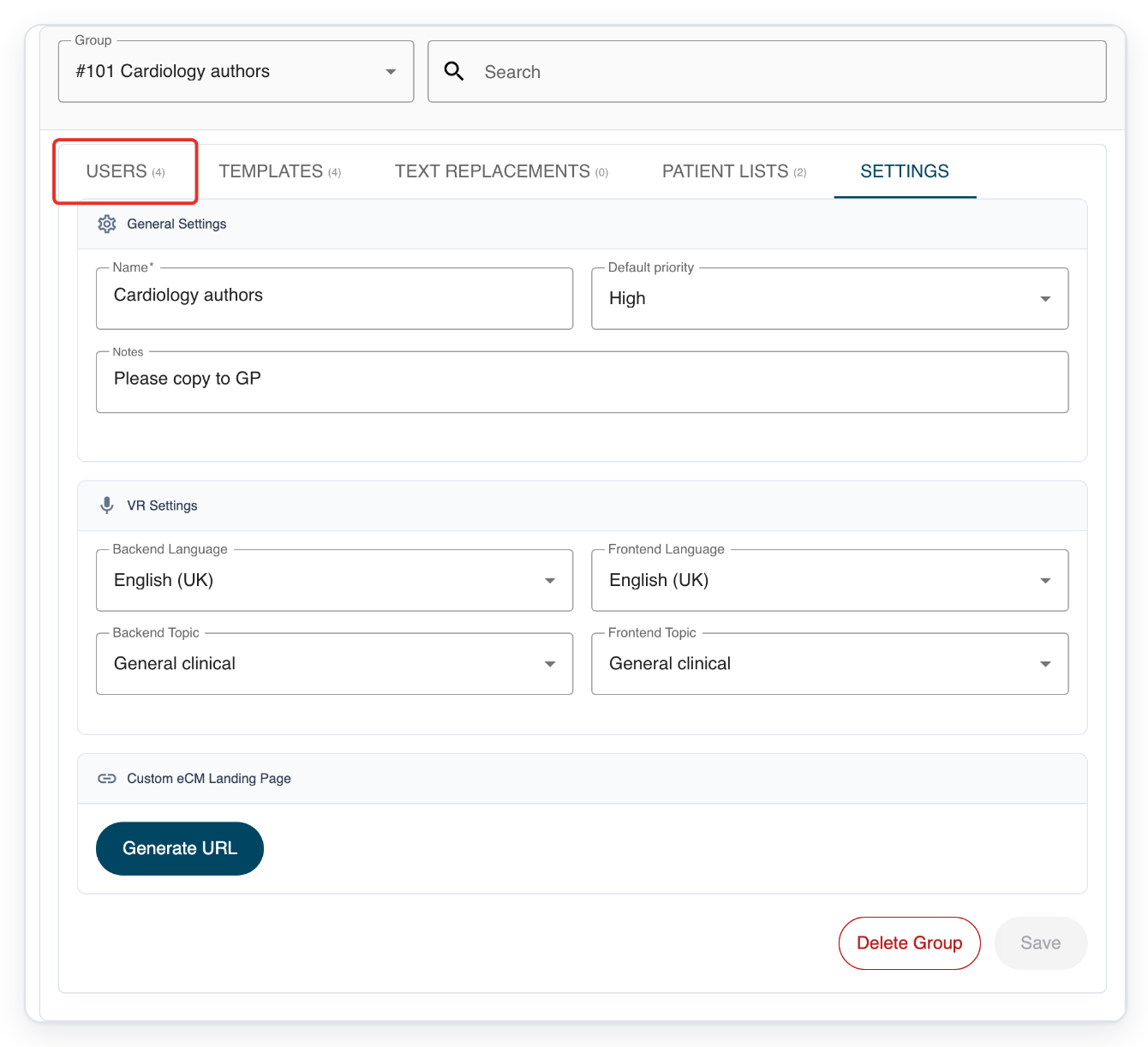
Reopen Settings to check the saved Backend Topic.
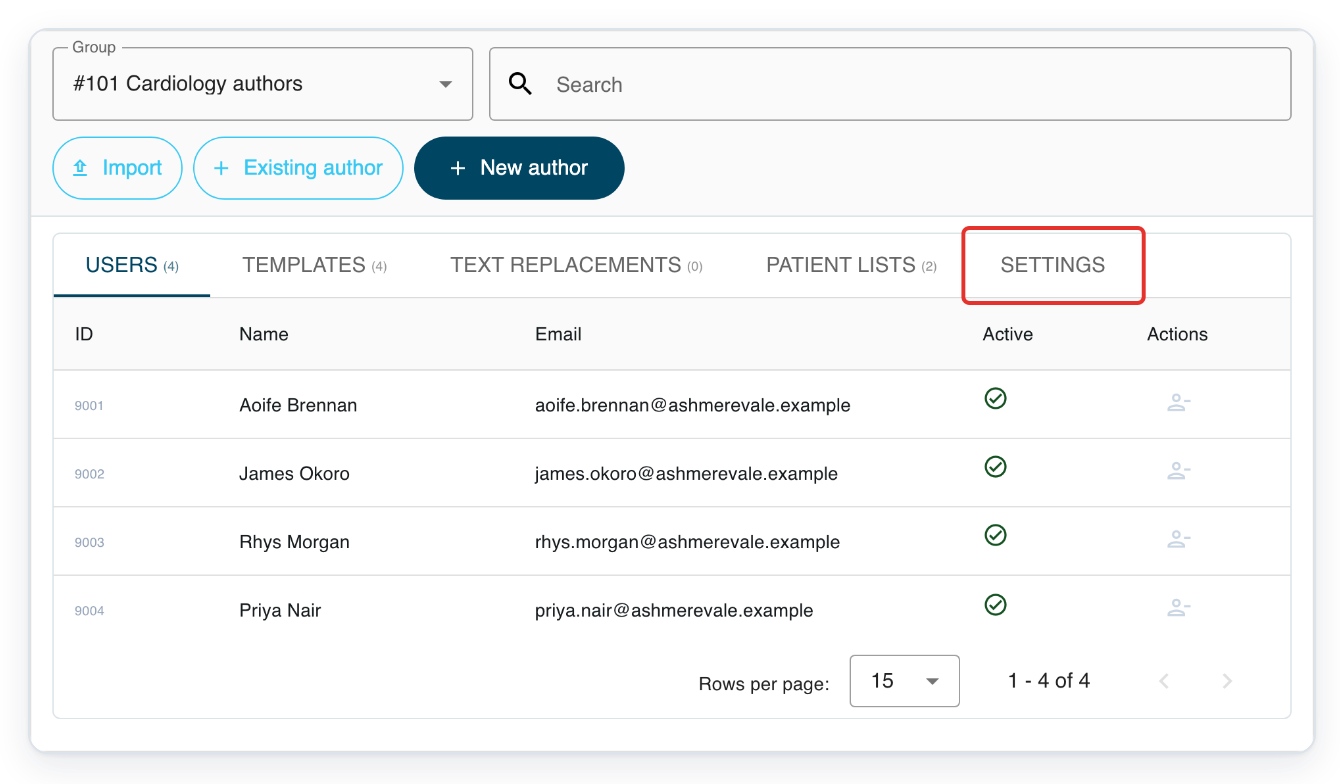
=> Backend Topic still shows General clinical. You can also choose Frontend Topic here when needed, then click Save.
NOTE:
- To create a group for other staff, open their tab and follow the same steps.
- After creating the group, select it and add the people who need to belong to it.
- For an author group, ask a master or administrator to set up its transcription route separately.
- Set speech-recognition topics after creating an author group. A master or administrator can follow steps 10 to 15 above.
Can't create a group?
A warning beside an author group means it has no transcription route assigned. Ask a master or administrator to set one up.
Hover over the warning in Group to see No transcription route assigned. Managers cannot see the New Route button.
Can't see New Group? Open Group and choose All authors, or the matching All option for your staff tab. The button appears when no individual group is selected.
Can't click Save? Enter a name with 3 to 100 characters. Keep Notes to 1,000 characters or fewer.
Does T-Pro show “Default template not found”? Ask your administrator to add a document template to the organisation. Then try creating the author group again.
Related articles
If you have any more queries, please do not hesitate to contact our Helpdesk or support@tpro.io.
© 2020 - 2026