
Before you start
You need a master or admin account with access to the department. The author group must already exist in that department.
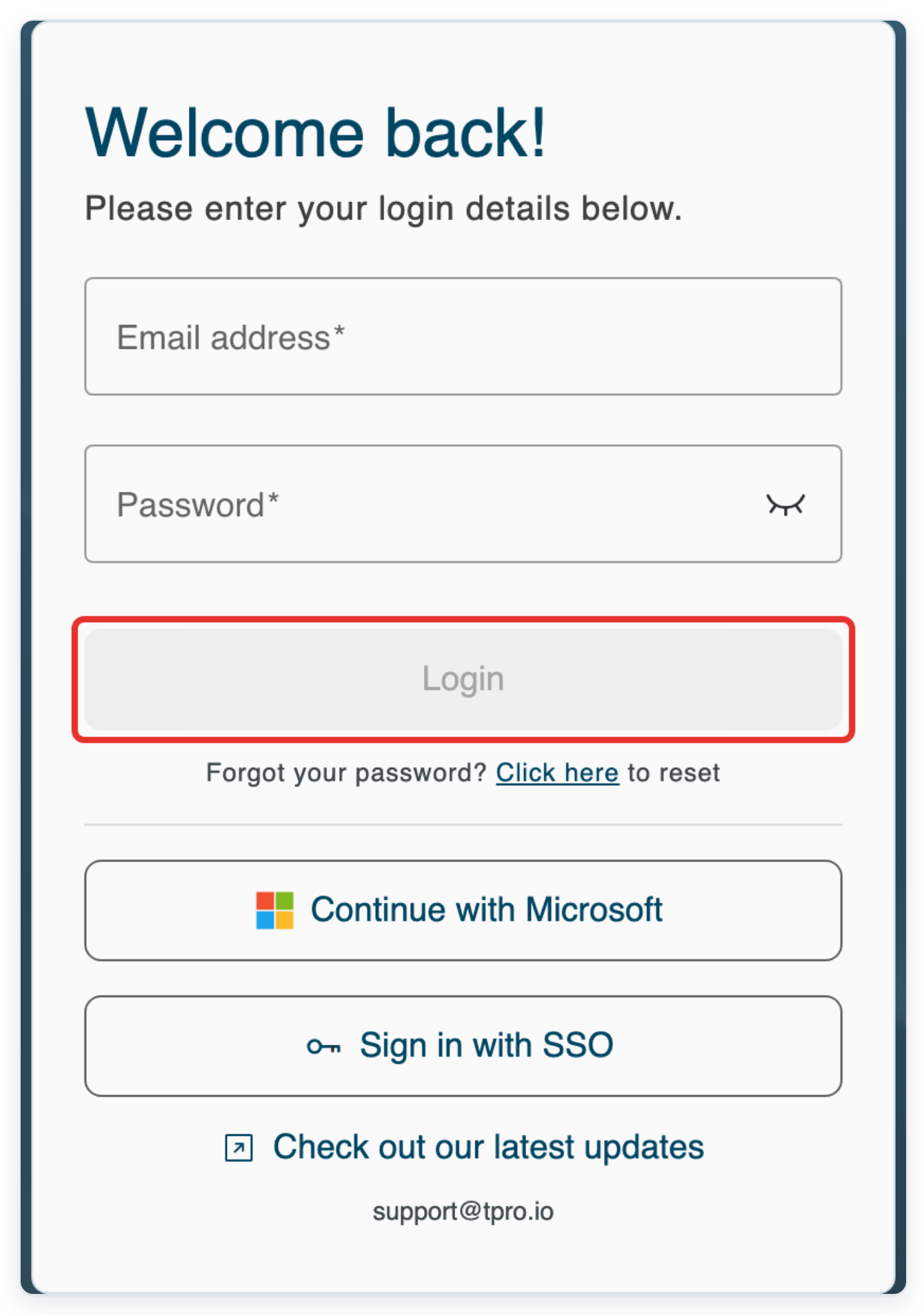
Log in to T-Pro with your master credentials.
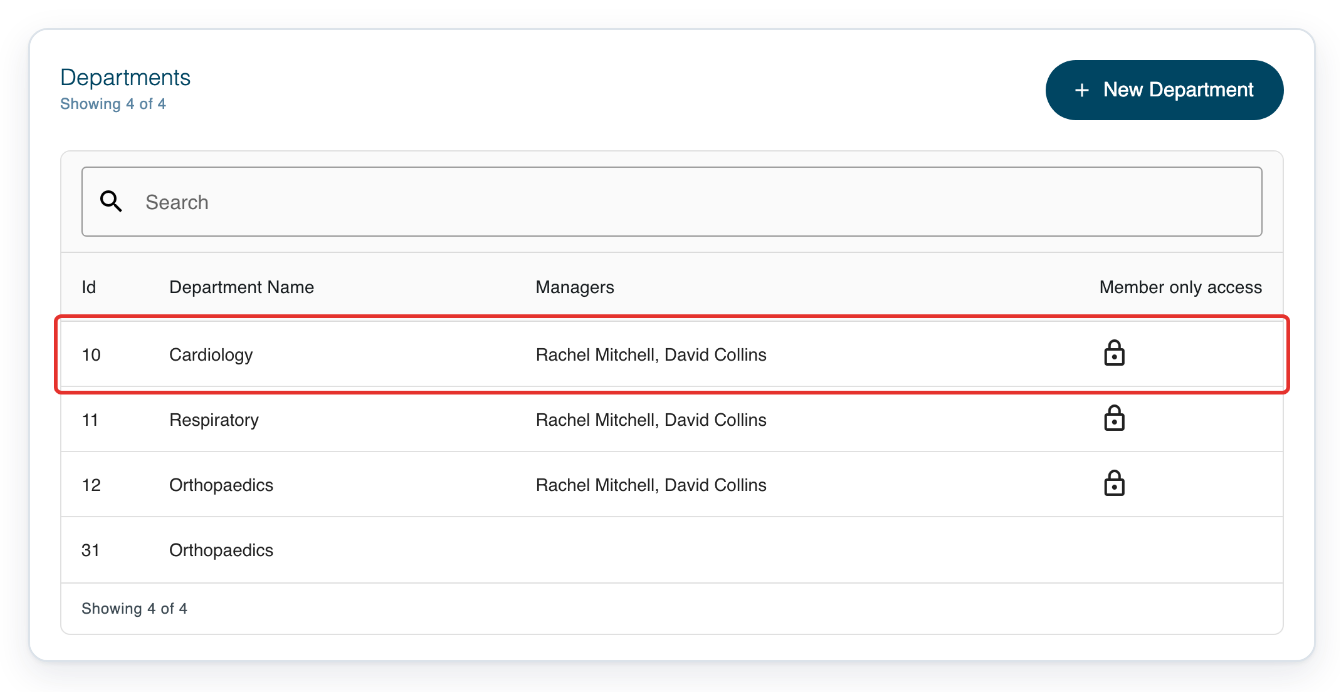
In your hospital's Departments list, click the department you need. For this example, choose Cardiology.
Select Transcription Routes with your keyboard, then press Enter to open the department's routes.

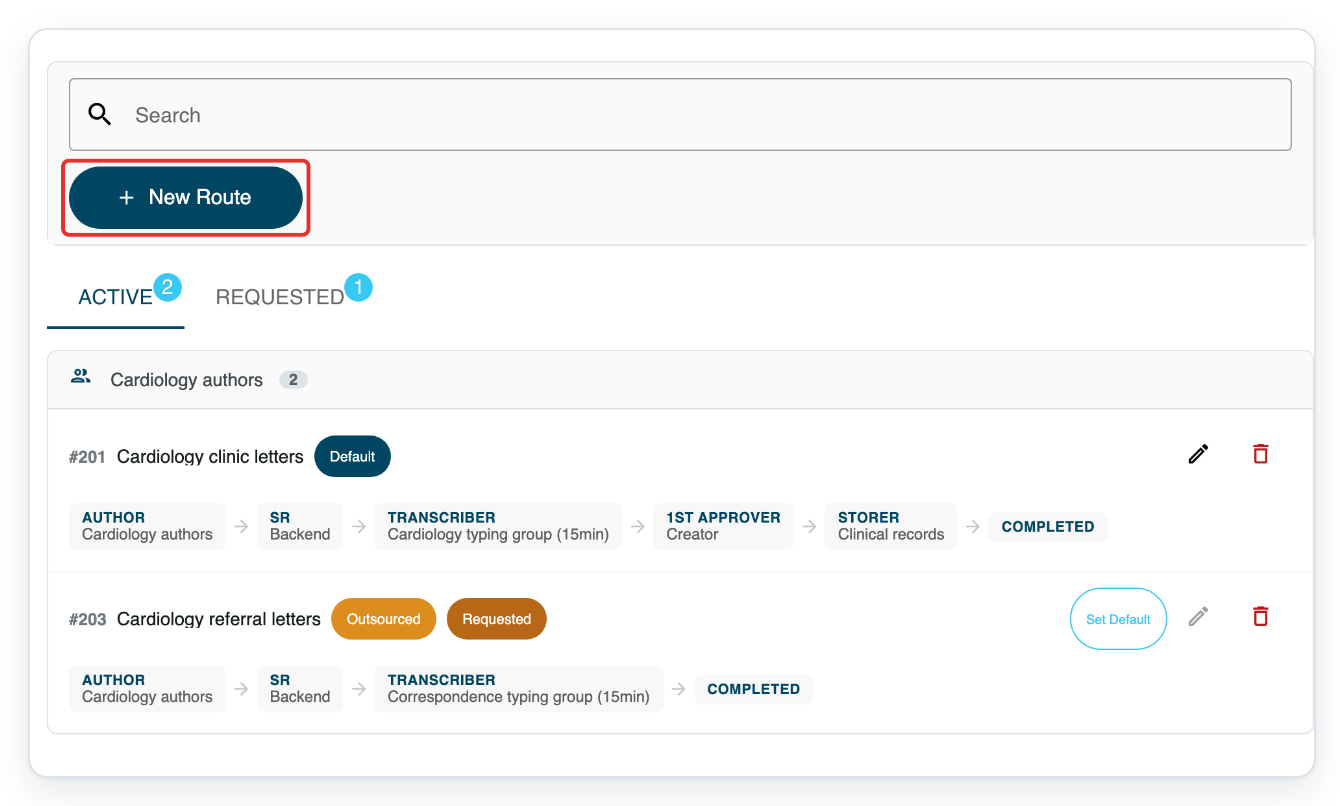
Click New Route. The New Transcription Route window opens.
Enter Cardiology discharge summaries in Transcription Route Name.
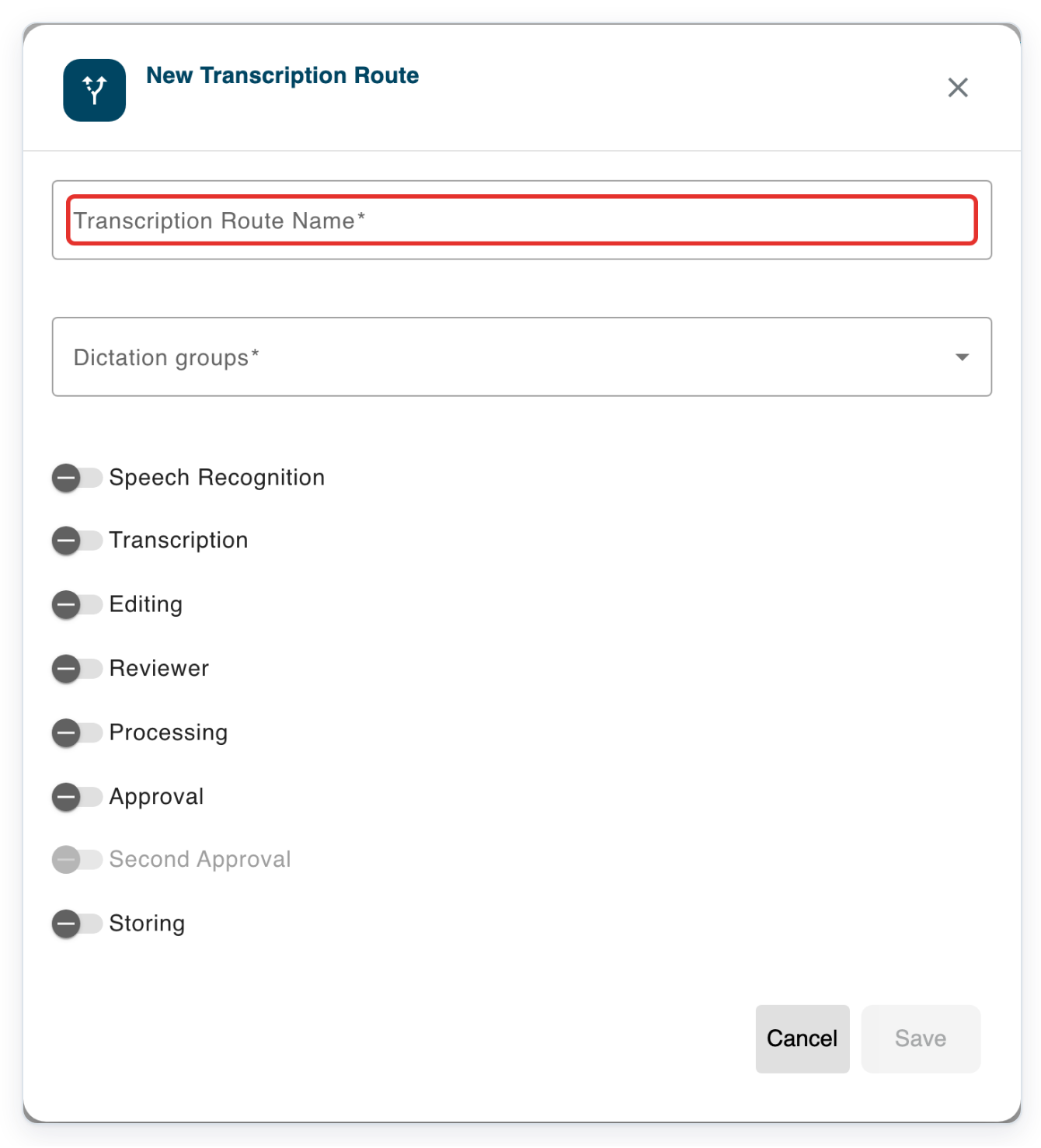
Open Dictation groups to choose the author group that will use this route.
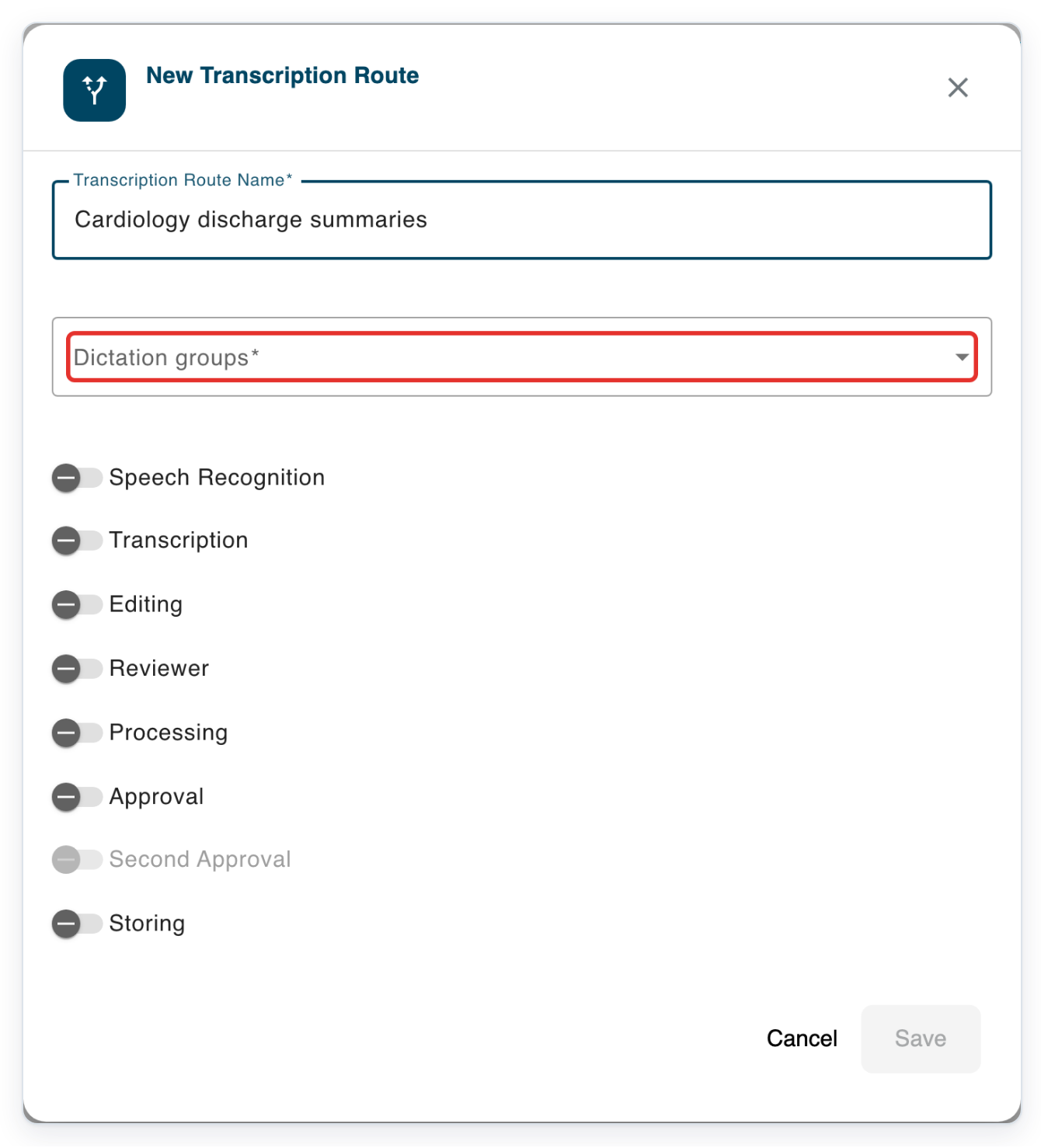
Choose Cardiology authors or the author group you need.
This example has no typing stage. Choose an author group with no existing route or request.
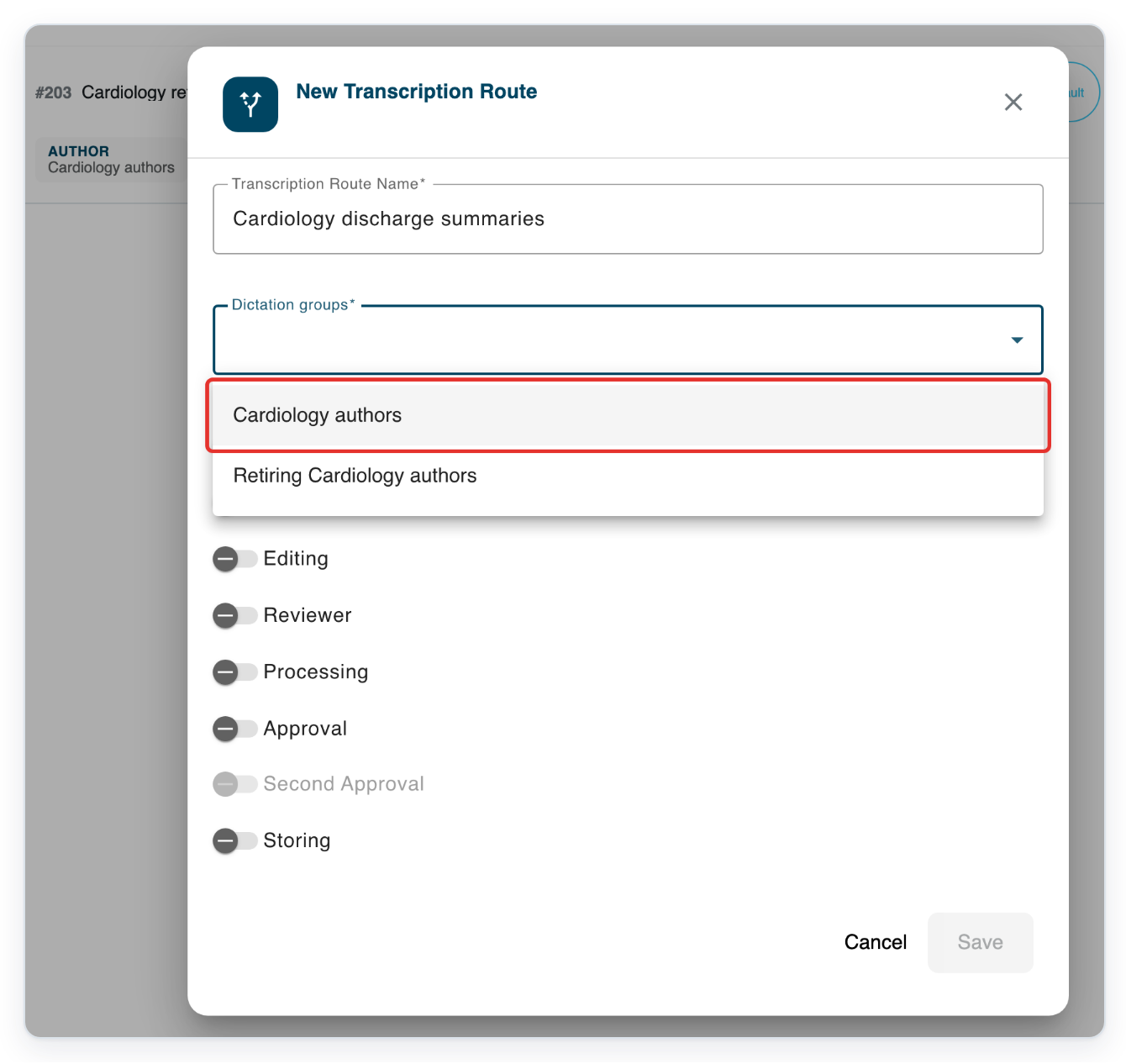
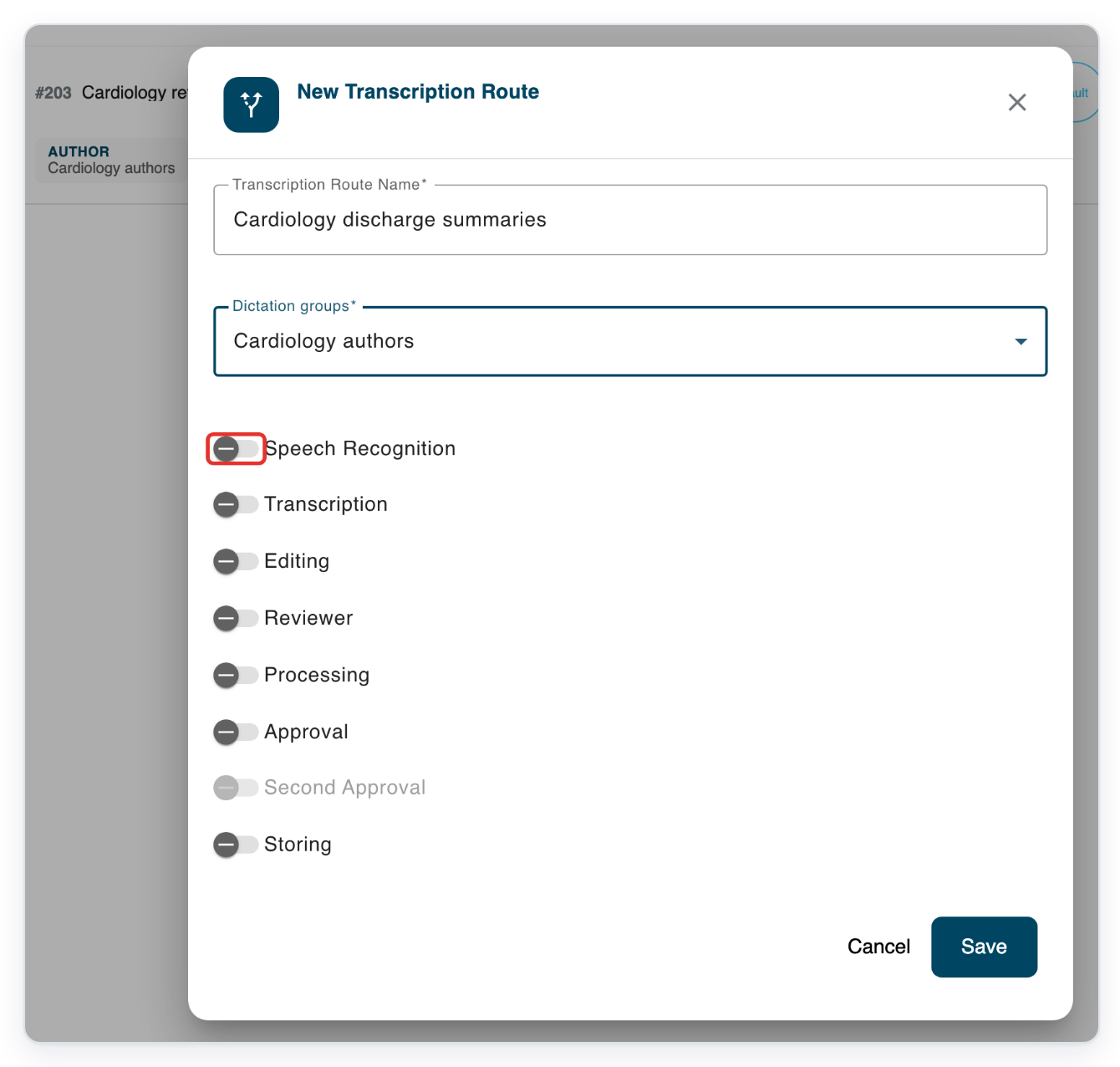
Turn on Speech Recognition.
If your organisation has enabled it, Backend smart dictation also appears. Leave it off for this example.
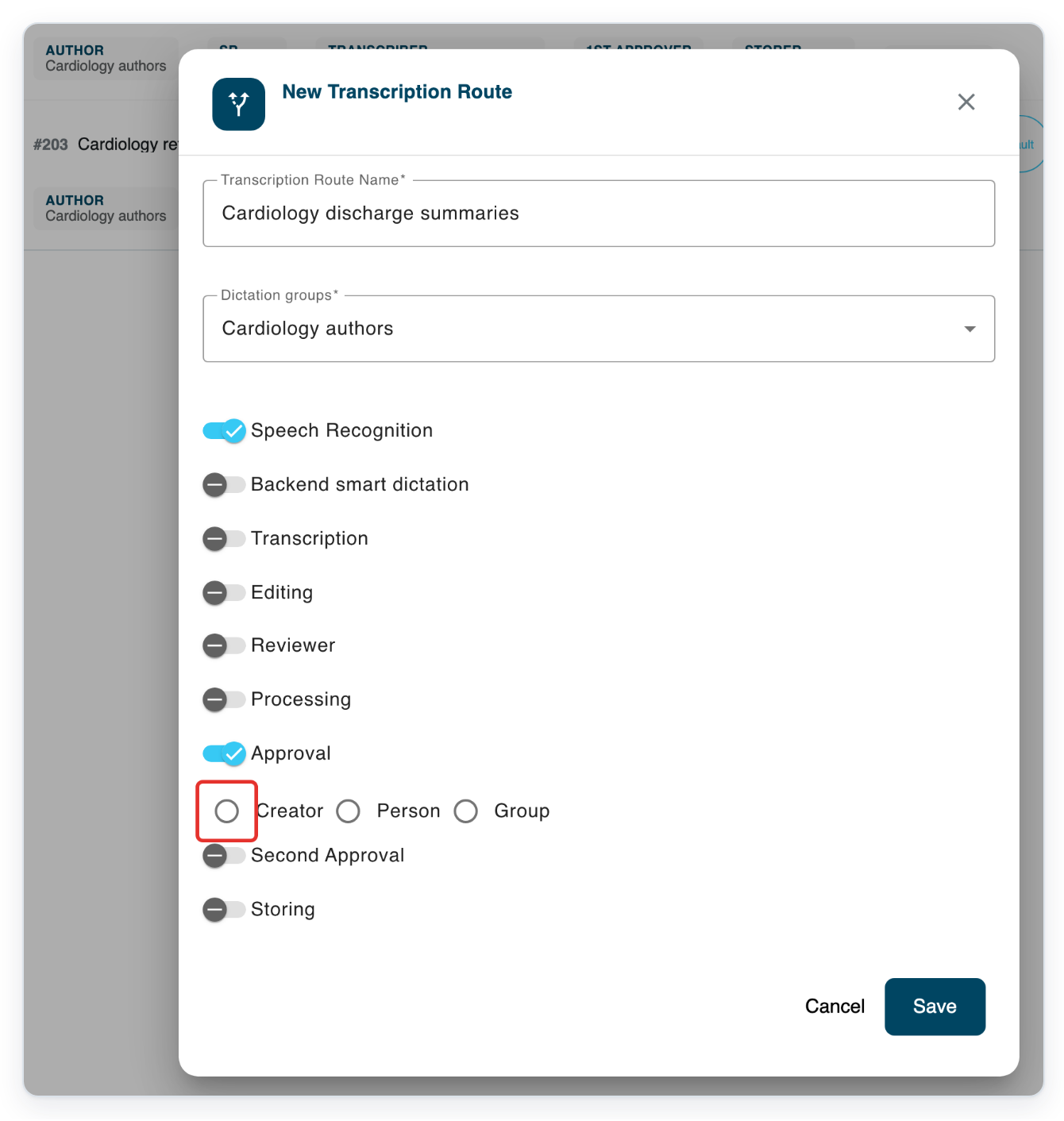
Turn on Approval. Creator, Person and Group appear as approval choices.
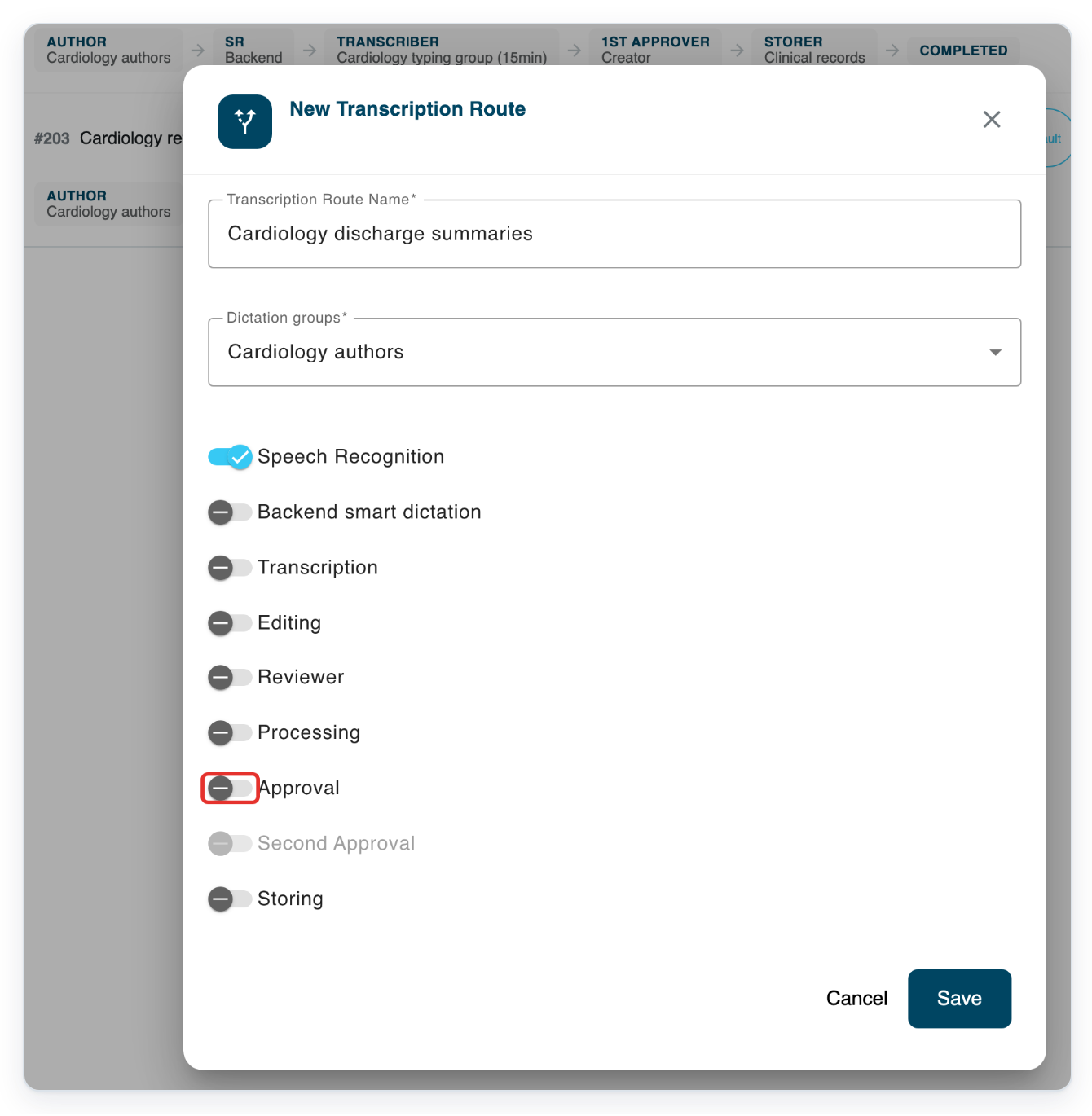
Choose Creator for approval.
Approval goes to the task's chosen approver, or to its author if no approver is set.
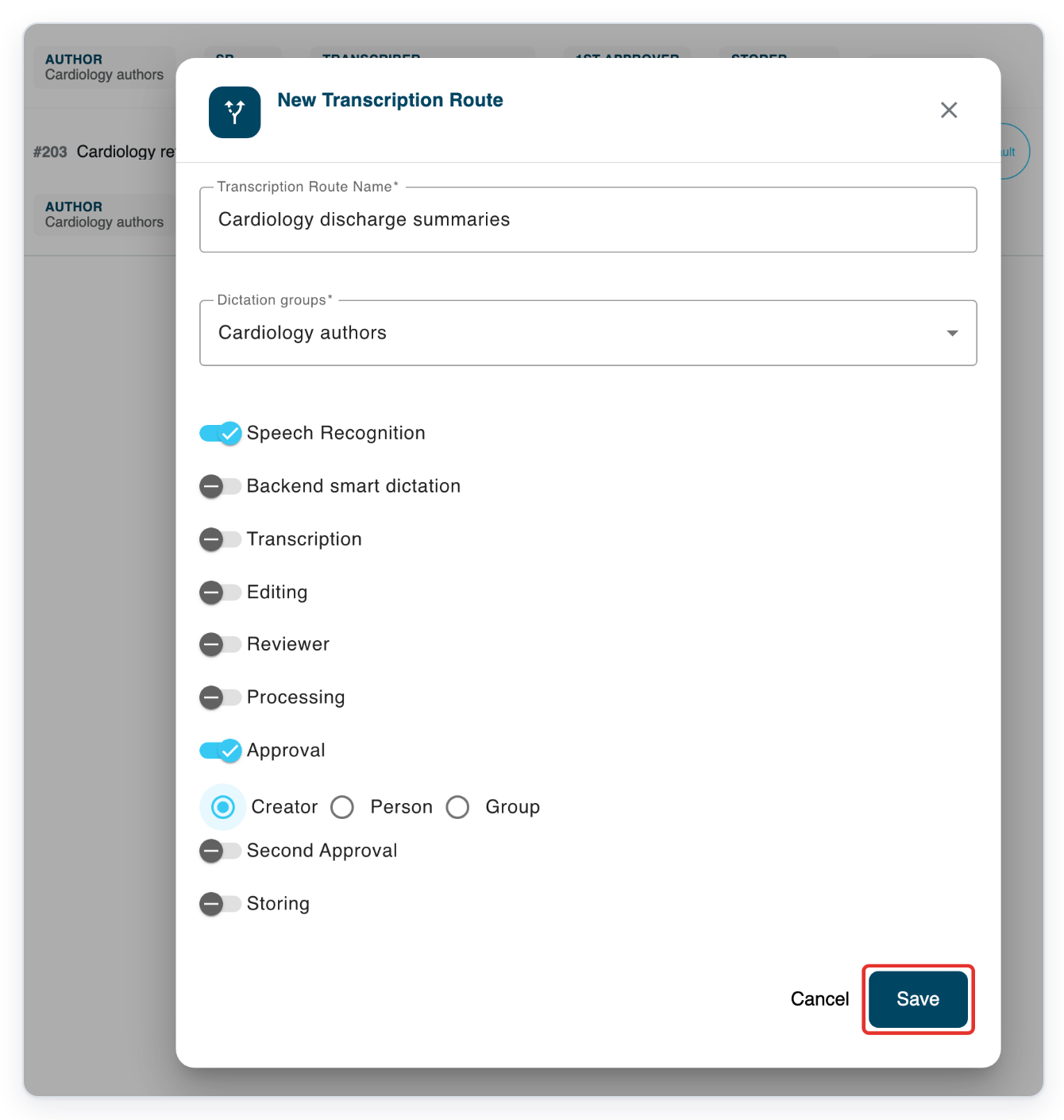
Click Save to create the route.
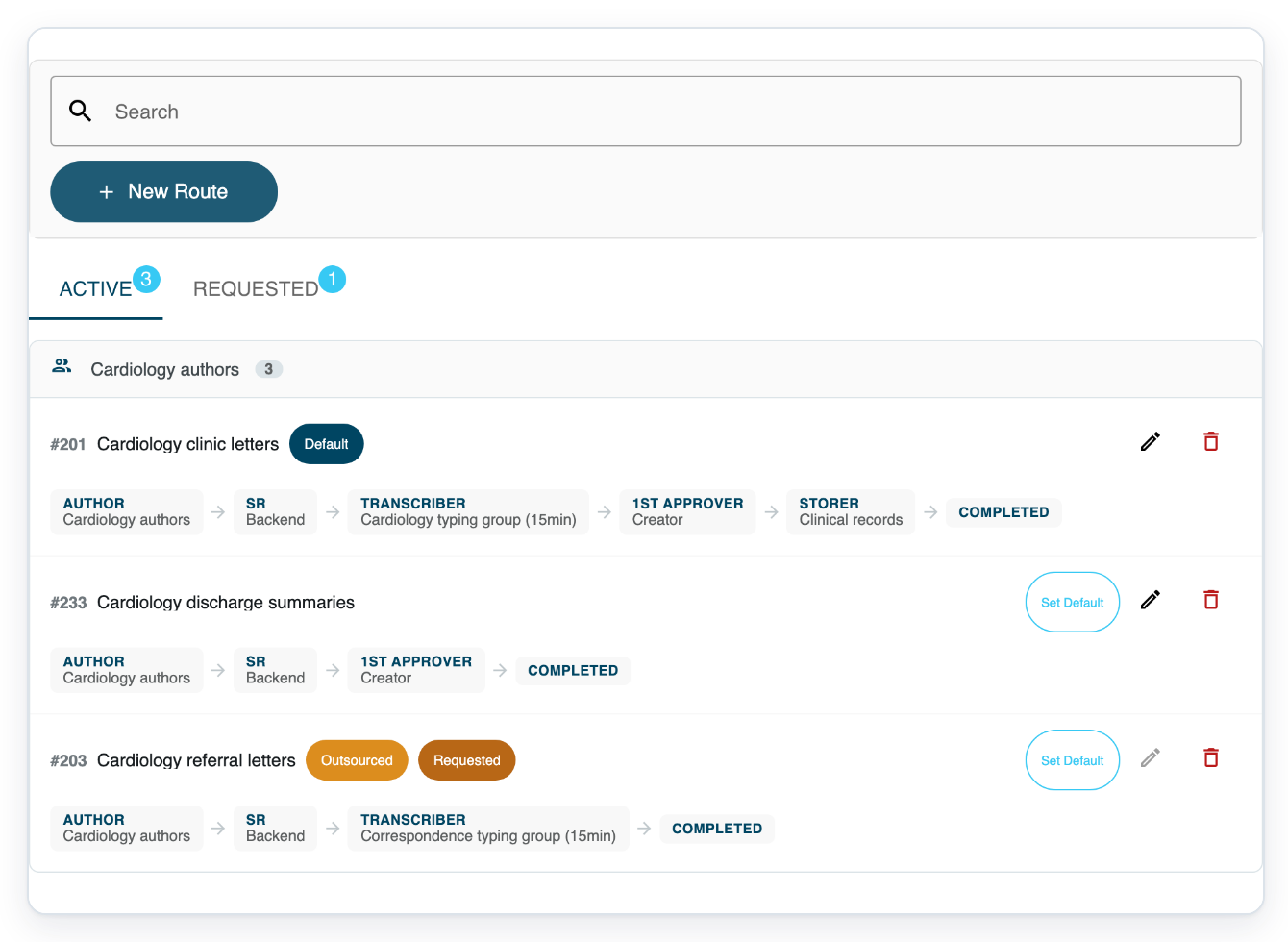
=> The saved route appears with the active routes. Each card shows its workflow stages and the groups or people assigned to them.
NOTE:
- The first active route becomes the author group's default if the group has no default route.
- An author group can have multiple routes with different typing groups. You cannot repeat the same author and typing group combination. A route without a typing group must be the group's only route.
What each route option does
| Route option | What it does |
|---|---|
| Speech Recognition | Adds speech recognition to the route. Processing also depends on your organisation's speech settings and whether speech recognition is on for the author. |
| Backend smart dictation | Uses AI to turn speech-recognised text into a draft letter. Your organisation must have speech recognition and backend smart dictation turned on. |
| Transcription and Age In Minutes | Assigns a typing group. Set how many minutes a new task waits before appearing in that group's pending queue. |
| Editing | Adds an editing stage for the selected editor group after typing. |
| Reviewer and the review percentage | Assigns a reviewer group. The percentage sets each task's chance of being selected for review. Tasks marked for review still go through this stage. |
| Processing and the processing percentage | Adds a processing stage before approval for the selected group. The percentage sets each task's chance of being selected for processing. Tasks marked for review also go through this stage. |
| Approval: Creator, Person or Group | With Creator, approval goes to the task's chosen approver, or to its author if no approver is set. Person lets you choose someone from the author group. Group lets you choose an author group for approval. |
| Second Approval: Creator, Person or Group | Adds another approval stage with the same choices. Turn on Approval first. The second stage is skipped when both approvers are the same person. |
| Storing | Adds a storing stage for the selected group before the task is completed. |
Tip: Use Search above the active routes or in Requested to find a route by name.
Can't create a transcription route?
Looking for an outsourcing request? Click Requested to view requested routes.
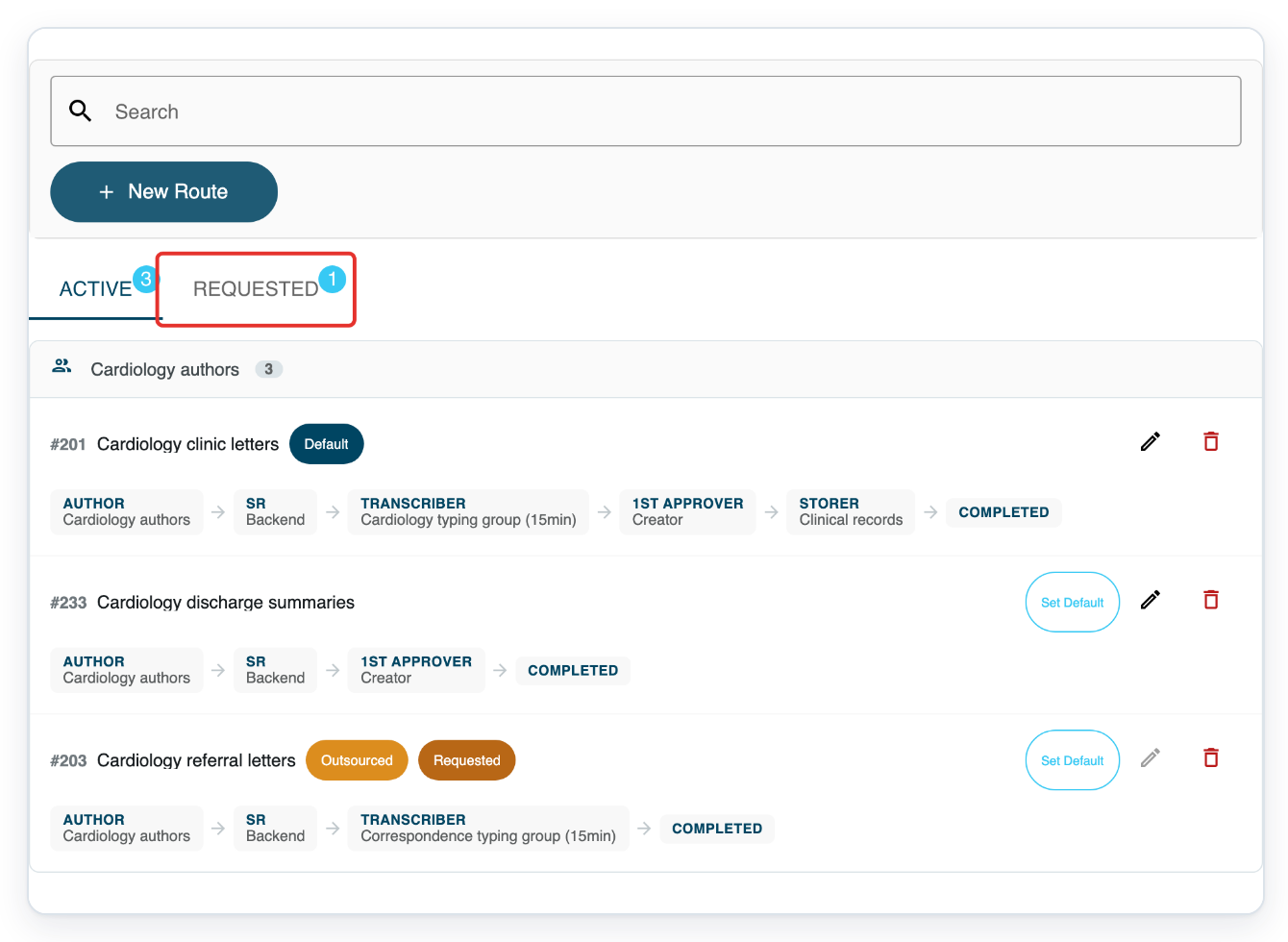
=> The tab shows the requested route and its proposed workflow.
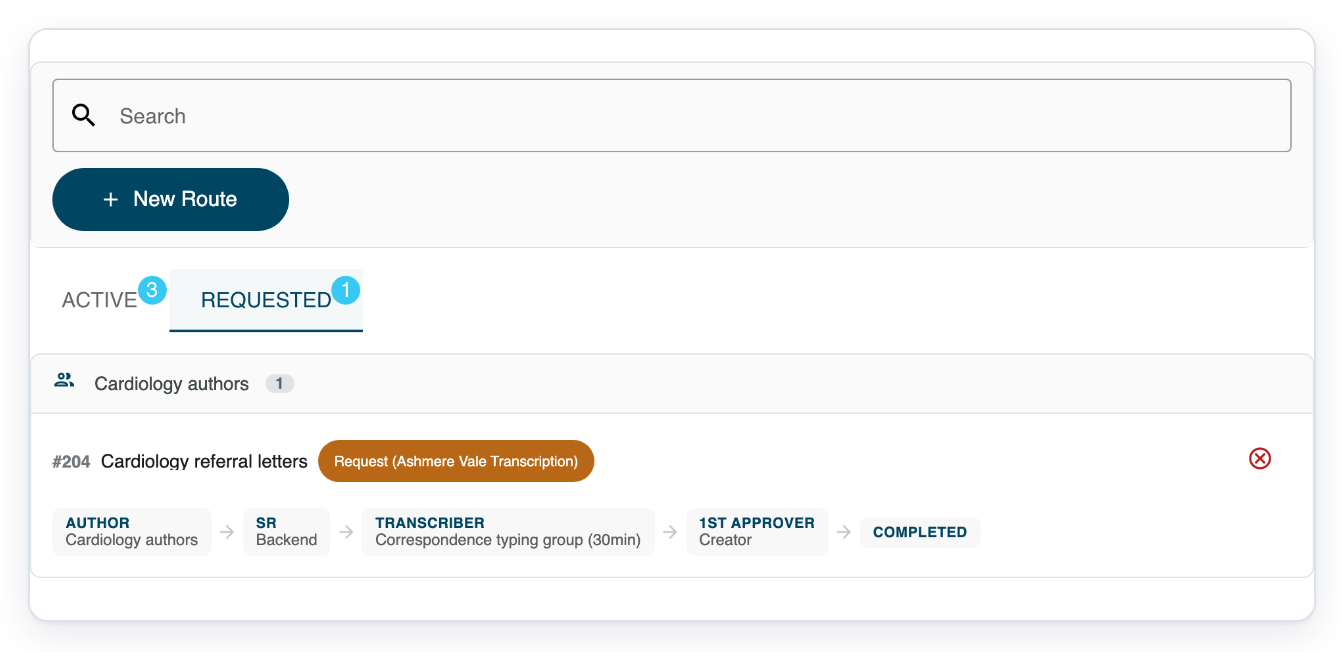
If a master chooses a transcription provider's typing group, saving creates a request instead of an active route. Check this tab before creating another request.
New Route is missing. Ask a master or admin with access to the department to create the route.
Save is unavailable. Enter a route name and choose a dictation group. If you chose Person or Group, choose the person or group for each approval stage.
An existing route or request stops you creating a route. Check the author and typing groups against the rules above. A master cannot create another route or request for the same author group and transcription provider. Use the existing route or choose a different combination that follows these rules.
Speech Recognition or Backend smart dictation is missing. Ask your admin to check your organisation's speech settings. Backend smart dictation also needs Speech Recognition turned on in the route.
Second Approval is unavailable. Turn on Approval first.
Related articles
- Create a new group
- Add existing users to a group
- Task statuses in V2
- Department settings, processors and text replacements
If you have any more queries, please do not hesitate to contact our Helpdesk or support@tpro.io.
© 2020 - 2026