
Before you start
Have your account's sign-in details ready. If you're a master, you can only create and delete tokens for your own account.
Log in to T-Pro with your manager, master or admin credentials.
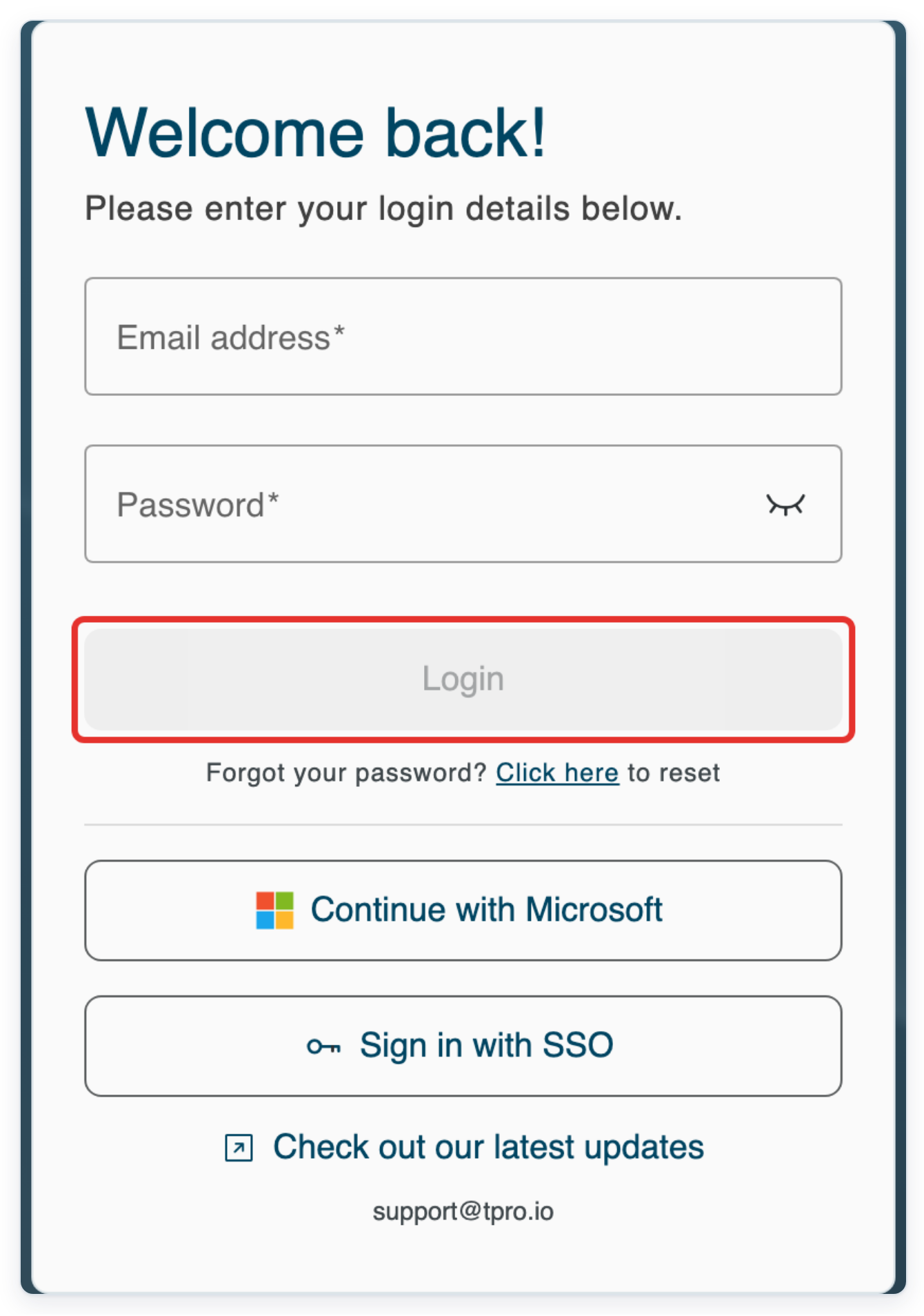
Enter your Email address and Password, then click Login.
Manage your own API tokens
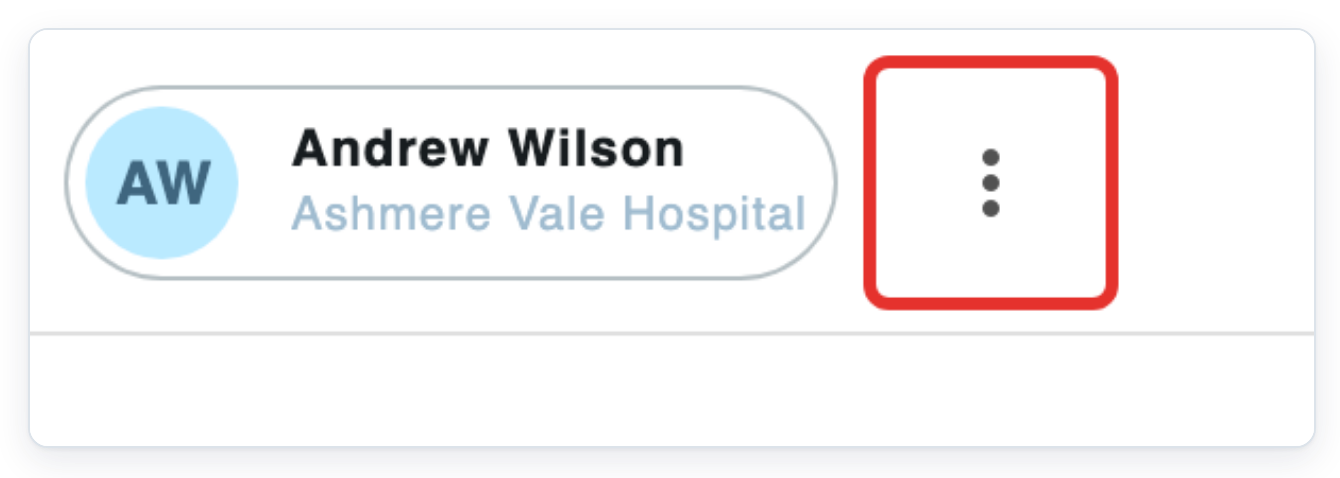
Open the three-dot menu beside your account name.
Your account name is at the top right, beside your initials or profile picture. Your organisation appears underneath. The three-dot button beside your name opens your account menu.
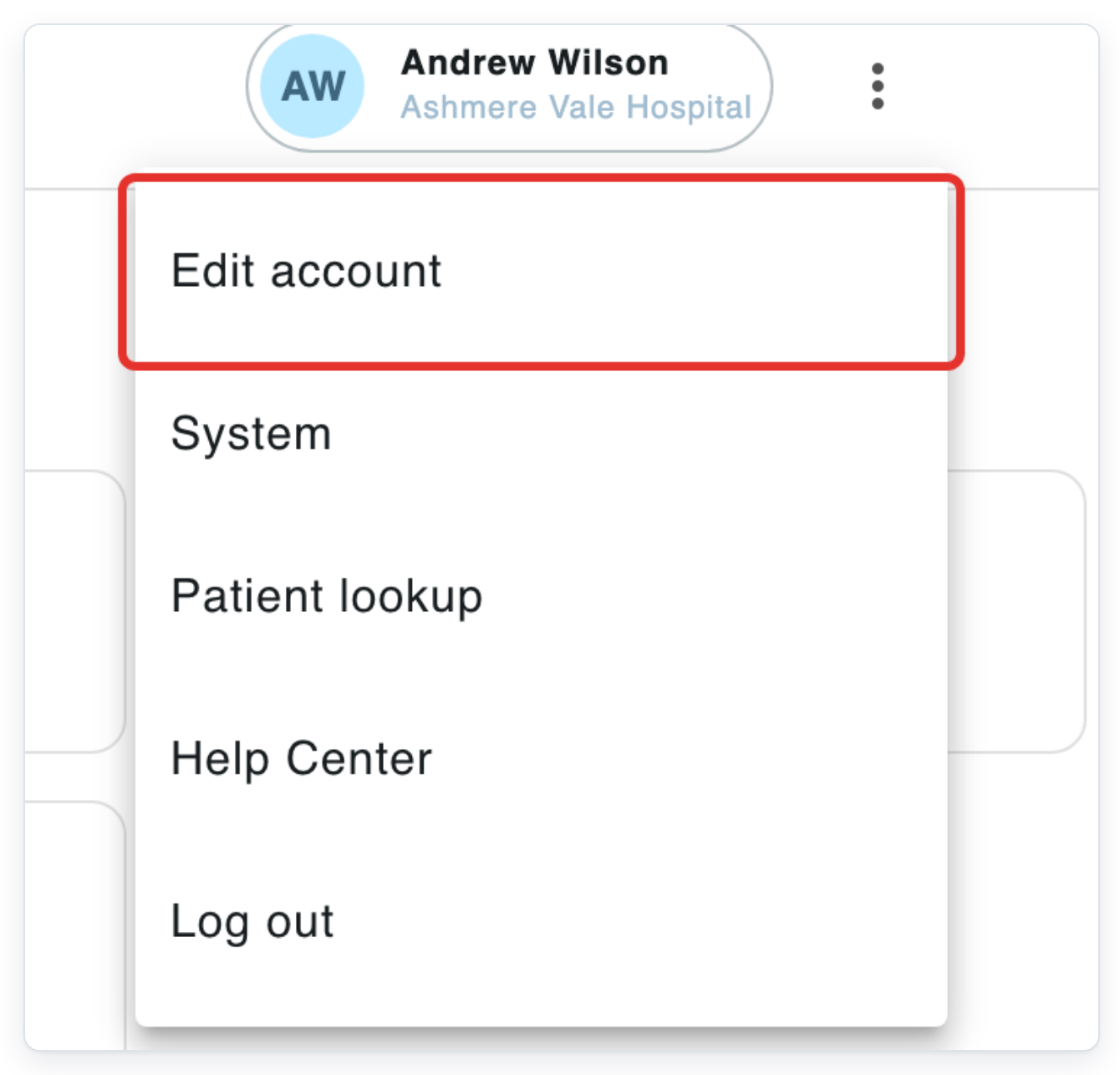
Click Edit account to open your account details.
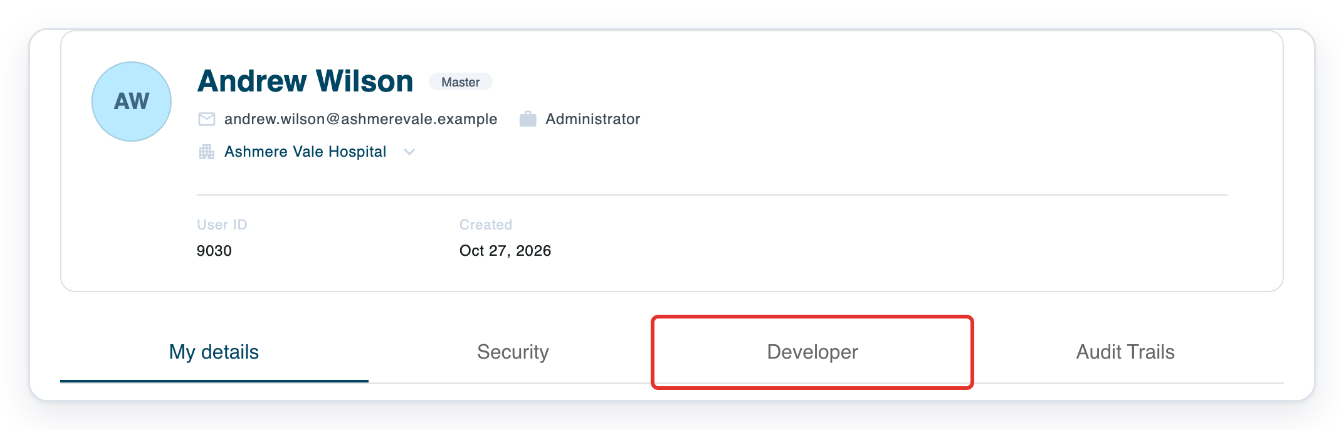
Your account opens on My details. Check the name, email address and role at the top. Make sure this is the account you want to manage.
Click Developer to open API Tokens.
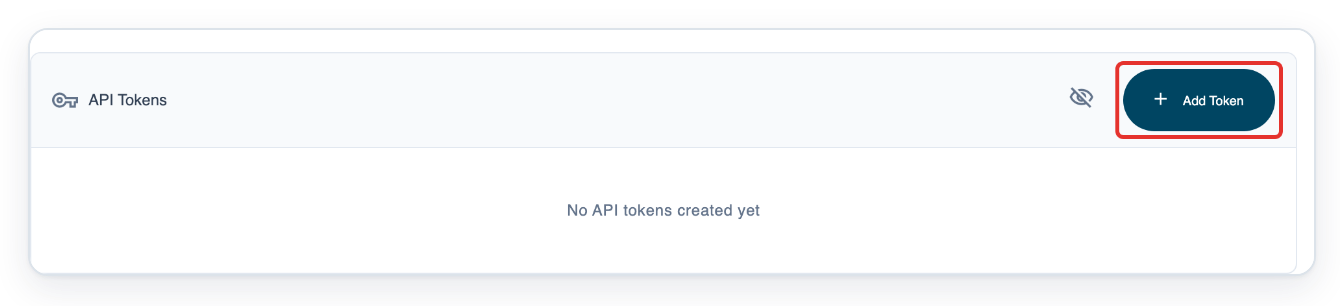
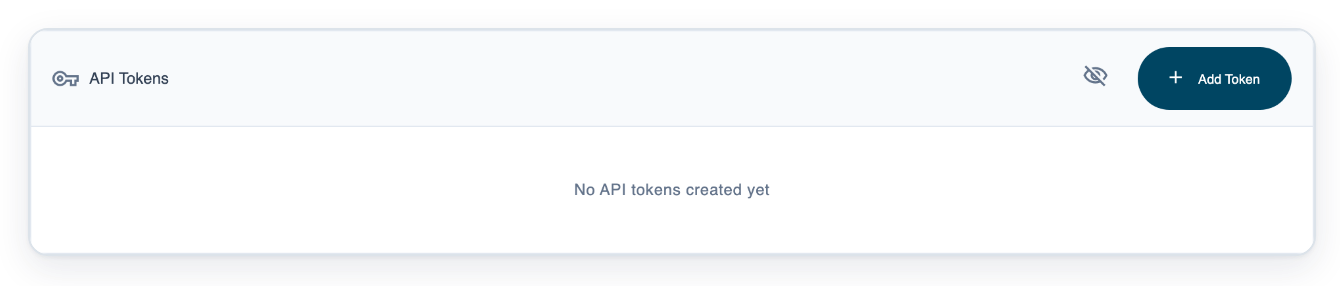
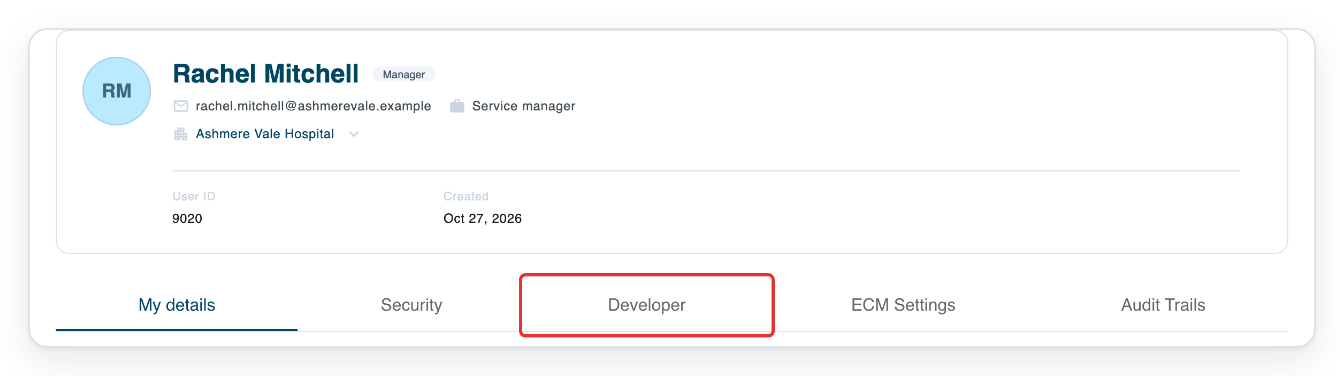
The tabs are below your account details. Developer is beside Security. If the account has no tokens, the panel shows No API tokens created yet. Your saved tokens appear here when you return to the tab.
Click Add Token to create an API token for your account.
The button is at the top right of the API Tokens panel. T-Pro saves the token and adds it to the list. Each token has its own row. Another system can use the token to access T-Pro through your account.
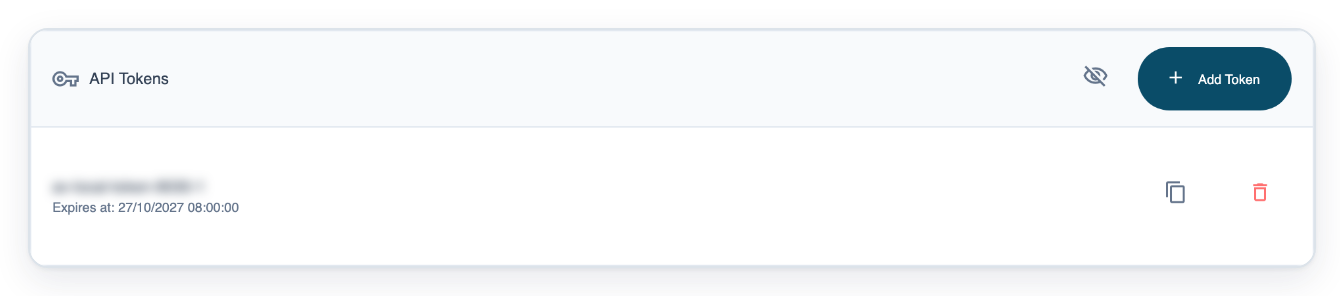
=> The token appears blurred, with its expiry date underneath. Copy and delete buttons appear on the right of its row.
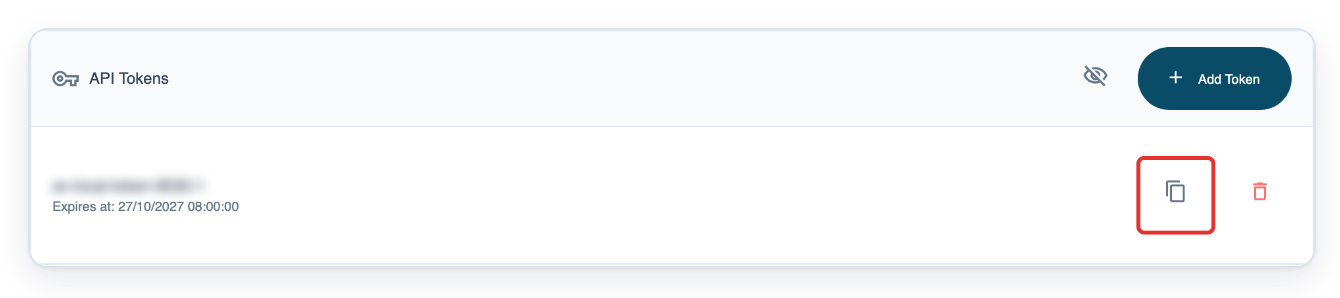
Click the copy button beside the token.
Look for two overlapping rectangles to the left of the bin. This button copies the full token, even when it's blurred. If you have two tokens, use the copy button in the row for the token you need. You can return to Developer to copy the token again.
=> T-Pro shows Copied to clipboard.

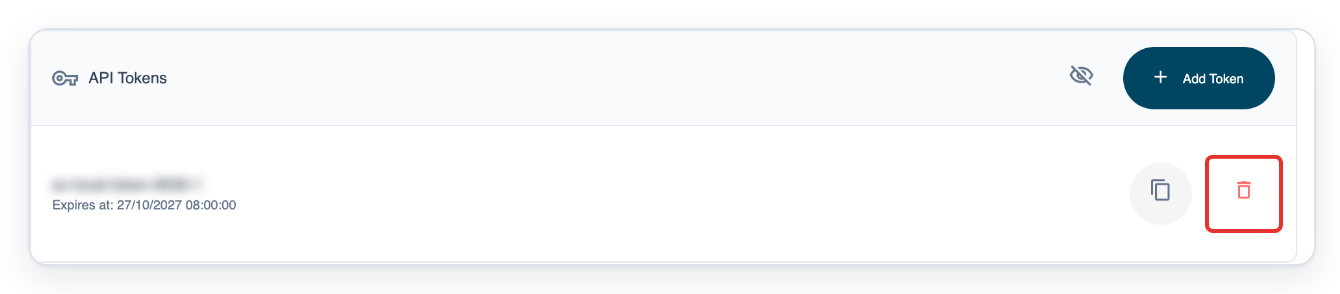
To delete a token, click the delete button beside it to open the confirmation.
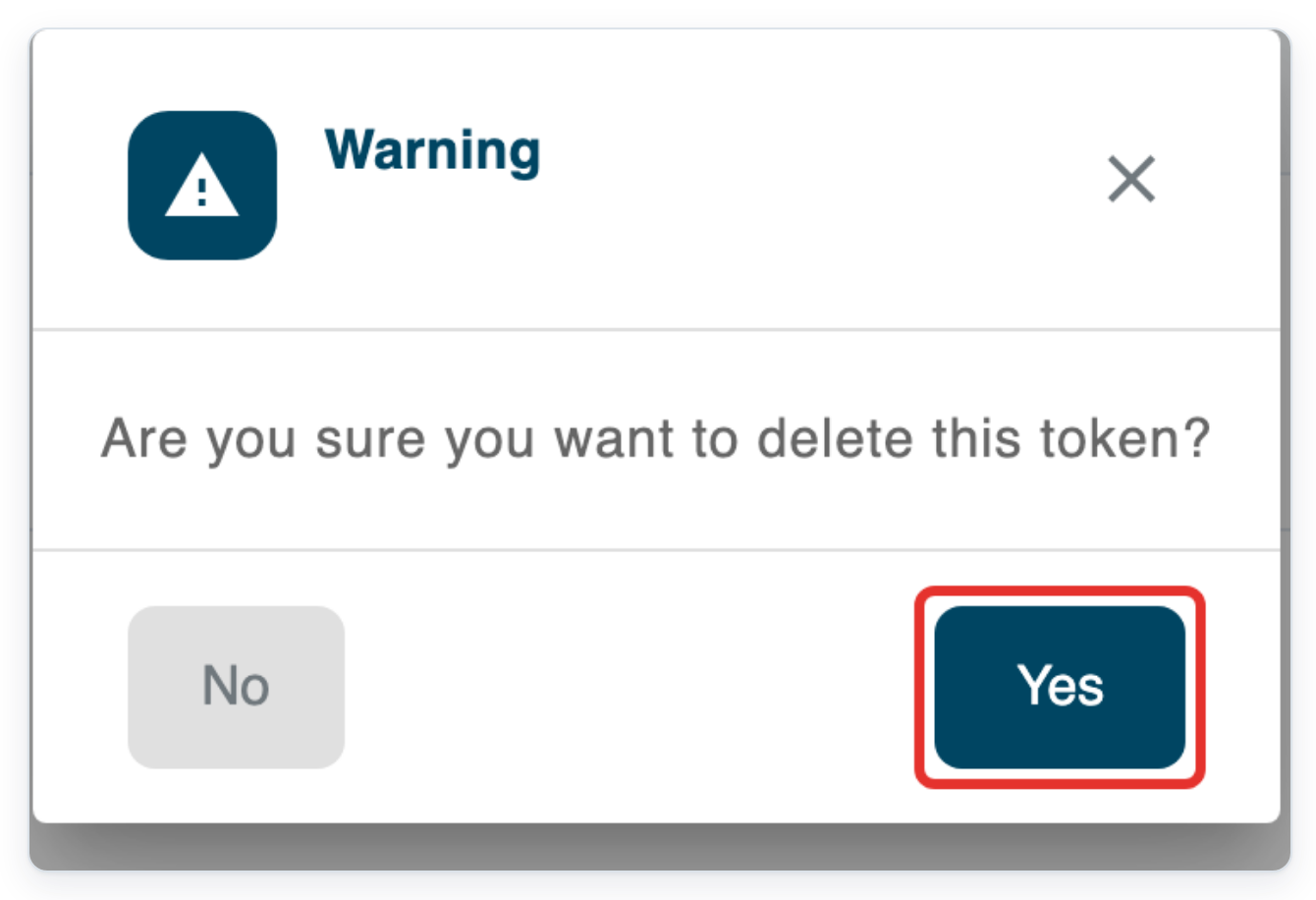
Use the bin in the row for the token you want to delete. A Warning dialog opens. It asks Are you sure you want to delete this token?
Click Yes to delete the token.
To keep the token, click No or close the dialog with the cross. The list updates when you delete a token.
=> The token disappears from the list. If you deleted your account's last token, API Tokens shows No API tokens created yet.
As a master, copy a manager's API token
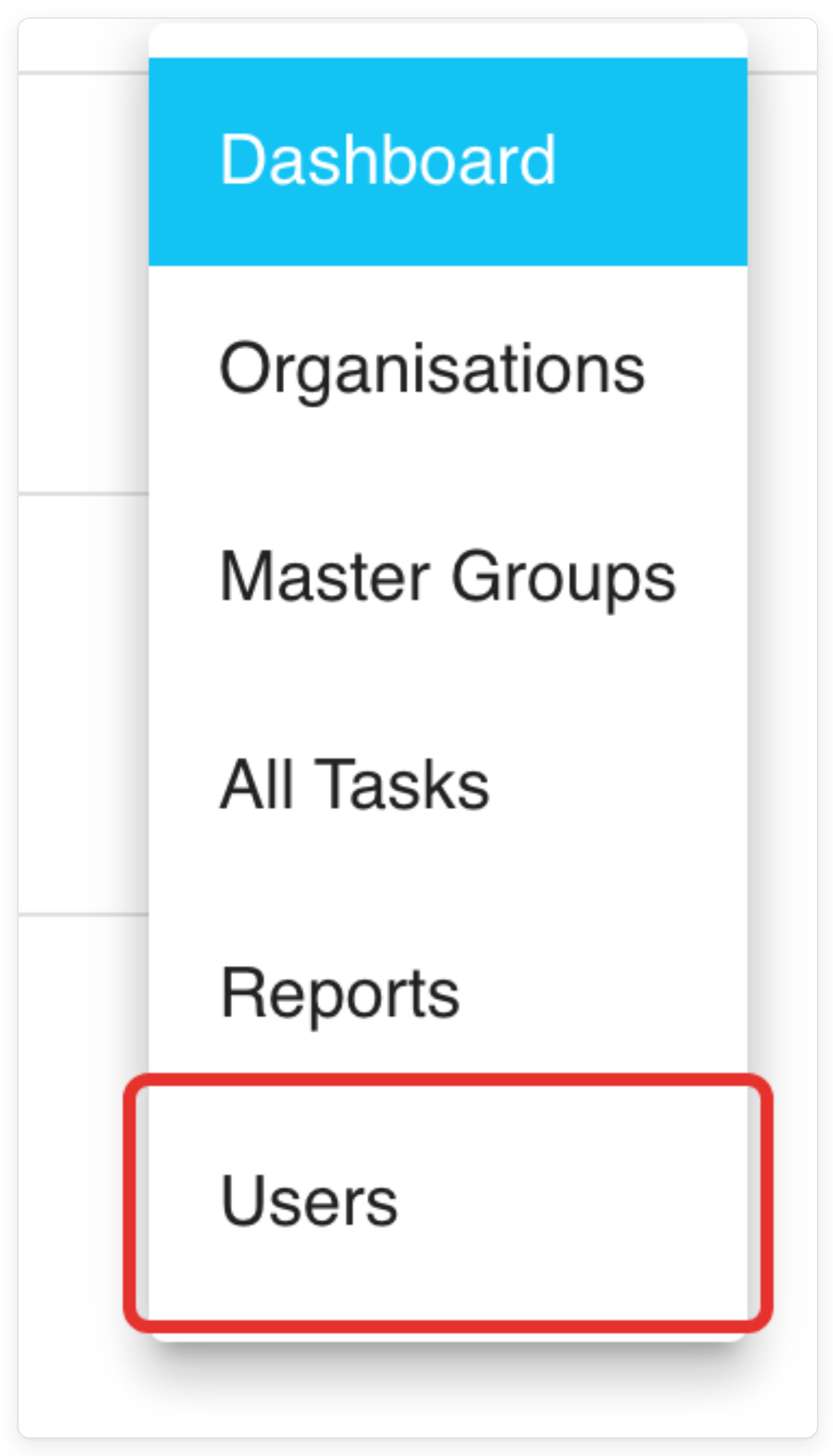
As a master, click Menu at the top right to open the navigation menu.

Click Users to find a manager account you can access.
Enter the manager's name in Search.
In this example, enter Rachel Mitchell.
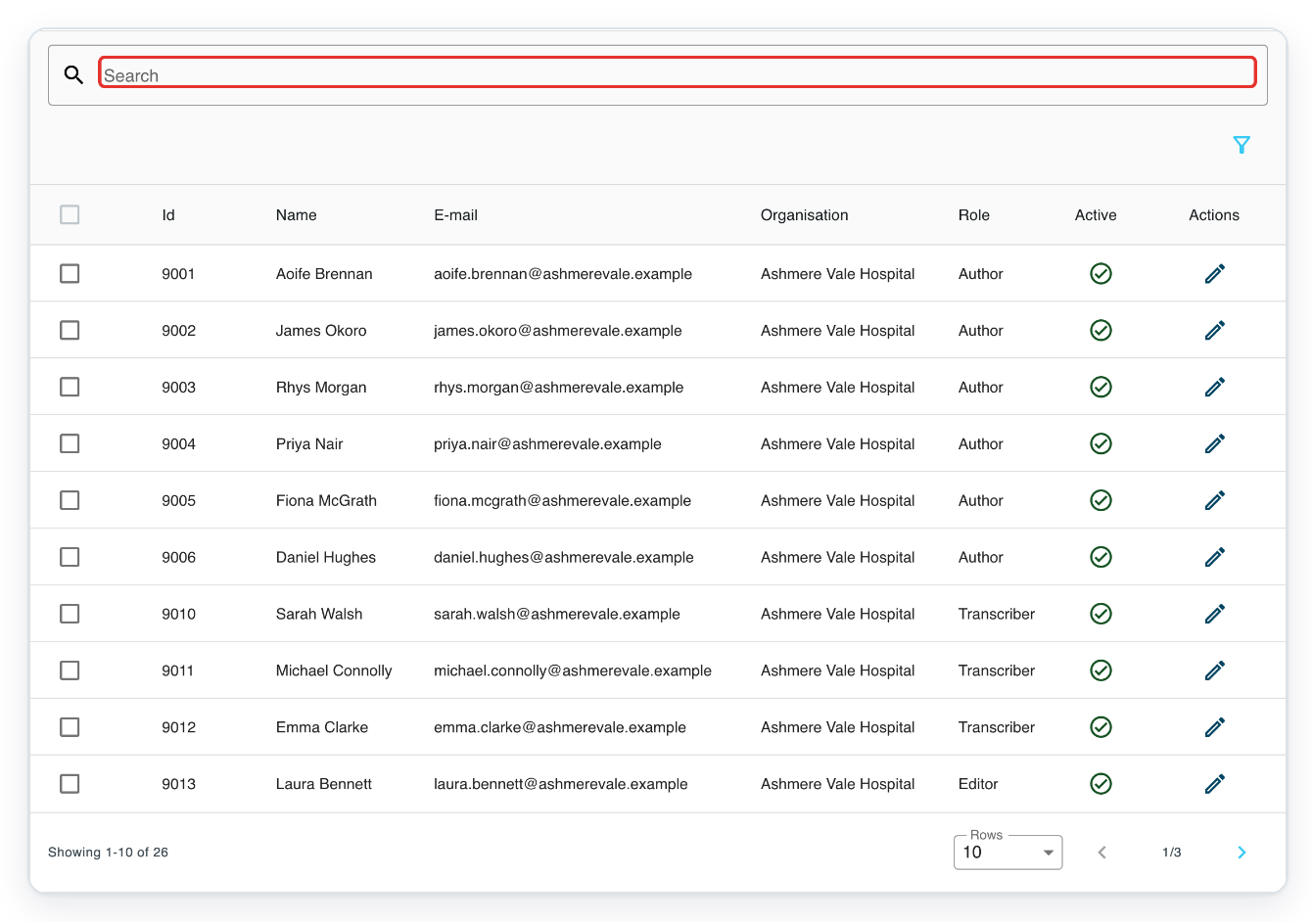
Press Enter to search for the manager.
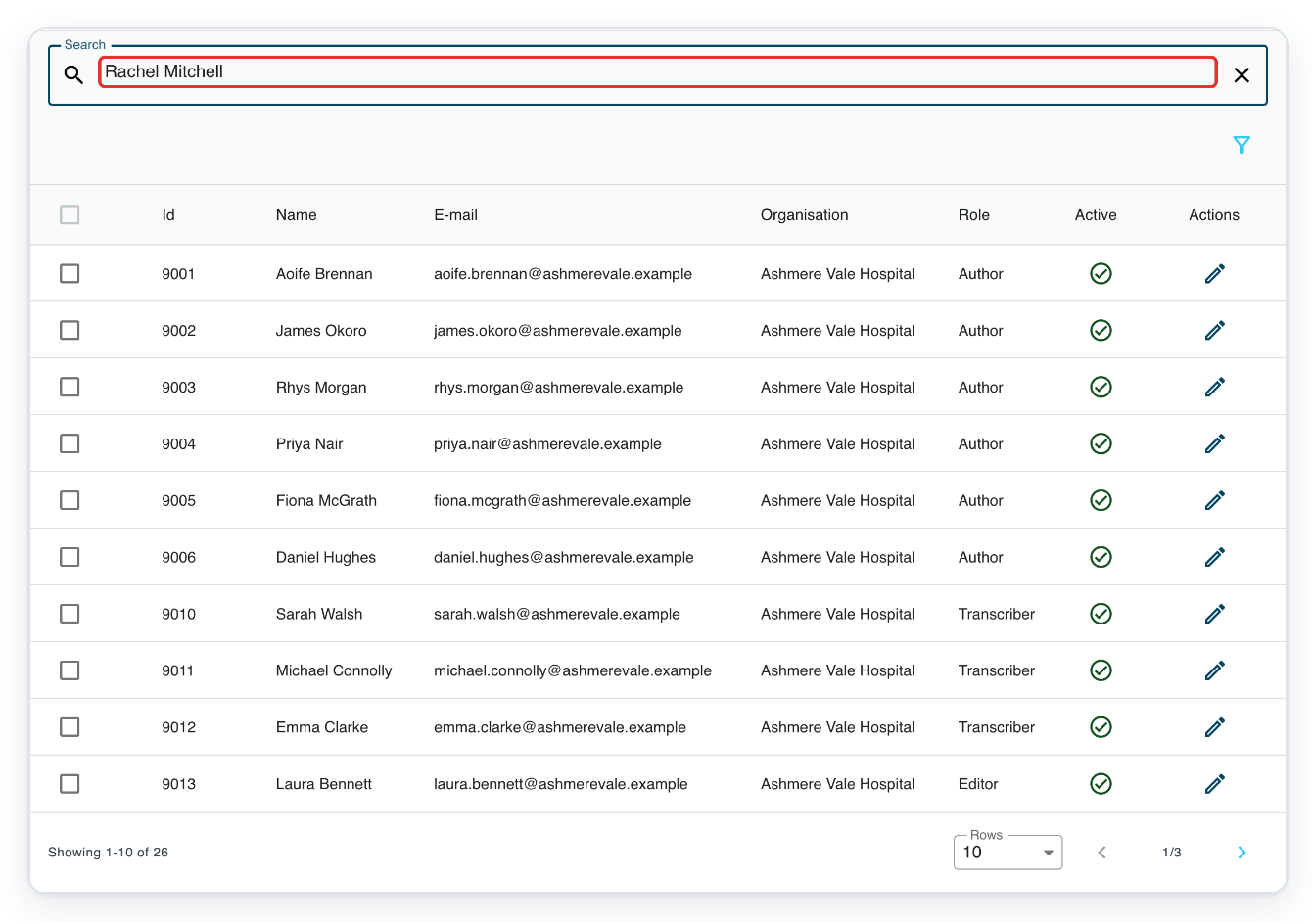
Click the manager's row to open their account in a new tab.
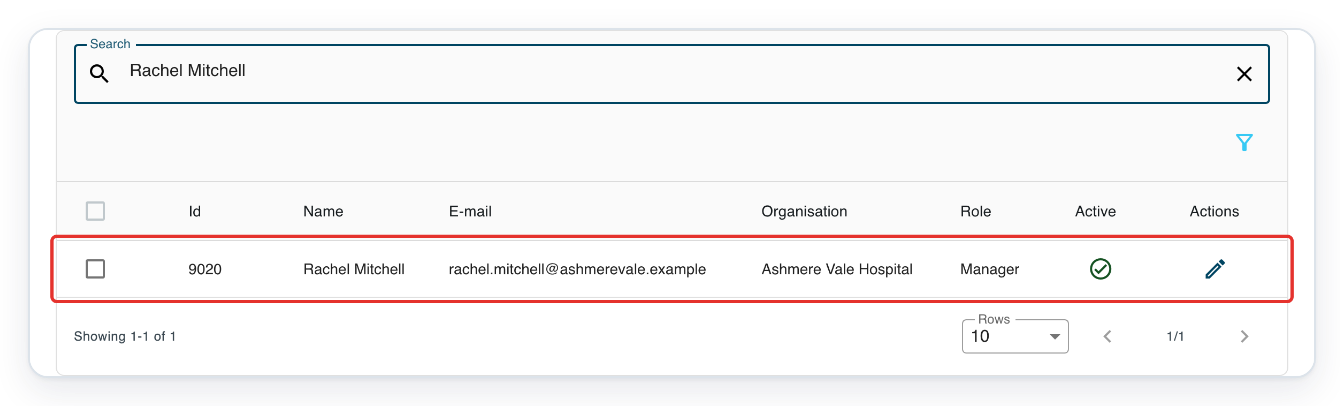
=> The account opens on My details. Check the name and role at the top before continuing.
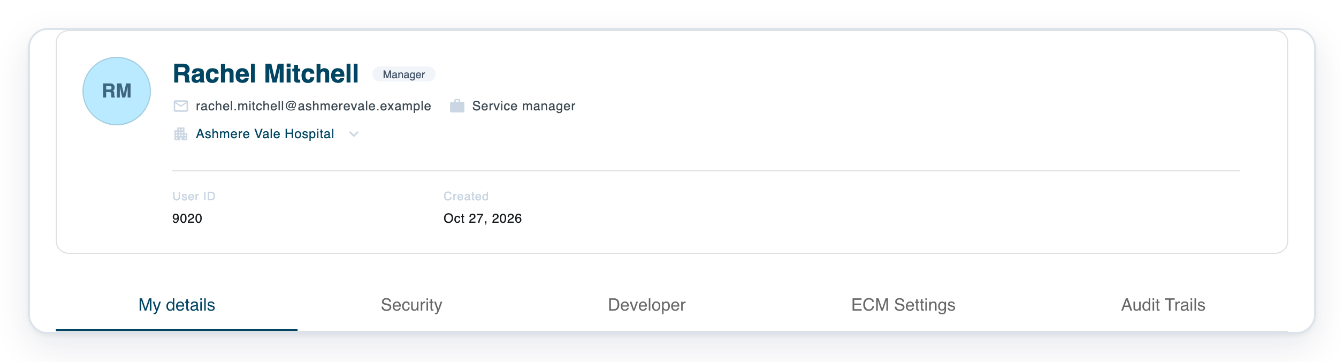
Click Developer to see the manager's existing API tokens.
You can copy an existing token here. An admin must create or delete tokens for this account.
Click the copy button beside the token you need.

=> T-Pro shows Copied to clipboard.

NOTE:
- Tokens last 365 days. The expiry date and time appear beneath each token, beside Expires at.
- Deleting a token stops API access through that token. Any system using it needs a valid token to connect again.
- As a master, you can copy existing tokens from accessible manager accounts through Users, then Developer. You cannot create or delete tokens for those accounts.
Can't create or manage API tokens?
- T-Pro shows “Maximum 2 tokens per user”. Each account can hold two tokens. Delete a token you no longer need, then click Add Token again.
- You can't see Developer. Check the role beside the account name on the details page. This tab is available for manager, master and admin accounts. If you've opened another account, check that account's role. Use Edit account to open your own account.
- As a master, you can't add or delete someone else's tokens. Open the three-dot menu beside your name, then click Edit account. This takes you back to your own account. Open Developer to manage your tokens.
Related articles
If you have any more queries, please do not hesitate to contact our Helpdesk or support@tpro.io.
© 2020 - 2026