
Before you start
You need an admin account and a facility where you'll save the template. To duplicate a template, you also need one to copy.
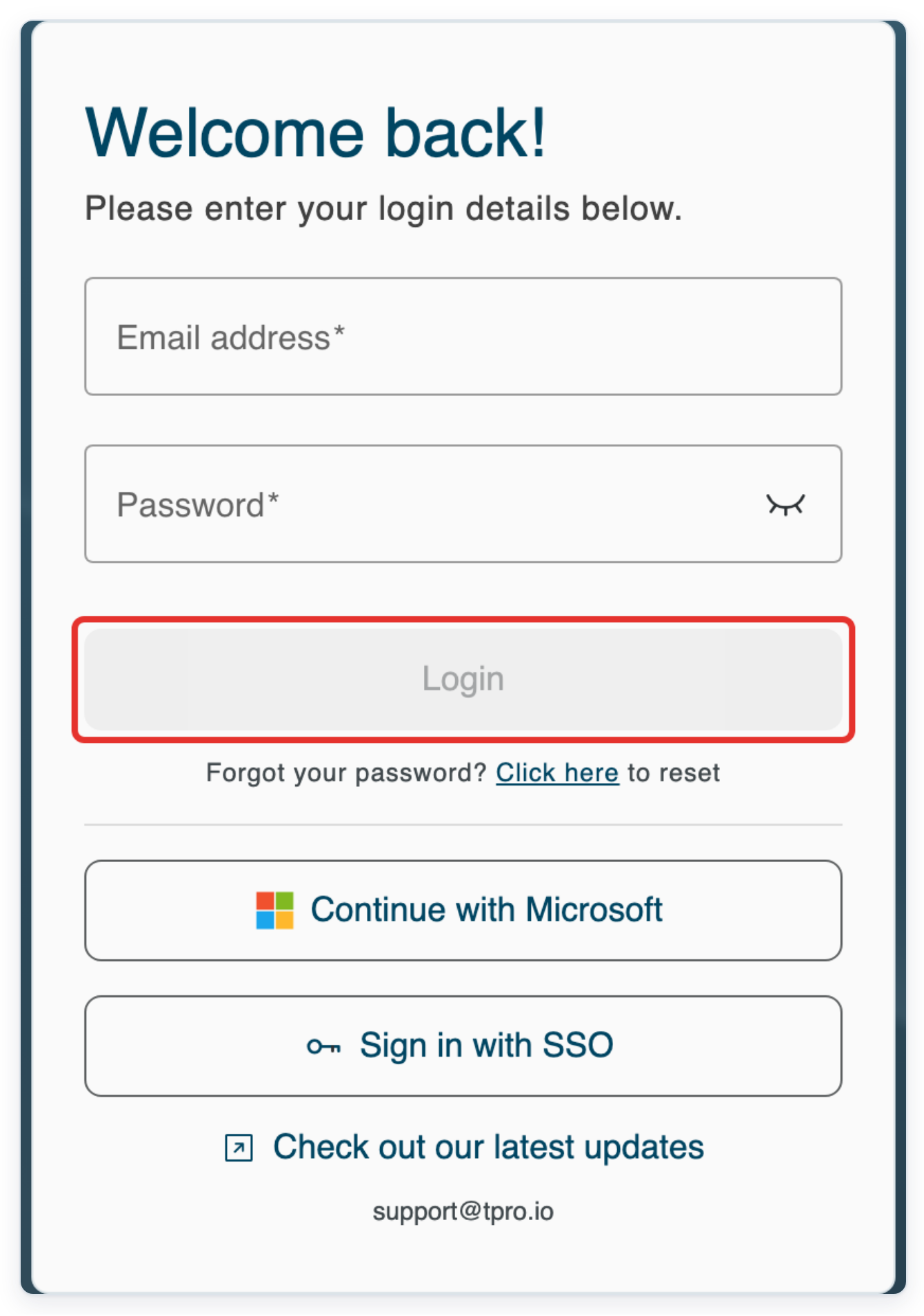
Log in to T-Pro with your admin credentials.
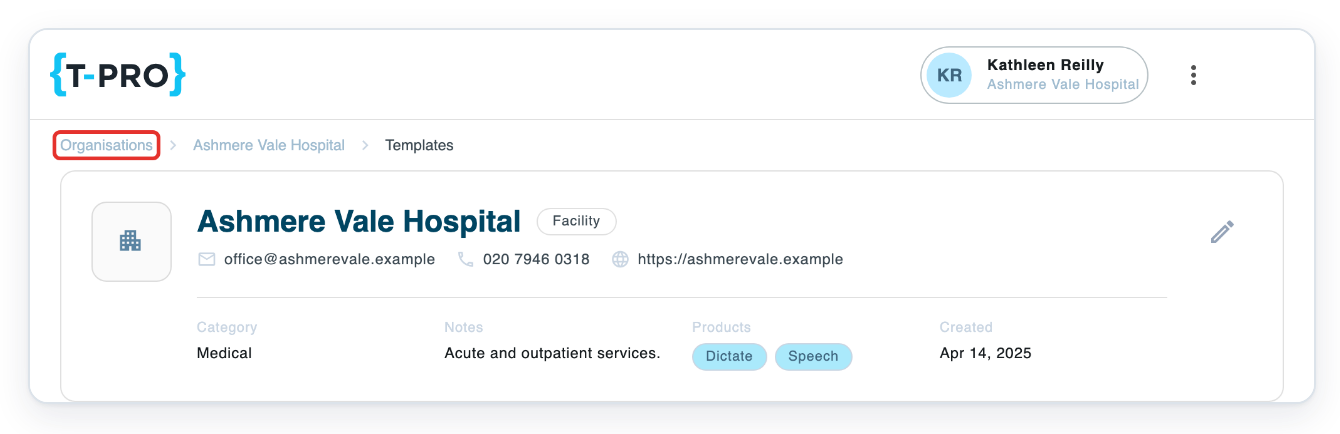
Click Organisations in the breadcrumb to open the organisation list.
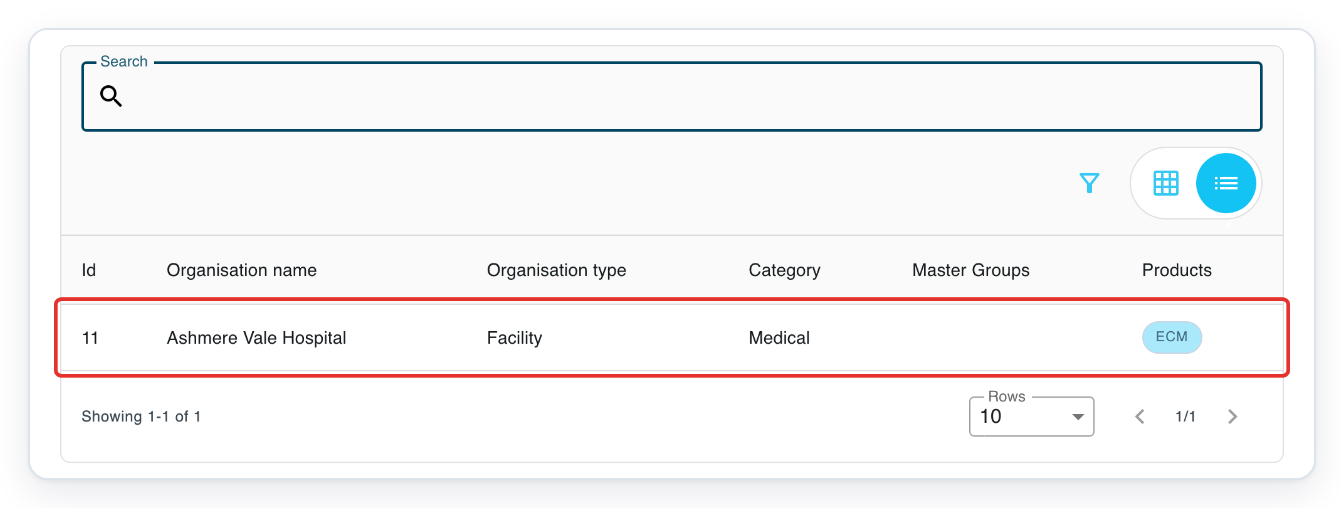
In Organisations, click your destination facility to open its page. In this example, select Ashmere Vale Hospital.
Choose the facility where you want to save the new template or copy.
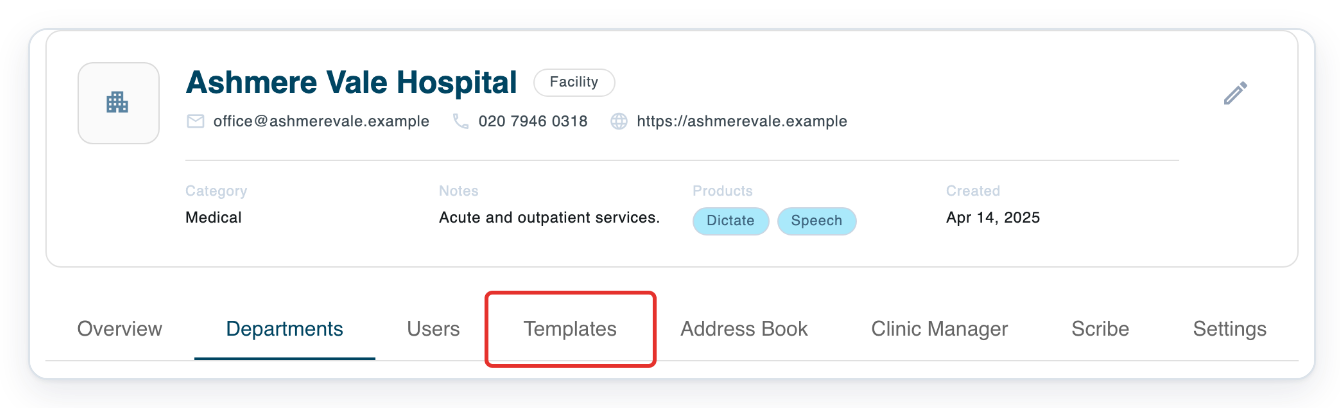
On the facility page, click Templates to open its template list.
On app.tpro.io, opening a new template may show an “Access Required” dialog before Template Details opens. If it appears after the next click, enter the feature access password in Password, then click Continue.
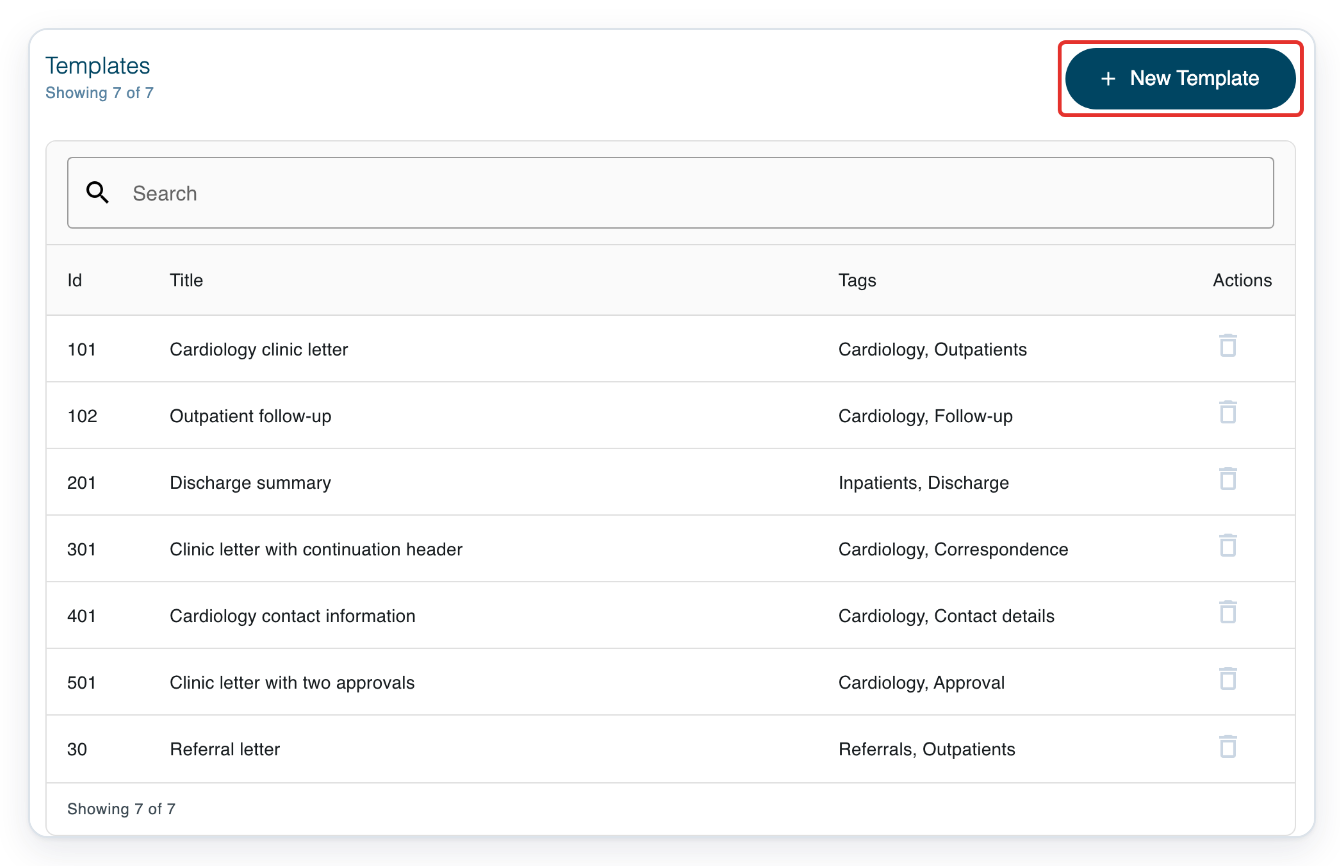
In the facility's Templates list, click New Template. Template Details opens.
To reach this list, open your facility from Organisations, then select Templates.
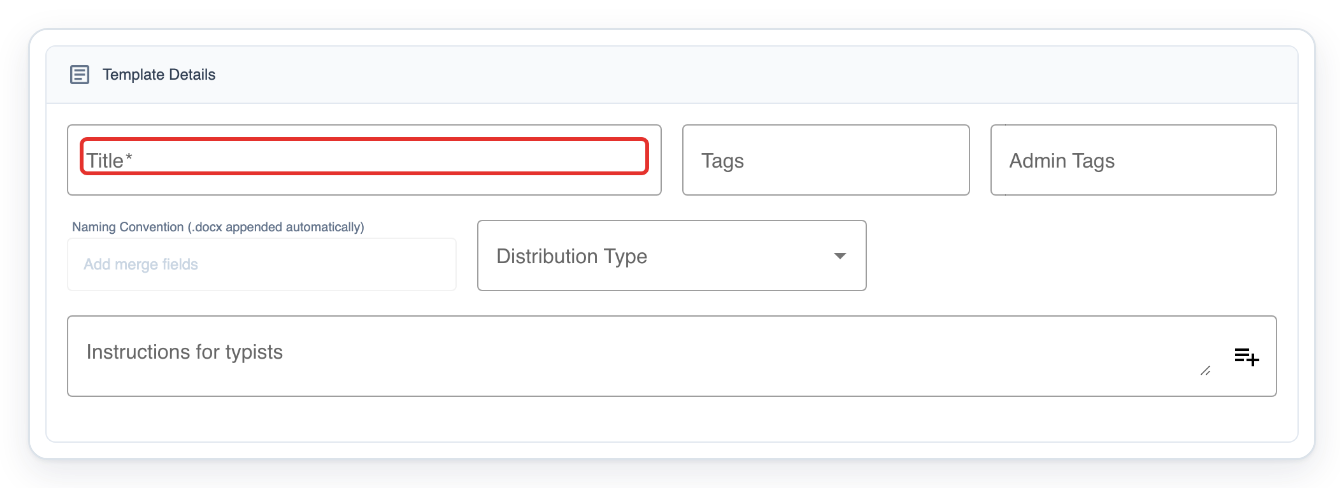
Enter Respiratory outpatient follow-up in Title, or choose a name for your own template.
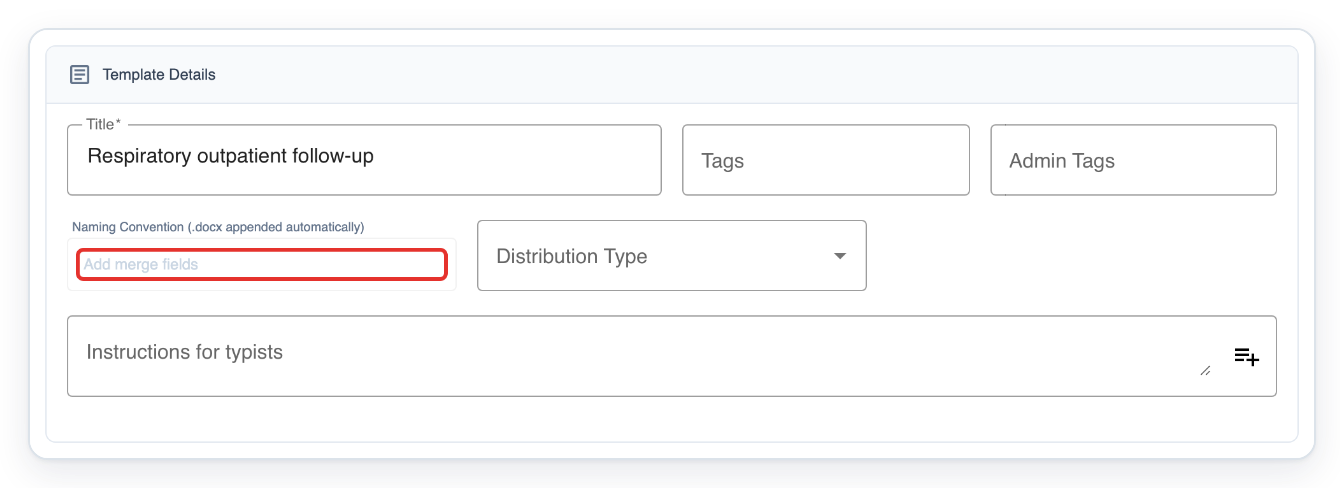
Under Naming Convention (.docx appended automatically), click Add merge fields. Type subject_id to find the patient identifier.
The naming convention sets the document's file name. Use a merge field to include information from each task.
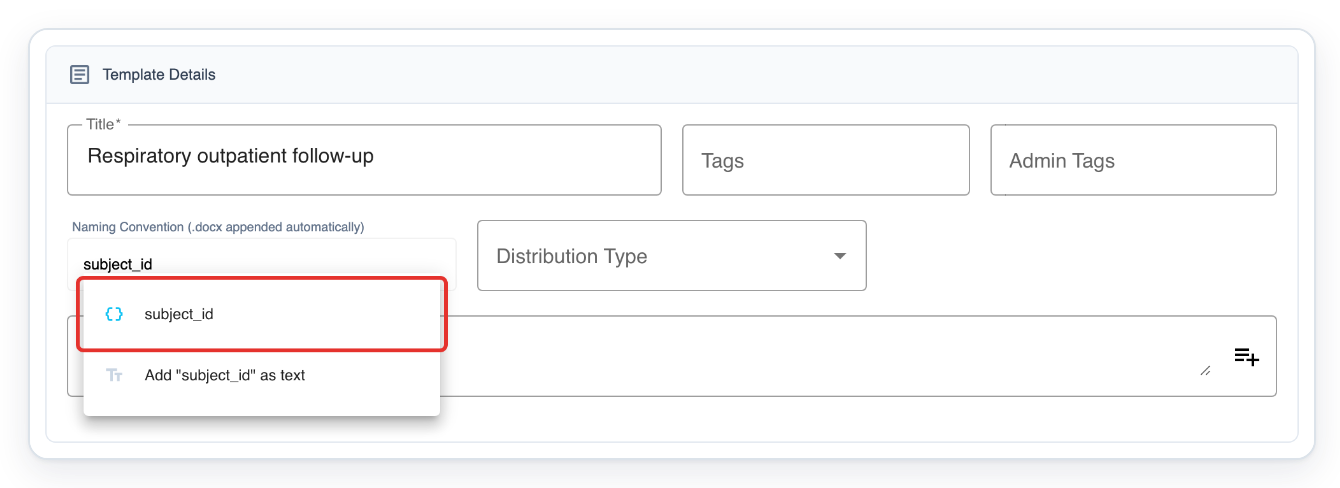
Click subject_id in the suggestions. It appears as a label in the naming convention.
Choose the suggestion with the braces icon, { }. The Add "subject_id" as text option adds the field name as fixed text.
Click Save to create the template. T-Pro returns you to the facility's Templates list.
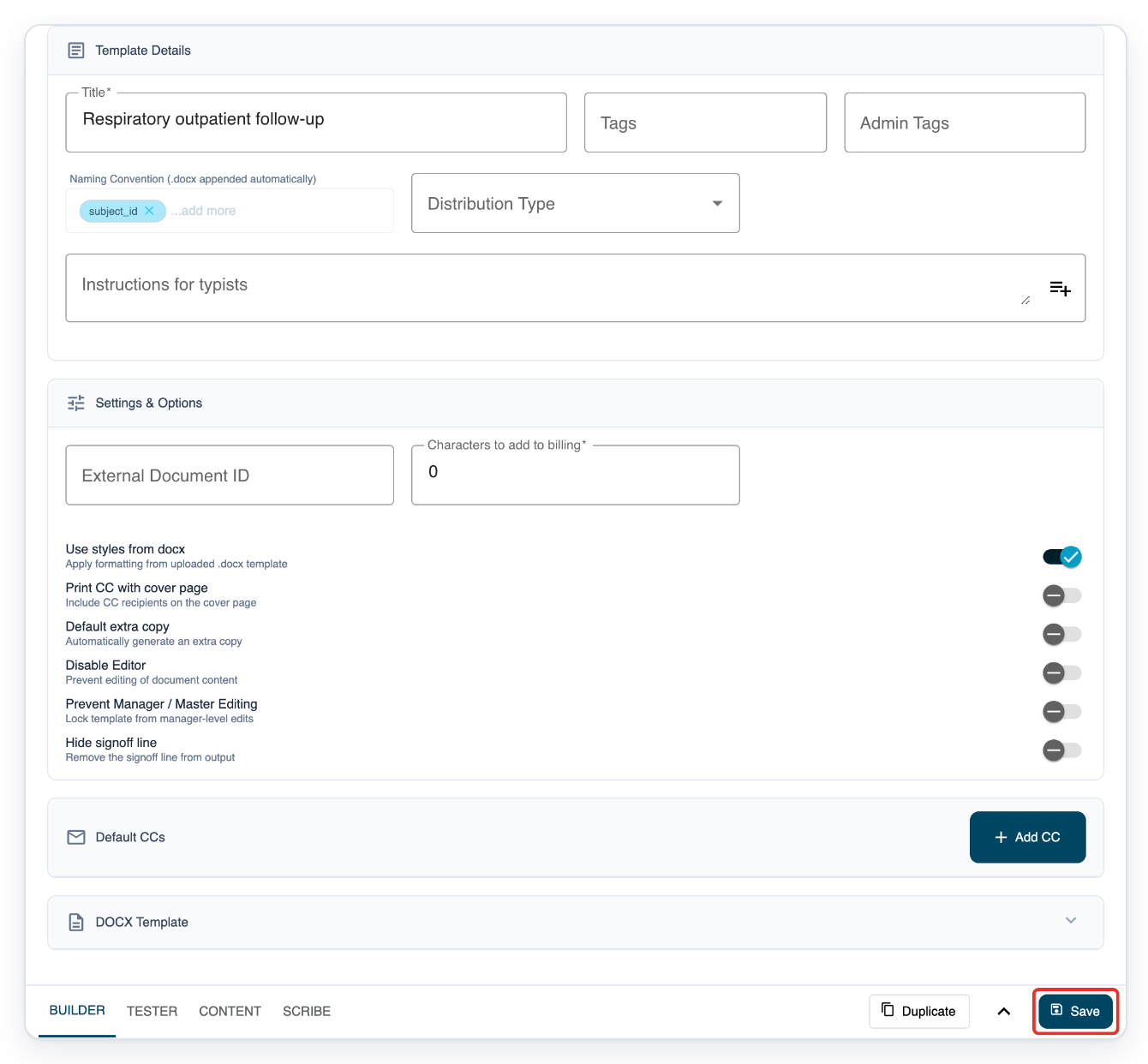
To copy an existing template, click New Template in the facility's Templates list.
Make sure you're in the facility where you want to save the copy.
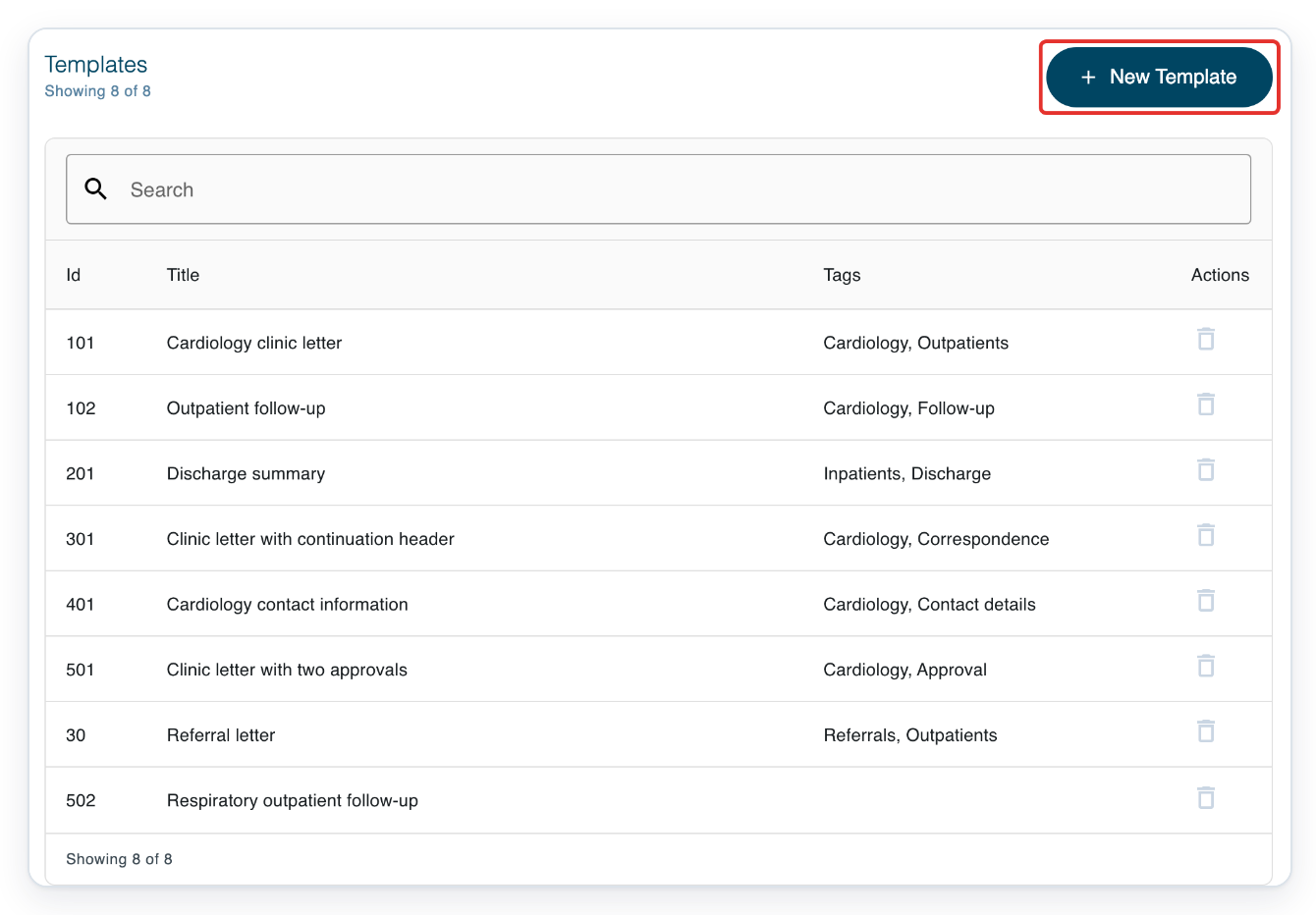
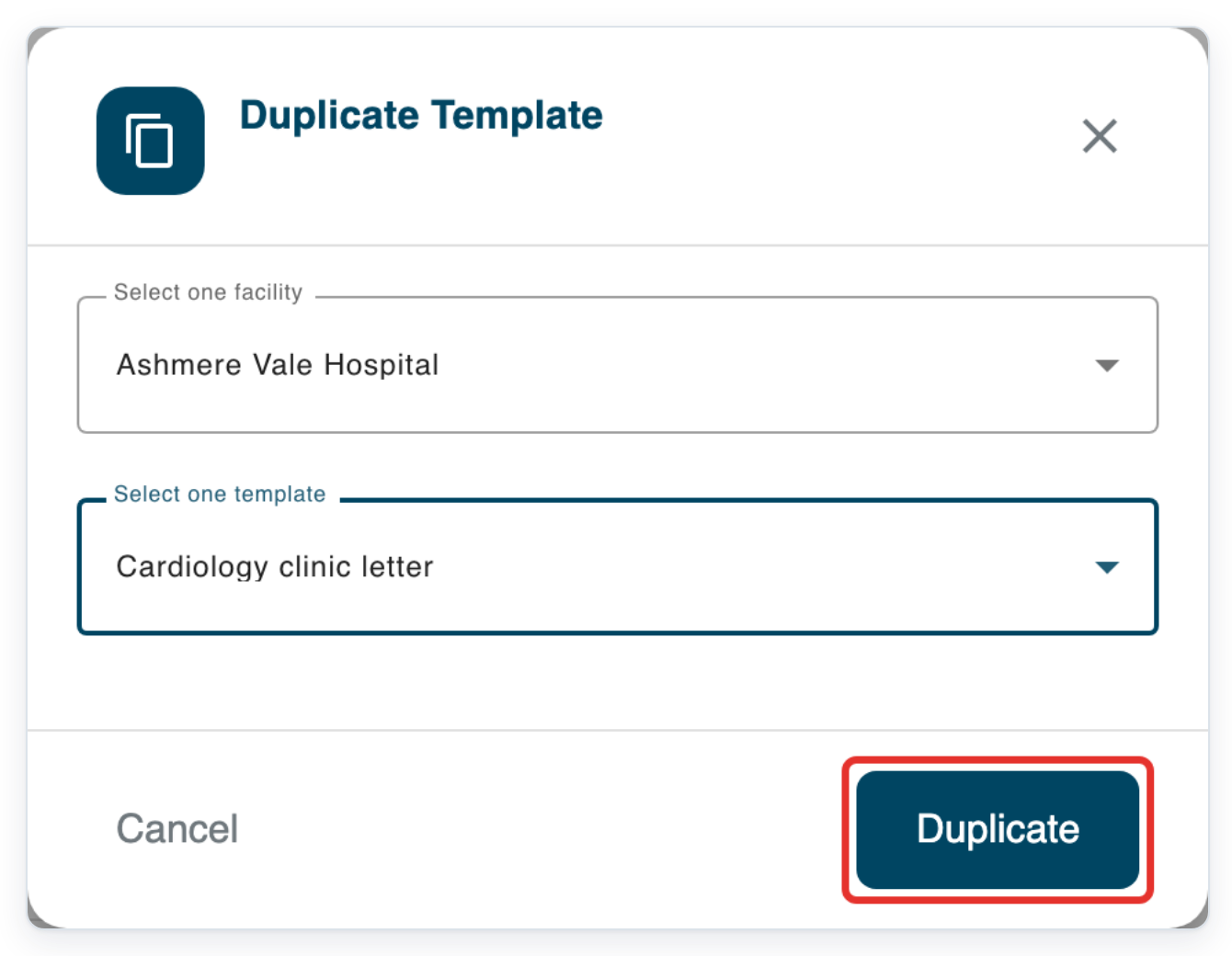
Click Duplicate at the bottom of the new template screen. The Duplicate Template dialog opens.

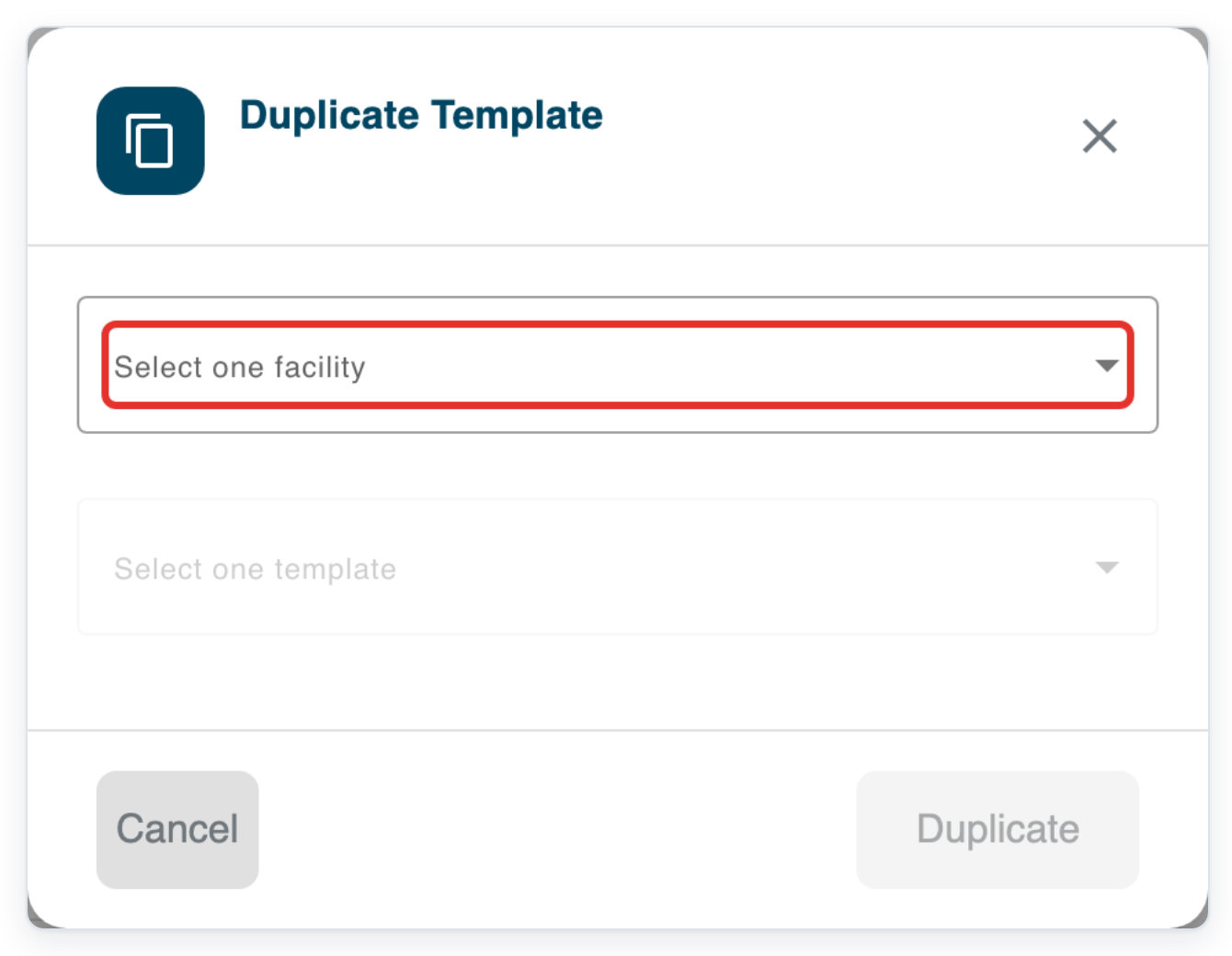
Open Select one facility to choose where to copy the template from.
You can copy from the current facility or another facility.
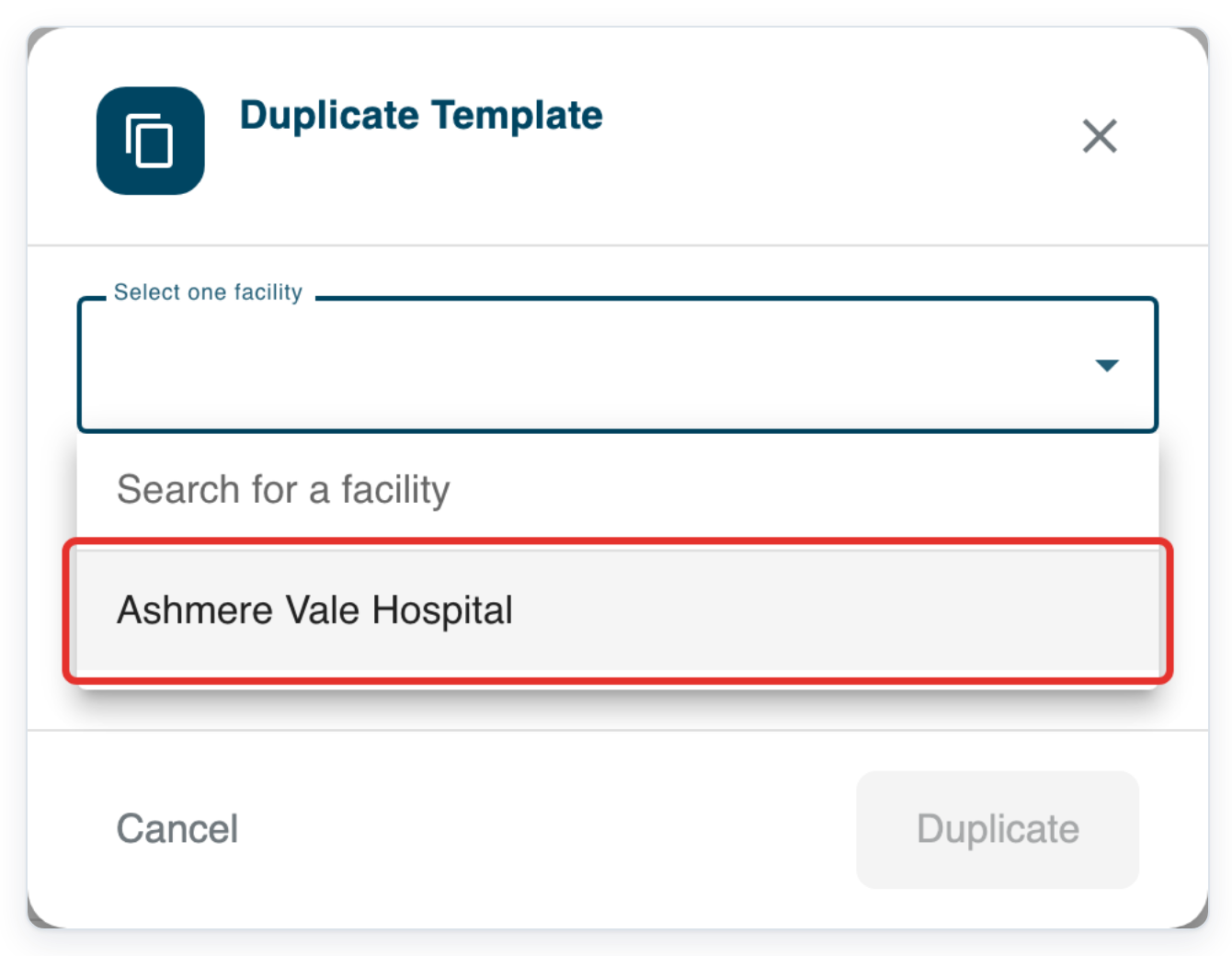
Choose the facility you're copying from. In this example, select Ashmere Vale Hospital.
Wait for the facility list to close and the templates to load. Then open Select one template.
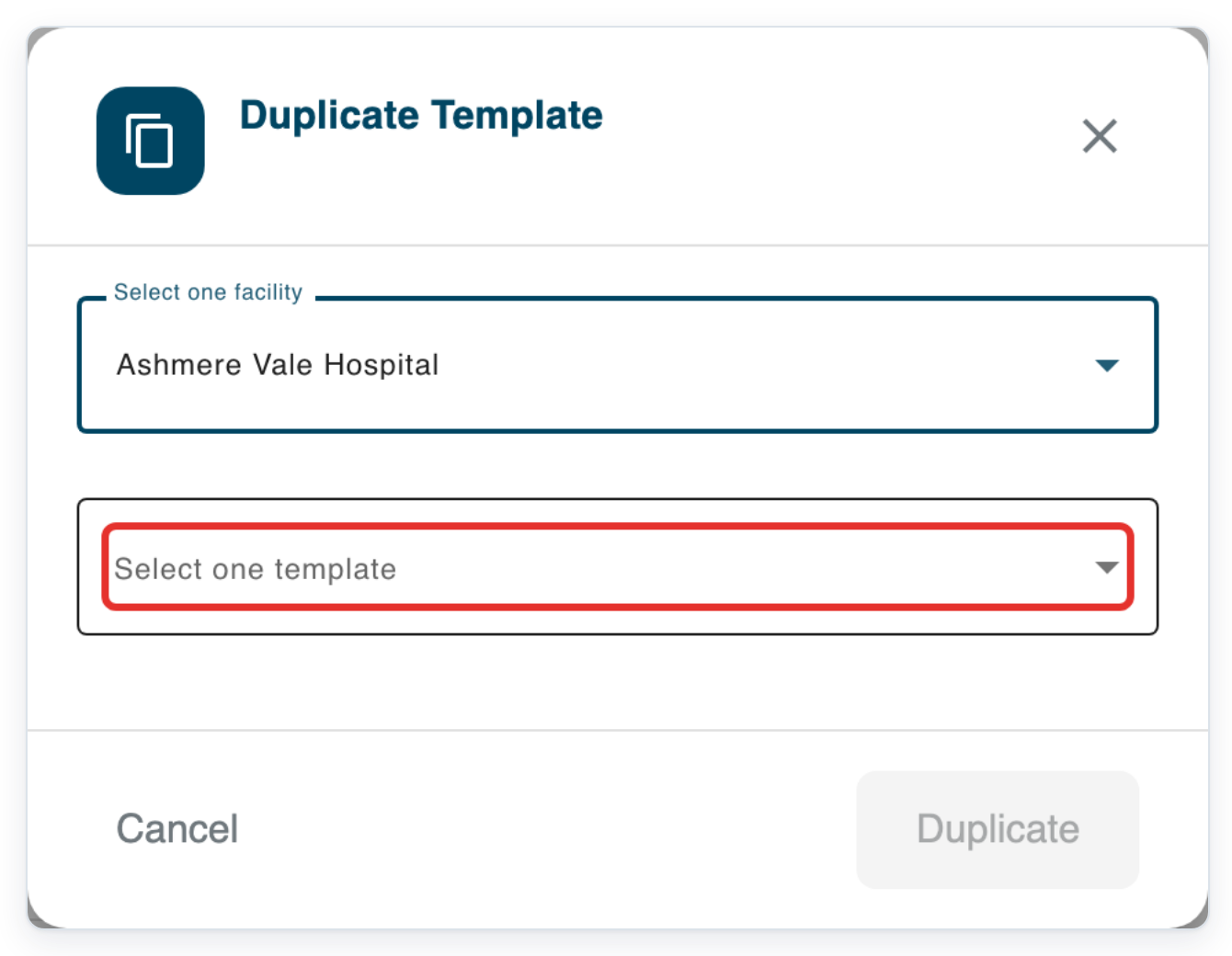
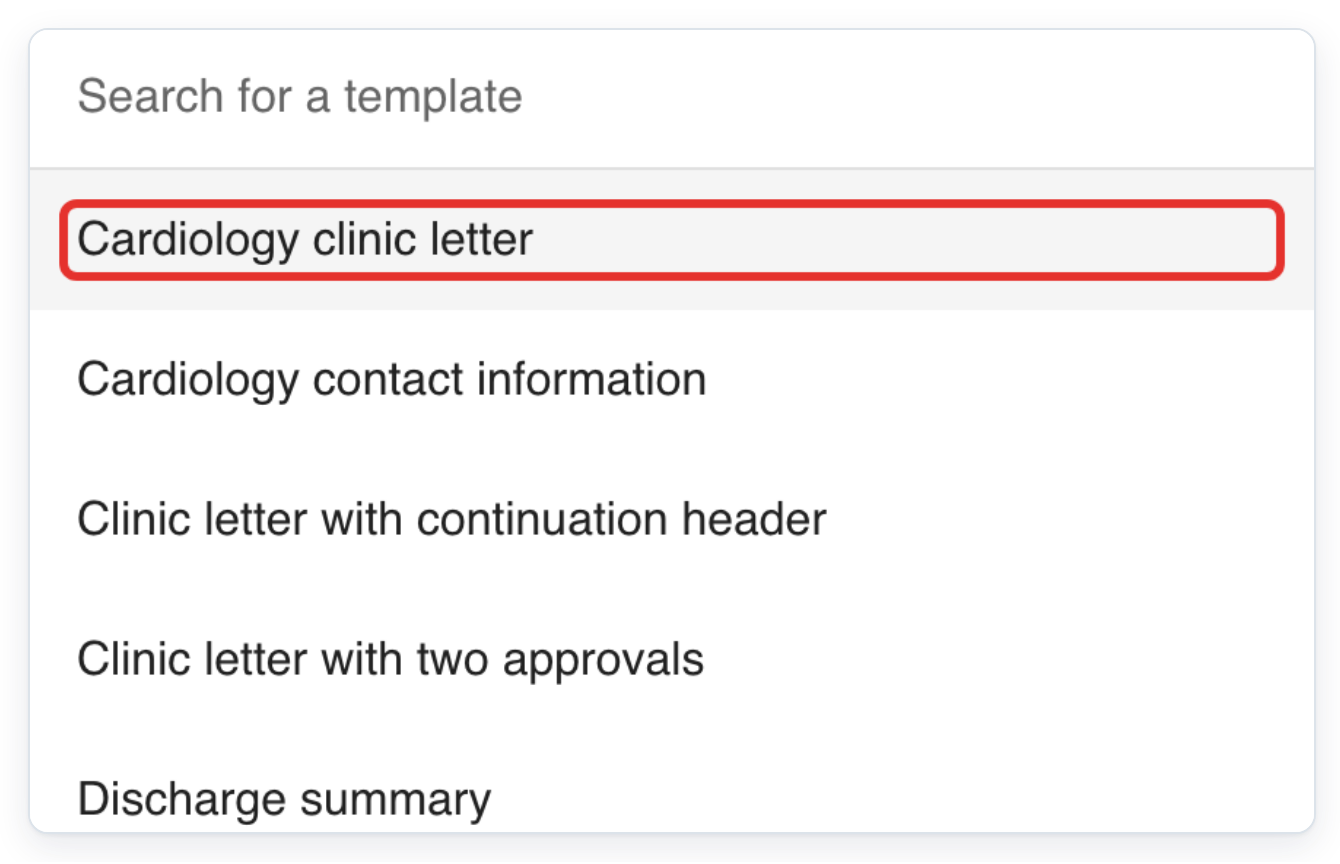
Choose the template to copy, such as Cardiology clinic letter. You'll see your chosen facility and template.
Click Duplicate to save a copy of the selected template in the facility you started from.
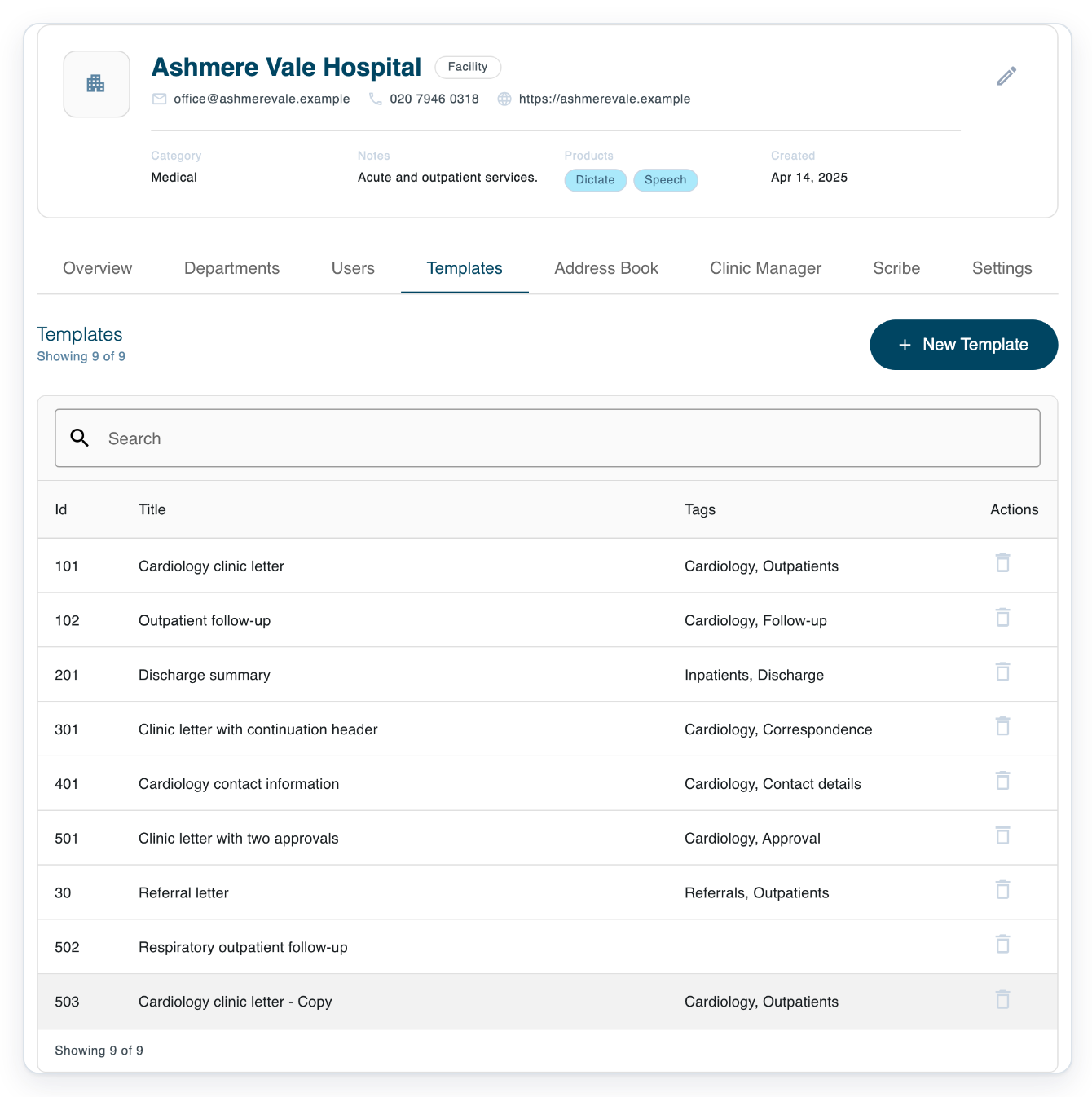
=> The facility's Templates list now shows Respiratory outpatient follow-up and Cardiology clinic letter - Copy.
NOTE:
- Leave .docx out of the naming convention. T-Pro adds it automatically.
- Duplicating creates a separate template with “ - Copy” added to the original title.
- AI Blueprint links and sections stay with the original template when you copy it to another facility.
- Signing in alone does not clear the feature access check on app.tpro.io. Once accepted, access lasts for the browser session.
What goes in a naming convention
T-Pro reads the parts from left to right to build the file name.
| Part | What it adds to the file name |
|---|---|
| Fixed text | Wording that stays the same, such as a clinic name. You can combine it with merge fields. |
| Merge fields | Values from the task. For example, subject_id adds the task's patient identifier. |
Other places you can create a template
- In an author group's Templates tab, click New Template to create a template for that group.
Tip: Use Search for a facility and Search for a template to narrow the choices in each list.
Can't create or duplicate a template?
- A warning appears under Title: enter a title between 3 and 100 characters.
- Select one template is unavailable, or you cannot click Duplicate: choose the facility to copy from. Wait for its templates to load, then select a template.
- A merge-field name appears as ordinary text: click the cross beside it to remove it. Type the field name again, then select its merge-field suggestion.
- If T-Pro shows “Failed to duplicate template”, click Duplicate to try again. Contact our Helpdesk if it keeps appearing.
Related articles
- Template settings in V2
- How merge fields fill in patient details
- Headers and page breaks in templates
If you have any more queries, please do not hesitate to contact our Helpdesk or support@tpro.io.
© 2020 - 2026