
Before you start
Use a master or admin account for task and eClinic Manager reports. Authors can view their own AI usage.
Log in to T-Pro with your master, admin or author credentials.
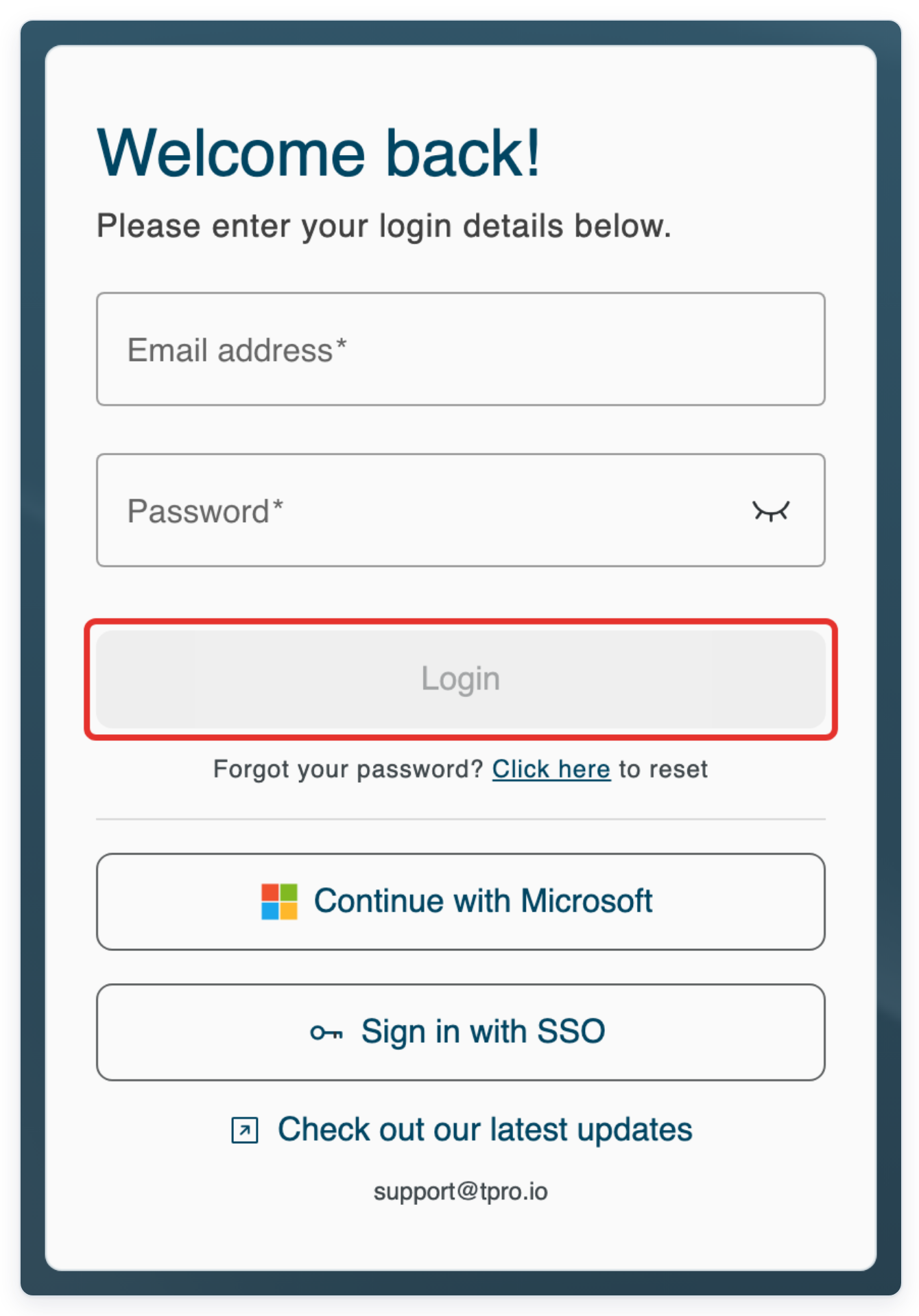
As a master or admin
Click Reports in the top menu to open Dictation.
Use the tabs above the filters to switch between reports.

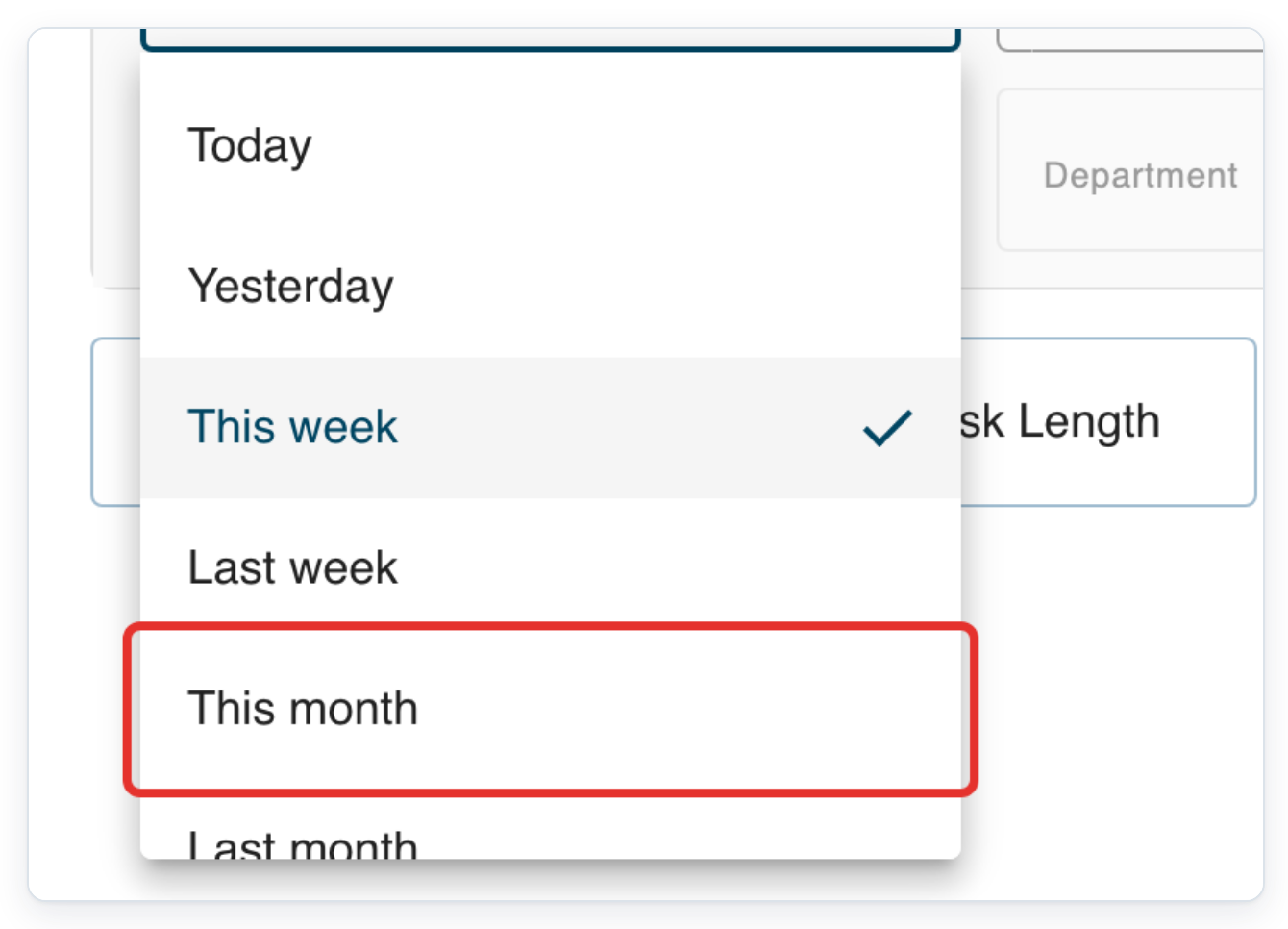
Open Period to choose the dates for your report.

Choose This month.
This runs from the first day of this month to today.
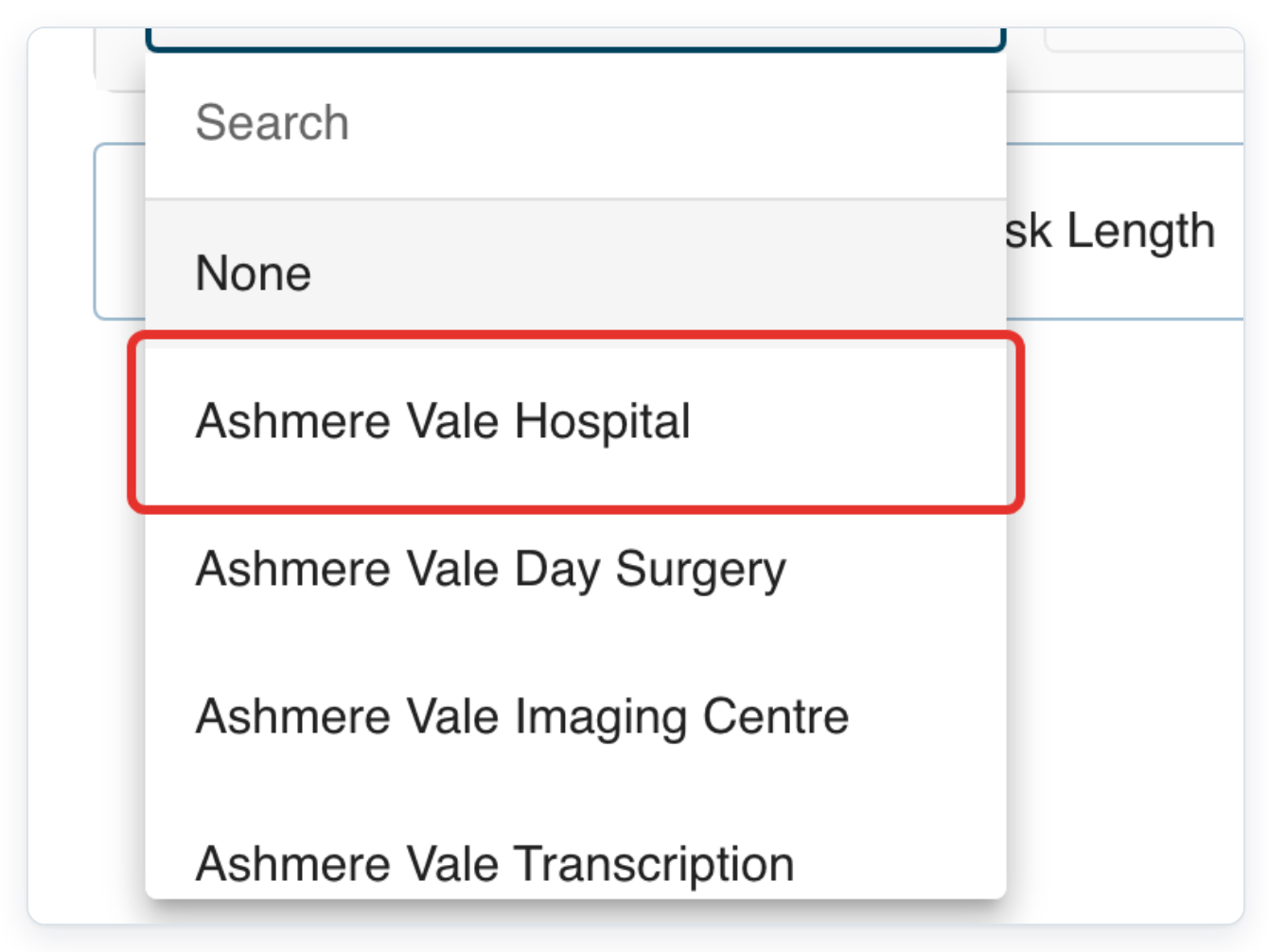
Open Organisation to choose your hospital.

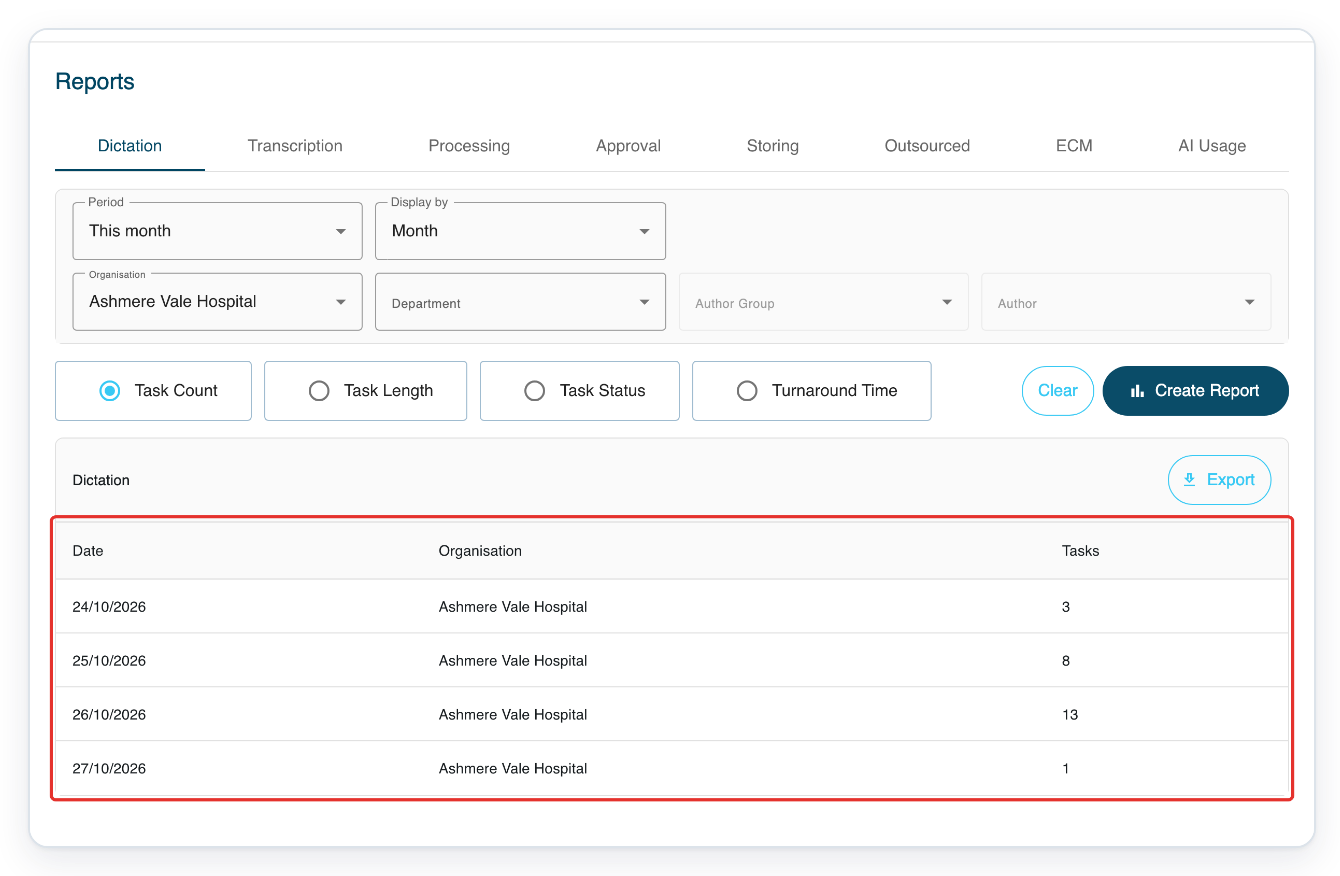
Choose your organisation, such as Ashmere Vale Hospital. Leave Task Count selected and Display by set to Month.
To narrow your results, choose a Department, then an Author Group and Author as needed.
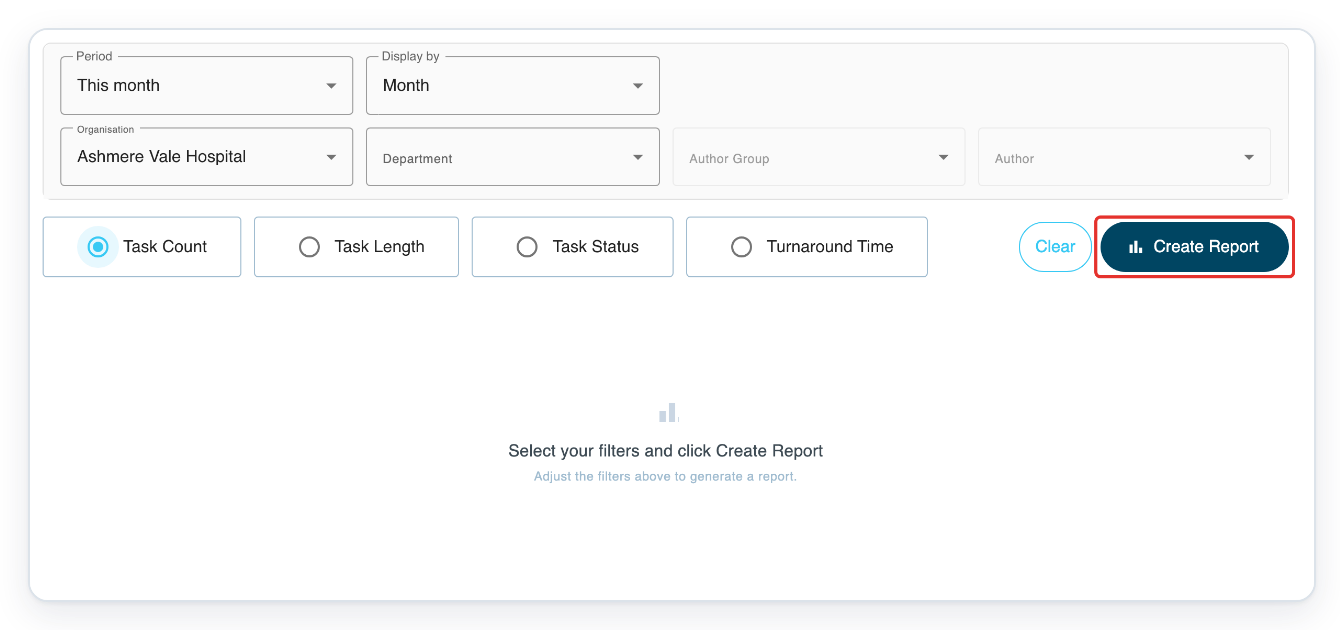
Check that Task Count is selected for the Dictation report.
This counts tasks created during your chosen period.

Click Create Report to show the Task Count table.
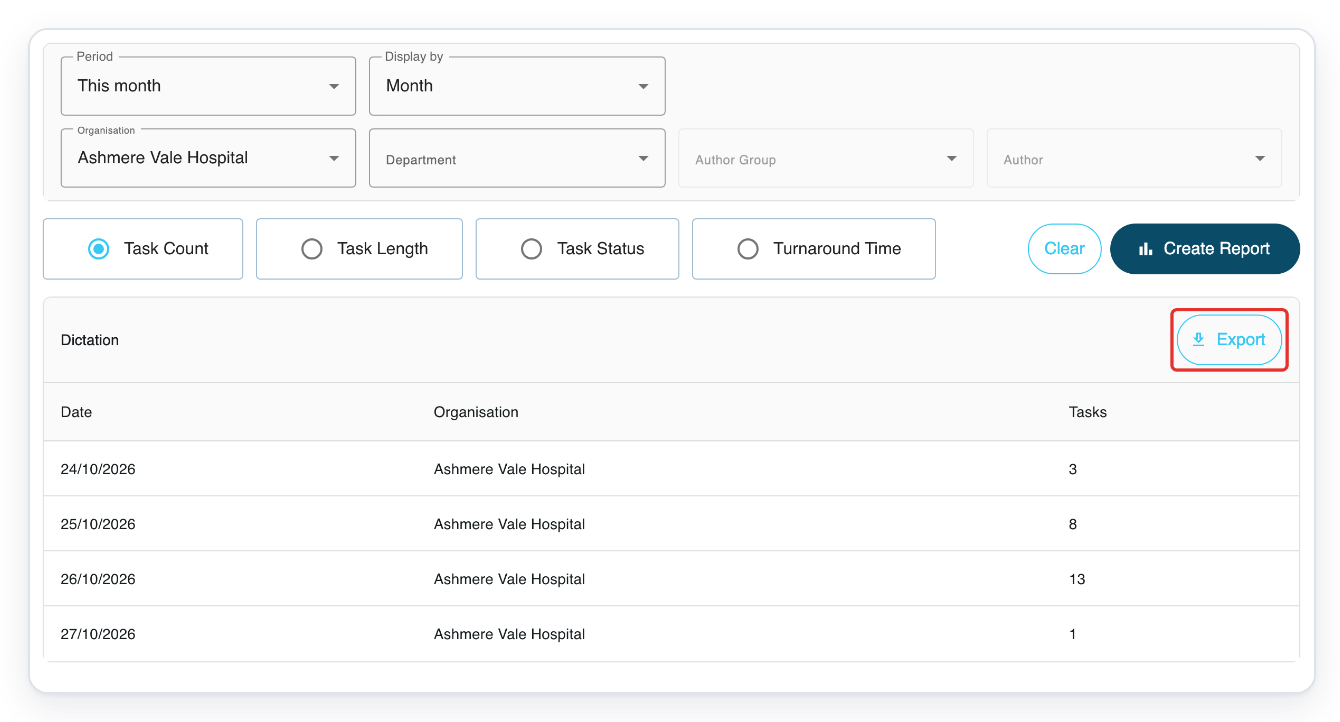
=> Your Dictation results appear below the filters and report choices. Export is above the table.
Click Export to download the report as a CSV file.
As an author
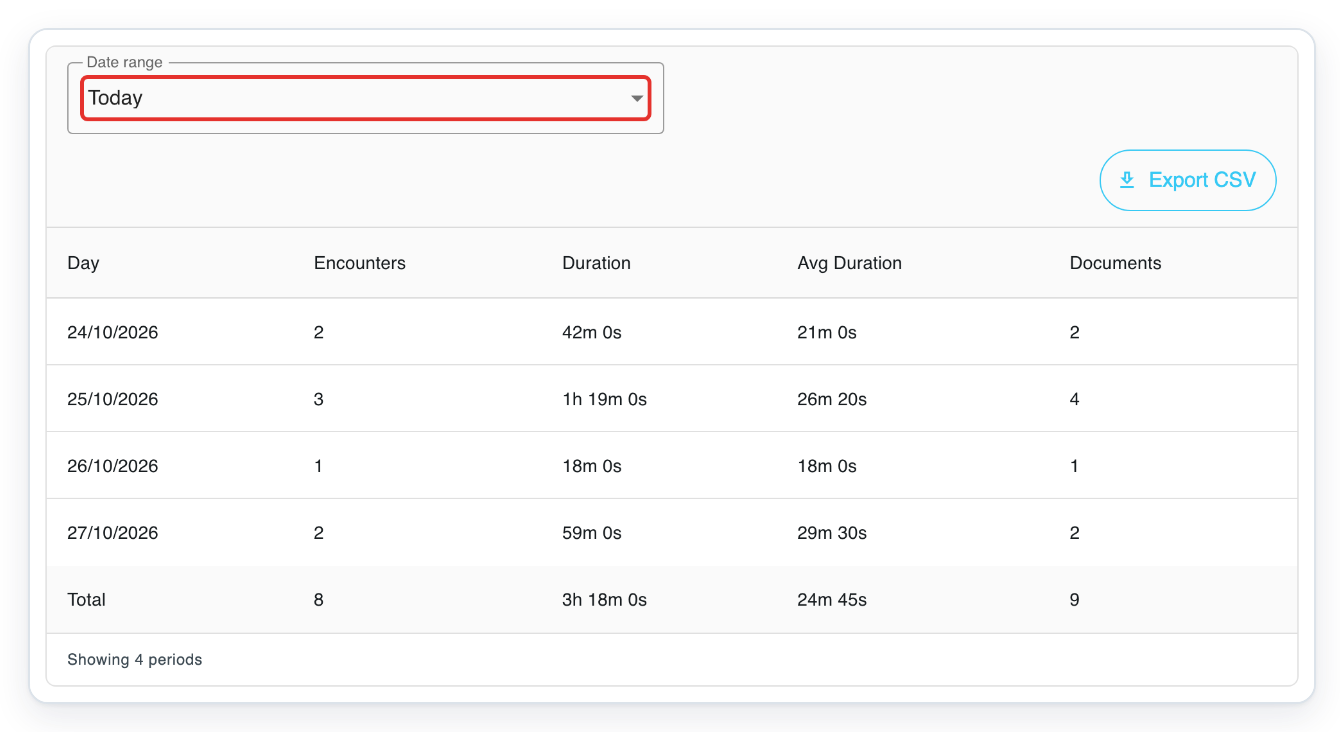
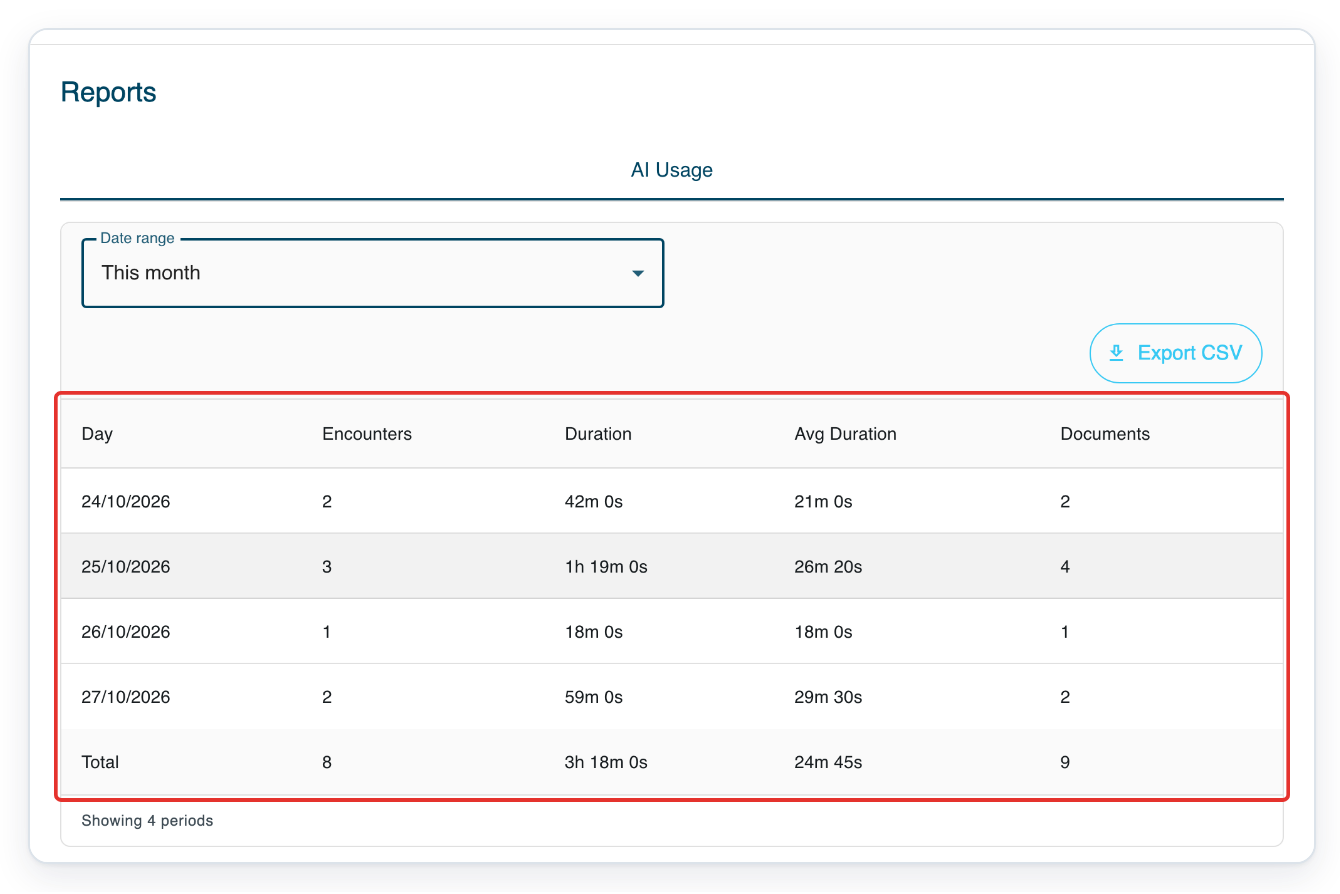
Open AI Usage, then Date range to choose your dates.
Your report opens with Today selected.
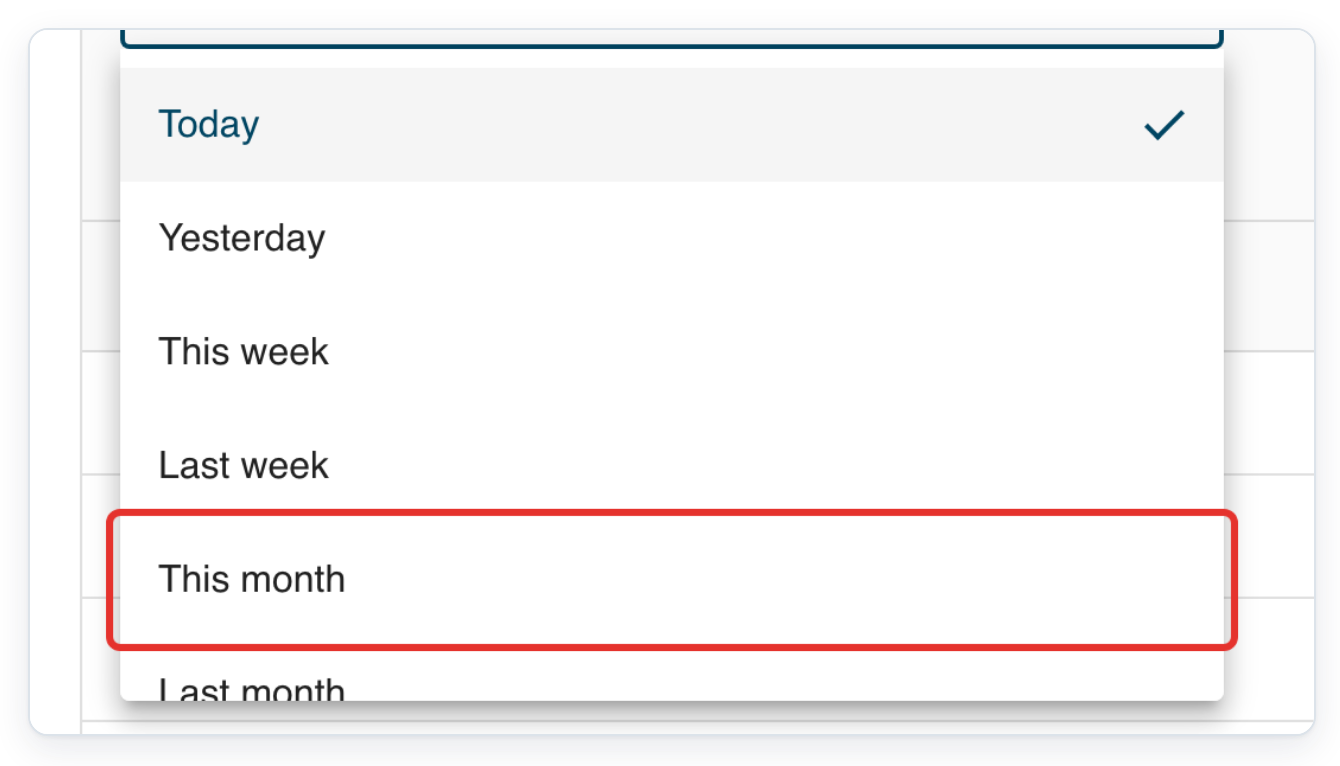
Choose This month to refresh your AI usage report.
=> Your AI Usage report shows Encounters, Duration, Avg Duration and Documents, with a Total row.
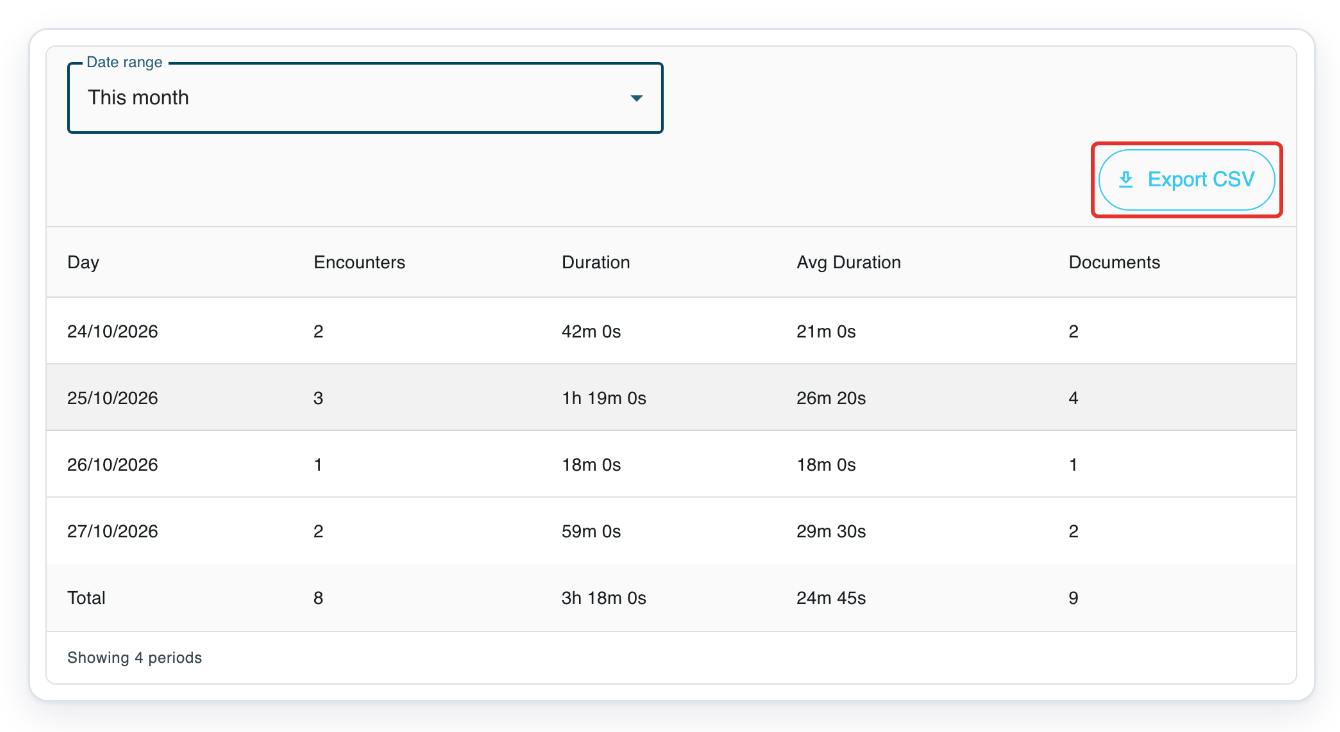
Click Export CSV to download your AI usage report.
The file includes the rows and totals shown in your report.
NOTE:
- With a master or admin account, you can open task reports, eClinic Manager reports and AI Usage. As an author, you see your own AI usage.
- In AI Usage, masters and admins can choose an Organisation, then a user, to narrow the report.
- AI Usage refreshes when you change a filter. Results appear by day for ranges up to 31 days, or by month for longer ranges.
- If you change a task report's filters or report type, click Create Report again before exporting.
- Outsourced turnaround includes any time the provider could not access the task.
Choose the right report
| Report | What it shows | Who can use it |
|---|---|---|
| Dictation | Task Count: tasks created. Task Length: total audio length. Task Status: outstanding work by stage and the oldest task date. Turnaround Time: average time from dictation start to task completion. | Master or admin |
| Transcription | Task Count: tasks transcribed. Task Length: audio transcribed. Character Counts: total characters. Turnaround Time: average time from dictation start through typing, editing or review. Power: average characters per second during transcription. | Master or admin |
| Processing | Awaiting Processing: tasks waiting or being processed. Processed: tasks processed. Turnaround Time: average processing turnaround. | Master or admin |
| Approval | Waiting for Approval: tasks awaiting approval. Approved: tasks approved. Turnaround Time: average approval turnaround. | Master or admin |
| Storing | Awaiting Storing: tasks waiting or being stored. Stored: tasks stored. Turnaround Time: average storing turnaround. | Master or admin |
| Outsourced | Turnaround Time: average time from dictation start to task completion for outsourced tasks. | Master or admin |
| ECM | Overview: eClinic Manager session totals and outcomes in a chart and table. Facility Sessions, Department Sessions, Author Group Sessions and Author Sessions: activity at each level. | Master or admin |
| AI Usage | Scribe encounters, total recording duration, average recording duration and generated documents, with totals. | Master, admin or author. Authors see their own activity. |
Tip: Choose Custom for specific dates. Keep your AI Usage date range within 12 months.
Can't create or export a report?
- Missing Reports or a report tab: check your account. Task and eClinic Manager reports need a master or admin account. Authors can open AI Usage. If you're a manager, ask a master or admin to create the report.
- A filter is unavailable: choose an Organisation, then a Department and Author Group in order. Each choice makes the next filter available. Changing a choice clears the filters below it.
- Your report is empty or you cannot export it: adjust your dates and filters. For task or eClinic Manager reports, click Create Report. AI Usage refreshes automatically. Contact our Helpdesk if the problem continues.
- AI Usage is empty after you choose Custom: check your dates. The end date must be on or after the start date. Keep the range within 12 months.
- Outsourced returns no results for Costs, Task Count, Task Length or Character Counts: choose Turnaround Time. Contact our Helpdesk if you need the other figures.
- Other staff appear after you select a person in a transcription, processing or storing report. Use a department report. Contact our Helpdesk if you need an individual breakdown.
Related articles
If you have any more queries, please do not hesitate to contact our Helpdesk or support@tpro.io.
© 2020 - 2026