
Before you start
You need an admin account and access to the organisation you want to change. You'll make the change in its General settings.
Log in to T-Pro with your admin credentials.
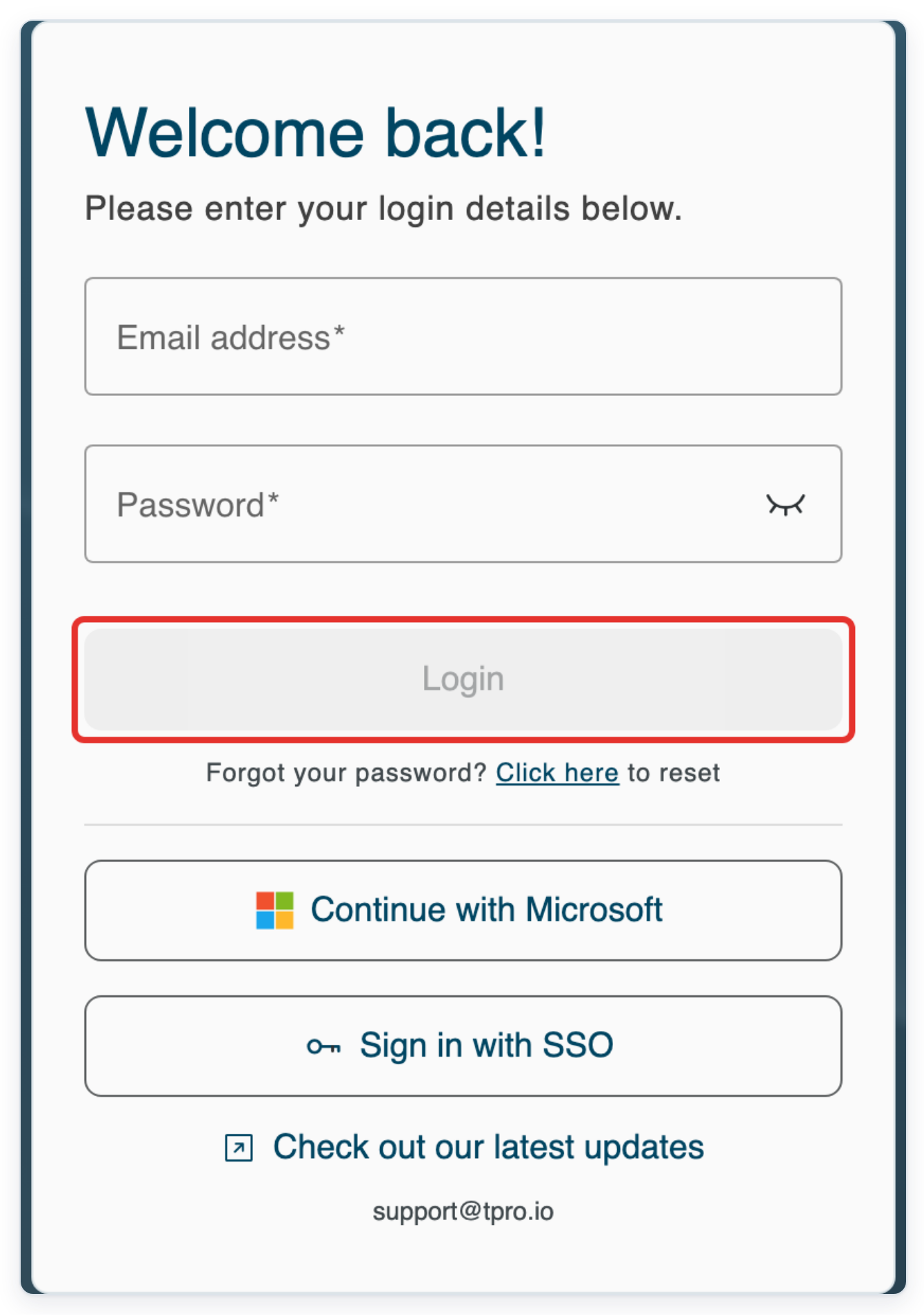
Enter your Email address and Password, then click Login to open T-Pro.
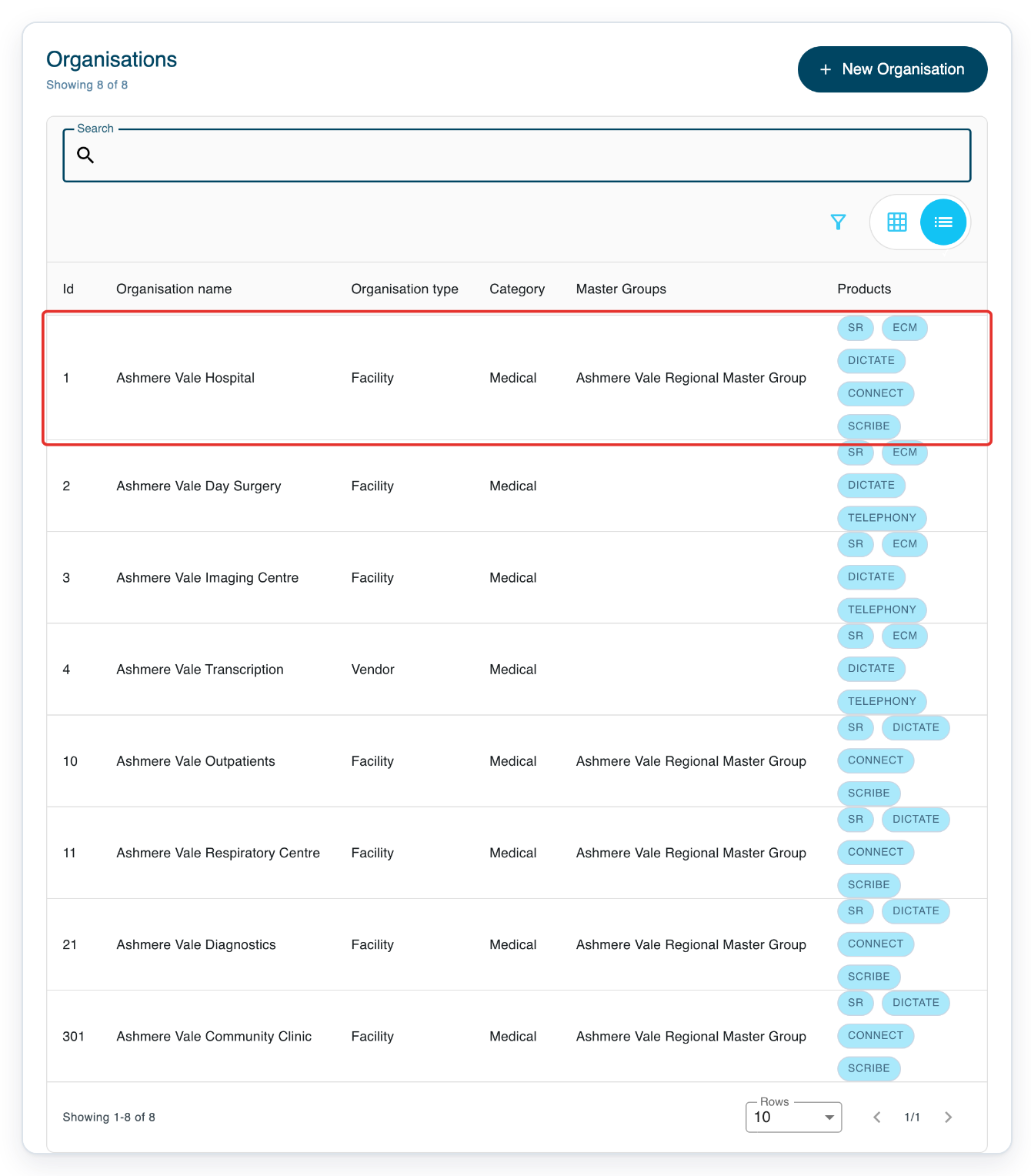
In Organisations, click your organisation's row, such as Ashmere Vale Hospital. The organisation's page opens.
Use Search above the list if you have several organisations. Enter the organisation's name and press Enter. Check its name at the top of the page before changing any settings.
The setting applies to the organisation you open. Choose the one where you want to block mobile audio playback.
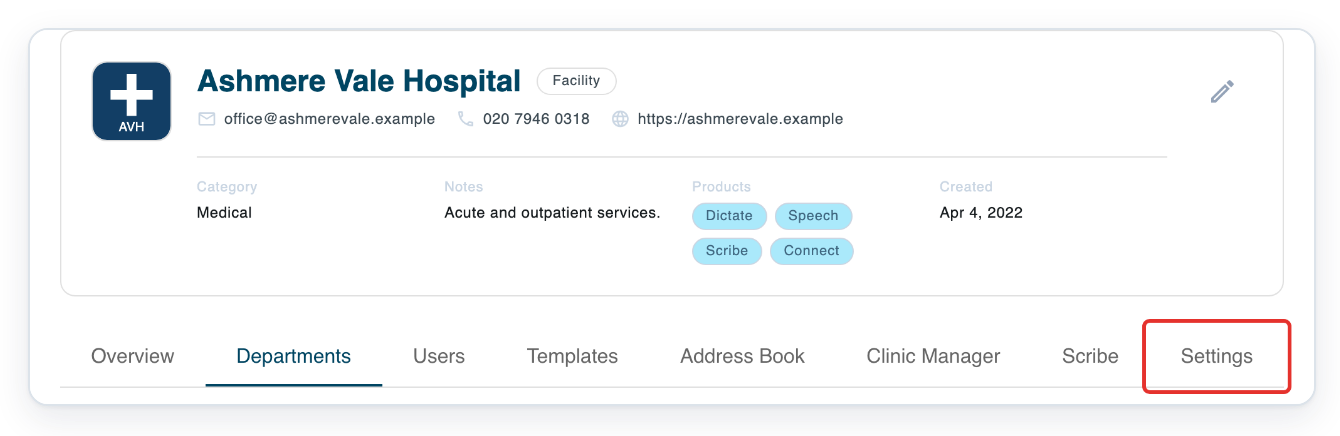
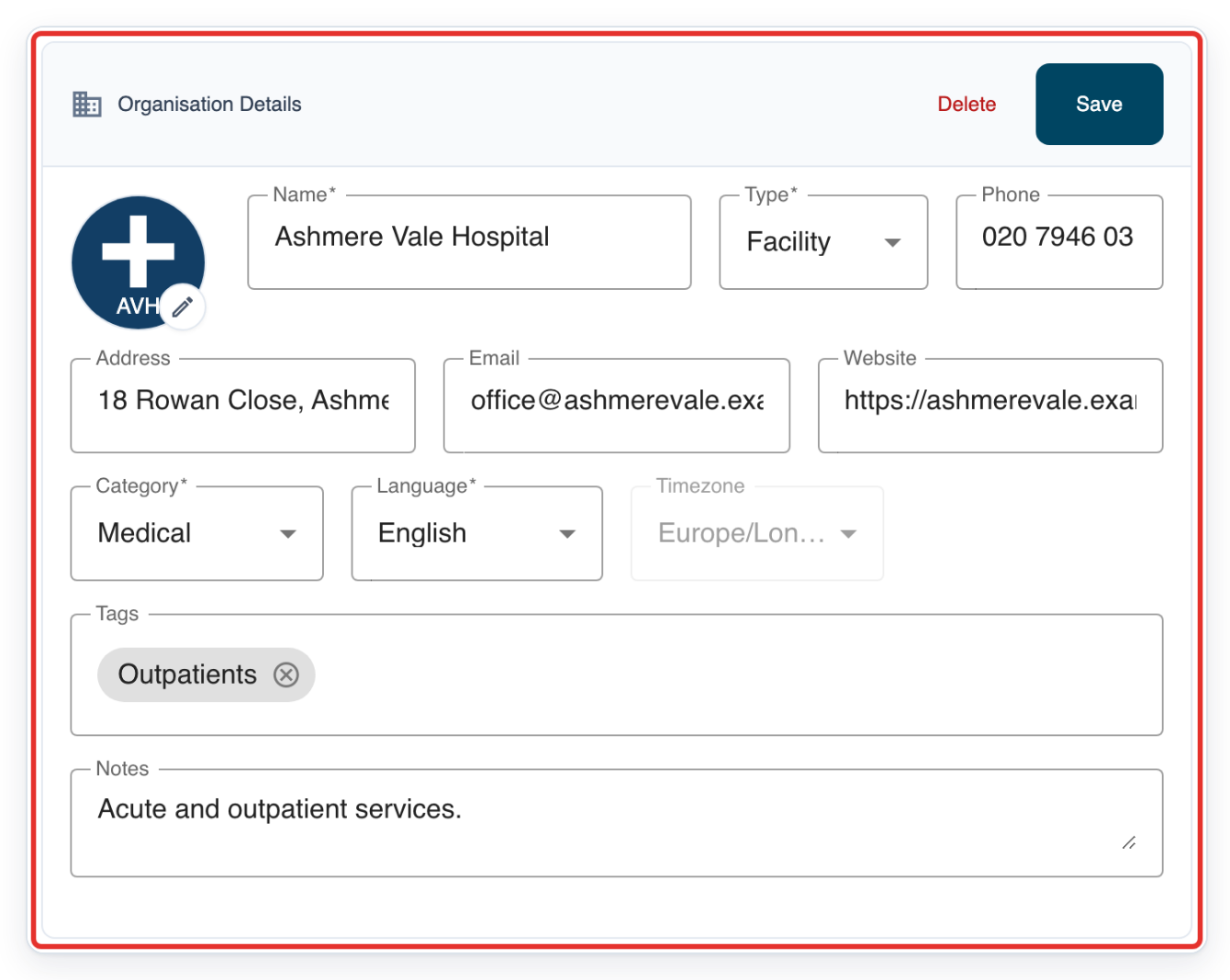
Click Settings. The General settings page opens with Organisation Details at the top.
You'll find the Settings tab below the organisation's details. The playback setting is further down the General page.
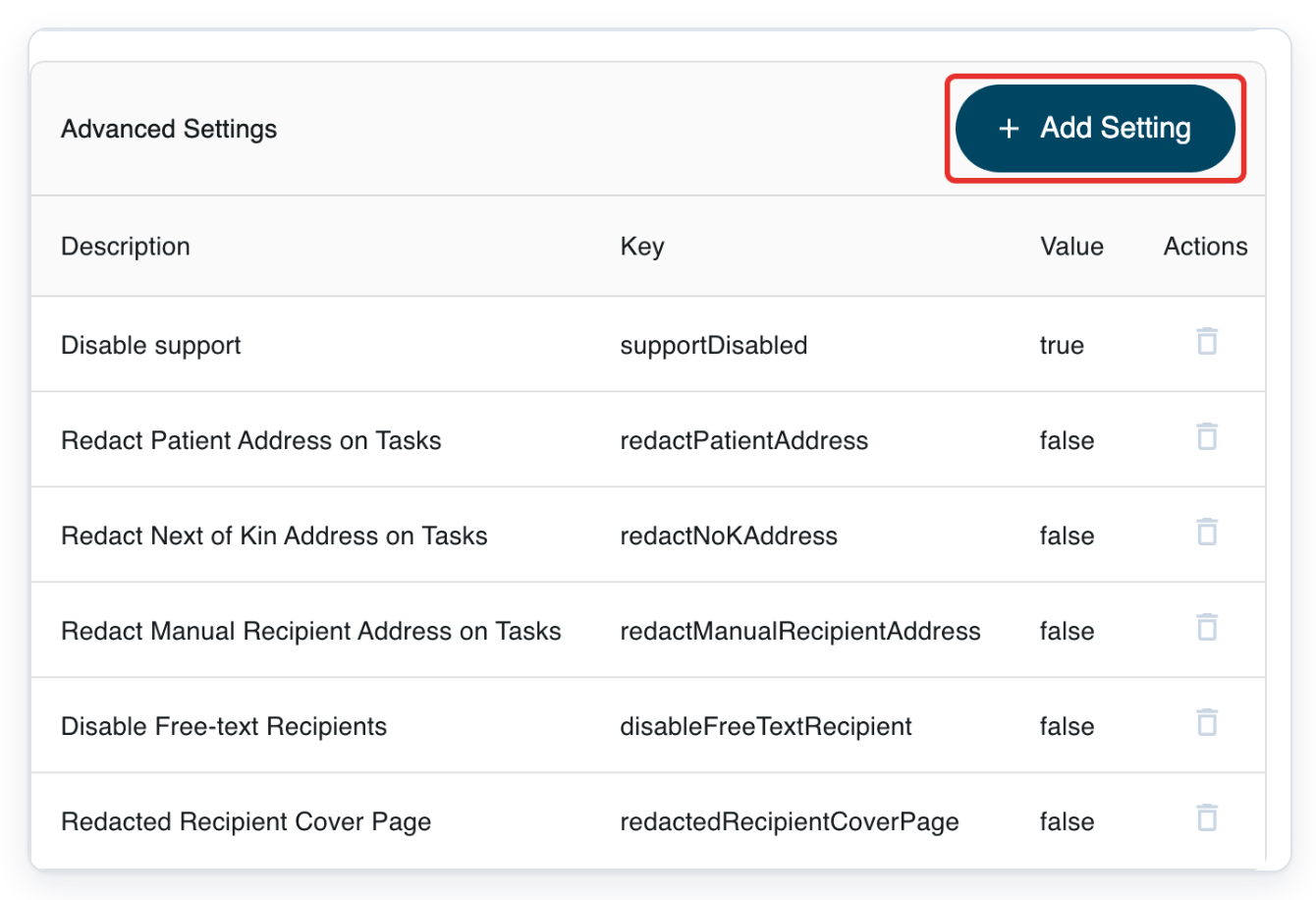
In Advanced Settings, click Add Setting. A list of settings opens.
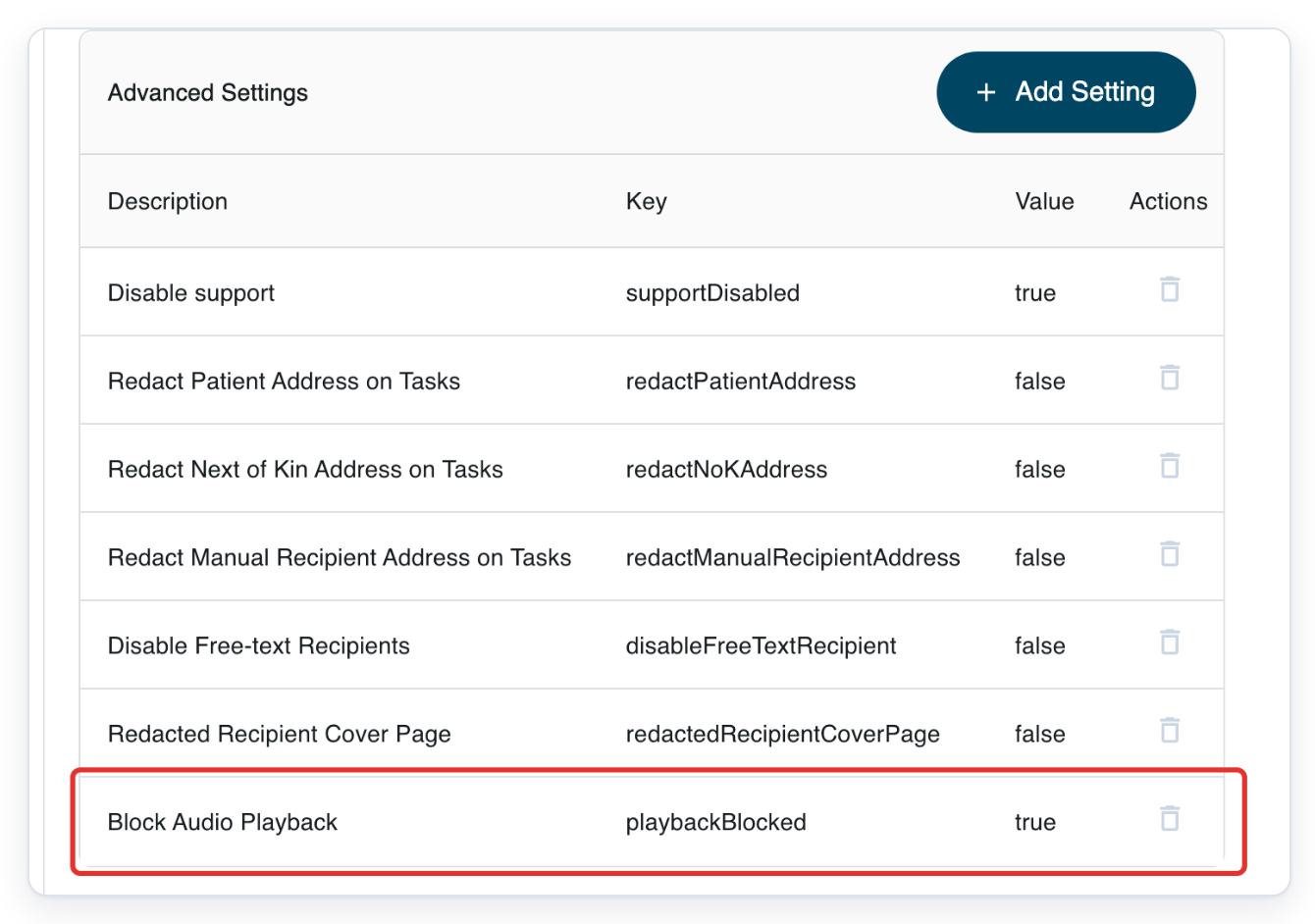
Scroll down to the Advanced Settings table. It lists each setting's description, key and current value.
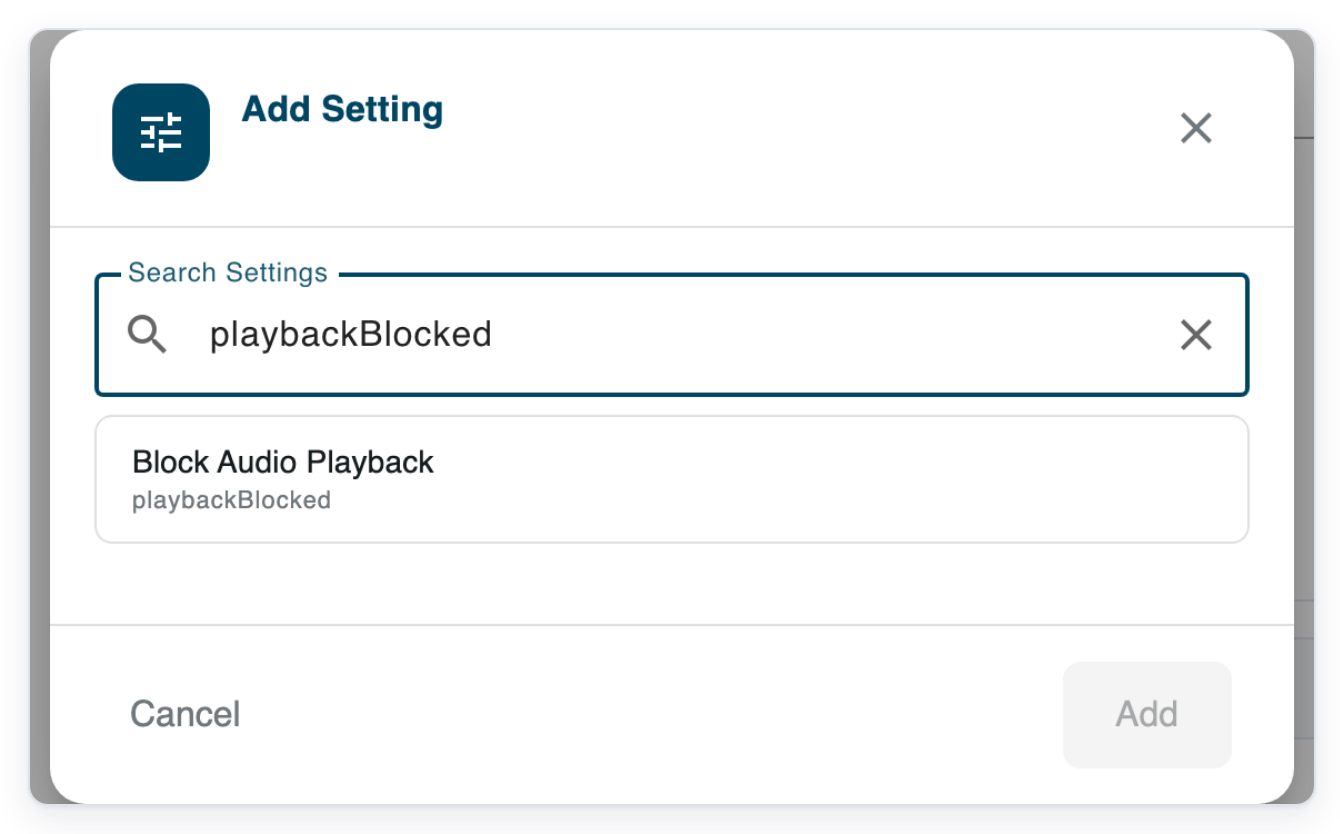
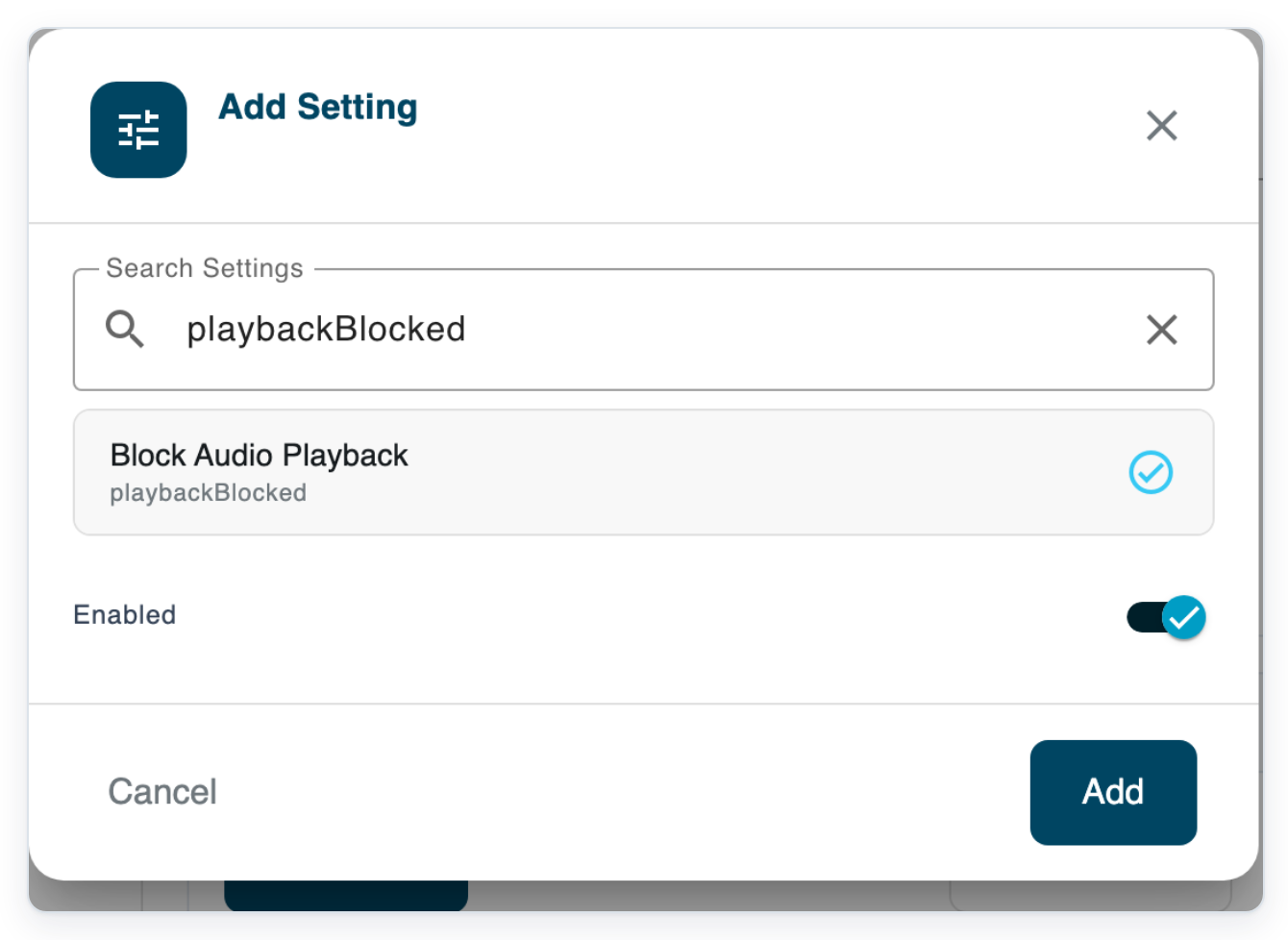
In Search Settings, enter playbackBlocked to find the audio playback setting.
The list updates as you type a setting's name or key. Enter playbackBlocked without spaces, or search for part of the name, such as playback. You can use upper or lower case letters.
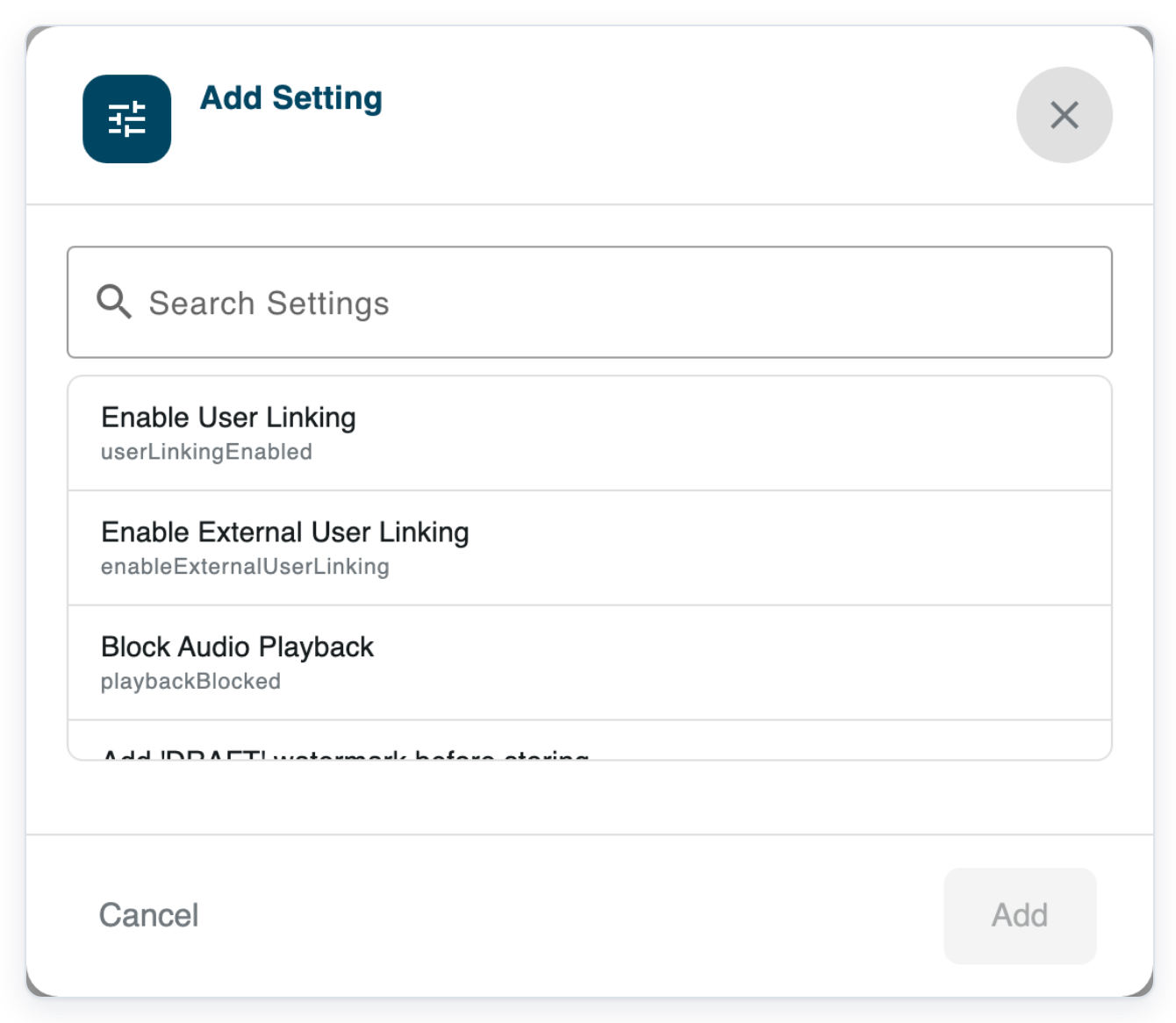
Select Block Audio Playback with the key playbackBlocked. The Enabled switch appears below it.
Check the key below the name to confirm you've found the mobile audio playback setting. If you choose the wrong setting, click Cancel and start again.
Turn on Enabled to block audio playback.
Leave the switch on if it's already on. Here, Enabled means the block is on.
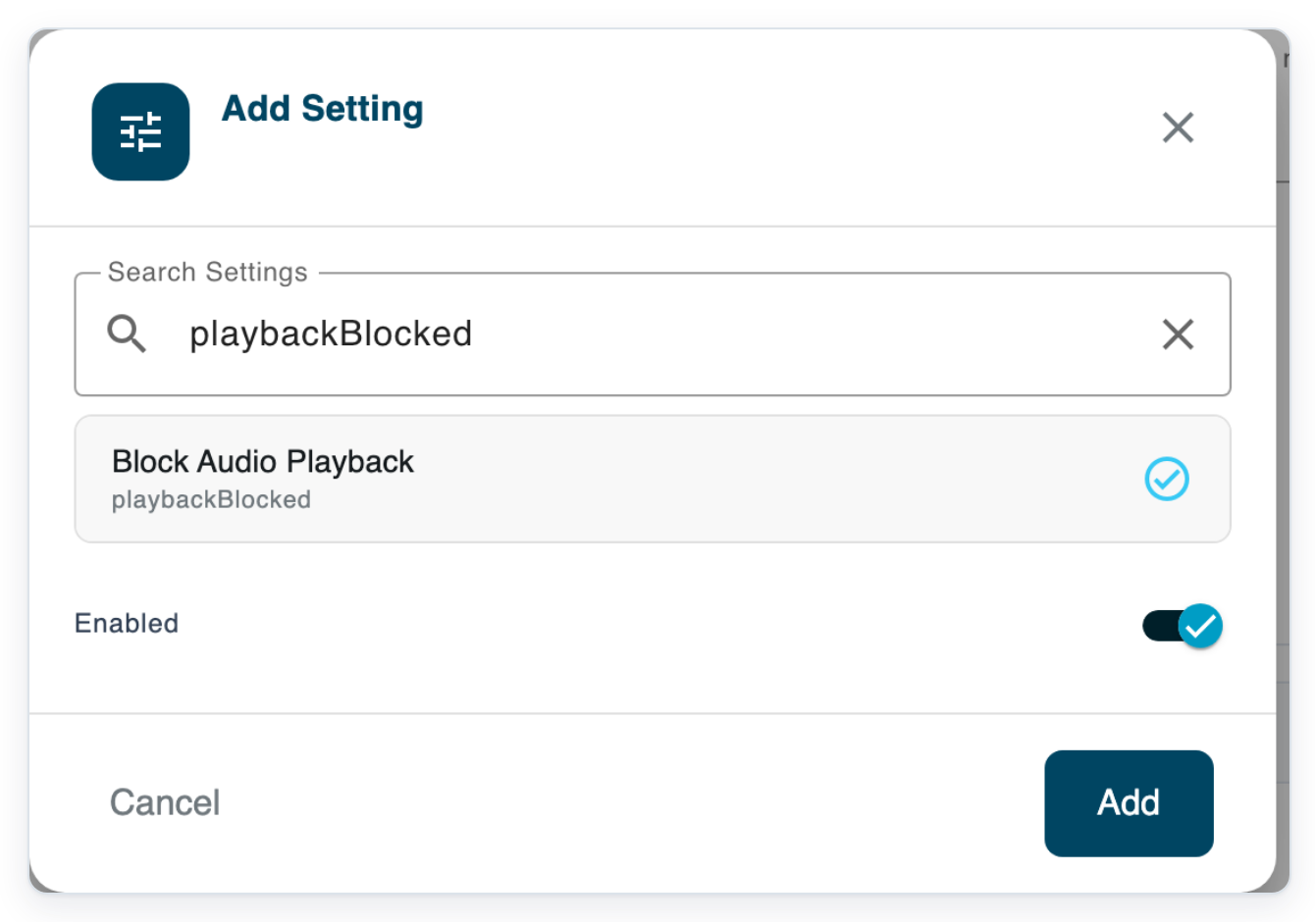
=> The audio playback setting is selected and Enabled is on.
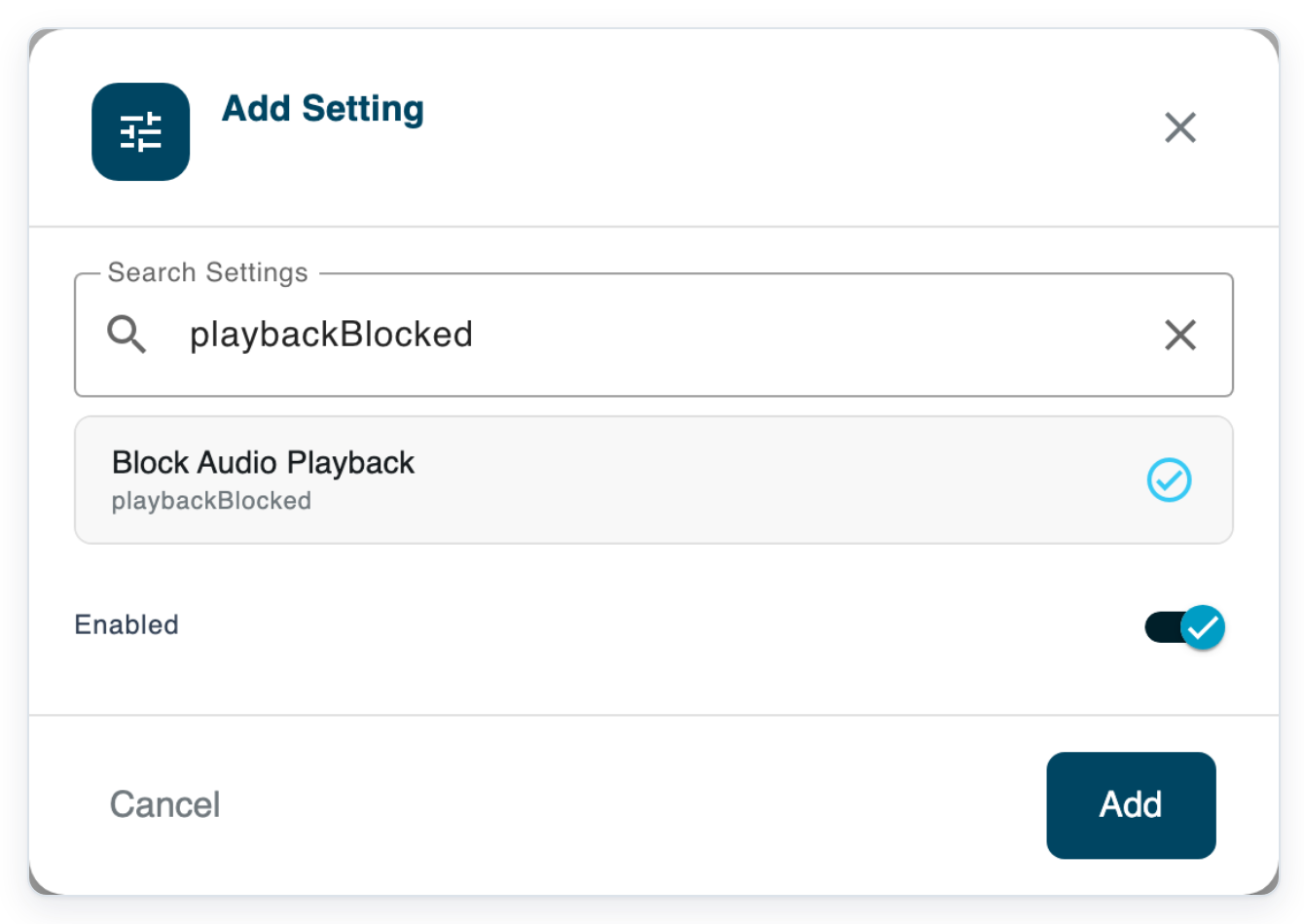
Click Add. The dialog closes and the setting appears in Advanced Settings with the value true.
Wait for the dialog to close before returning to the top of the page. In the table, true means the block is on and false means it's off.
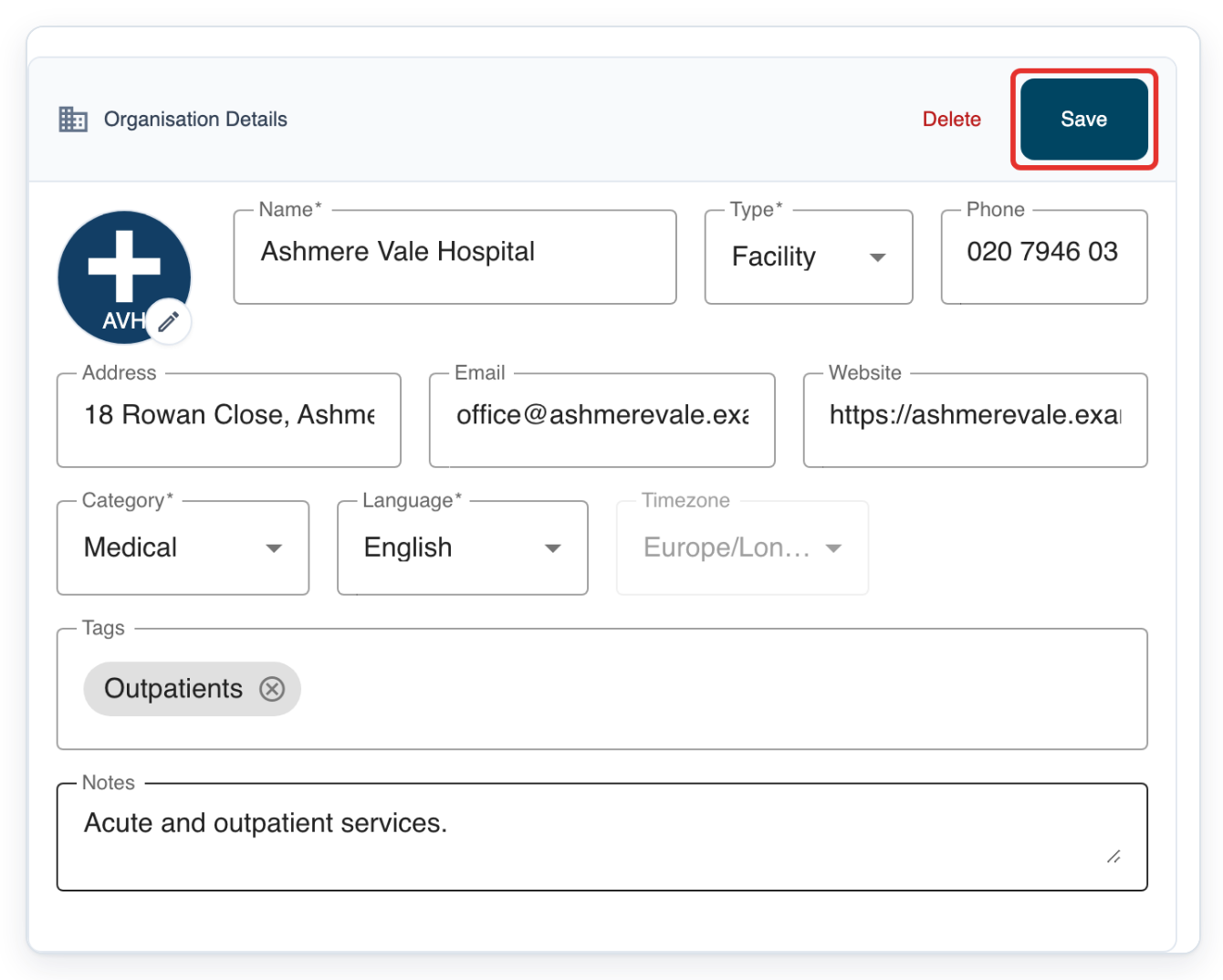
Scroll back to Organisation Details and click Save. Entity updated confirms your change is saved.
The Save button is beside Organisation Details at the top of the page. Wait for confirmation before leaving the settings page.
NOTE:
- The playback block applies only to the T-Pro Dictate mobile apps.
- Clicking Add puts the setting in the table. Click Save in Organisation Details to apply it to the organisation.
Can't turn off audio playback?
To check the change was saved, reload the page with Organisation Details in view. Then scroll down to Advanced Settings.
=> After reloading, look for Block Audio Playback in Advanced Settings. Its key should be playbackBlocked and its value true.
If the row is missing or shows false, add or edit the setting again. Check that Enabled is on, then save in Organisation Details. Reload the page once more to check the saved value.
Can't see Advanced Settings? Sign in with an admin account or ask your administrator to make the change. This section isn't available to master accounts.
playbackBlocked is missing from Add Setting. Check the Advanced Settings table to see whether it's already there. The list only includes settings you haven't added yet. Click the Block Audio Playback row and turn on Enabled. Click Save in the dialog, then Save in Organisation Details.
Related articles
If you have any more queries, please do not hesitate to contact our Helpdesk or support@tpro.io.
© 2020 - 2026