
Before you start
You need an administrator account. Check which organisations hold the accounts your users want to link.
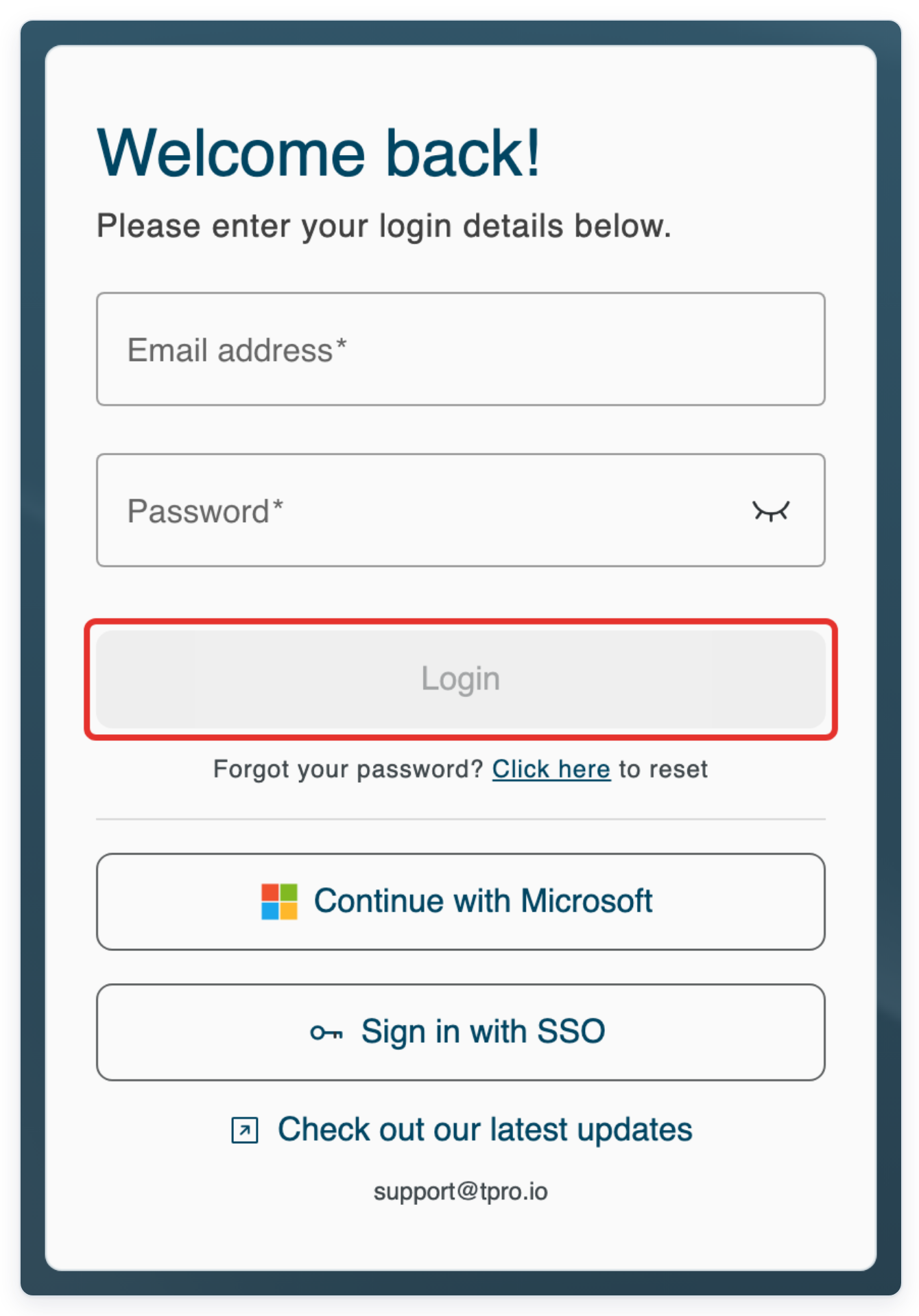
Log in to T-Pro with your administrator credentials.
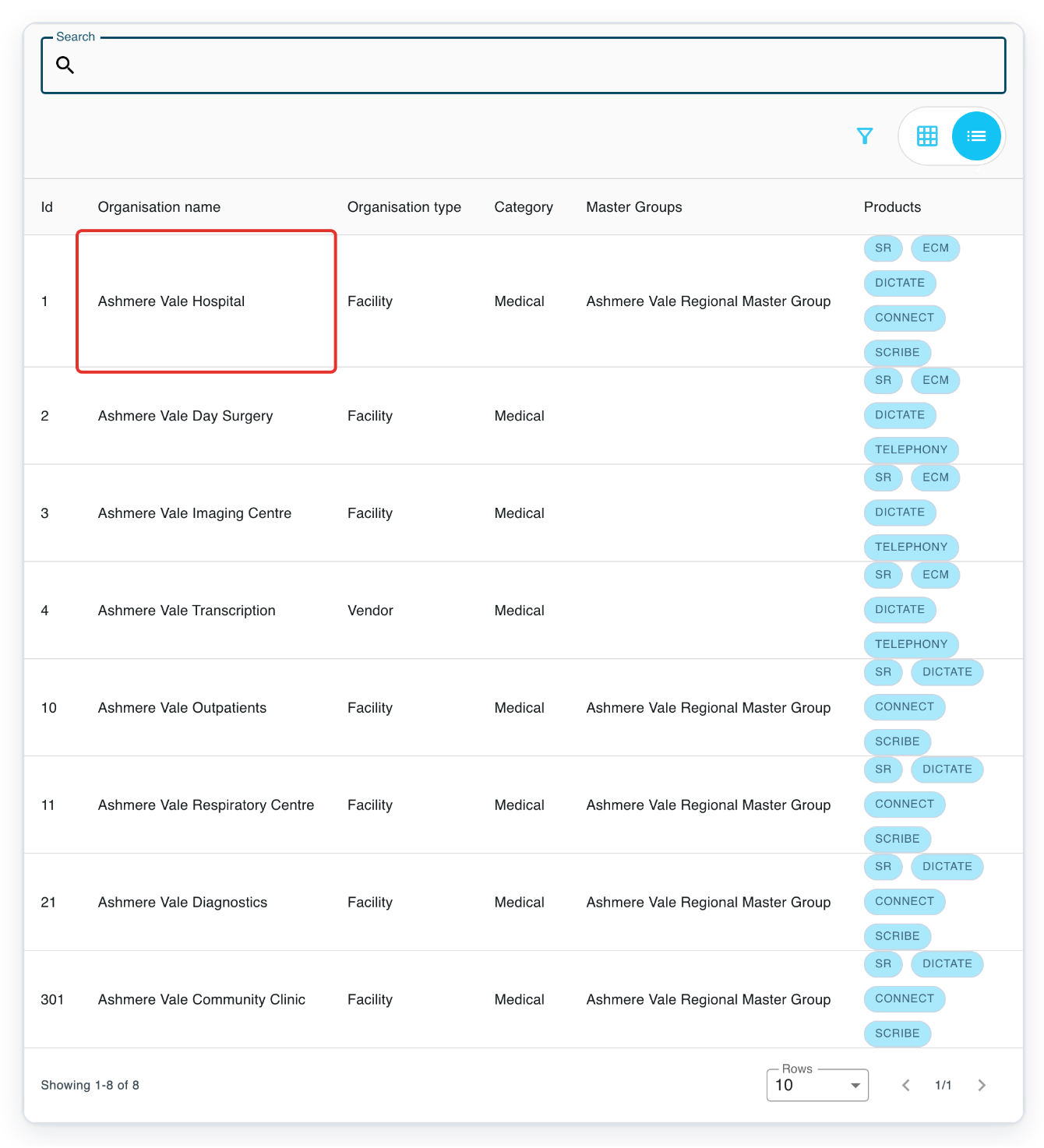
In Organisations, click the organisation you want to set up.
Click its name in the Organisation name column. To find it, type its name in Search above the list and press Enter. The pictures show Ashmere Vale Hospital as an example.
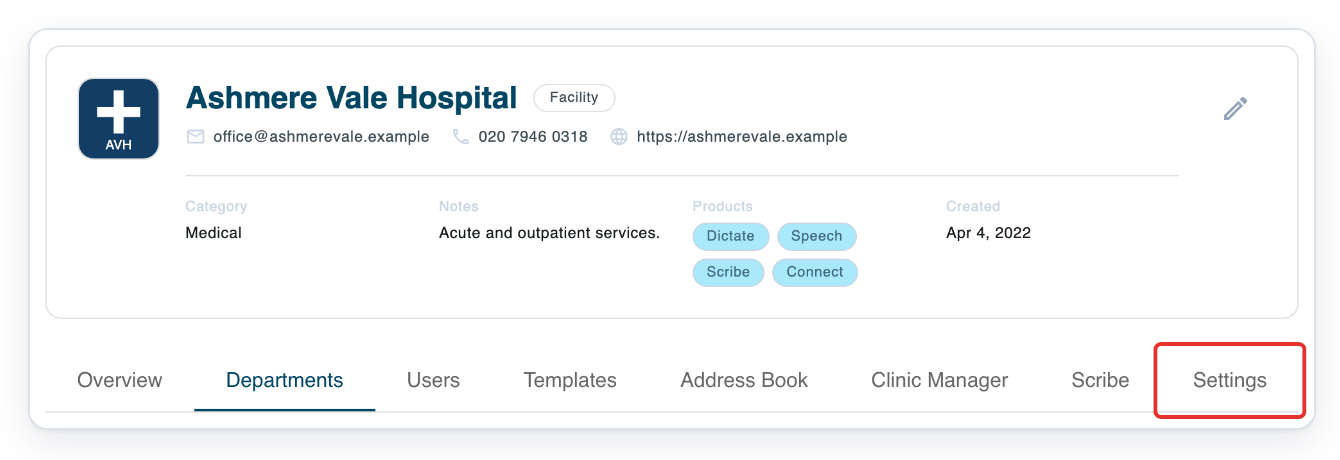
Click Settings in the organisation's tabs.
General opens with Organisation Details and a Save button at the top. You'll return here to save your changes in step 12.
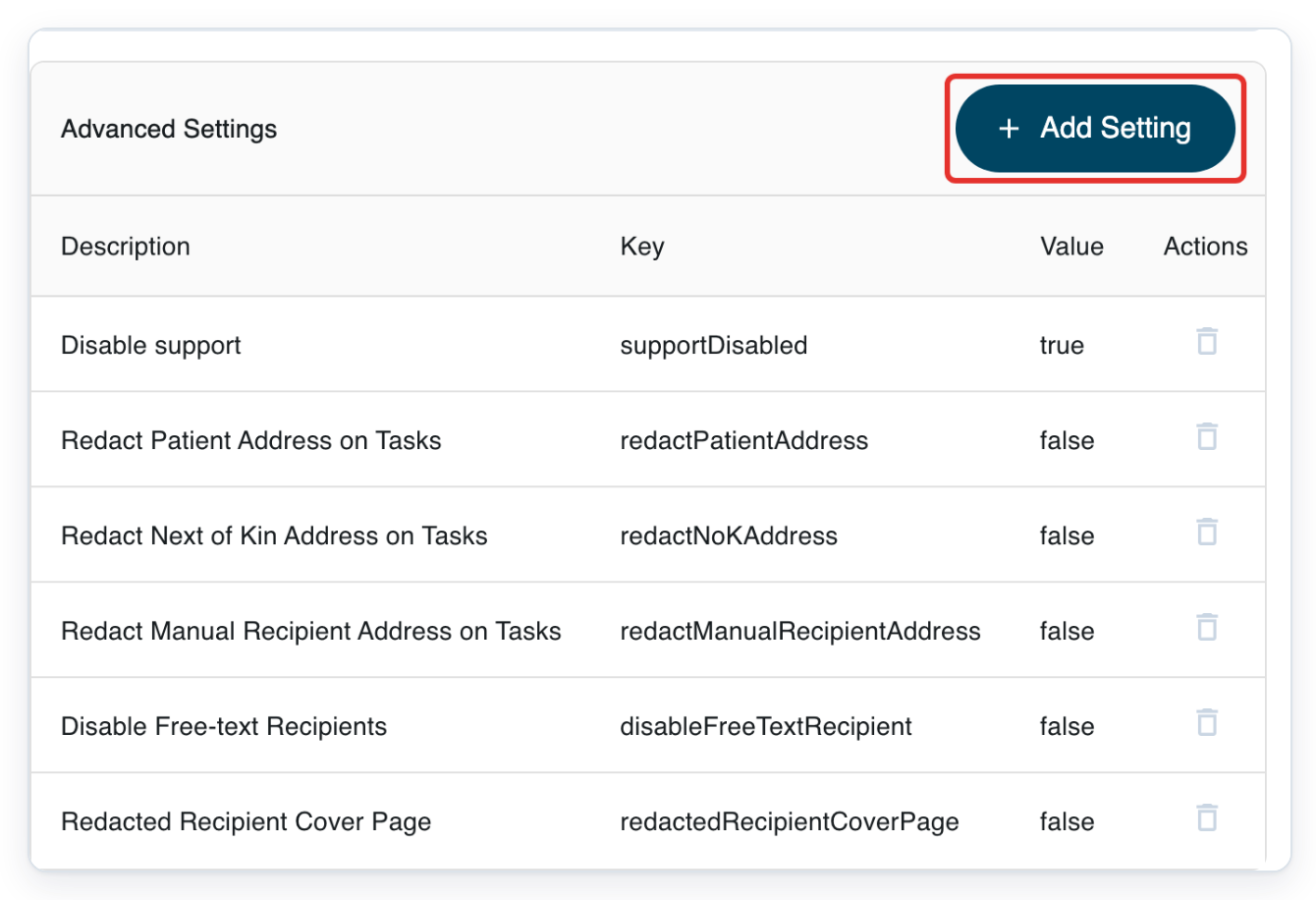
Scroll down to Advanced Settings and click Add Setting.
A dialog opens with a search field and the settings you can add to this organisation.
Enter userLinkingEnabled in Search Settings.
The list shows Enable User Linking. You can search using the setting's name or the text below it.
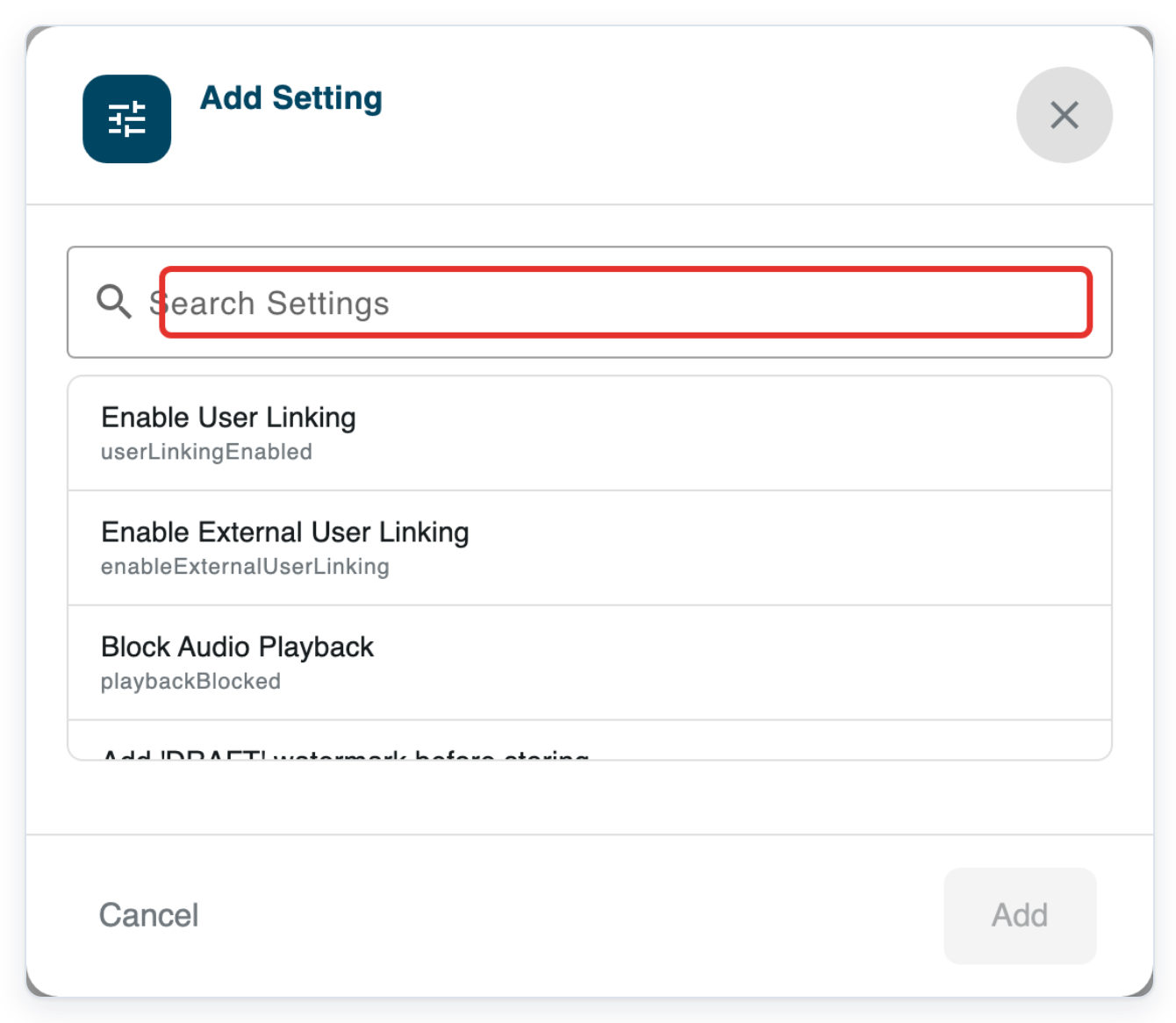
Click Enable User Linking.
An Enabled switch appears below the setting. It is already on.
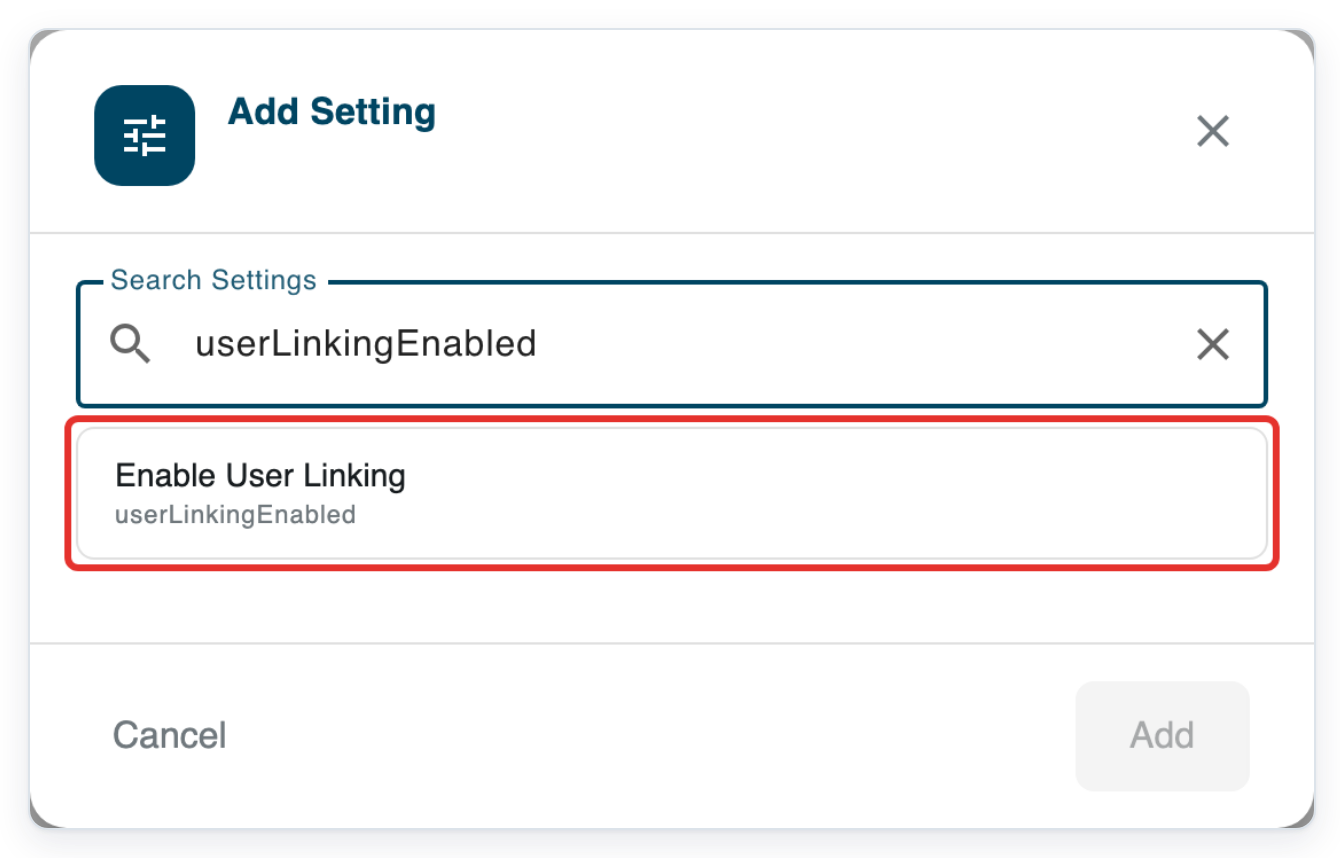
Leave Enabled on and click Add.
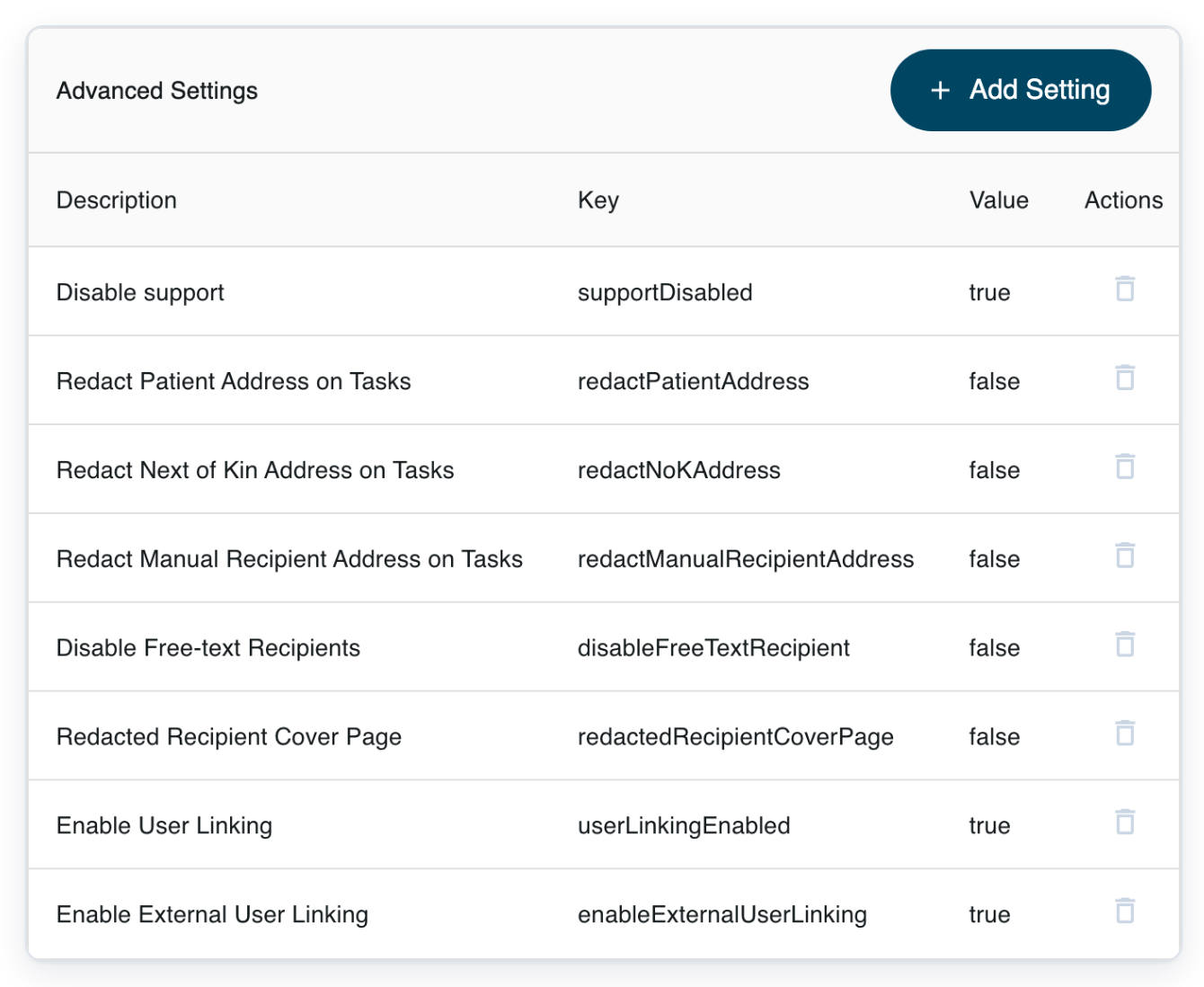
The dialog closes. Advanced Settings now lists userLinkingEnabled with the value true. Save your changes in step 12.
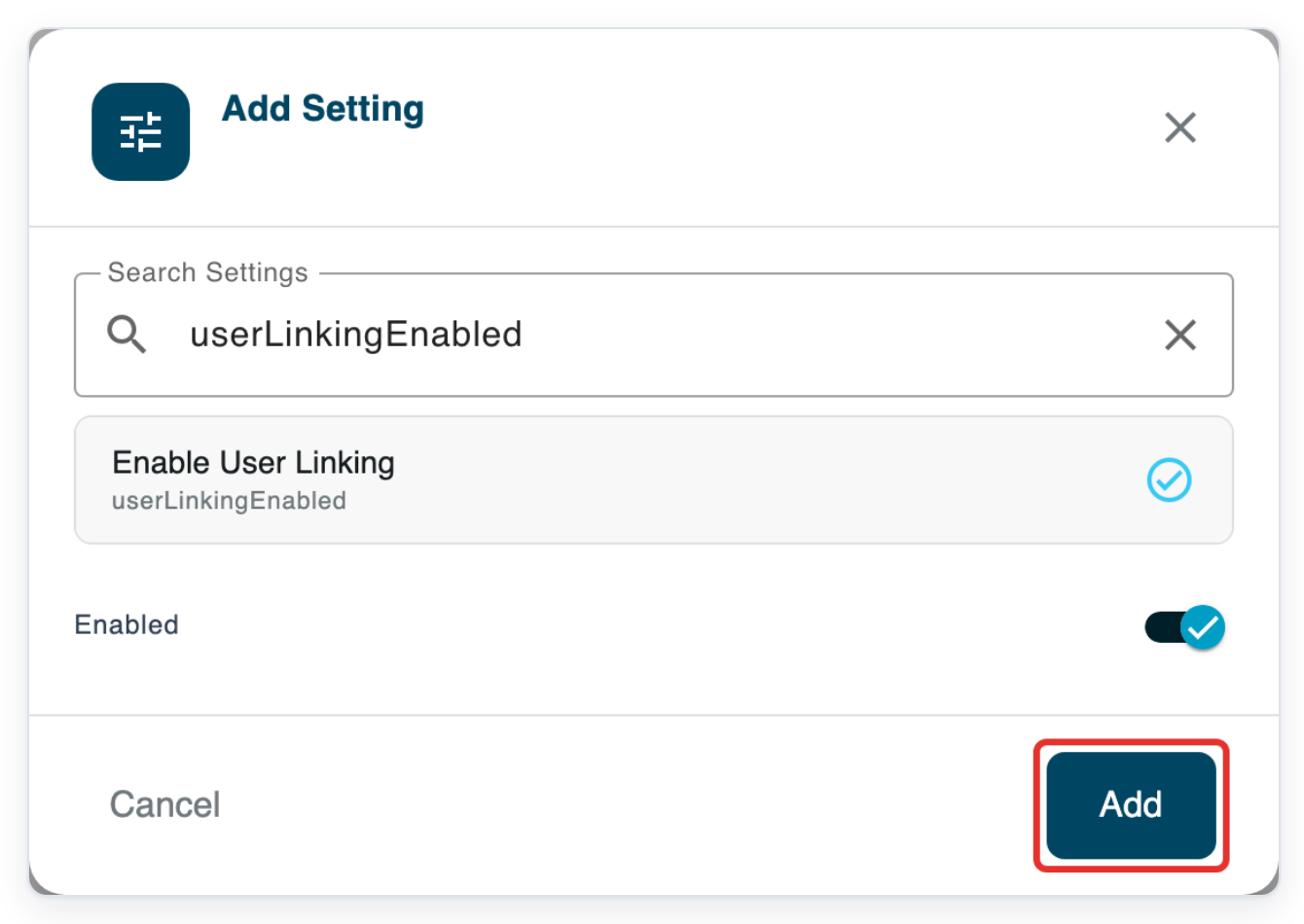
For accounts in different organisations or processor accounts, click Add Setting again in Advanced Settings.
For other accounts within one organisation, skip steps 8 to 11 and go to step 12.
Use Enable External User Linking to let users link accounts in different organisations. Both organisations need this setting turned on.
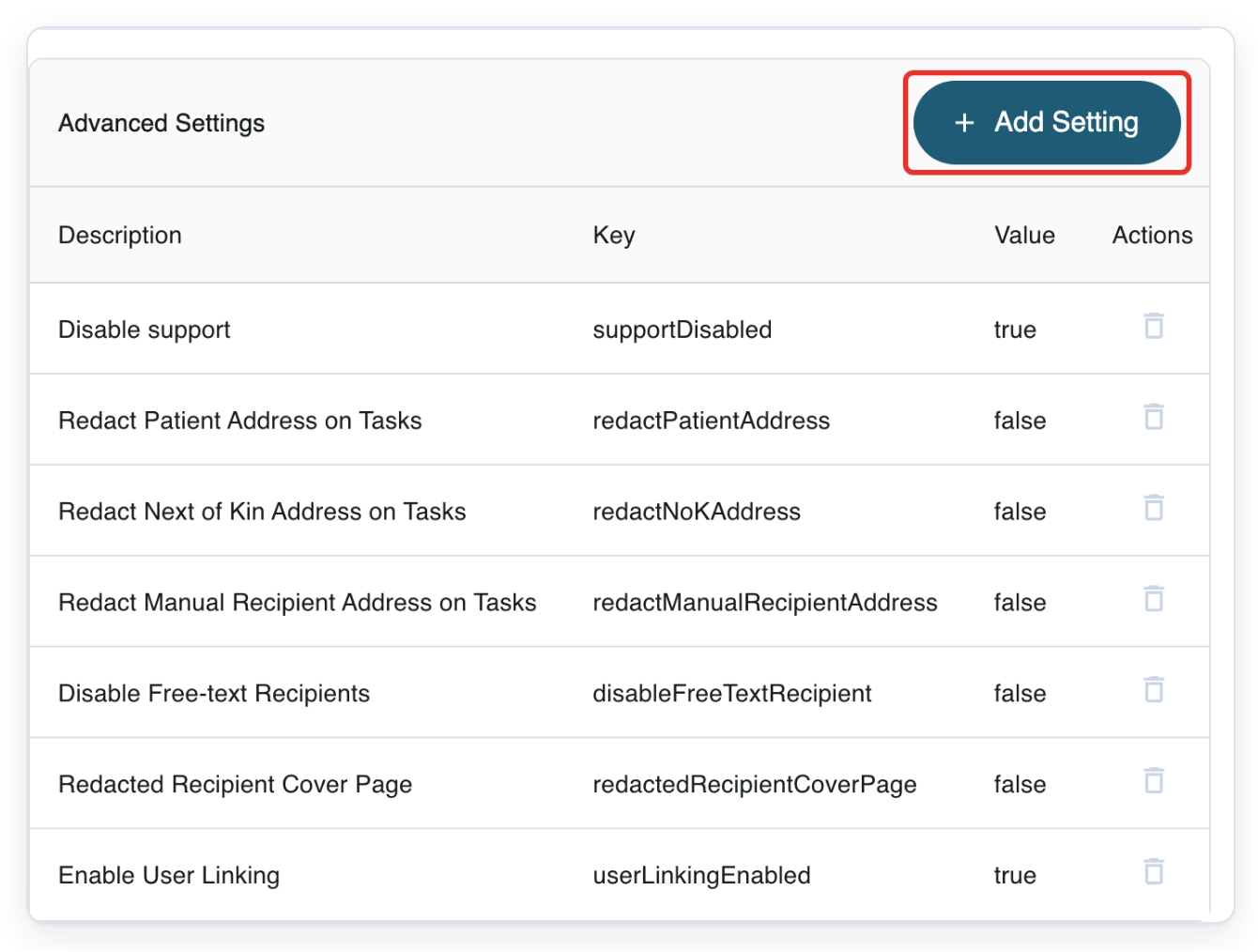
Enter enableExternalUserLinking in Search Settings.
The list shows Enable External User Linking.
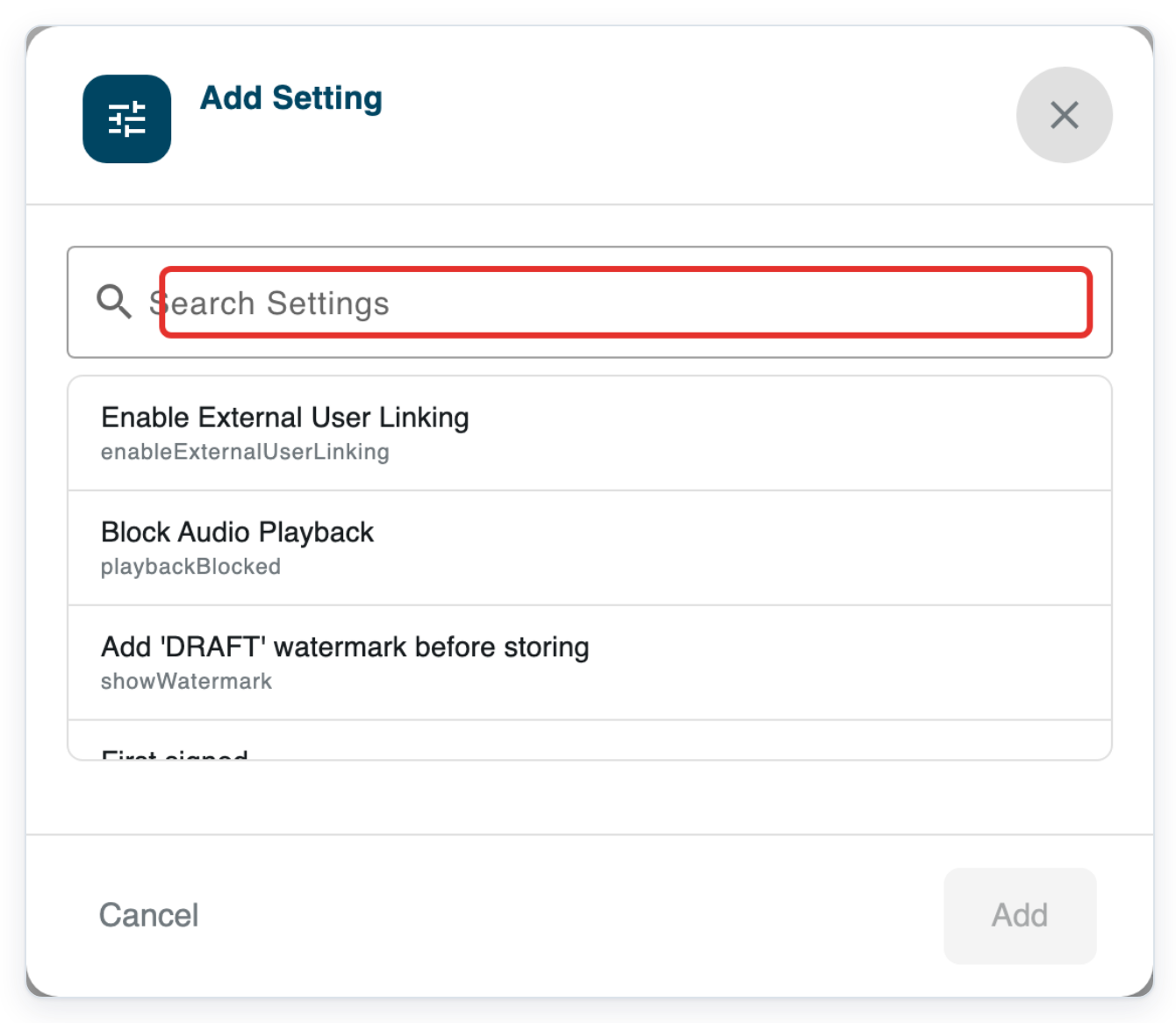
Click Enable External User Linking.
The Enabled switch appears below the setting and is already on.
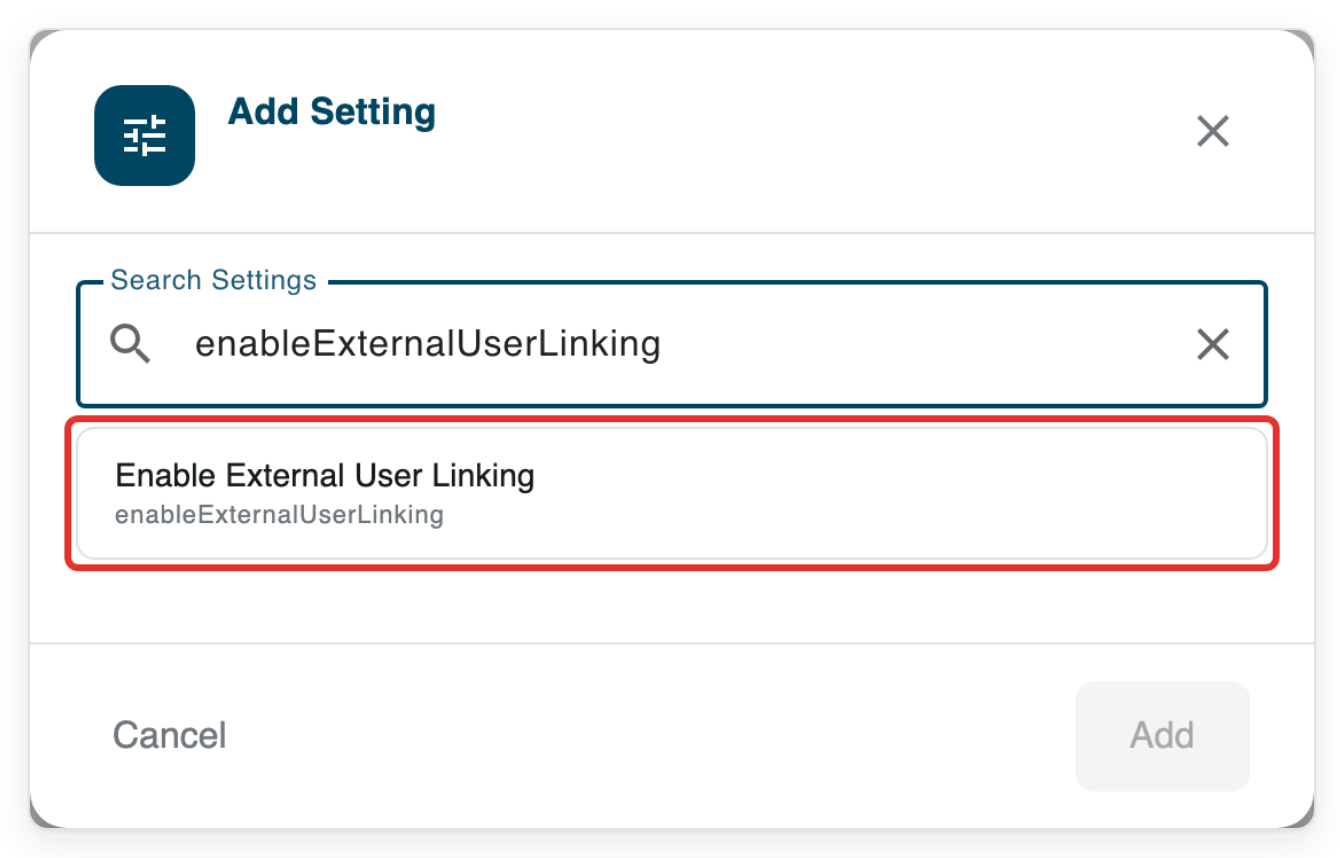
Leave Enabled on and click Add.
The dialog closes. Advanced Settings now also lists enableExternalUserLinking with the value true.
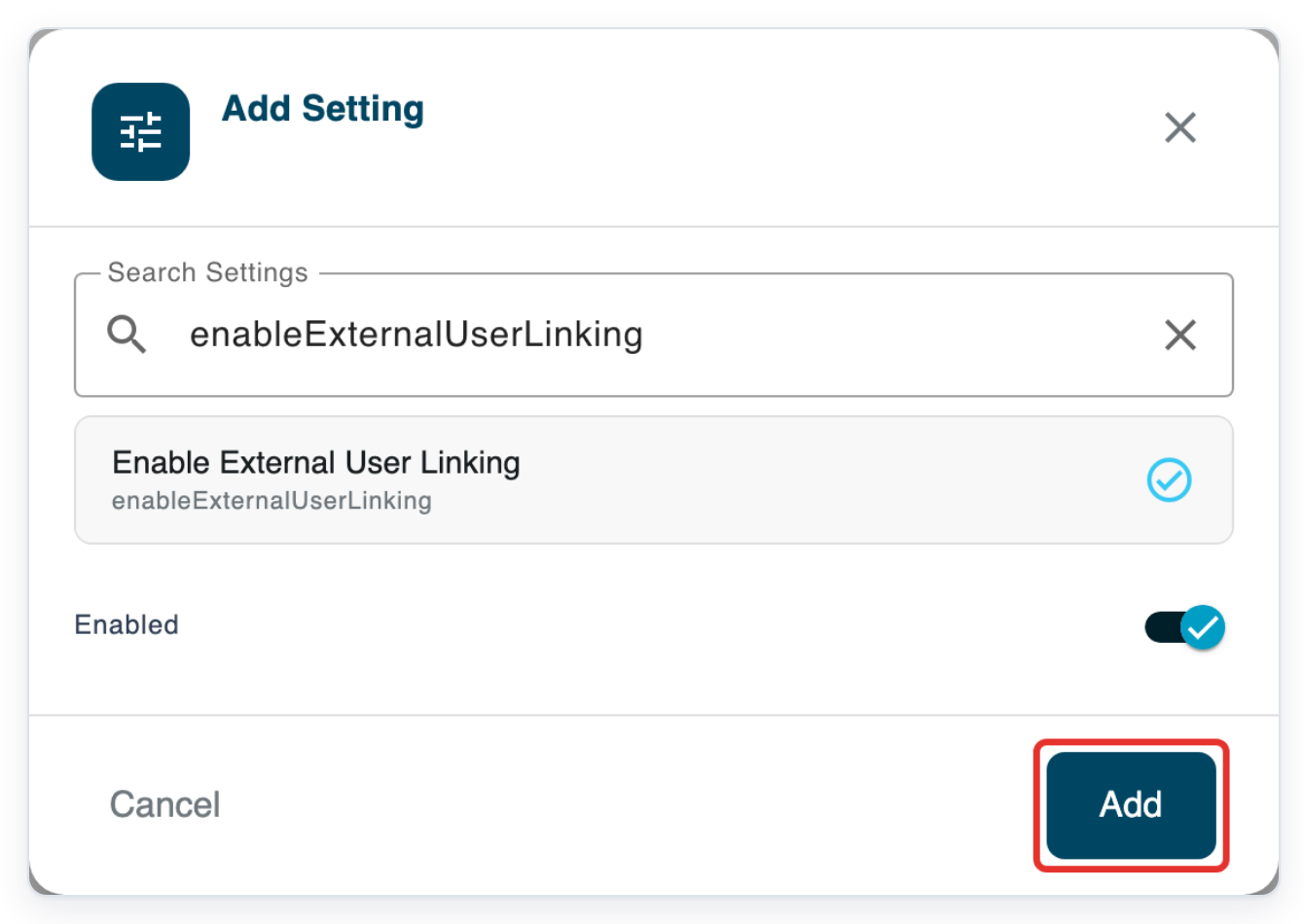
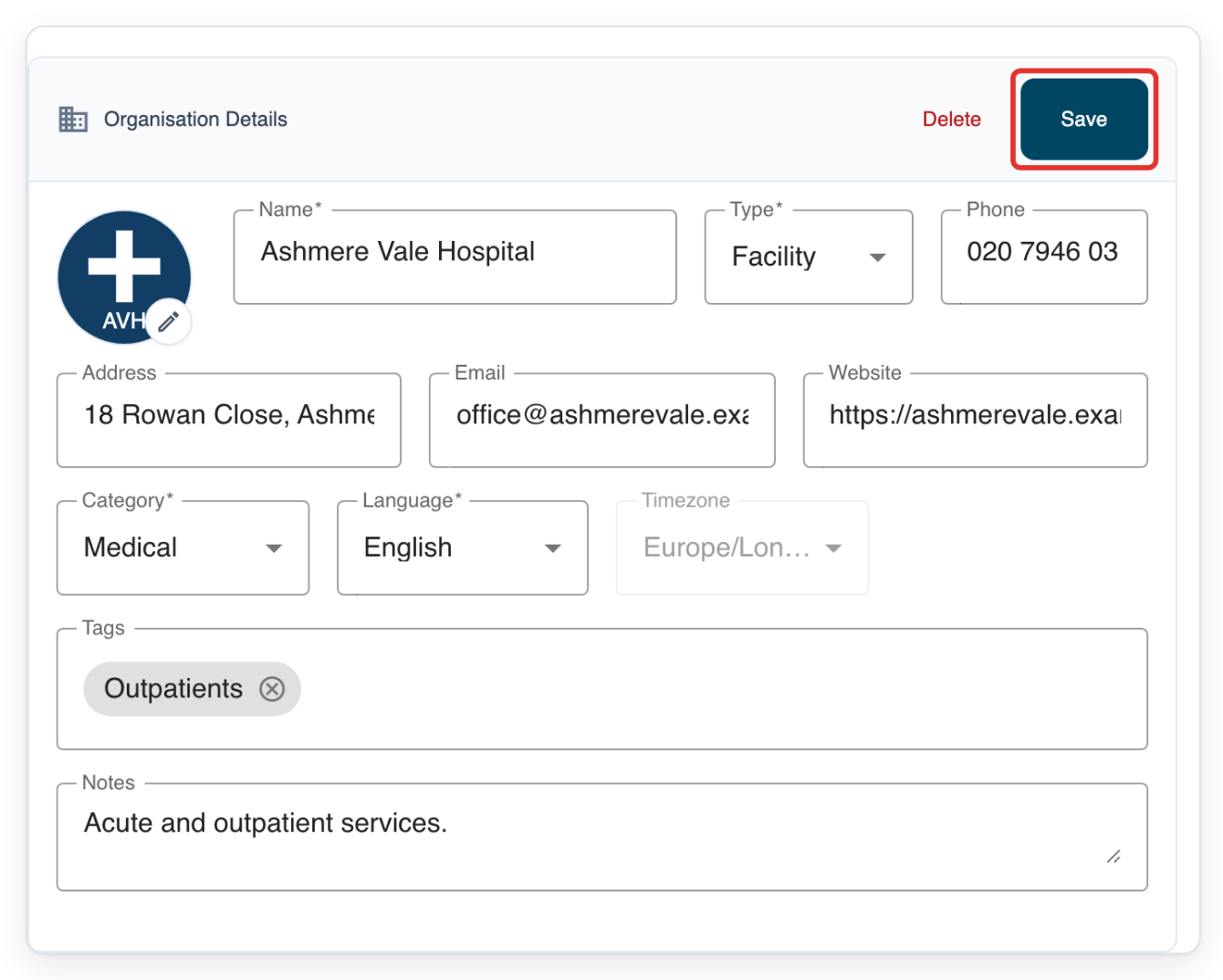
Scroll back to Organisation Details and click Save.
This saves your settings. T-Pro shows Entity updated.
=> If you added both settings, Advanced Settings shows userLinkingEnabled and enableExternalUserLinking with the saved value true.
NOTE:
- Users sign in to each account when they first link it. They can then switch between linked accounts without entering their login details again.
- Users can link more than two accounts.
- To link accounts across organisations, repeat steps 8 to 12 in each organisation involved.
Which accounts can users link?
| Account type | Can users link it? |
|---|---|
| Author, clerical and manager accounts | Yes, including processor accounts. For processor accounts, turn on Enable External User Linking. This applies even when both accounts are in the same organisation. |
| Administrator and master accounts | No. An administrator turns on the settings for other users. |
Can't enable account switching?
- If Advanced Settings is missing, log in with your administrator credentials. If you have a master account, ask an administrator to make this change.
- If a setting is missing from Search Settings, check whether it is already in Advanced Settings. Click its row, turn Enabled on, then click Save in the dialog. Click Save in Organisation Details to save the change.
- If users still cannot link accounts in another organisation, check Enable External User Linking in both organisations. Each must show true. Save any changes in Organisation Details, then ask the user to try linking again.
Related articles
If you have any more queries, please do not hesitate to contact our Helpdesk or support@tpro.io.
© 2020 - 2026