
Before you start
If you're transcribing, you need a letter you can edit. Its transcription route must let you choose approvers from a group. For the steps in All Tasks, the letter must be waiting for first or second approval.
Log in to T-Pro with your transcriber, admin, master or manager credentials.
As a transcriber
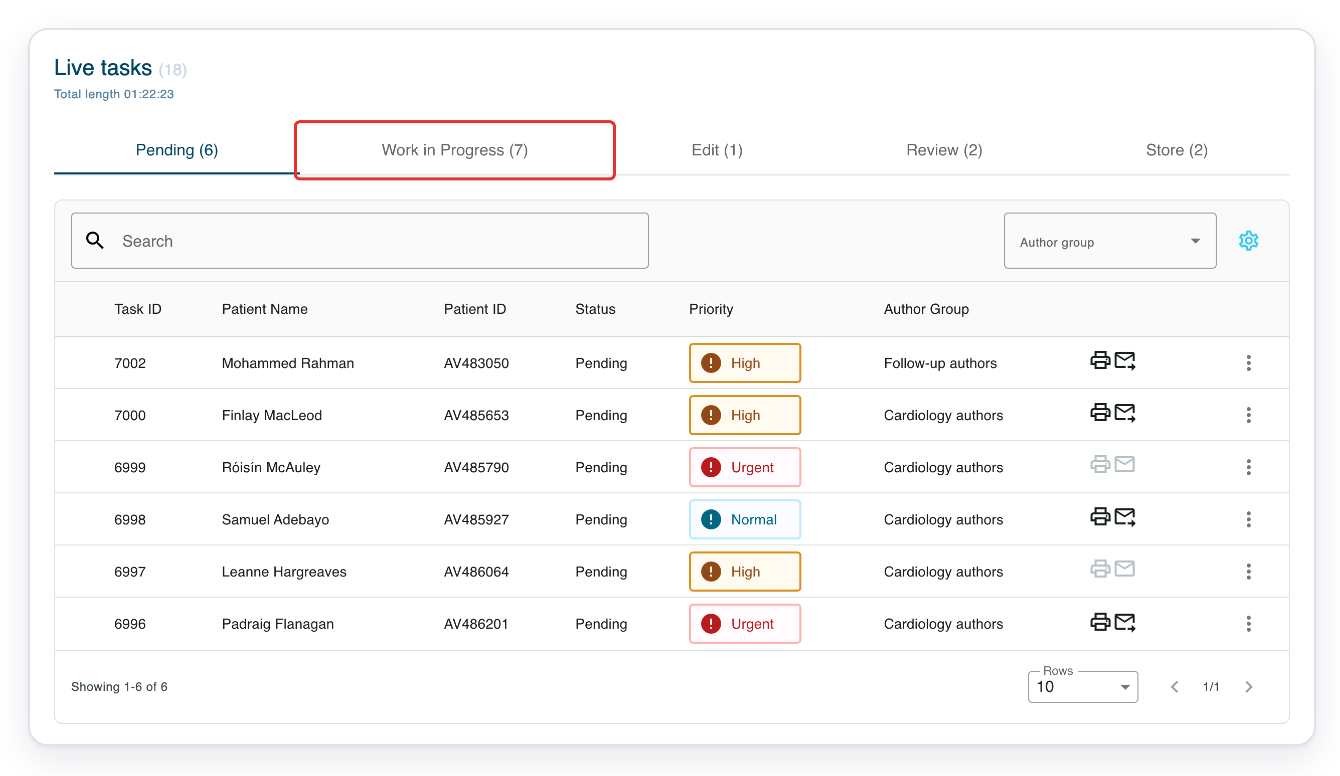
Go to Live Tasks and click Work in Progress to find letters you're working on.
This tab also includes letters being edited, reviewed, processed or stored.
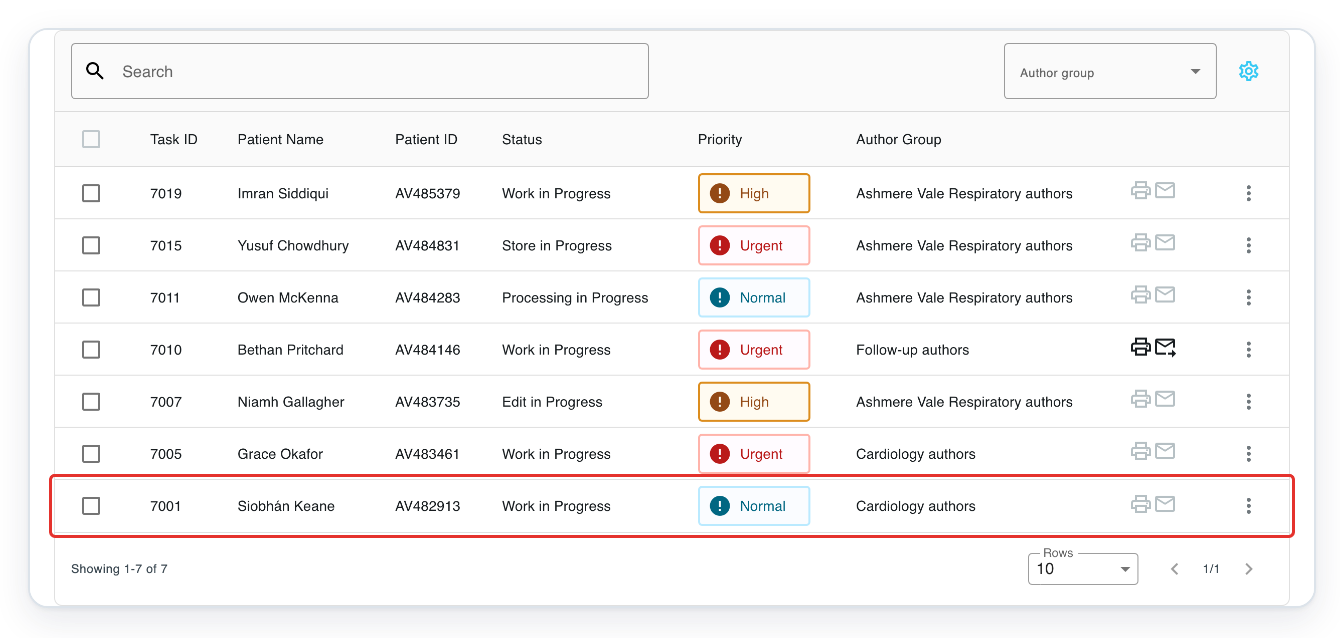
Click the letter's row to open it. In this example, open task 7001 for Siobhán Keane.
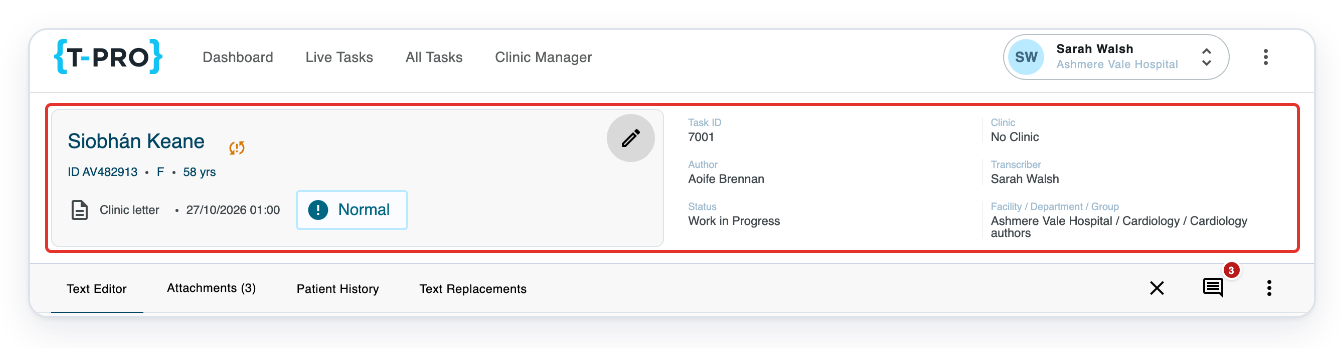
Click the pencil at the top of the letter, labelled Edit task information. This opens Update task.
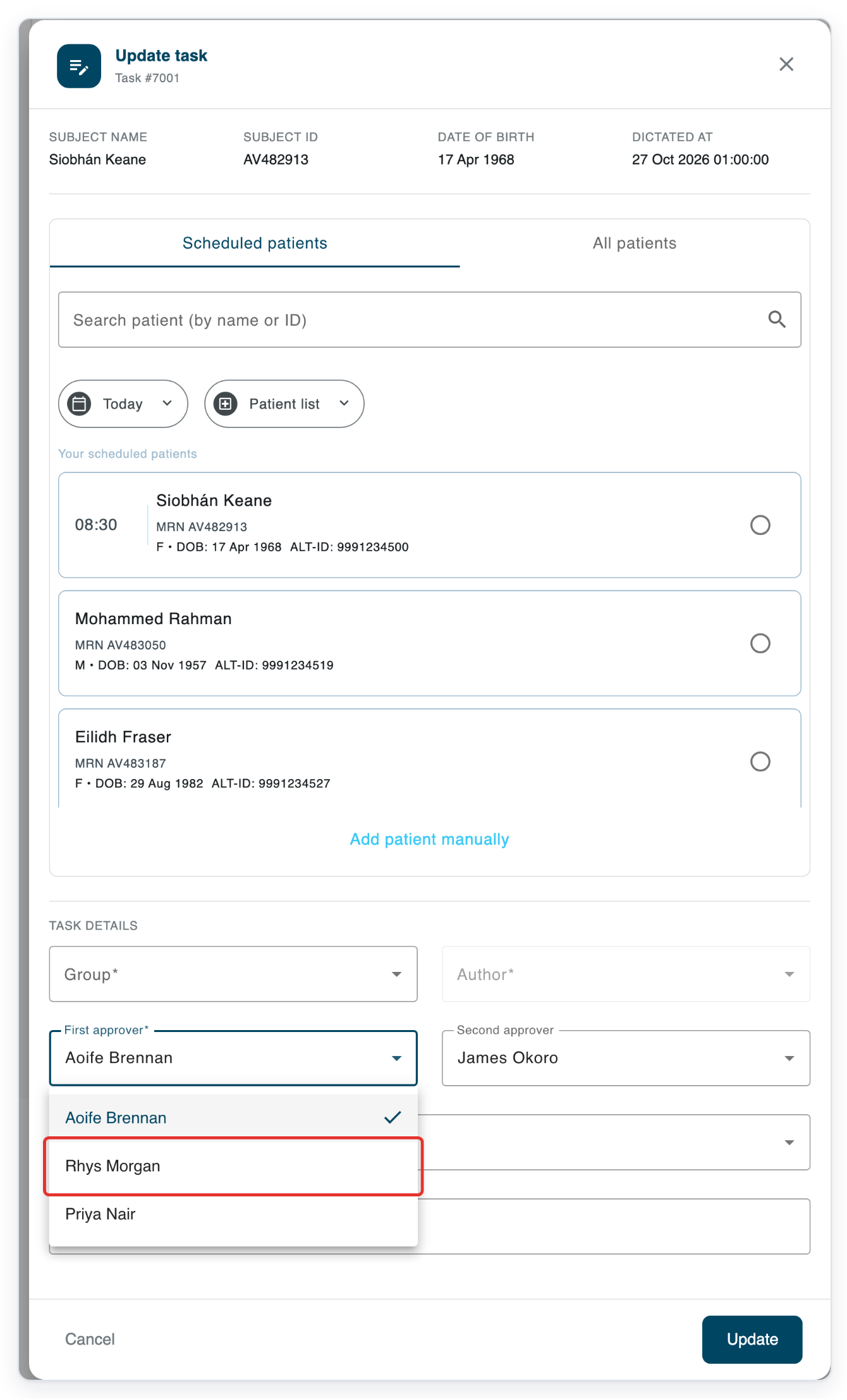
The approver fields appear under Task details.

Click First approver to see the available approvers.
If Second approver appears, you can change it here too.
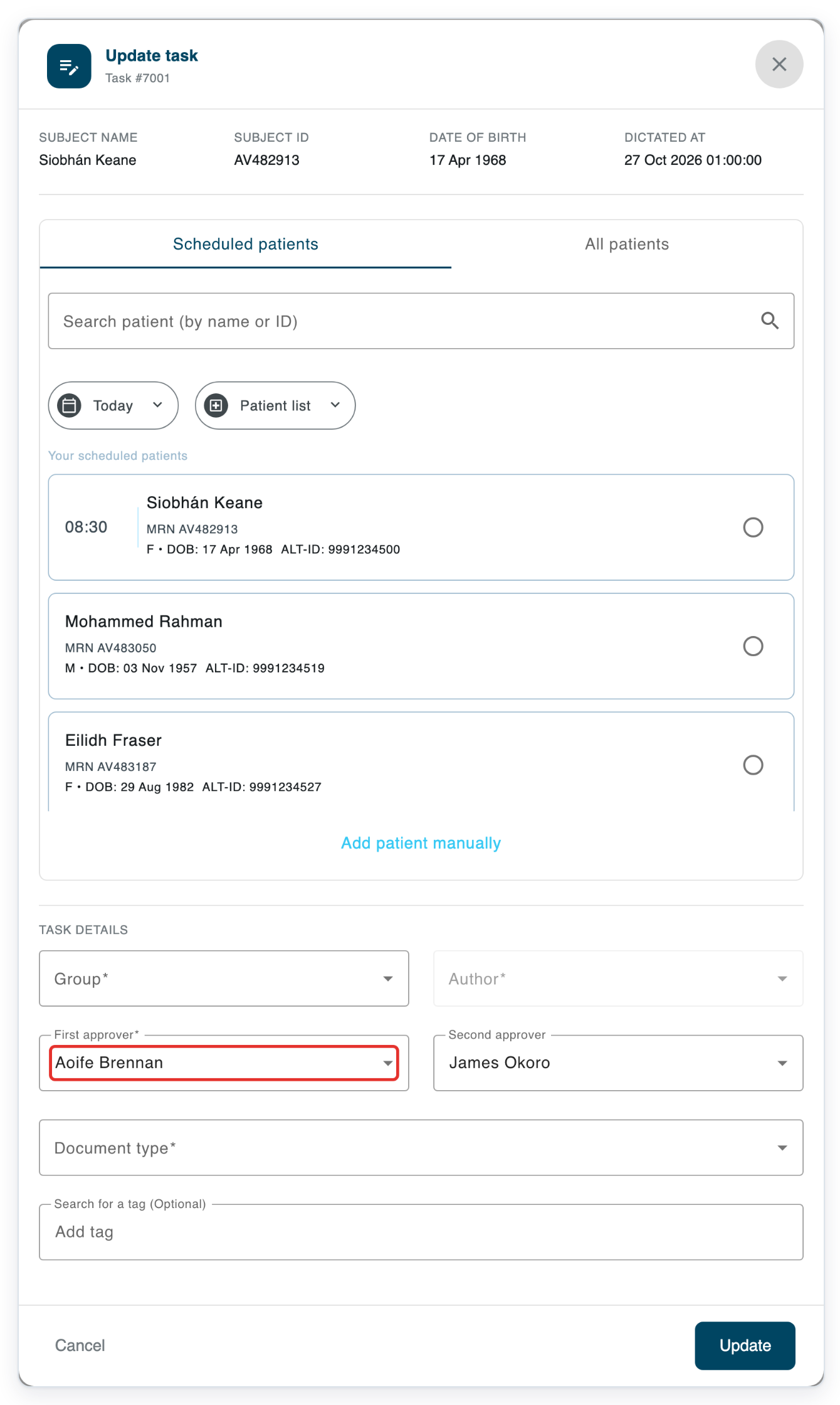
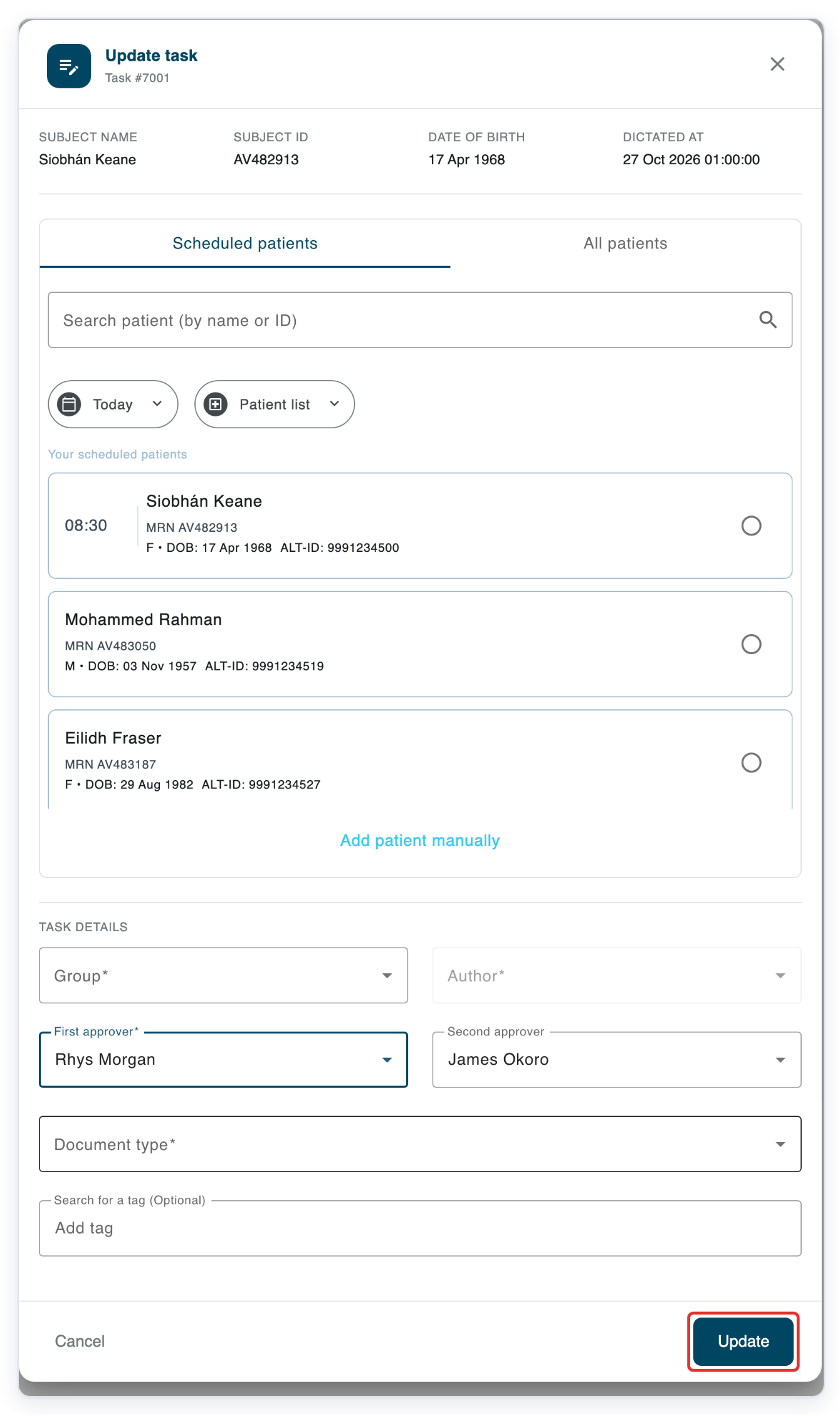
Choose the new first approver. In this example, select Rhys Morgan.
Click Update to save your changes.
=> The Update task window closes and you return to the letter.
As an admin, master or manager
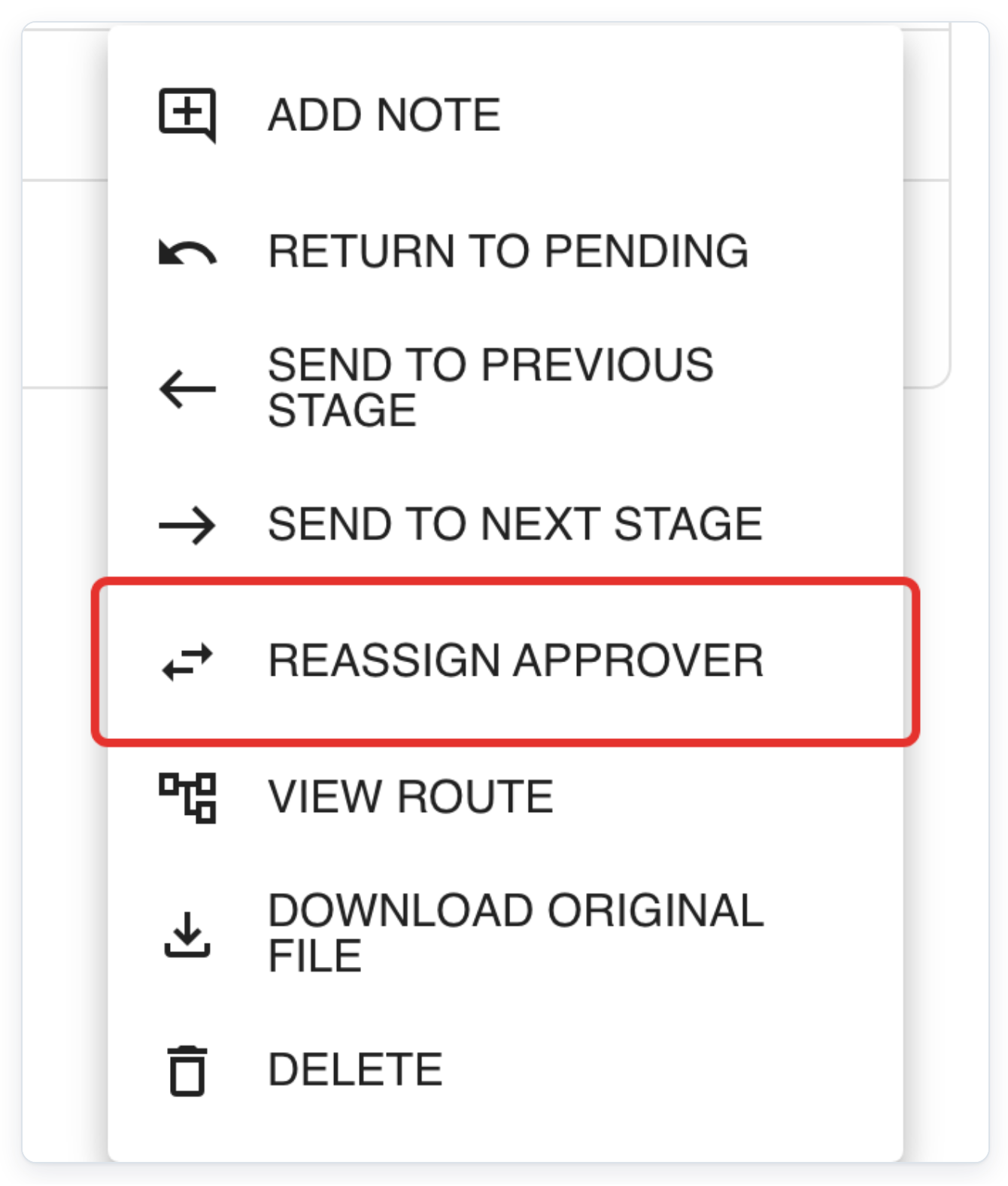
Go to All Tasks and find the letter. Click the three dots at the far right of its row.
This example uses task 7009, which is Waiting for Approval. Check the task ID and patient name before clicking the three dots.

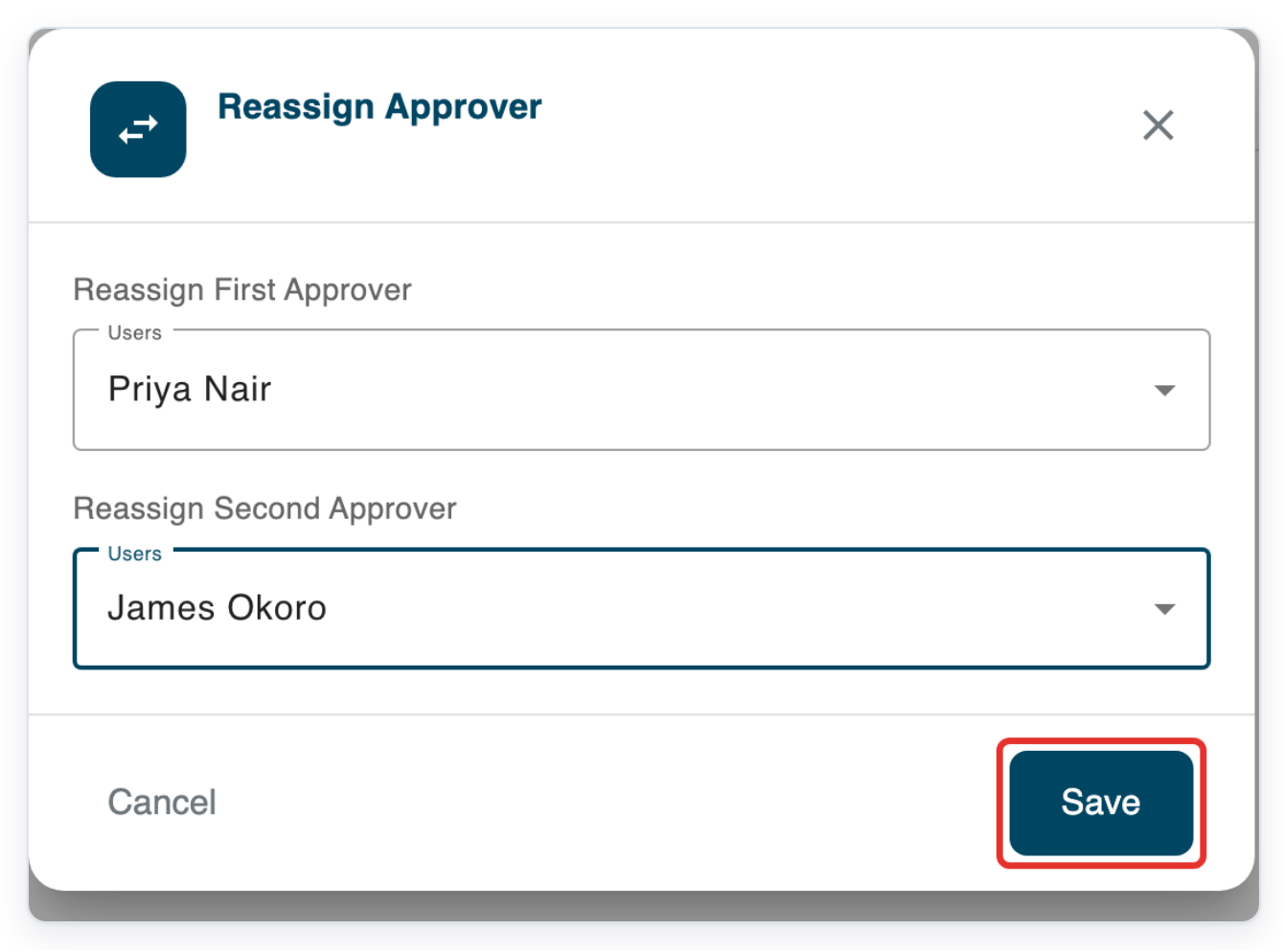
Click Reassign Approver to choose new approvers.
For a letter waiting for first approval, you'll see Reassign First Approver. You'll also see Reassign Second Approver if its route includes second approval. If the letter is waiting for second approval, go to step 12.
Click Users under Reassign First Approver to open the list.
The current first approver is already selected.
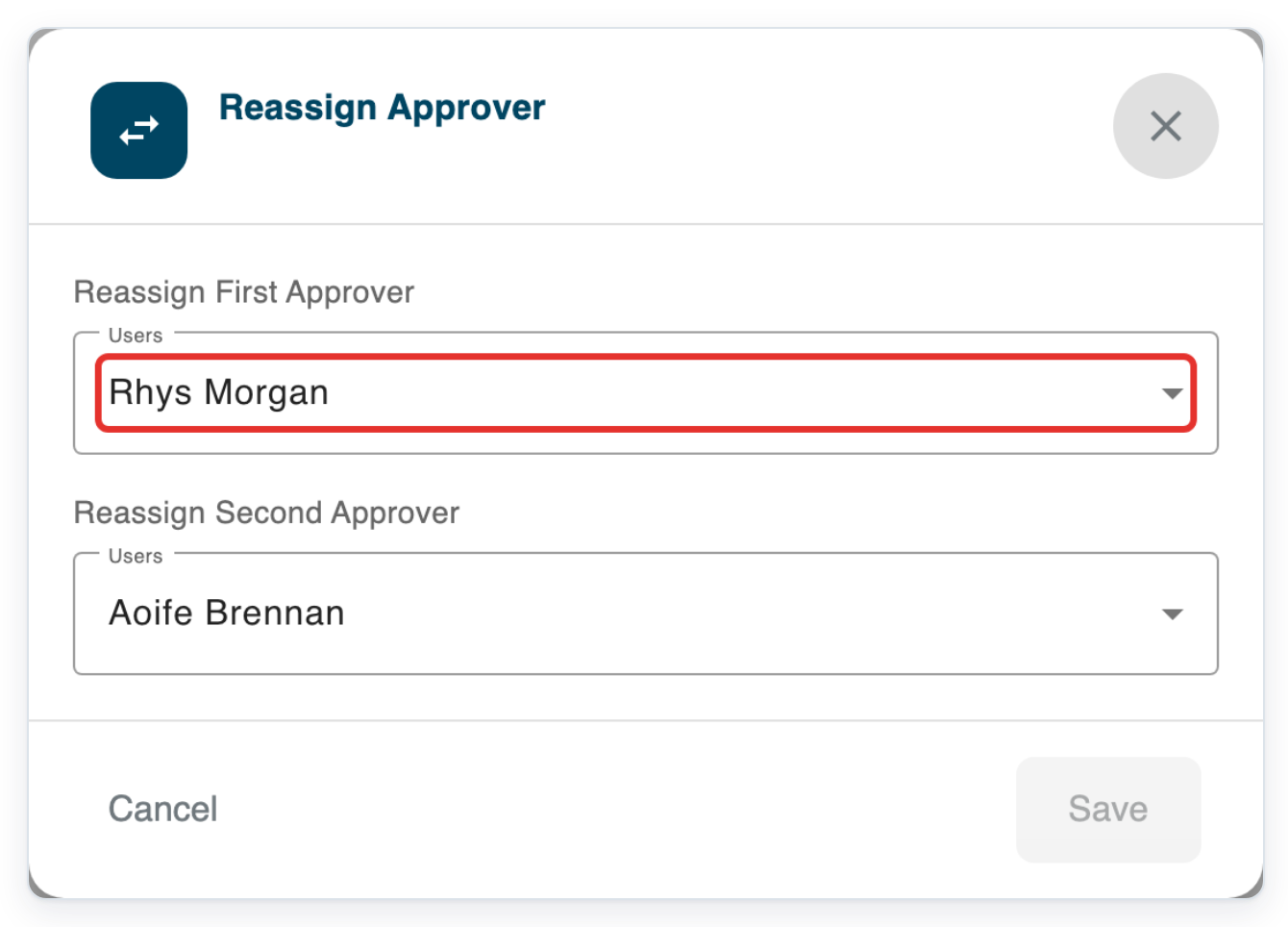
Choose the new first approver. This example uses Priya Nair.
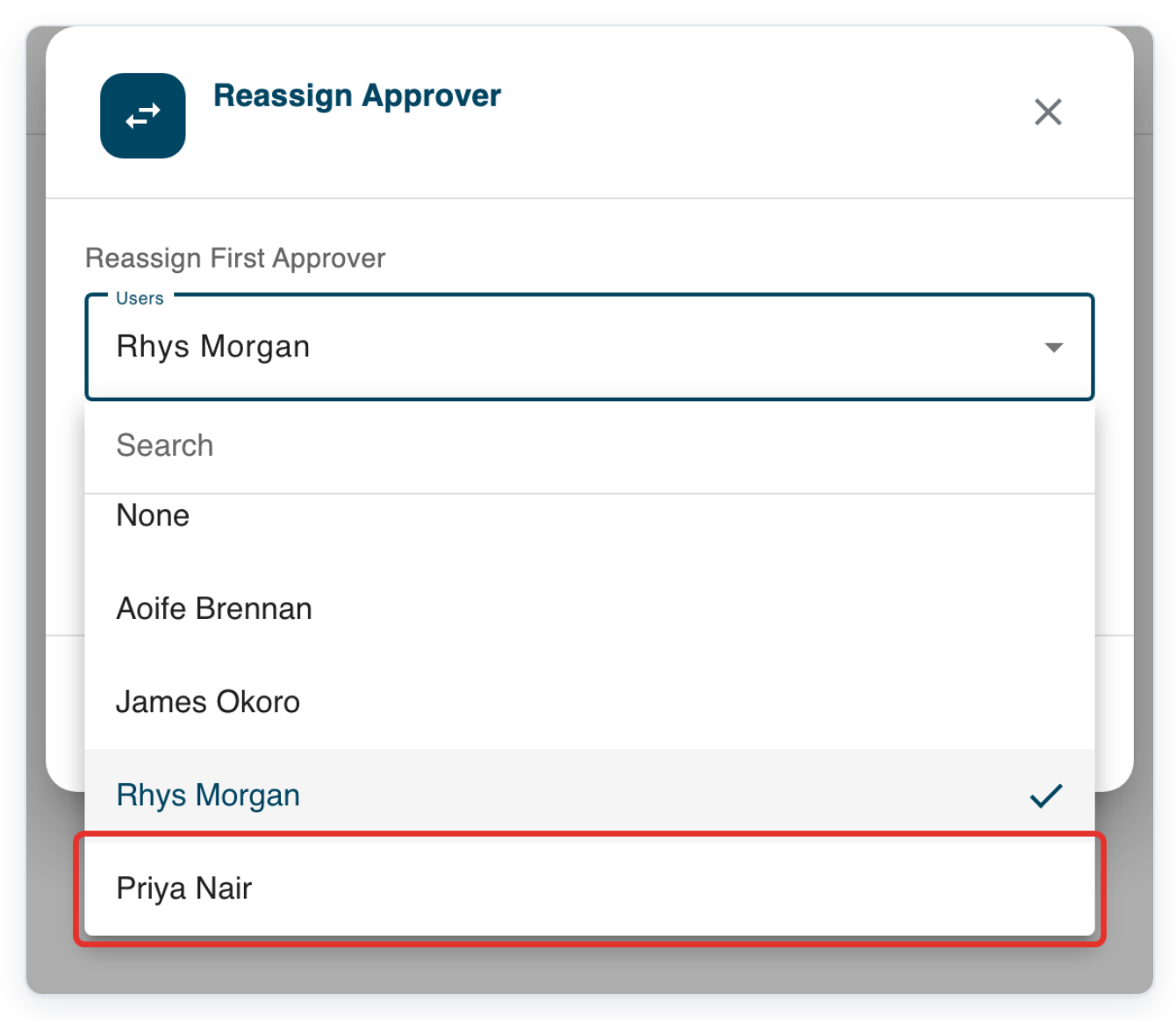
If shown, click Users under Reassign Second Approver to open the list. Otherwise, go to step 14.
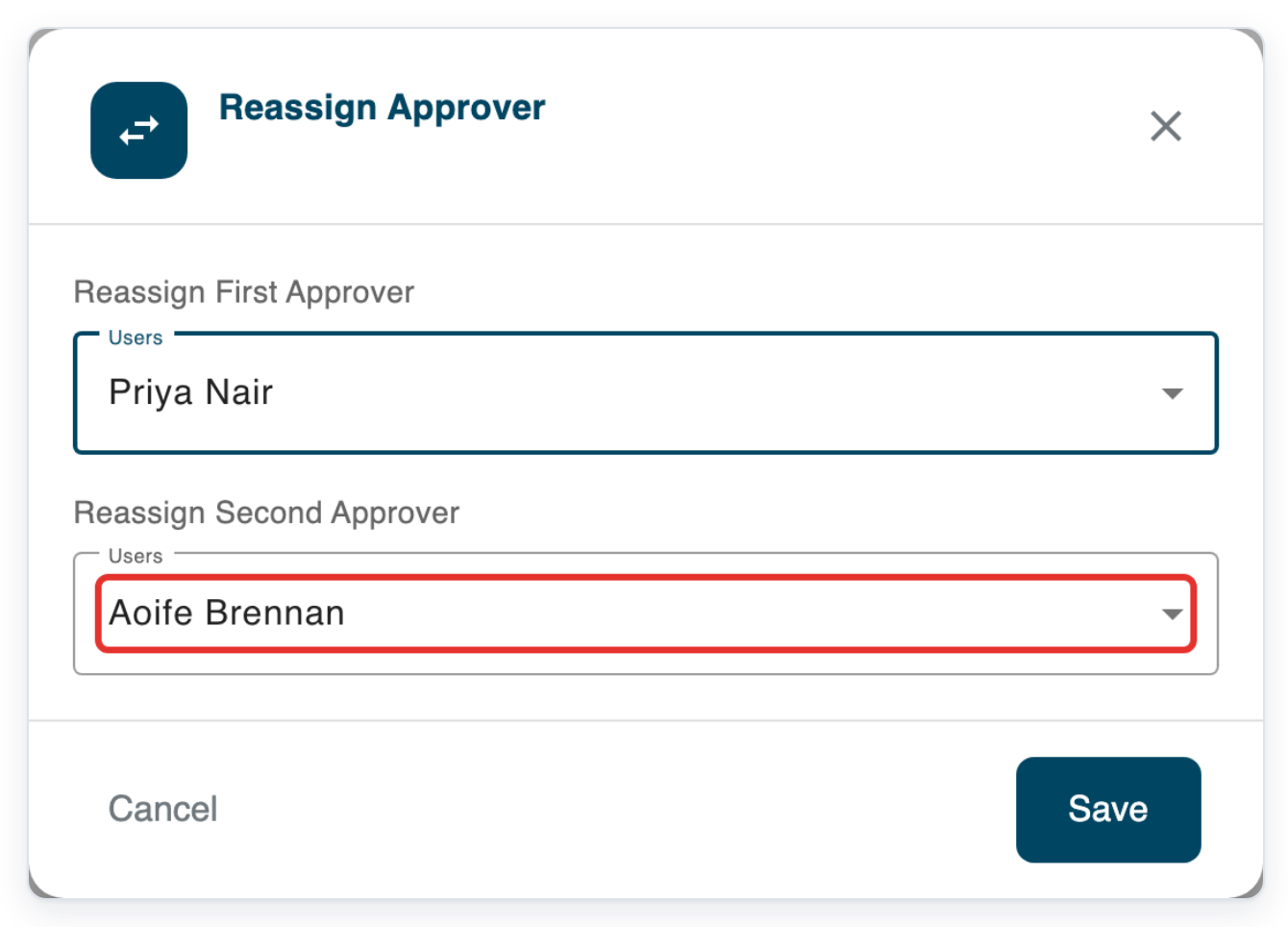
Choose the new second approver, shown here as James Okoro.
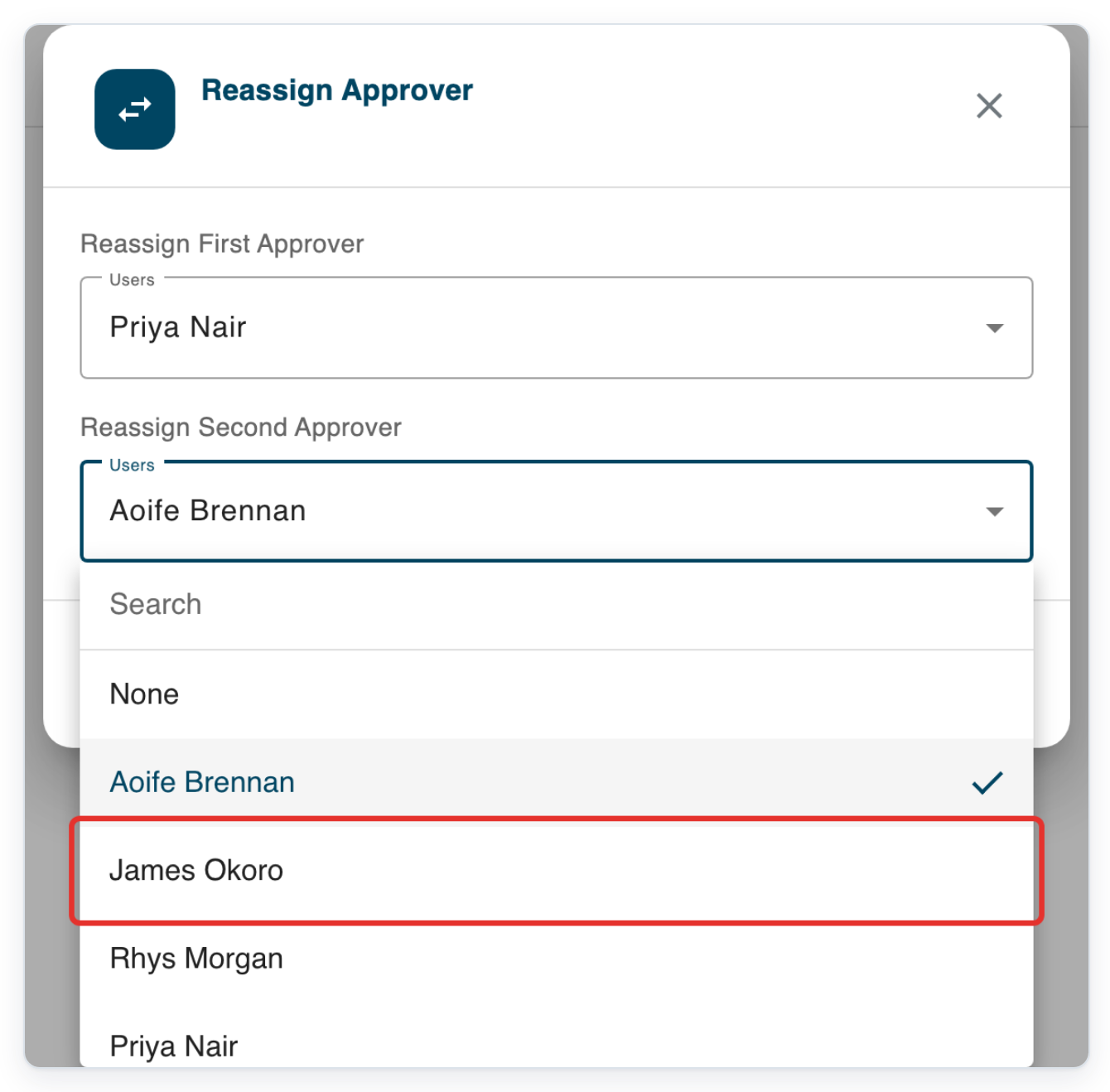
Click Save to save your changes.
This letter is waiting for first approval, so it goes to Priya Nair's approval queue. James Okoro will receive it when it reaches second approval.
=> All Tasks shows Priya Nair as first approver and James Okoro as second approver. The letter remains Waiting for Approval.

NOTE:
- In All Tasks, Reassign Approver is available only for letters waiting for first or second approval.
- If you change approvers while transcribing, the letter goes to them when it reaches their approval stage.
- Reassigning sends the letter to the new approver's queue for its current approval stage. If you change the second approver during first approval, the letter stays at first approval.
First and second approval
| Approval stage | Who you can reassign in All tasks | Whose queue receives the letter |
|---|---|---|
| Waiting for Approval | First approver, and second approver if the route includes one. | The selected first approver's queue. |
| Waiting for Second Approval | Second approver only. | The selected second approver's queue. |
Can't reassign a letter for approval?
- No Edit task information button? Go to Live Tasks, select Work in Progress and open the letter. As a transcriber, you can only view letters opened from All Tasks.
- No Reassign Approver option? Check that the letter is waiting for first or second approval. Ask your manager to reassign it from All Tasks.
- Approver fields missing from Update task? Ask a manager to check the letter's stage. They can also check whether its transcription route lets you choose approvers from a group.
- Replacement approver missing from the list? Ask a manager to check that the person belongs to the group for that approval stage.
- Can't click Save in Reassign Approver? Choose a different approver. If the letter is at second approval, change the second approver.
Related articles
If you have any more queries, please do not hesitate to contact our Helpdesk or support@tpro.io.
© 2020 - 2026