
Before you start
You need a transcriber account and an open task with a letter you can edit.
Log in to T-Pro with your transcriber credentials.
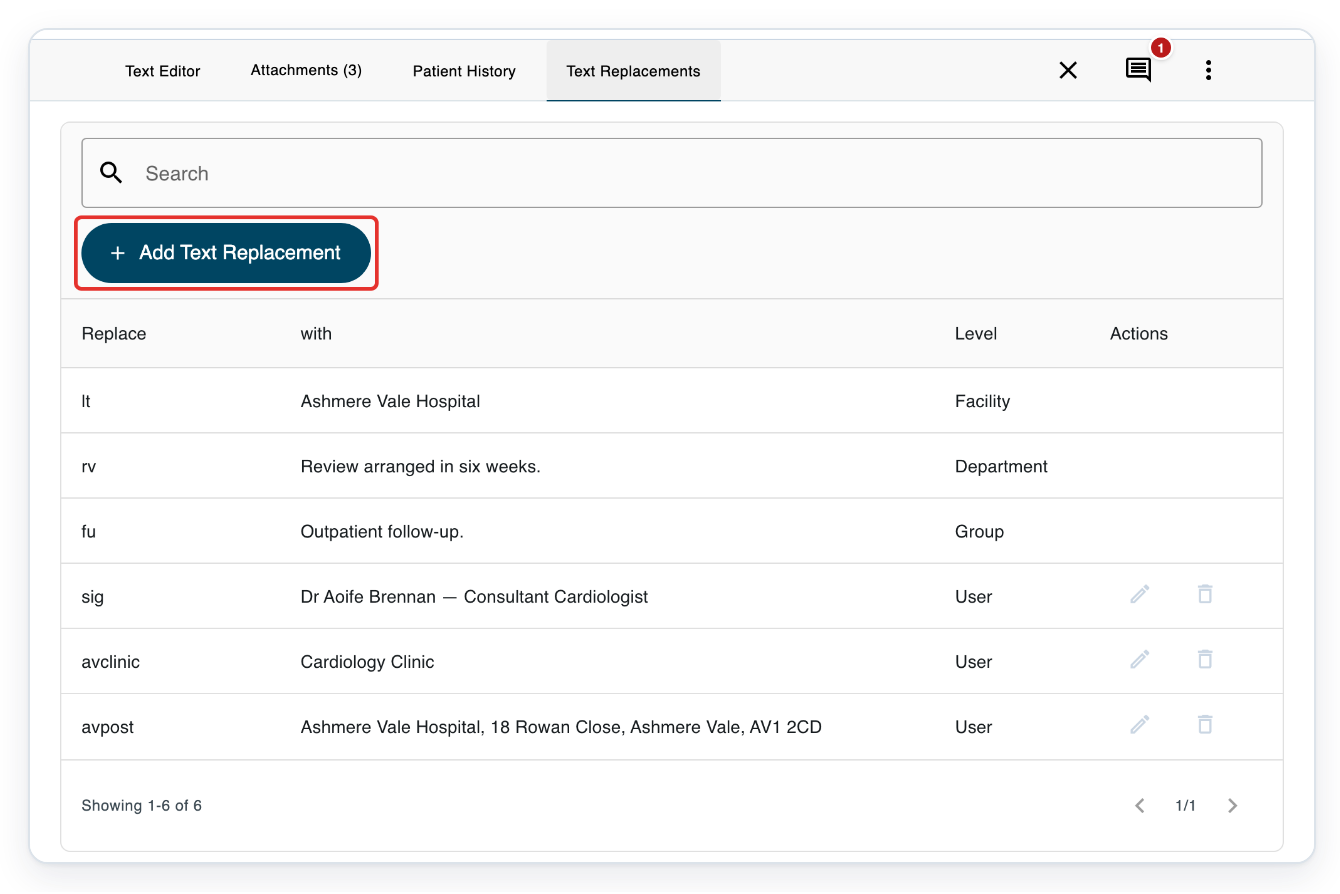
With the letter open, click Text Replacements above the editor.
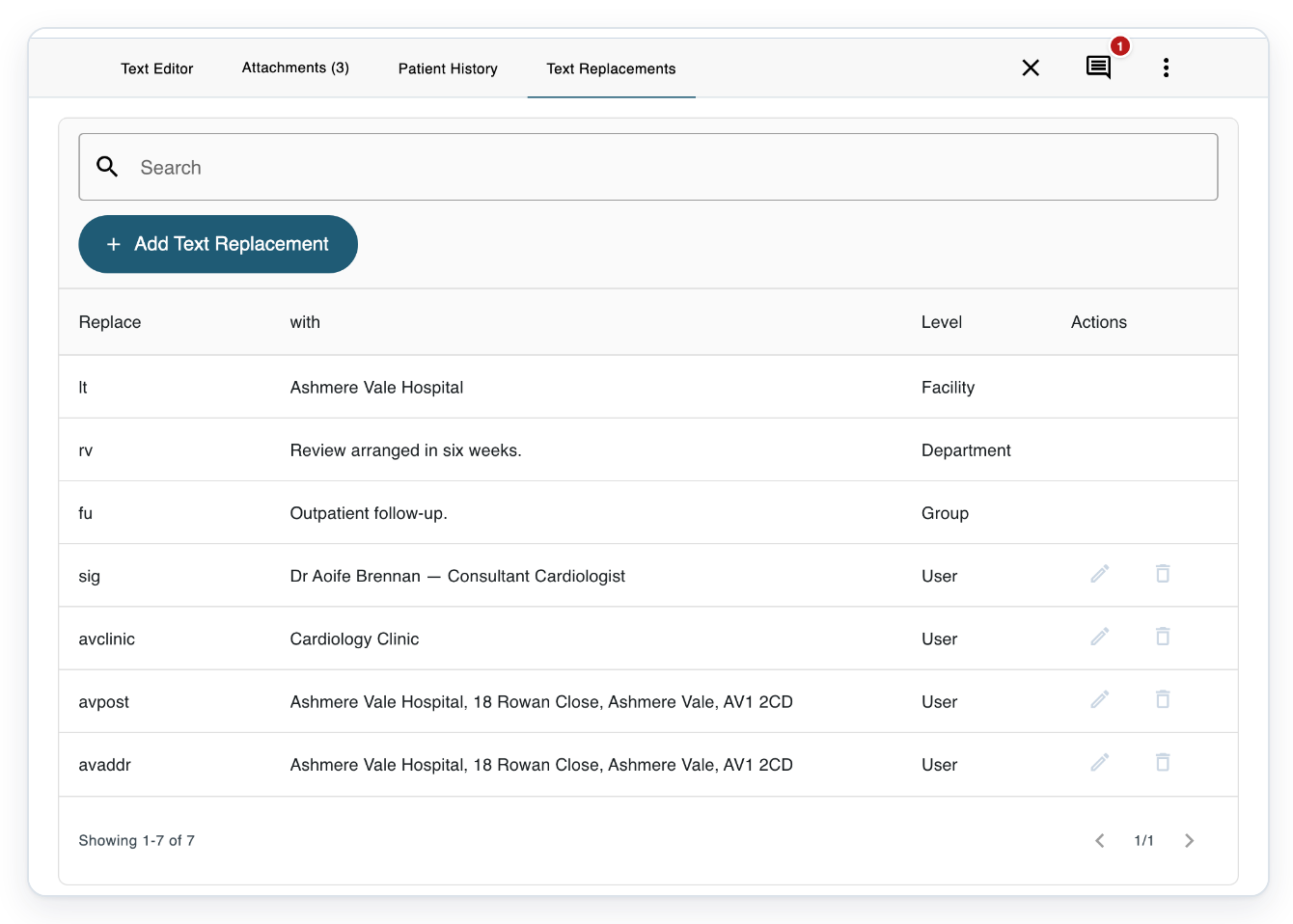
The list shows each shortcut under Replace and its saved wording under with. Level shows where the replacement comes from.

Click Add Text Replacement to add your own shortcut.
The list shows your own replacements and shared wording for this task. The Edit text replacements window opens.
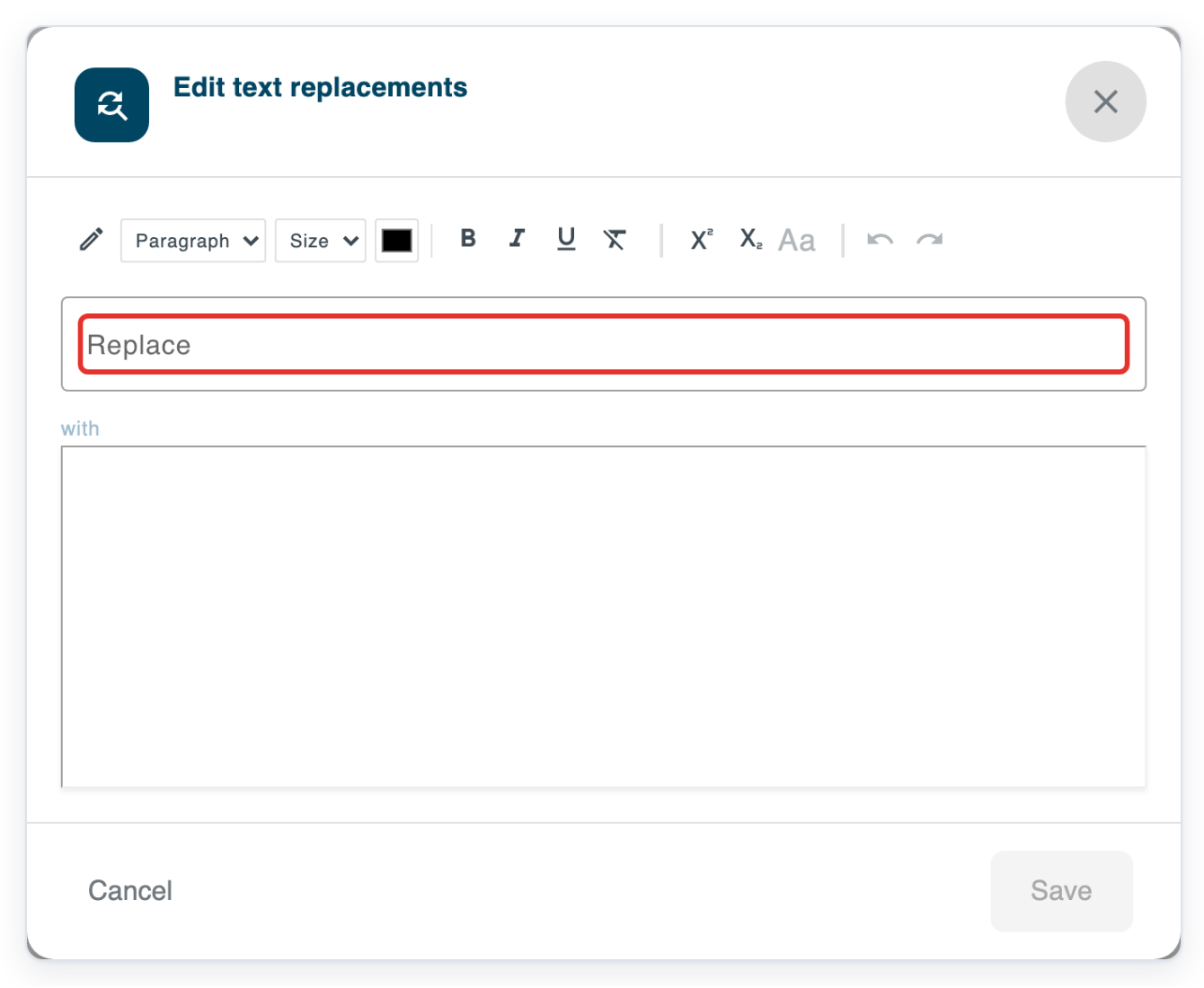
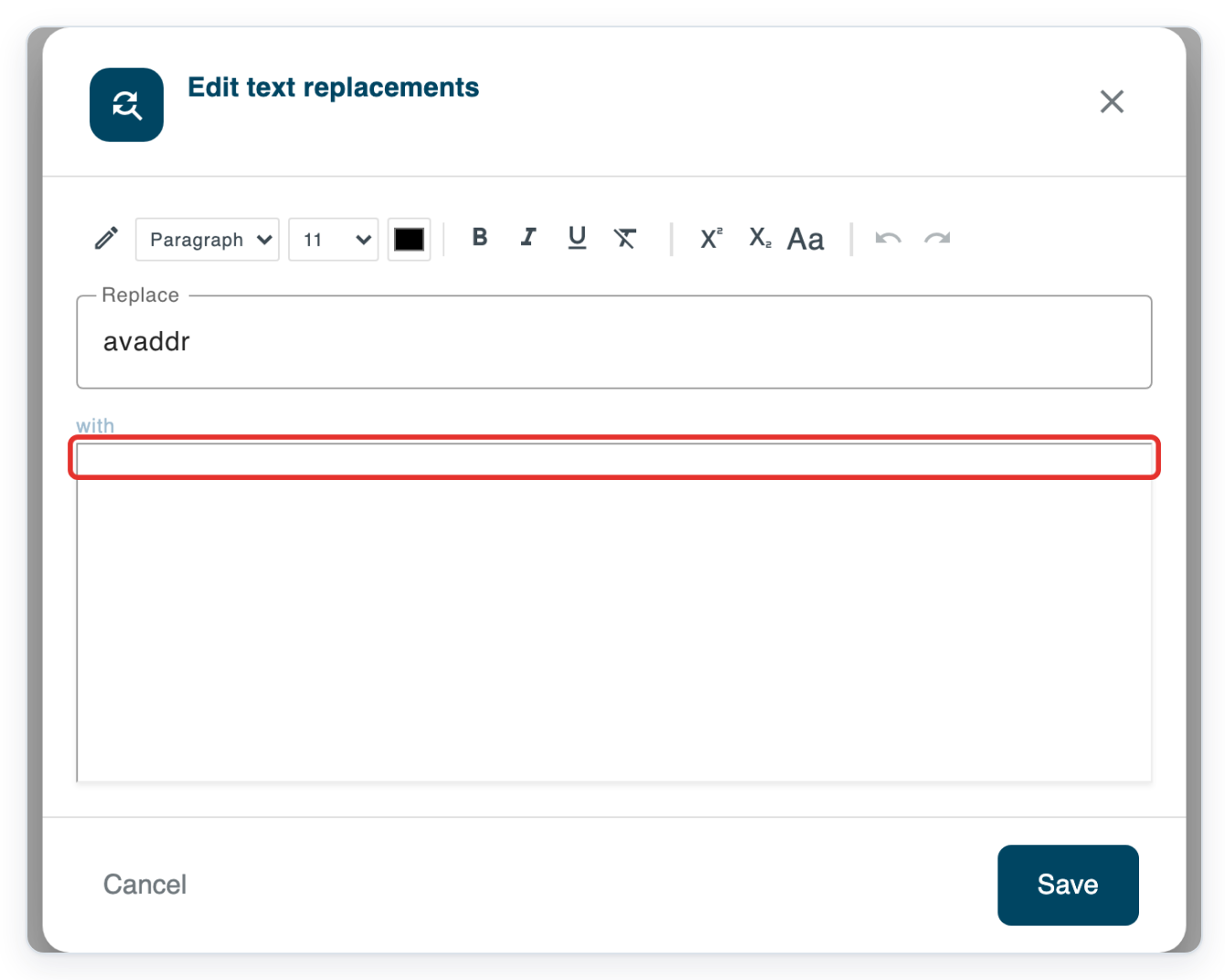
Enter avaddr in Replace.
You'll type this shortcut in the letter. For your own shortcuts, choose something easy to recognise, without spaces.
Click the blank editing area under with.
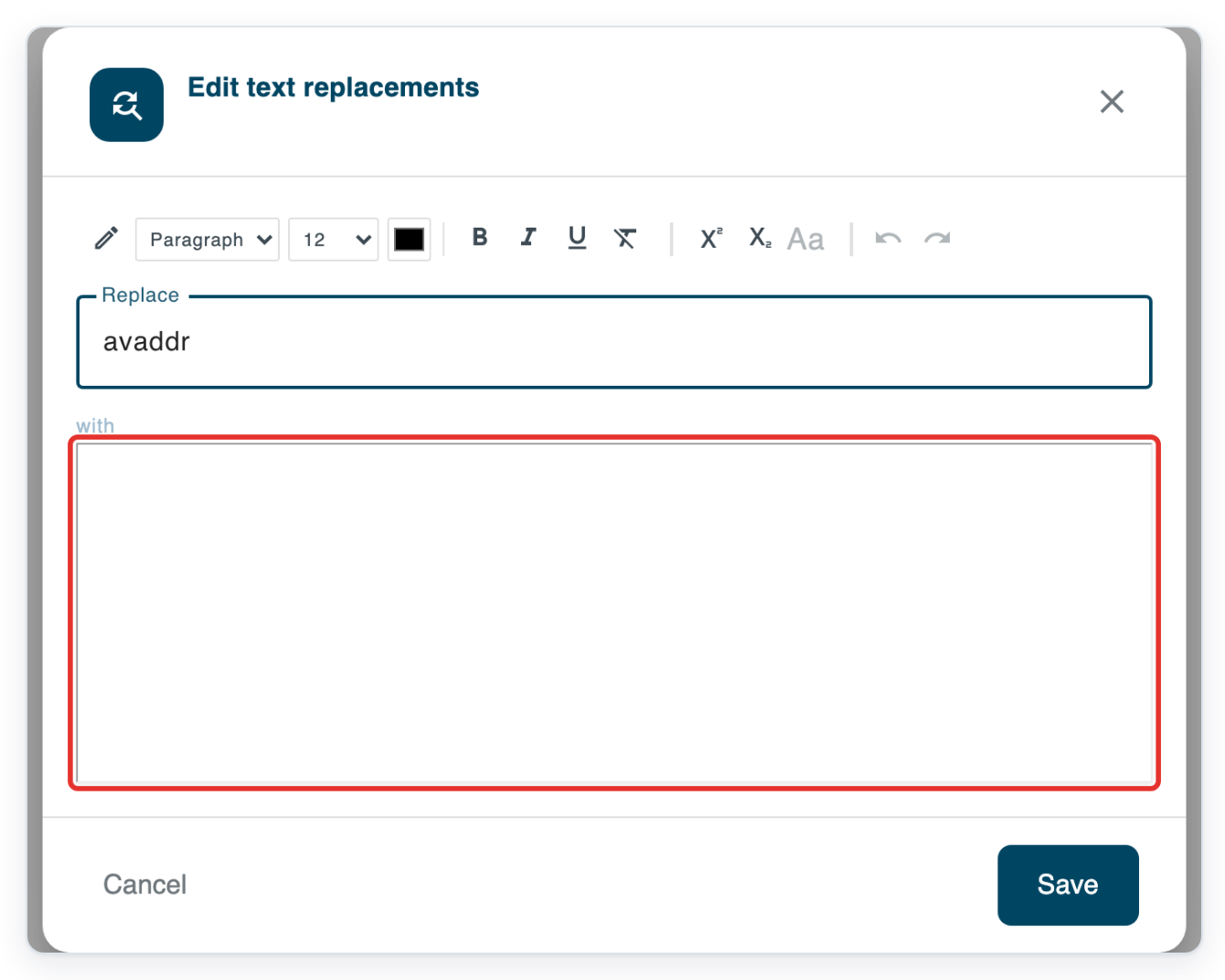
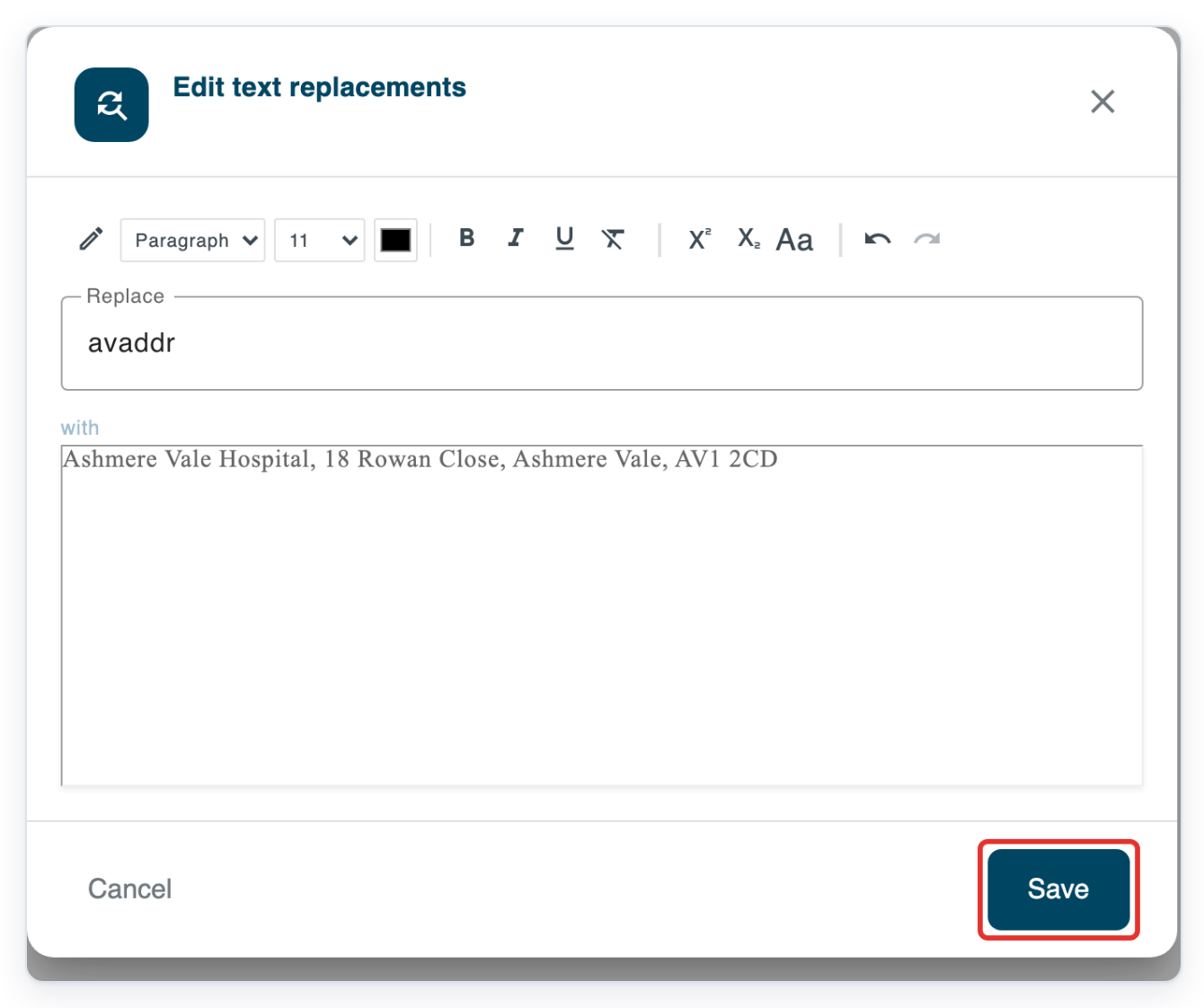
Under with, enter Ashmere Vale Hospital, 18 Rowan Close, Ashmere Vale, AV1 2CD.
We'll use this address as an example. For your own letters, enter the wording you want to reuse. Use the toolbar above the fields to format it.
Click Save to add the replacement.
=> The saved avaddr replacement shows User under Level. Department replacements show Department.
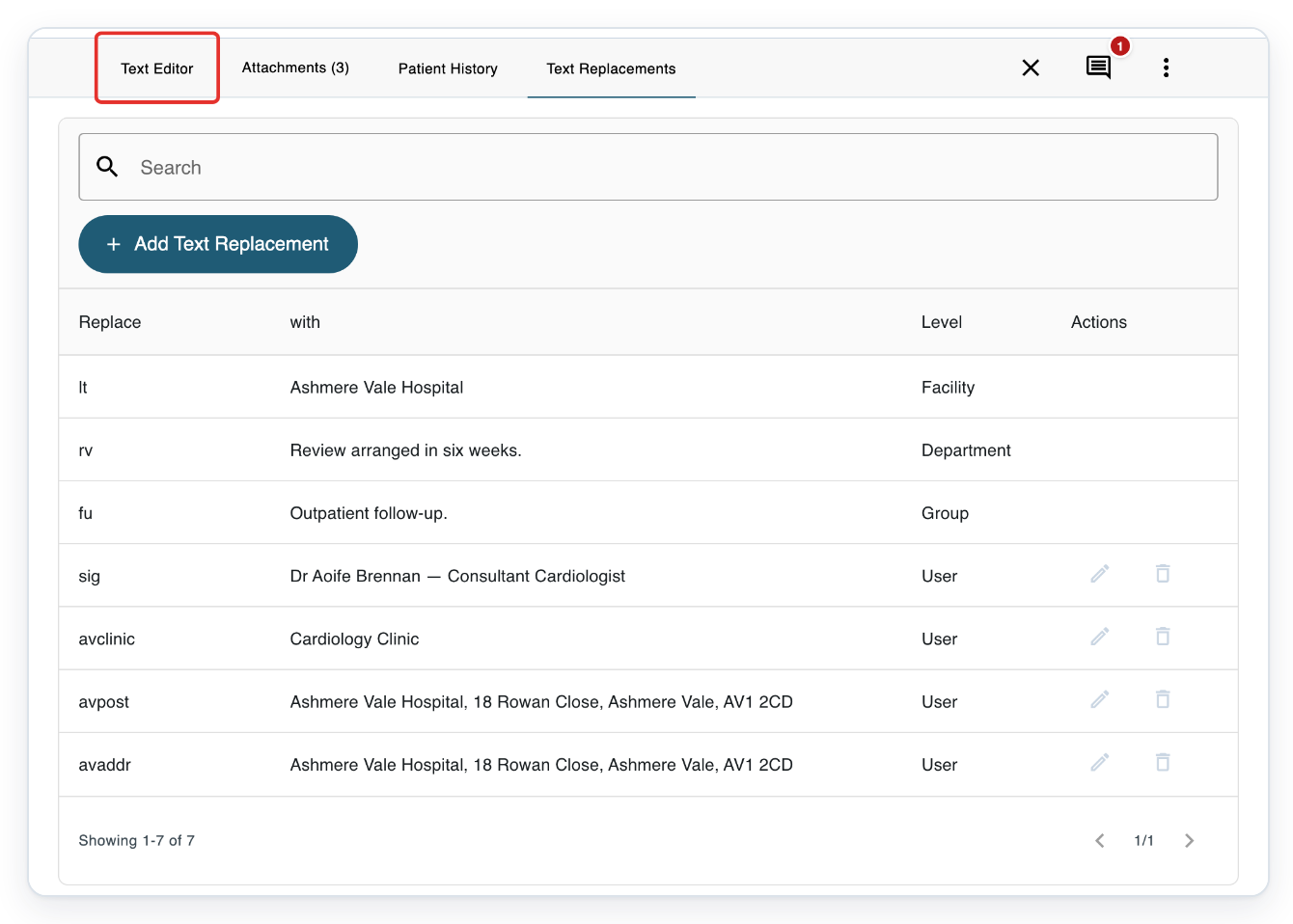
Click Text Editor to return to the letter.
You can now insert the address by typing your shortcut.
For this example, select Postal address: in the letter. Type avaddr, then press the space bar once.
In your own letter, put the cursor where you want to insert the saved wording.
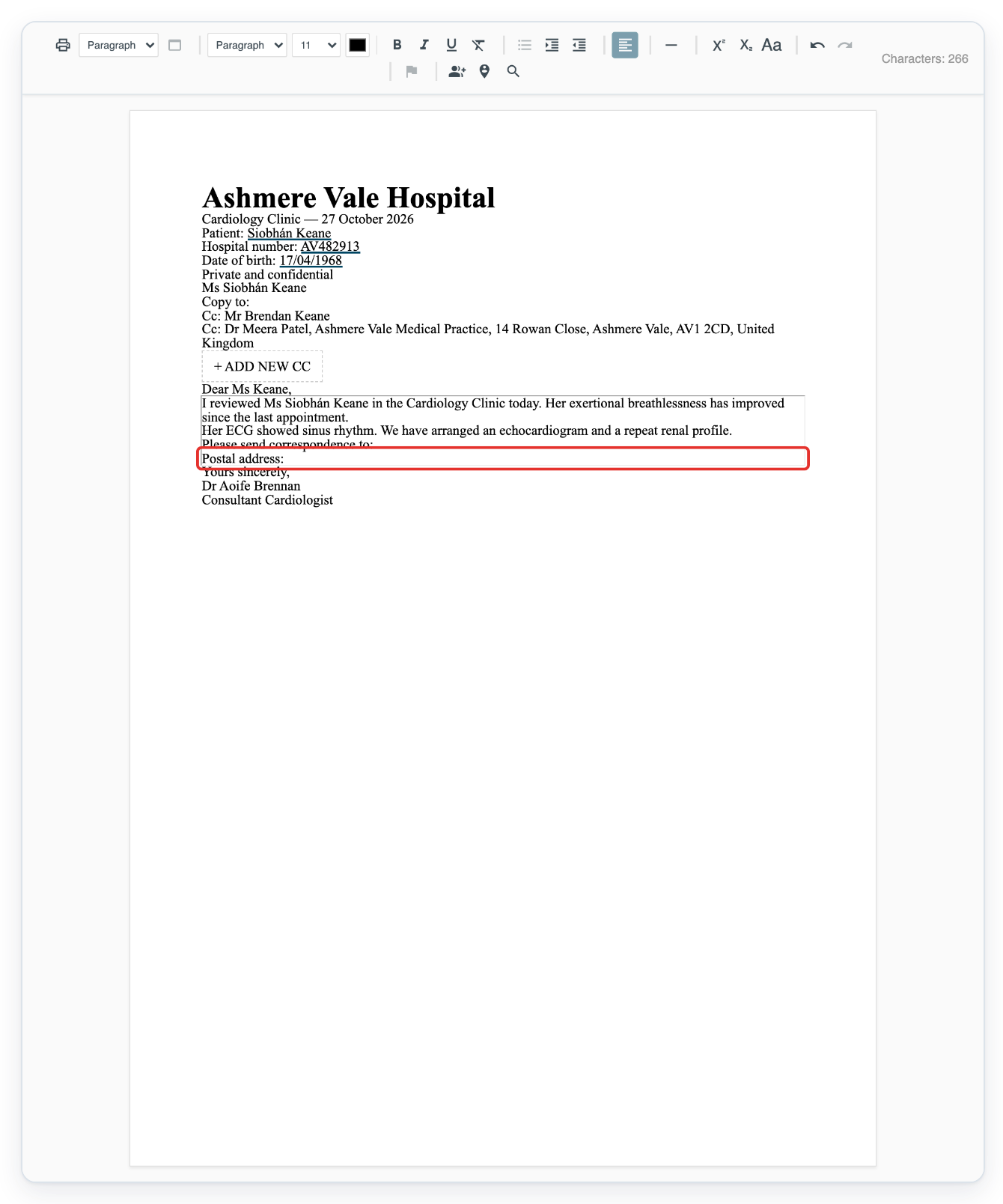
Press the space bar again to replace avaddr with the saved address.
The two spaces must follow the shortcut immediately.
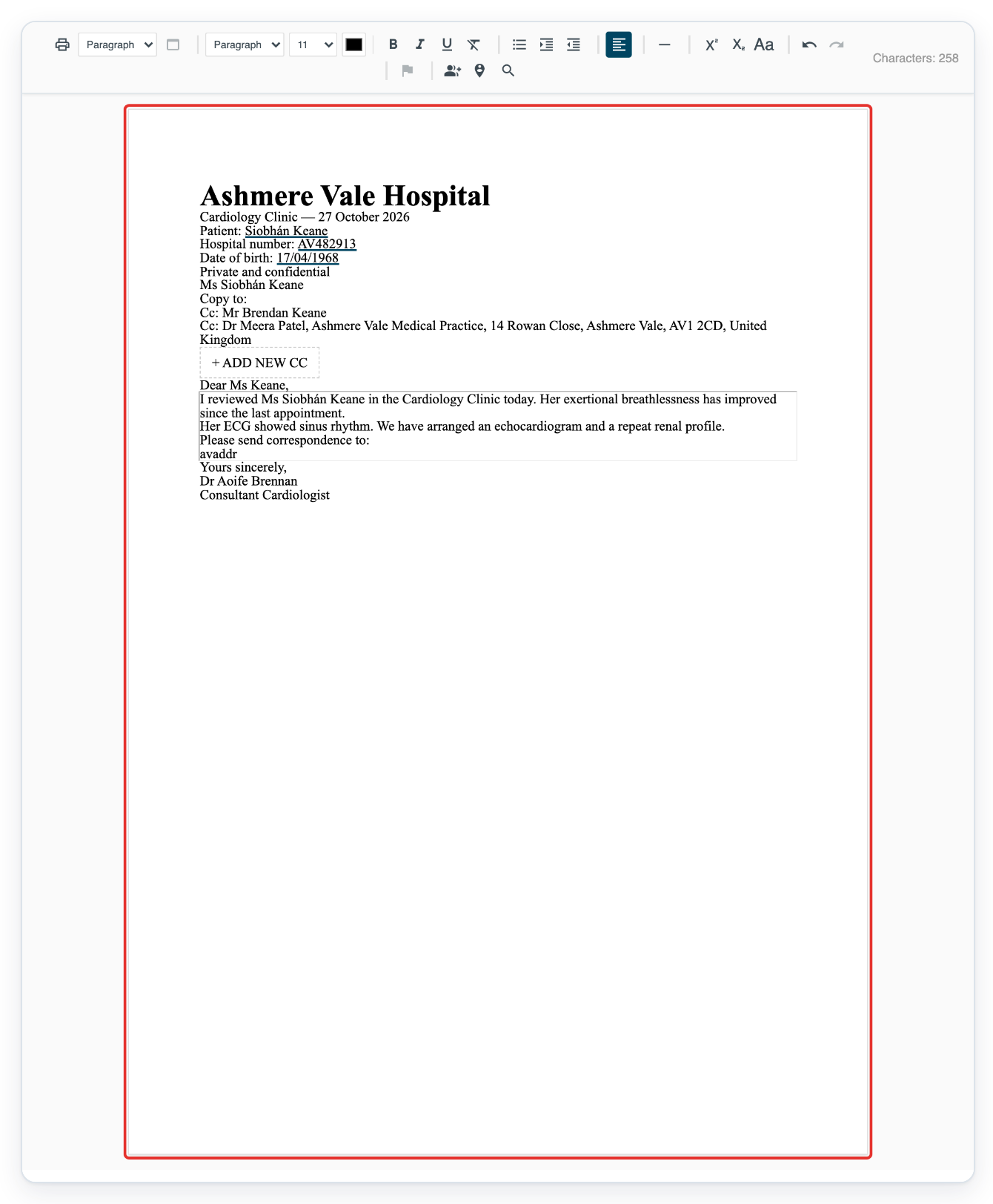
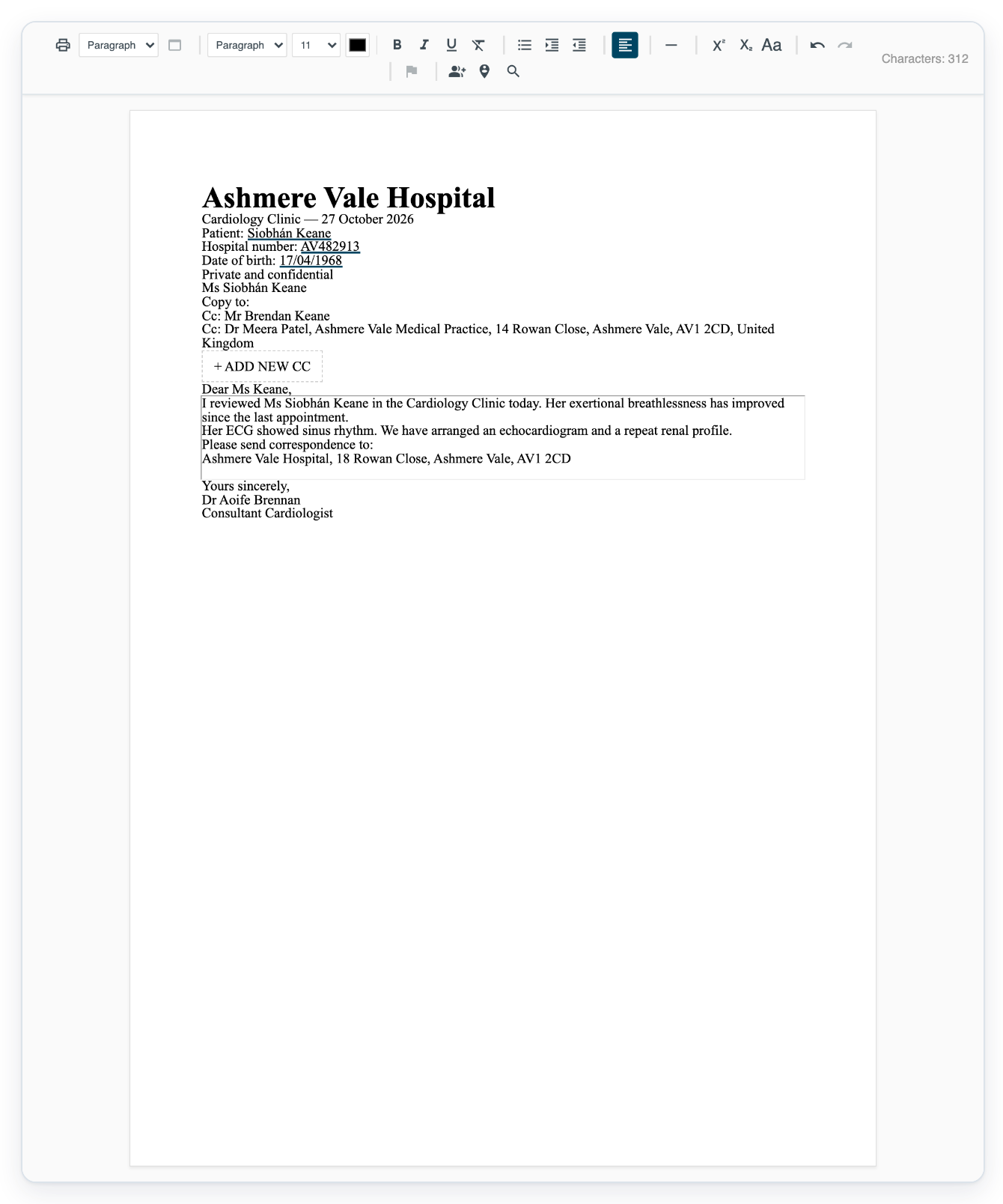
=> The hospital postal address now appears in the letter.
NOTE:
- Replacements you add from a task are saved to the account you're using.
- To change your replacement, click its pencil under Actions. Edit the shortcut or wording, then click Save.
- To remove your replacement, click its bin under Actions. This deletes it without asking you to confirm.
Your replacements and shared replacements
If the same shortcut has several replacements, T-Pro uses your wording first. Next come group, department and facility wording.
| Level | Where the replacement comes from |
|---|---|
| User | The account you're using. |
| Department | The task's department. |
| Group | The task's author group. |
| Facility | The organisation the task's department belongs to. |
Other places you can set up text replacements
- Department replacements: If you're a manager with access to the department, open Departments and select it. Then click Text Replacements. Click Add Text Replacement to add shared wording, or the pencil beside an entry to change it.
Tip: Use Search in the task's replacement list to find a shortcut or its saved wording.
Can't use a text replacement?
- The shortcut stays in the letter: check its spelling against Replace. Type it where you can edit the letter, followed immediately by two spaces.
- You can't save a replacement: enter both a shortcut and the wording it should insert. Choose a shortcut you haven't already saved for yourself.
- The replacement inserts unexpected wording: check with and Level in the task's list. Choose a shortcut that is clearly different from the others. Avoid shortcuts that differ only in capital letters.
- You can't change a department replacement from the task: ask your department manager to update it. They can use the department's Text Replacements tab.
- A department replacement has changed but the task still uses the old wording: close and reopen the task. This loads the updated replacements.
Related articles
- Pick up a task from the pending queue
- The letter editor in V2
- Use auto text
- Department settings, processors and text replacements
If you have any more queries, please do not hesitate to contact our Helpdesk or support@tpro.io.
© 2020 - 2026