
Before you start
You need admin access to set up a facility’s number. As an admin, master or manager, you can add a PIN once the author’s facility has a telephony number.
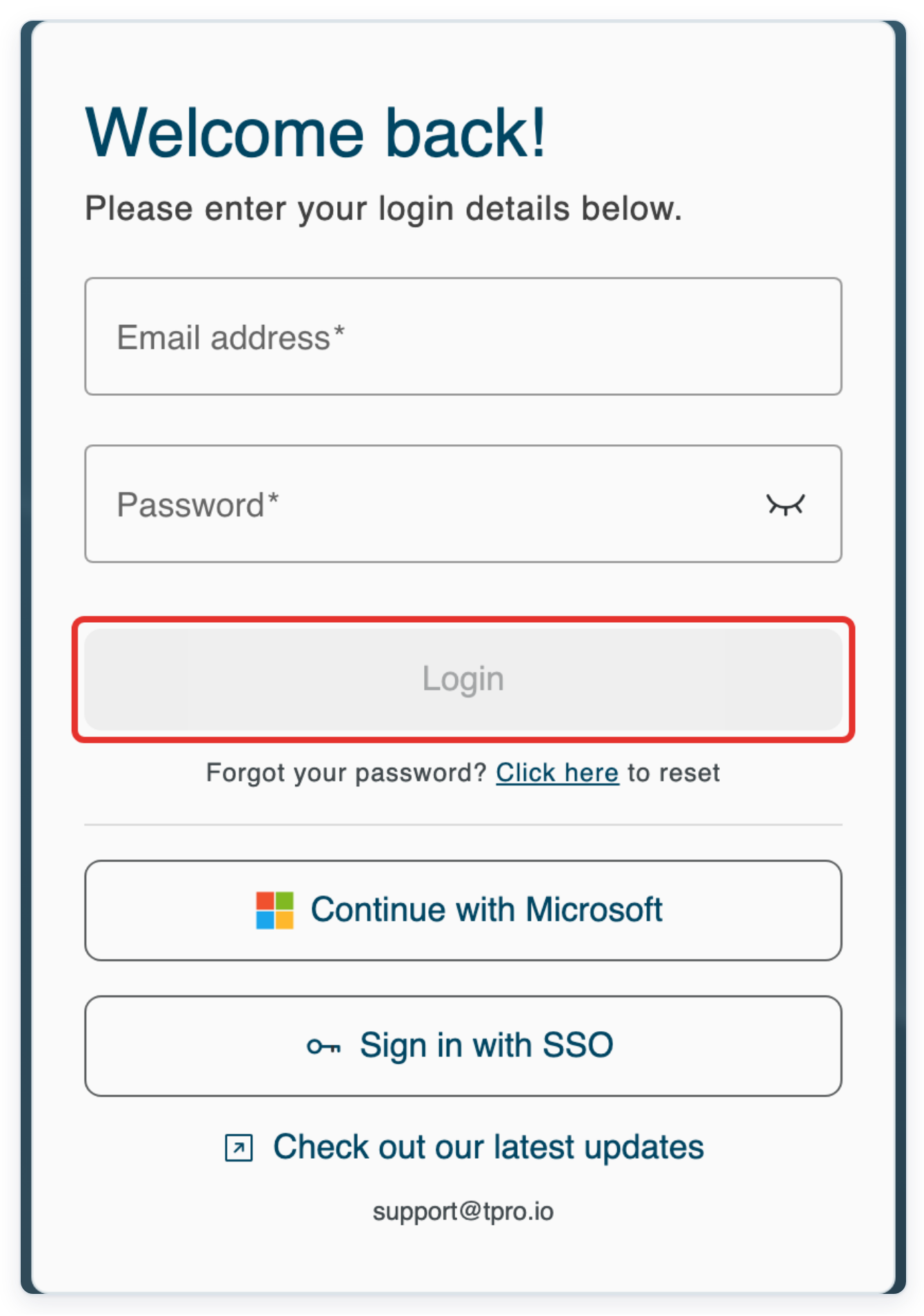
Log in to T-Pro with your admin, master or manager credentials.
Set up the facility’s number as an admin
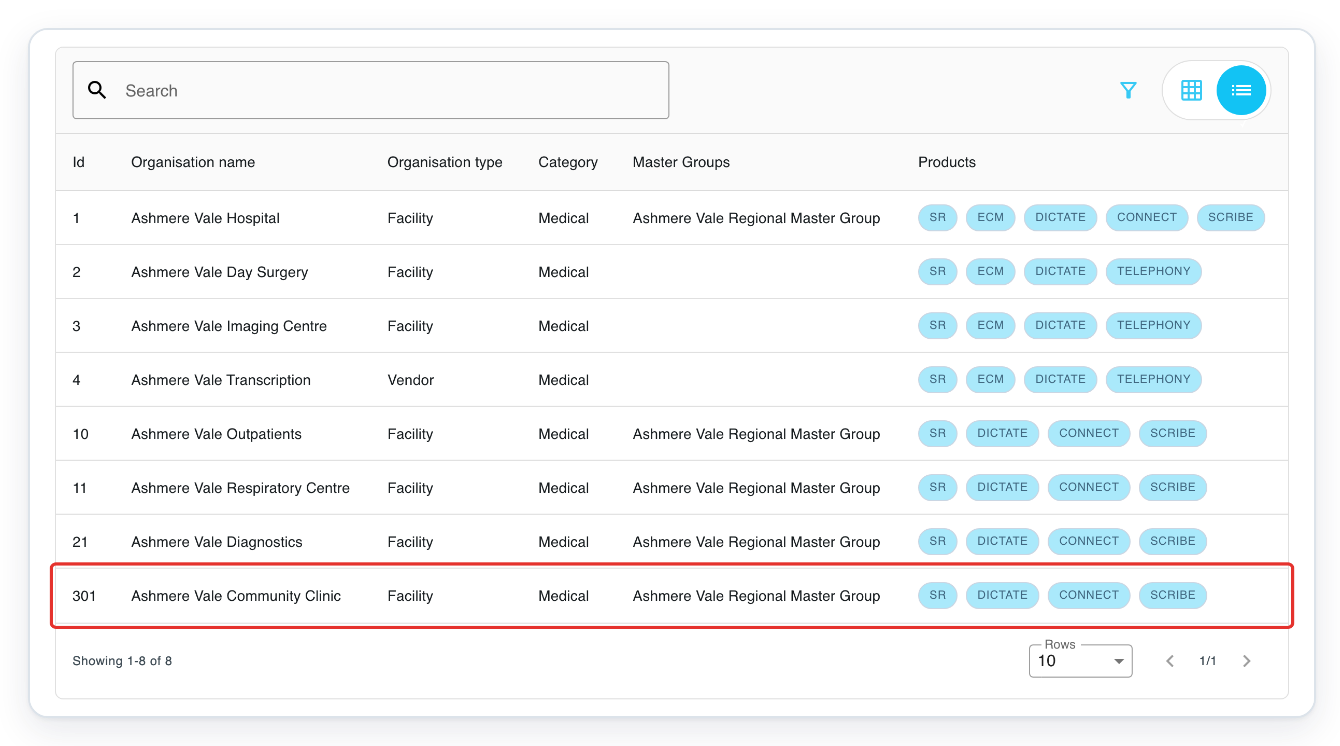
Click Organisations in the main navigation to find the facility.

Open your facility’s row. We’ve used Ashmere Vale Community Clinic for this example.
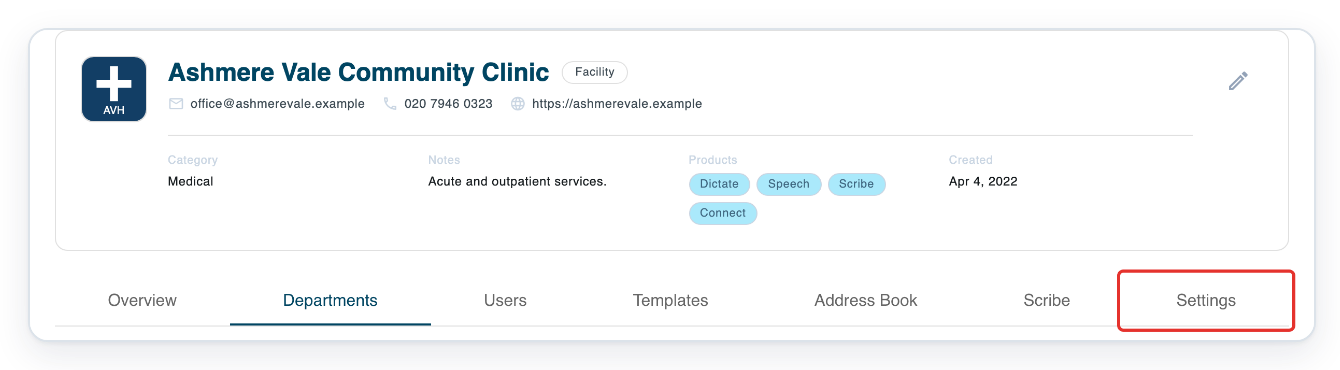
Check the facility name at the top, then click Settings. These settings apply to the selected facility.
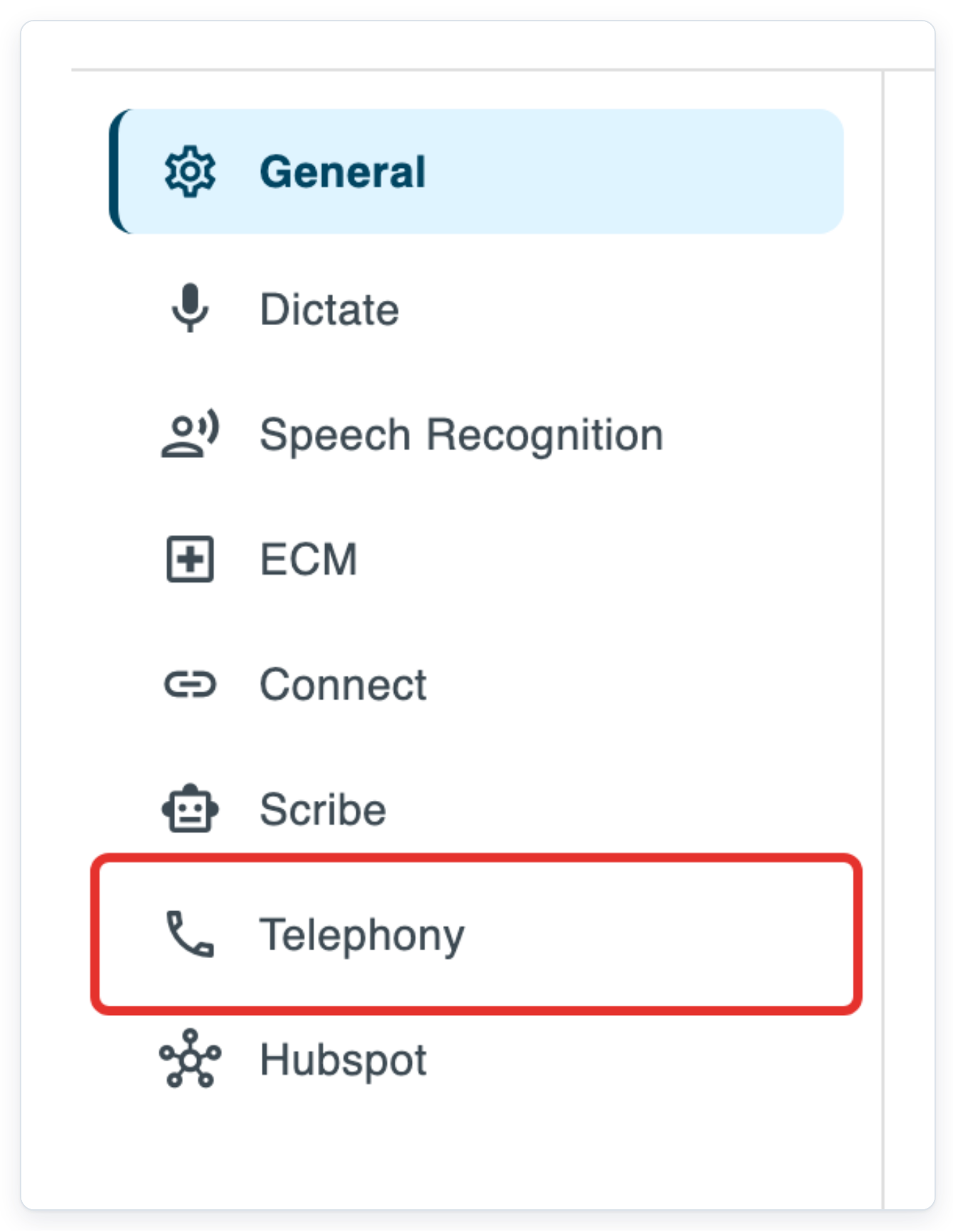
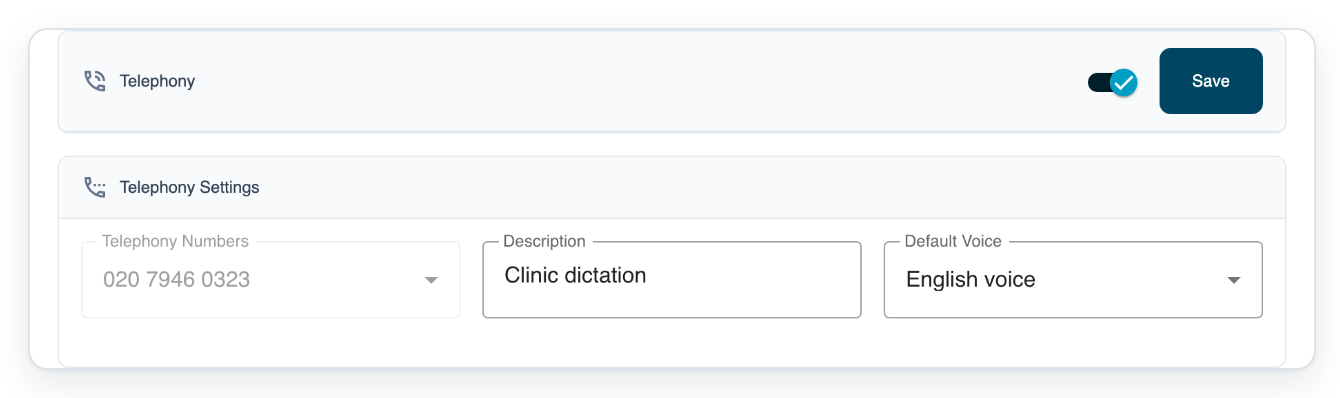
Click Telephony in the settings menu. Telephony Settings opens with the number, description and default voice.
Select your facility’s number in Telephony Numbers. In this example, press the End key to choose 020 7946 0323.
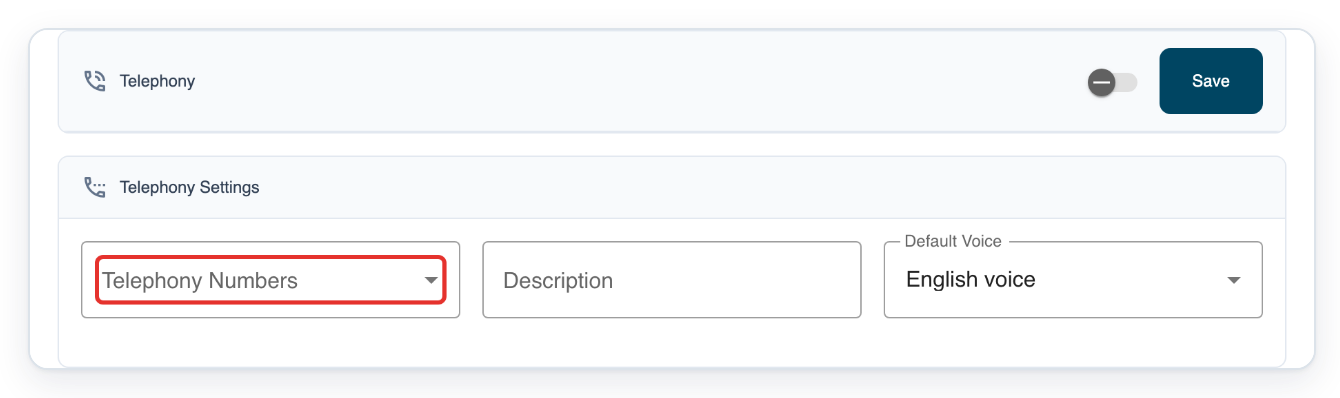
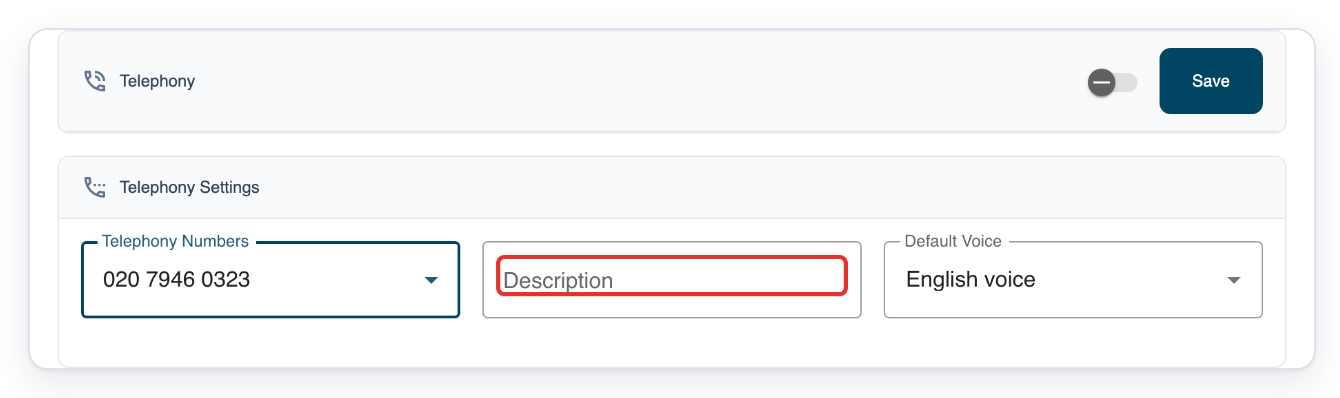
Enter a name in Description, such as Clinic dictation. Check Default Voice, which shows English voice here.
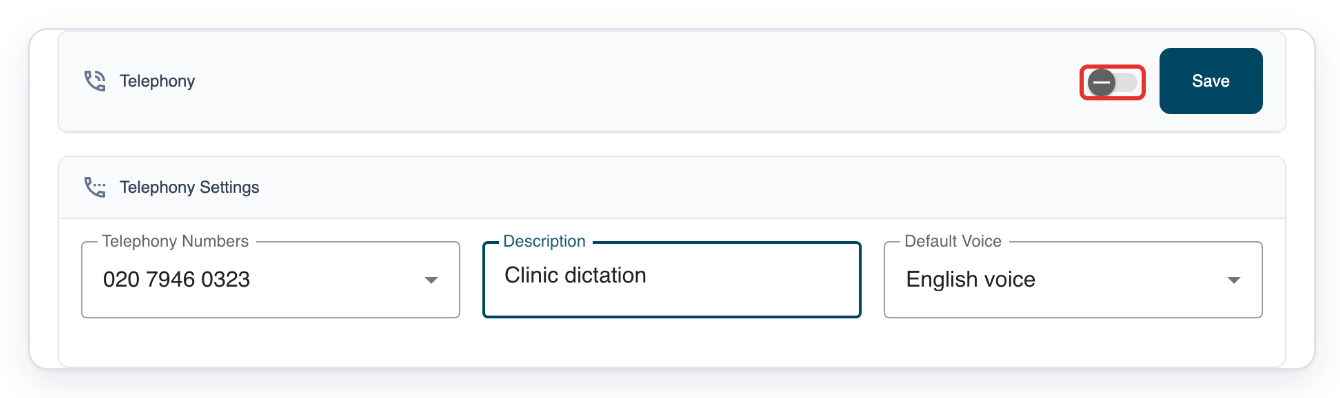
Turn on the switch beside Telephony.
Click Save to save the facility’s telephony settings. T-Pro shows “Telephony updated”.
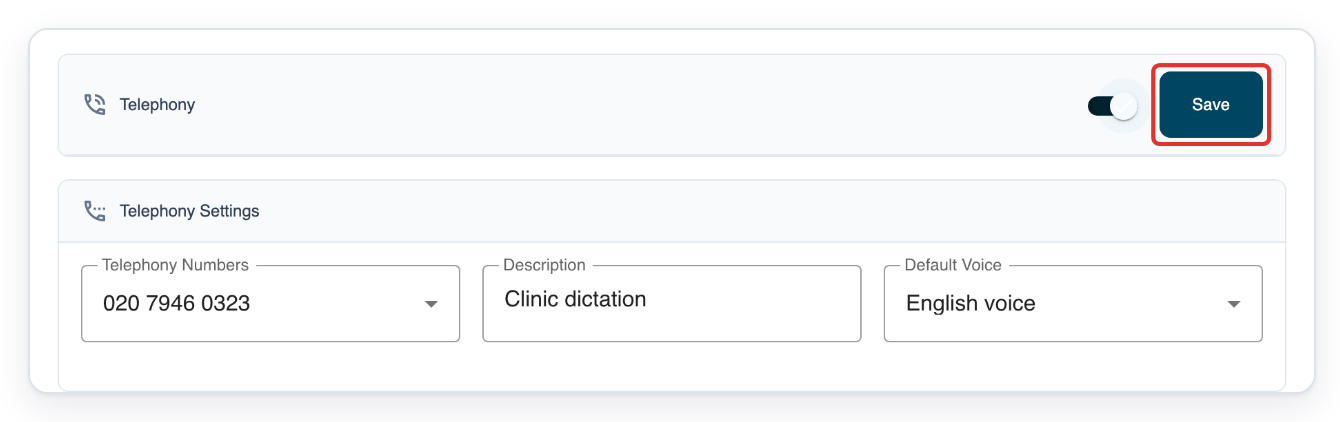
=> The switch stays on. The page shows the selected number, Clinic dictation and English voice.
Set up an author’s PIN as an admin, master or manager
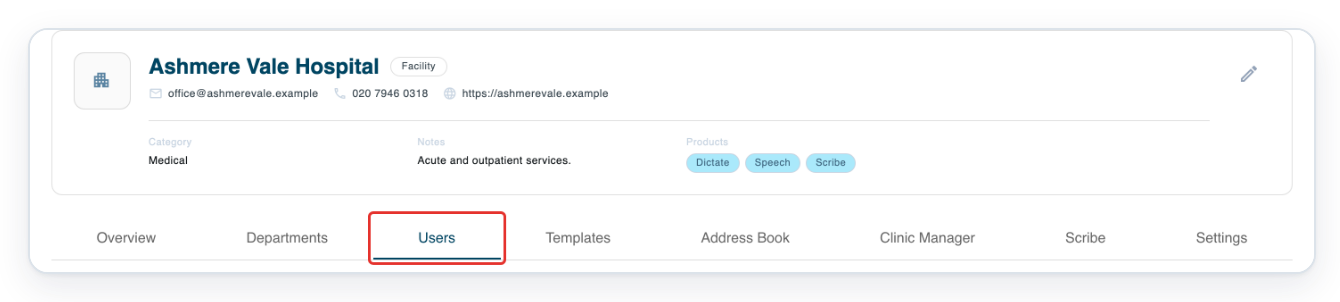
Open the author’s facility and click Users. This example uses Ashmere Vale Hospital, which already has a telephony number.
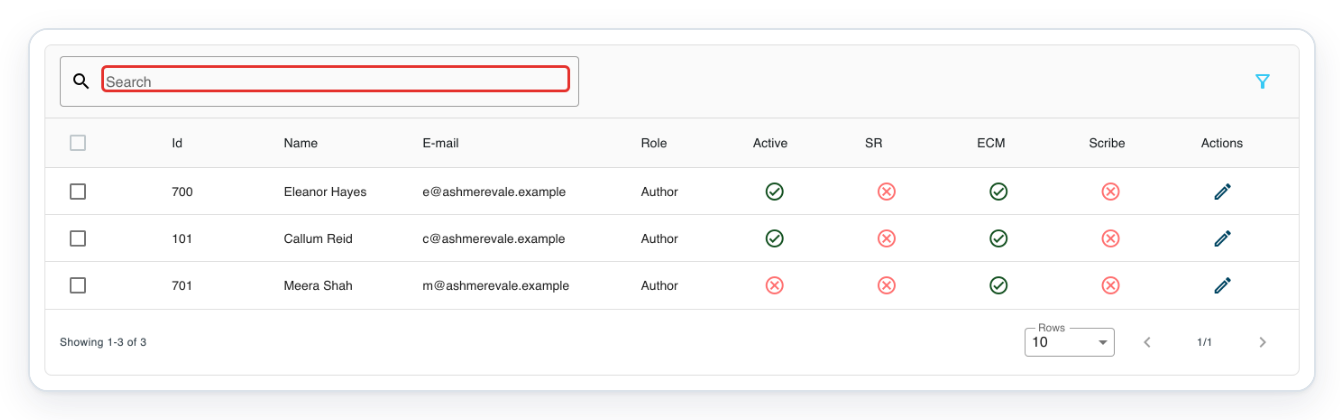
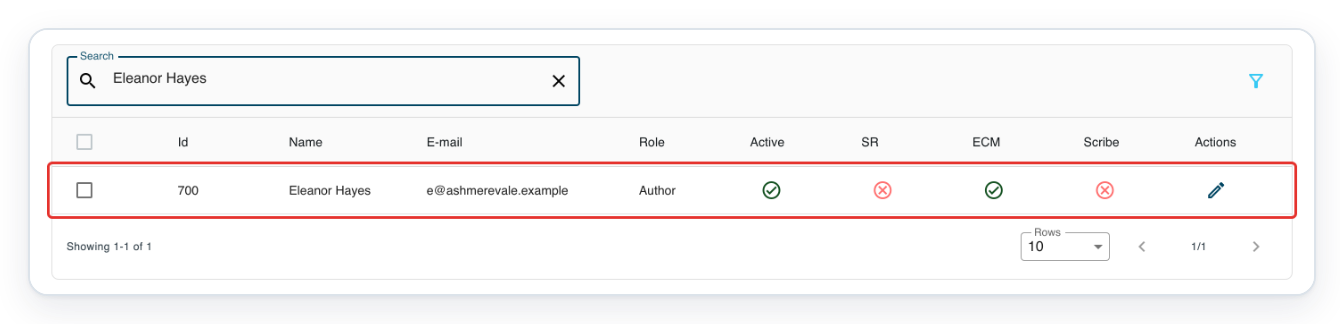
Enter the author’s name in Search. Here, we enter Eleanor Hayes.
Press Enter to search. The list shows users matching the name.
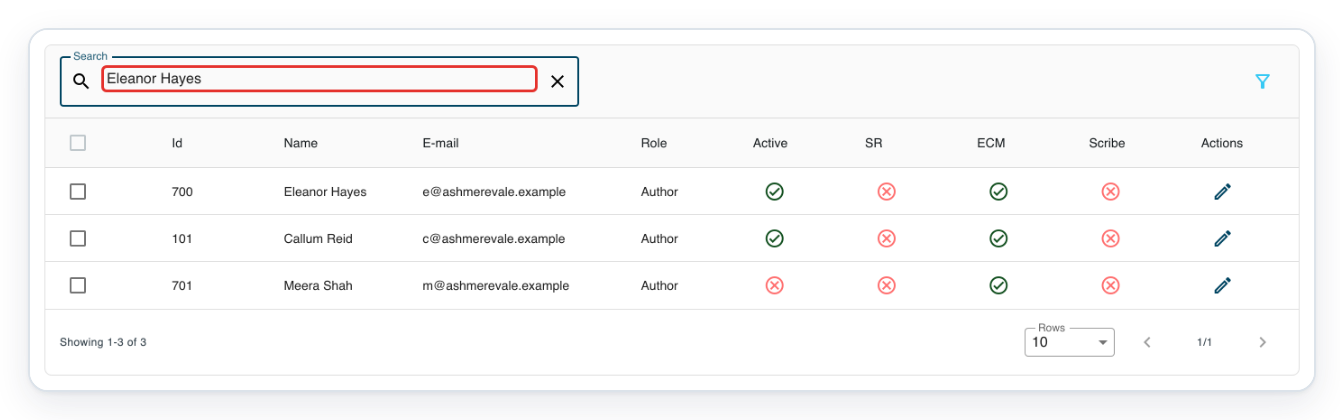
Click the author’s row. Their user page opens in a new tab.
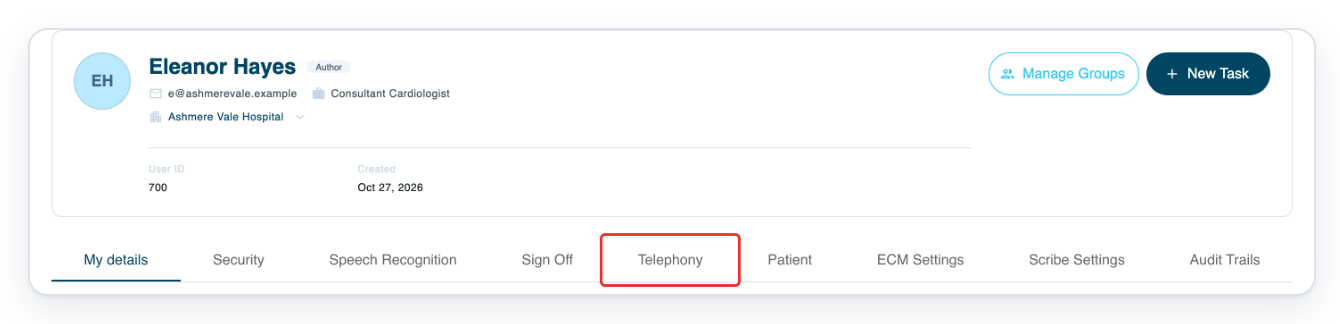
On the author’s user page, click Telephony. The page shows Organization Number and New PIN.
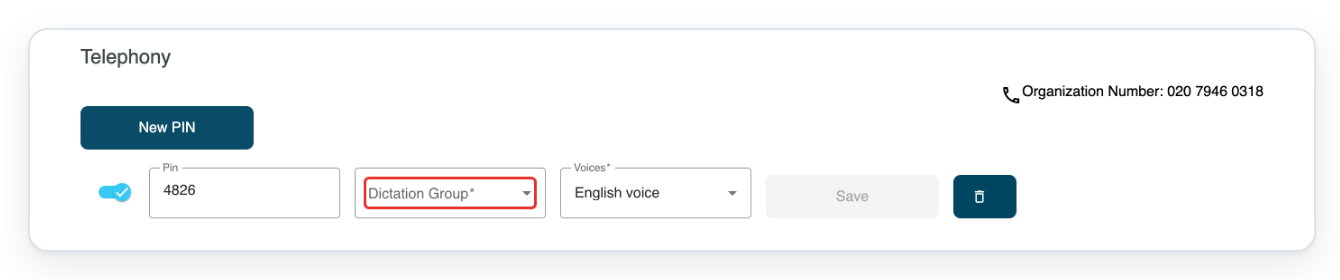
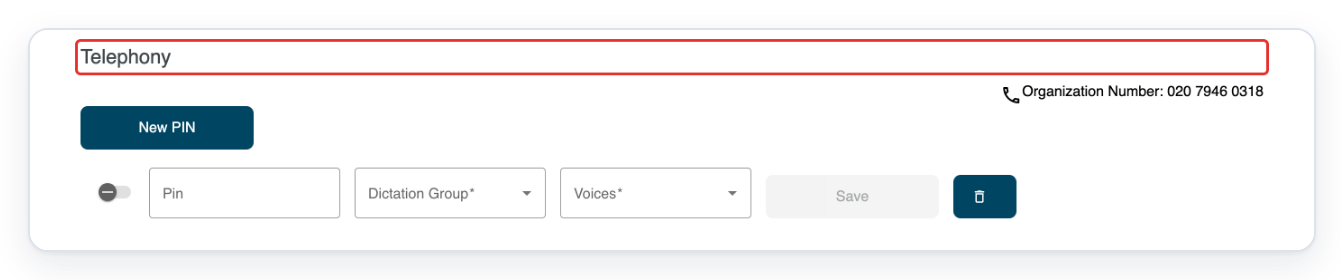
Click New PIN. The new row has its switch on and an available Pin, with Dictation Group and Voices fields.

Select the author’s group in Dictation Group. In this example, press the End key to select Cardiology authors. Check Voices, which shows English voice here.
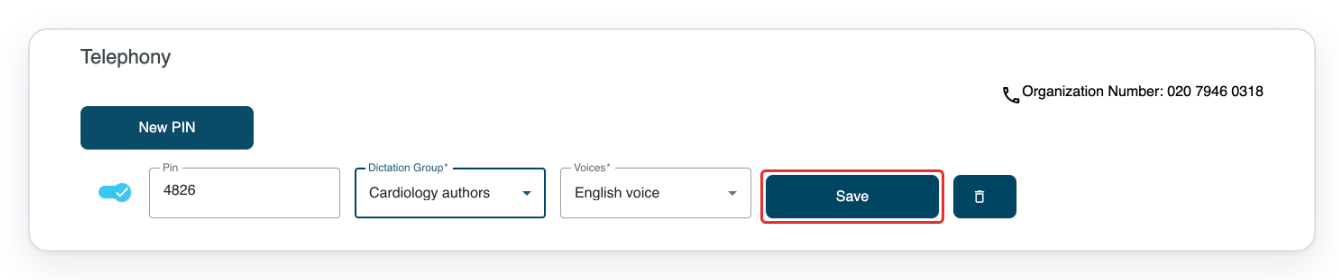
Click Save to create the author’s PIN. T-Pro shows “pin created successfully!”.
NOTE:
- Set up telephony for the author’s own facility before adding their PIN. Check their Organization Number rather than copying the number from the facility example.
- Give the author their saved Organization Number, PIN and your site’s calling instructions. They call that number from a landline or mobile and enter the PIN when prompted to dictate.
Other places you can set up an author’s PIN
- If you’re an admin or master, click Users in the main navigation. Enter the author’s name in Search, press Enter and open their row. In the new tab, click Telephony and follow steps 15 to 17. If you’re a master, you can also click Organisations, open the facility and click Users.
- If you’re a manager, click Departments and select the author’s department. Then click Authors. Find the author using Search, open their row and click Telephony. Follow steps 15 to 17.
Can't set up telephony?
The PIN fields are blank after you click Save. Reload the page to see the saved PIN.
=> The saved row returns with PIN 4826, Cardiology authors and English voice. Organization Number shows 020 7946 0318.
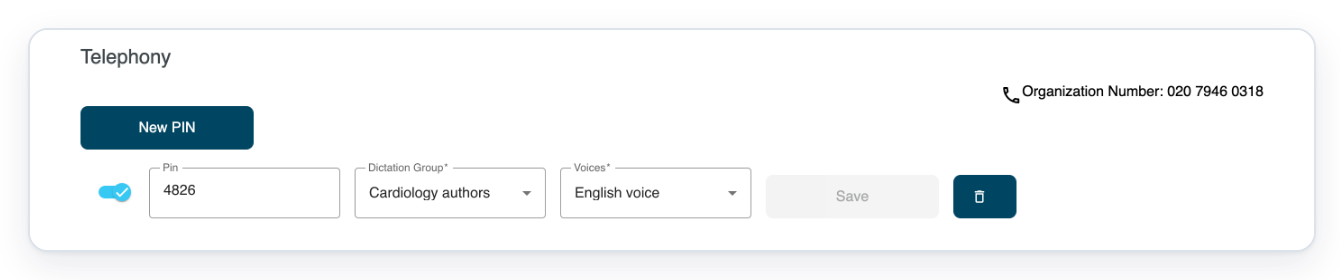
Use these saved details when you give the author their calling instructions.
Telephony is missing from facility settings. Ask an admin to set up the facility’s number. If you’re a master or manager, you can add author PINs once the number is set up.
T-Pro shows “No phone number available”. Contact our Helpdesk to arrange a number for the facility.
New PIN is unavailable or Organization Number is blank. Ask an admin to set up telephony for the author’s facility. Then reload the author’s Telephony page.
Save is unavailable or Pin shows “Invalid or Not Available”. Select a Dictation Group. Check that the PIN has four digits and is available, then click Save. Contact our Helpdesk if you still can’t save the PIN.
Related articles
If you have any more queries, please do not hesitate to contact our Helpdesk or support@tpro.io.
© 2020 - 2026