
Before you start
Have your T-Pro sign-in details and Microsoft work account ready. You'll need permission to link another account.
Log in to T-Pro with your user credentials.
Open the web address supplied by your organisation to reach the T-Pro sign-in page. To use your Microsoft work account, continue with step 2.
Check your account details and link another account
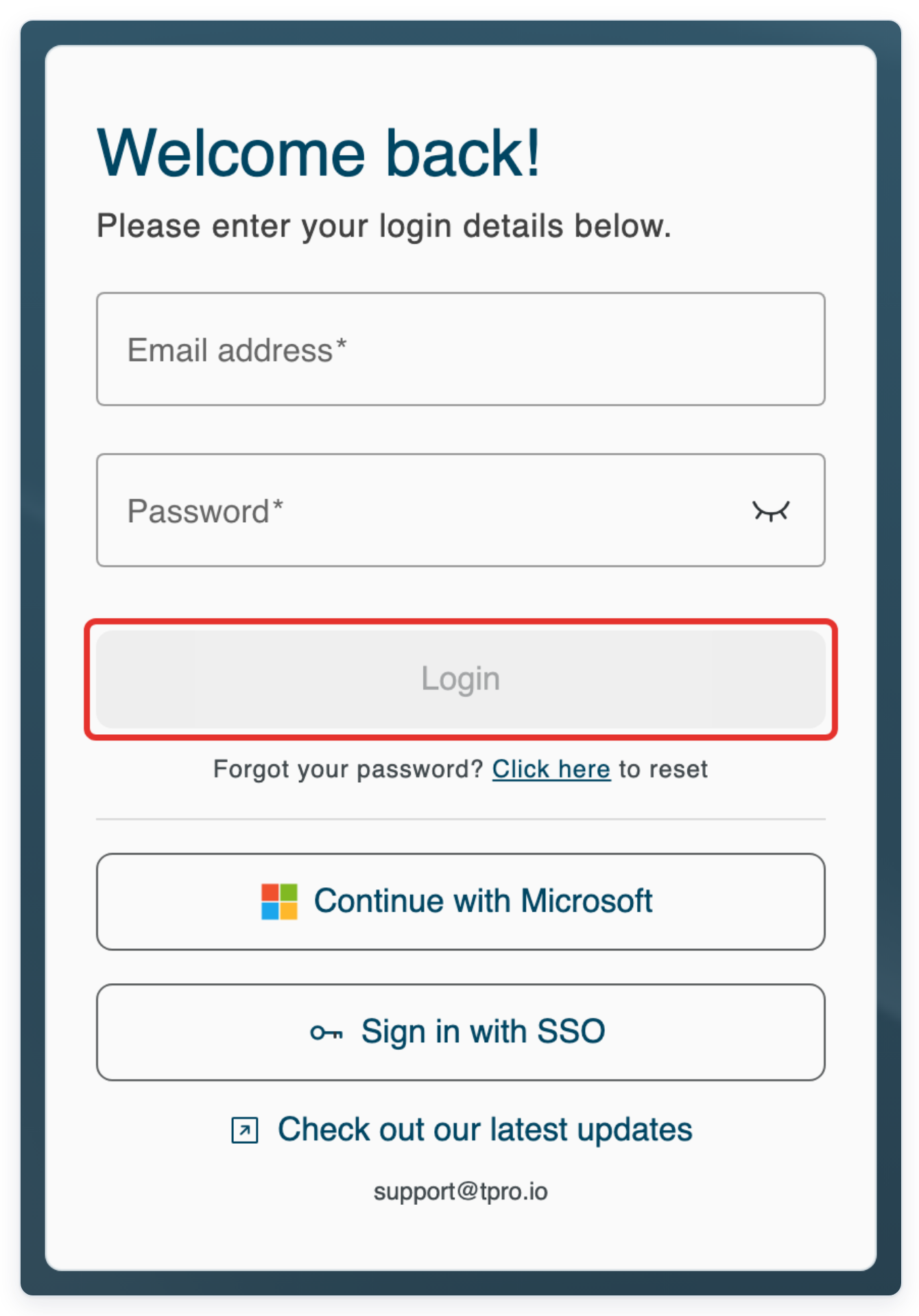
On the T-Pro sign-in card, click Continue with Microsoft to sign in with your Microsoft work account.
Follow Microsoft's prompts to complete sign-in and return to T-Pro. To check your contact details afterwards, follow steps 6 onwards.
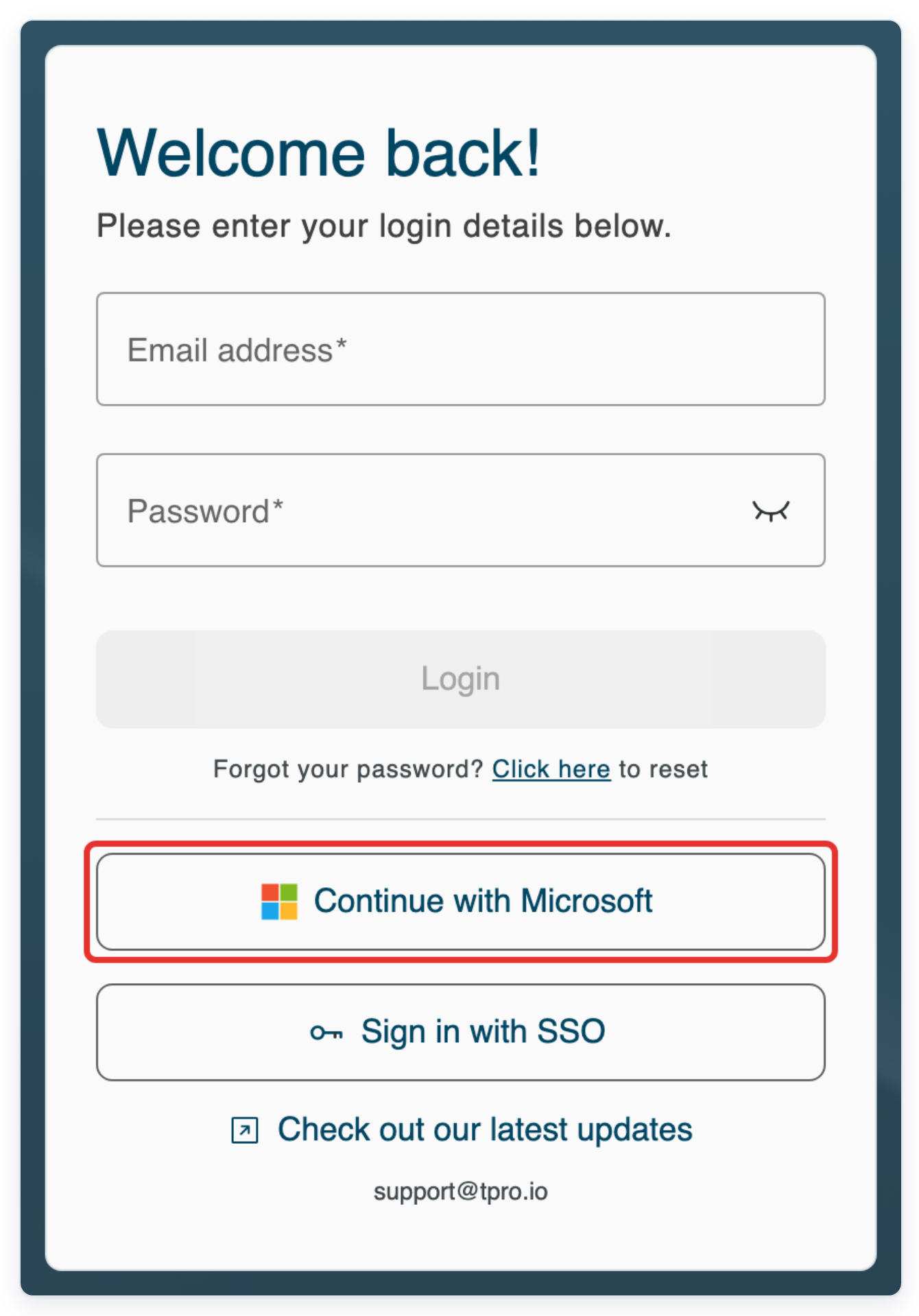
Click the up and down arrows beside your account name to open the account selector.
The selector lists your accounts by name, organisation and email address.
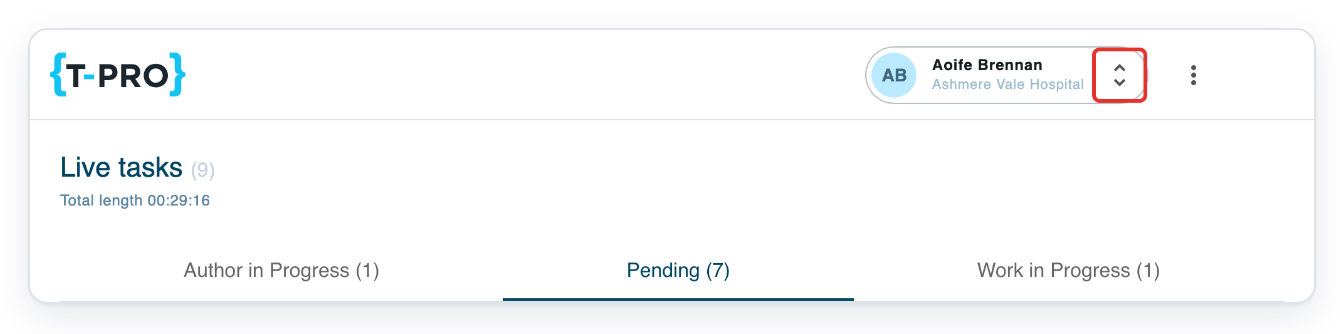
Click Add another account to open Account linking.
Use the sign-in details for the other T-Pro account you want to add.
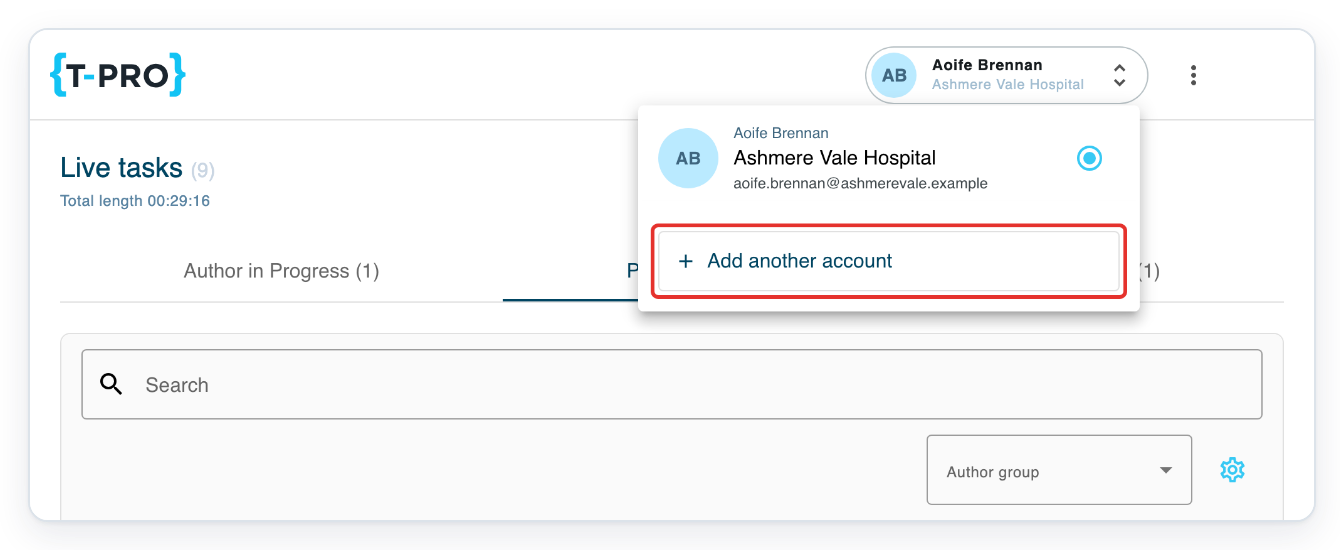
In Account linking, click Continue with Microsoft. Sign in with the Microsoft account you use for your other T-Pro account.
Complete Microsoft's prompts to return to T-Pro.
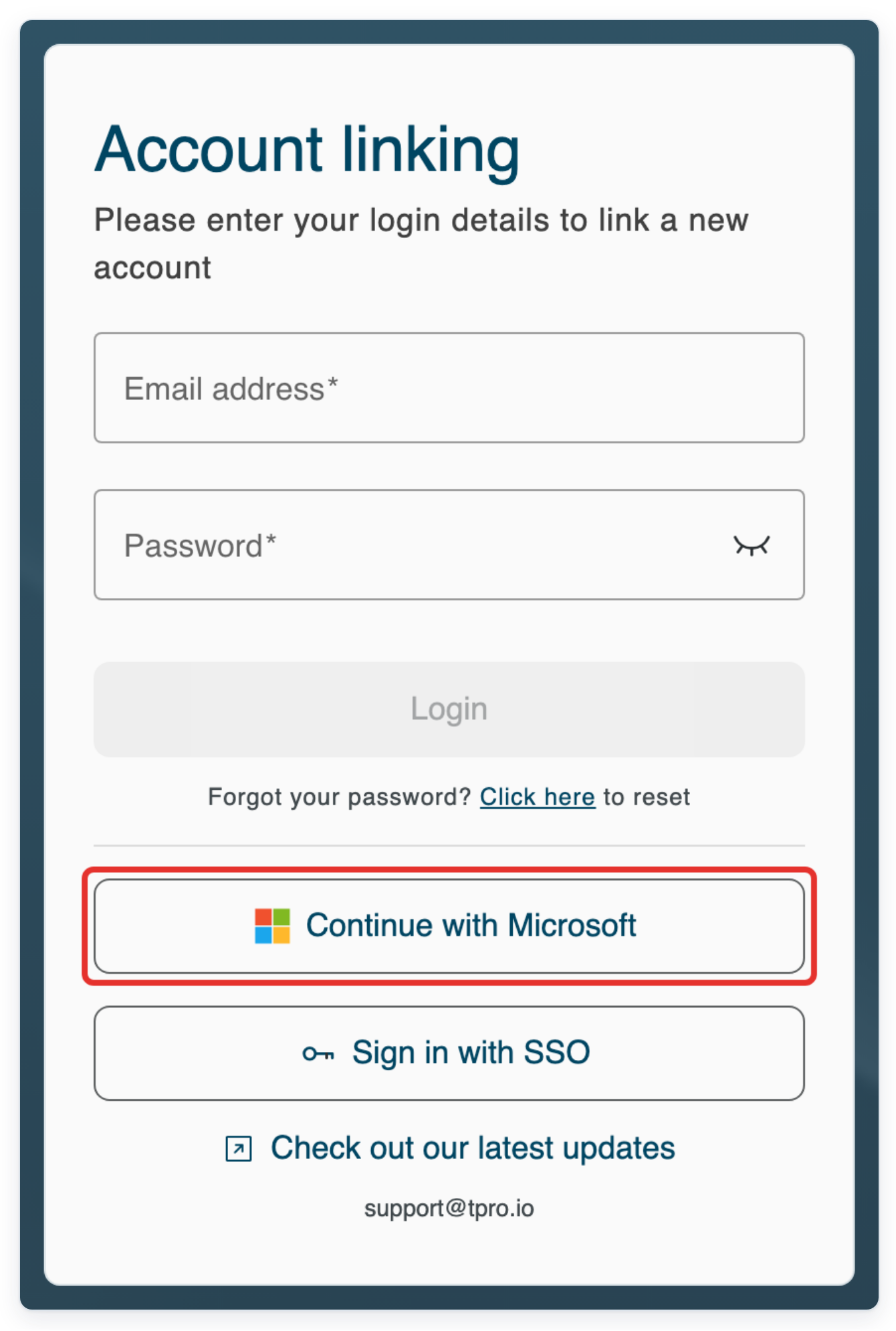
Sign in with Microsoft
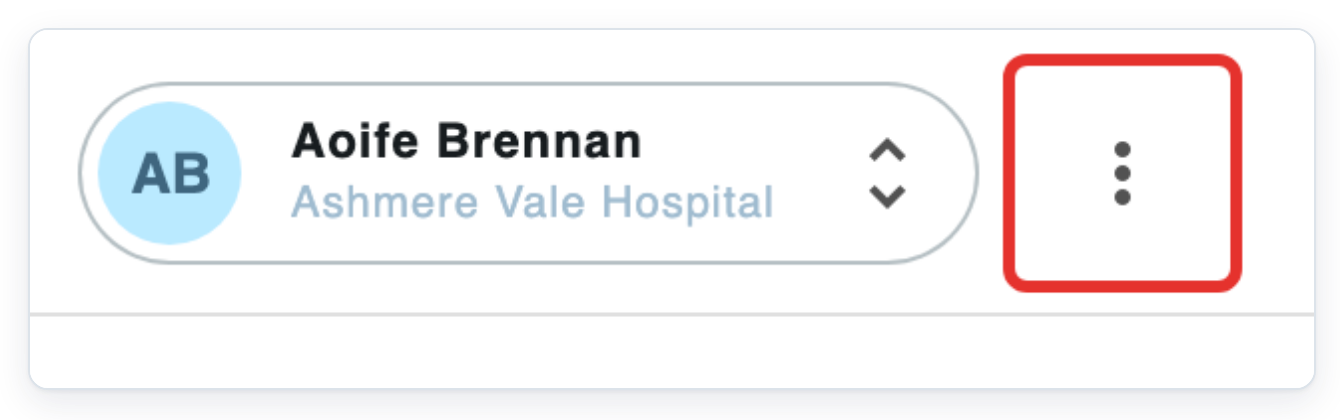
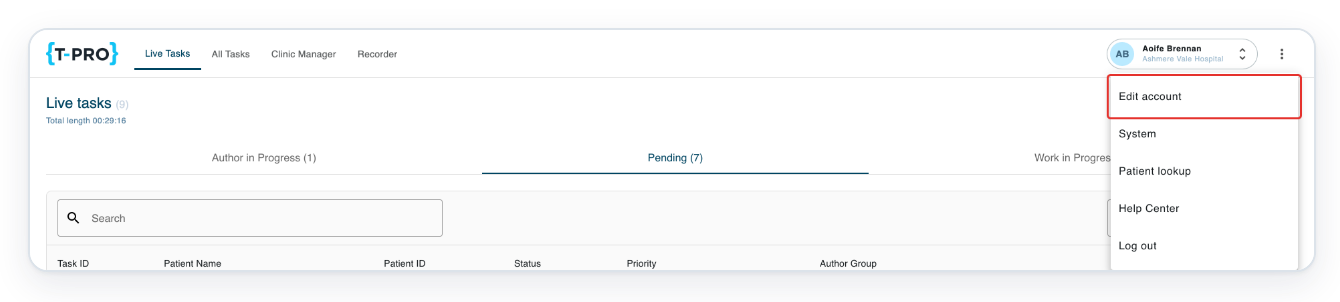
Click the three-dot menu beside your account name at the top right to see Edit account.
Click Edit account to open My details.
To add or change your mobile number, click the pencil beside Phone number in Contact Information.
Adding a mobile number is optional. This opens Phone Notifications, where you can enter and verify it.

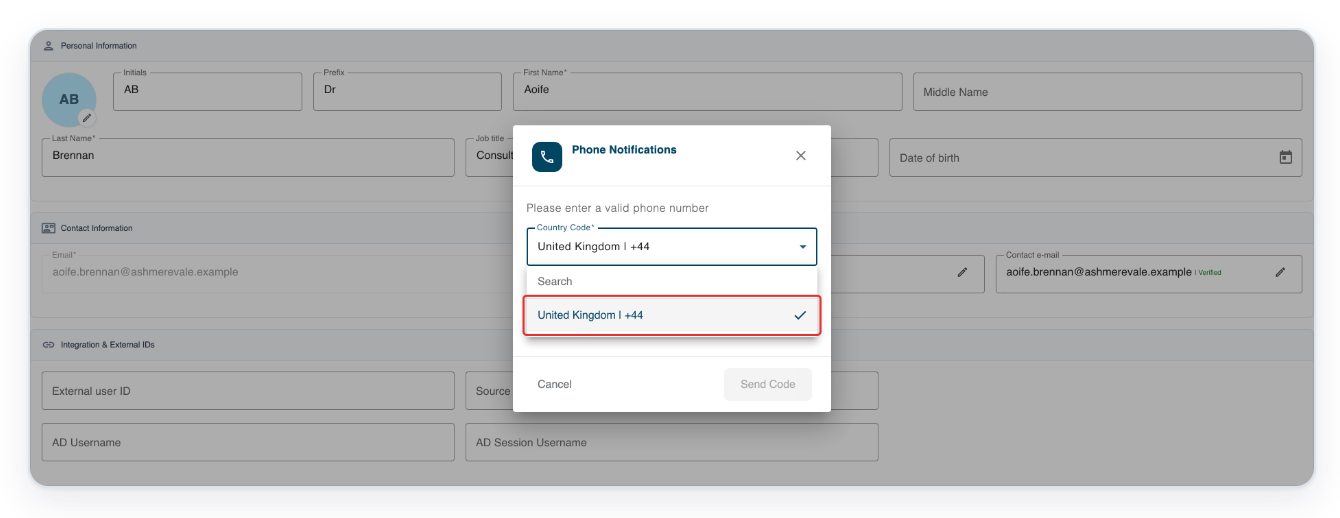
Open Country Code to choose the country for your mobile number.
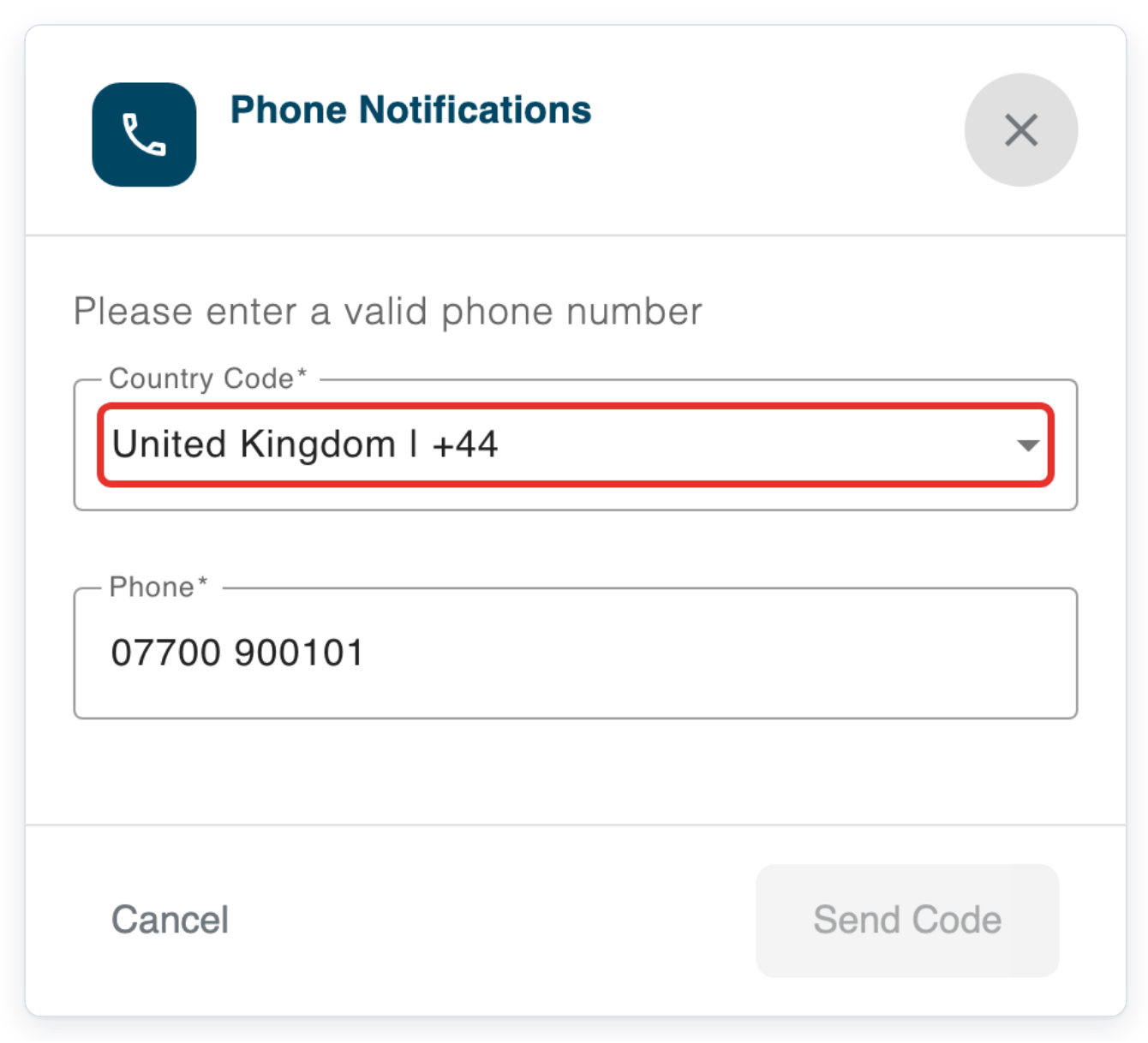
Select your country code. For the UK, choose United Kingdom | +44.
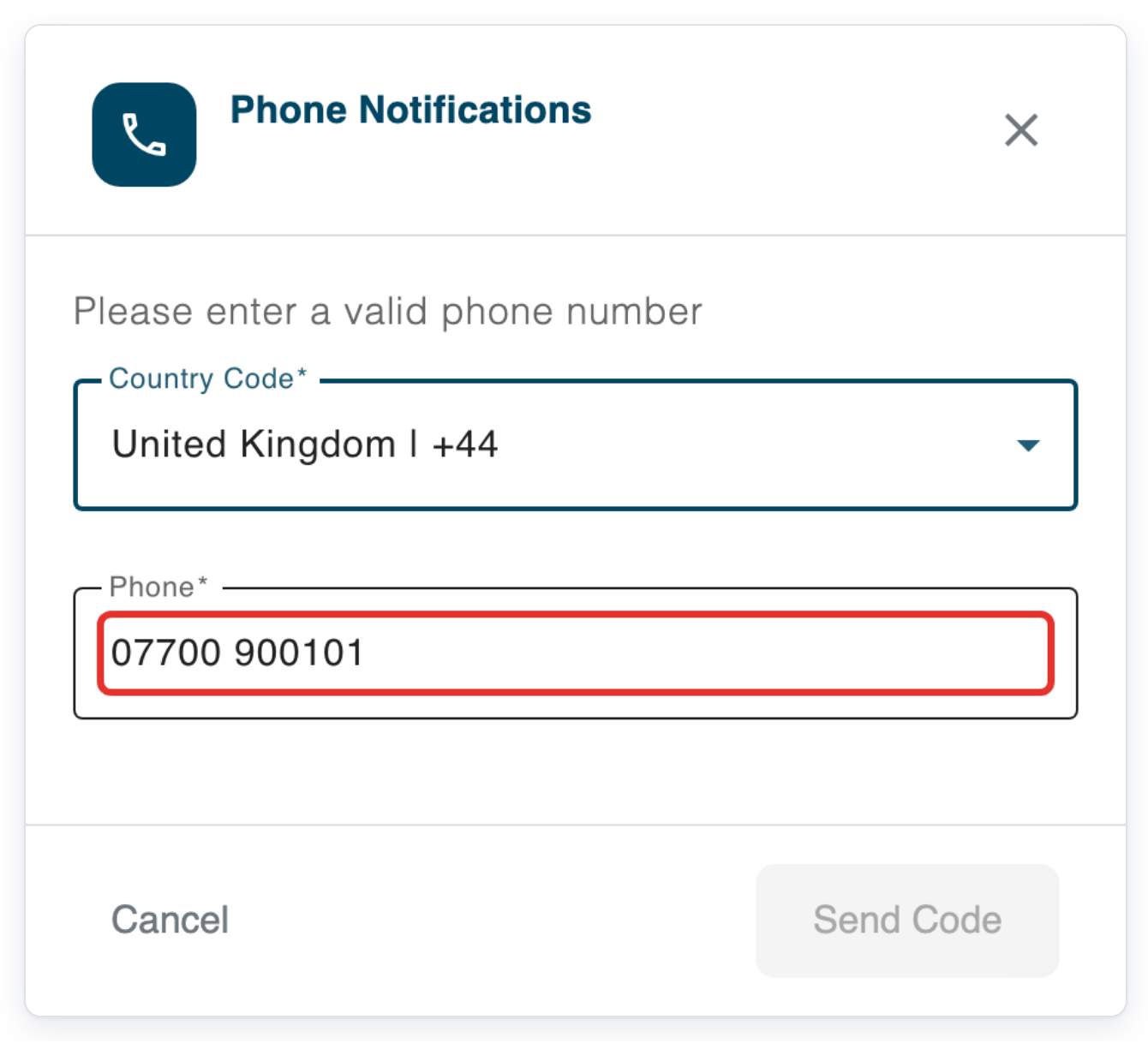
Enter your mobile number in Phone, without the country code you selected above.
Use digits only, without spaces.
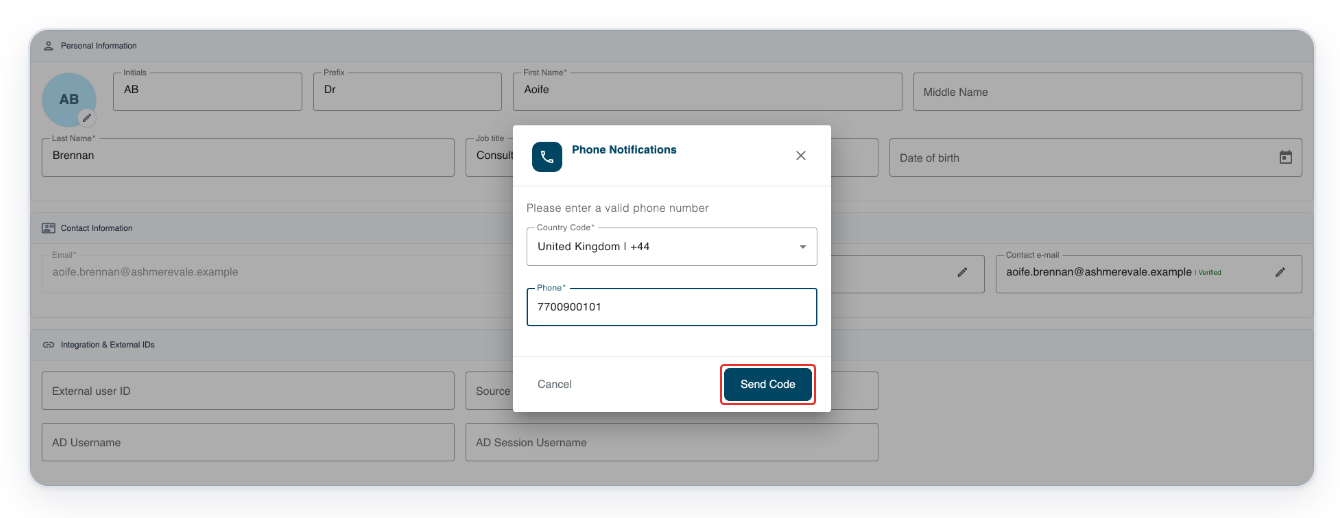
Click Send Code to receive a verification code at that number.
The dialog moves to the code entry screen and shows the number you entered.
Enter the code you receive on your mobile in Code.
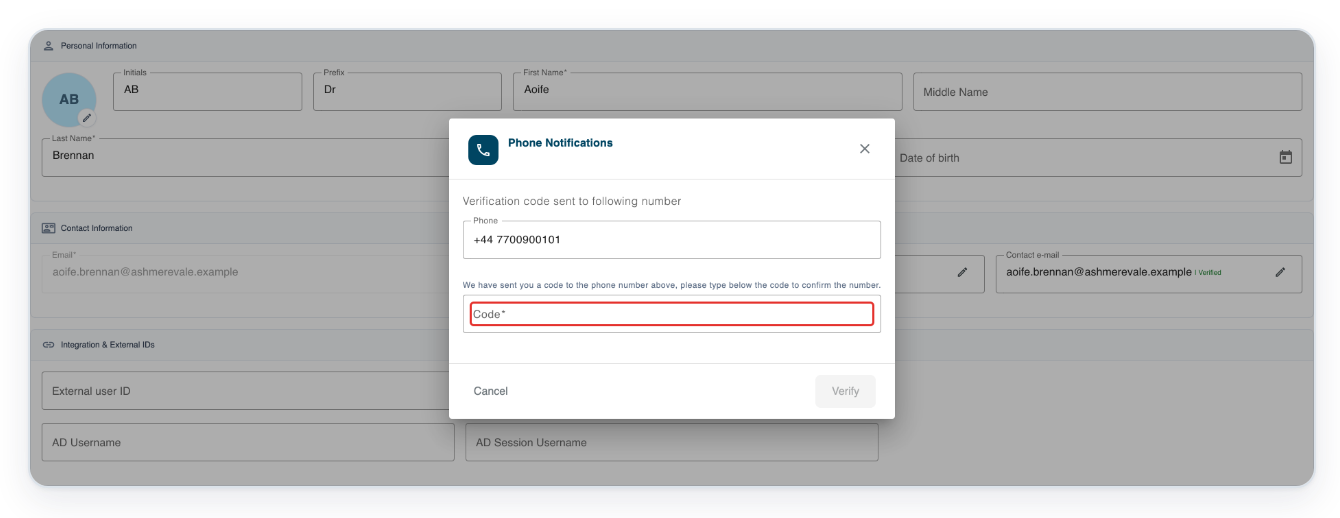
Click Verify to confirm your mobile number. My details then shows it as verified.
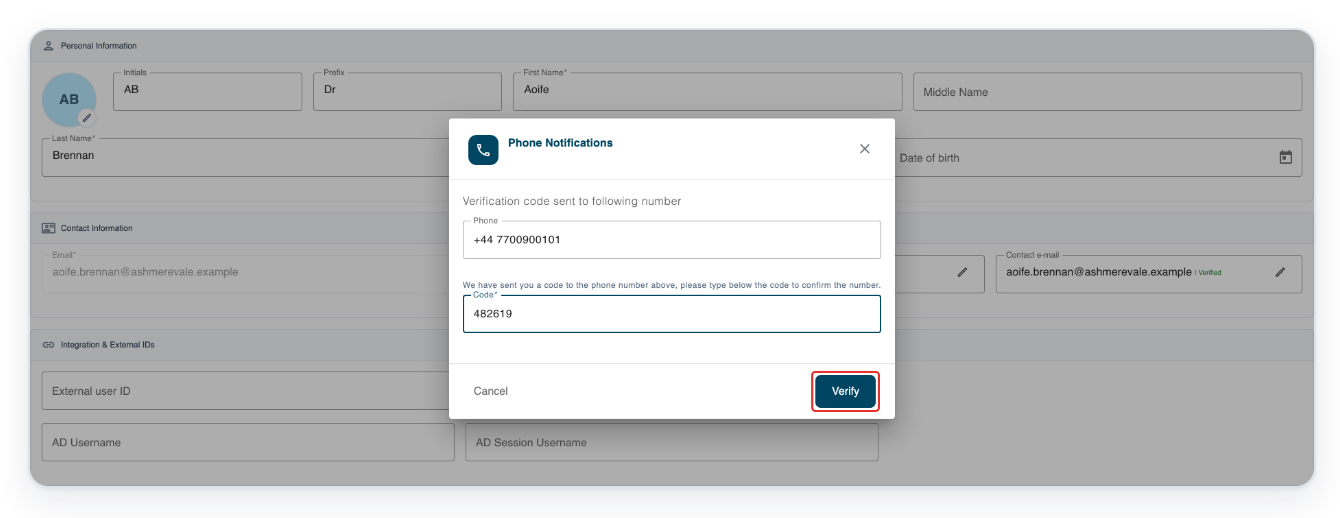
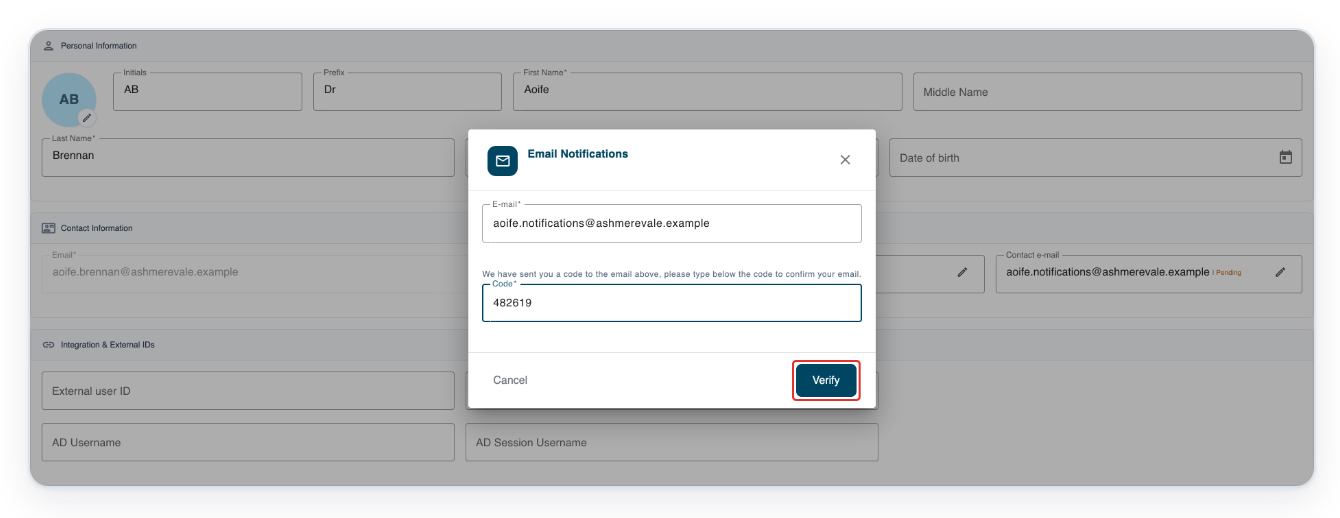
Click the pencil beside Contact e-mail to change the address, even if it is already verified.
This can be a different address from the Email you use to sign in.

Replace the address in E-mail with the one where you want to receive notifications and account recovery messages.
Use an inbox you can access to receive the verification code.
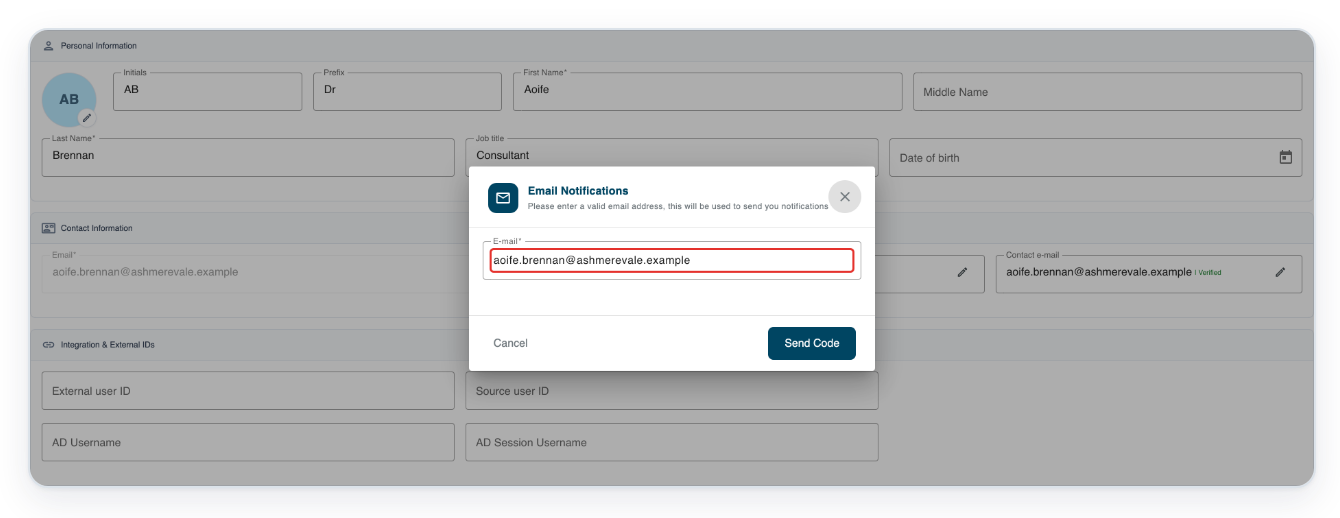
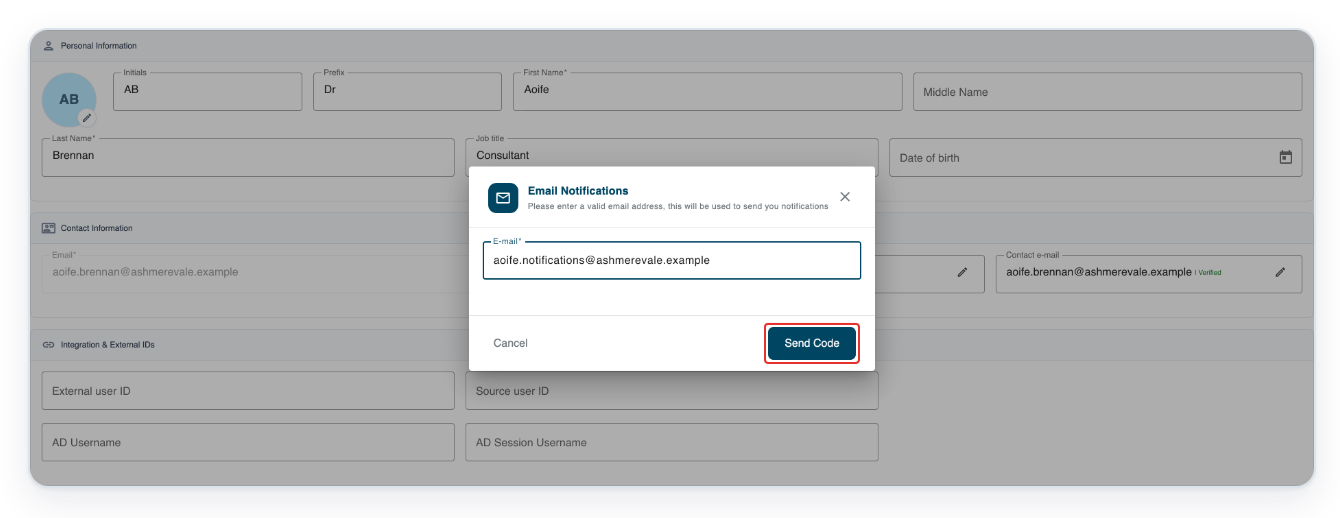
Click Send Code to receive a verification code at the replacement contact address.
Enter the code you receive at the new contact address in Code.
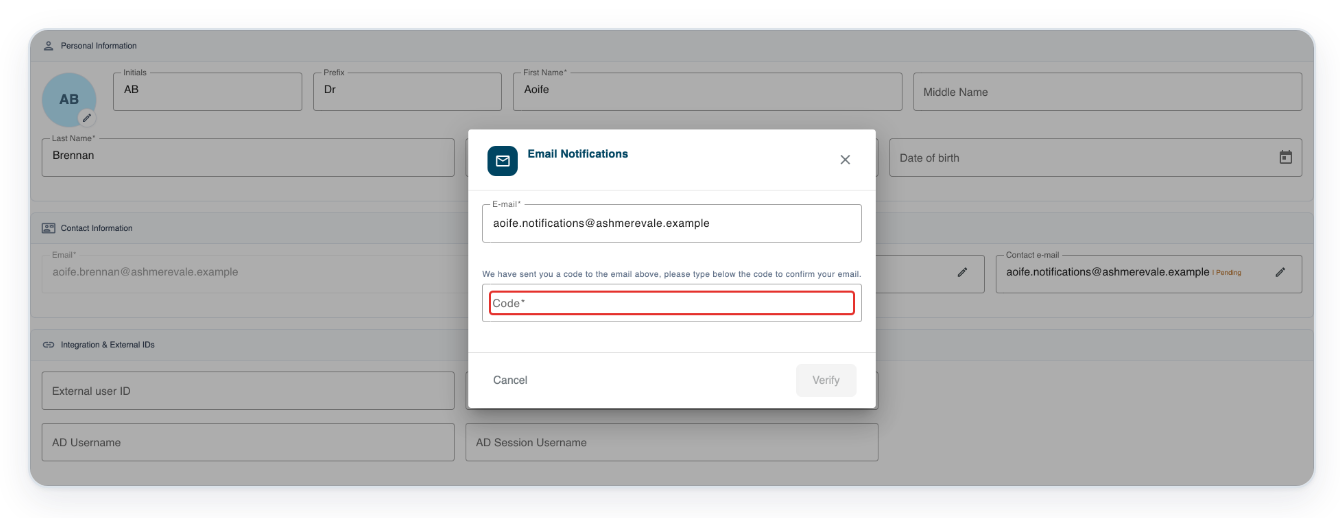
Click Verify to confirm the replacement contact address.
=> Contact Information shows your verified Phone number and replacement Contact e-mail, alongside your sign-in Email. You can use your verified phone number or contact email to recover your T-Pro account if you forget your password.

NOTE:
- Complete any security or permission checks shown during Microsoft sign-in.
- What you see after signing in depends on your role and settings.
- To link accounts, you need another active T-Pro account and permission to link them.
- Keep a verified contact email or phone number for T-Pro account recovery.
- Changing your T-Pro password does not change your Microsoft password.
- Open the web address supplied by your organisation to reach the T-Pro sign-in page.
- To add an optional mobile number, choose its country code, enter the number, then send and verify a code.
- Your contact email can differ from your sign-in email. You can replace a verified address, then verify the replacement using its code.
Tip: Administrators: ask your IT team to check any Microsoft consent your organisation requires for T-Pro. Do this before users sign in.
Can't sign in or link an account?
- If the account selector is missing, ask your administrator whether you have permission to link accounts.
- If T-Pro shows “User not registered”, check that you selected the Microsoft account you use for T-Pro. If the message appears again, ask your administrator to check your T-Pro account.
- If T-Pro shows “Unable to link the same account”, use the Microsoft account for the other T-Pro account.
- If T-Pro shows “Unable to link admin or master”, ask your administrator which account you should use.
- If T-Pro shows “Unable to link to a deactivated account”, contact your administrator. Ask them to check that the other account is active.
- If T-Pro shows “Unable to link users from different facilities”, contact your administrator. Ask whether your organisations allow these accounts to be linked.
Related articles
- Set up and use multi-factor authentication
- Change your password
- Update your profile details
- Switch between your accounts
- Set up email notifications and digests
If you have any more queries, please do not hesitate to contact our Helpdesk or support@tpro.io.
© 2020 - 2026