
Before you start
Have your T-Pro sign-in details ready. You'll also need access to a verified recovery email address or phone number on your account.
Log in to T-Pro with your user credentials.
Turn multi-factor authentication on or off
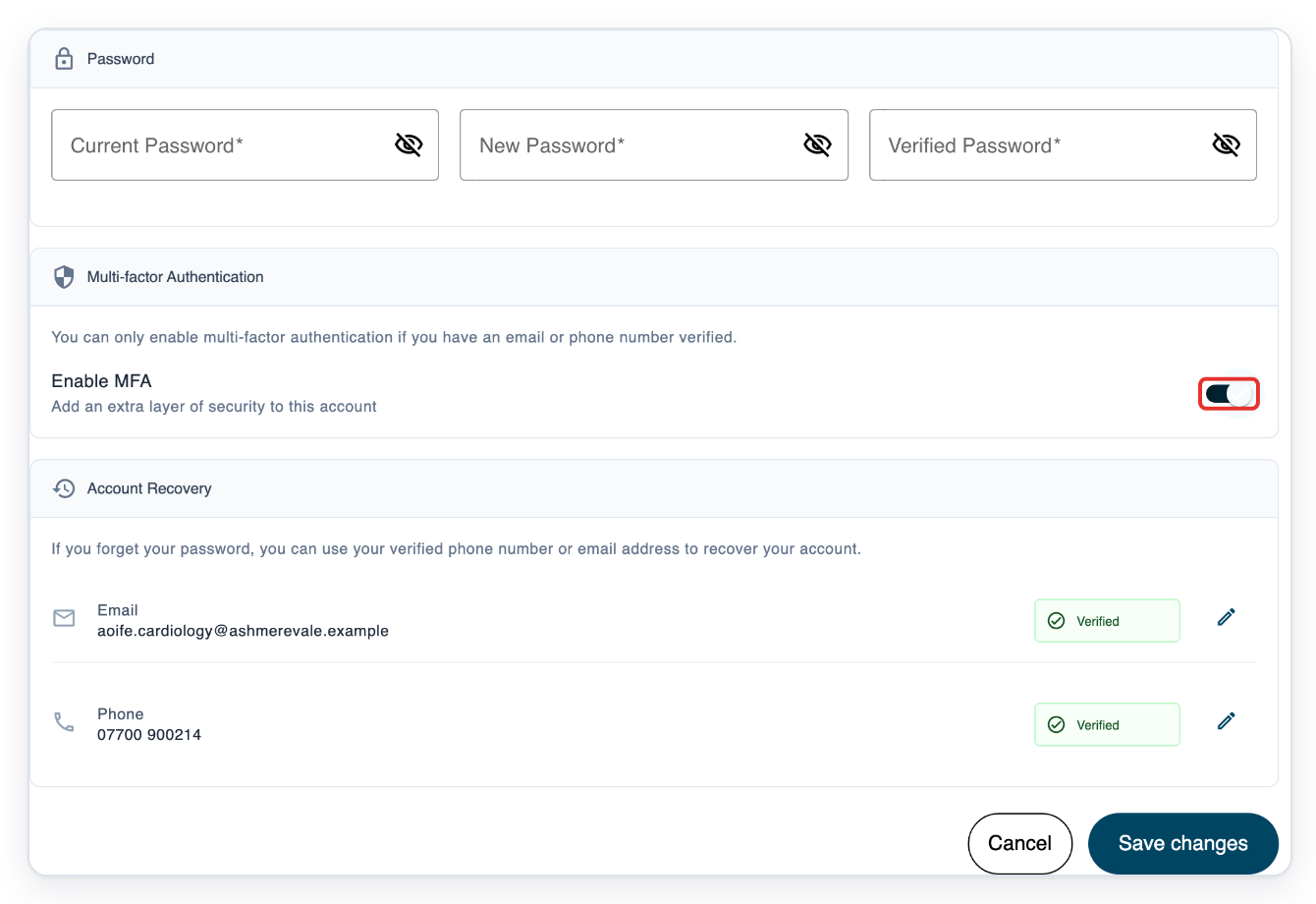
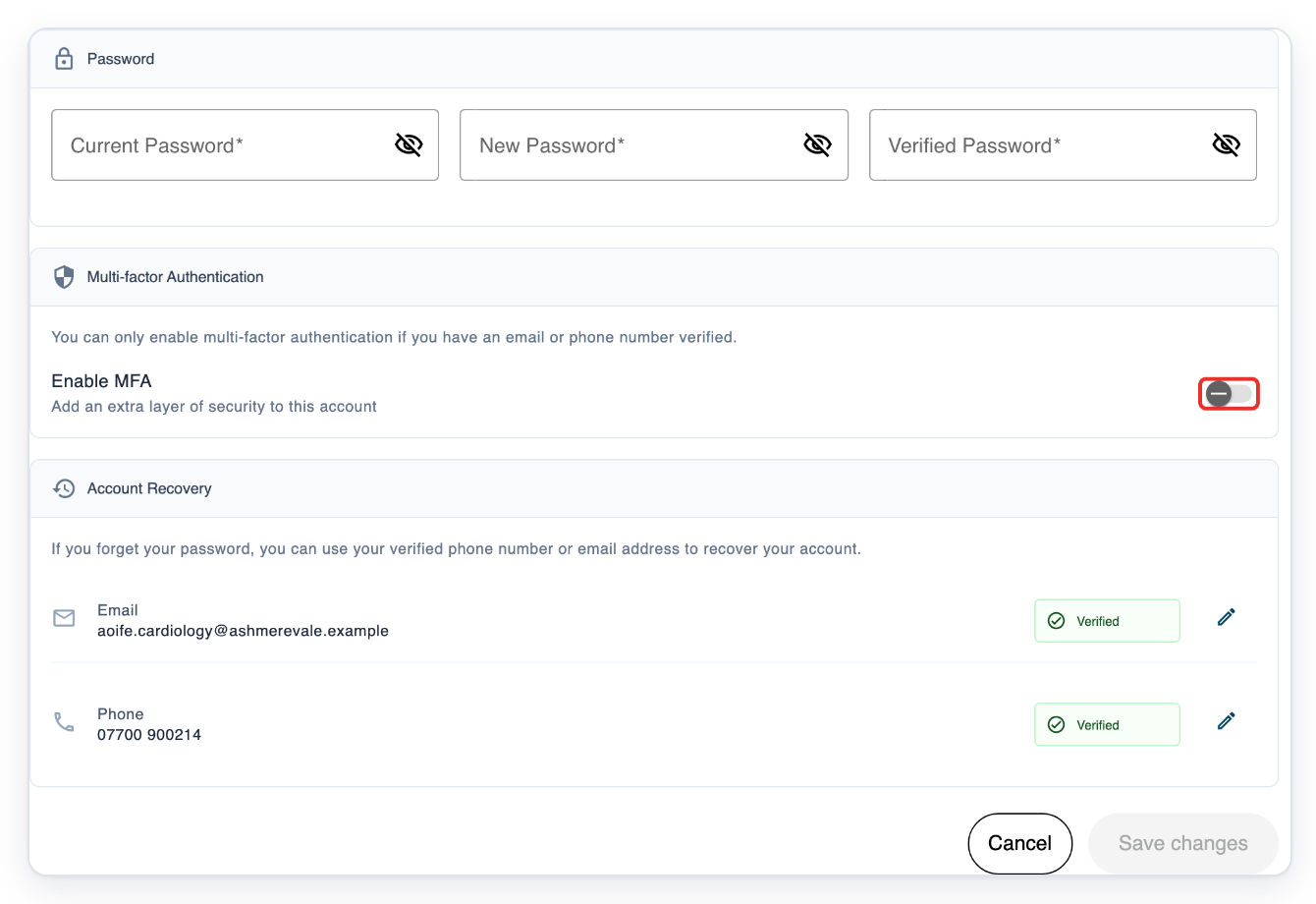
Click your name to open your profile, then click Security. Under Multi-factor Authentication, switch Enable MFA on.
Check Account Recovery below the switch. You need an Email or Phone marked Verified to turn multi-factor authentication (MFA) on. You still need to save your selection.
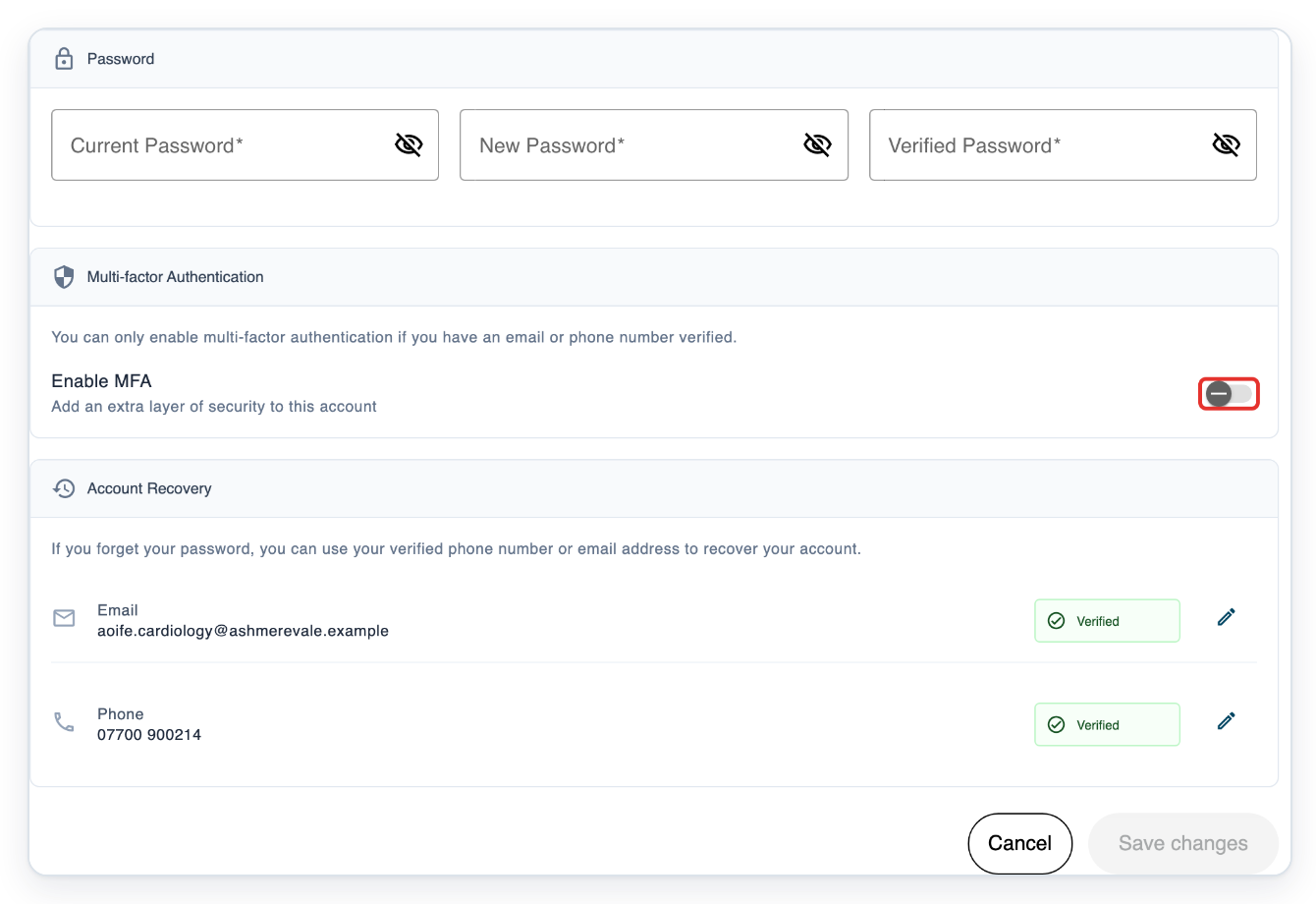
To leave MFA off instead, switch Enable MFA off before saving.
You can adjust your selection before saving. Here, the switch is off.
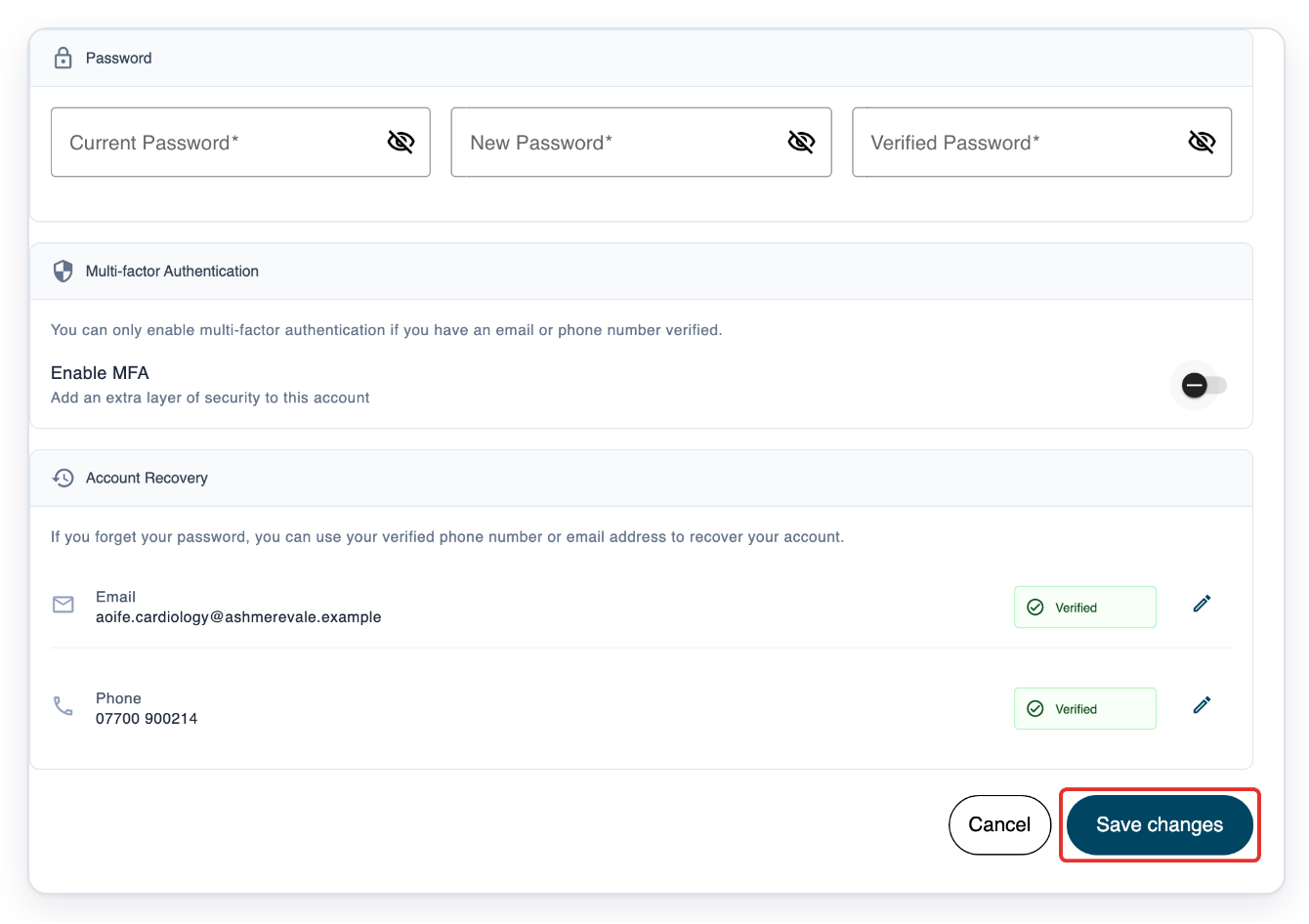
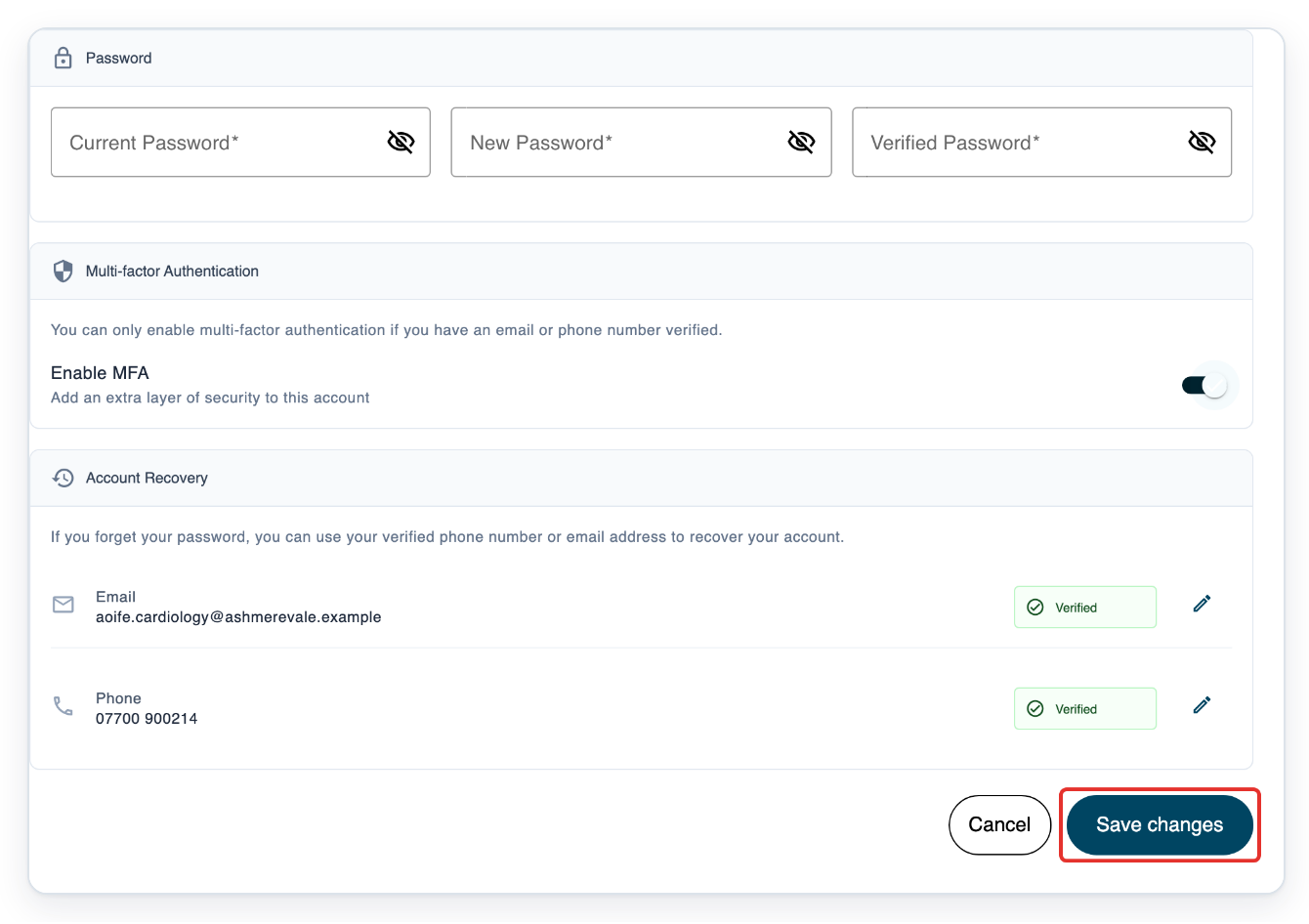
Click Save changes to turn MFA off.
MFA is now off for your account. Follow the next steps to turn it back on for sign-in.
Switch Enable MFA on again.
Use the same switch in Multi-factor Authentication on the Security tab.
Click Save changes to turn MFA on.
Leave the password fields above the MFA setting blank to keep your current password.
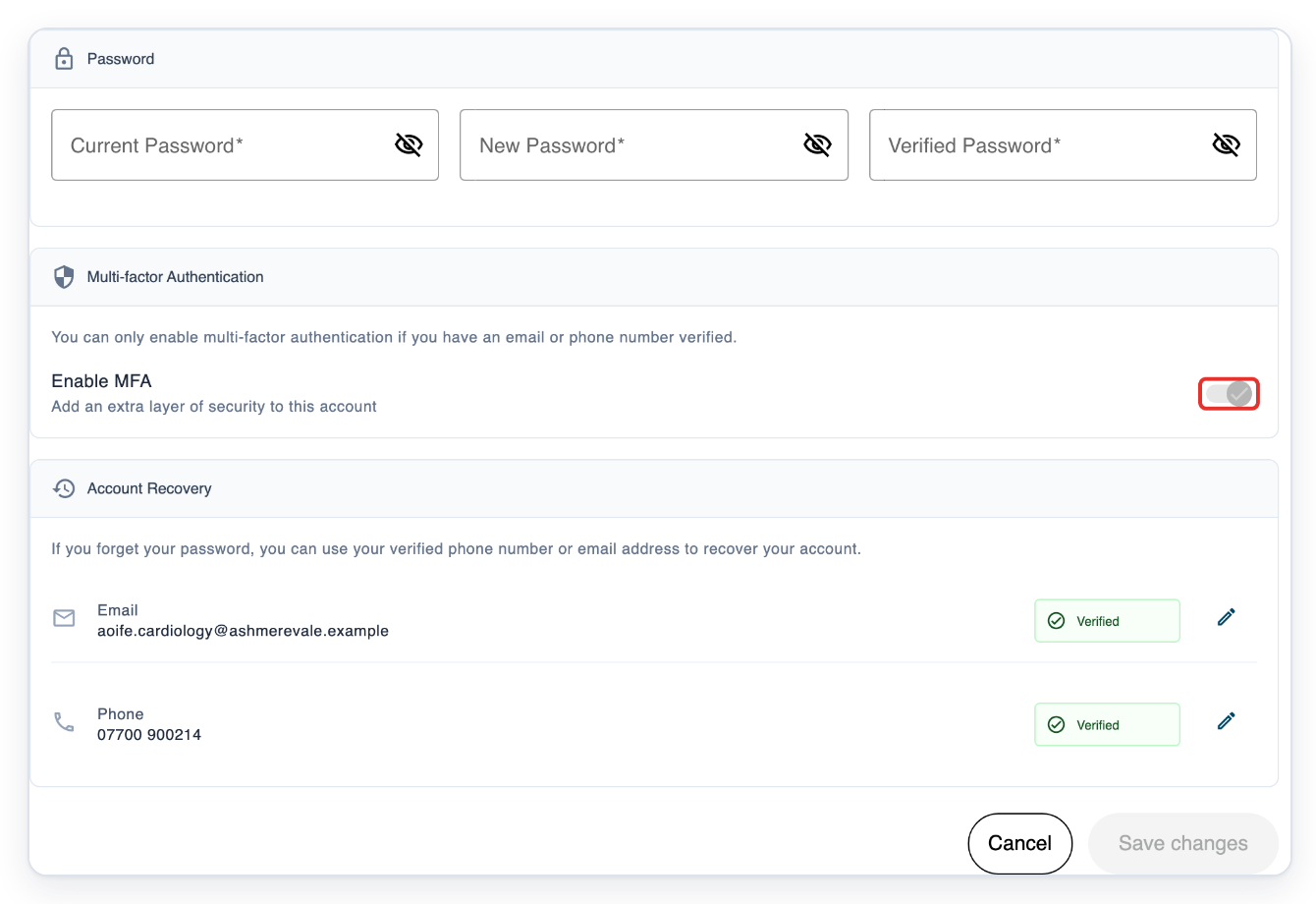
=> MFA is on. Here, the organisation requires MFA, so you cannot change the switch. Account Recovery shows the verified email address and phone number.
Sign in with multi-factor authentication
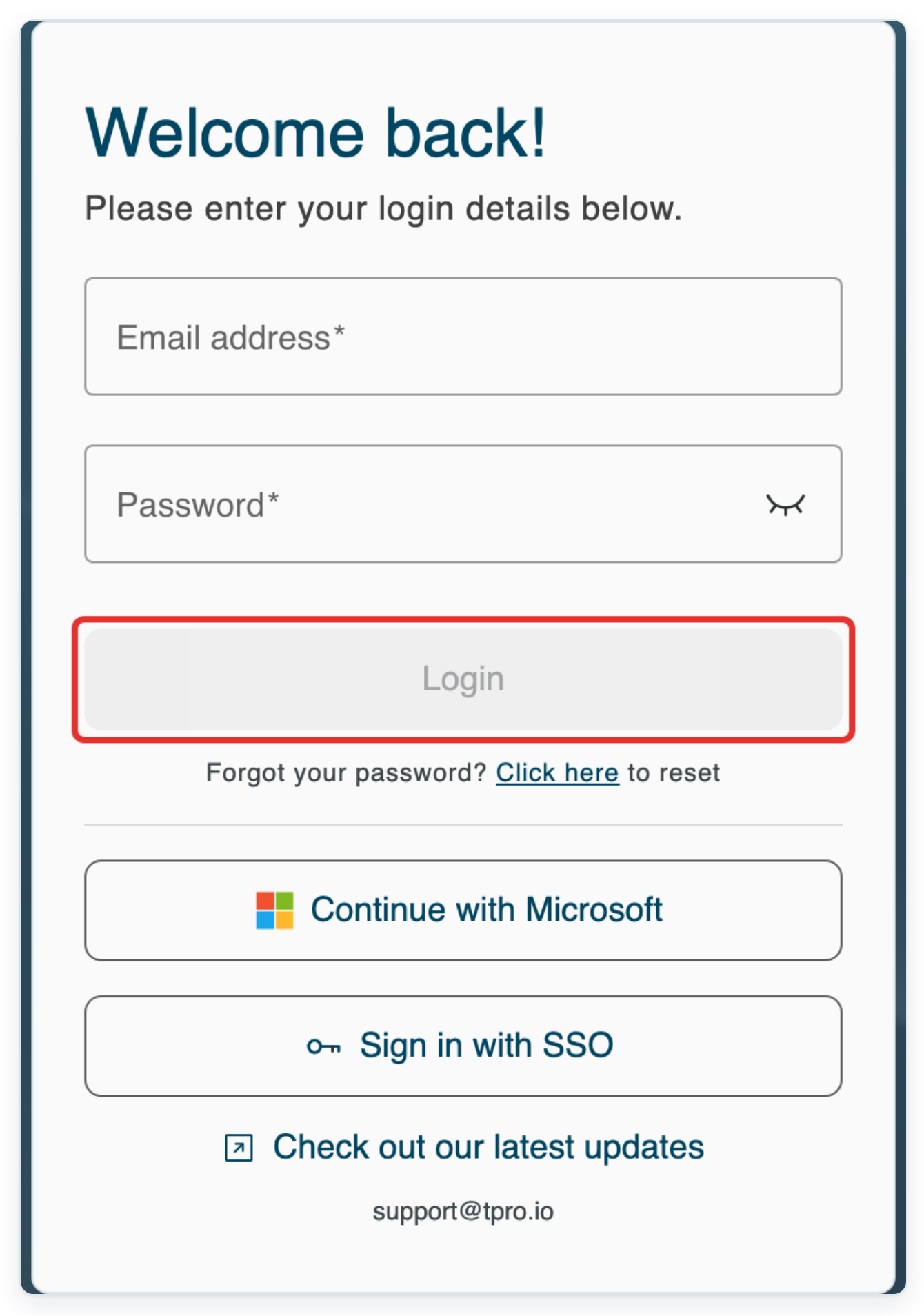
When you next sign in, enter your sign-in email address in Email address.
Your recovery email address may be different. Use the email address you normally use to sign in to T-Pro.
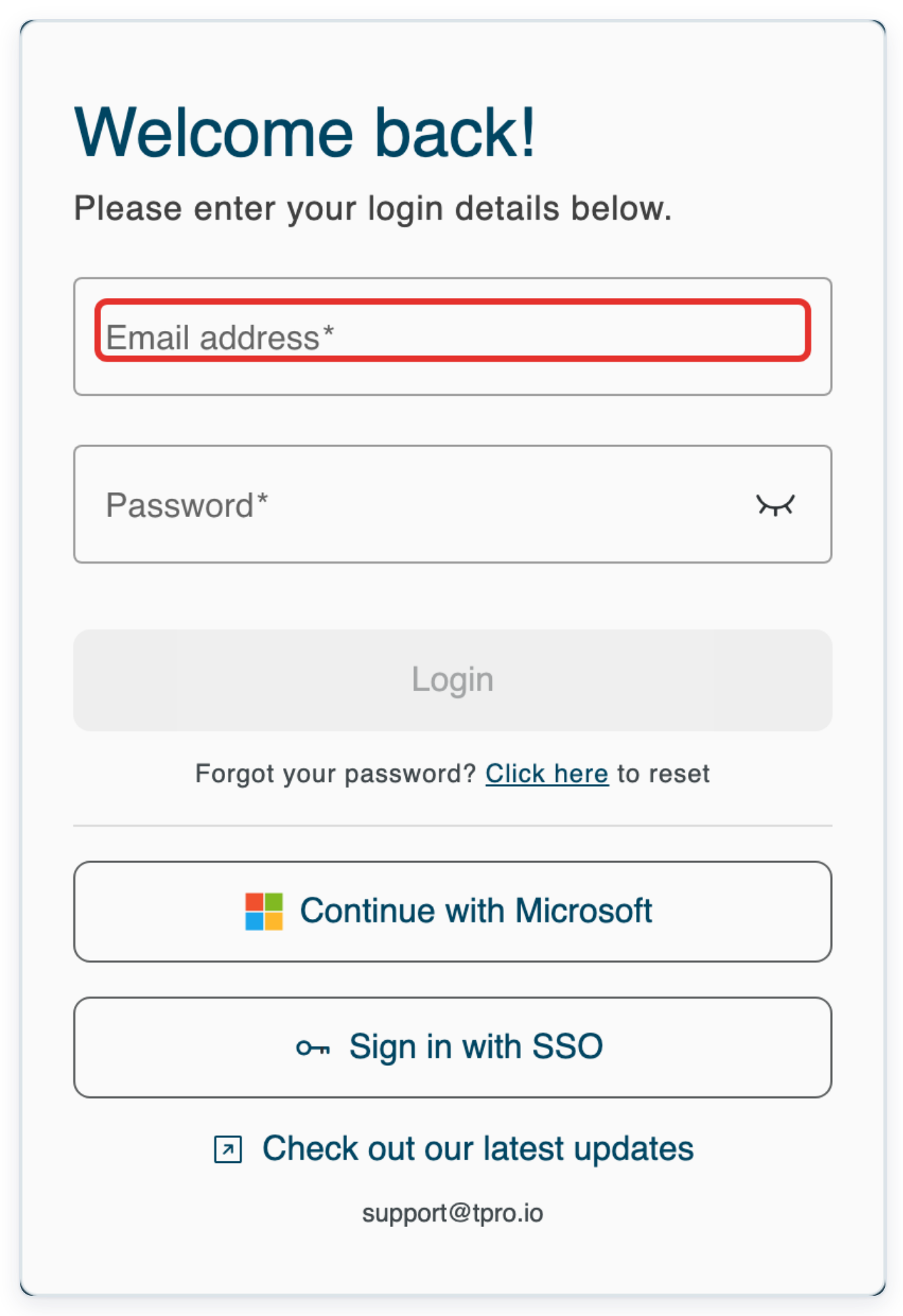
Enter your password in Password.
To check what you've typed, click the eye icon beside the password field.
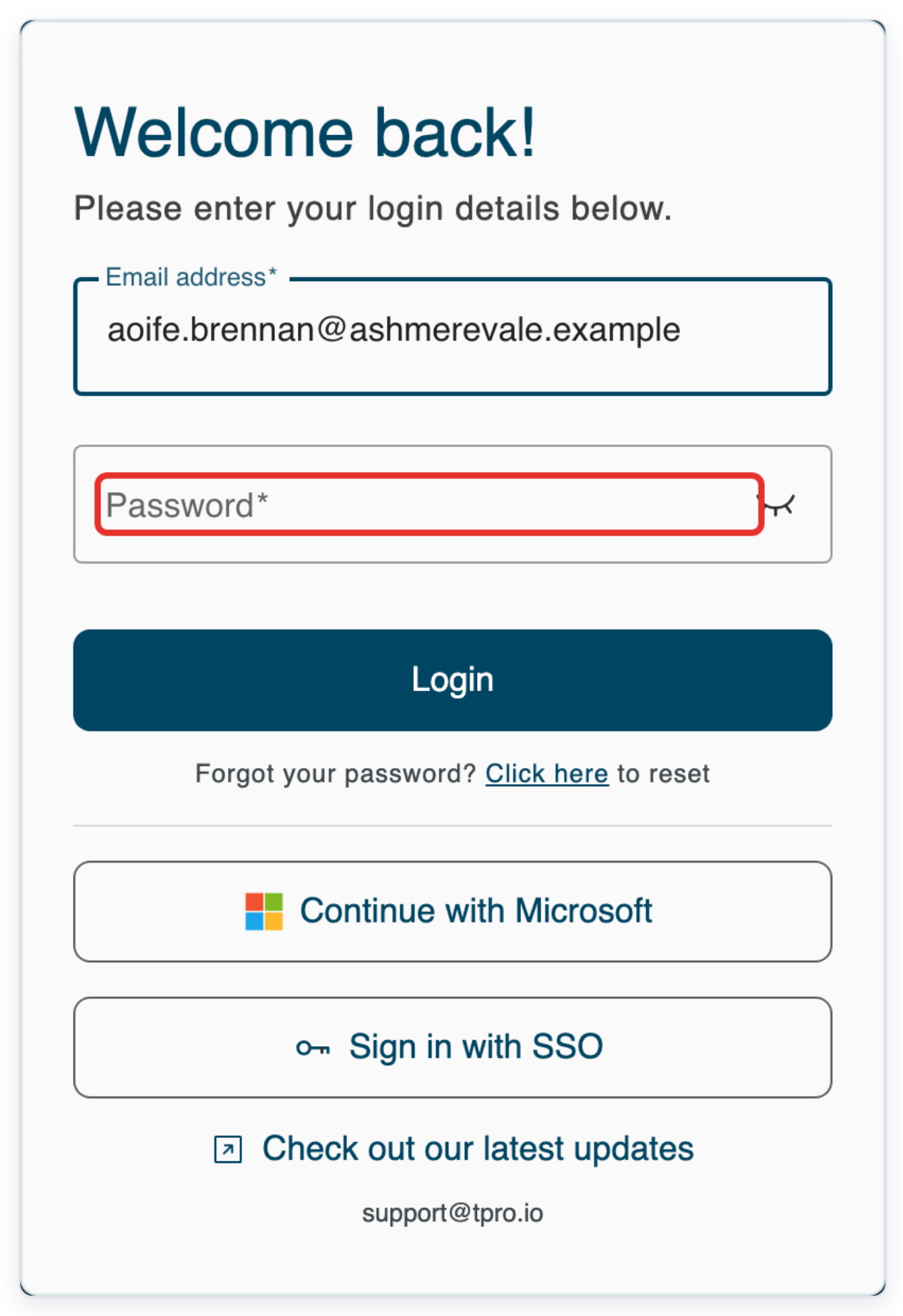
Click Login. T-Pro asks for a verification code. In this example, the code is sent to your email.
The message above the code field tells you where the code was sent. Check that email account or phone.
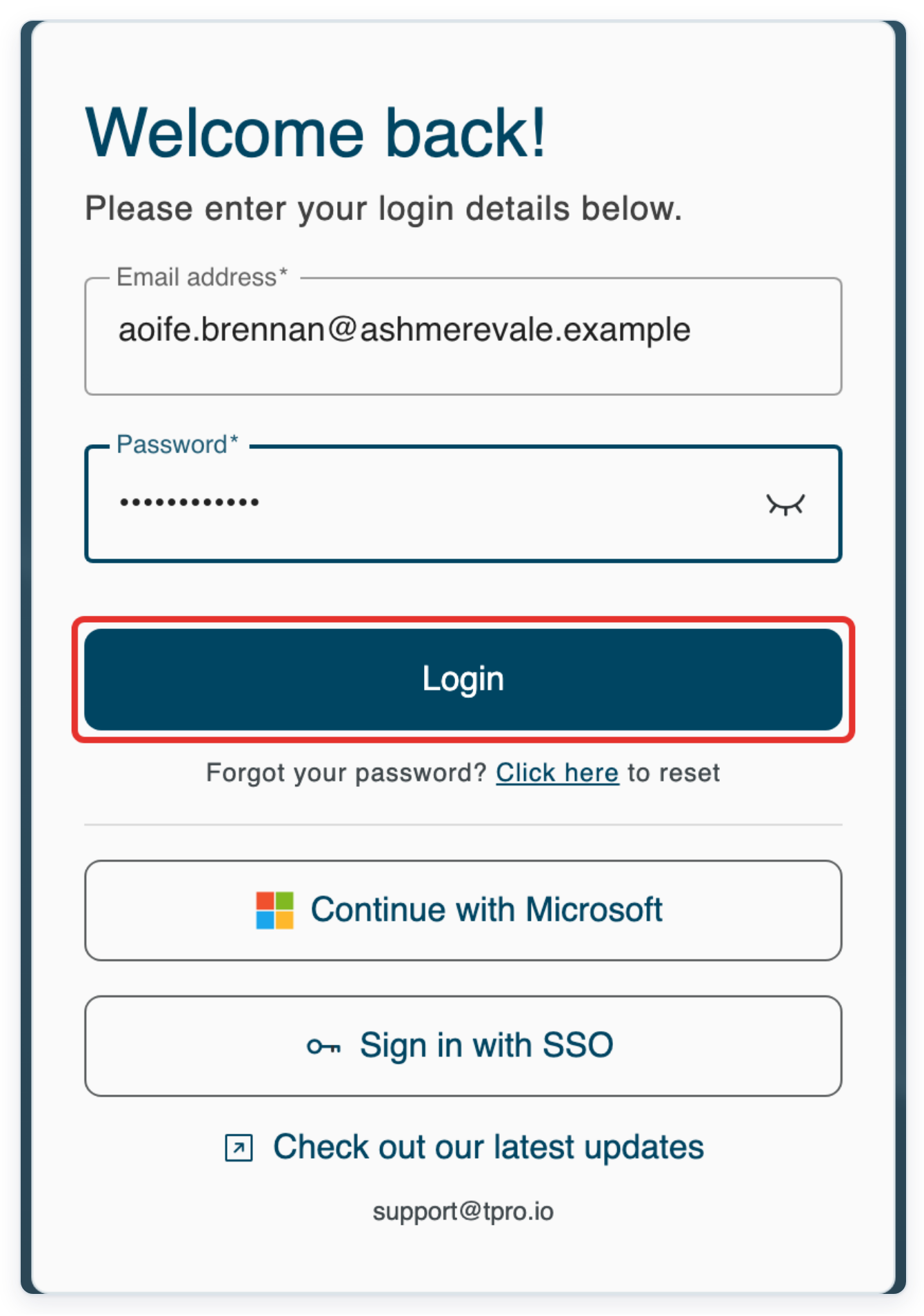
Click Try another way to request a code on your phone instead.
Use this option if you cannot access the email code and have a verified phone number. If you have the email code, enter it and click Login to sign in. Then skip the phone steps below.
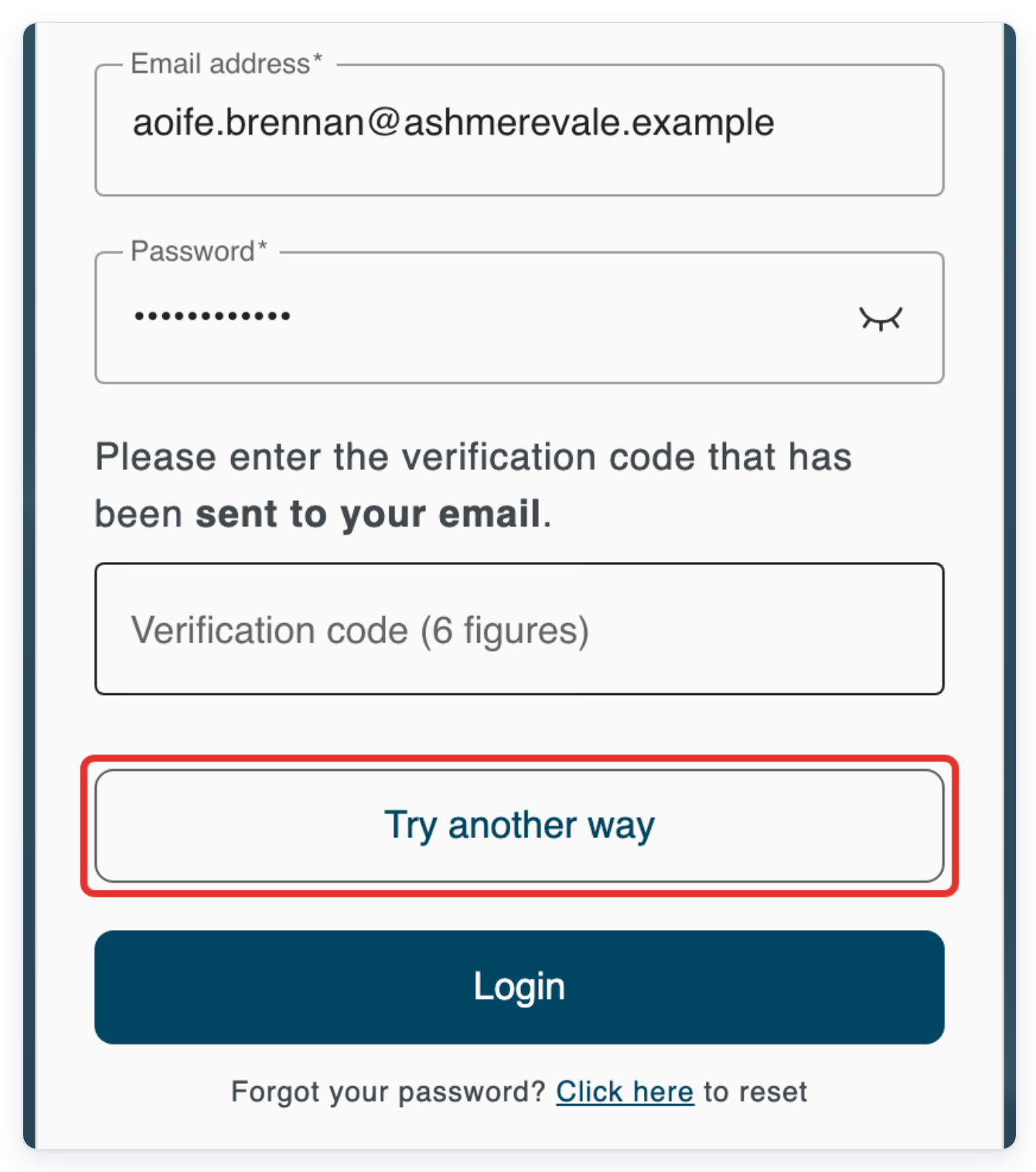
Enter the six-digit code sent to your phone in Verification code (6 figures).
The message now says the code was sent to your phone. Enter the code from that text message.
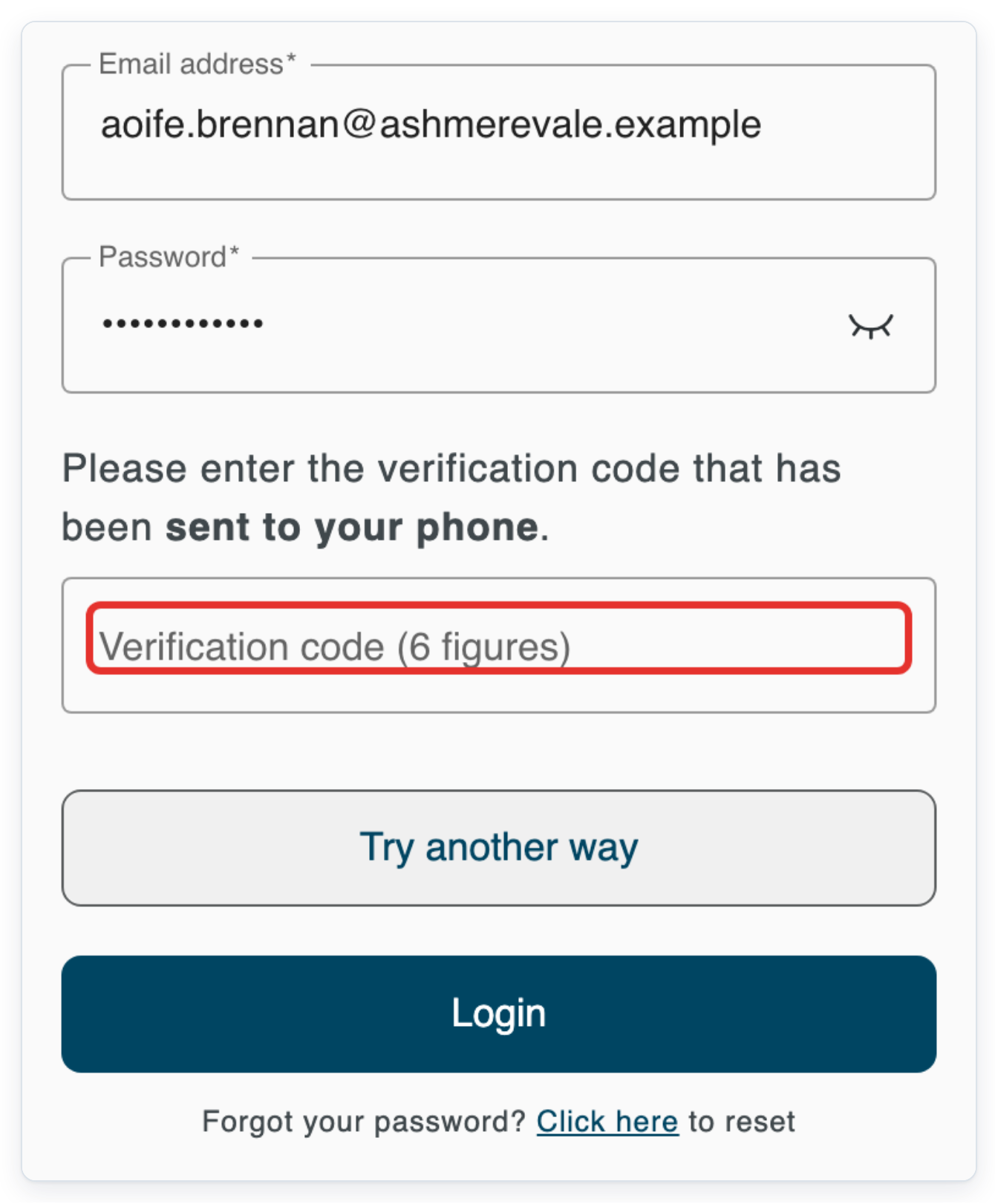
Click Login to sign in with the verification code.
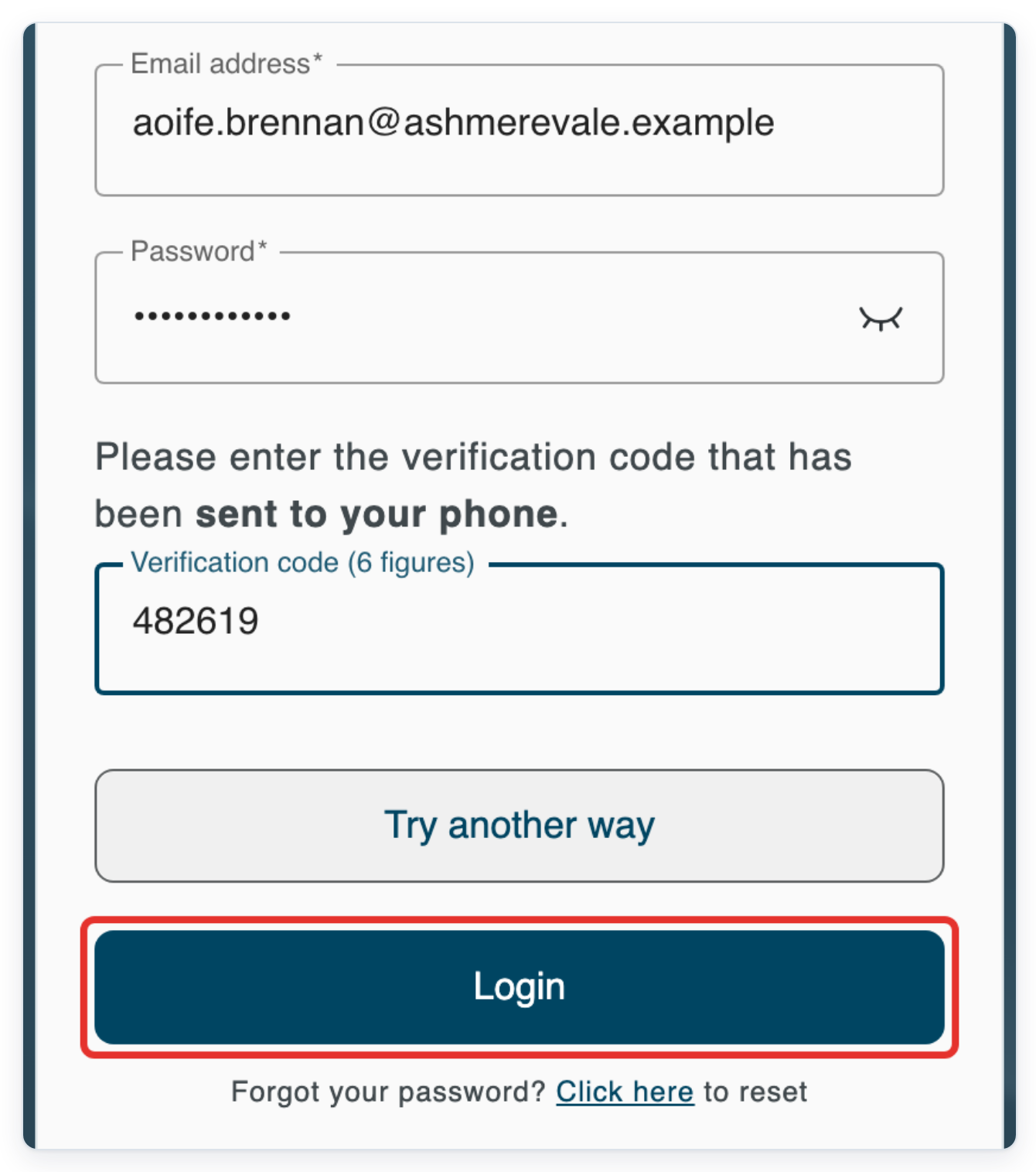
=> You are signed in. Live tasks opens in this example.

NOTE:
- The sign-in message tells you whether your code was sent to your email or phone.
- Your verified recovery email address or phone number can also help you reset a forgotten password.
Can't use multi-factor authentication?
- If Enable MFA is unavailable, check Account Recovery. If neither Email nor Phone shows Verified, click the pencil beside a contact. Follow the prompts to verify it. Then return to the MFA switch.
- If you cannot access a verification code, contact your administrator. You may see this message: “No more methods to verify your account, please contact support.” Follow its contact support link.
- If you've forgotten your password, click Click here beside Forgot your password? on the sign-in page. Follow the account recovery prompts. See Change your password for help choosing and saving a new password.
Related articles
If you have any more queries, please do not hesitate to contact our Helpdesk or support@tpro.io.
© 2020 - 2026