
Before you start
You need your T-Pro sign-in email address and temporary password. You'll also need access to the inbox for the contact email address you want to verify.
Log in to T-Pro with your user credentials.
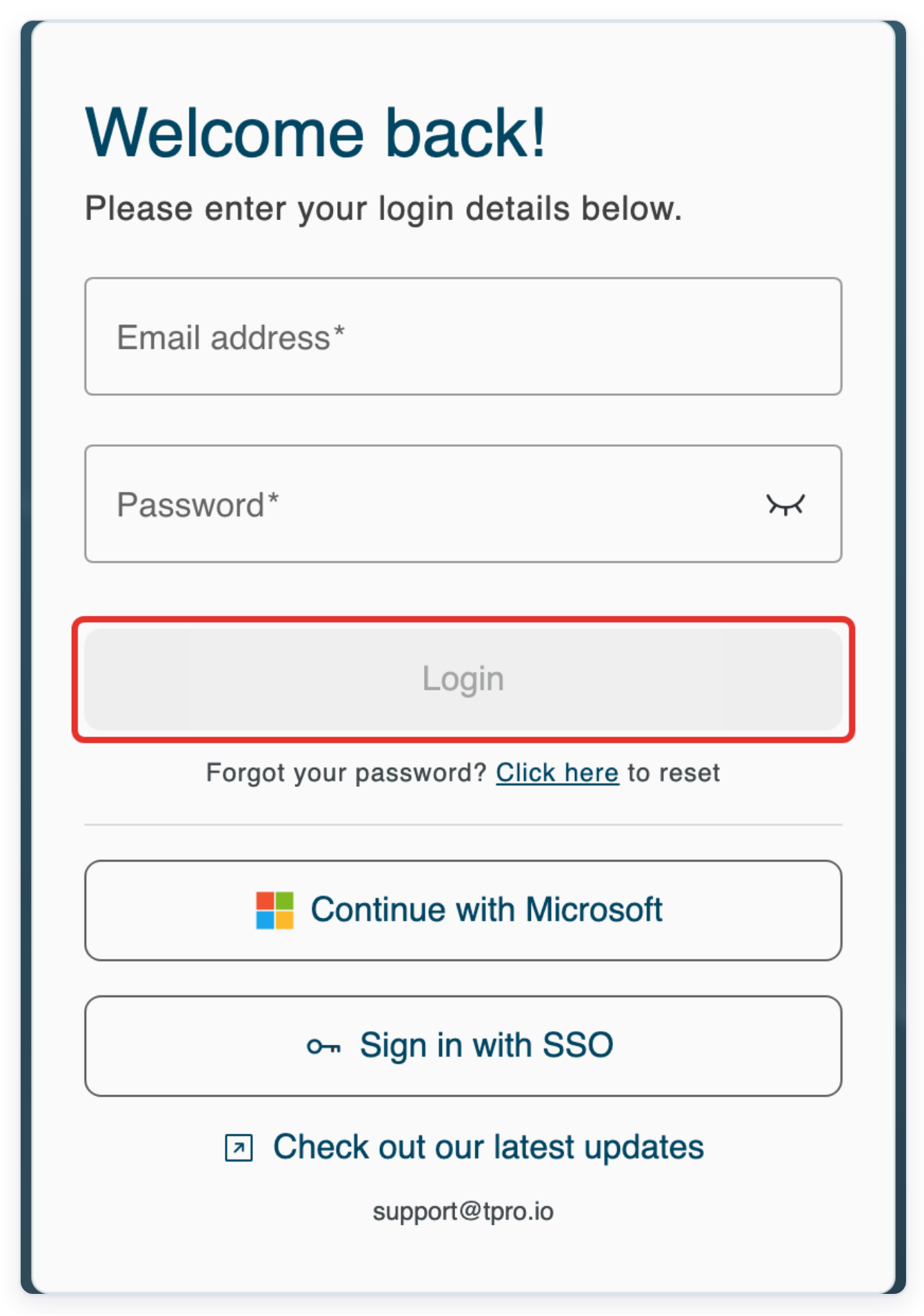
Enter your sign-in email in Email address and your temporary password in Password. Then click Login.
Follow the setup screens shown for your account. You may not need every step below.
As an author
=> The EULA opens. Read this agreement before you continue.
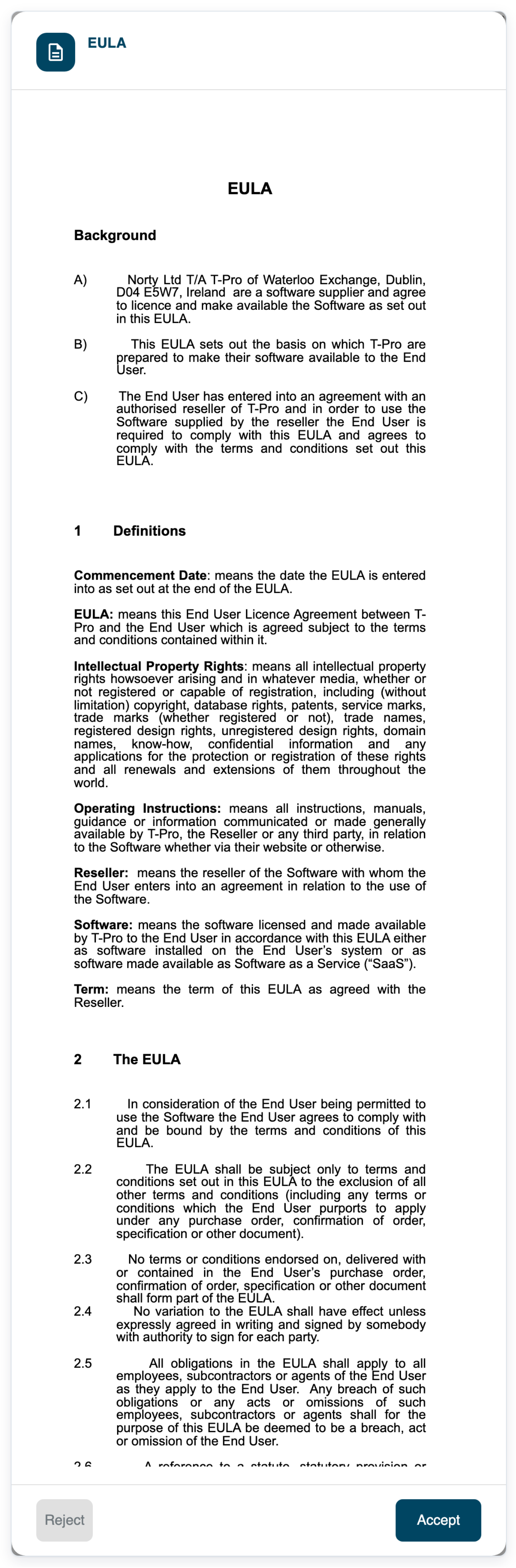
Click Accept to continue. Continue Account Setup opens and asks you to reset your password.
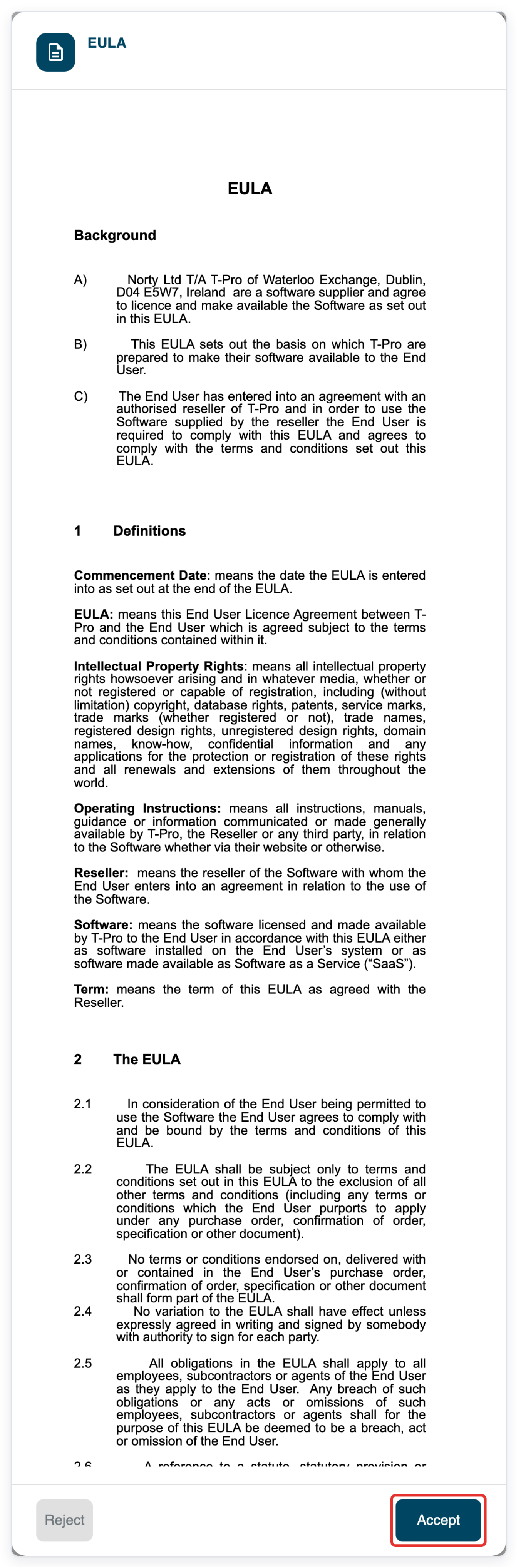
Enter your temporary password in Current password.
This is the password you used to sign in.
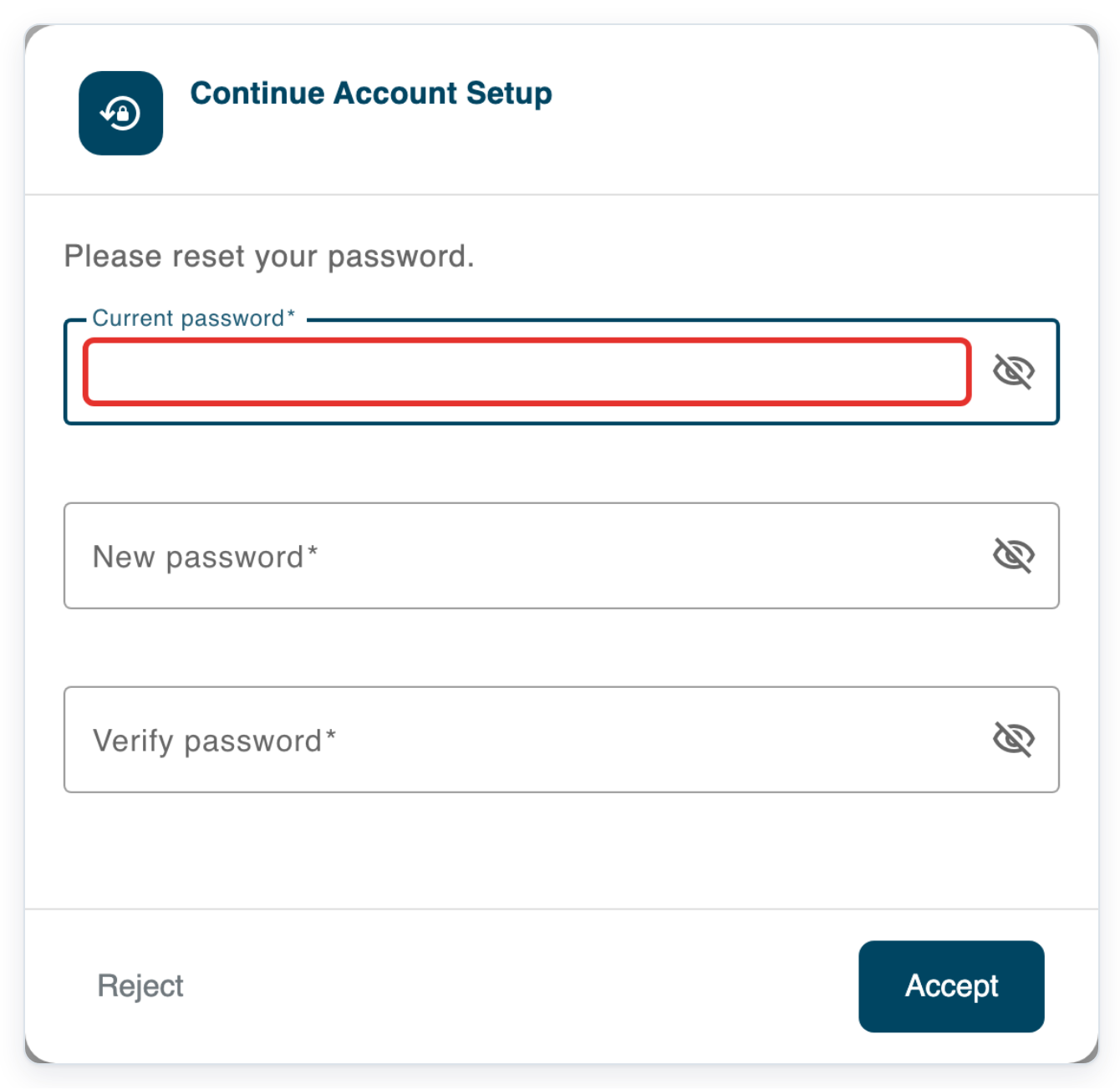
Enter your own password in New password.
Follow your organisation's password rules. Check the requirements below before you continue.
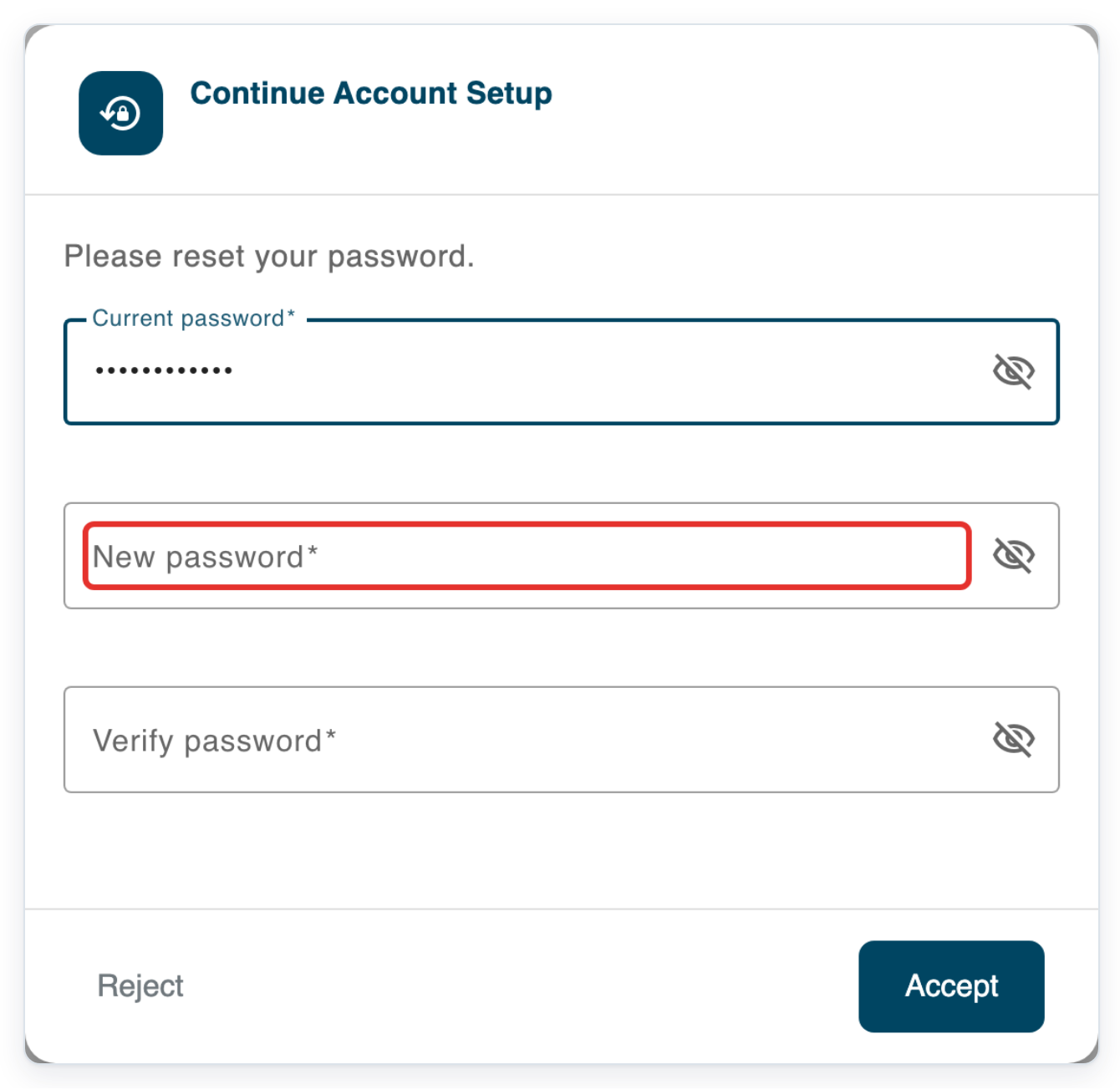
Enter the same new password in Verify password.
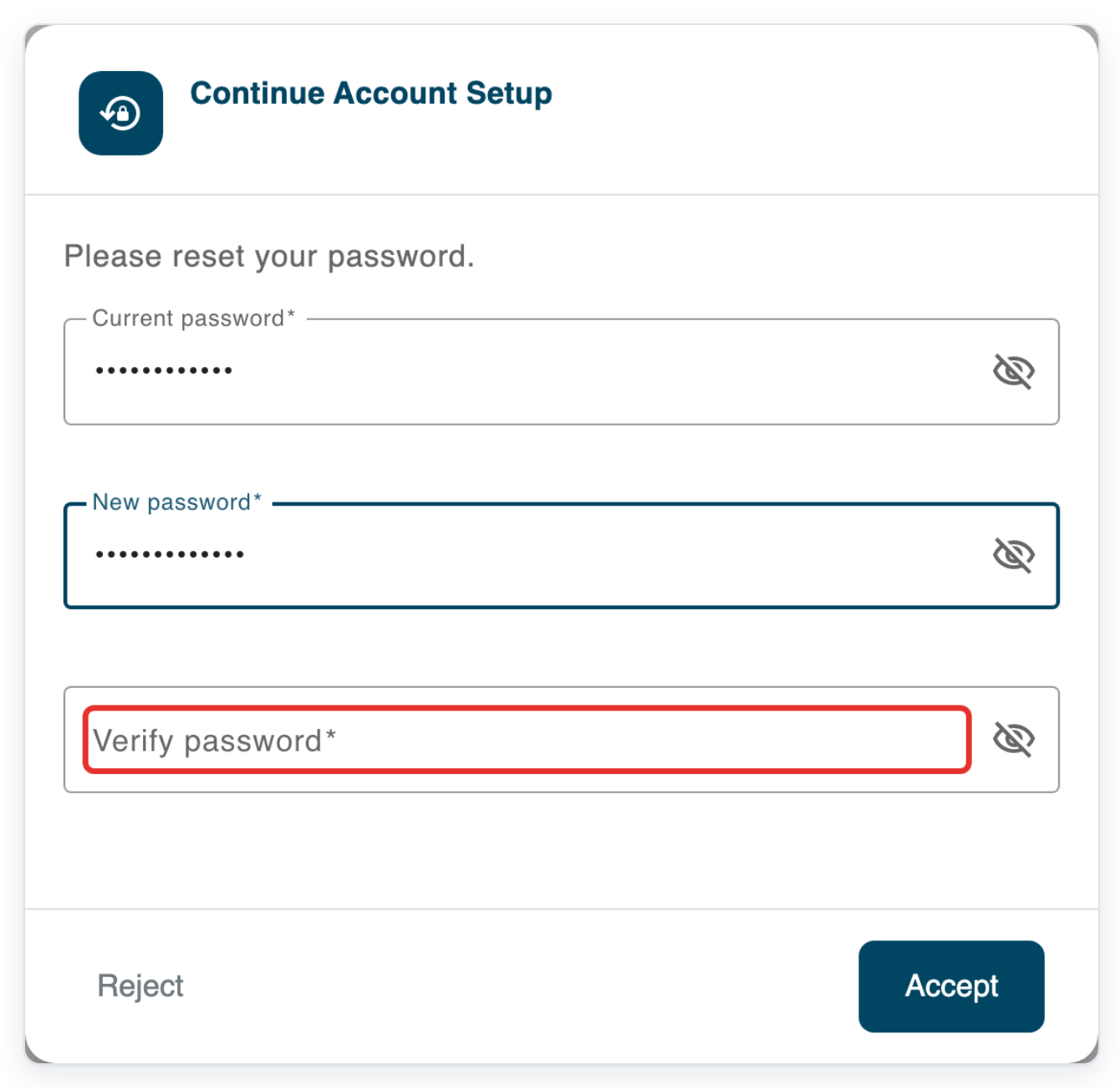
=> Your passwords are hidden. Check that all three password fields are filled before saving.
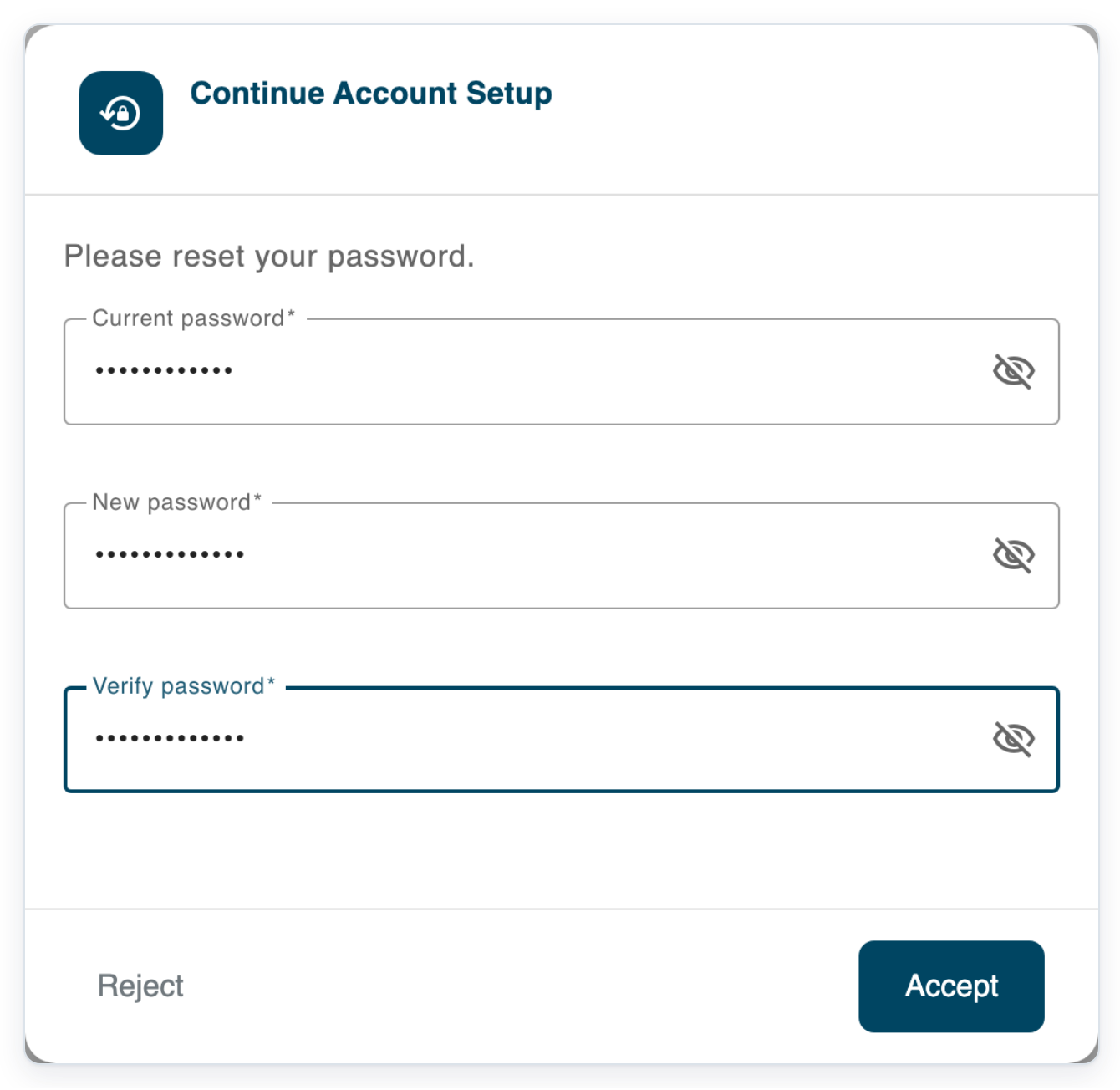
Click Accept to save your new password. Phone Notifications opens next.
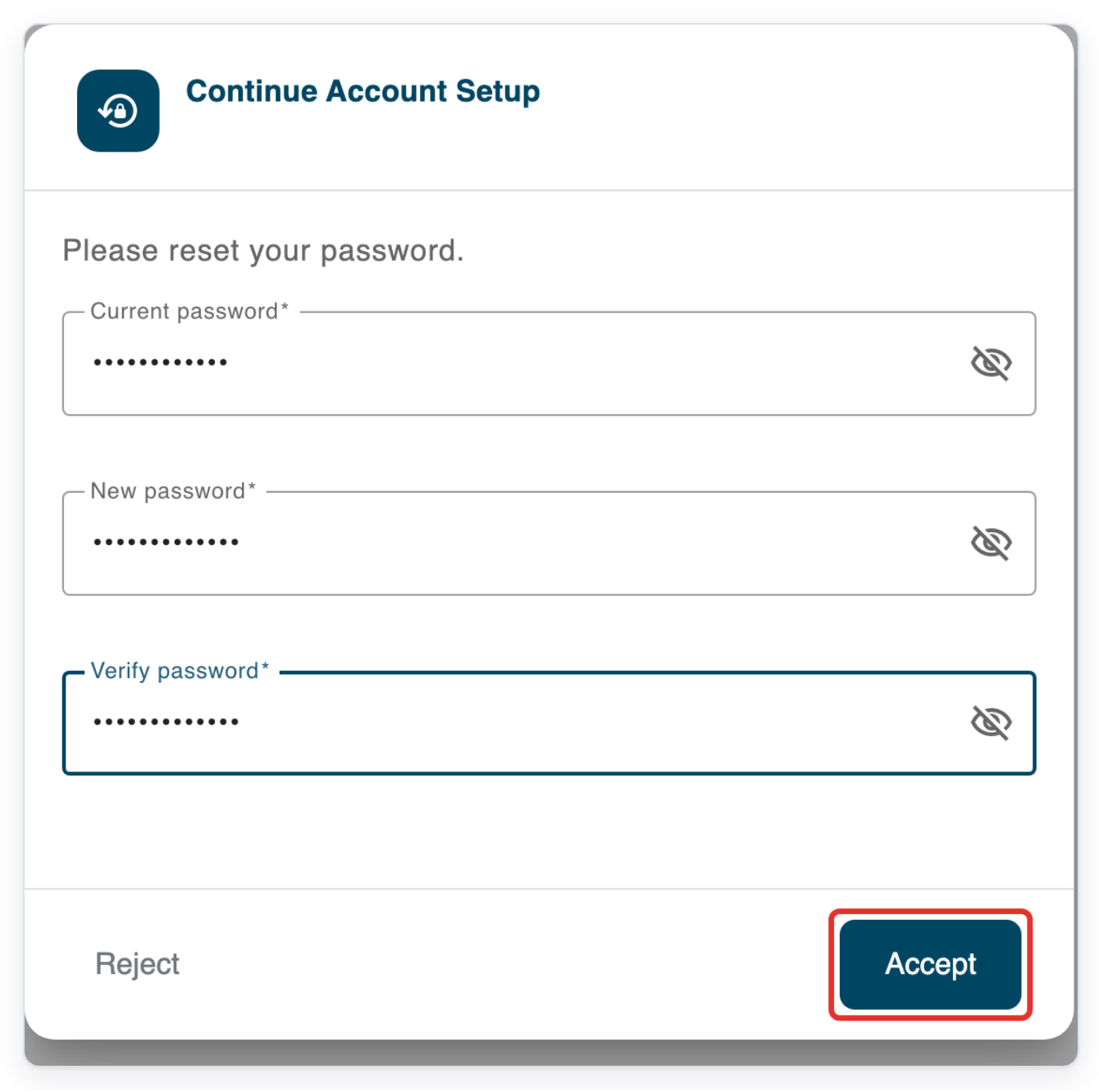
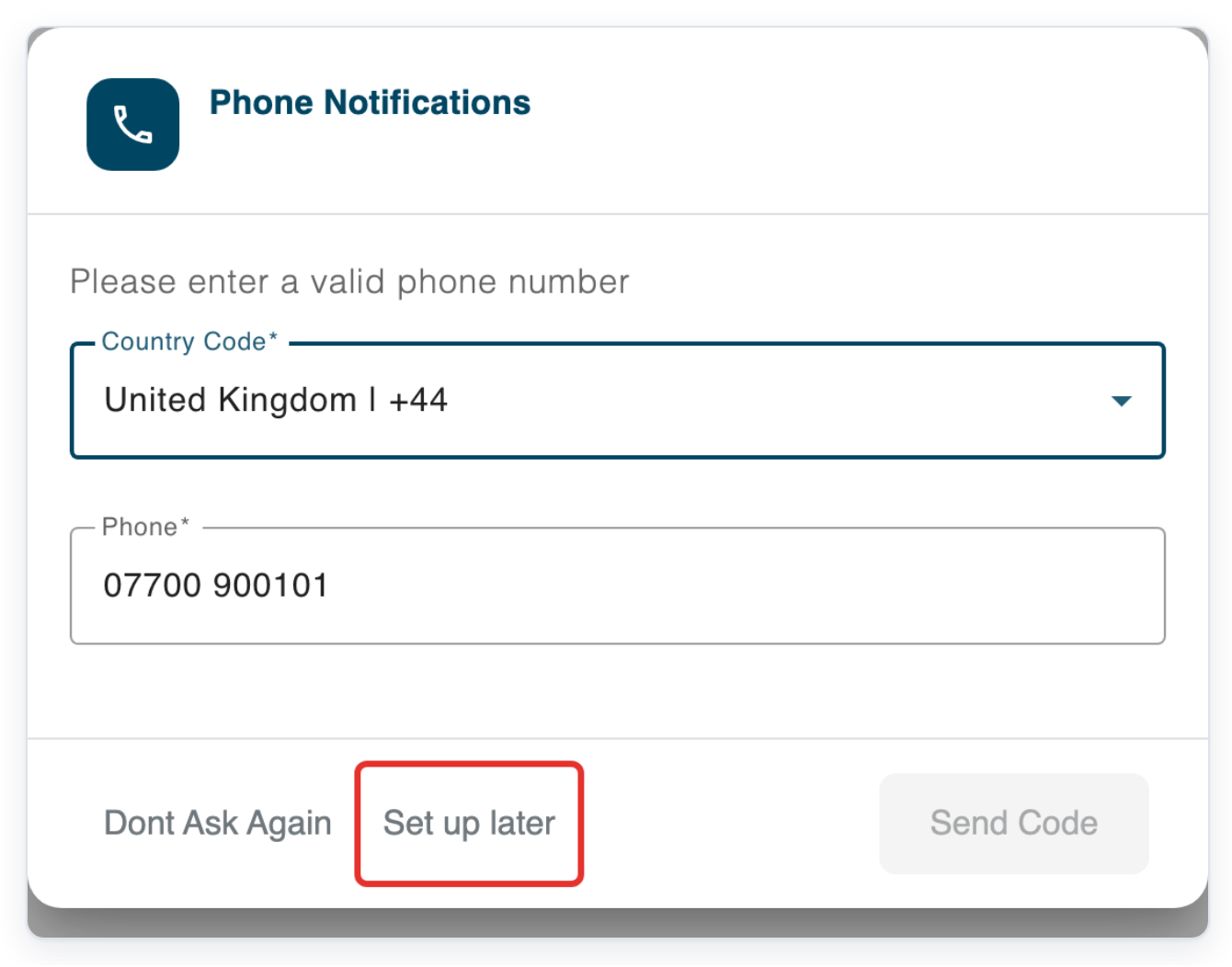
Click Set up later to skip phone setup for now. Email Notifications opens.
You can add and verify your number later in your account settings.
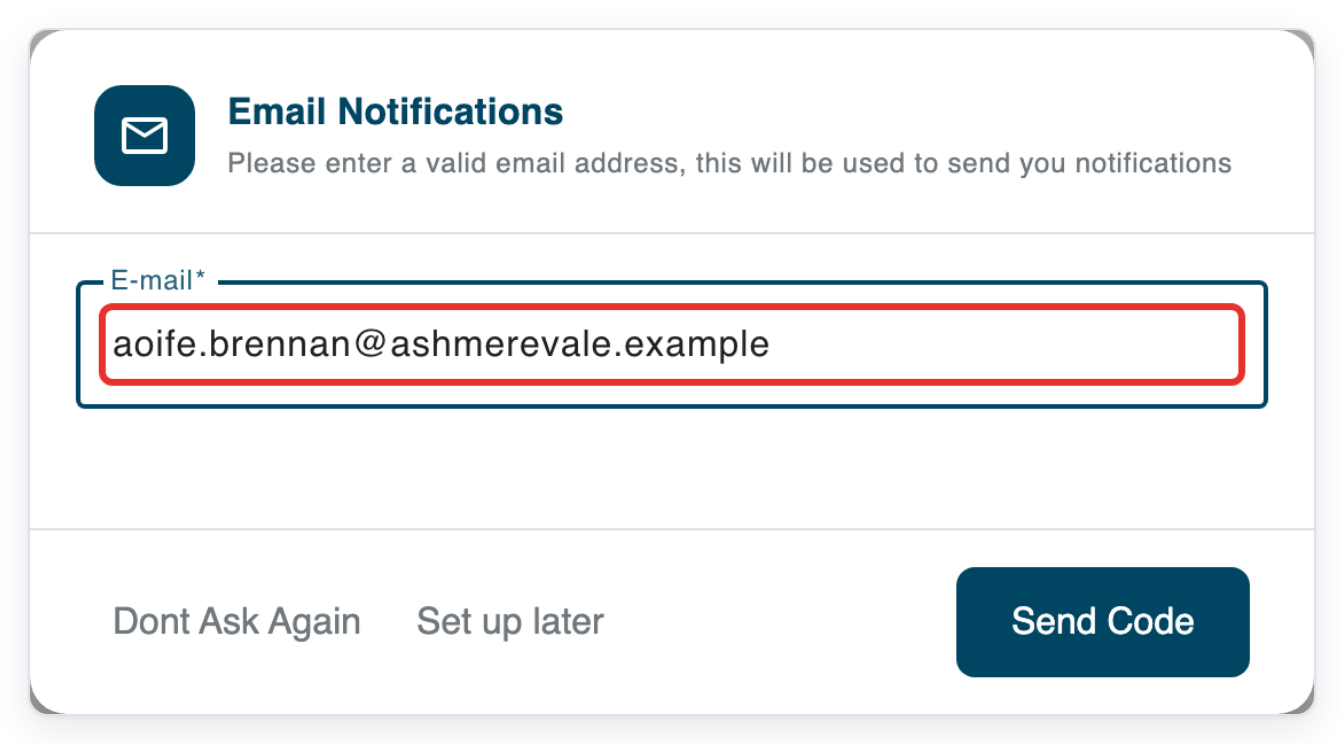
In E-mail, enter the contact email address you want to verify.
If an address is already filled in, check it or replace it. Use an email address you can check now to read the verification code.
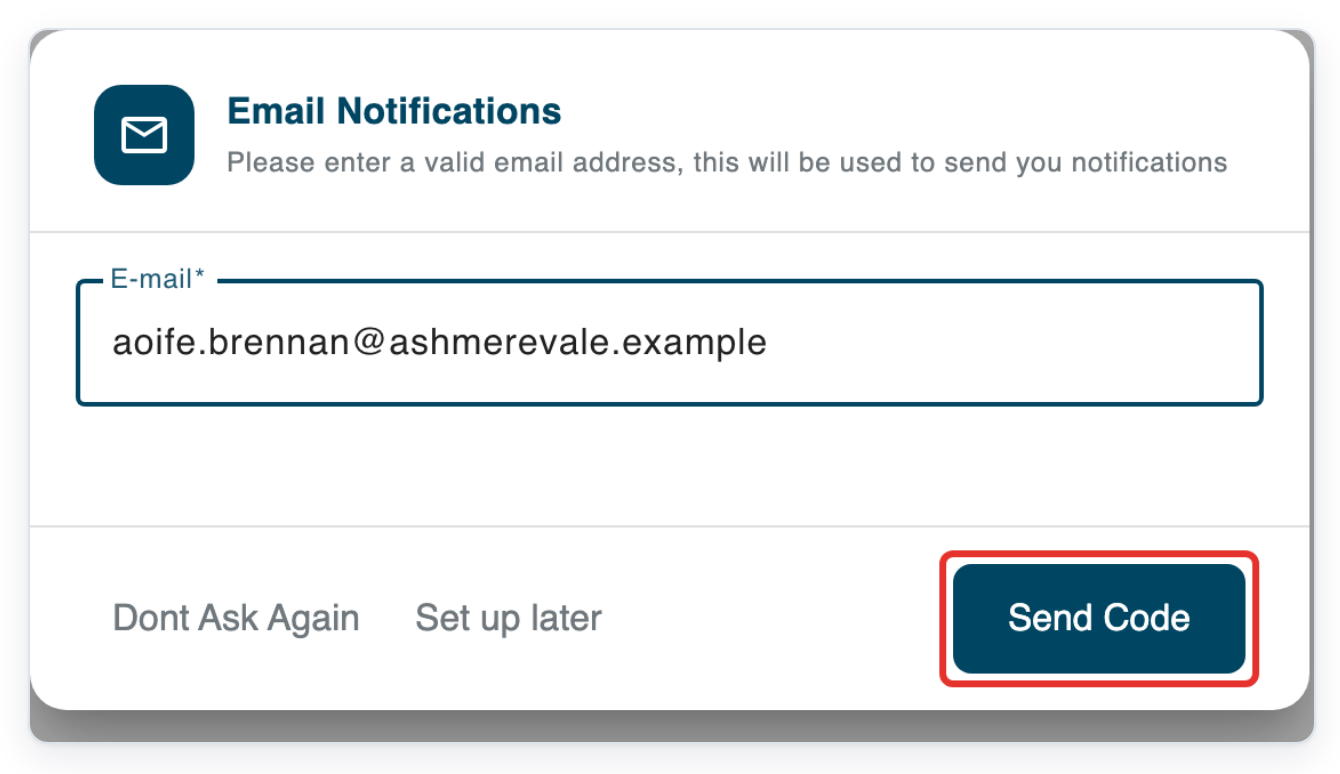
Click Send Code. T-Pro sends a verification code to your email address and asks you to enter it.
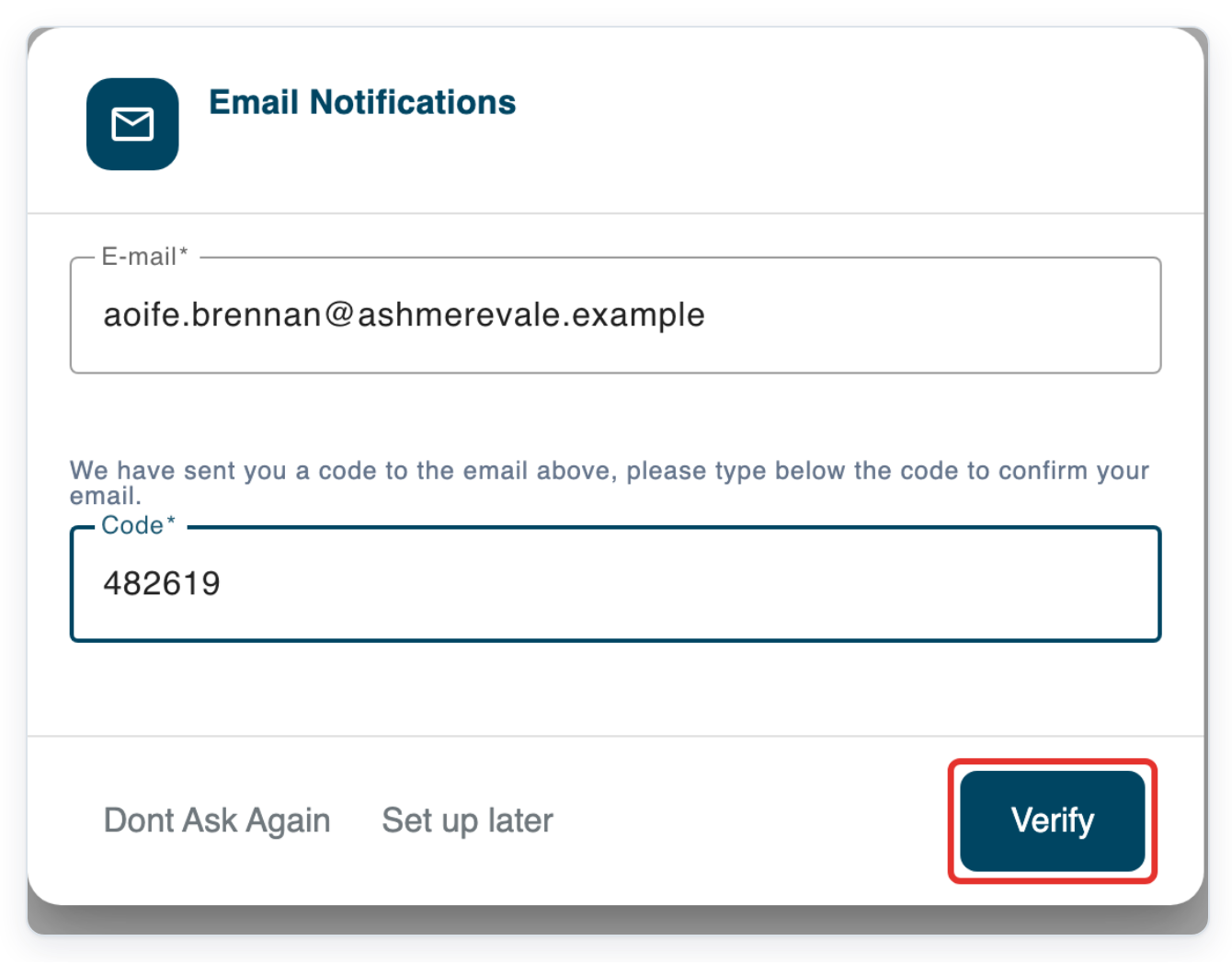
Open the email from T-Pro and enter the verification code in Code.
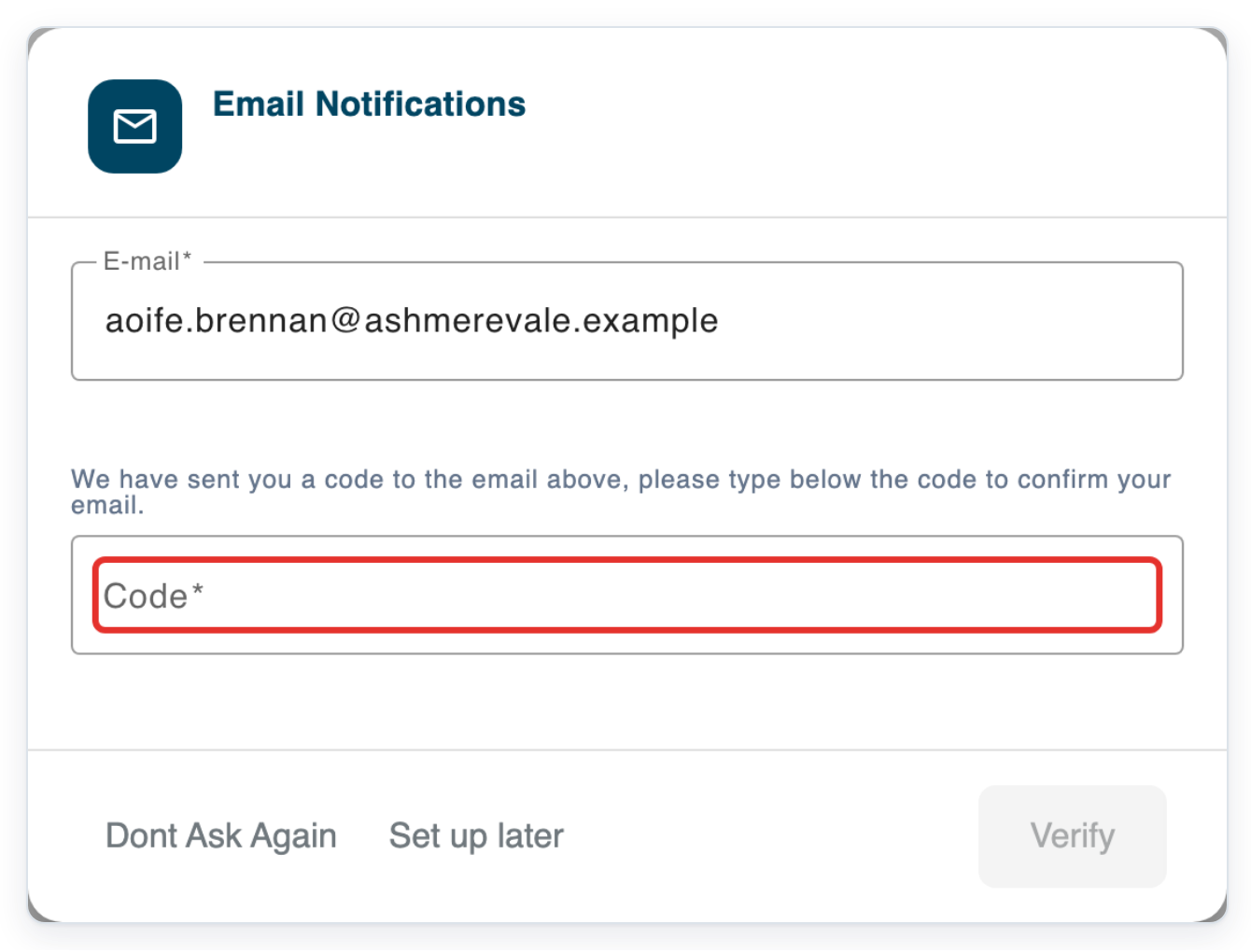
Click Verify to confirm your email address.
Your starting page depends on your account.
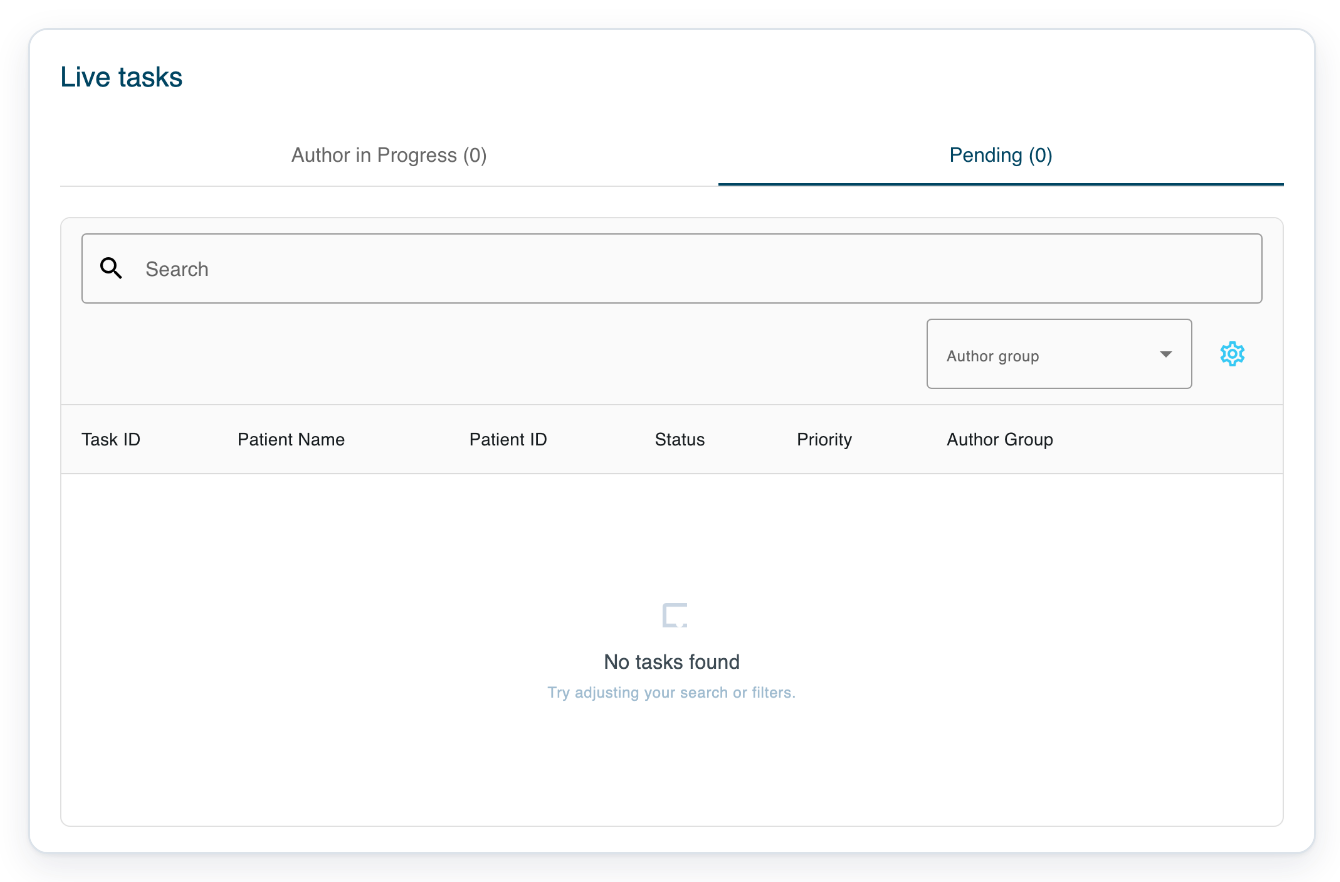
=> The setup window closes. This example shows an author's Live tasks page.
As an administrator
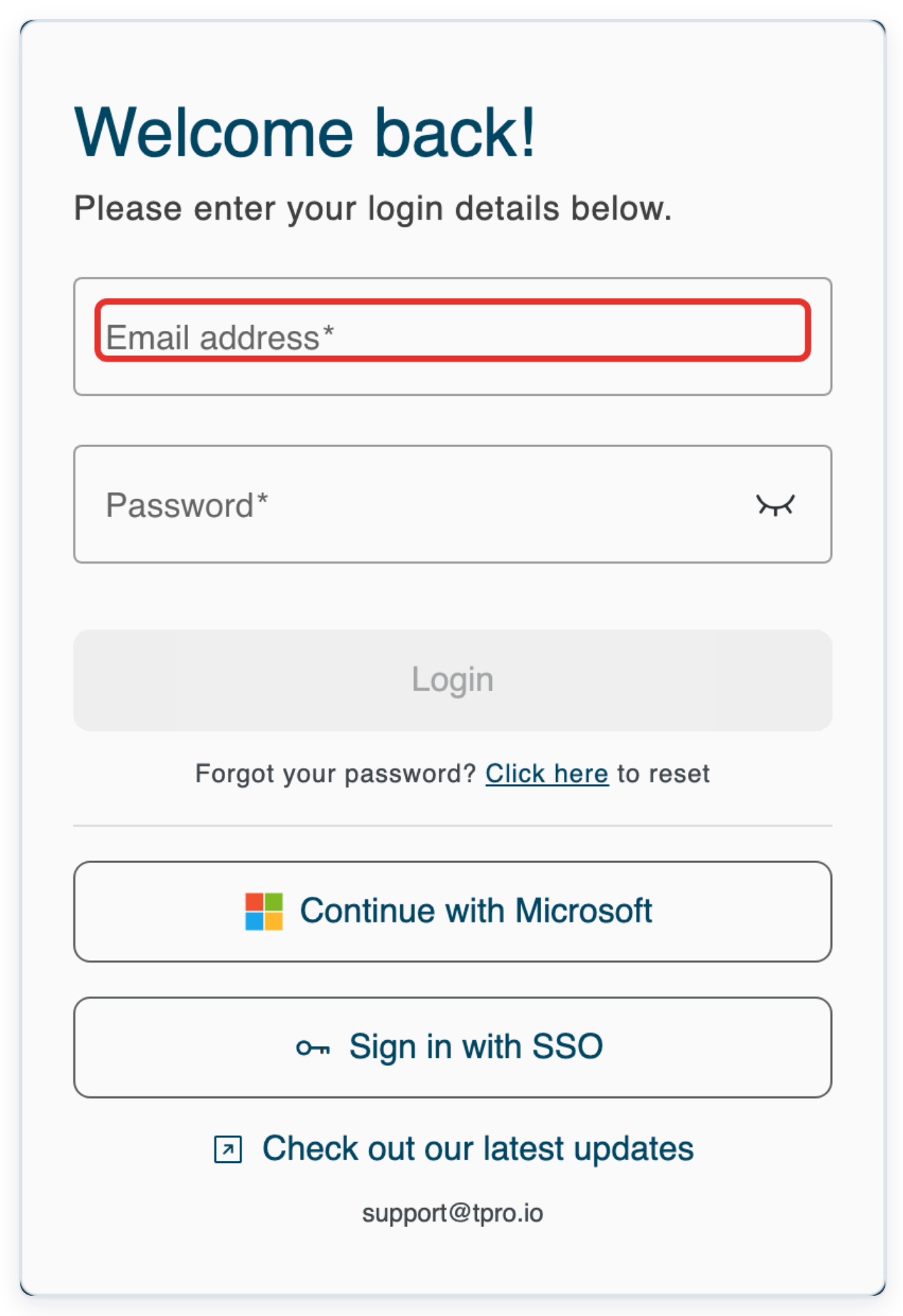
On the sign-in page, click Email address to start signing in with your administrator account.
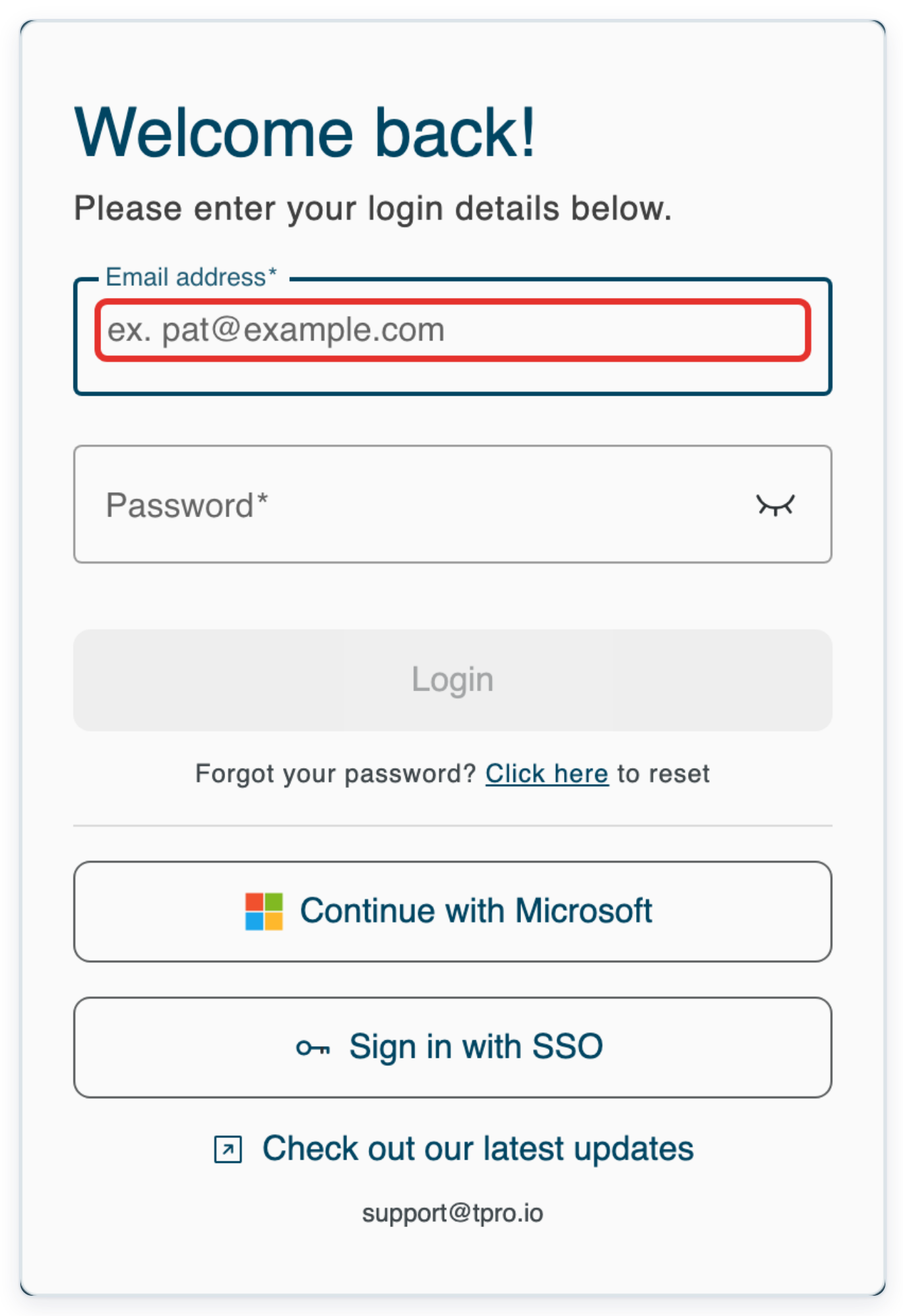
Enter your administrator email address in Email address.
In Password, enter the temporary password supplied for your administrator account.
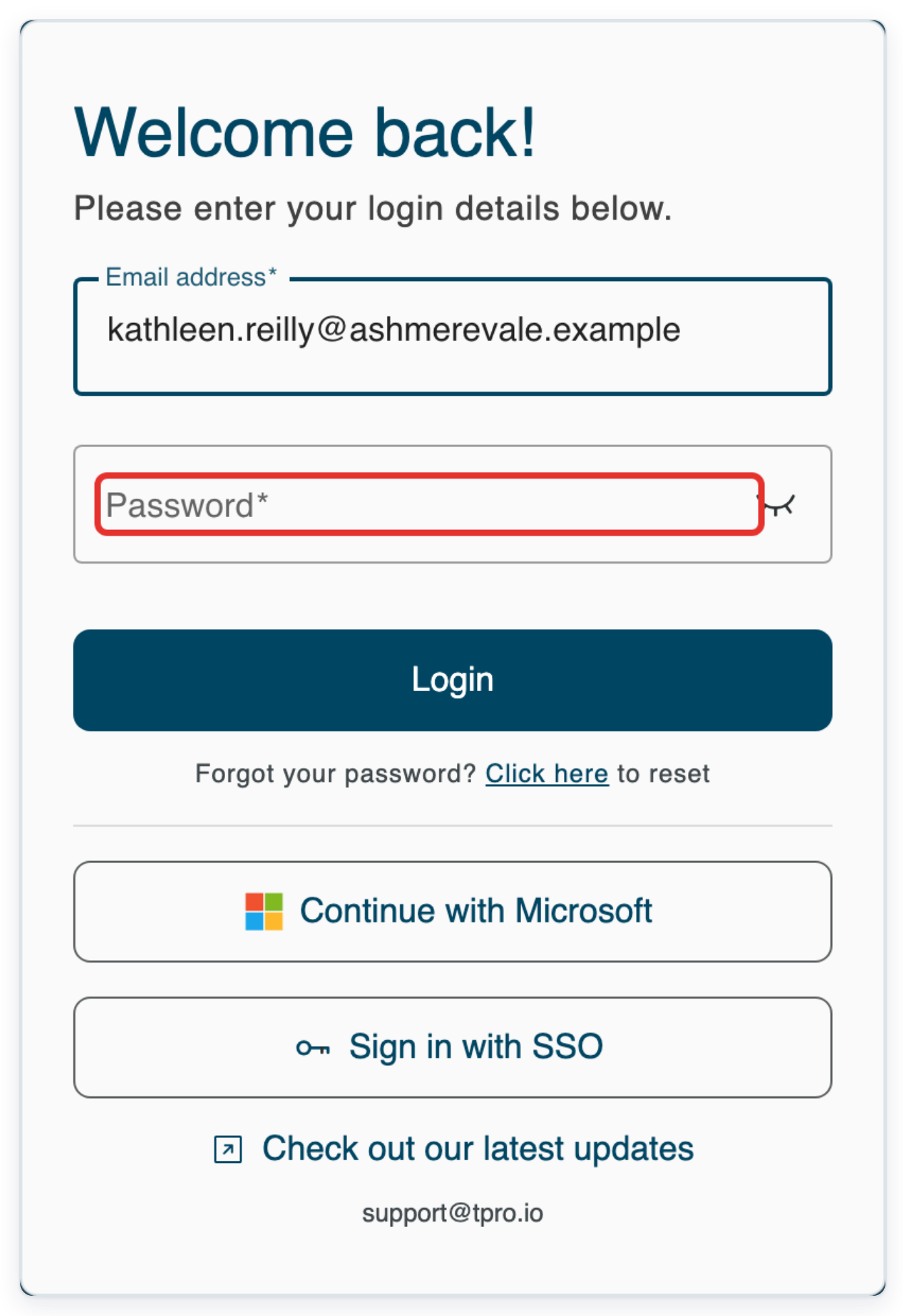
Click Login. The Organisations page opens.
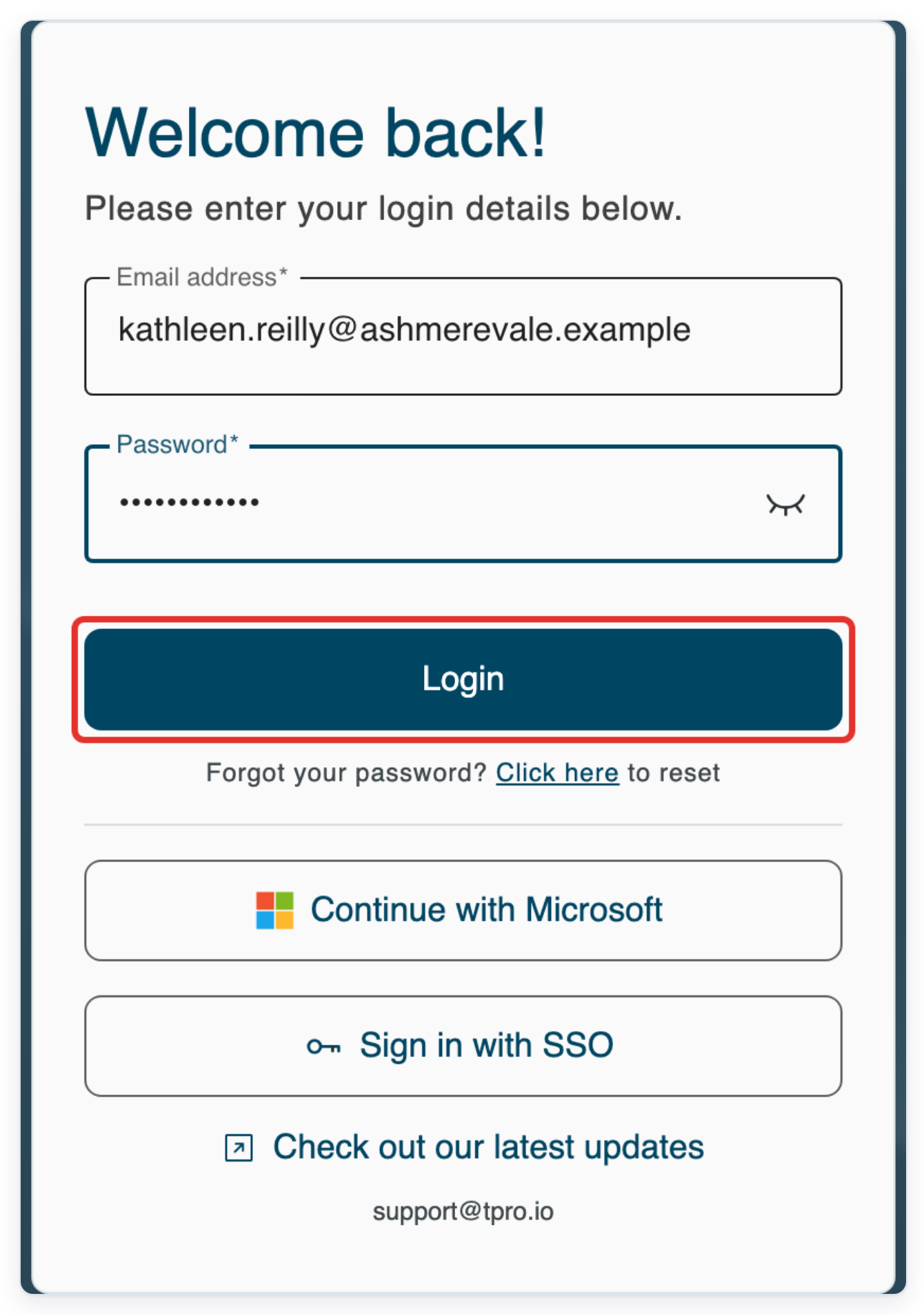
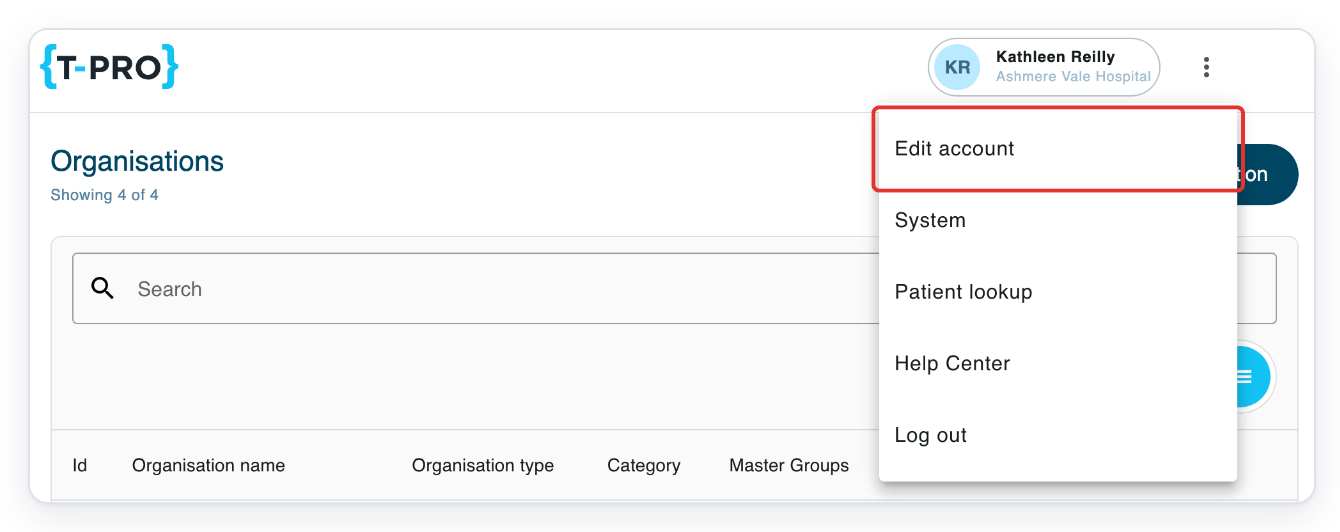
On Organisations, click the three-dot menu beside your name.

Click Edit account. Your account details open.
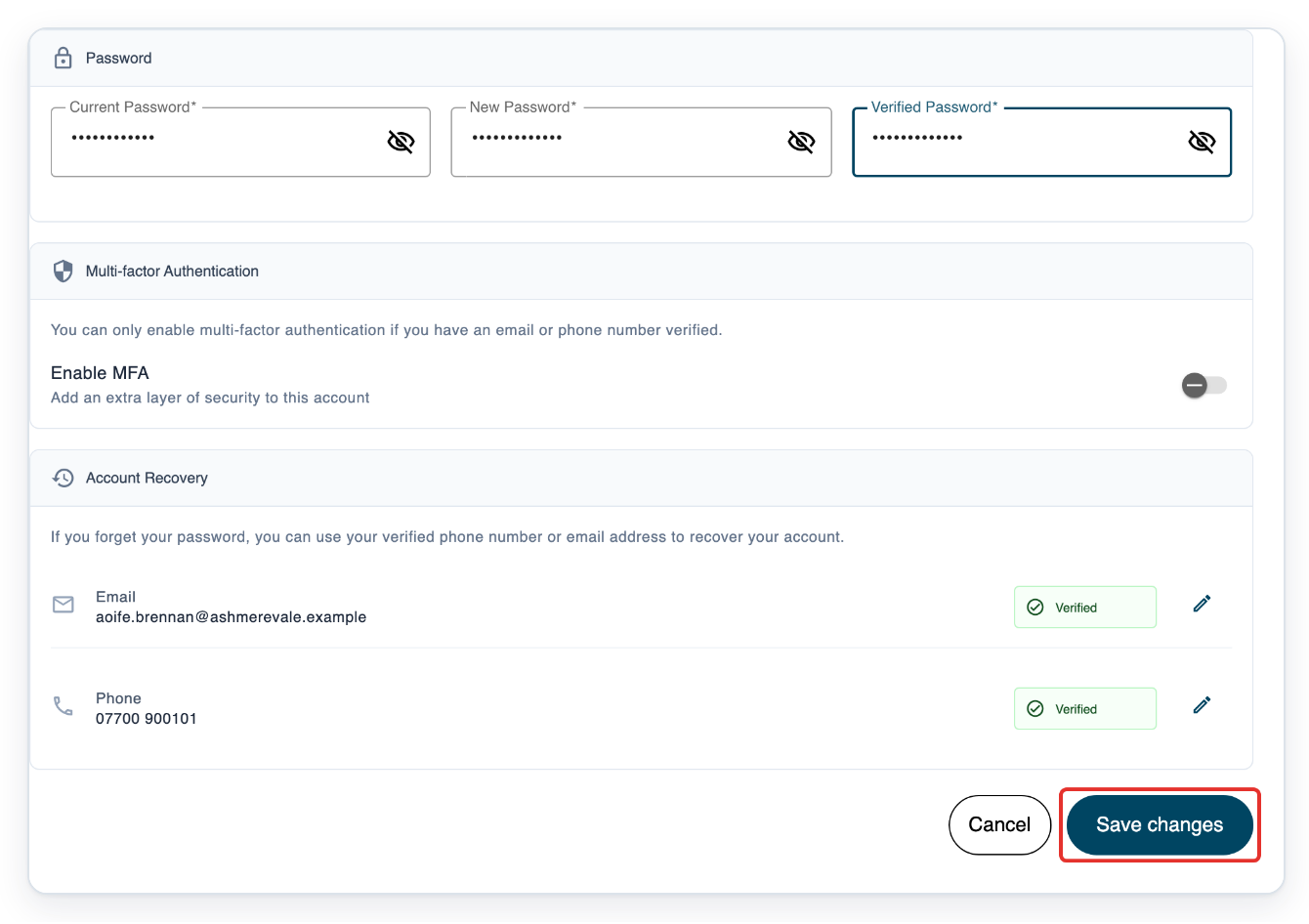
Click Security to open the password fields.
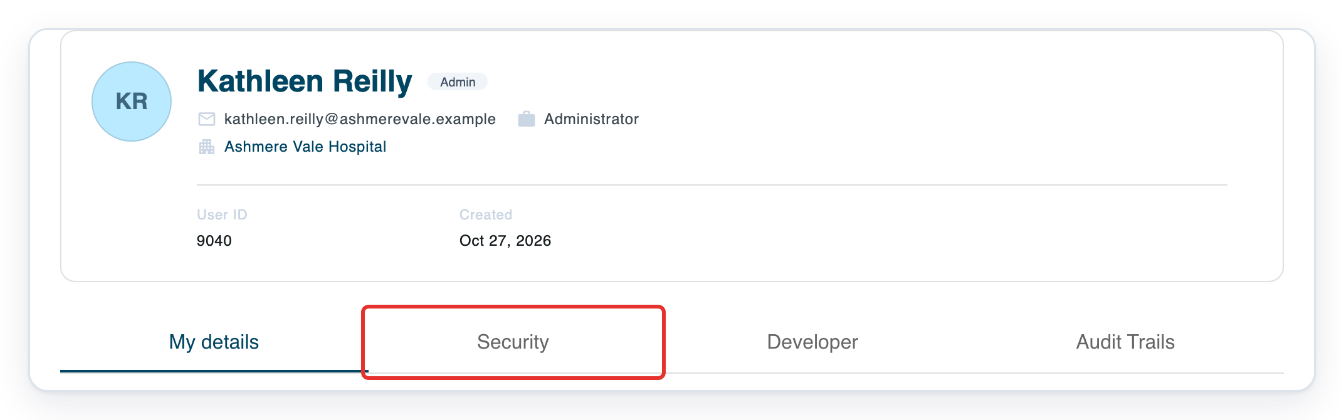
Enter your temporary password in Current Password.

Enter your own password in New Password.
Follow the password rules below. The fields show any requirements your new password still needs to meet.

Enter the same new password in Verified Password.

Click Save changes to save your new password.
=> T-Pro shows Password updated successfully to confirm the change.

NOTE:
- Use your new password the next time you sign in.
- A verified phone number or email address lets you recover your account if you forget your password. You also need one to turn on multi-factor authentication (MFA).
- To receive task emails, turn on email notifications in your profile settings and save your changes.
- If you're an author, you can add a signature after setup. In Edit account, open Sign Off. Use your name, type a signature or upload an image.
- Set up later leaves phone or email setup for later. T-Pro asks again the next time you sign in.
- Dont Ask Again stops reminders for that contact detail. On the email screen, it also removes any saved contact email address.
- Administrators skip the account setup dialogs. Replace your temporary password through Edit account, then Security, as shown in the administrator steps.
Password rules
| Rule | What you need |
|---|---|
| Length | Use 3 to 100 characters and meet your organisation's minimum length. The default minimum is six characters. |
| Letters, numbers and symbols | Include an uppercase letter, lowercase letter, number or symbol if your organisation requires it. |
| Spaces | Do not include spaces in your password. |
| Confirmation | New password and Verify password must match. |
Tip: To add or verify contact details later, open the three-dot menu beside your name. Choose Edit account, then open Security. Under Account Recovery, click the pencil beside email or phone.
Can't finish account setup?
- T-Pro shows “password mismatch”. Enter the same new password in New password and Verify password.
- T-Pro shows “Invalid password”. Re-enter your temporary password in Current password. Check your new password against the rules above, then try again.
- Send Code is unavailable for phone setup. Choose your Country Code. In Phone, enter 7 to 12 digits without spaces or punctuation.
- Send Code is unavailable for email setup. Check the address in E-mail for typing errors, including the part after the @ sign.
- You're signed out when you click Reject. Sign in again. Accept the EULA or finish changing your password to continue.
Related articles
- Change your password
- Set up and use multi-factor authentication
- Update your profile details
- Set up email notifications and digests
- Upload or update your signature
If you have any more queries, please do not hesitate to contact our Helpdesk or support@tpro.io.
© 2020 - 2026