
Before you start
You need a clerical, author or manager account and another active T-Pro account of your own. To link accounts across organisations, both organisations must allow external account linking.
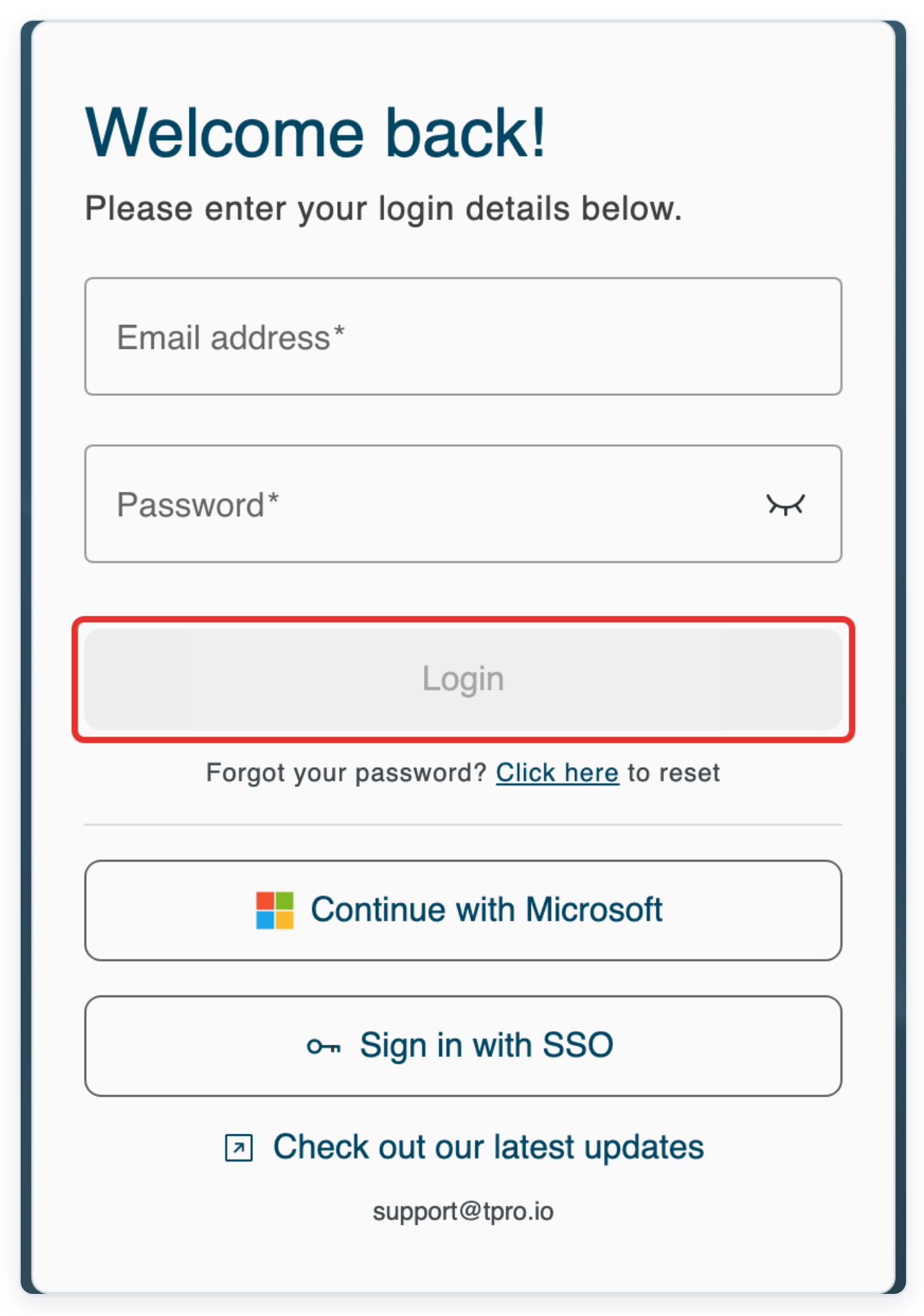
Log in to T-Pro with your clerical, author or manager credentials.
Link and switch accounts
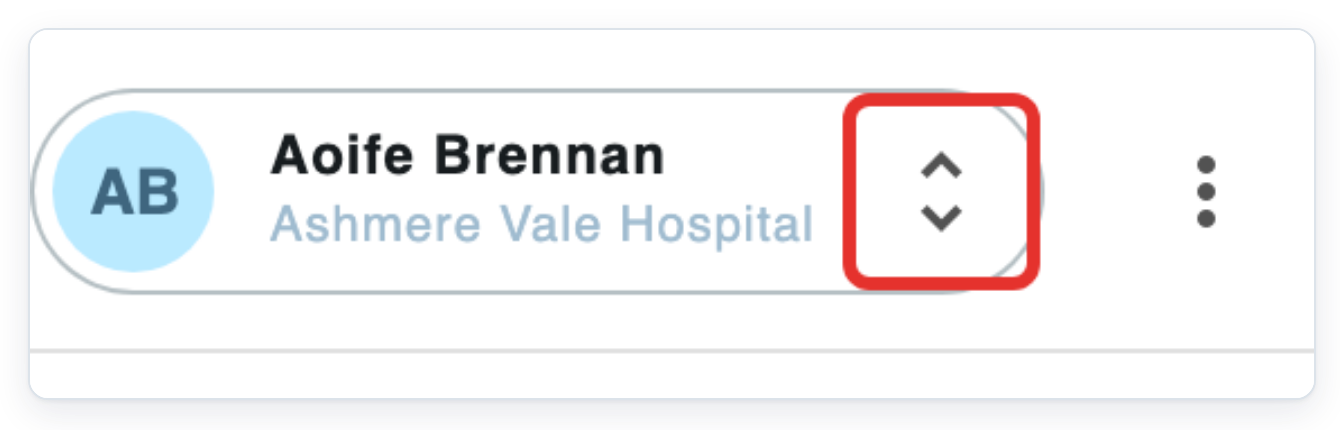
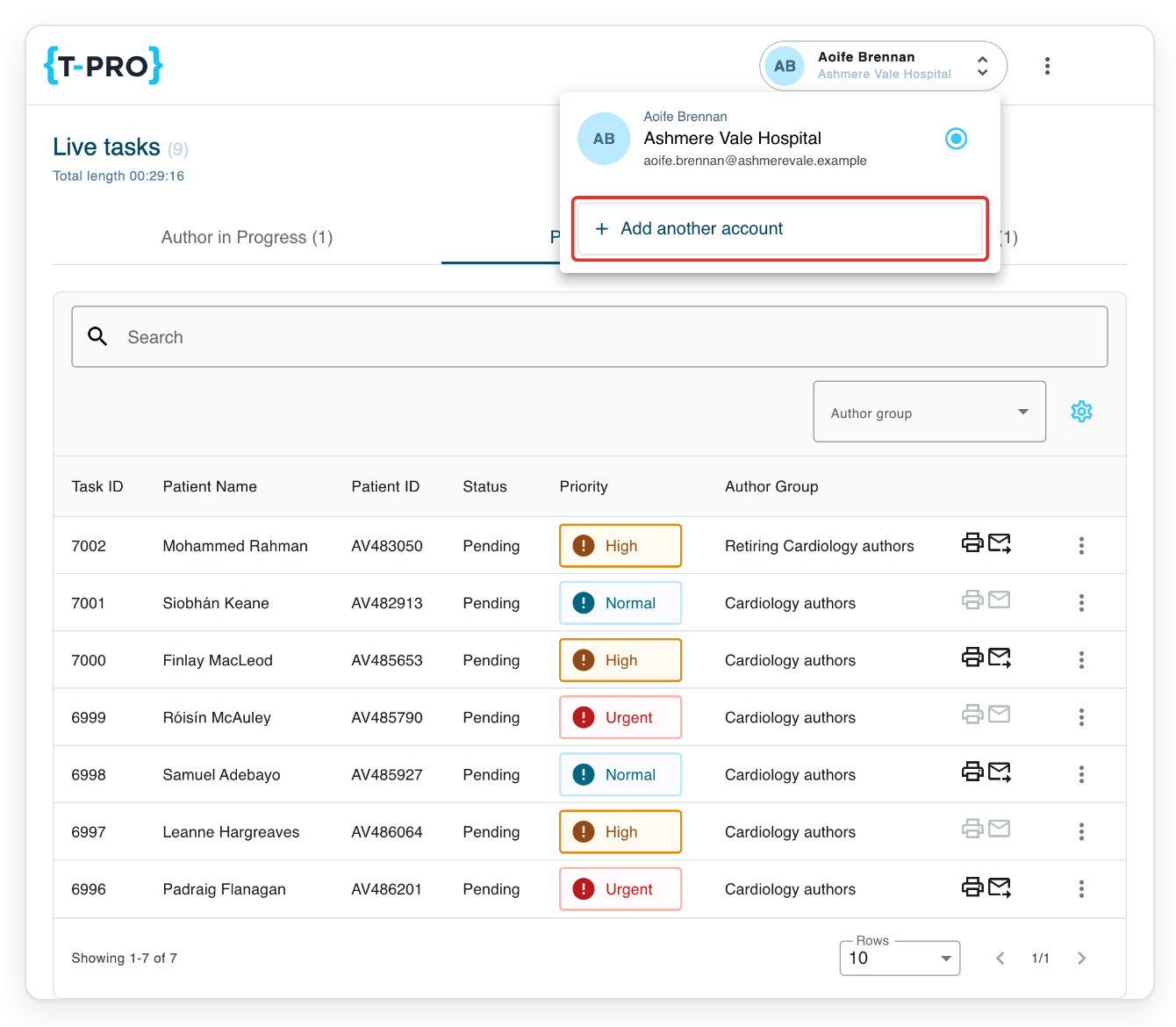
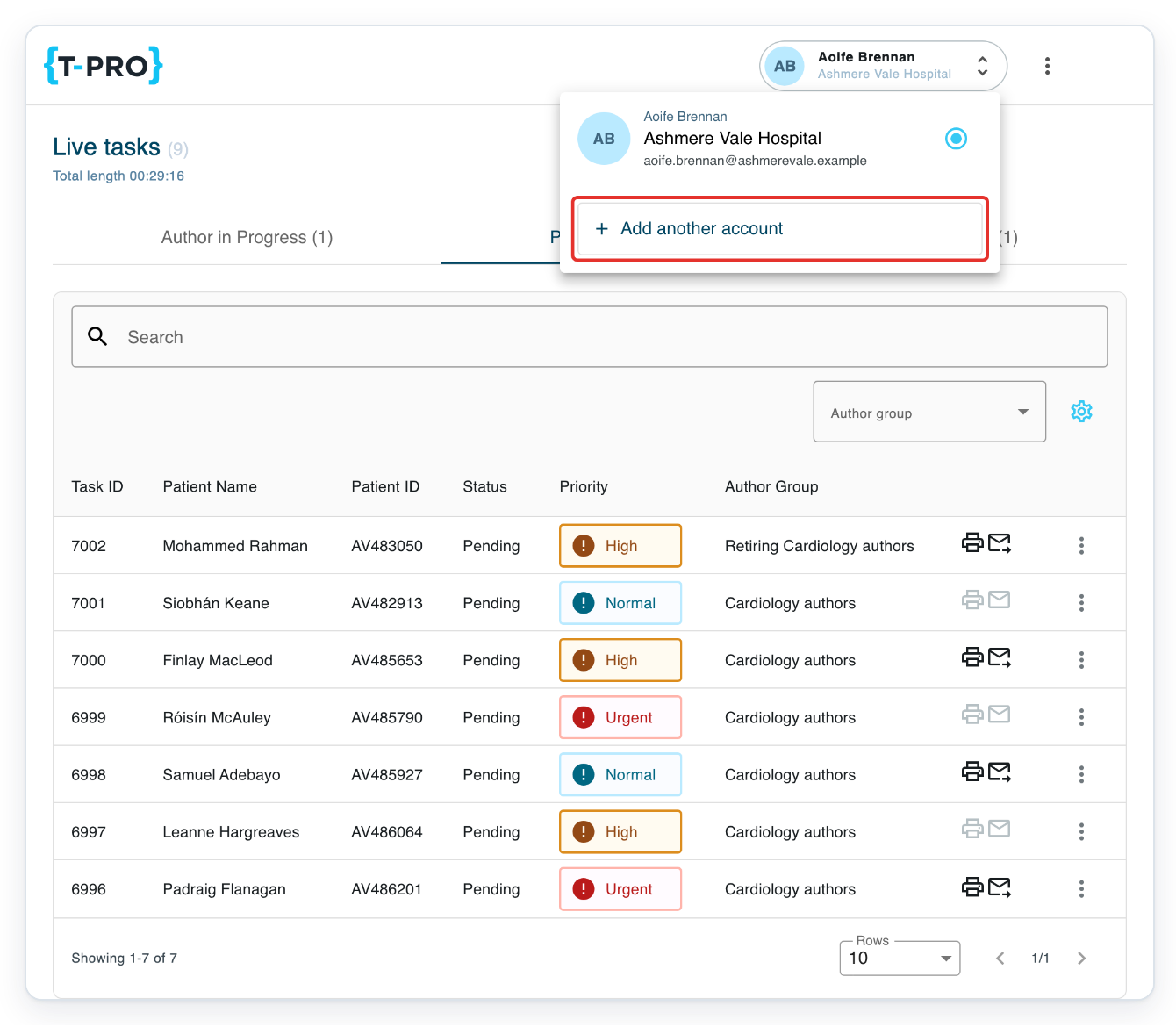
Click the double-arrow beside your account name in the top-right corner. The account picker opens with Add another account.
Each account shows your name, organisation and email address. The selected circle shows which account you're using.
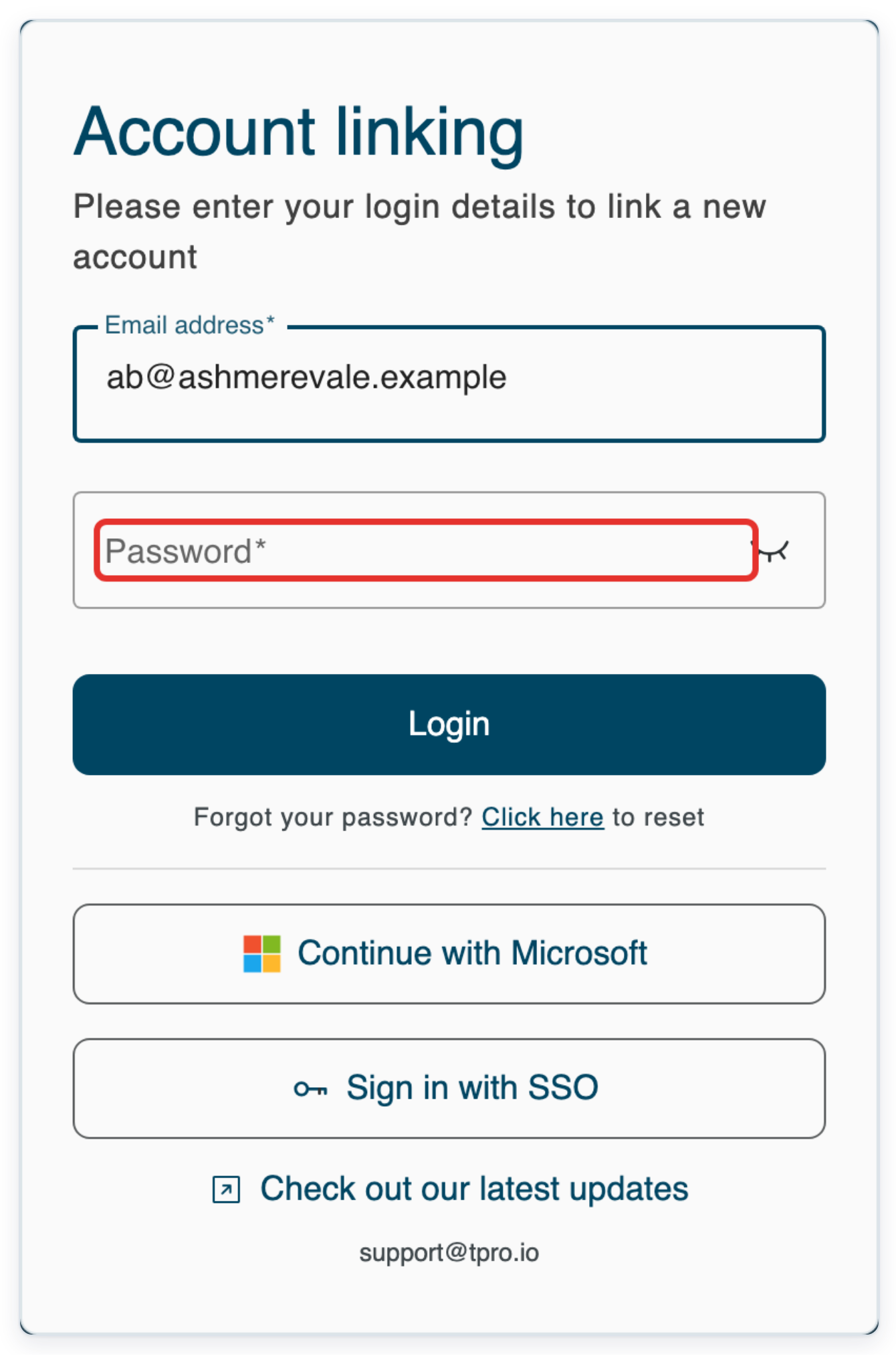
Click Add another account to open Account linking.
Enter your other account's email address in Email address.
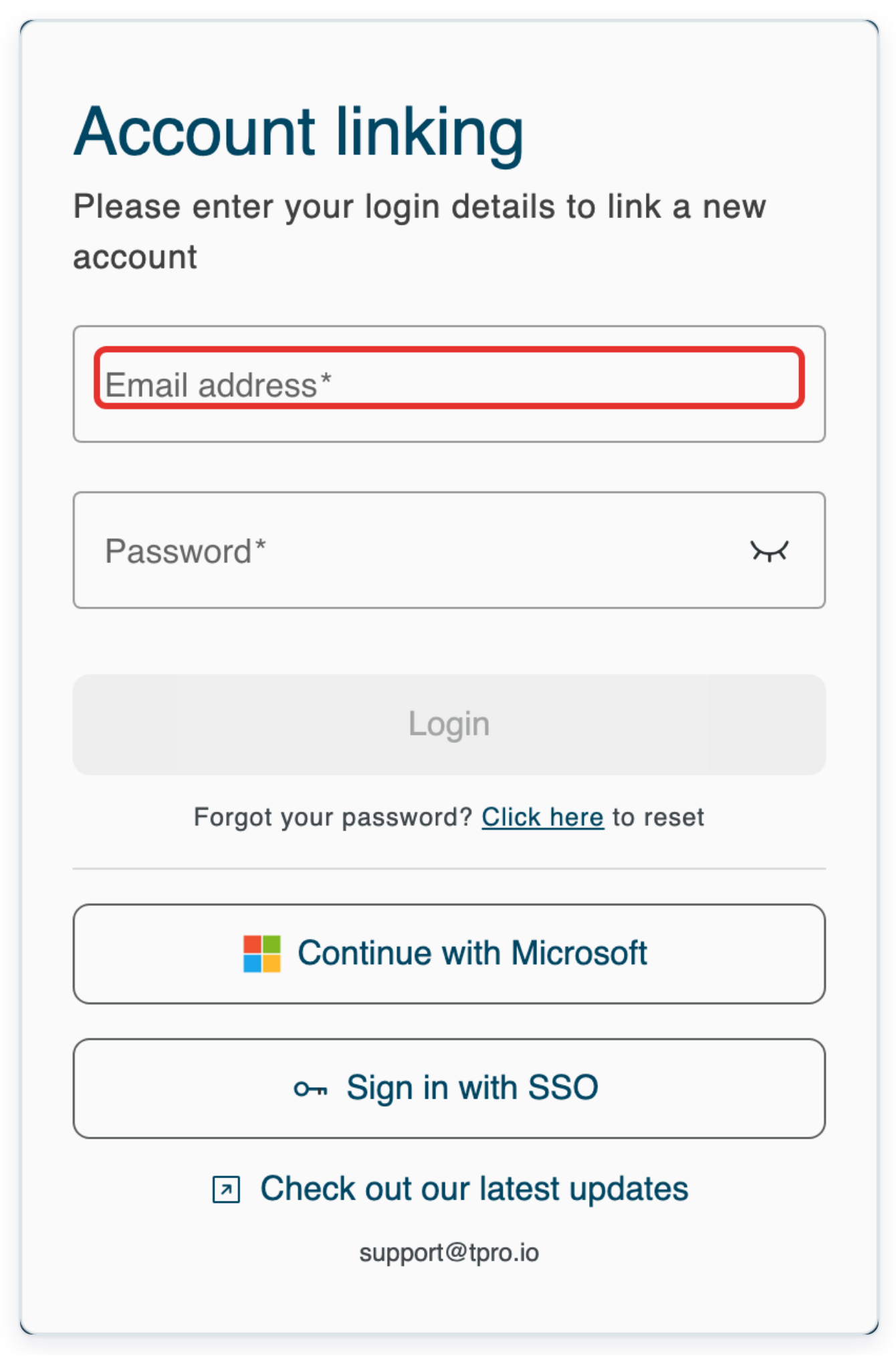
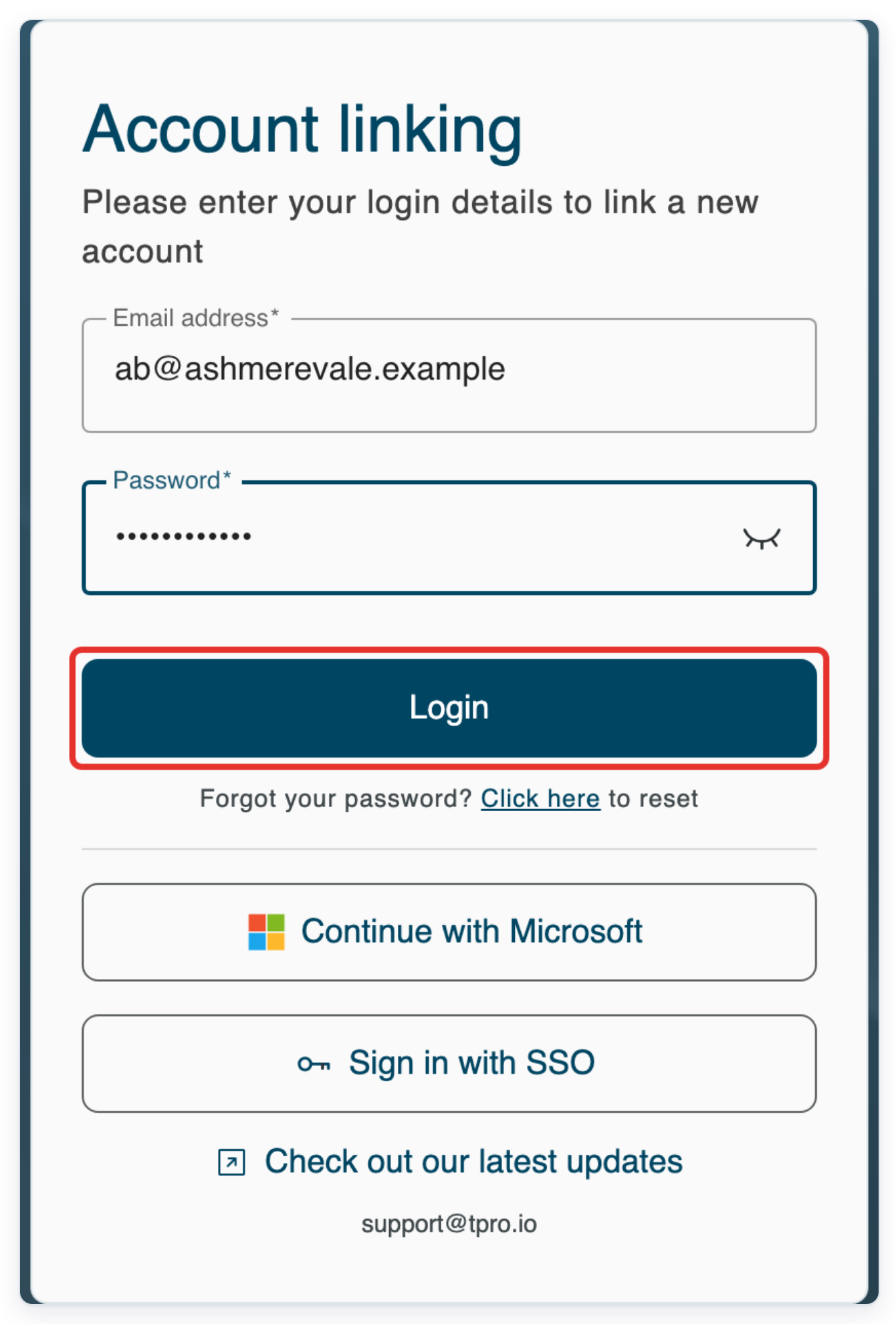
Enter your other account's password in Password.
If you normally sign in through your organisation, go to step 14 for Microsoft or single sign-on (SSO).
Click Login. If T-Pro asks for a verification code, follow steps 7 and 8. Otherwise, continue at step 9.
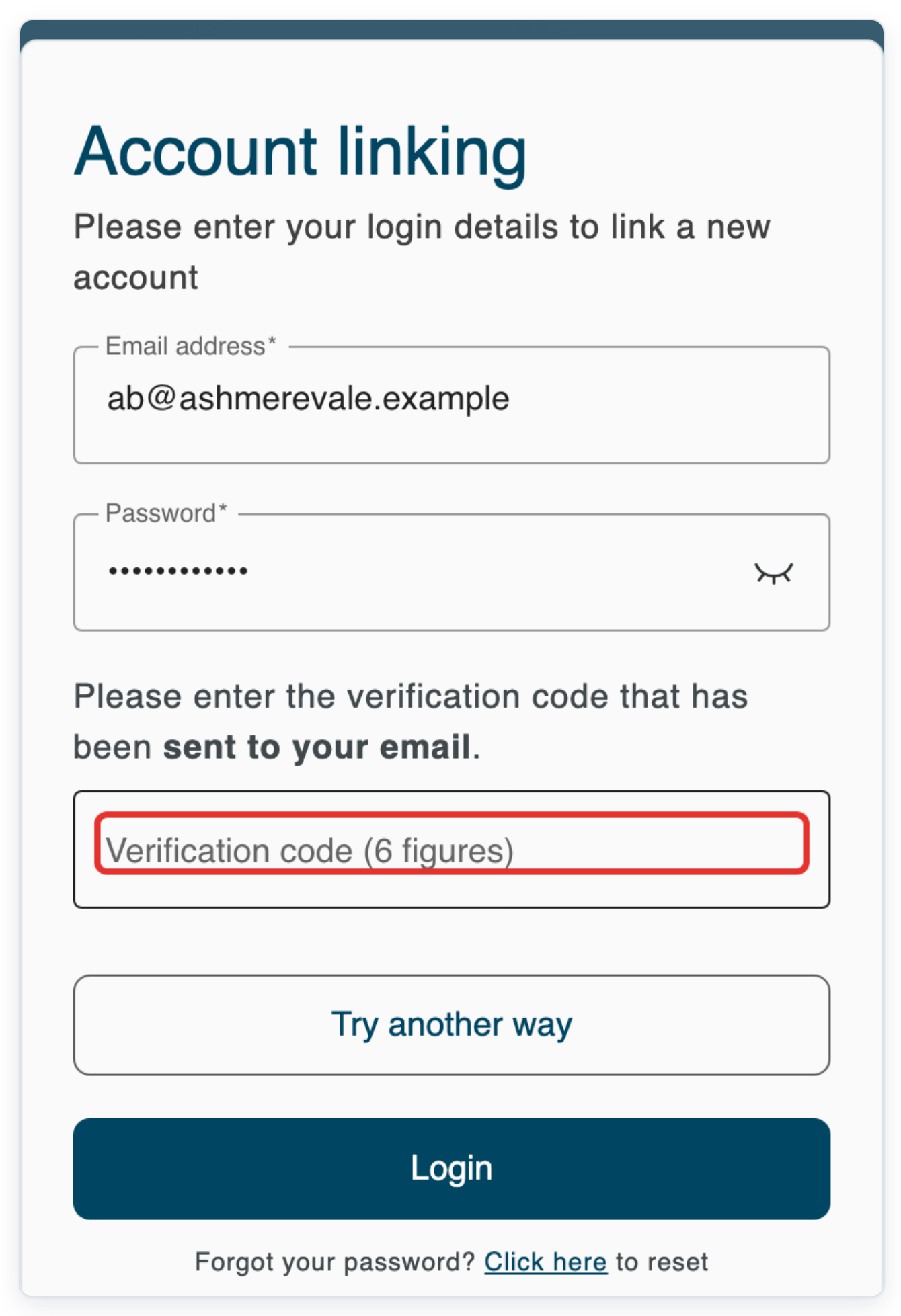
Here, the code arrives by email. You may receive it by text message (SMS) instead.
Enter the six-digit code in Verification code (6 figures).
Check the message above the field to see whether your code was sent by email or text message.
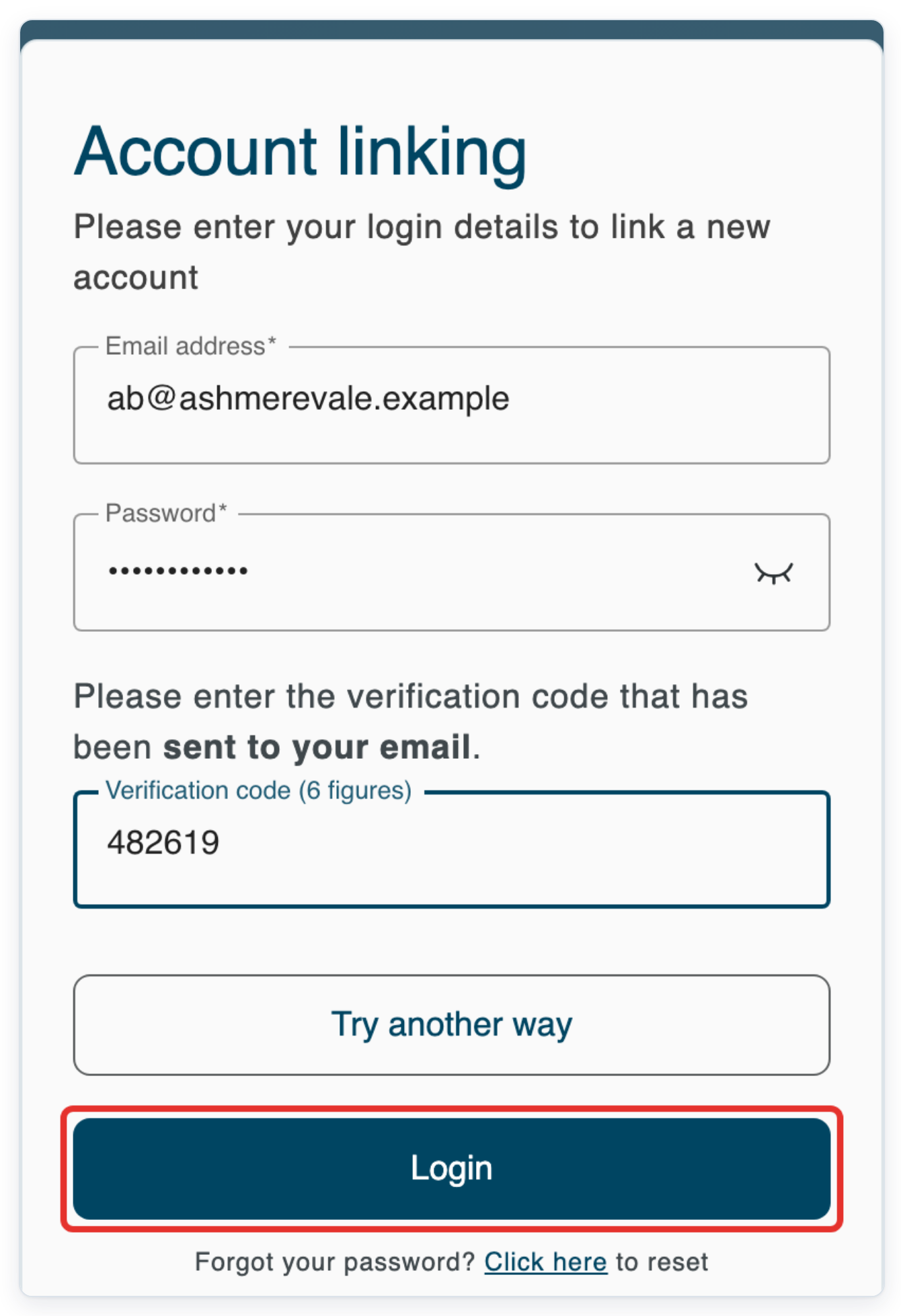
Click Login again to finish linking the account. You return to your original account.
In this example, Live tasks opens. If you didn't need a code, you return after the first click on Login.
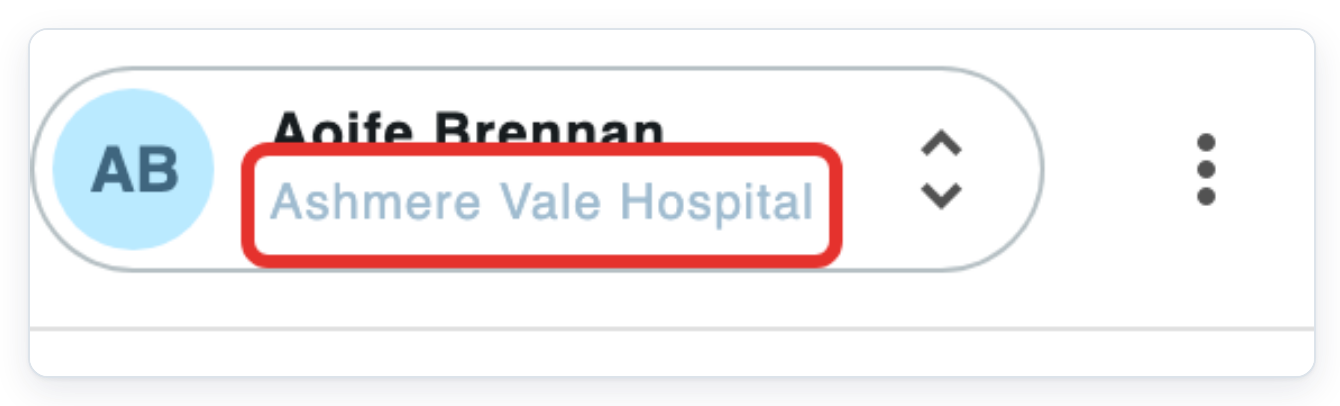
Refresh the page before reopening the account picker. Your original organisation still appears beside your name.
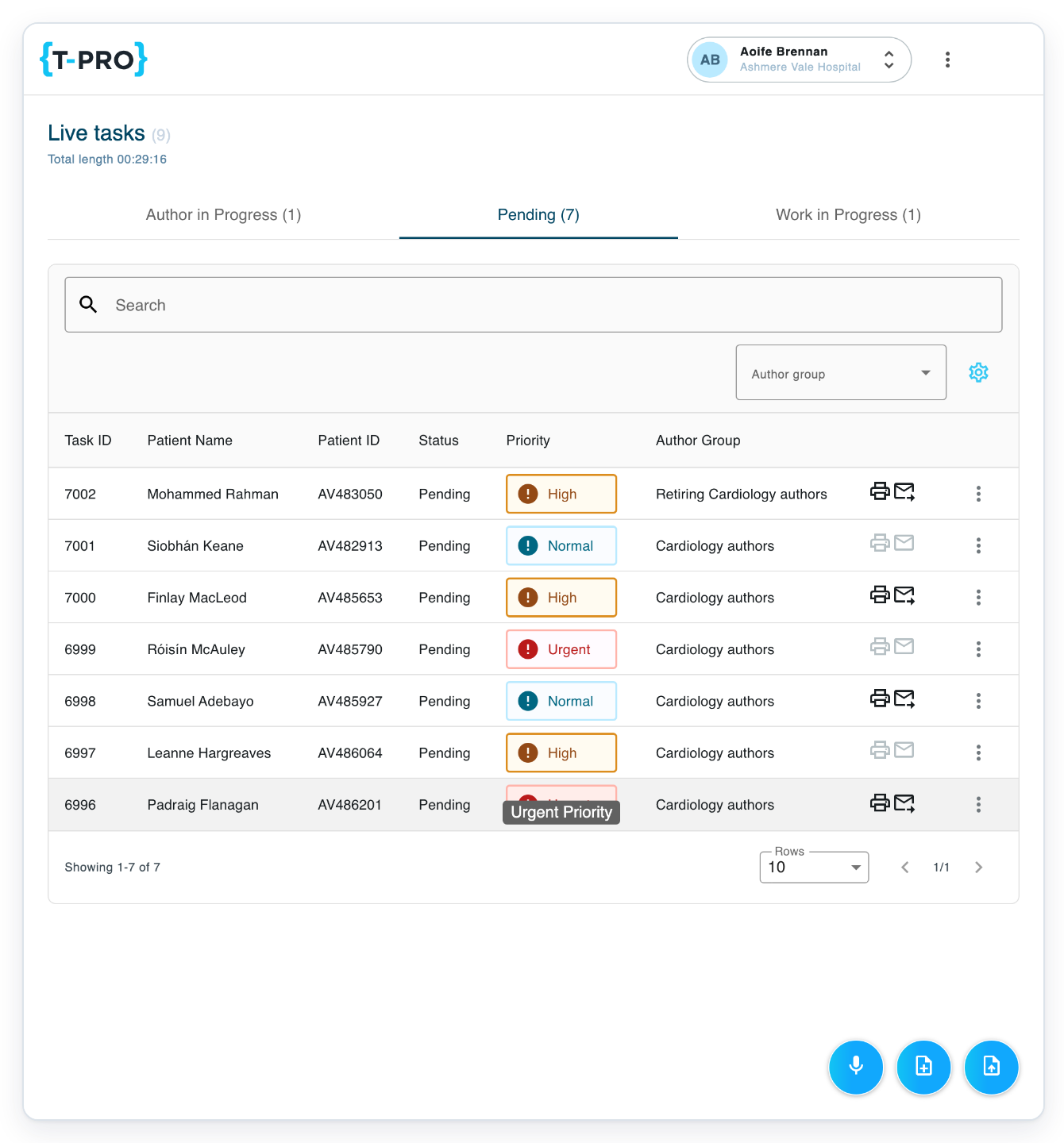
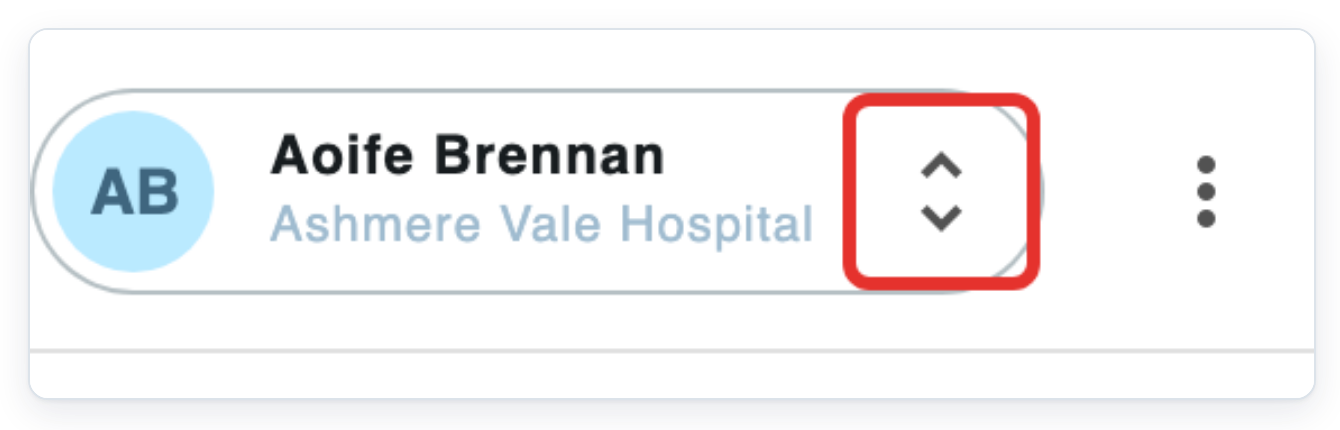
Click the double-arrow again to see your accounts.
Use the organisation and email address to tell your accounts apart if both show the same name.
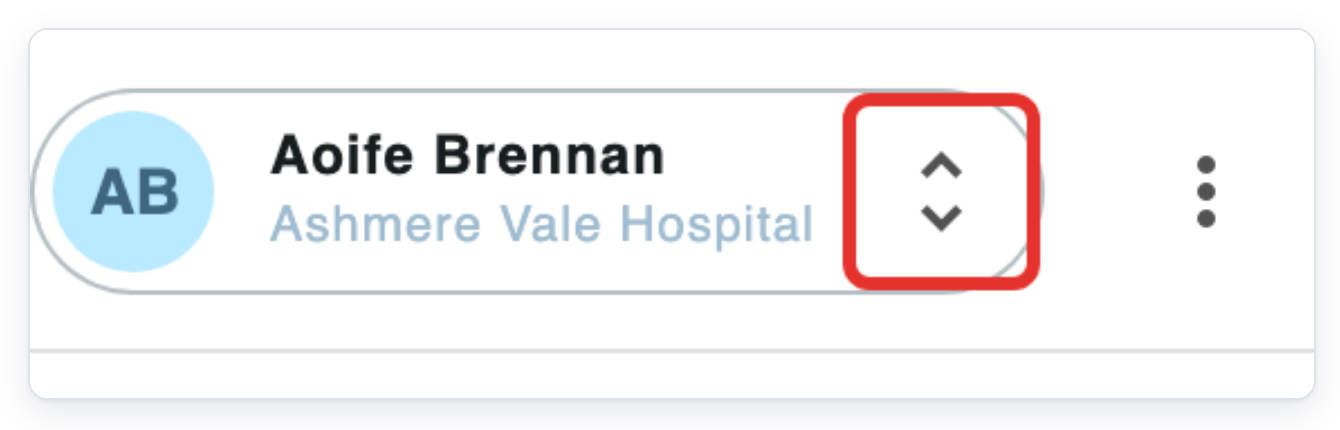
Select the circle beside the account you want to use. This example uses Ashmere Vale Outpatients.
The page reloads with that account signed in. Its organisation appears beside your name in the top bar.
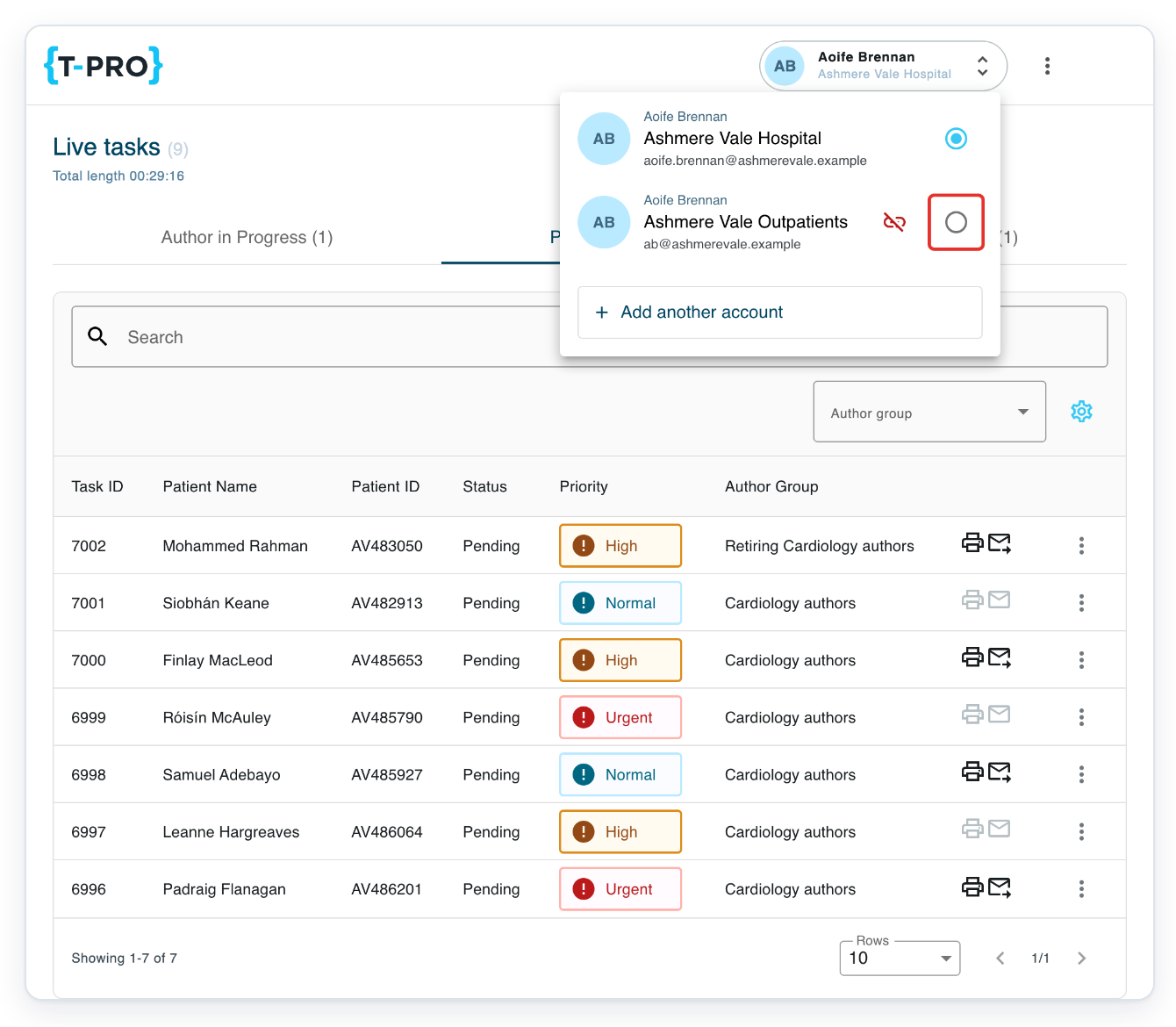
To switch back, click the double-arrow beside your account name again.
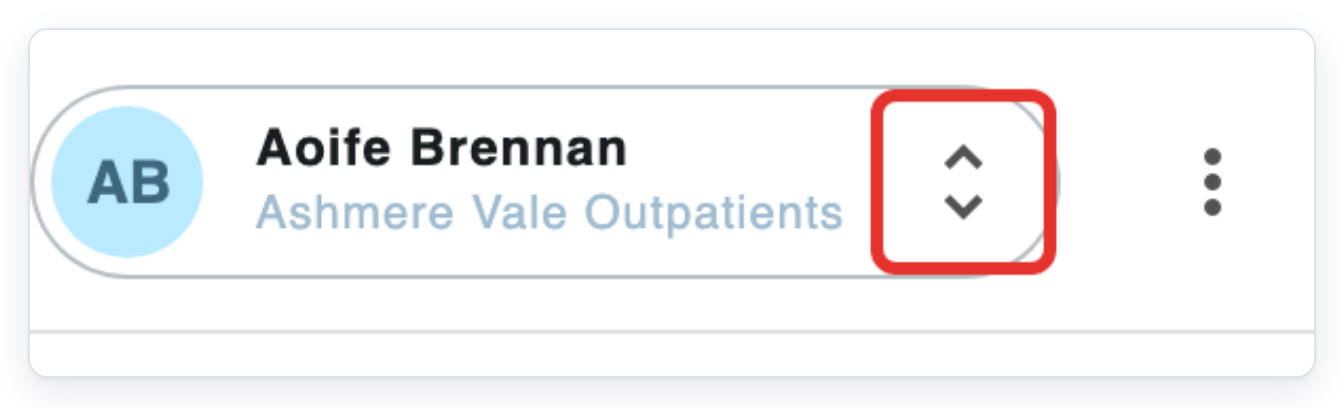
Select the circle beside your original account, shown here as Ashmere Vale Hospital.
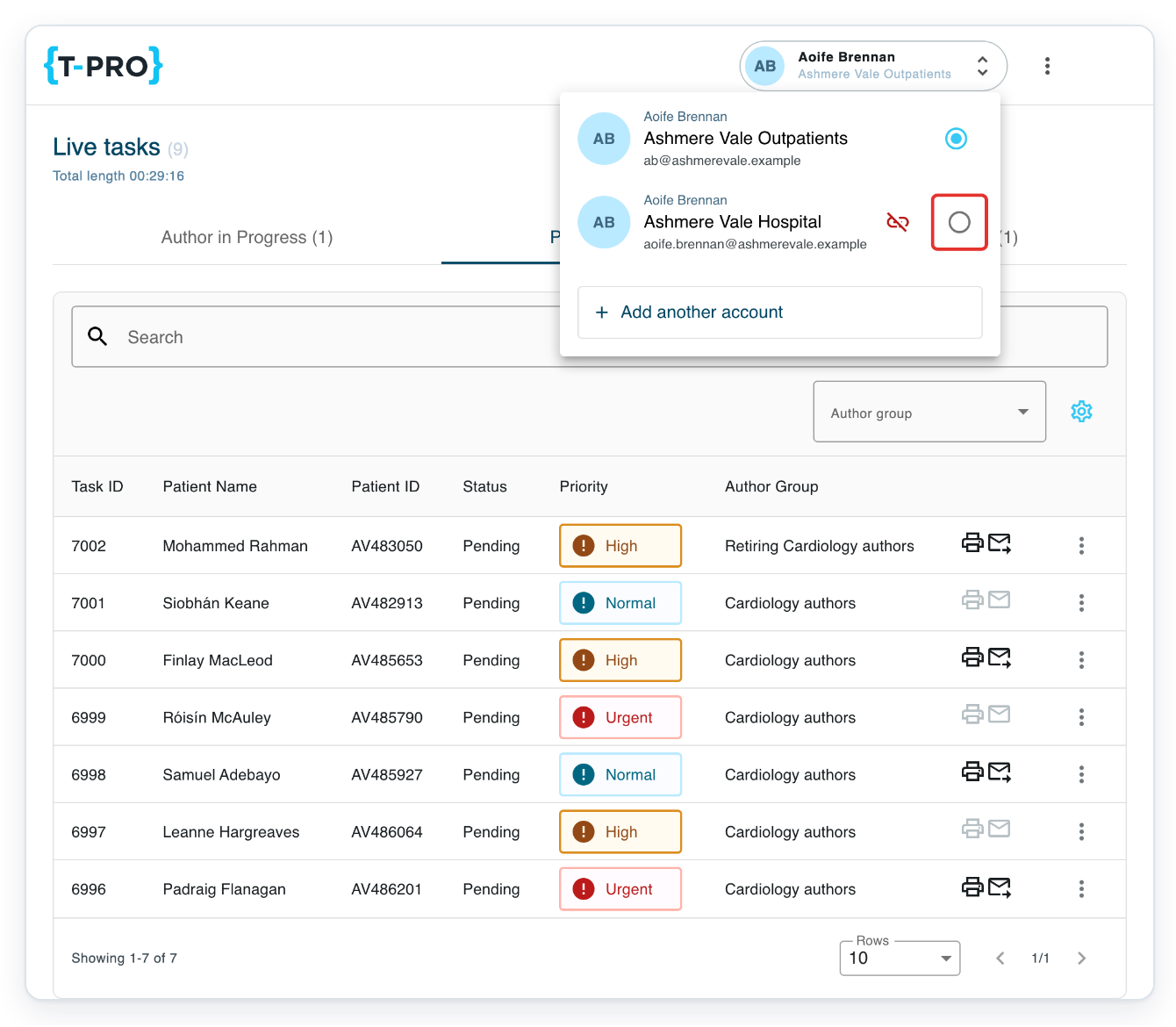
=> The top bar shows Ashmere Vale Hospital again. You are back in your original account.
Link an account with Microsoft or SSO
Click the double-arrow beside your account name to open the account picker.
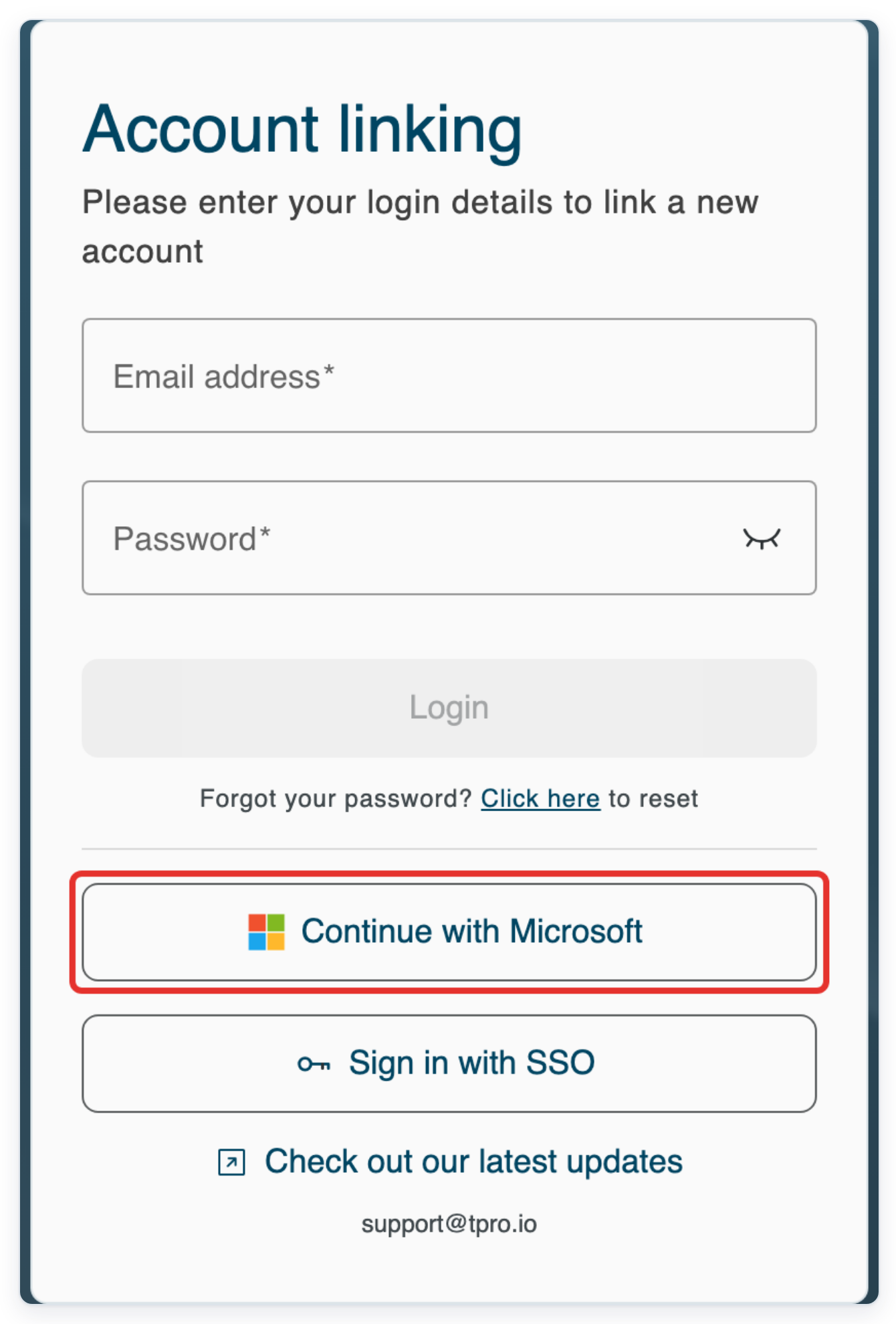
Click Add another account to open Account linking.
Choose Continue with Microsoft to link your other account through Microsoft. If your organisation uses another sign-in service, choose Sign in with SSO.
Sign in with the account you want to link, then return to T-Pro.
NOTE:
- You can link your own accounts within one organisation or across organisations.
- You stay signed in to your original account until you select another account.
- Each linked account keeps its own role and access.
Can't switch accounts?
If your linked account is missing when you return to T-Pro, refresh the page. Then click the double-arrow beside your account name to reopen the account picker.
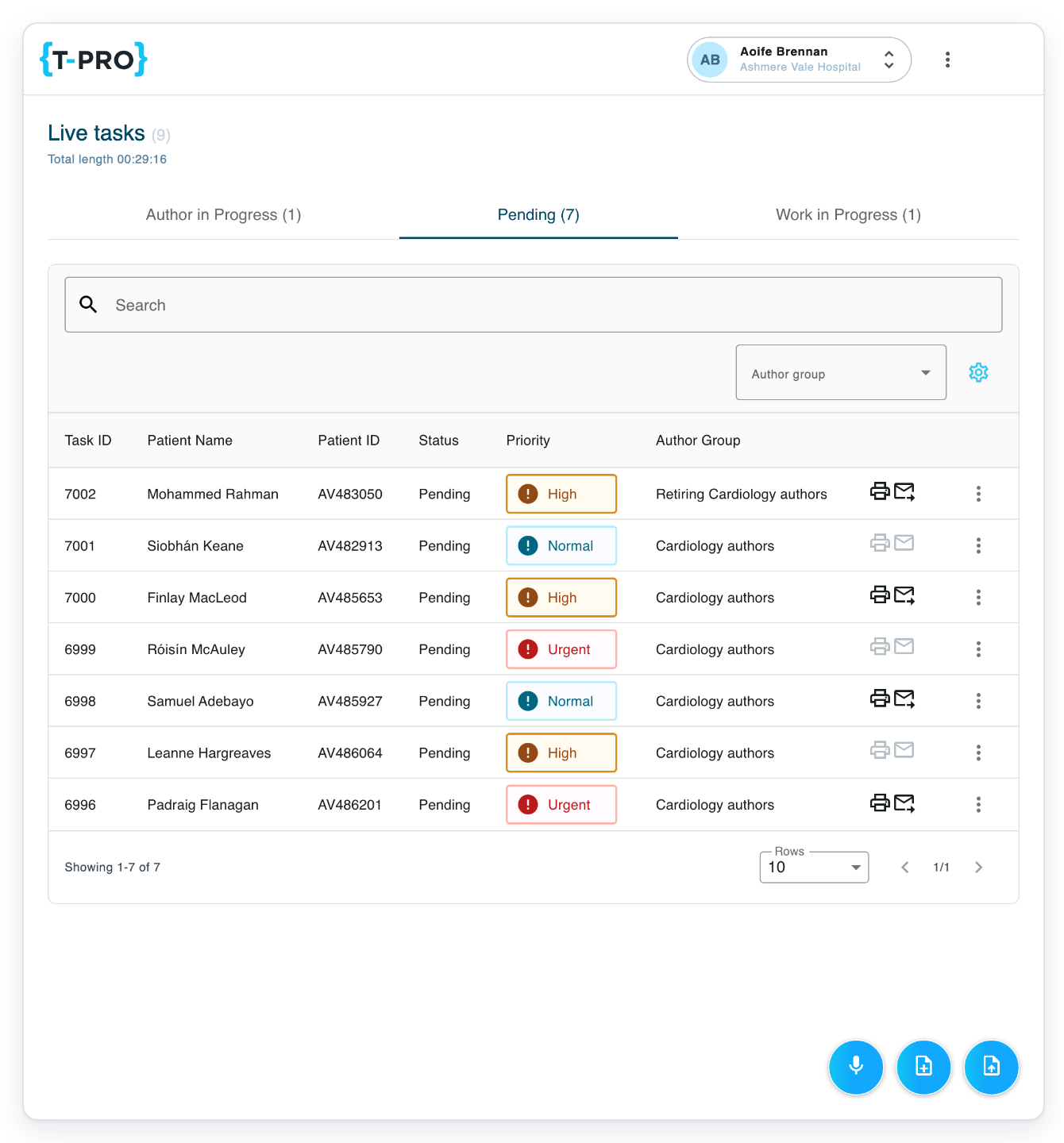
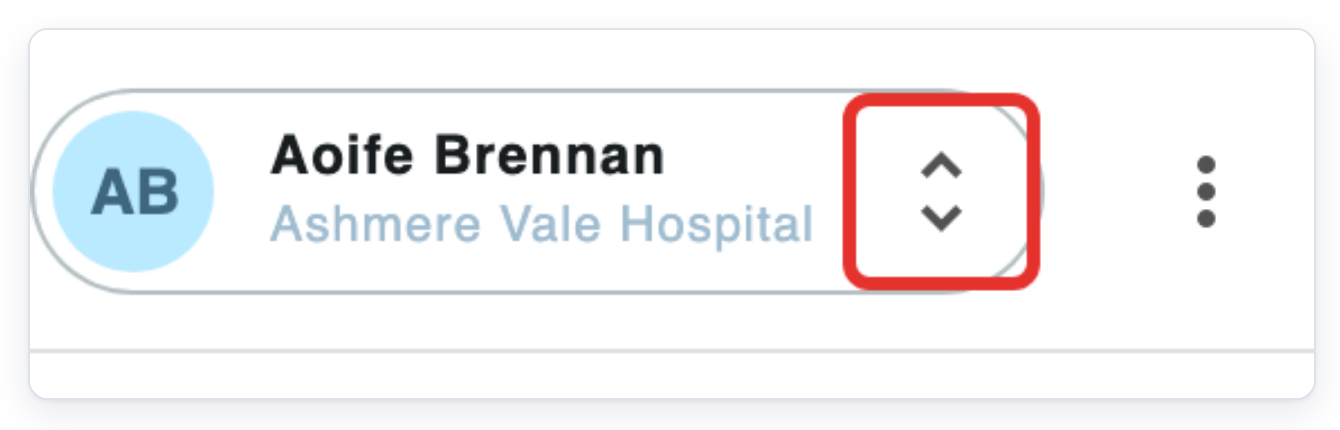
=> The account picker shows Ashmere Vale Hospital and Ashmere Vale Outpatients, the account linked in this example.
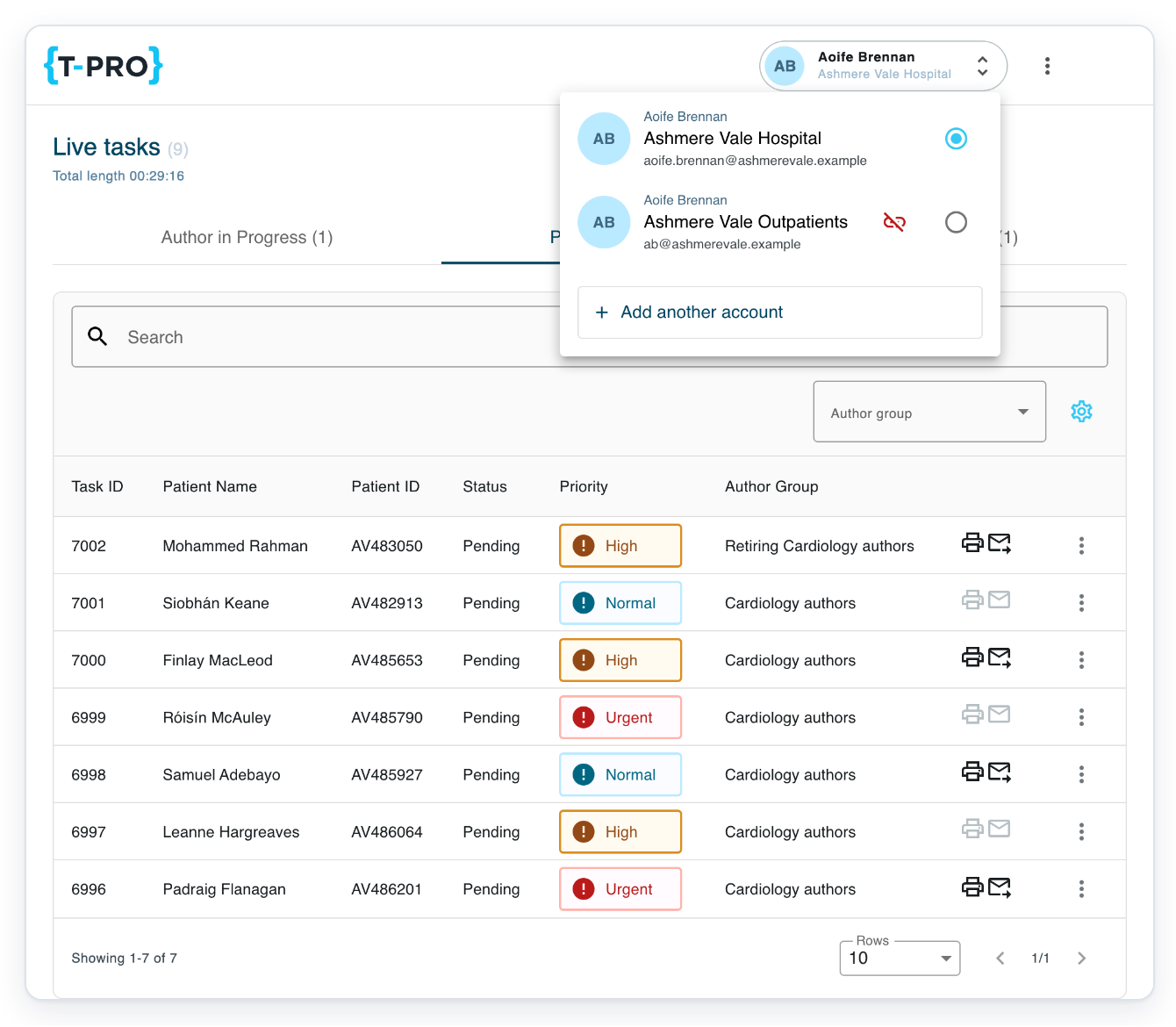
Select the circle beside the account you want. If the account is still missing, contact our Helpdesk.
If your email code hasn't arrived, click Try another way to request a code by text message (SMS). Follow the message on screen. If there are no verification methods left, contact our Helpdesk.
If an account is deactivated, ask your administrator to reactivate it before you link or switch to it.
If you can't link accounts across organisations, ask your administrator to check that both allow external account linking.
Related articles
- Sign in with your Microsoft account
- Set up and use multi-factor authentication
- Let users switch between accounts
If you have any more queries, please do not hesitate to contact our Helpdesk or support@tpro.io.
© 2020 - 2026