
Before you start
You can update your own details. To change another user's sign-in email, you need master or admin access to their account.
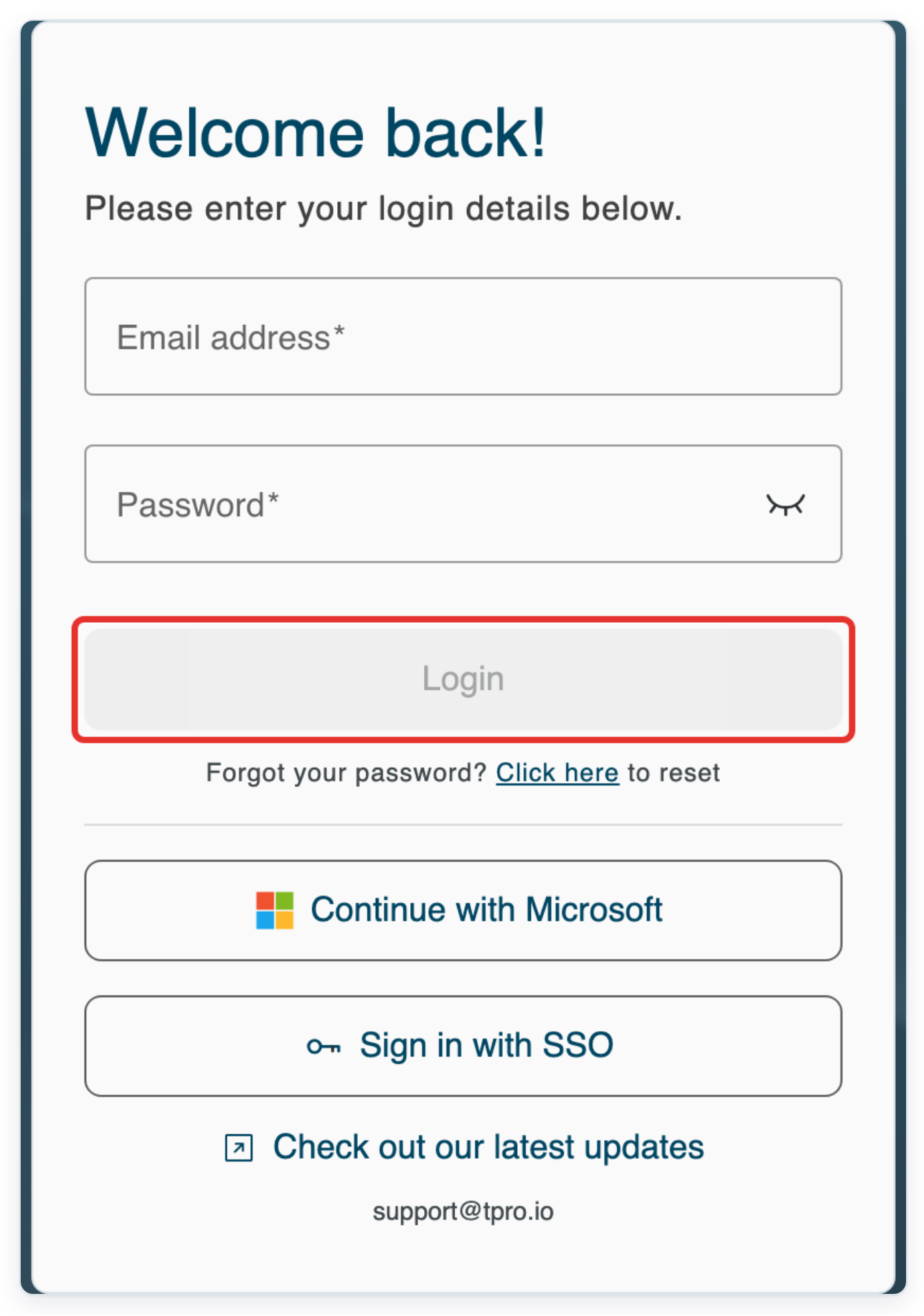
Log in to T-Pro with your author, master or admin credentials.
Enter your Email address and Password, then click Login.
Update your own details
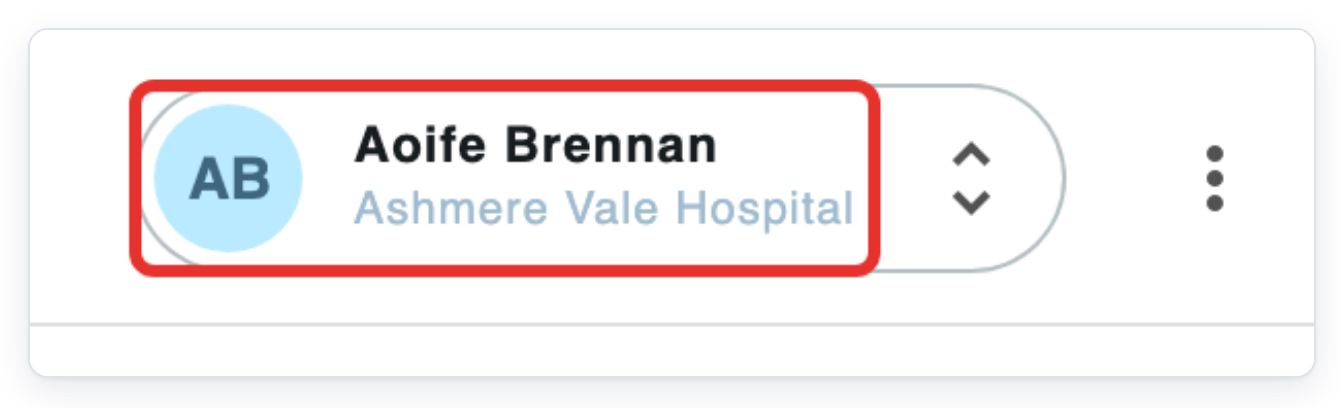
Click your name in the top bar. Your profile opens on My details.
In Personal Information, you can change your Job title. You can also edit your name, initials, prefix and date of birth in this section.
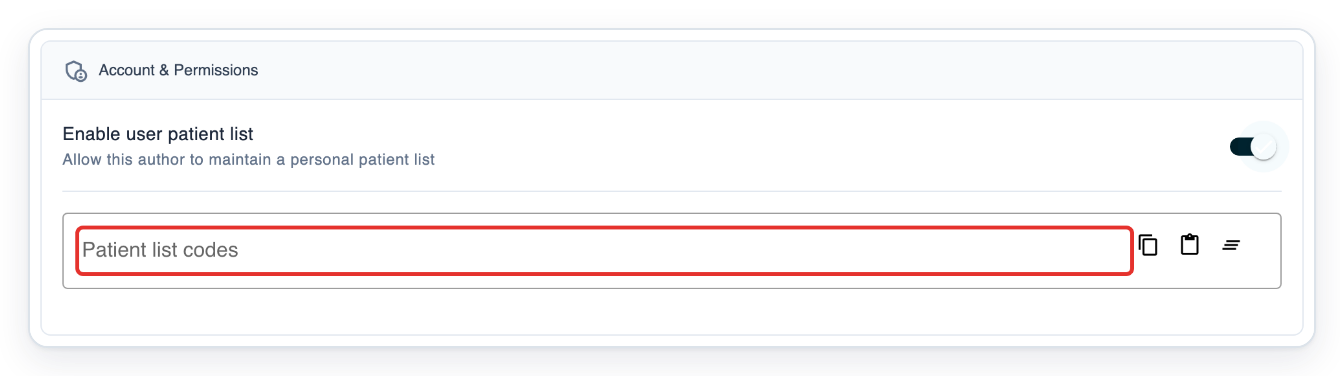
In Account & Permissions, turn on Enable user patient list. Patient list codes appears.
This setting is for authors. When it is on, your personal patient list codes replace the lists inherited from your groups.

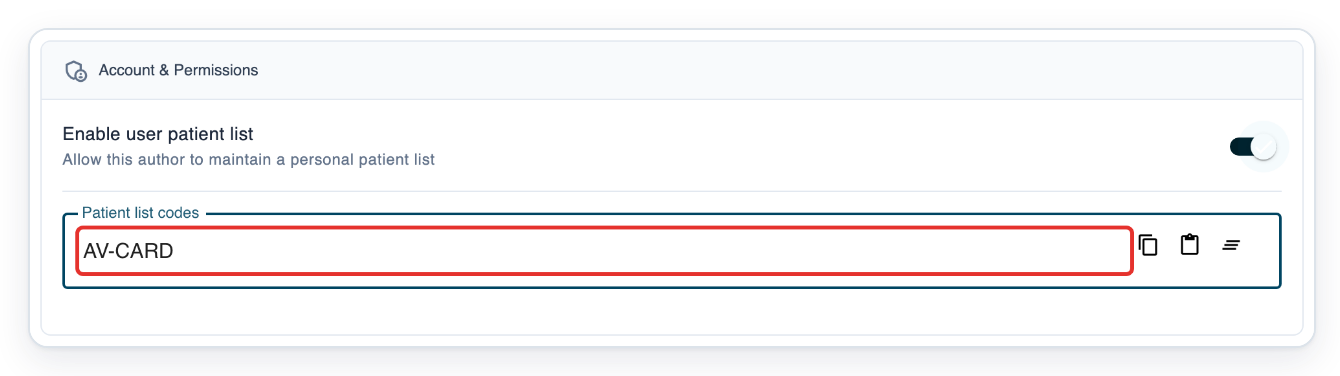
Enter a code in Patient list codes, for example AV-CARD.
Press Enter to add AV-CARD.
To add another list, enter its code beside the first one, for example AV-OUT.
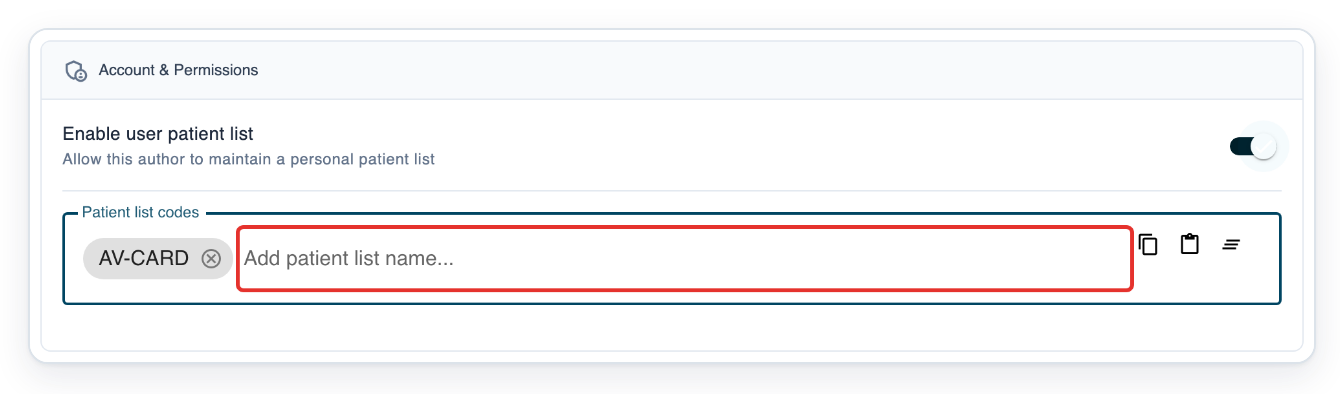
Press Enter to add AV-OUT.
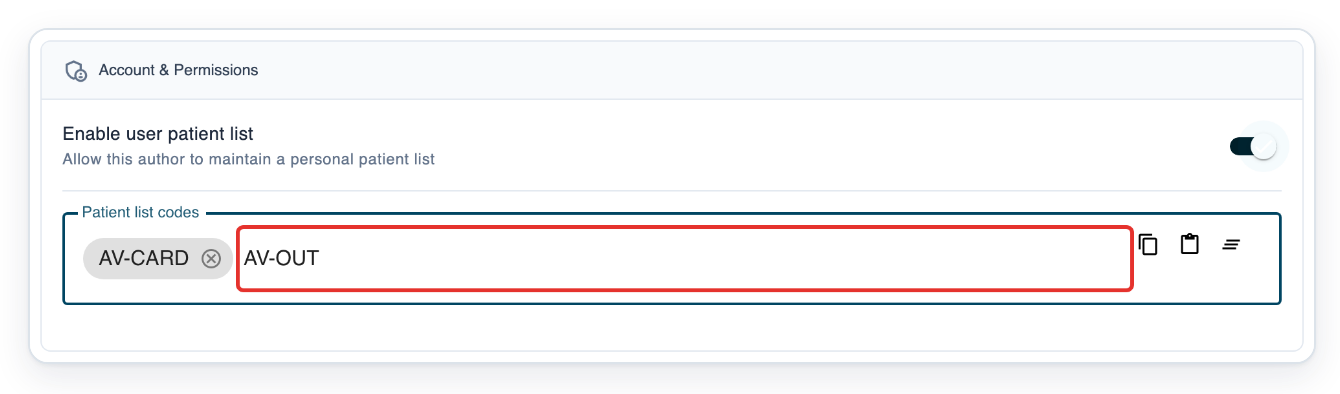
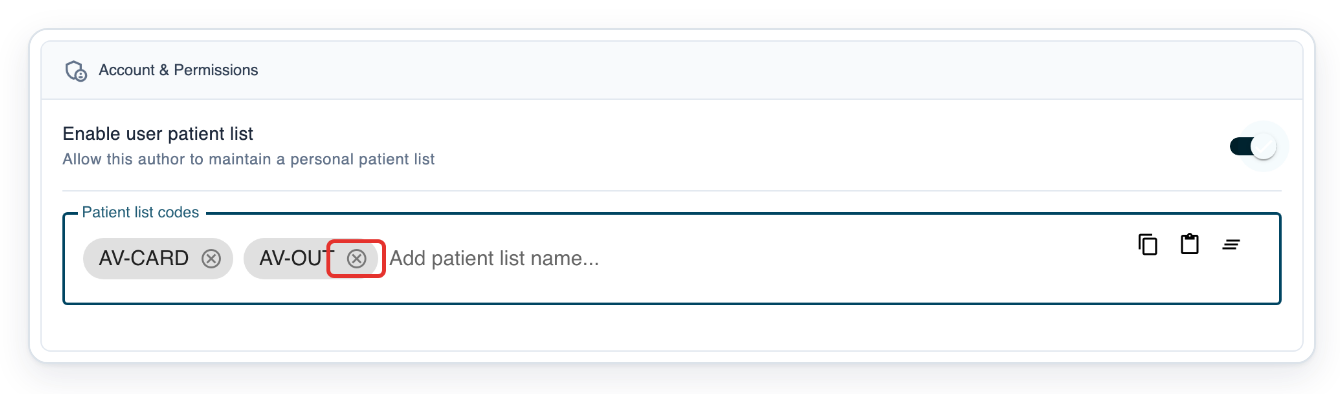
To keep only AV-CARD, click the cross on AV-OUT.
The remaining codes are saved when you click Save changes.
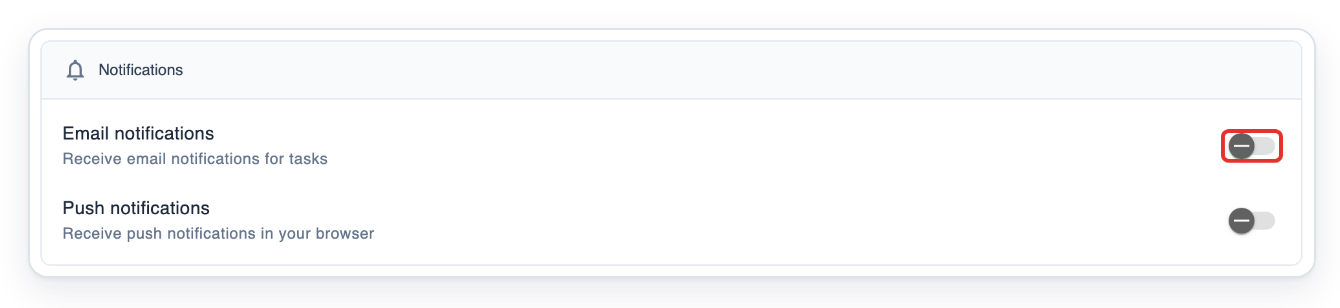
In Notifications, turn on Email notifications. Frequency and Priority appear below it.
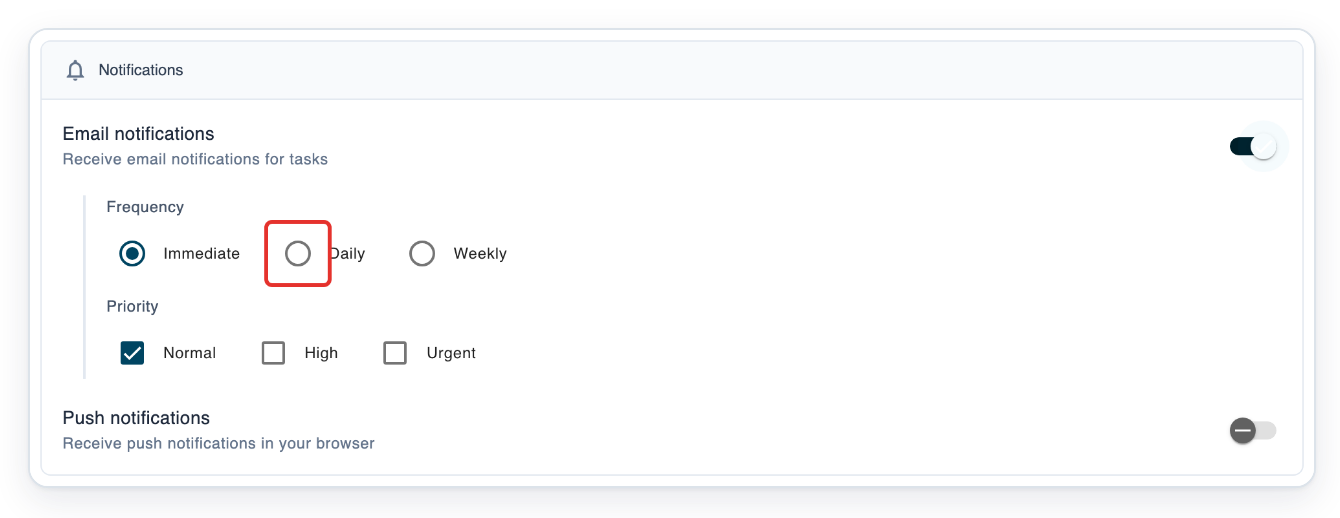
Under Frequency, choose Daily.
The other choices are Immediate and Weekly.
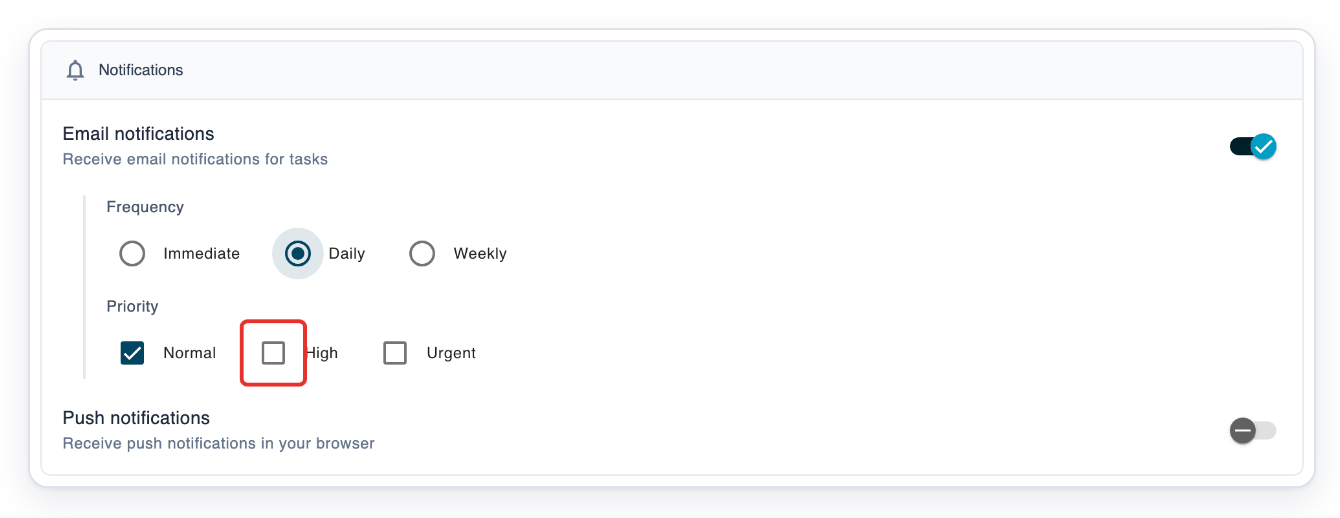
Under Priority, select High to include high-priority tasks alongside Normal.
You can also select Urgent.
Click Save changes. T-Pro confirms User updated.
This saves your patient list codes and notification choices.

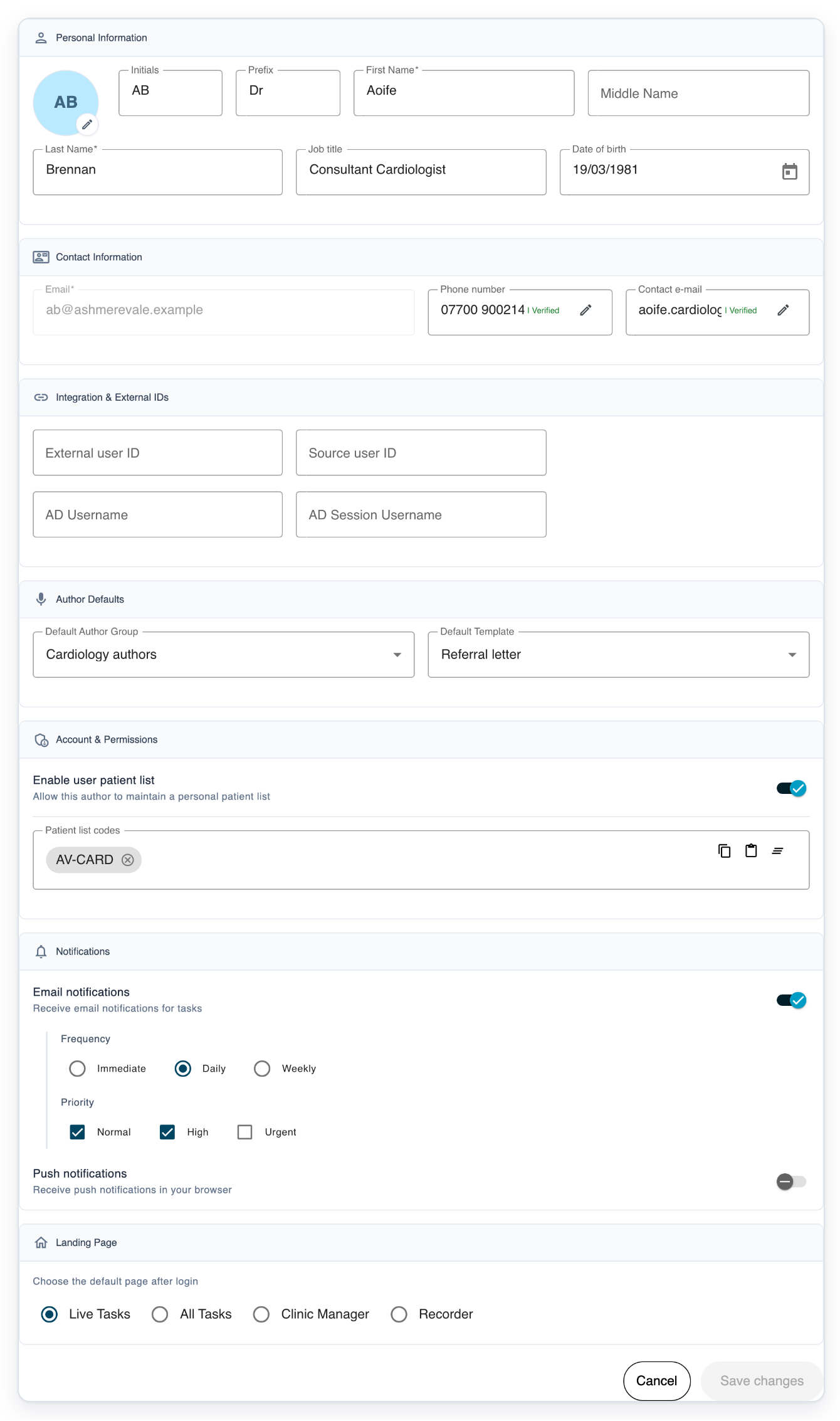
=> Your saved details show AV-CARD, Daily, and both Normal and High selected. Scroll through My details to see the other sections described below.
Update another user's email as a master or admin
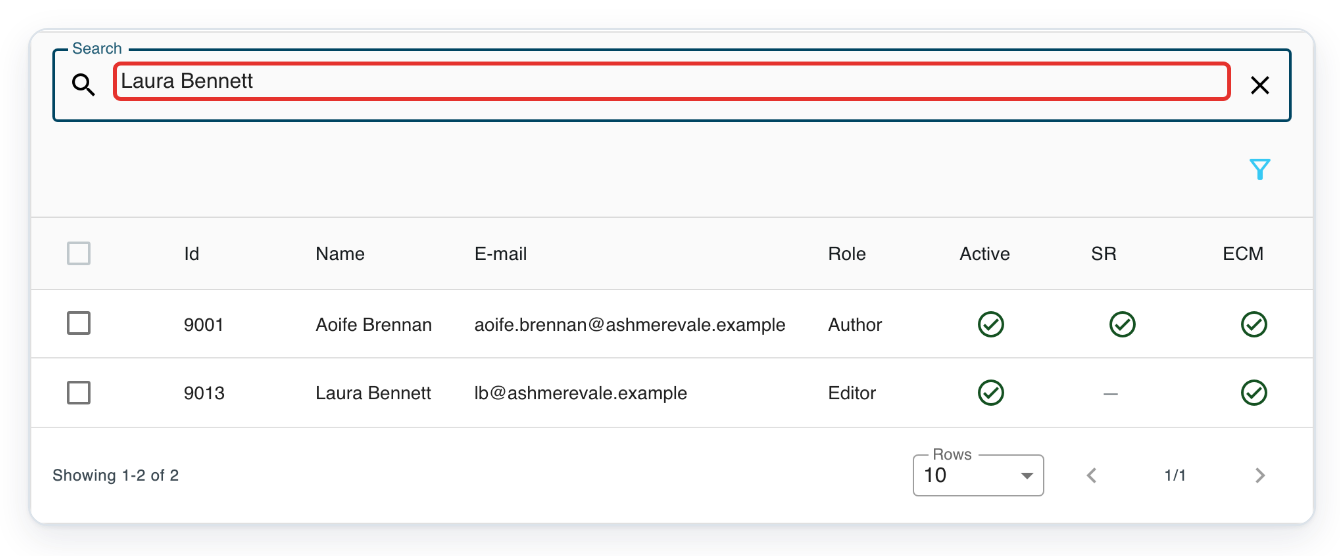
In the facility's Users tab, enter the person's name in Search, for example Laura Bennett.
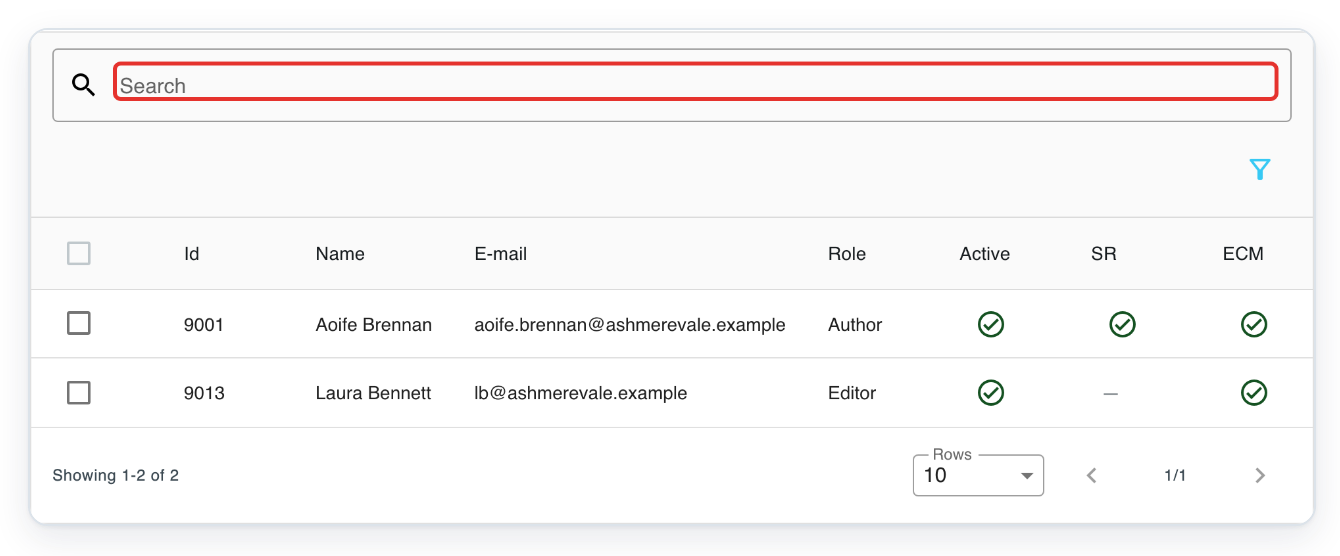
Press Enter to search. The list shows the matching user.
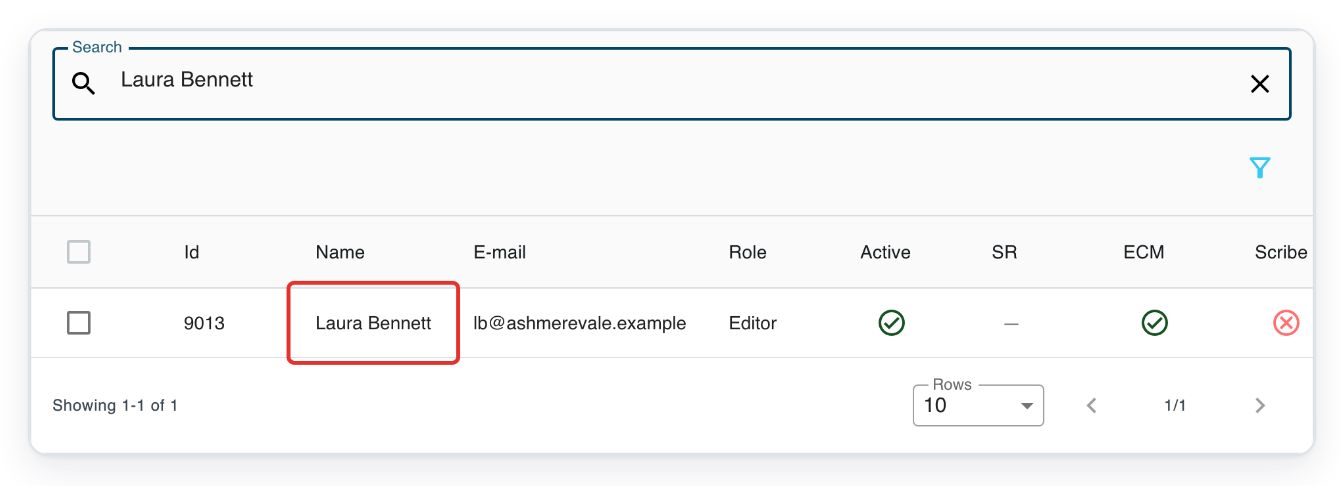
Click the person's row. Their profile opens in a new tab on My details.
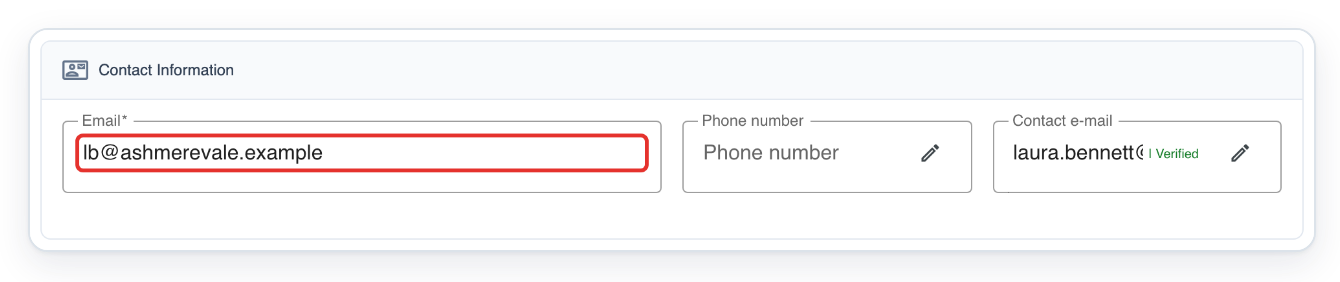
In Contact Information, change Email to the new sign-in address, for example laura.bennett@ashmerevale.example.
Email is the account's sign-in address. Contact e-mail is a separate address with its own verification status.
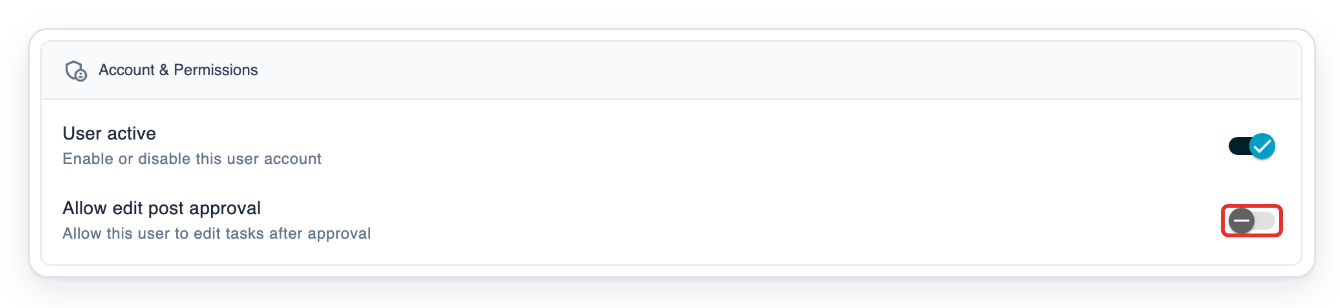
In Account & Permissions, turn on Allow edit post approval if this user needs to edit tasks after approval.
Masters and admins can change this setting on clerical profiles. The facility must also allow editing after approval.
Admins also see User active, which enables or disables the account.
Click Save changes. T-Pro confirms User updated.
This saves the email and permission changes. Changes to User active use this button too.

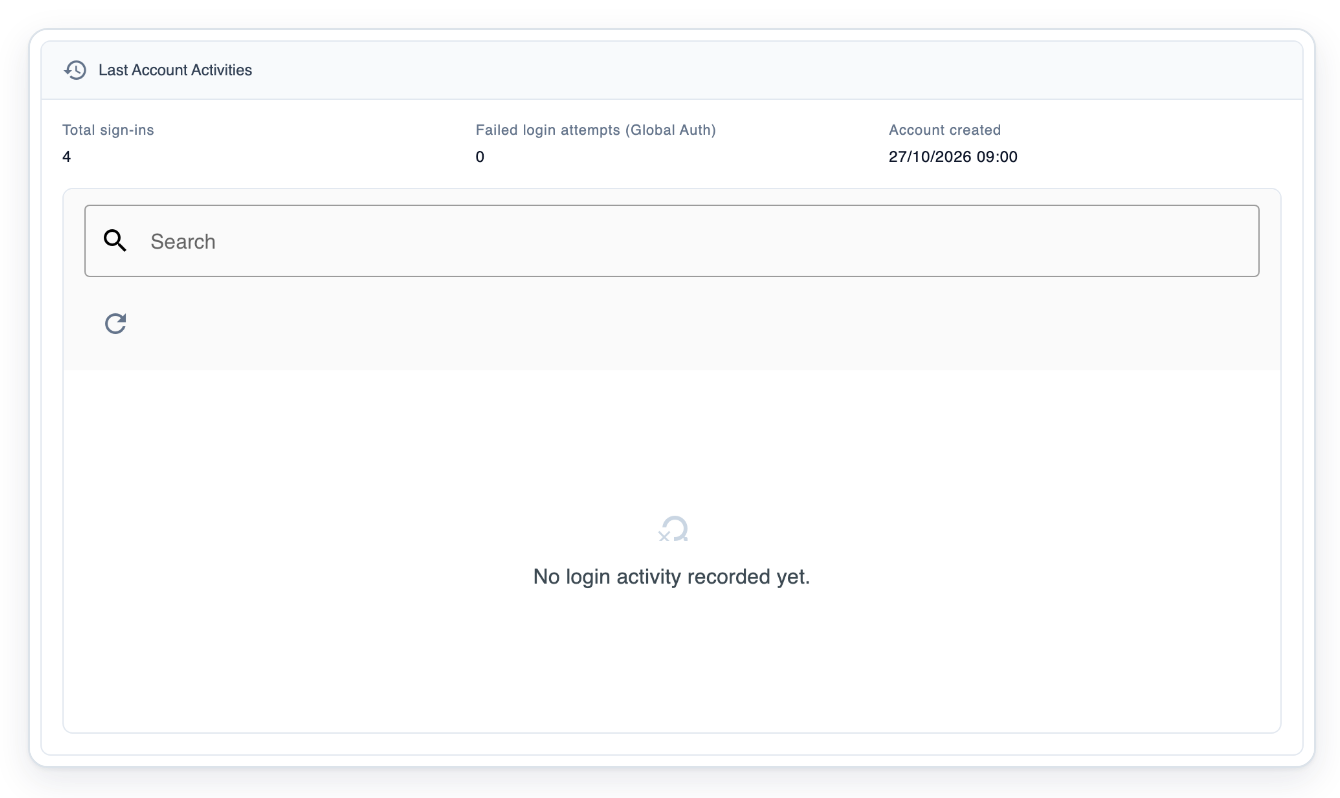
=> Admins can review Last Account Activities, including Total sign-ins and Account created when available. This example shows No login activity recorded yet. in the history list.
NOTE:
- You can update most of your own details without asking a master or admin.
- Only a master or admin can change Email, the address used to sign in.
- The sections and settings you see depend on the user's role and your access.
- If you're unsure about changing integration IDs or AD usernames, ask your IT team first. Changes may affect signing in.
- For authors, Enable user patient list reveals Patient list codes. Press Enter to add a code or click its cross to remove it, then click Save changes. These codes replace the lists inherited from groups while the setting is on.
- Turn on Email notifications to choose Immediate, Daily or Weekly under Frequency. Under Priority, select Normal, High or Urgent, then click Save changes.
- Admins can change User active. Masters and admins can change Allow edit post approval on clerical profiles. Editing after approval also needs the facility's permission. Click Save changes to save these settings.
- Admins see Last Account Activities in My details. It holds account information and sign-in history. Individual history entries show the date and time, IP address, origin, device, status and source.
The profile card and My details
The profile card shows your name, role, email address, job title and organisation. It also shows your user ID and the date your account was created. Use My details below the card to edit your details and preferences.
| Section | What it holds |
|---|---|
| Personal Information | Your profile picture, initials, prefix, first, middle and last names, job title and date of birth. |
| Contact Information | Your sign-in email, phone number and separate contact email. Verification status appears beside the phone number and contact email. |
| Integration & External IDs | Your External user ID, Source user ID, AD Username and AD Session Username. |
| Author Defaults | Default Author Group and Default Template for an author. |
| Account & Permissions | Controls such as Enable user patient list, which lets an author manage a personal patient list. |
| Notifications | Whether to receive task emails and push notifications in your browser. |
| Landing Page | The page to open after you log in. For an author, choices include Live Tasks, All Tasks and Recorder. |
| Last Account Activities | Account information and sign-in history, visible to admins. Includes total sign-ins and the account creation date when available. |
Tip: Click Cancel to discard your unsaved changes and return to your saved details.
Can't update your details?
- If Save changes is unavailable, change a detail and check the fields you edited. First and last names must each have 3 to 100 characters. A middle name is optional, but must have 3 to 100 characters if entered.
- If you cannot edit Email, ask a master or admin to change your sign-in address.
- If the new email address is rejected, check its format. Use an email address that no other account uses.
Related articles
- Change your password
- Set up email notifications and digests
- Upload or update your signature
- Set an author's default group and template
If you have any more queries, please do not hesitate to contact our Helpdesk or support@tpro.io.
© 2020 - 2026