
Before you start
You need a master account with access to the facility.
Log in to T-Pro with your master credentials.
As a manager
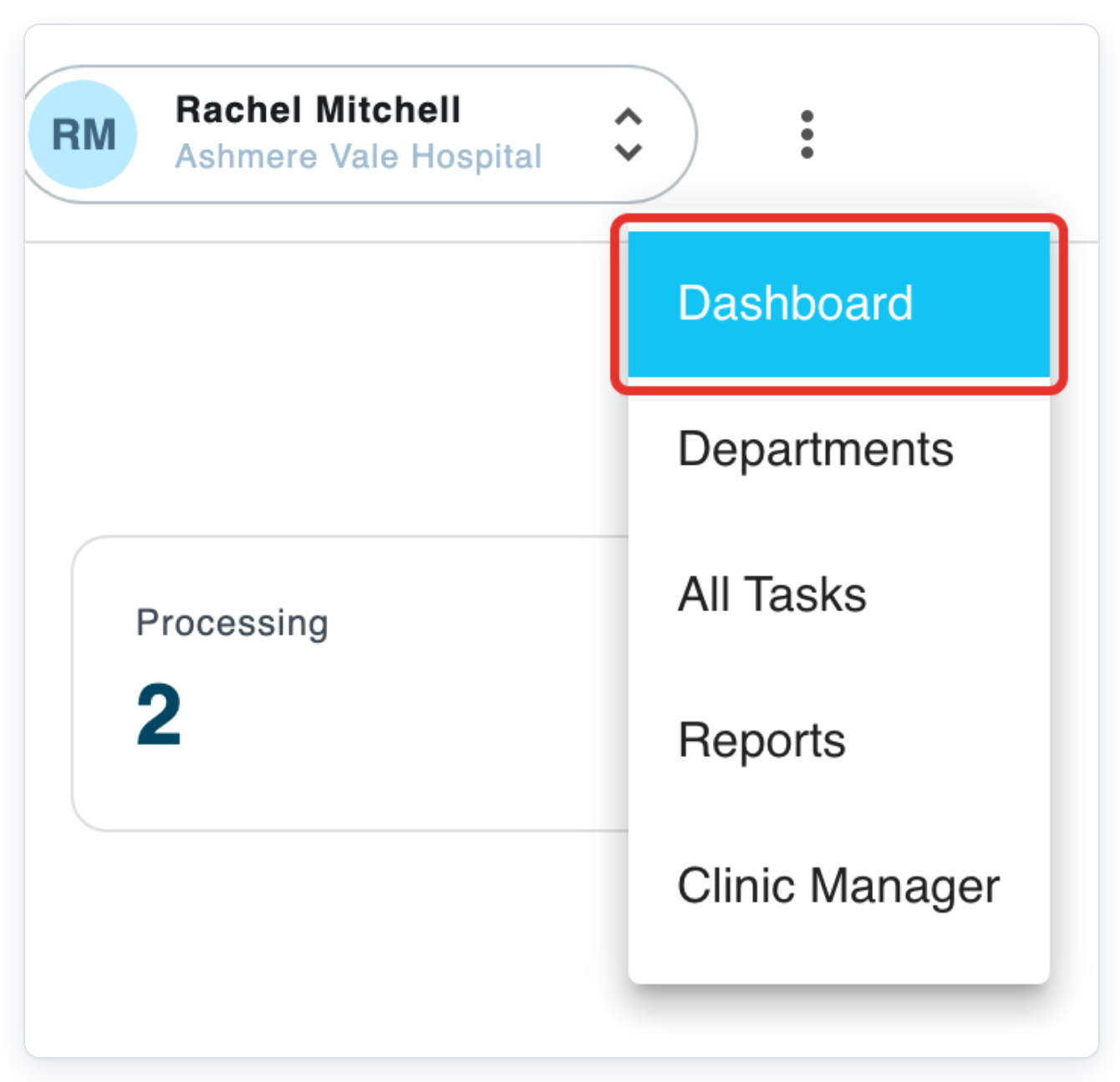
After signing in with your manager credentials, click Menu at the far right of the top navigation.

Click Dashboard to see workload for the departments you manage.
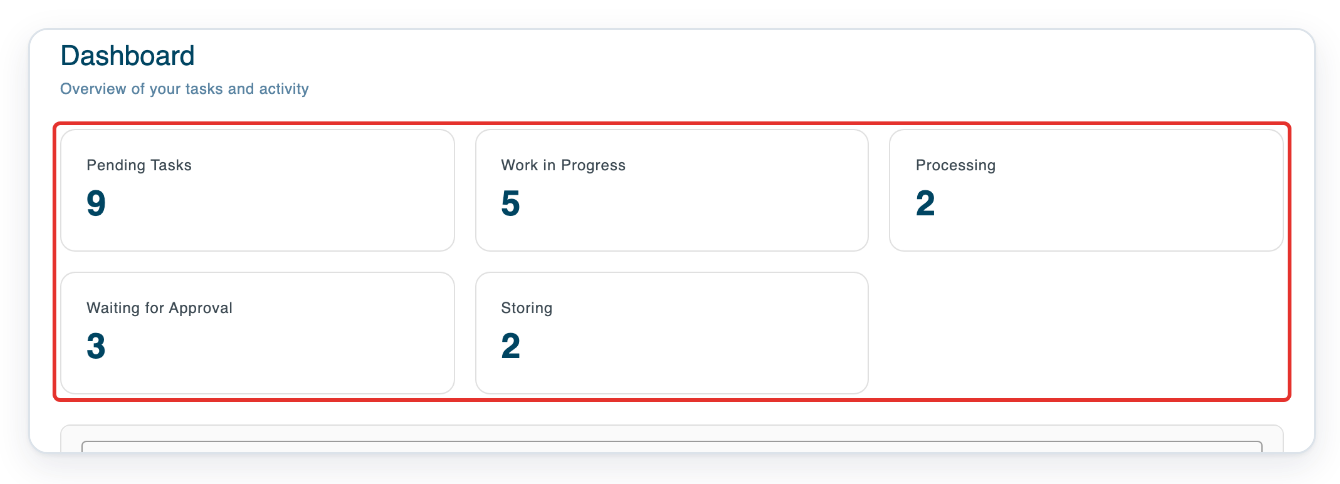
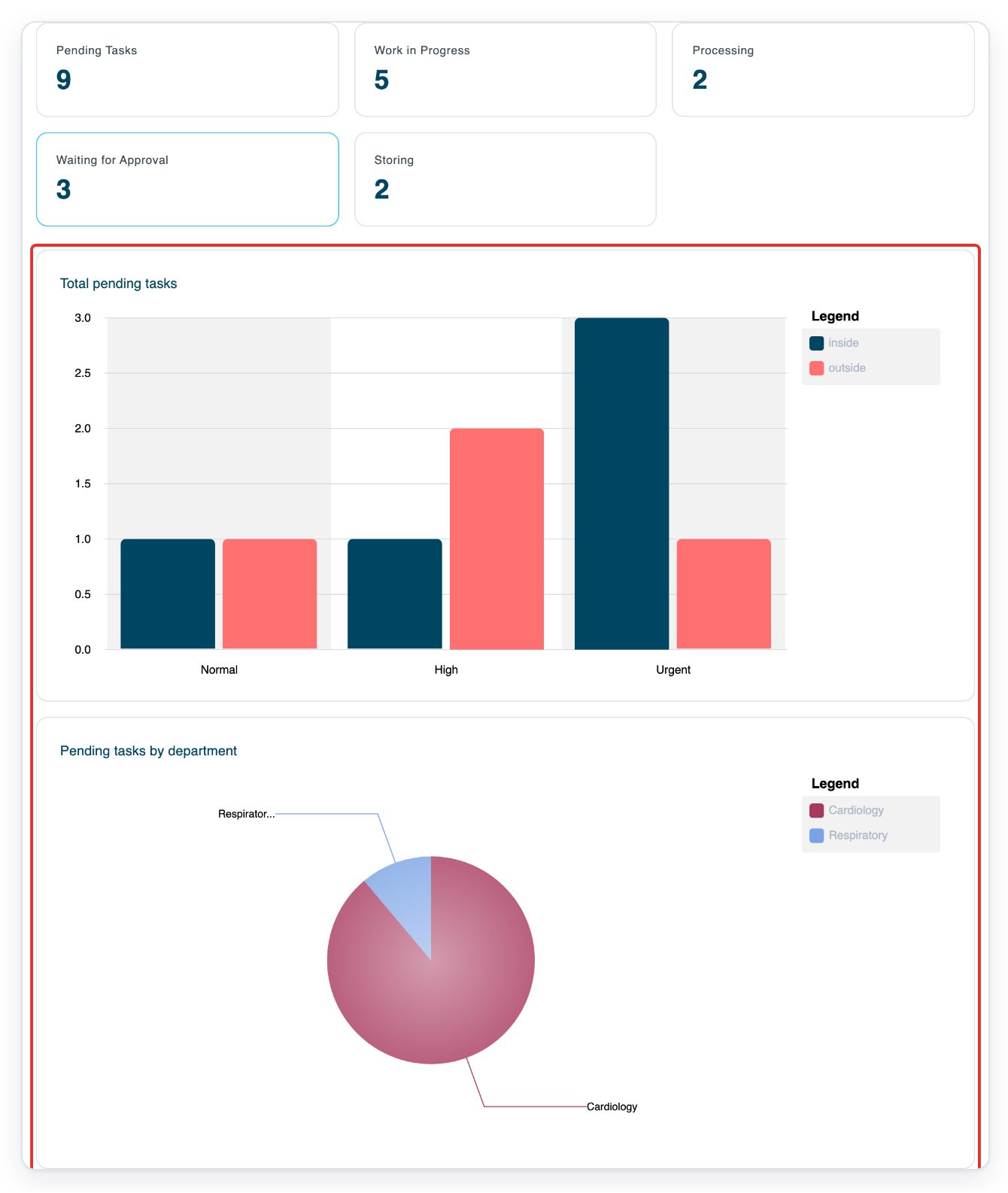
=> The top cards show totals for Pending Tasks, Work in Progress, Processing, Waiting for Approval and Storing.
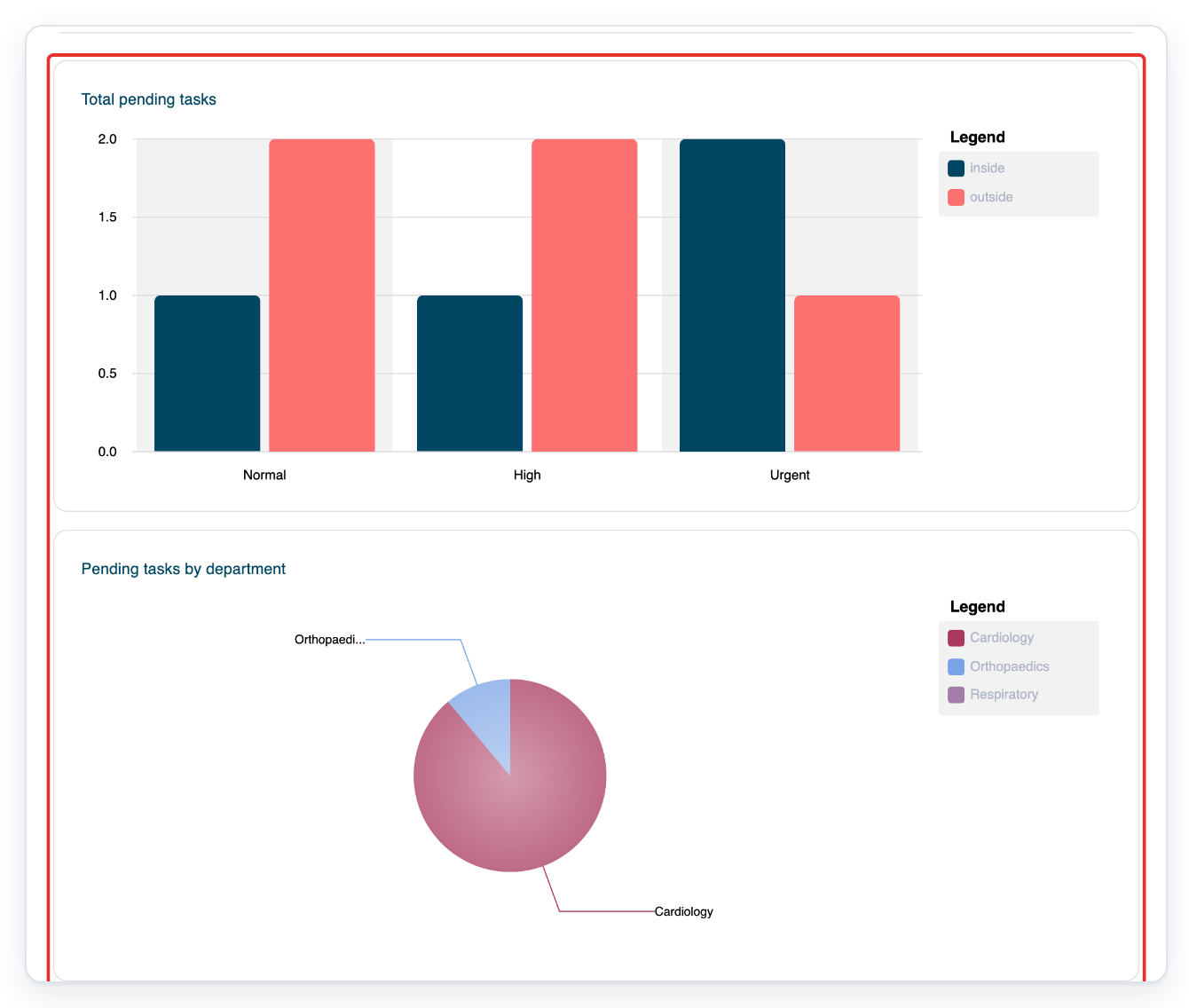
=> Total pending tasks groups tasks by Normal, High and Urgent priority. Its legend shows inside and outside. Pending tasks by department shows pending work in each department.
Open Priority on the turnaround chart.
The menu offers All, Normal, High and Urgent.
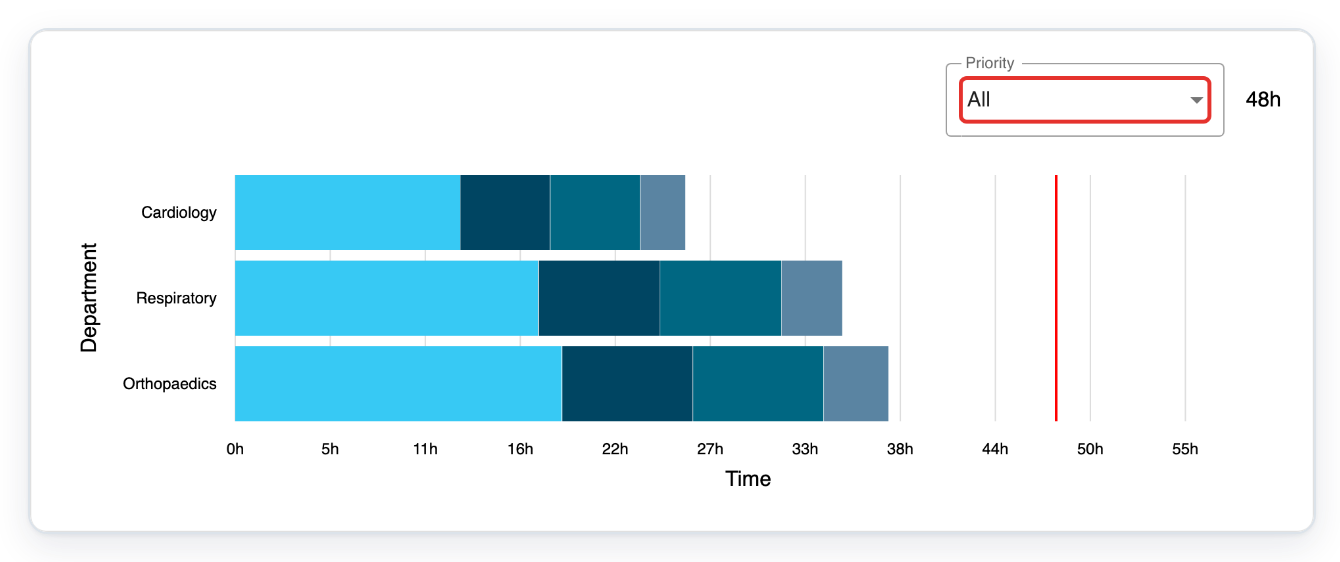
Choose Normal to refresh the turnaround chart.
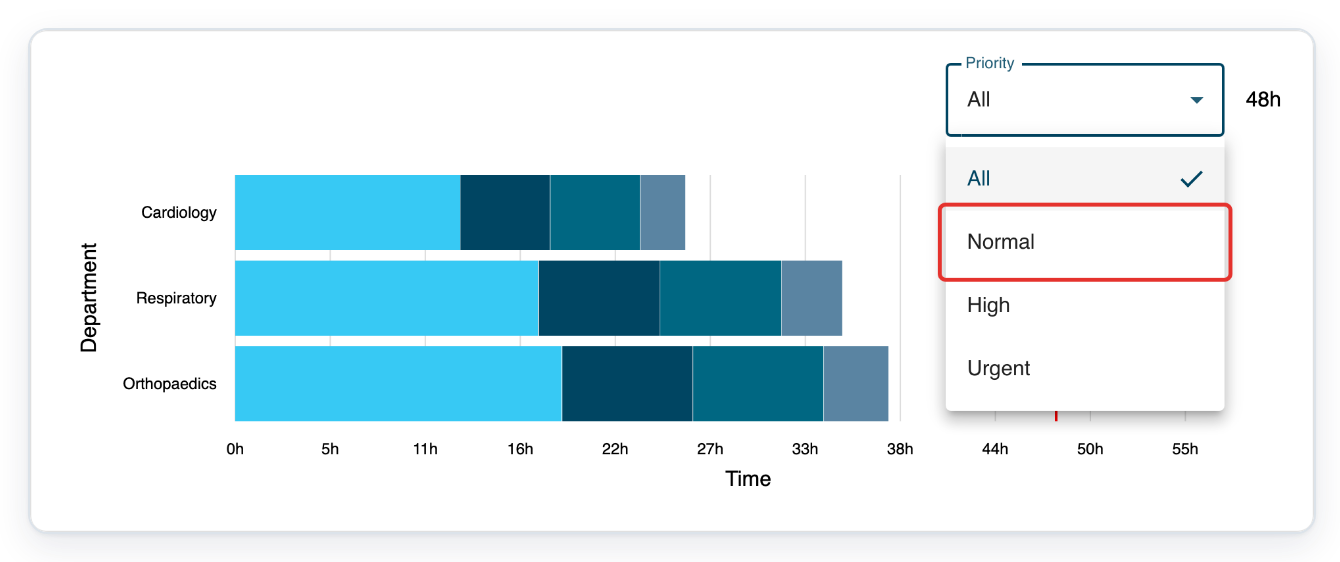
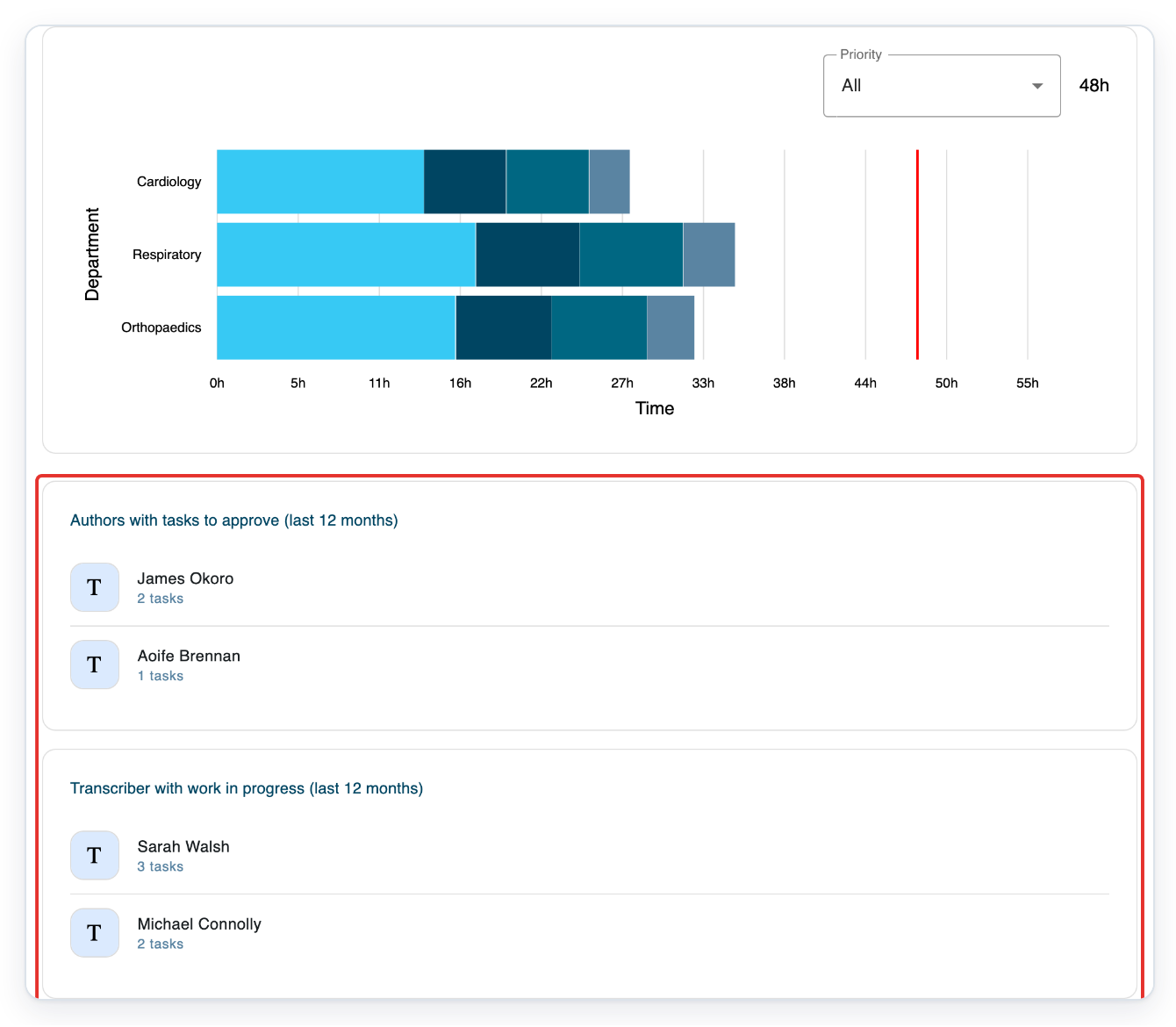
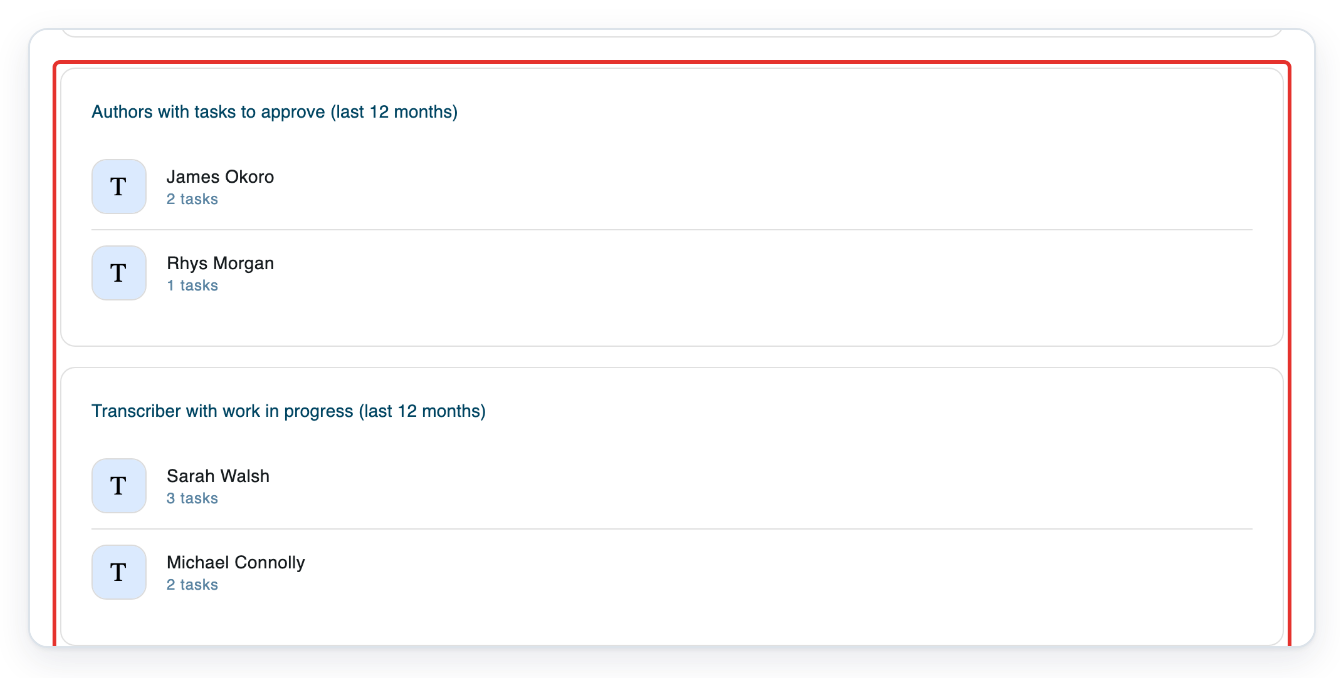
=> The chart refreshes, but Priority returns to All. Compare the department bars with the target line. Below, the author and transcriber lists show names and outstanding task counts for the last 12 months.
As a master user
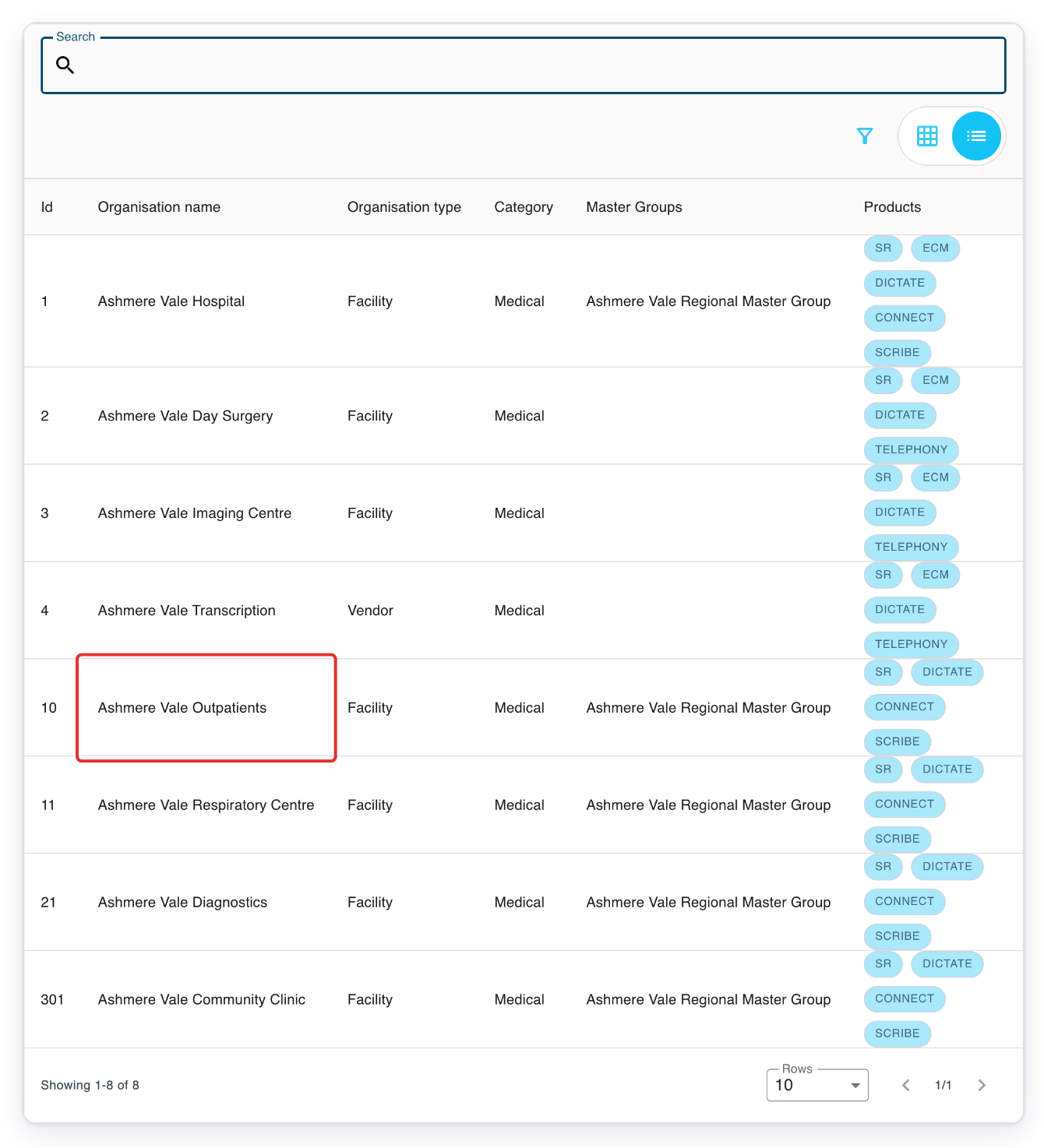
In Organisations, select your facility. The example below uses Ashmere Vale Outpatients.
To find your facility, enter its name in Search and press Enter. Selecting a facility opens its Departments tab.
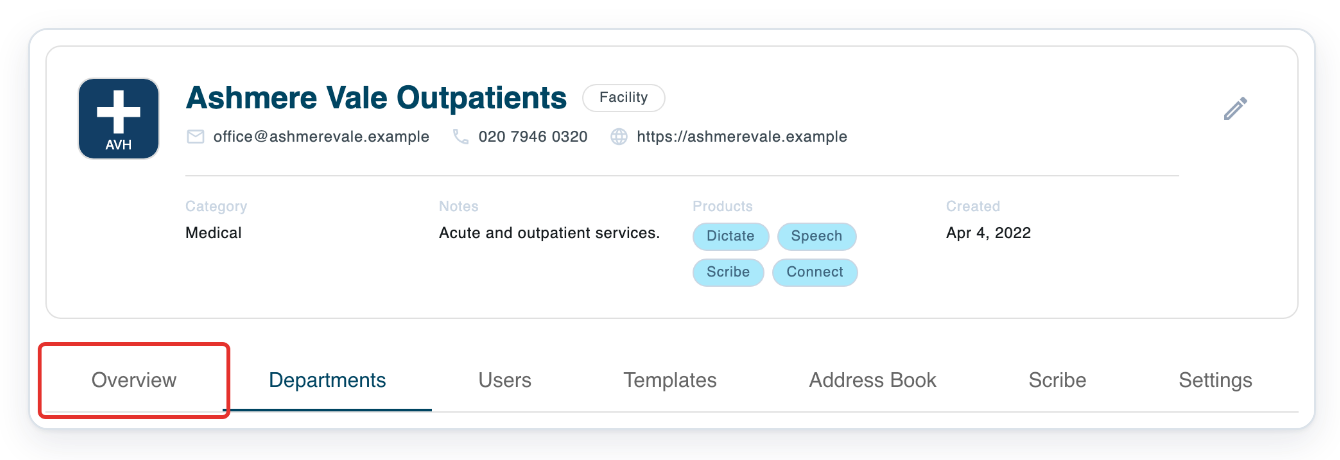
Click Overview to open the facility statistics.
=> The top cards show totals for Pending Tasks, Work in Progress, Processing, Waiting for Approval and Storing. Total pending tasks groups tasks by Normal, High and Urgent priority. Its legend shows inside and outside. Pending tasks by department shows pending work in each department.
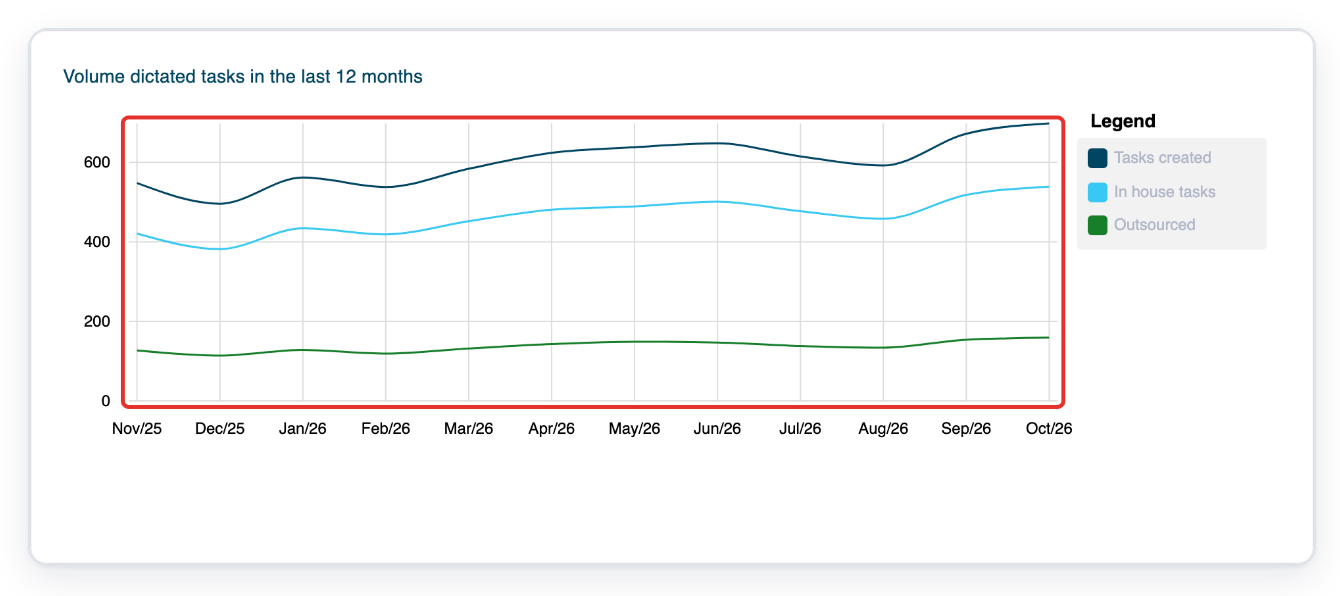
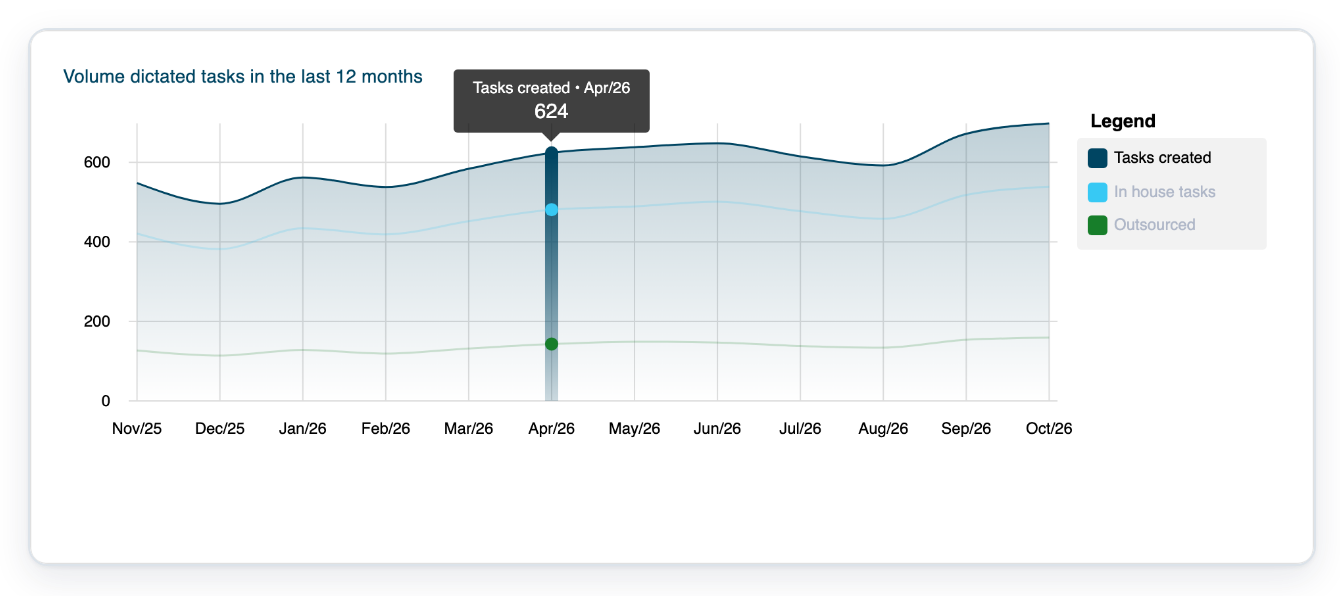
Move your pointer over Volume dictated tasks in the last 12 months.
The legend shows Tasks created, In house tasks and Outsourced. Use the monthly counts to compare activity across the months shown.
Hover over a point on the Tasks created line.
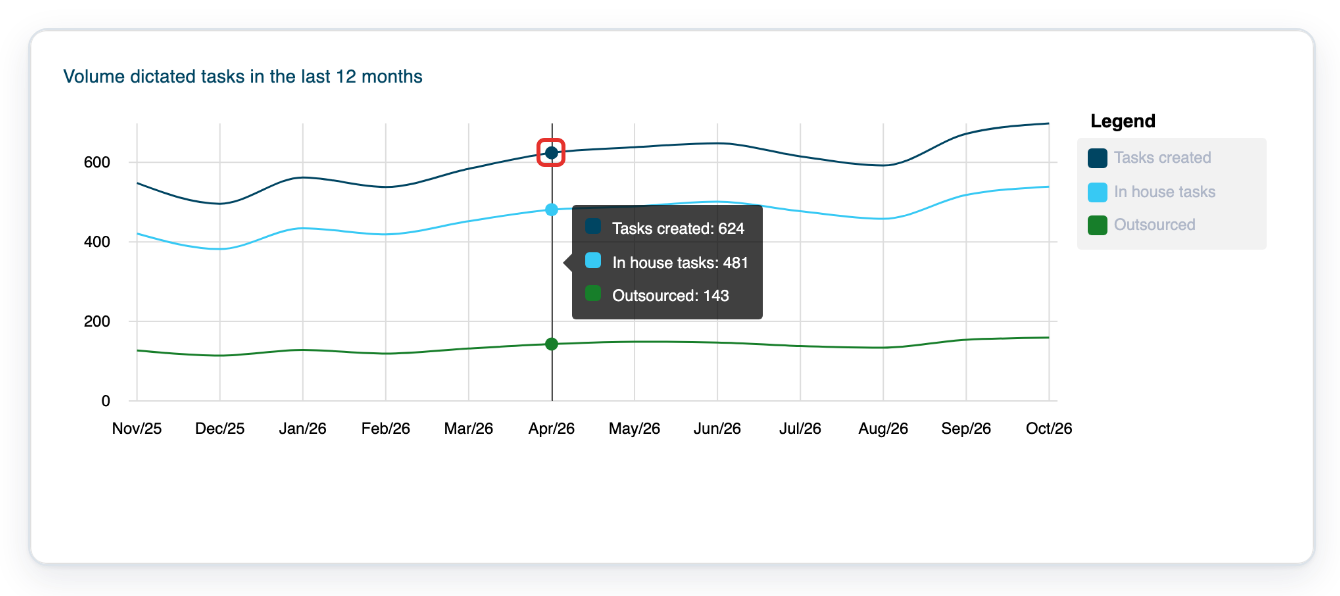
=> A small box shows the month and exact task count for that point.
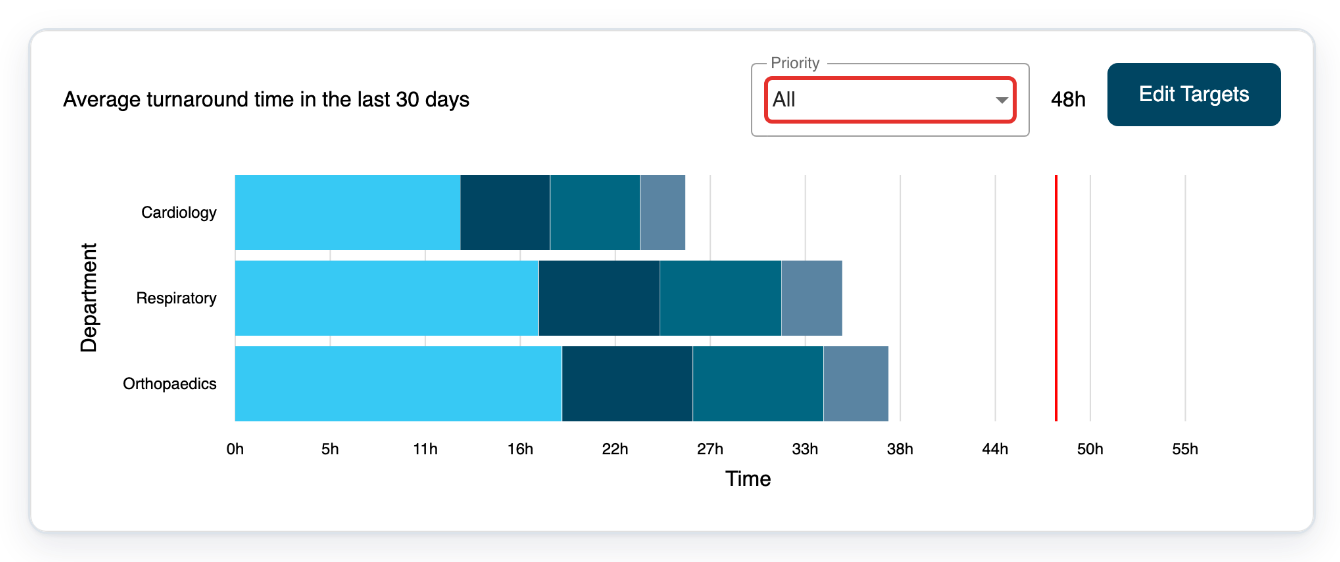
Scroll to Average turnaround time in the last 30 days and open Priority.
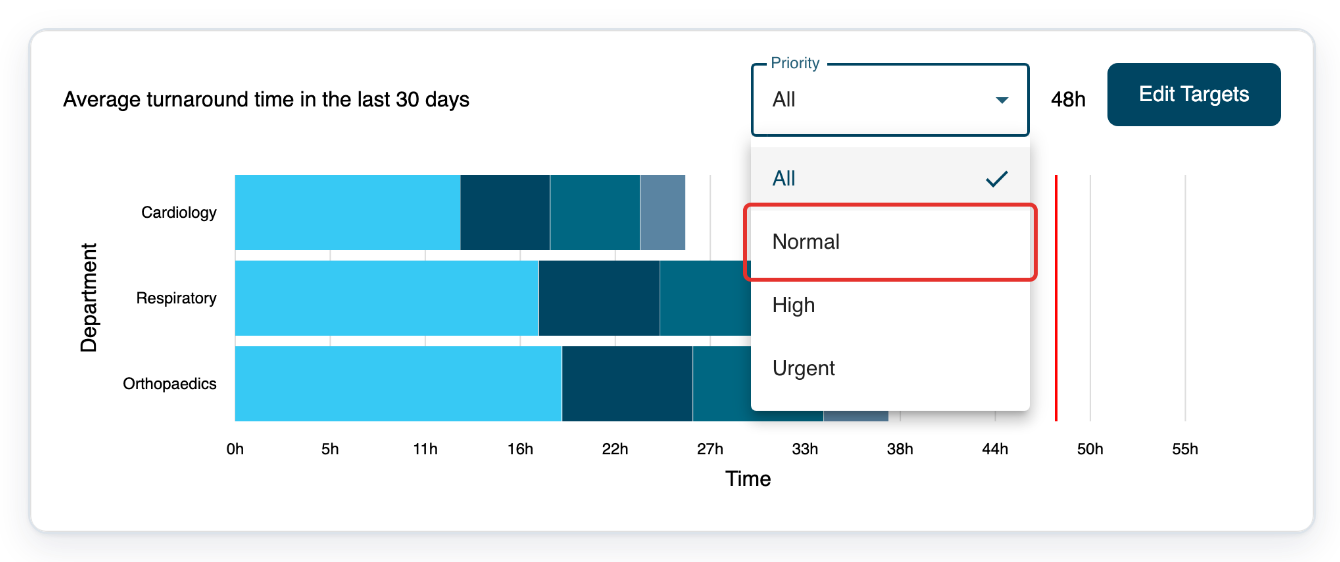
The menu offers All, Normal, High and Urgent. Choose a priority to focus on those tasks.
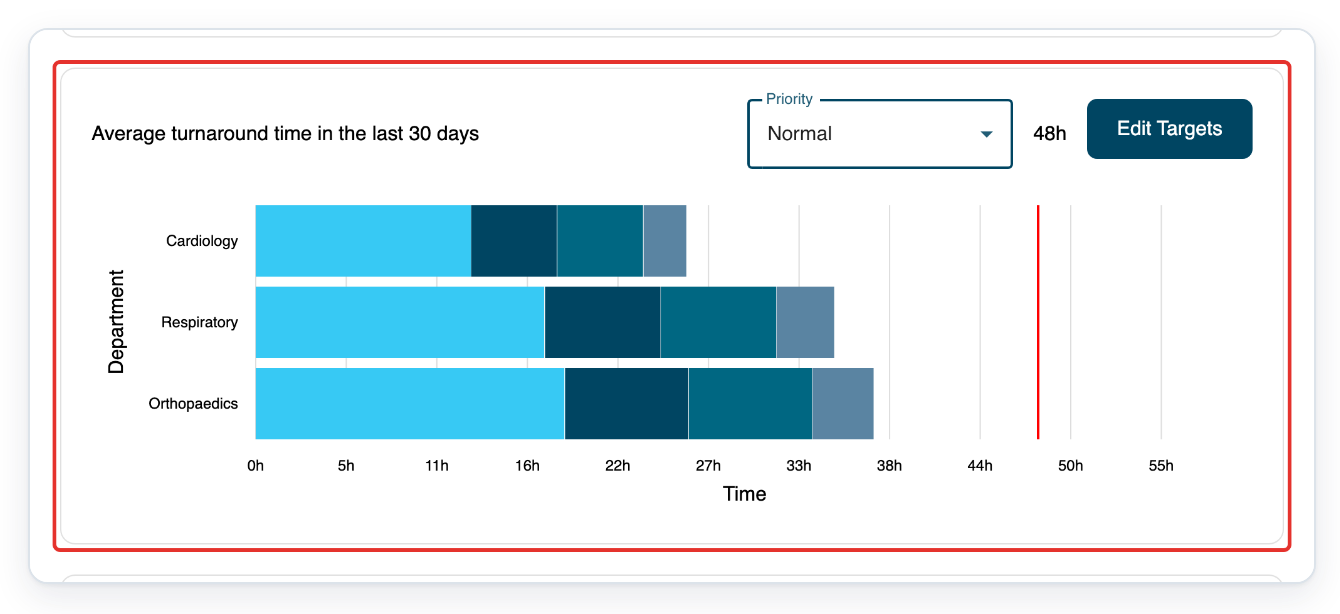
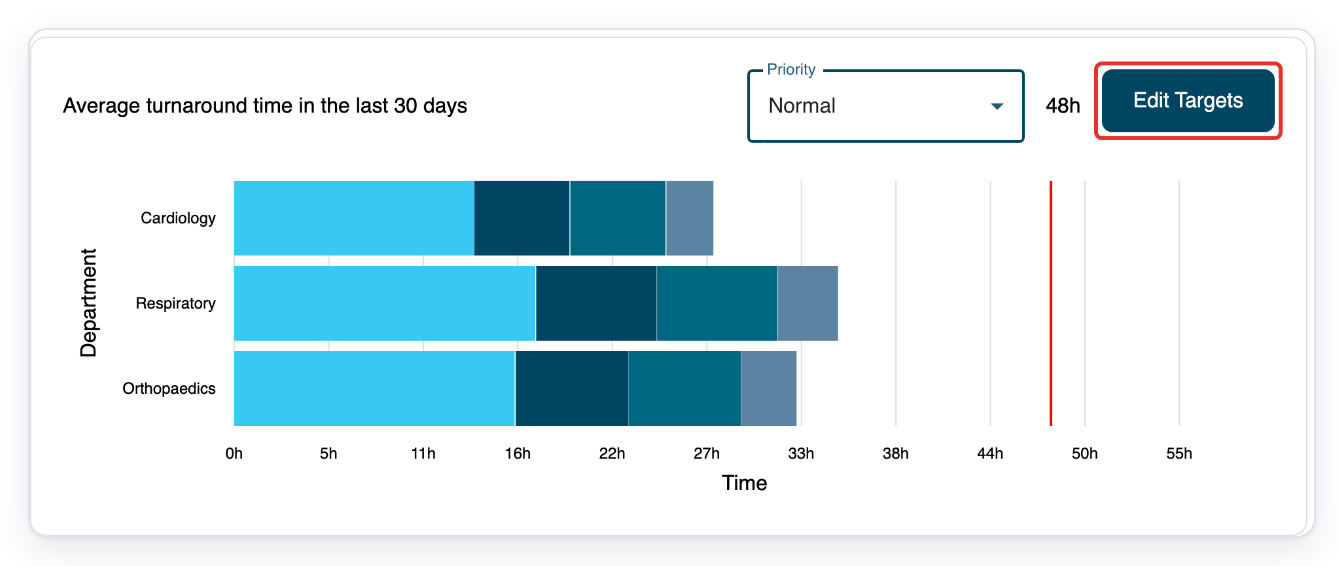
Choose Normal to view tasks with normal priority and their turnaround target.
=> Read the target in hours beside Priority. When department bars appear, they show time spent in transcription, processing, approval and storing. A vertical line marks the target.
=> Further down, Authors with tasks to approve (last 12 months) shows authors’ names and task counts. For transcribers’ names and task counts, see Transcriber with work in progress (last 12 months).
Scroll back to the turnaround chart and click Edit Targets to view your facility's targets.
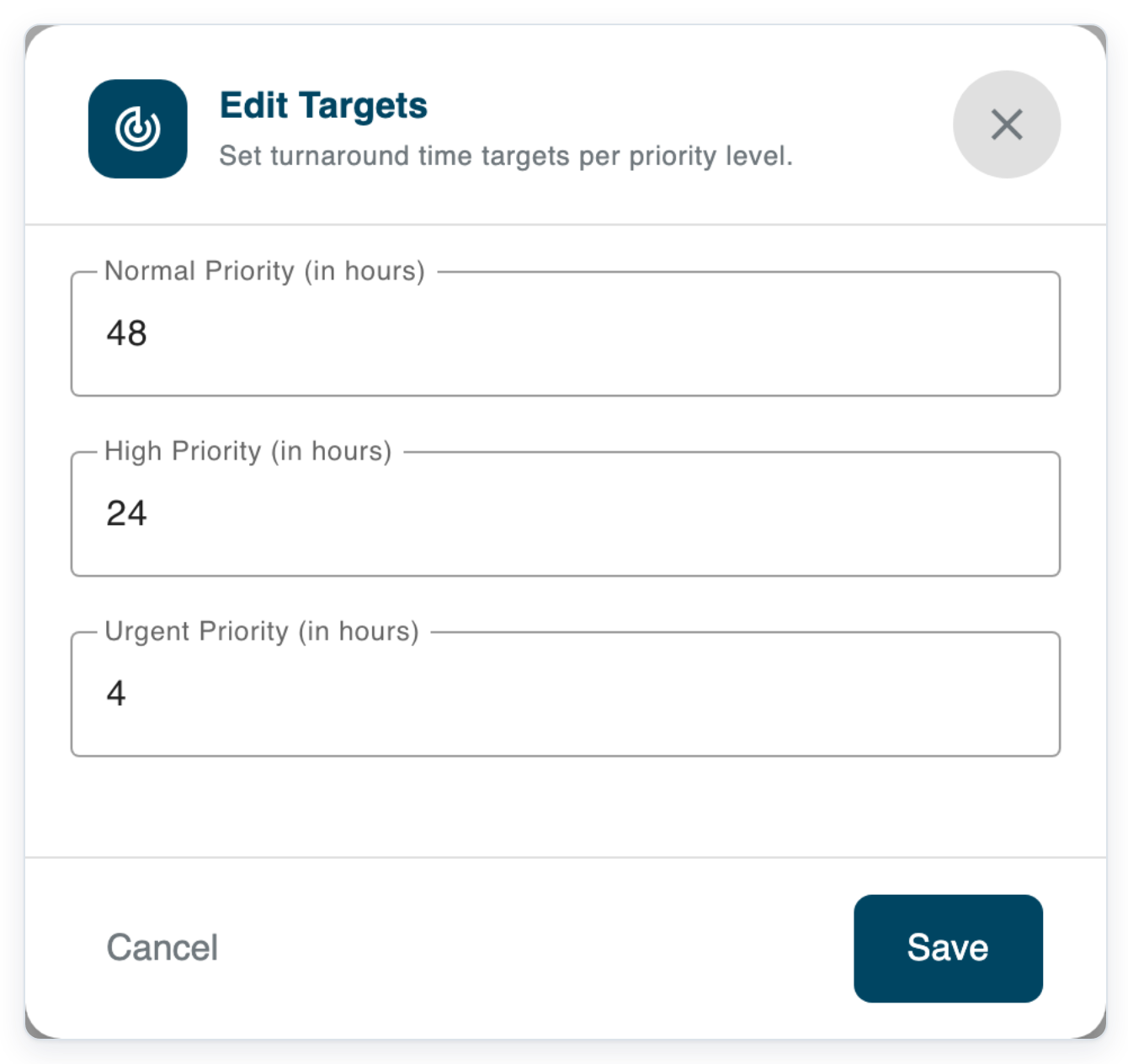
Each priority has its own target.
=> The dialog shows Normal Priority, High Priority and Urgent Priority in hours. Save and Cancel are at the bottom.
NOTE:
- Workload totals cover several task stages, so some tasks count towards more than one total. For example, storing in progress counts towards both Work in Progress and Storing. The pending charts count only tasks waiting for transcription.
- Each staff list shows up to six people, with the largest task counts first. The counts cover outstanding tasks created in the last 12 months.
- Both Total pending tasks and Pending tasks by department count only tasks waiting for transcription. The Pending Tasks card also includes new tasks, speech recognition and waiting for editing, so the figures can differ.
What the workload totals include
The table below shows which task stages count towards each total.
| Workload total | What it includes |
|---|---|
| Pending Tasks | New tasks, tasks in speech recognition, tasks waiting for transcription and tasks waiting for editing. |
| Work in Progress | Transcription, editing, review, processing and storing in progress. |
| Processing | Tasks waiting for processing and processing in progress. |
| Waiting for Approval | Tasks waiting for first or second approval. |
| Storing | Tasks waiting for storing and storing in progress. |
Tip: With All selected, the turnaround chart uses the normal-priority target.
Can't view your facility overview?
- If Organisations is unavailable, ask your administrator to check your master account and facility access.
- If you see “No organisations found”, click the cross in Search to clear your search. Click the funnel icon to open the filter panel, then clear the filters. If your facility is still missing, ask your administrator to check your access.
- If the monthly volume chart is missing, contact our Helpdesk.
- If the turnaround chart is blank, contact our Helpdesk. Ask for a breakdown of transcription, processing, approval and storing times.
Related articles
If you have any more queries, please do not hesitate to contact our Helpdesk or support@tpro.io.
© 2020 - 2026