
During a consultation recording
The Notes panel has been replaced with a permanent sidebar on the right-hand side of the recording screen. The sidebar has two tabs: Context and Transcript.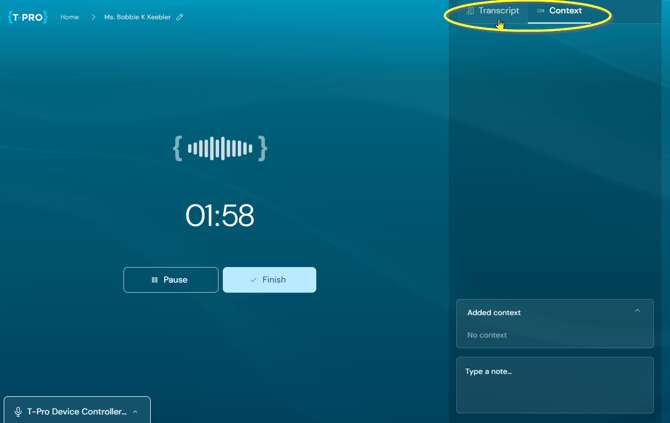
=> the sidebar is always visible
Context tab
The Context tab is selected by default when a consultation starts (or is resumed). Use the Context section for personal notes, e.g. thoughts and observations you do not want to share with the patient.
- The cursor is already placed in the note field, so you can start typing right away
- Type your note into the input field - it expands if your note needs more space
- Press Enter to save the note
=> the note appears under Added context (the most recent note at the bottom)
- Click the arrow on Added context to collapse or expand the list of saved notes
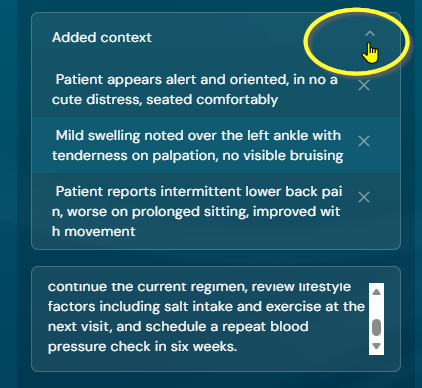
- Longer notes produce a scroll bar
- To remove a note, click the X next to it; it will be deleted
- If no context notes have been added yet, "No content" is shown instead
- Context notes do not carry a timestamp.
You can add, save, and remove context notes at any point during recording, without pausing or losing the ongoing consultation.
=> Notes are included when generating the document(s) and appear in the relevant place and context.
Transcript tab
Move to the Transcript section.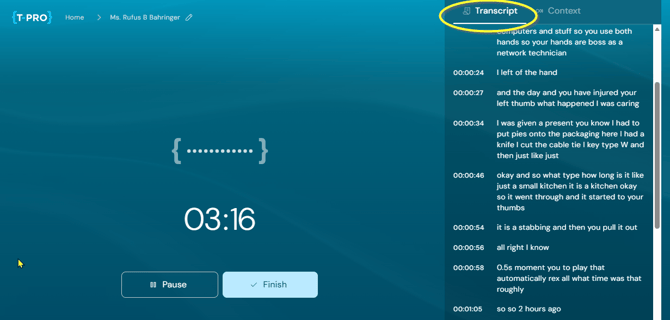
- Available as soon as the consultation starts (before that, the tab is visible but cannot be selected)
- Shows the live transcript as it's generated, with a timestamp for each entry
- Text is shown as first captured, then automatically corrected as the transcription is refined
- Entries are listed in chronological order, oldest at the top
- Use the scroll bar within the sidebar to view other parts of the transcript
Switching between Context and Transcript does not pause or interrupt the recording.
In your generated documents
Once documents have been generated, the same sidebar appears alongside the document editor. Context and Transcript tabs each show their own icons.
The sidebar is collapsed by default the first time you open a document.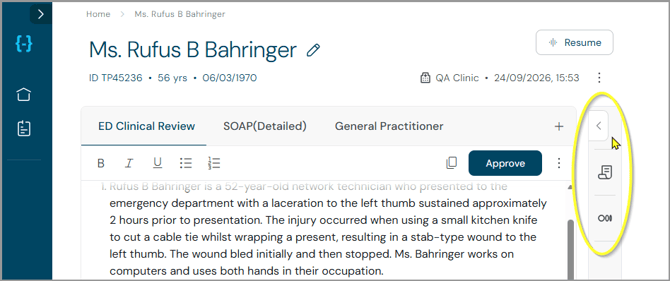
Click on the small arrow to open the sidebar.
=> It opens on the transcript tab by default the first time you open a document. After that, it opens on whichever tab was last active.
Or click directly on the Transcript or Context icon on the collapsed panel to expand straight to that tab.
Transcript tab
- Shows the consultation transcript exactly as during recording, with timestamps, listed oldest first
- Search the transcript for a certain keyword with the browser search function
Ctrl + F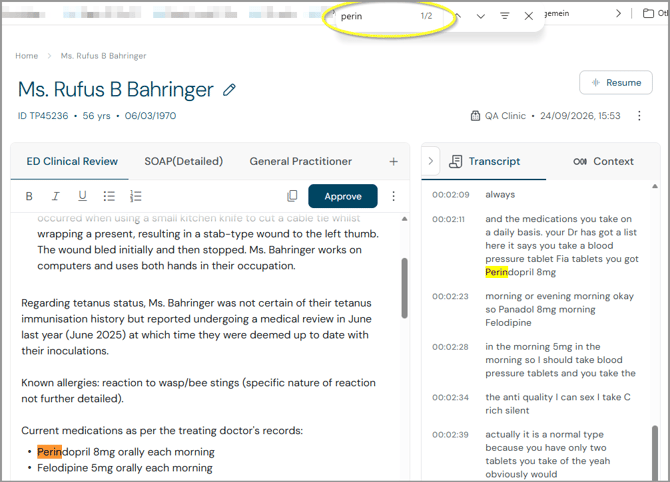
-
Transcript content remains read-only from this view
To add transcript content, you need to Resume this encounter (see How Can I Resume a Consultation).
=> Once you finish the resumed consultation, the new transcript content appears in the sidebar alongside what was already there, with no duplicates.
-
This sidebar is also available for documents generated before this feature was introduced - existing context and transcript content is shown automatically, without needing to resume or regenerate the encounter.
- Scrolling the sidebar does not affect the document editor, and switching tabs does not change the generated document.
Context tab
Move to the Context tab (1) and view your previous notes or add new ones (2).
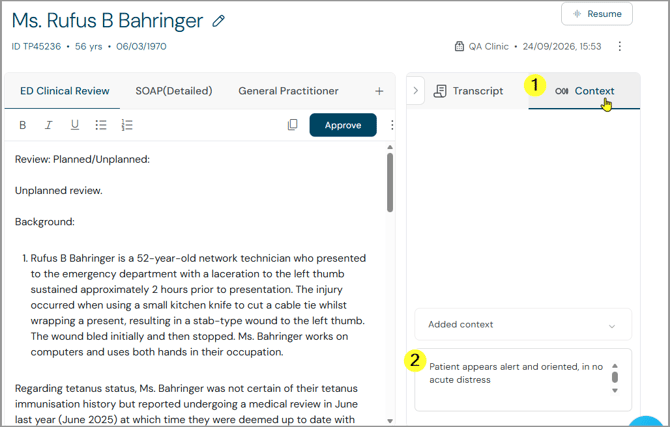
- Add a new note directly from here: type it into the input field and press Enter, the same way as during a consultation
- To remove a note, click the X next to it - this works the same whether the note was added during the consultation or in the document section
- If no context notes exist, "No content added" is shown instead
Out of sync
Adding or removing a context note after documents have been generated marks those documents as out of sync with the latest context: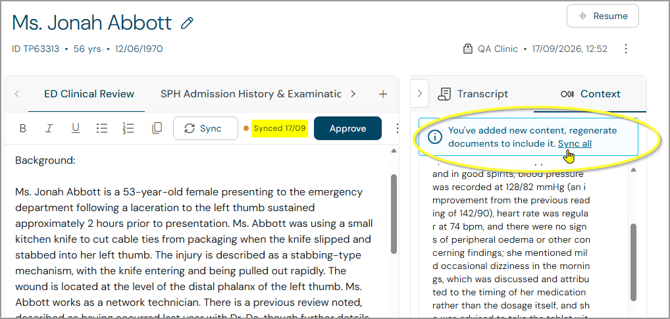
- Each affected document shows the existing out-of-sync indicator, with its own Sync button
=> Using Sync regenerates that one document using the latest context; existing regeneration success/failure behaviour applies, and the out-of-sync indicator is removed once it succeeds - If only some documents are regenerated, the remaining out-of-sync ones keep their indicator and the banner stays visible; once every affected document has been regenerated, the indicators and banner disappear
- If more than one document has been generated, a blue banner appears in the Context panel, along with a Sync all action
=> Sync all triggers the existing regenerate-all-documents flow, with the usual confirmation step and warning about existing edits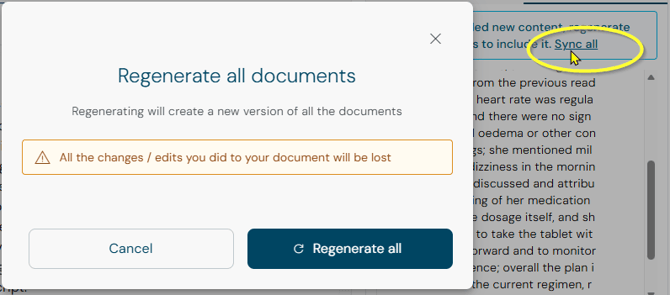
- This reuses the existing regeneration flow and eligibility rules - there's no separate process for context changes
If you have any more queries, please do not hesitate to contact our Helpdesk or
support@tpro.io.
© 2026