
Templates in Scribe Web are now called Blueprints in all cases. This replaces the previous Default templates and AI blueprints tabs, and every blueprint is now labelled by where it comes from:
- Organisation blueprint - provided by your organisation
- Personal blueprint - created by you
Selecting blueprints
The blueprint selection screen appears whenever you generate documents for the first time, generate from an uploaded document, or add new documents.
The screen is titled Select blueprints.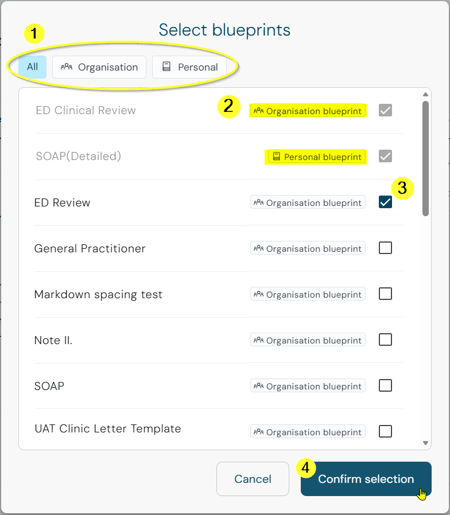
- Use the tabs All, Personal, or Organisation to filter the list to blueprints from one source.
- Each blueprint in the list shows a tag - Organisation blueprint or Personal blueprint - so you can see its origin at a glance.
- Select one or more blueprints.
- Click Confirm selection.
Adding a blueprint
The greyed out tick box (see the above screen) indicates previously created documents; therefore they cannot be selected again.
You get the above selection screen in the following scenario: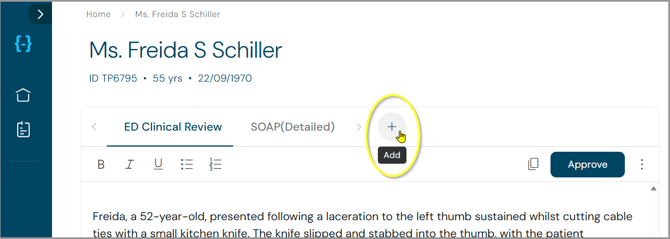
- Two documents were already created
- You click on the plus icon to add more documents
The button is labelled Add (previously Add new template).
After resuming a consultation
The workflow to update existing documents after resuming a consultation remains the same.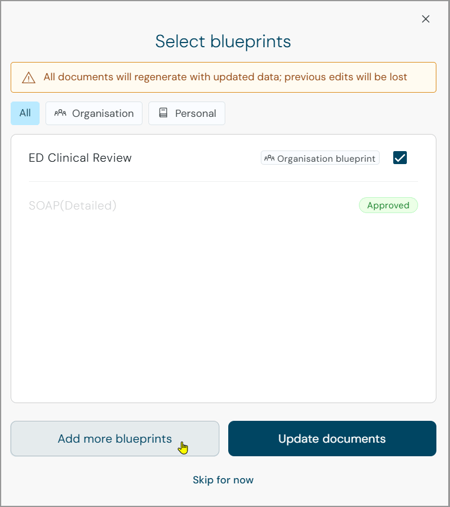
- The screen displays the previous blueprints selection.
Including Approved documents - Organisation and Personal labelling are displayed
- Use Add more blueprints to add an additional blueprint to the document
- The option Skip for now remains unchanged
Blueprints in Settings
Under Settings, the tab is now called Blueprints & styles (previously called Templates).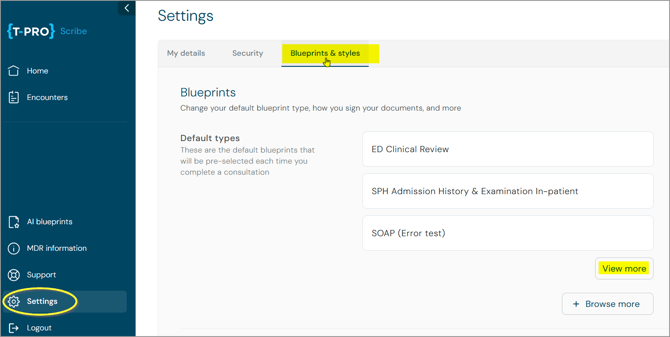
- This is where you set up your default document / blueprint types
- Up to three of your default blueprints are shown by default
- Use the option View more to expand the full list
If you have any more queries, please do not hesitate to contact our Helpdesk or
support@tpro.io.
© 2026