
User scenario
You are in an online call and Scribe is actively recording the session.
When you use a headset, earphones, or ear buds only your own speech would be captured when using the ambient recording.
Solution
The installation of T-Pro's device controller enables Scribe to capture the system audio of your Microsoft Windows pc. The speech of all participants in your online meeting will be recorded as well as your microphone audio and can be processed for document generation.
Requirements
• Usage of a MS Windows pc
• T-Pro Device Controller 1.3.6 and higher is installed & running
• Headset / earphones usage
Supported connections:
• USB+
• Bluetooth+
• Audio 3.5+
Compatible with:
• MS Teams
• Zoom
• Slack
• Google Meet
• WhatsApp Web
• OneConsultation
• Webex
• eCM and more...
Device Controller Installation
This is typically be done by your IT department for the entire organisation.
Or you could download the latest version below:
Follow the installer setup process.
=> Once the installation is completed the app is actively running in the background.
No further action is required.
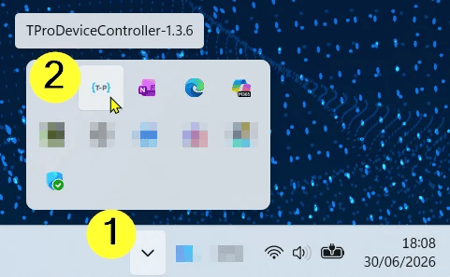
You can check the application in the system tray.
With a right-click on the T-Pro icon in the system tray you can Restart or Exit the app. When you exit the app it disappears from the system tray.
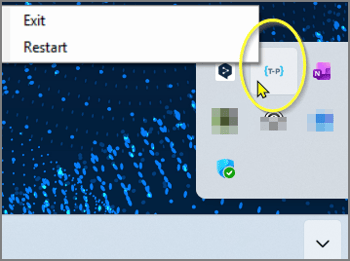
NOTE: When you exit the Device Controller the capturing of the system sound within a Scribe consultation does not work anymore.
To activate the Device Controller on your pc again, search for the app in your Windows Search bar.
Click on the app to activate it; it will be displayed again in your system tray.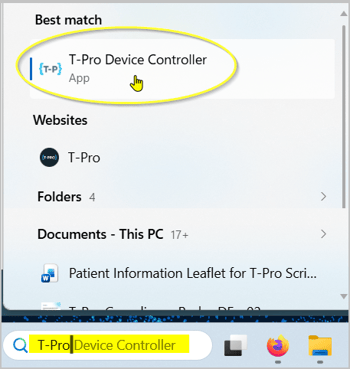
Device Controller in Scribe
When you have a headset connected and start a Scribe consultation on the same pc, Scribe automatically detects this.
The T-Pro Device Controller Audio will show as the default microphone setting (no action needed).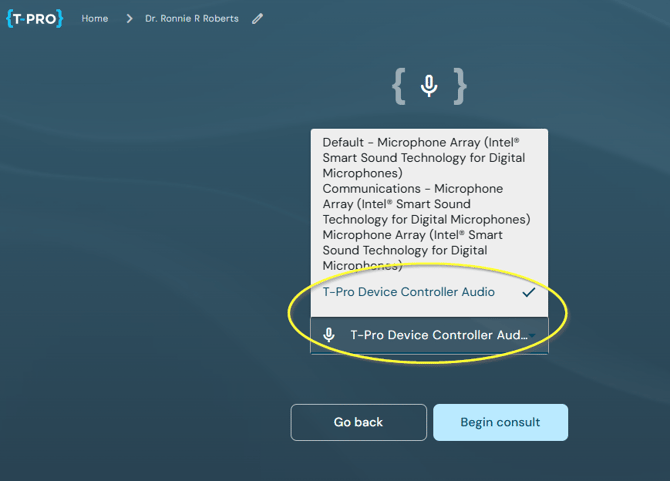
=> You can now begin your consultation (and your online call).
As usual, at the end of your call you click on Finish and follow the normal Scribe workflow of document selection and generation.
NOTE: In case the headset will be disconnected during an online call, Scribe automatically switches over to the next available microphone option (e.g. internal if you have no external microphone attached) and continues capturing only the ambient input.
It falls back to capturing the online audio as soon as the headset will be reconnected.
If you have any more queries, please do not hesitate to contact our Helpdesk or support@tpro.io.
© 2026