
Before you start
You need an appointment invitation from your healthcare provider and an internet connection. Use a phone or computer with a camera and microphone.
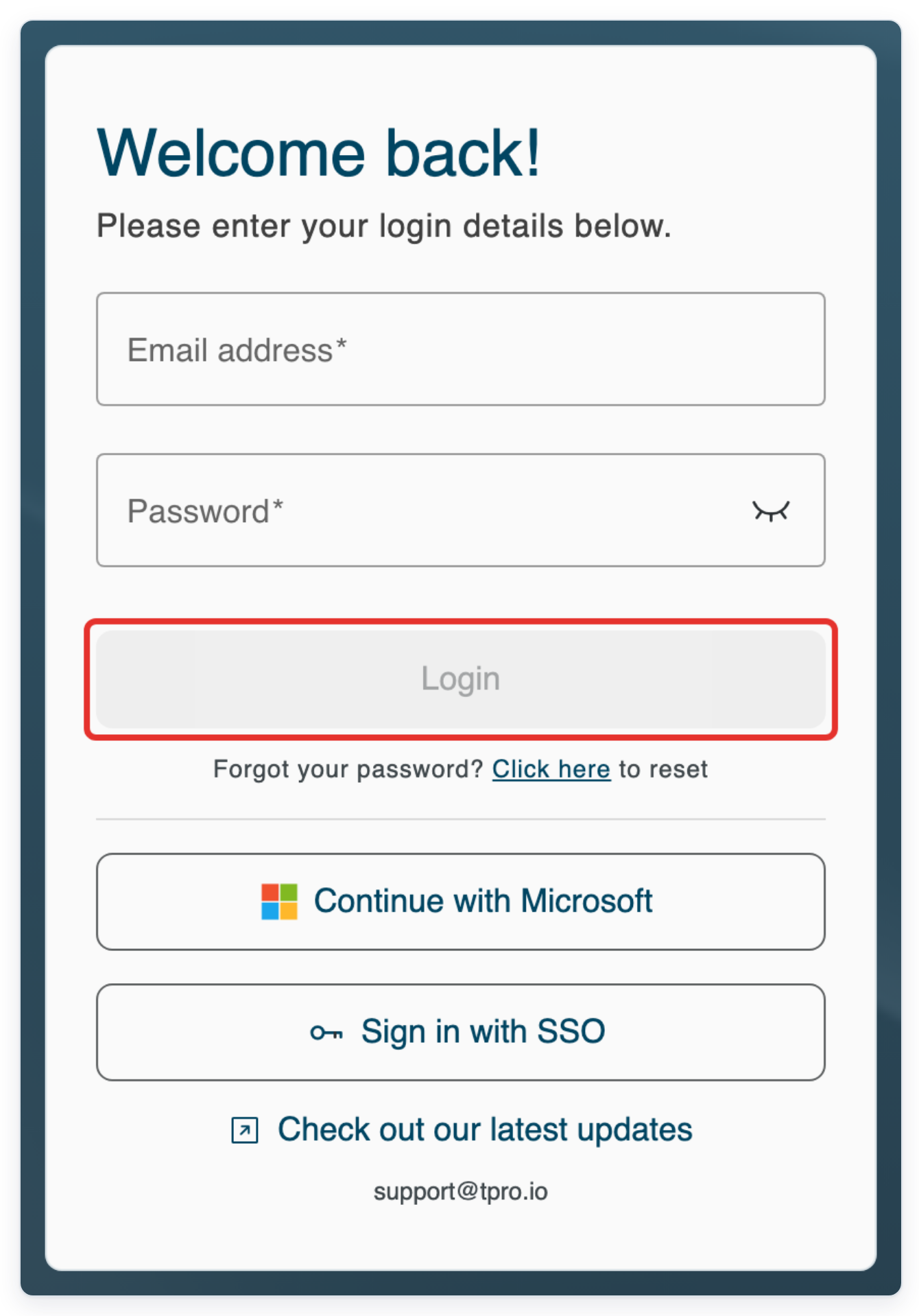
Log in to T-Pro with your patient credentials.
If you have an email or SMS invitation, skip sign-in and open the link in your invitation. You don't need a T-Pro account to join this way.
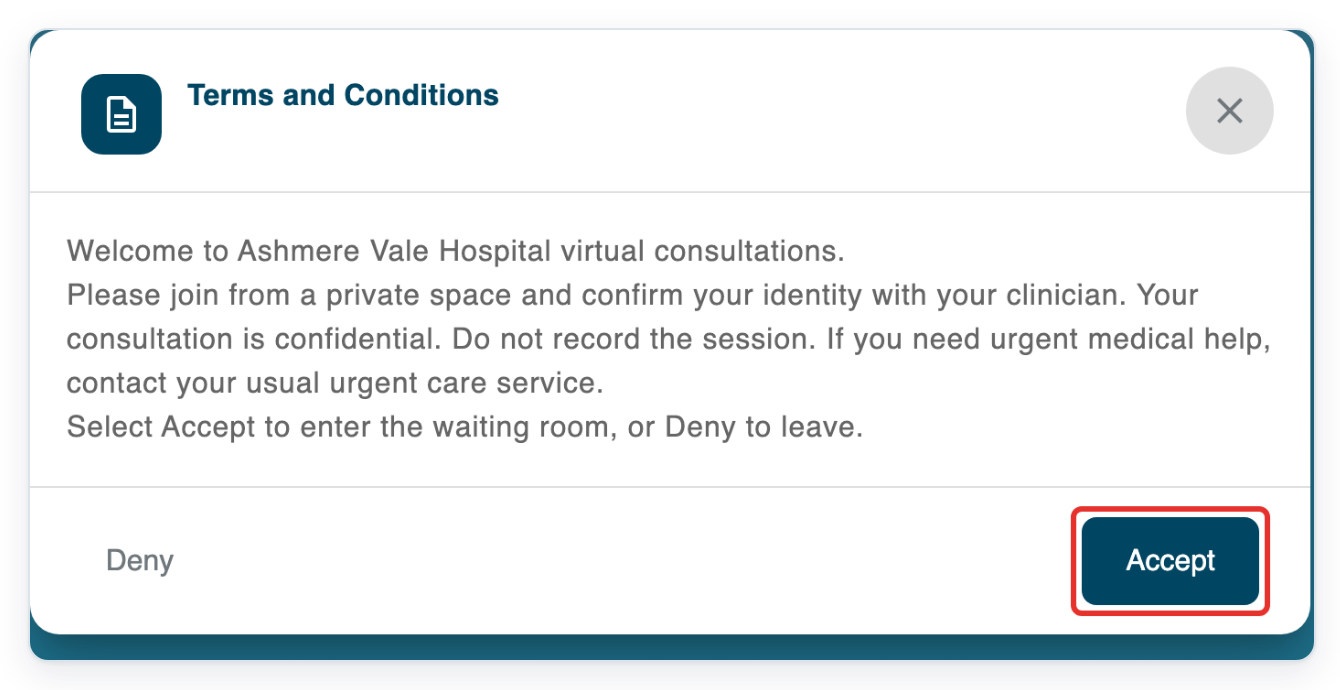
Read the Terms and Conditions on the invitation page, then click Accept.
Your healthcare provider sets these terms, so they may differ from the example. If you don't agree, click Deny.
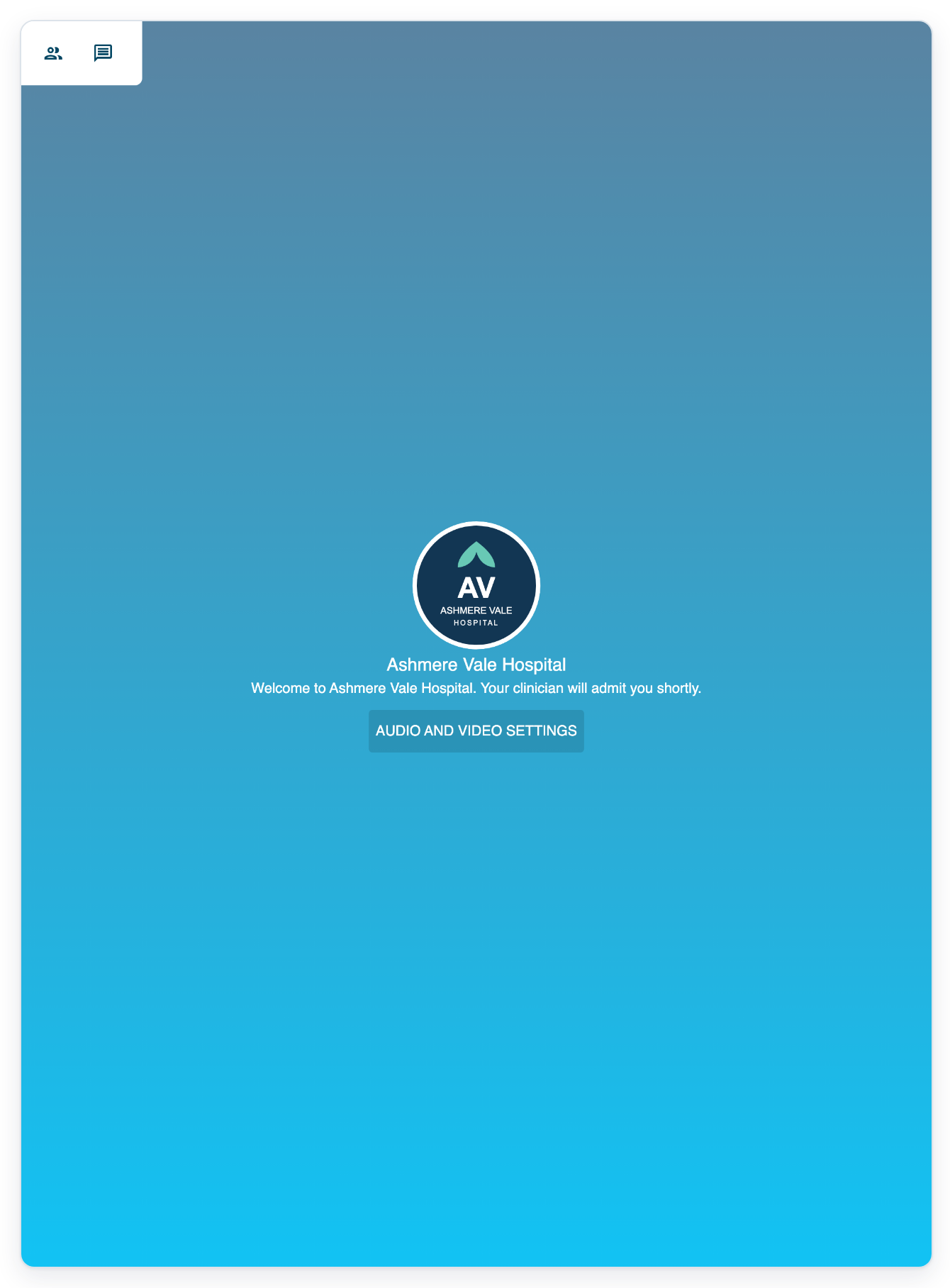
=> You enter the waiting room. Your healthcare provider's welcome message appears while you wait for your clinician.
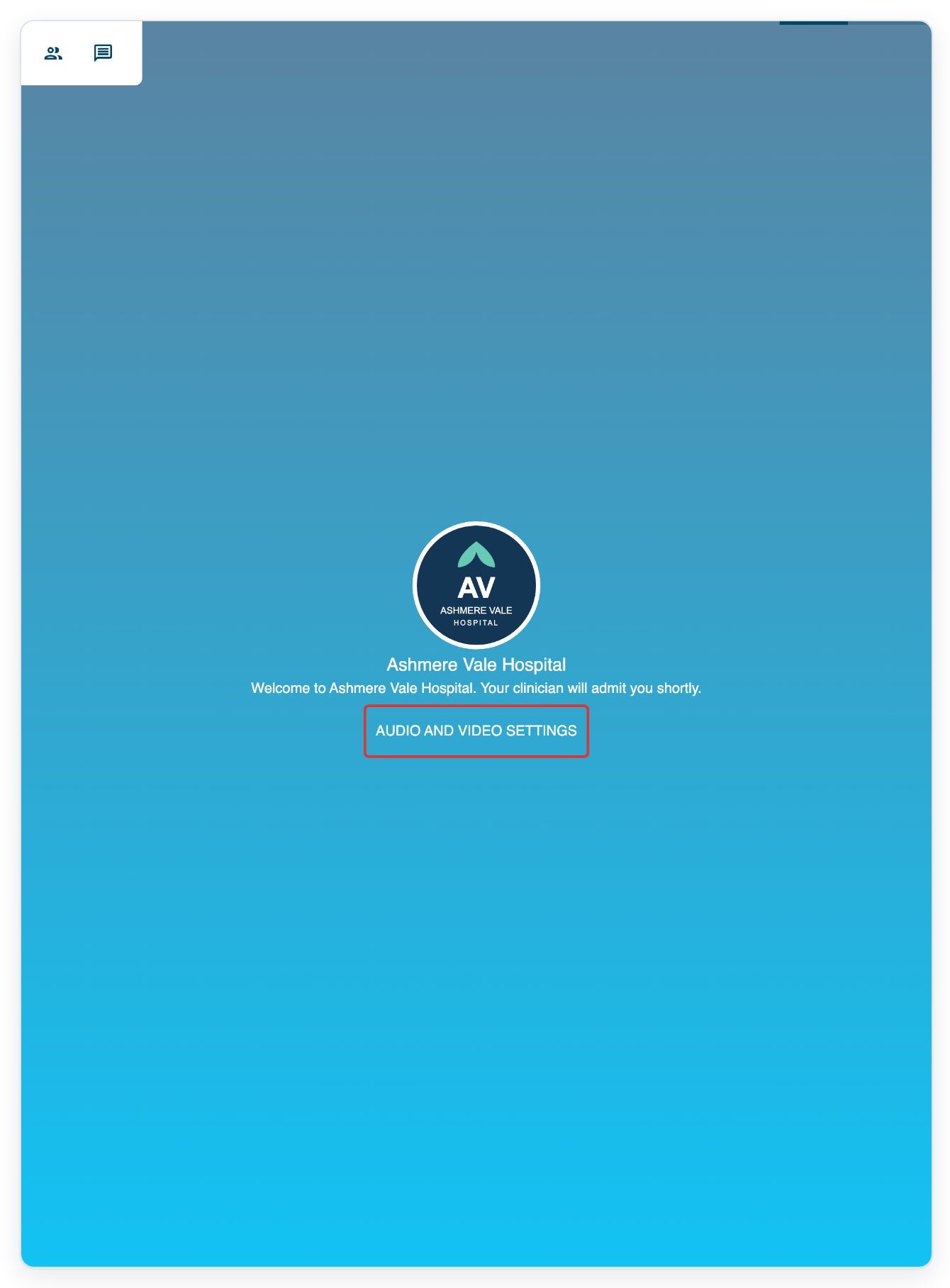
Click audio and video settings in the waiting room to choose the devices for your appointment.
Check your camera preview before your clinician lets you into the appointment.
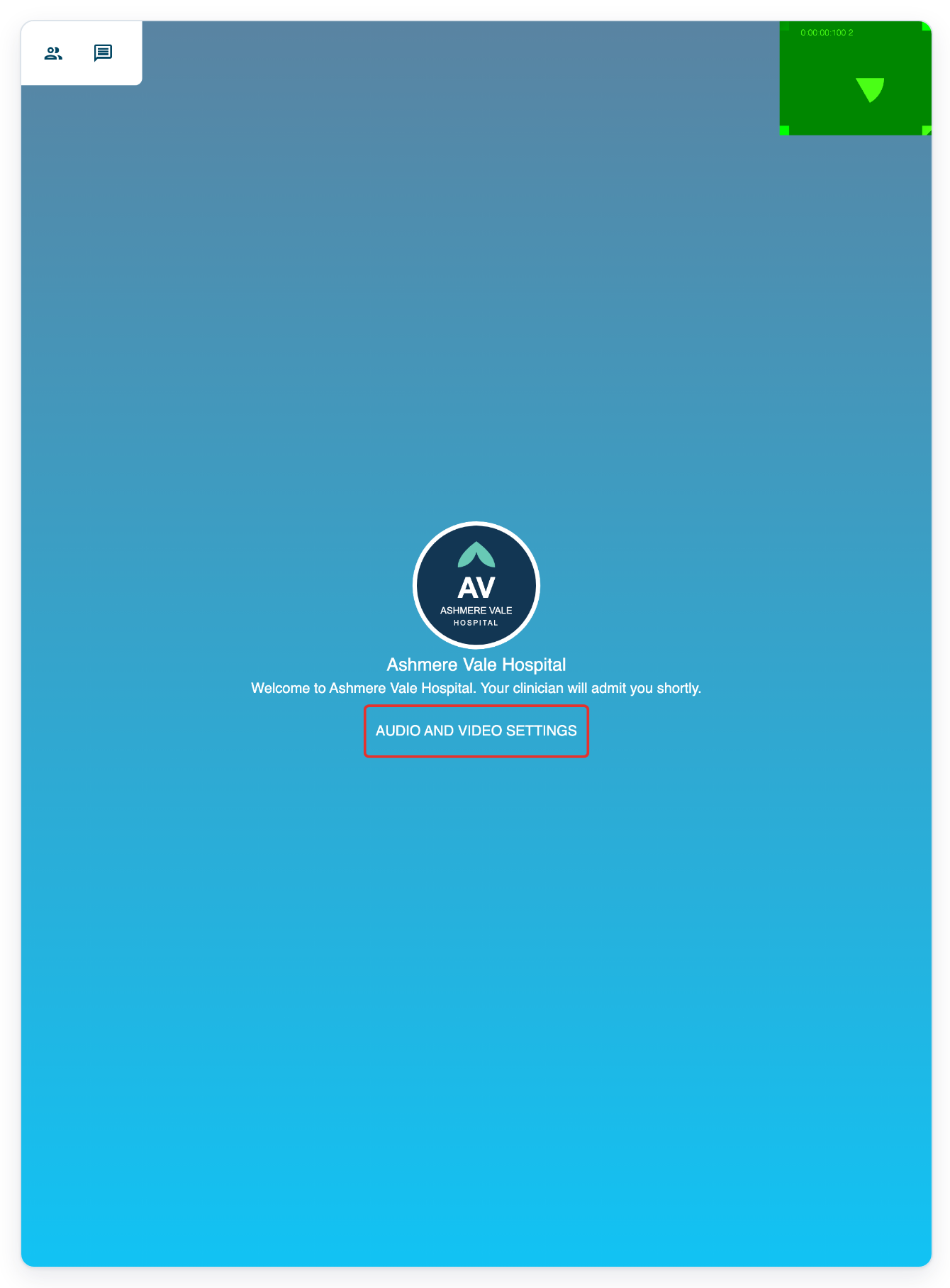
=> Settings opens with a camera preview and the Camera, Microphone and Speaker choices.
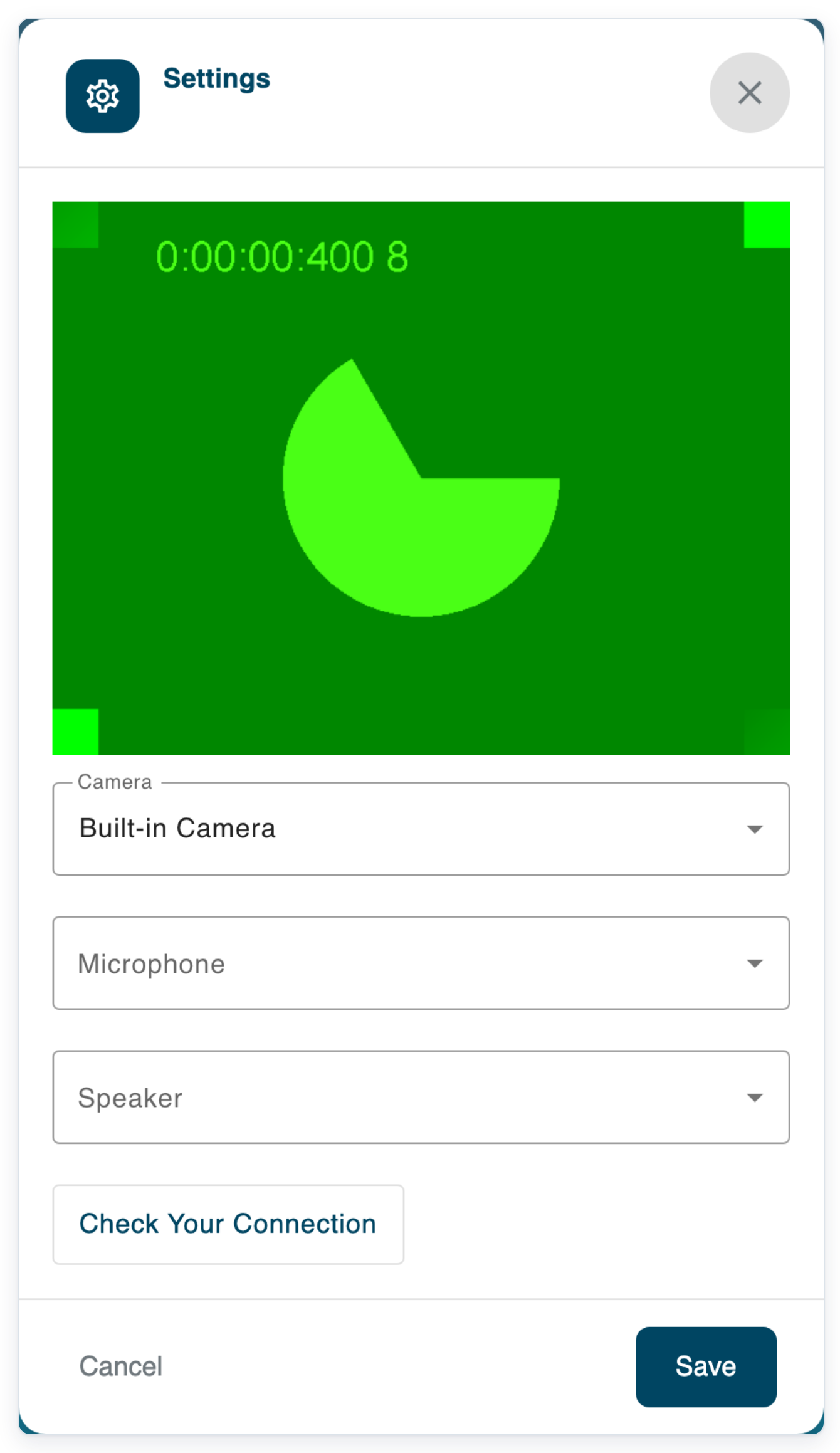
Open Microphone to see the available microphones.
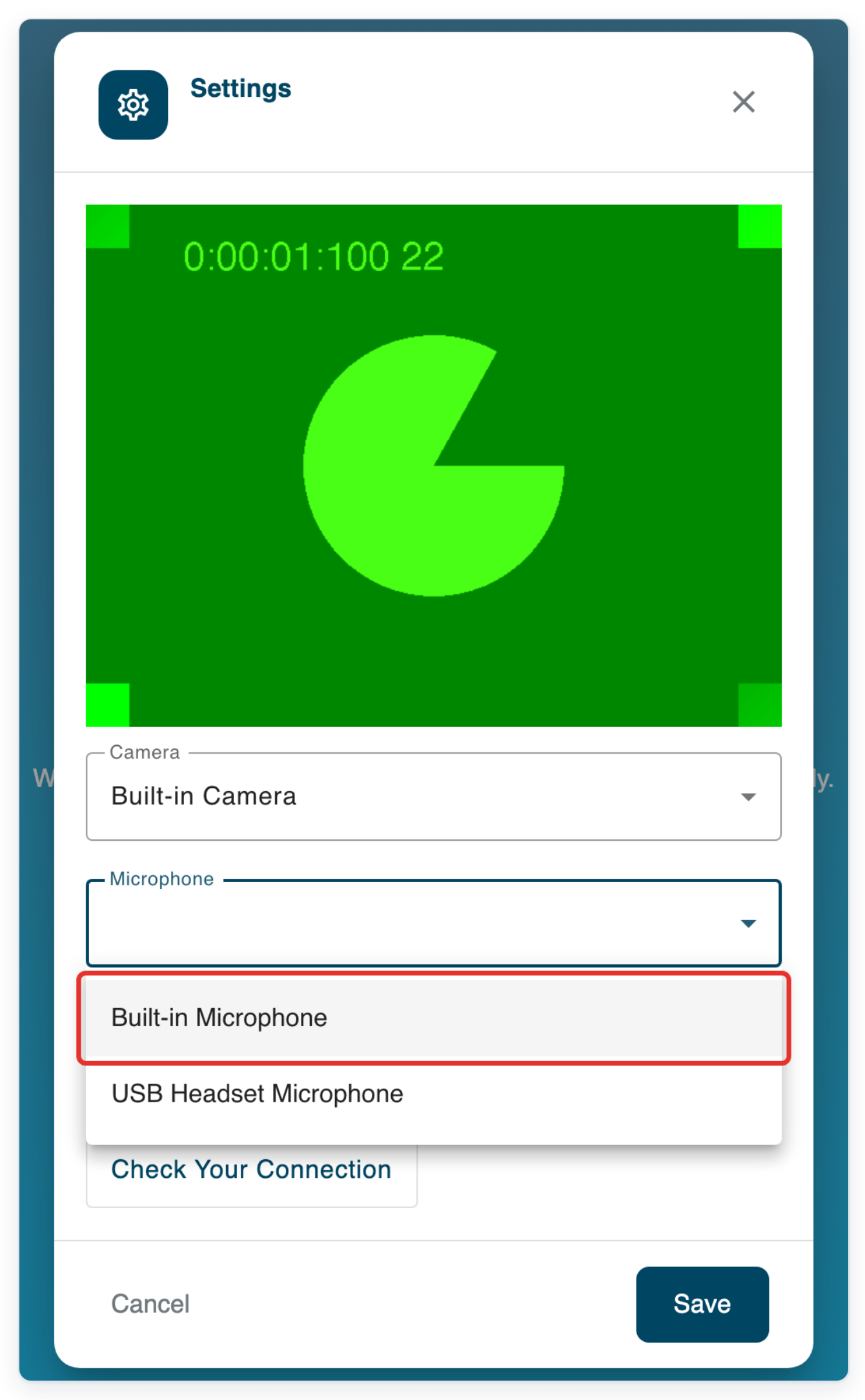
You may see options such as your device's built-in microphone or a headset microphone.
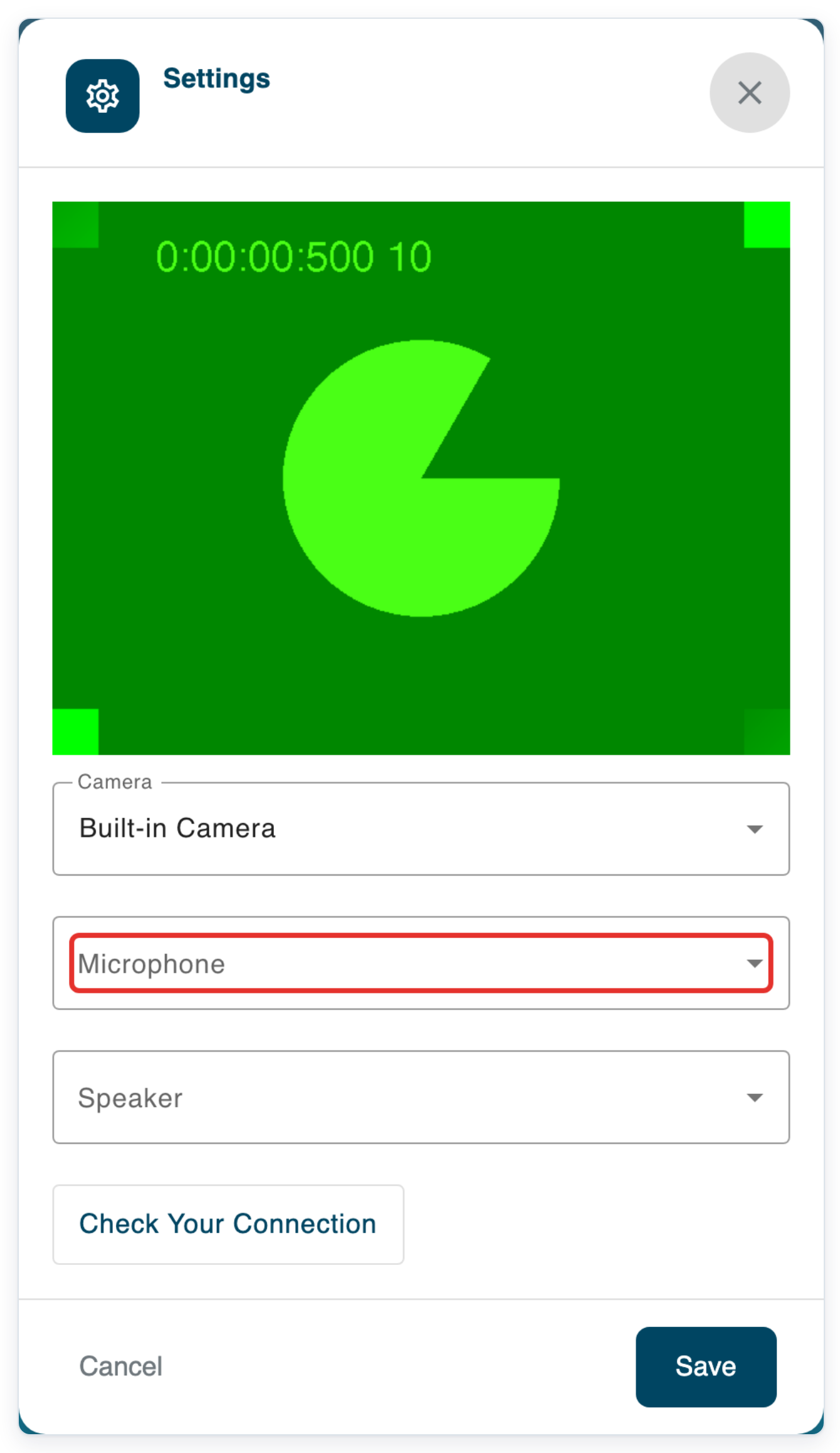
For this example, choose Built-in Microphone.
This is the computer's own microphone. To use a headset, choose its microphone from the list instead.
Click Save to keep your device choices and return to the waiting room.
Before saving, you can also choose your Camera and Speaker here.
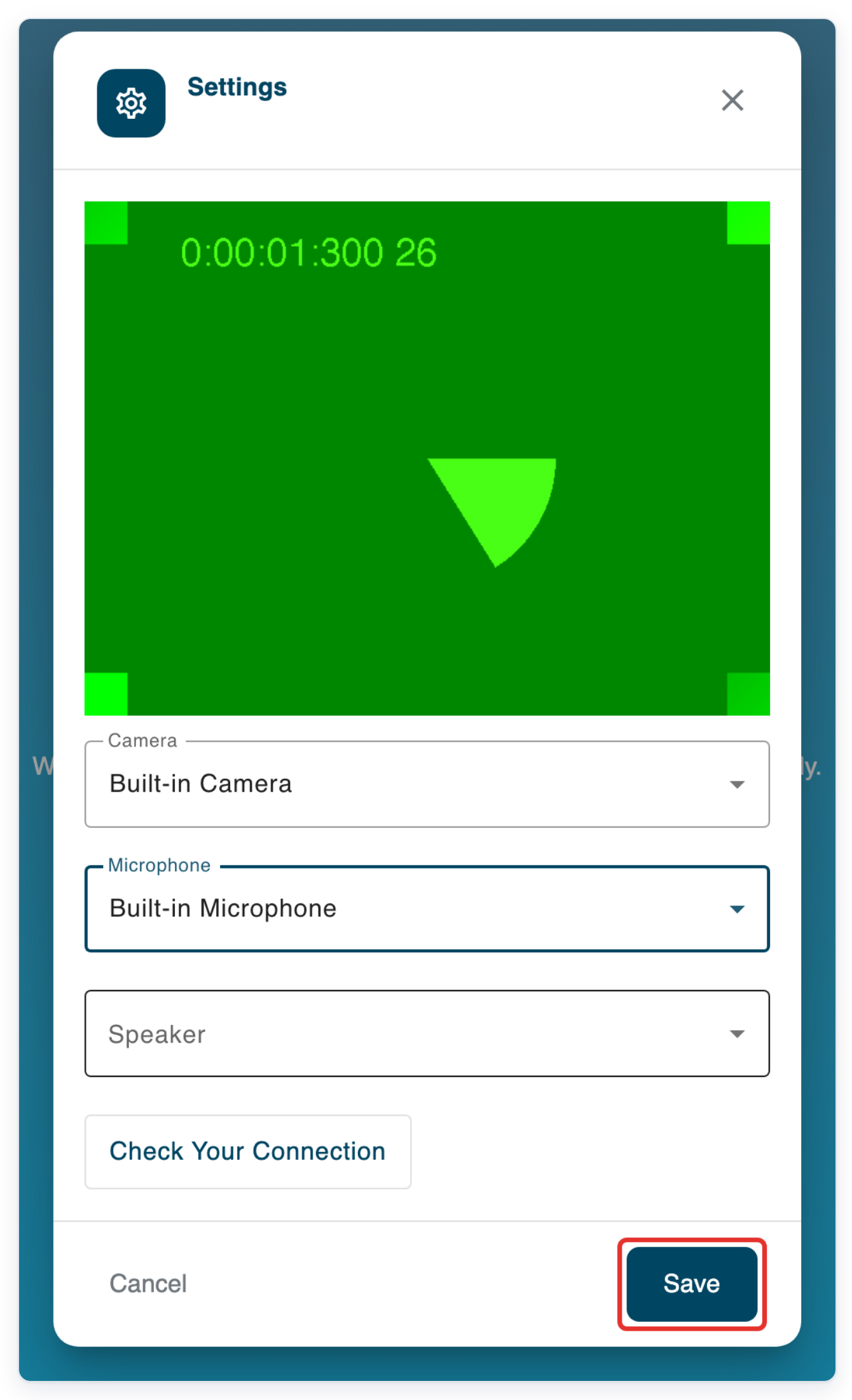
=> You return to the waiting room, where your healthcare provider's welcome message appears. Keep the page open until your clinician lets you into the appointment.
NOTE:
- Keep your original email or SMS invitation. Use its link to return to your appointment without signing in.
- Allow your browser to use your camera and microphone when asked. You need to allow microphone access to enter the waiting room.
- If your clinician asks to take a photo with your camera, T-Pro asks for your permission. Get into position and stay still before you agree.
Your audio and video settings
Choose which camera, microphone and speakers to use for your appointment.
| Setting | What it controls |
|---|---|
| Camera | Sets the camera for your video. The preview shows what your chosen camera sees. |
| Microphone | Sets the microphone that picks up your voice, such as your built-in microphone or headset. |
| Speaker | Sets the speakers or headphones you use to hear others during your appointment. |
Tip: Click Check Your Connection in Settings before your appointment. It checks whether your connection can reach the video service.
Can't access your online appointment?
- If your invitation hasn't arrived, ask your healthcare provider to send it again from their appointment list.
- If you open the invitation too early, try again in the 15 minutes before your appointment starts.
- If you declined the terms earlier, open your original invitation link again. Read the Terms and Conditions, then click Accept to continue.
- If T-Pro shows “Access to microphone was denied”, allow microphone access in your browser. Then open your invitation link again.
- If T-Pro shows “Unable to access camera”, check your browser's camera permission. Open Settings and check your Camera choice.
- If T-Pro shows “This browser is not supported by eCM”, open your invitation link in Chrome.
Related articles
If you have any more queries, please do not hesitate to contact our Helpdesk or support@tpro.io.
© 2020 - 2026