
Before you start
You need permission to edit the task. To add or delete files or change Include, use an unfinished task.
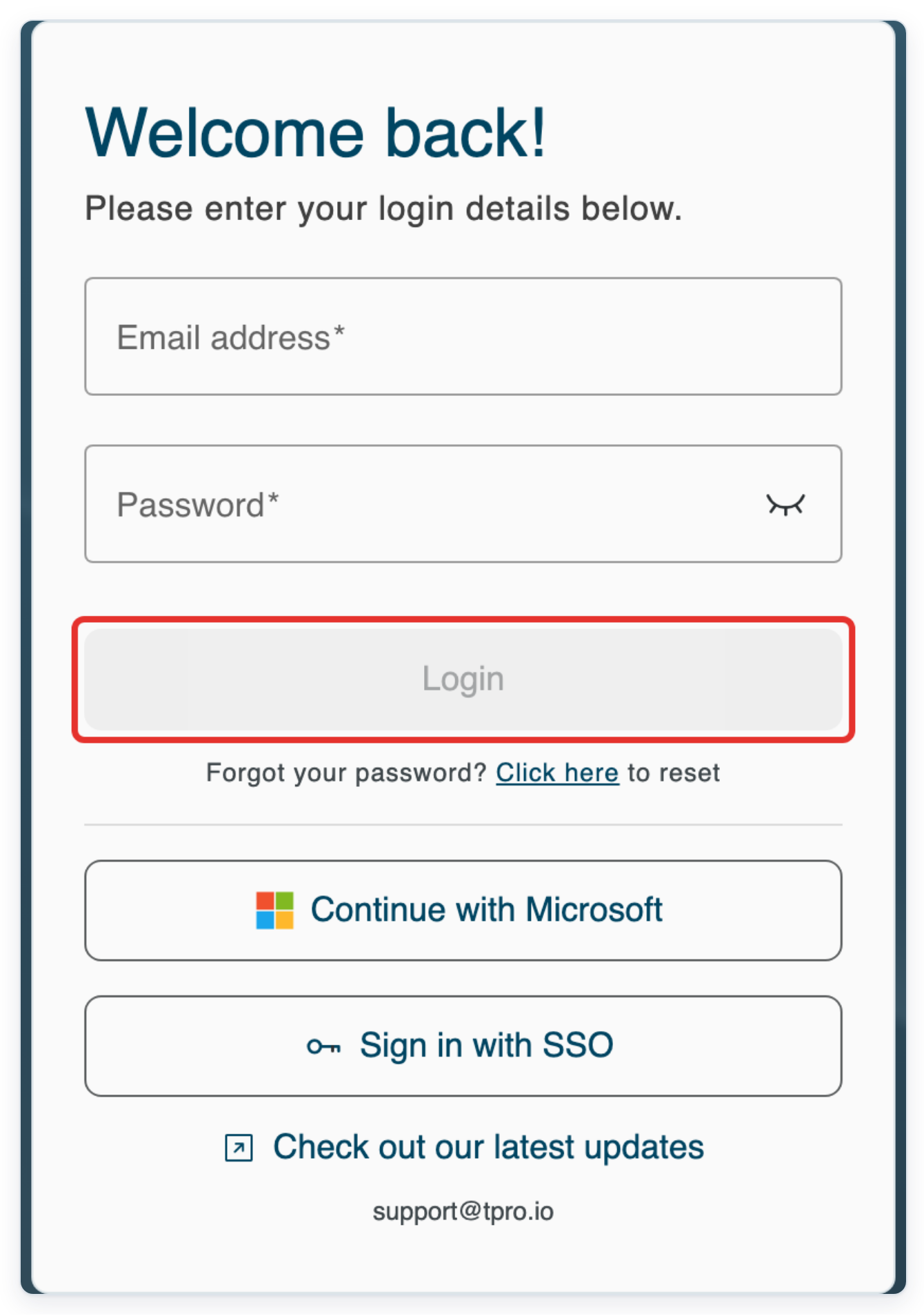
Log in to T-Pro with your transcriber credentials.
Enter your Email address and Password, then click Login.
As a transcriber
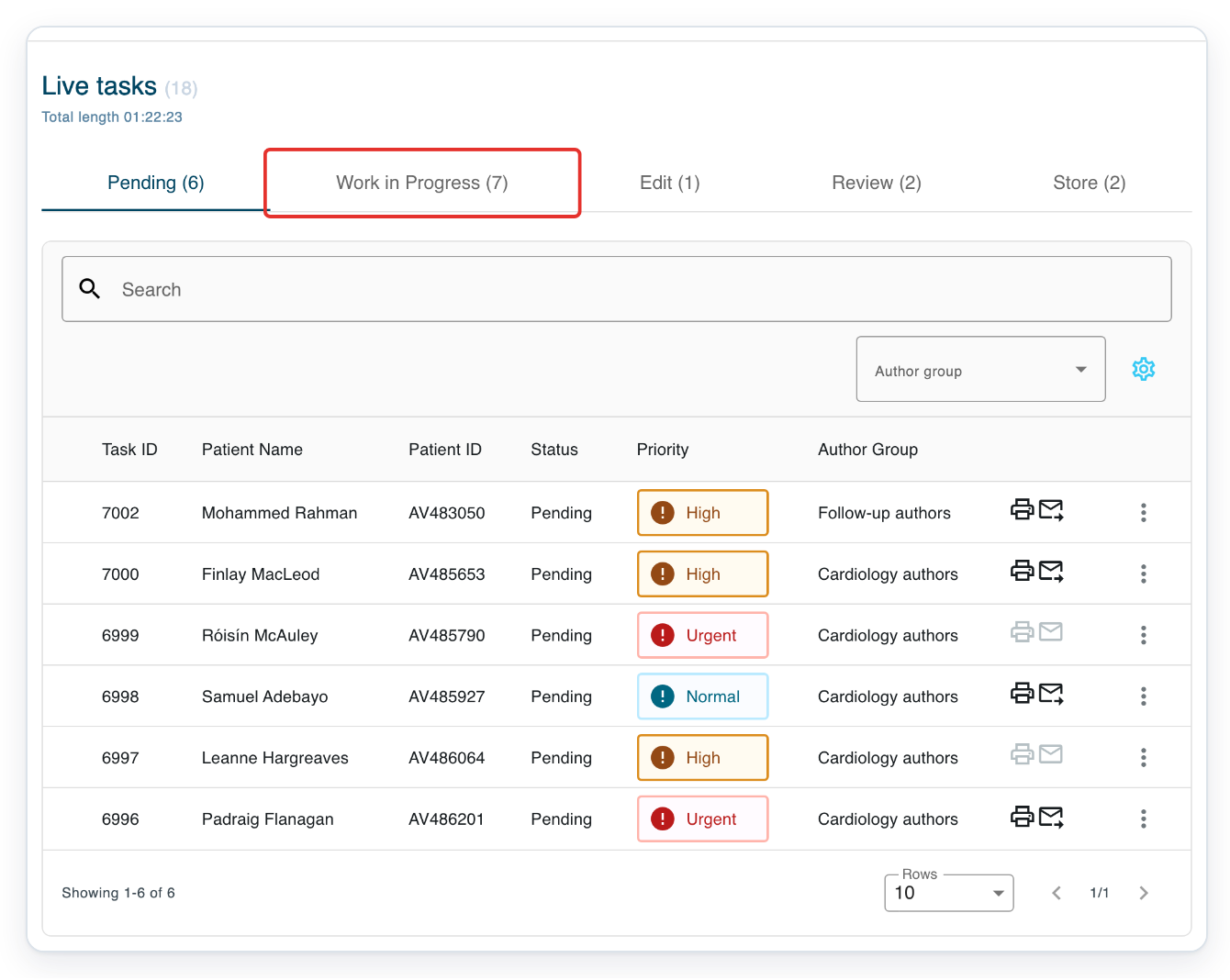
In Live tasks, select Work in Progress to find your assigned work.
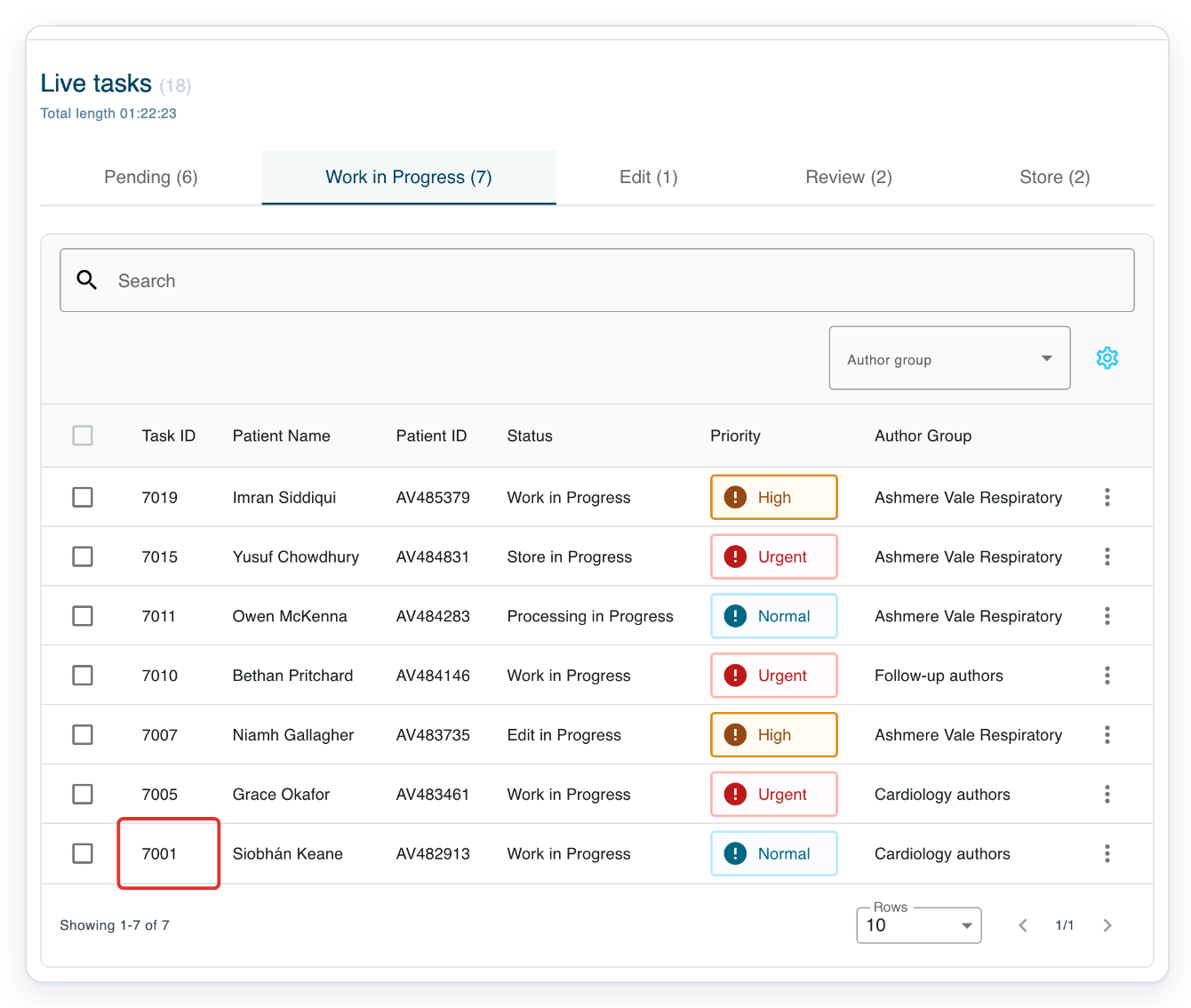
In Live tasks, click the task ID to open the letter.
To find your task, open the tab for its current stage. Choose Pending for tasks waiting to be transcribed.
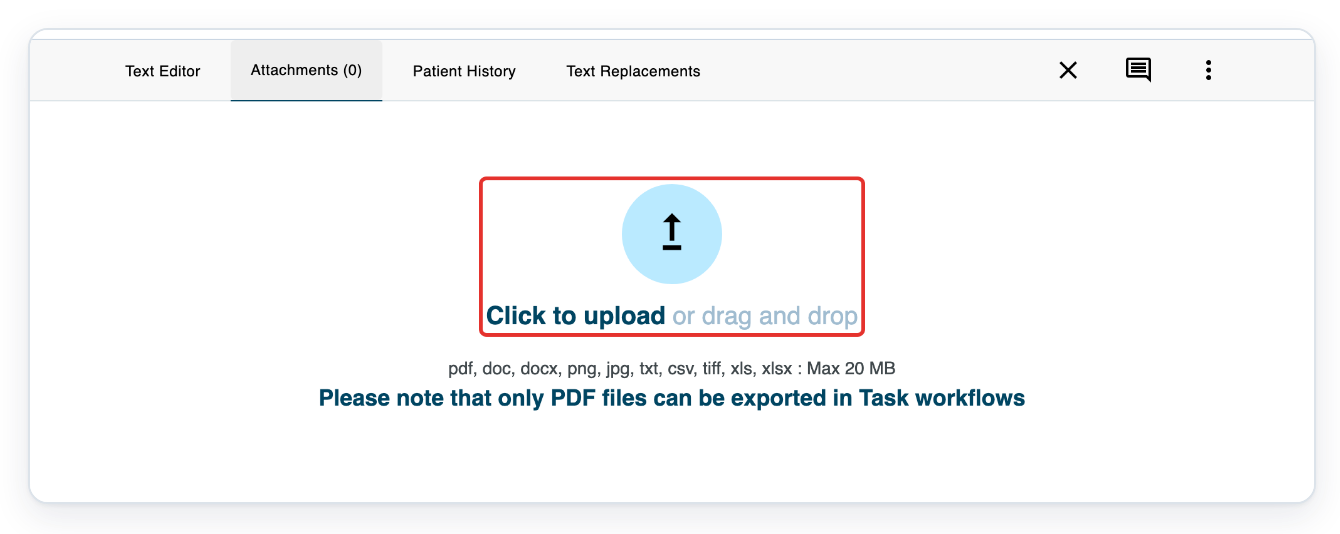
Click Attachments to open the file upload area.
The number beside the tab name shows how many files are attached to the task.

Click Click to upload, then choose one or more files from your computer.
You can choose files together, as shown here with a PDF and a text file. You can also drag files into the upload area.
=> Your files appear in a list showing each filename, owner and upload date. The PDF has Include selected. The text file's checkbox is unavailable.
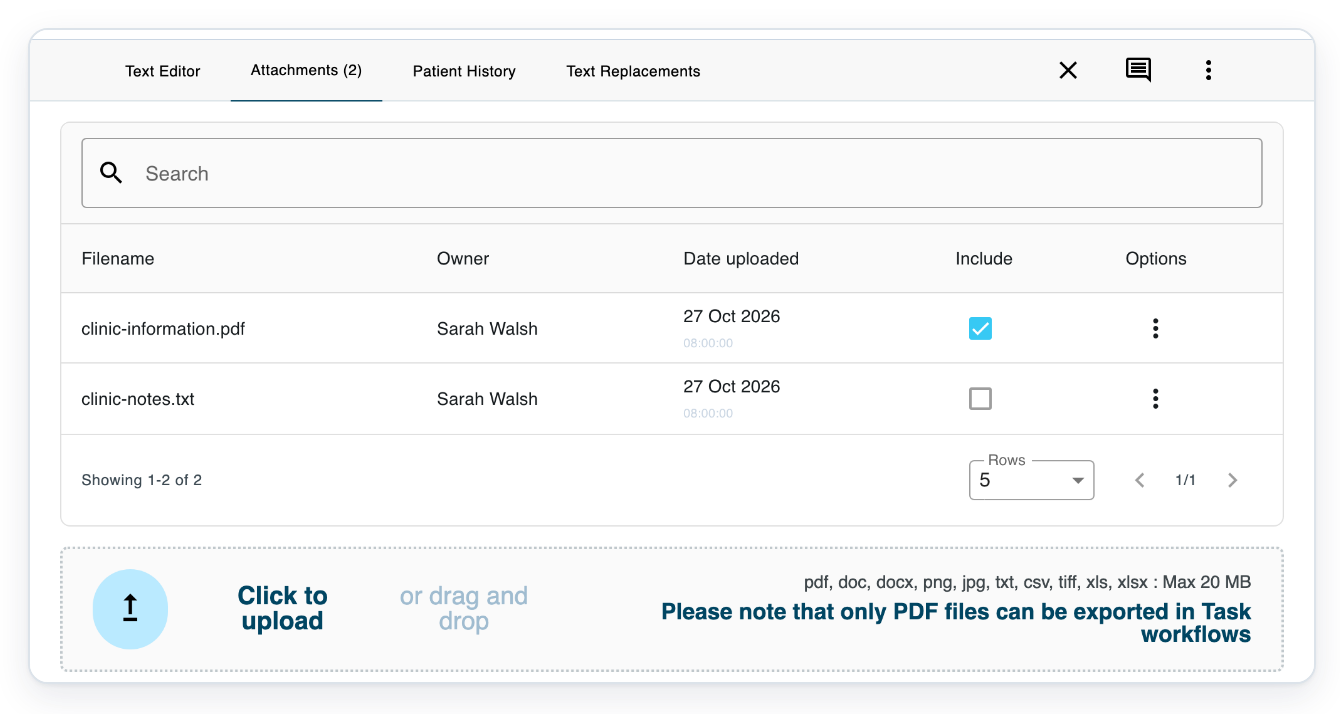
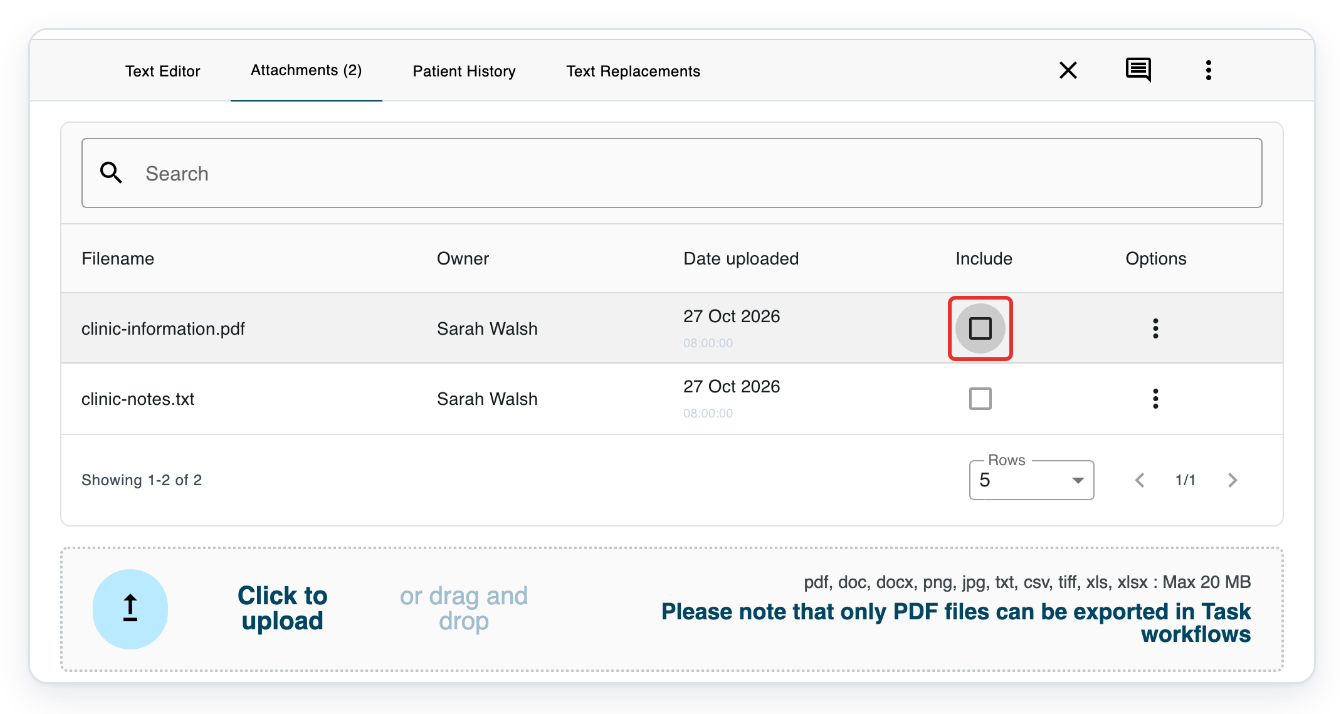
Clear Include beside the PDF to leave it out when you print the letter.
The file stays attached to the task, so you can still download it.
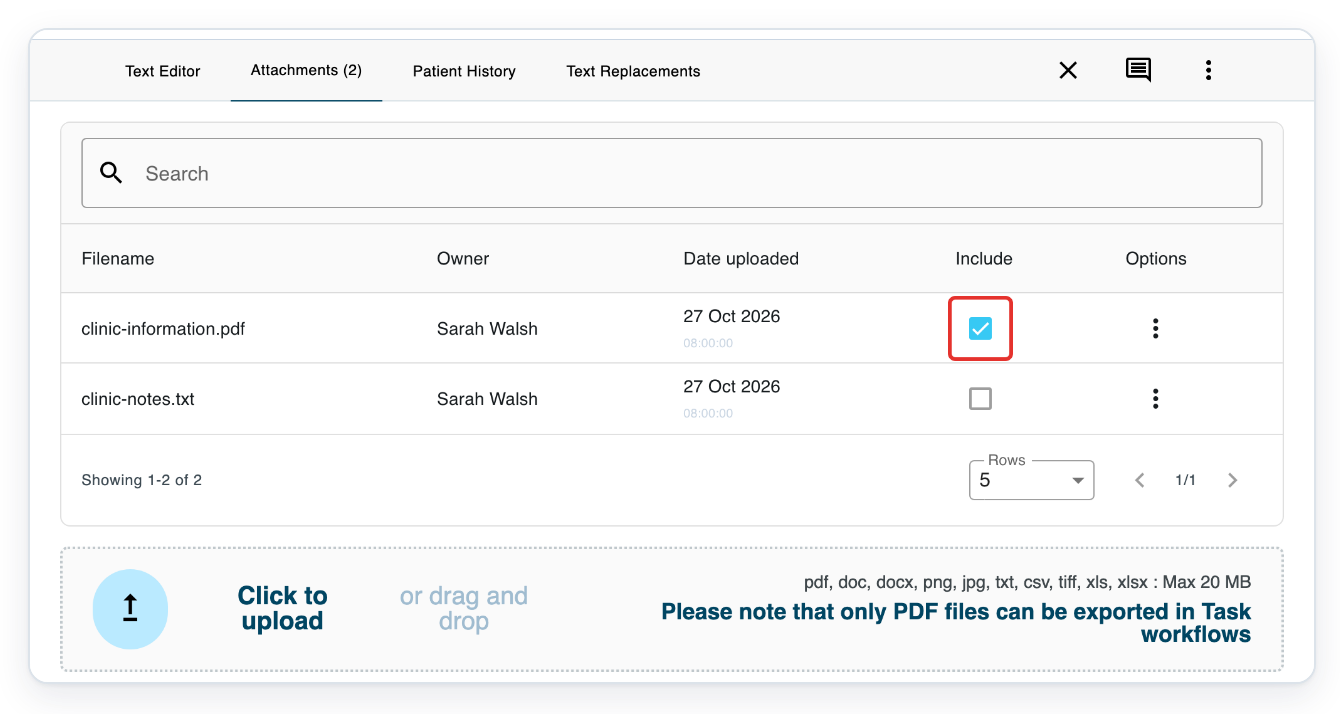
Select Include beside the PDF to print it with the letter.
The PDF's pages print after the letter.
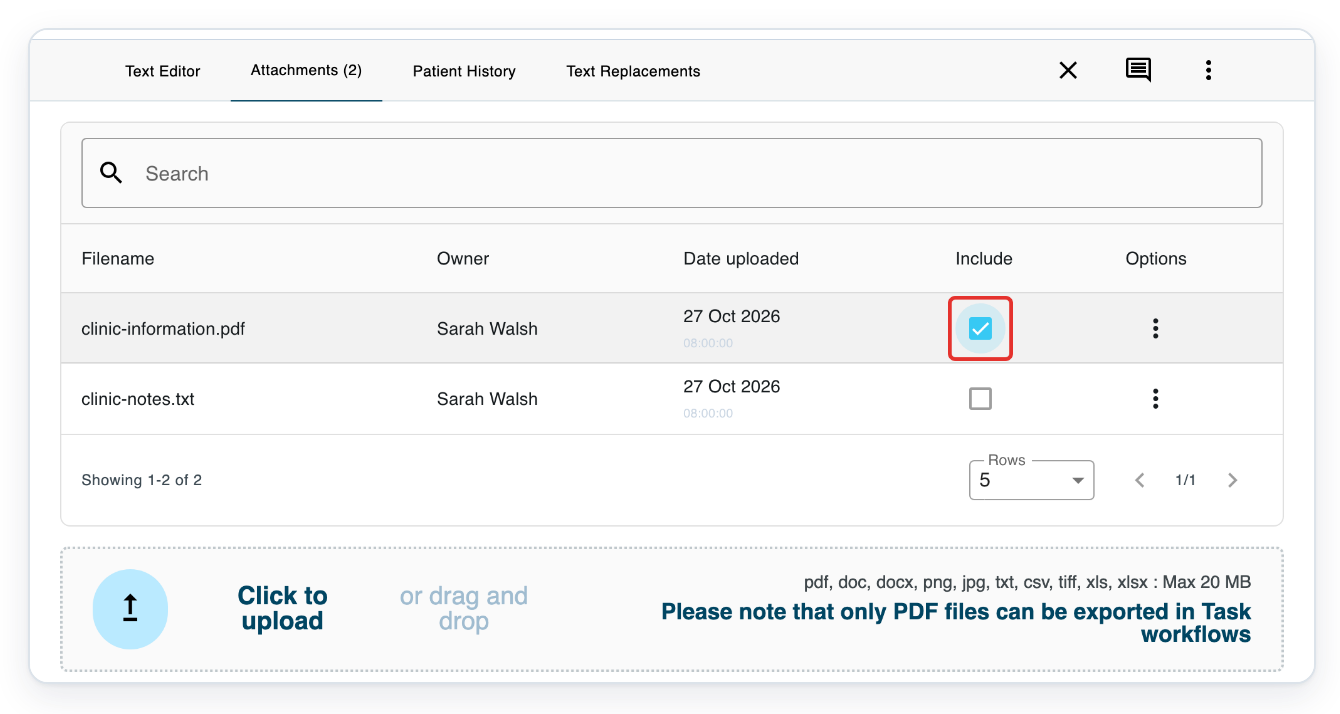
=> Include is selected again for the PDF. The text file's checkbox stays unavailable.
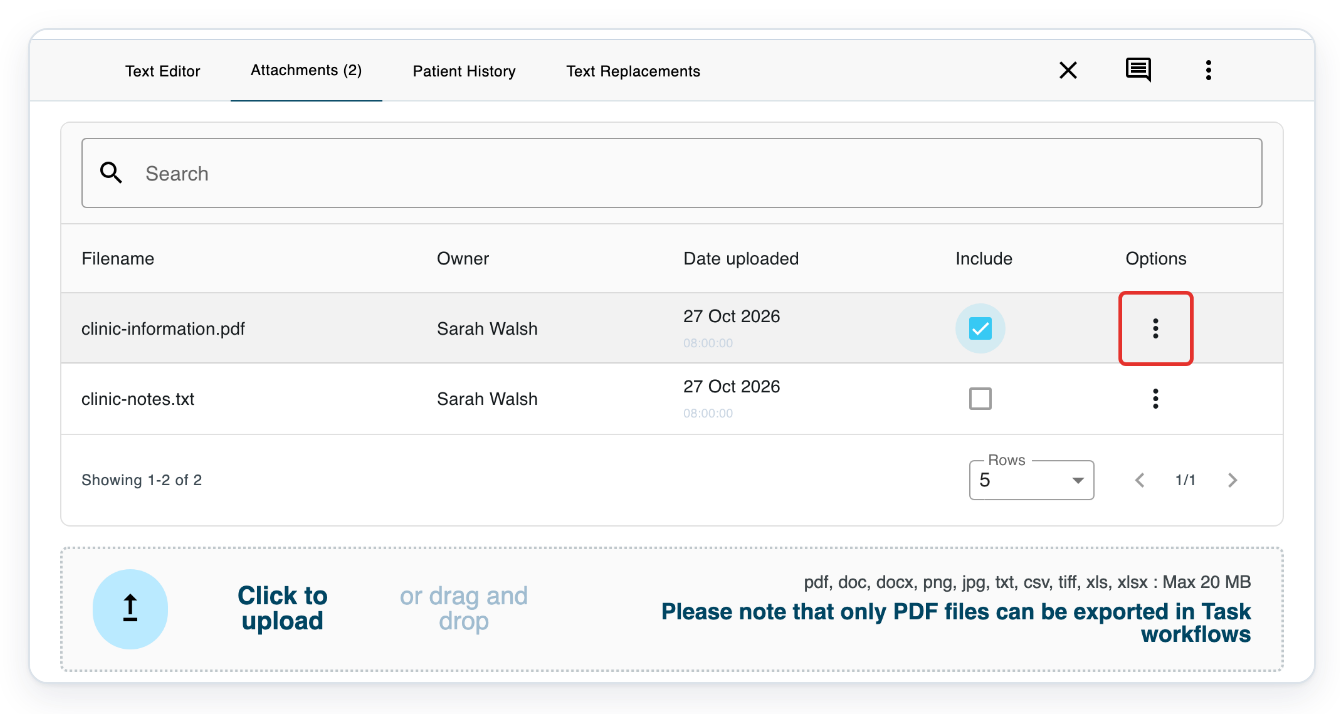
Click the three dots under Options beside the file you want to download.
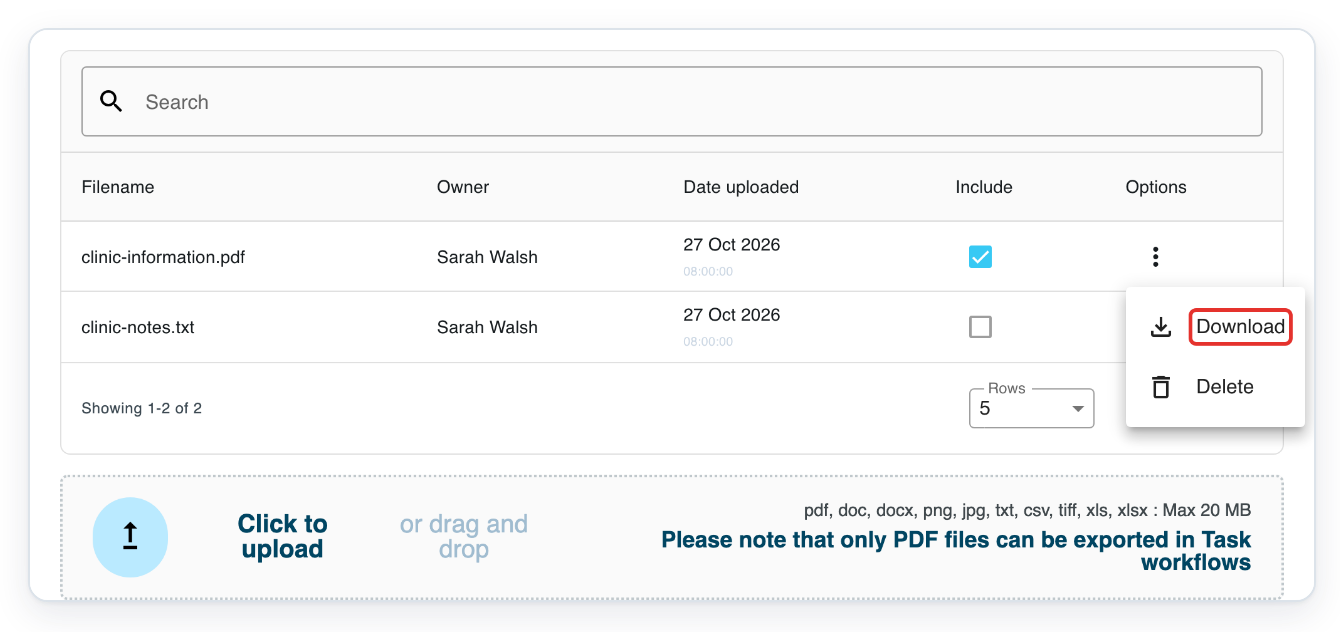
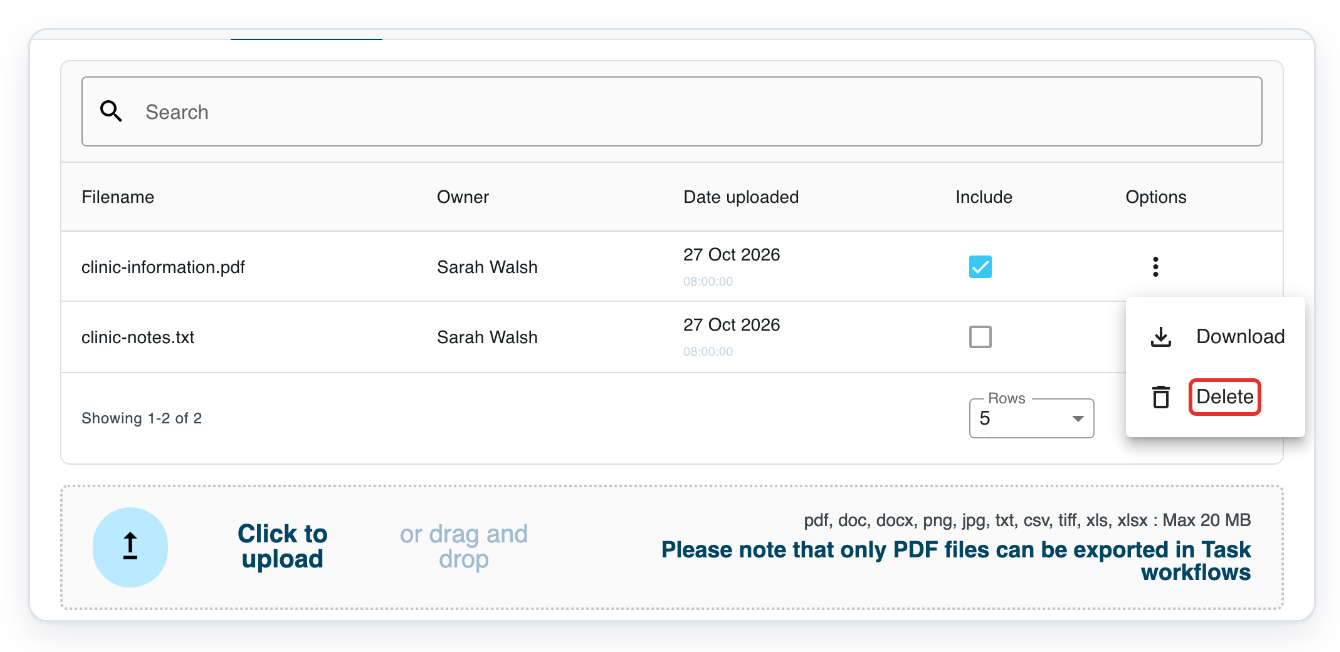
The menu has Download and Delete.
Click Download to save a copy of the attachment to your computer.
Downloading leaves the file attached to the task.
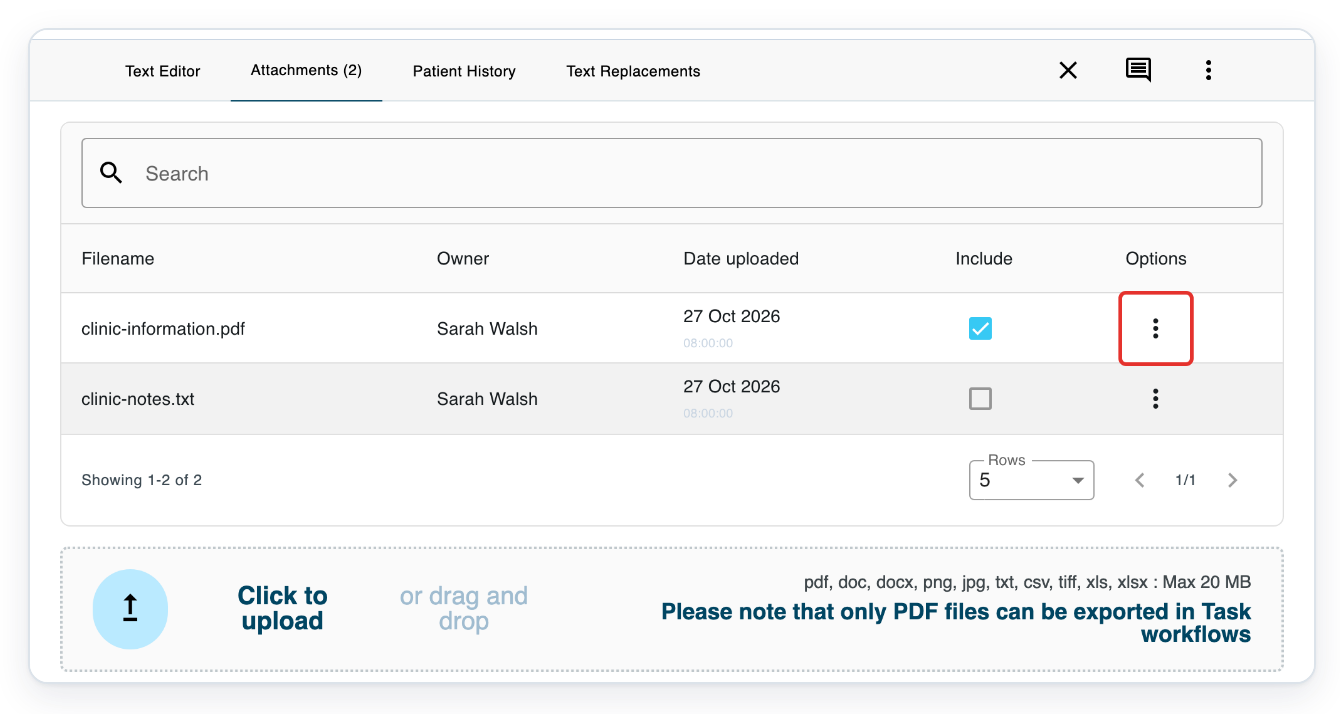
To remove the PDF from the task, click its three dots under Options again.
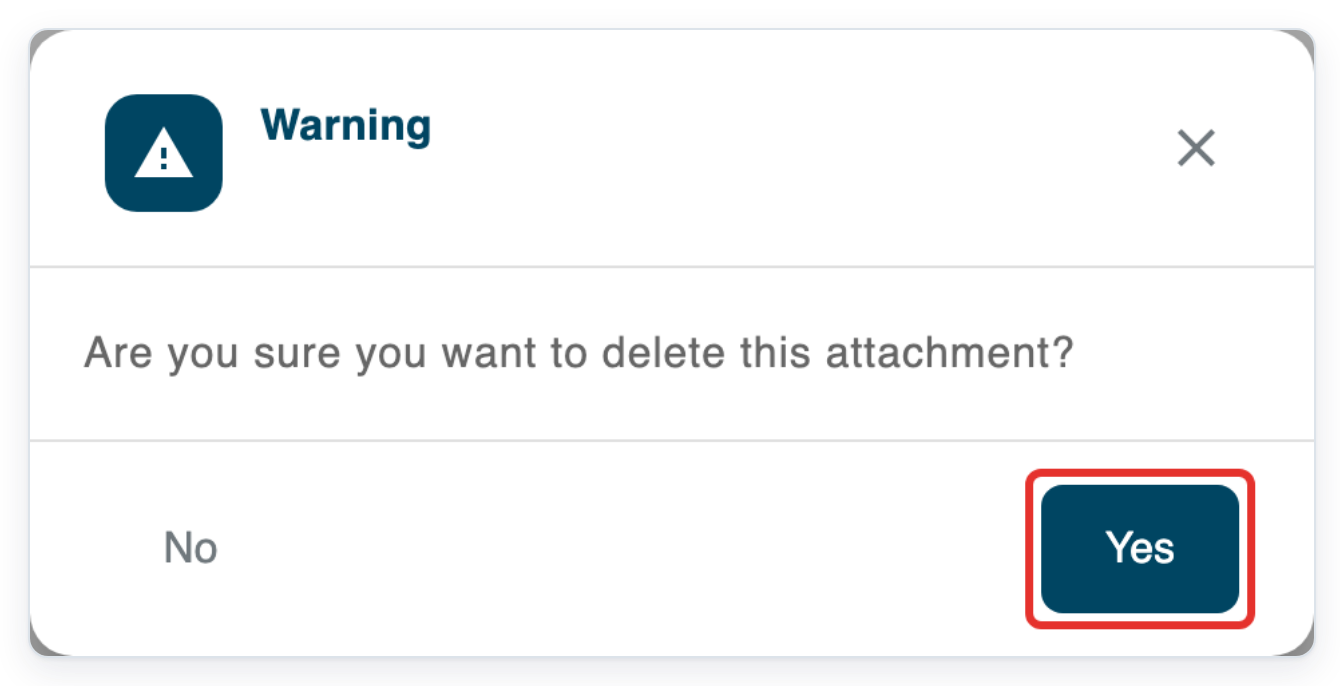
Click Delete. T-Pro asks you to confirm.
Click Yes to delete the attachment, or No to keep it.
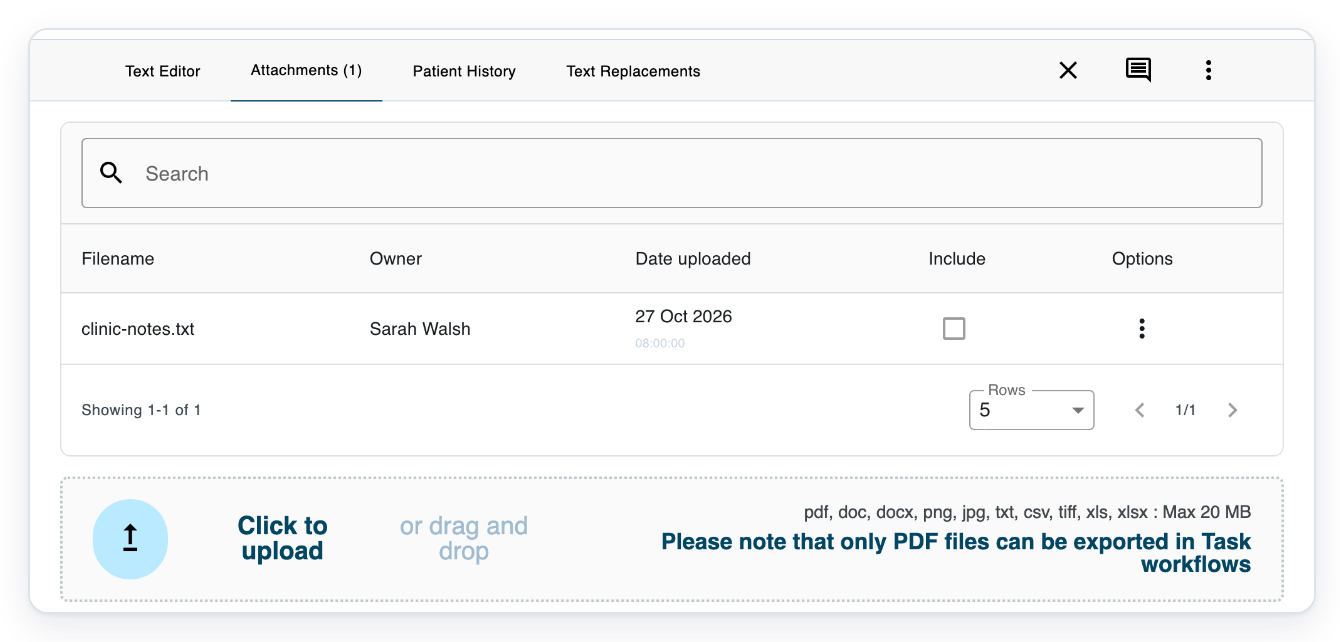
=> After you confirm deletion, only the text file remains. The number beside Attachments changes to one.
As a manager
Click All Tasks in the main menu to open the task list.
Masters and administrators can use this route too.

Click the task ID to open the completed task.

Click Attachments to see the files attached to the completed task.

=> The files are listed. Include is disabled, and there is no upload area.

Click the three dots under Options beside ECG-report.pdf.
The menu offers Download.

Click Download to save a copy of ECG-report.pdf to your computer.

As a second approver
In Live tasks, select Waiting for Second Approval.
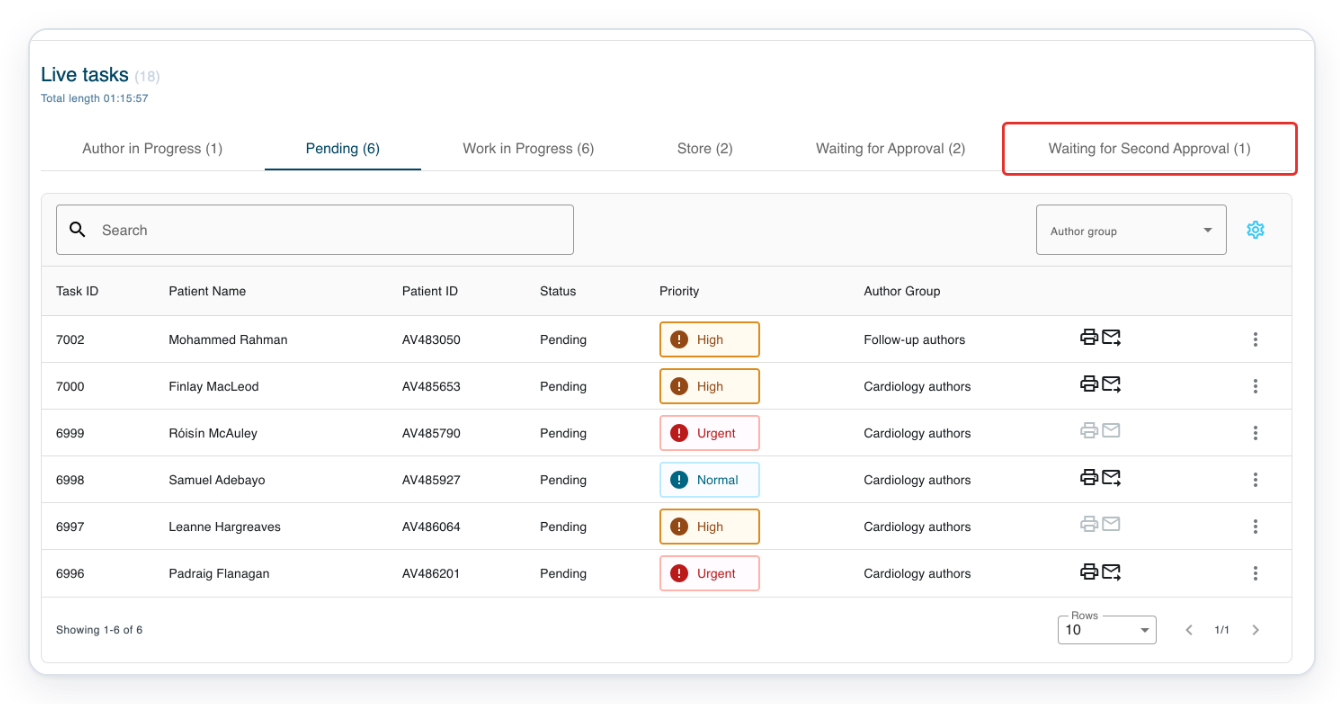
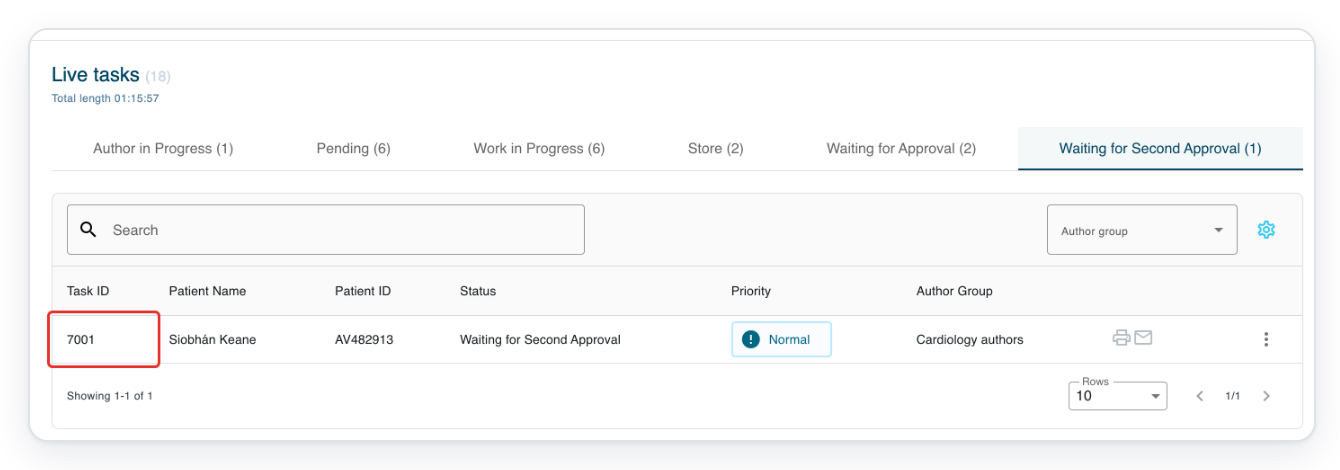
Click the task ID to open the task assigned to you for second approval.
Click Attachments to open the file upload area.

As an editor
In Live tasks, select Edit.
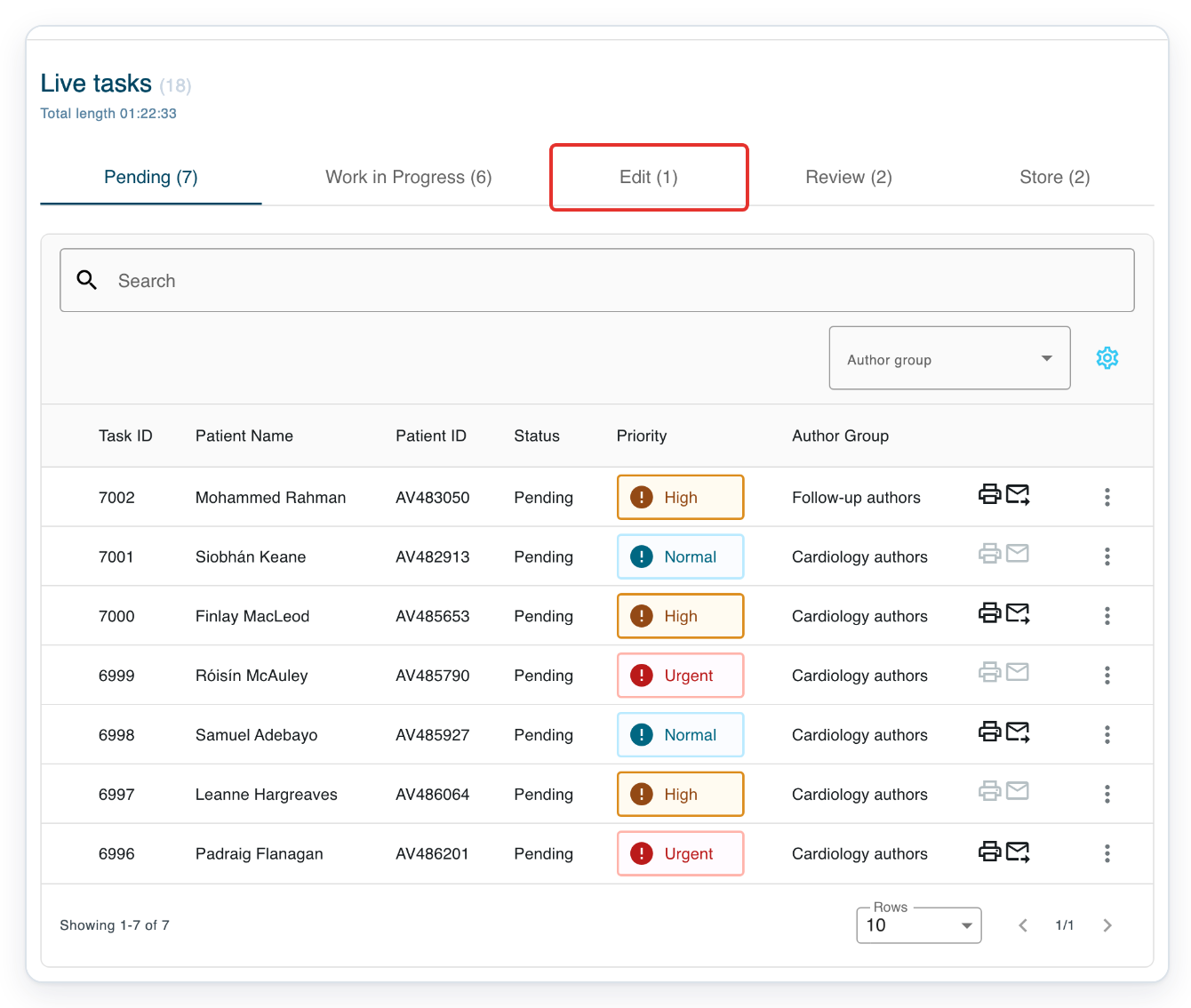
Click the task ID to open the task you want to edit.
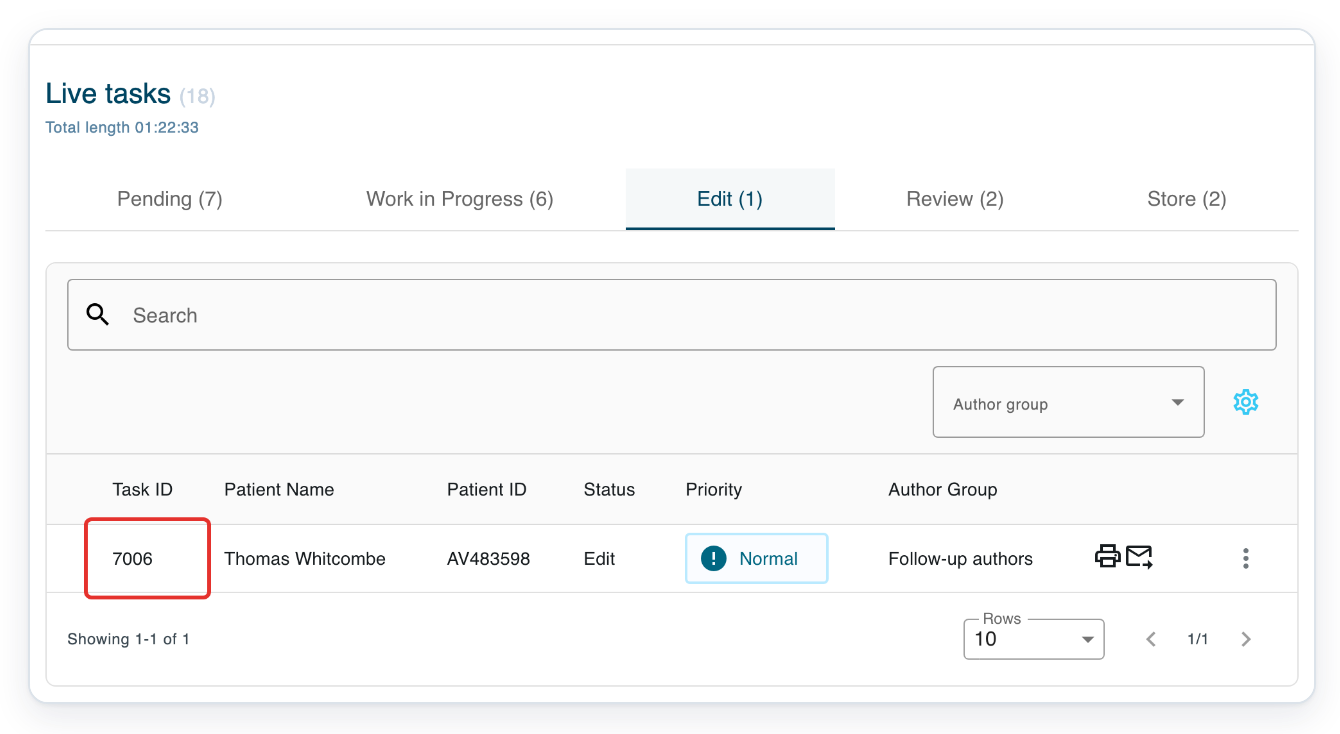
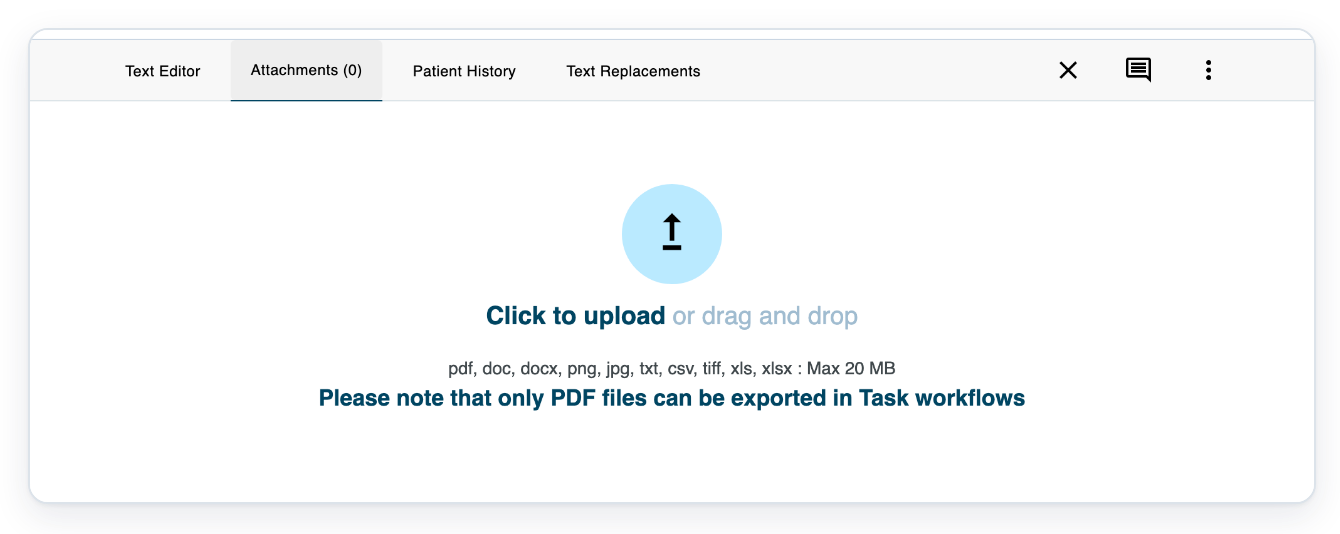
Click Attachments to open the file upload area.

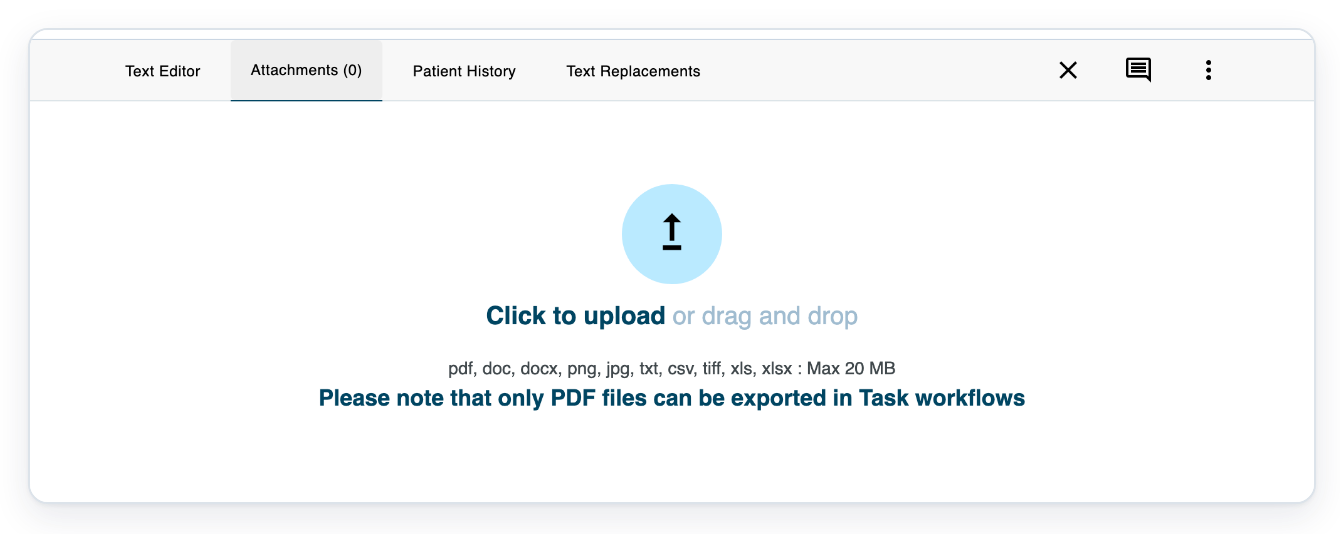
=> The upload area shows Click to upload and the supported file types.
As a reviewer
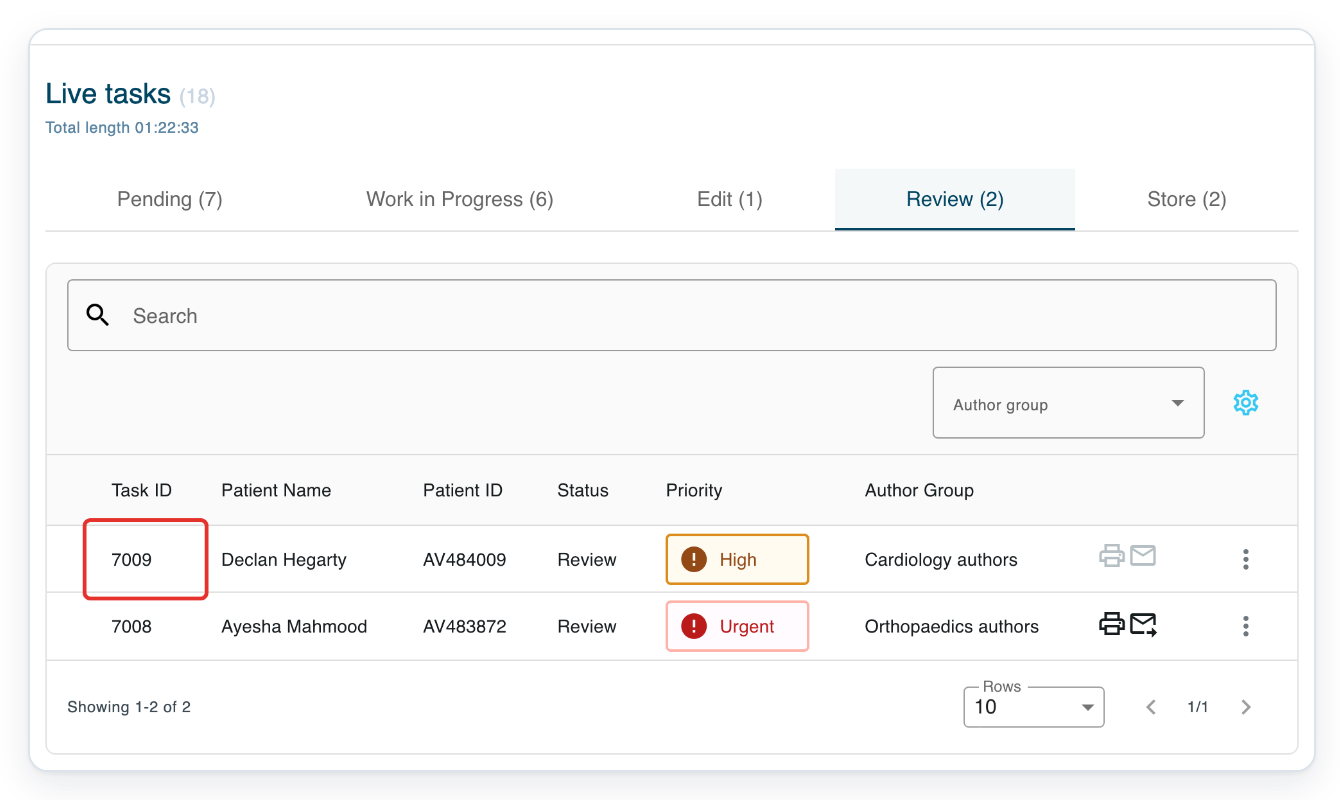
In Live tasks, select Review.
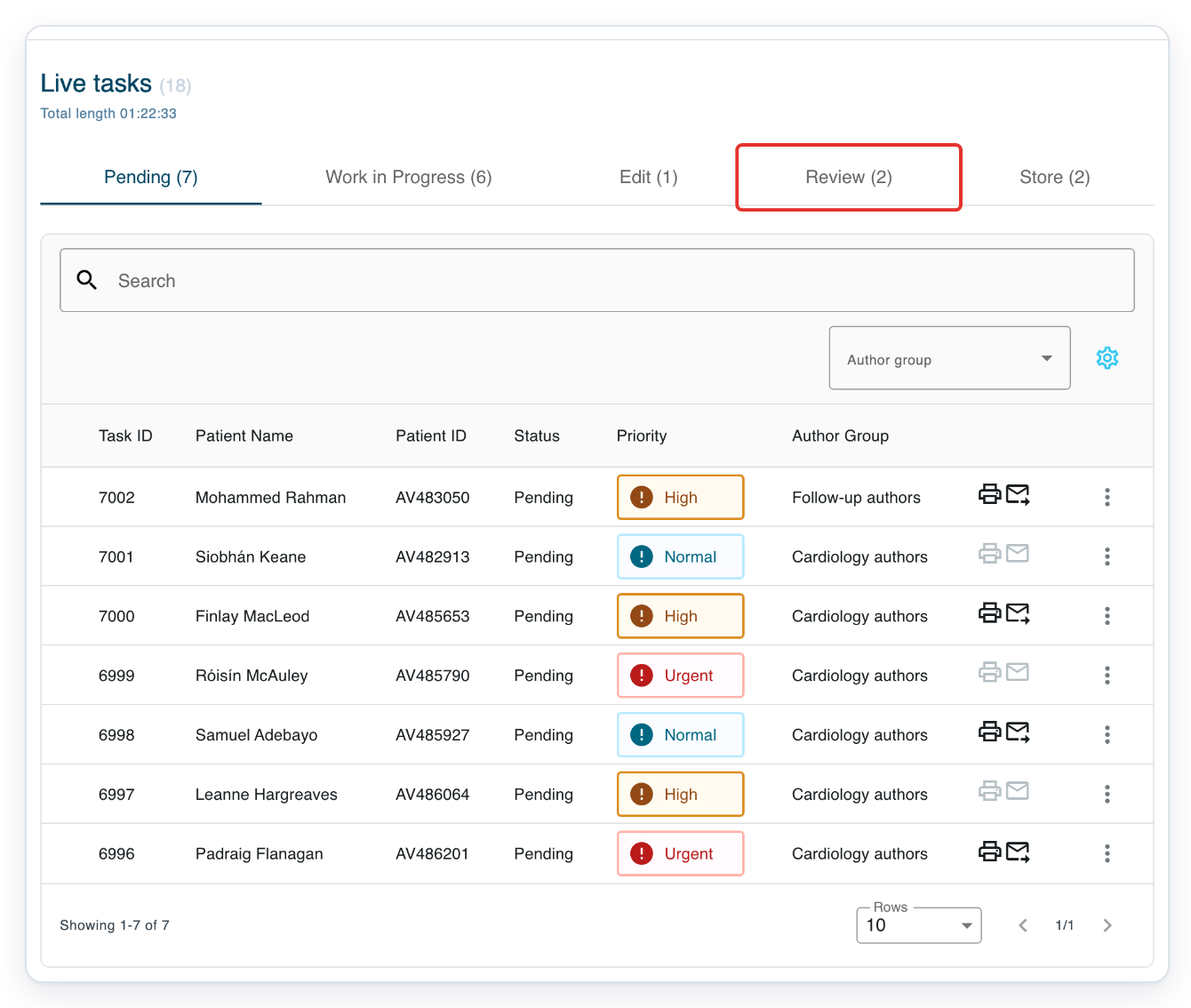
Click the task ID to open the task you want to review.
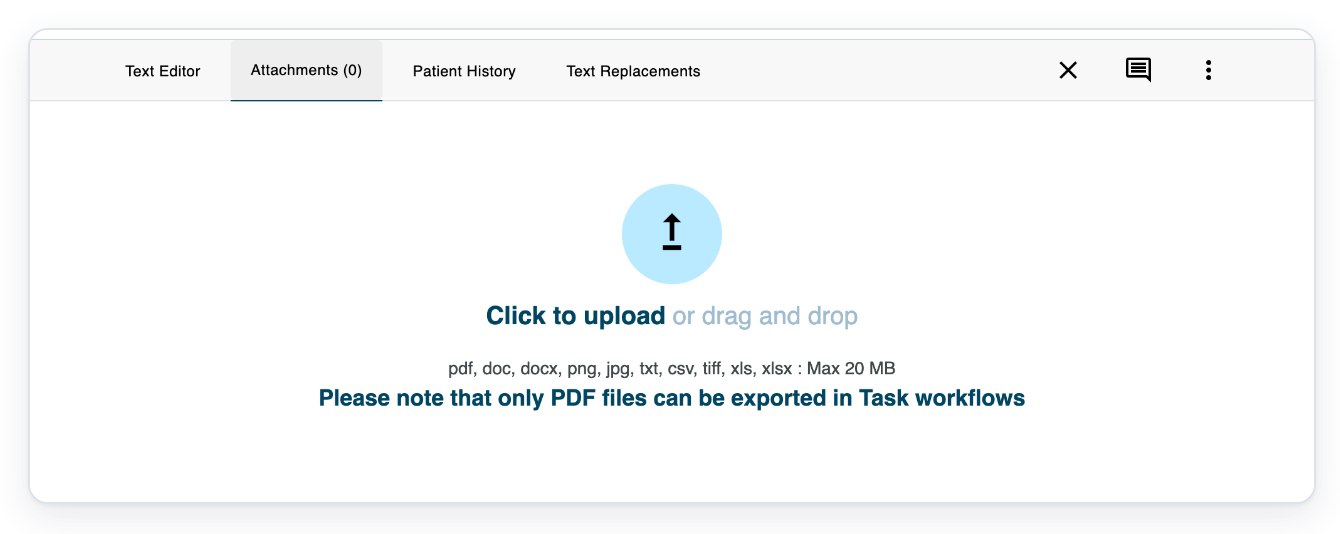
Click Attachments to open the file upload area.

=> The upload area shows Click to upload and the supported file types.
As a storer
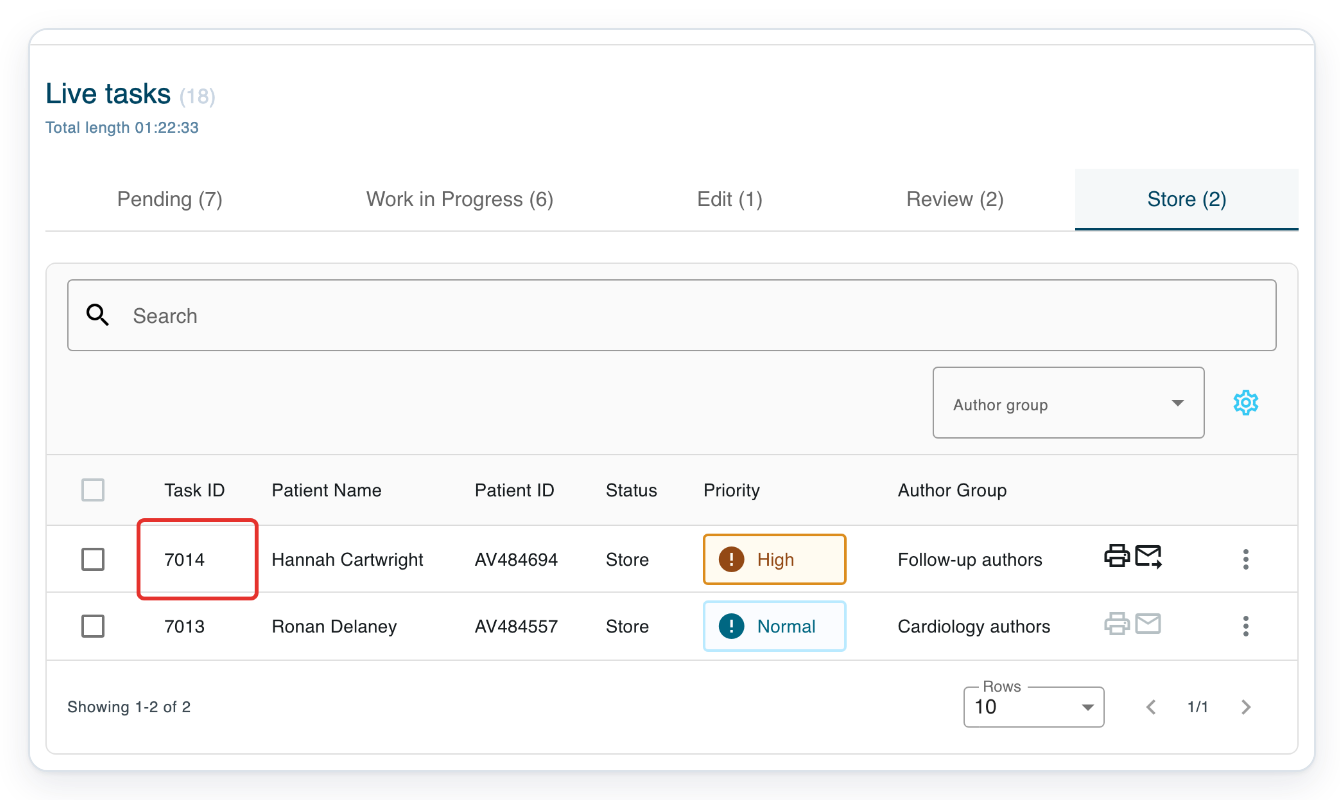
In Live tasks, select Store.
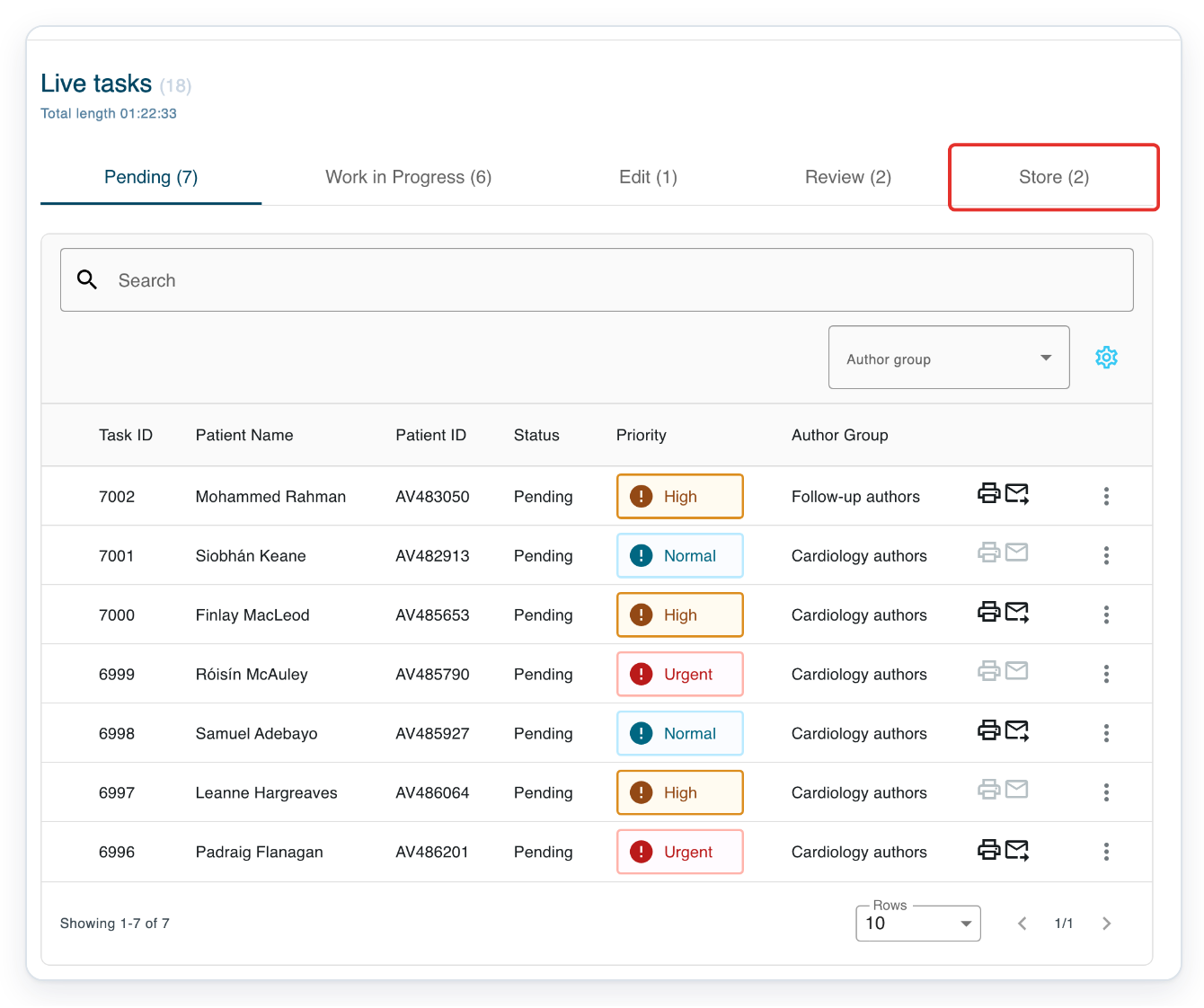
Click the task ID to open the task you want to finalise.
Click Attachments to open the file upload area.

=> The upload area shows Click to upload and the supported file types.
NOTE:
- You can upload PDF, DOC, DOCX, PNG, JPG, TXT, CSV, TIFF, XLS and XLSX files. Each file can be up to 20 MB.
- Files upload as soon as you select them. Changes to Include save automatically.
- Only PDF attachments can be printed with the letter. Include is selected automatically when you upload a PDF.
- To add more files, use the upload area below the attachment list.
Other places you can add attachments
- In the Recorder task list, open a task's three-dot menu and choose Add Attachments.
- In Web Recorder, click the Add Attachments paperclip button once your recording is linked to a task.
Tip: Use Search above the attachment list to find a file. Enter all or part of the filename or uploader's name.
Can't add, download or delete attachments?
- File type rejected: save or export the file in a supported format, then upload it again.
- File too large: reduce its size or split it into files of no more than 20 MB each.
- Upload or Delete unavailable, or Include disabled: open an unfinished task for editing. For a completed task, see Edit a completed task. For a non-PDF file, Include is unavailable.
- PDF missing when printing: select Include beside it. If its filename ends in .PDF, upload a copy with a lowercase .pdf extension. Then select Include.
- T-Pro shows “Unable to download attachment”: click Download again. Contact our Helpdesk if the problem continues.
Related articles
If you have any more queries, please do not hesitate to contact our Helpdesk or support@tpro.io.
© 2020 - 2026